
The Anatomy of Automotive Paint: PBR Principles in UE5

Achieving truly photorealistic automotive renders in real-time engines like Unreal Engine 5 is often considered the holy grail for 3D artists, game developers, and automotive designers. While modeling accuracy and lighting are paramount, the material that defines the vehicle’s surface — specifically, its paint — is perhaps the most critical component in selling the illusion of realism. A generic shader simply won’t cut it when aiming for high-end visualization. The intricate dance of light reflecting off a multi-layered finish, revealing subtle metallic flakes and deep clear coat reflections, requires a sophisticated approach.
This deep dive will guide you through the complexities of crafting a high-fidelity Unreal Engine 5 car paint shader. We’ll deconstruct the physics behind real-world automotive paint and translate it into a robust, modular automotive material setup UE5 that stands up to scrutiny. By the end, you’ll have a comprehensive understanding of the PBR car paint workflow, enabling you to create stunning visuals for your projects.
The Anatomy of Automotive Paint: PBR Principles in UE5
Before we dive into node networks, it’s crucial to understand what makes automotive paint look the way it does. Real-world car paint isn’t a single monolithic layer; it’s a complex stack of materials, each contributing to its unique appearance. Physically Based Rendering (PBR) workflows in Unreal Engine 5 are designed to simulate this real-world interaction of light and surfaces, making it the perfect foundation for our work.
Deconstructing the Layers: Base Coat, Metallic Flakes, and Clear Coat
- Primer/E-Coat: This is the initial protective layer applied to the bare metal. While not always directly visible, it influences the overall color depth.
- Base Coat (Color Coat): This layer provides the primary color of the vehicle. Depending on the finish, it can be solid, metallic, or pearlescent. In PBR terms, this defines the albedo and initial metallic/roughness properties.
- Metallic Flakes: Embedded within or just above the base coat, these tiny, highly reflective particles (usually aluminum or mica) scatter light, creating the characteristic sparkle of metallic paints. Their orientation, size, and density significantly impact the final look.
- Clear Coat: This is the outermost, transparent, and highly glossy layer that protects the underlying paint. It’s responsible for the deep reflections, specular highlights, and overall “wet” look. The clear coat’s roughness, index of refraction (IOR), and potential anisotropic properties are key to its realism.
Our Unreal Engine 5 car paint shader will meticulously recreate these layers. The engine’s Material Editor provides the tools to simulate this layered structure, typically leveraging its built-in Clear Coat input and custom node networks for the base and flake layers. This layered approach is fundamental to achieving photorealistic rendering techniques for automotive surfaces.
Building the Base Coat: The Foundation of Your Material
The base coat is where the primary color of your vehicle resides. While it might seem straightforward, getting this right sets the tone for the entire material. In Unreal Engine 5, we start with a standard PBR material setup, focusing on the Albedo (Base Color) and initial Roughness properties.
Setting Up the Core PBR Parameters
- Base Color (Albedo): This is typically a Vector3 parameter, allowing you to easily adjust the paint color via a Material Instance. For non-metallic base coats, this would directly feed into the Base Color input. For metallic paints, this color will be subtly influenced by the metallic properties. Ensure your color values are in sRGB for proper display.
- Metallic: For a metallic base, this value should be close to 1 (e.g., 0.9-1.0). This tells the engine to treat the surface as a metal, causing its Base Color to contribute to reflections rather than diffuse light. For non-metallic (solid) paints, this would be 0.
- Roughness: Even the base coat, before the clear coat, isn’t perfectly smooth. A very subtle amount of roughness (e.g., 0.1-0.3) can be applied here to simulate microscopic imperfections or the binder holding the metallic flakes. This can be controlled by a Scalar parameter for easy adjustment.
- Normal Map: While not strictly necessary for a base coat unless you’re simulating a very textured primer, a subtle normal map can introduce micro-scratches or manufacturing imperfections later in the clear coat layer, adding to realism.
Creating a robust automotive material setup UE5 begins with this strong foundation. Using Material Parameters allows for quick iteration and color changes, which is invaluable during design reviews or game development.
Crafting Realistic Metallic Flakes: The Heart of the Shader
The sparkle and depth of a metallic car paint come primarily from its metallic flakes. Recreating these tiny, reflective particles realistically is a cornerstone of any high-end Unreal Engine 5 car paint shader. This is where our metallic flake shader tutorial truly comes into play.
Implementing the Metallic Flake Effect
The core idea is to generate or sample a pattern that looks like flakes and use it to modulate the normal vector and metallic properties of our base coat. This creates localized reflections that simulate individual flakes catching the light.
- Generating Flake Pattern:
- Procedural Noise: A common and flexible method involves using a noise texture (e.g., Perlin Noise, Voronoi Noise). We can pan and rotate this texture using ‘Panner’ and ‘Rotator’ nodes to simulate random flake distribution and movement if the car moves.
- Custom Flake Texture: For very specific flake patterns, you can create a grayscale texture in an image editor with distinct bright “flake” shapes.
- Modulating Normals:
- The most effective way to make flakes appear is by affecting the normal vector. We’ll take our flake pattern and use it to drive a ‘Blend Normals’ node, blending it with our base coat normal.
- To give flakes individual orientation, you can derive a normal from the flake pattern. A ‘NormalFromHeightmap’ node can generate normals from a grayscale noise texture. Experiment with different noise types and strengths to achieve various flake sizes and shapes.
- Alternatively, combine multiple normal maps generated from different noise patterns at varying scales and rotations for more complex flakes.
- Fresnel-Driven Visibility:
- Real metallic flakes are most visible when viewed at glancing angles. We can simulate this with a ‘Fresnel’ node. Multiply the flake normal contribution by a Fresnel value to make the flakes more pronounced on the edges of the car’s surfaces.
- The ‘Exponent’ input on the Fresnel node controls the falloff, allowing you to fine-tune how quickly flakes become visible at different angles.
- Controlling Flake Properties:
- Flake Intensity/Strength: Use a Scalar parameter to control the overall strength of the flake normal map, blending it with the base normal.
- Flake Size/Scale: Adjust the UV tiling/scale of your noise textures to control the apparent size of the flakes.
- Flake Density: This can be controlled by the thresholding of your noise texture. A ‘Power’ or ‘SmoothStep’ node can make flakes appear sharper or more scattered.
- Flake Color: While flakes are typically metallic (silvery), you can subtly tint them by multiplying their contribution with a color parameter, especially useful for pearlescent or custom finishes.
The resulting output of this flake network (a modified normal map and potentially modulated metallic/roughness values) will then be fed into the next layer of our material, ensuring the PBR car paint workflow remains consistent and physically accurate.
The Clear Coat: Reflections, Roughness, and Anisotropy
The clear coat is arguably the most visually impactful layer, responsible for the deep, mirror-like reflections that define high-end automotive finishes. Unreal Engine 5’s dedicated Clear Coat input simplifies much of this, but understanding its nuances is key for photorealistic rendering techniques.
Leveraging Unreal Engine’s Clear Coat Feature
Unreal Engine 5 features a ‘Clear Coat’ material input, which is essentially a second specular lobe. This allows you to simulate a separate, highly reflective, transparent layer on top of your base material. This is perfect for car paint.
- Clear Coat Weight: A Scalar parameter (usually 1.0) connected to the ‘Clear Coat’ input enables the second specular lobe.
- Clear Coat Roughness: This is critical. A perfectly new, polished car will have very low clear coat roughness (e.g., 0.01-0.05). Introduce subtle variations using a grunge map, procedural noise, or a very faint normal map to simulate micro-scratches, dust, or fingerprints. These subtle imperfections elevate realism significantly. A ‘Texture Sample’ node with a grayscale roughness map is ideal here.
- Clear Coat Normal: This input allows you to apply a separate normal map specifically for the clear coat layer. This is where subtle surface imperfections, orange peel texture, or a custom scratch map can be introduced without affecting the underlying base paint’s normals.
Achieving Realistic Clear Coat Reflections UE5 with IOR and Fresnel
The reflectivity of the clear coat is governed by its Index of Refraction (IOR) and Fresnel effect. While Unreal’s Clear Coat model handles much of this, it’s good to understand the underlying principles.
- IOR: For most clear coats (plastics, varnishes), the IOR is around 1.5 – 1.6. Unreal’s Clear Coat input is designed to work with typical dielectric IOR values, resulting in physically correct Fresnel reflections.
- Fresnel Effect: The Fresnel effect dictates that surfaces become more reflective at glancing angles. This is inherently simulated by Unreal’s PBR clear coat. You’ll notice the reflections become stronger and more apparent as you view the car from shallow angles.
Implementing Anisotropy for Special Finishes
Anisotropy refers to reflections that stretch or smear in a particular direction, often seen on brushed metals or very specific car finishes that have a directional microstructure. This is a powerful photorealistic rendering technique.
- Understanding Anisotropy: It’s caused by microscopic grooves or scratches on the surface, which stretch the highlights perpendicular to the direction of these grooves.
- Implementing in UE5: Unreal Engine’s Clear Coat feature includes an ‘Clear Coat Tangent’ input. To create anisotropic reflections:
- Tangent Map: The most controlled method is to paint a tangent map in a 3D application (like Substance Painter). This map stores the direction of the surface’s “grain” in its RGB channels (e.g., R for U-tangent, G for V-tangent, B for normal).
- Procedural Tangents: You can procedurally generate tangent directions. For example, using a ‘World Position’ node and masking out components can define a global direction, or you can use a vector parameter to specify a constant direction for the entire object. This is often multiplied by a mask to apply anisotropy only to specific areas.
- The ‘Clear Coat Anisotropy’ scalar input then controls the strength of this anisotropic effect. A value of 0 means no anisotropy, 1 means full anisotropy.
Combining all these elements—roughness, normal maps, and anisotropy—allows for incredible control over the final appearance of your PBR car paint workflow.
Advanced Lighting and Reflection Integration
Even the most perfectly crafted material will fall flat without proper lighting and reflection integration. The environment surrounding your vehicle is just as important as the material itself in achieving photorealistic rendering techniques.
The Importance of HDRI and Lighting Setups
- HDRI (High Dynamic Range Image): An HDRI is indispensable for realistic reflections and ambient lighting. It provides a complete 360-degree environment capture, bathing your car in authentic light and providing complex, believable reflections on its clear coat. Use a ‘Sky Light’ with a high-quality HDRI texture for best results.
- Direct Lighting: Supplement your HDRI with targeted ‘Directional Lights’ (for sun/moon), ‘Spot Lights,’ or ‘Point Lights’ to create specific highlights, shadows, and mood. These lights directly interact with the car paint shader, revealing its metallic flakes and deep reflections.
- Exposure and Post-Processing: Proper exposure control and post-processing (bloom, chromatic aberration, color grading) can significantly enhance the visual fidelity, making your renders pop.
Leveraging Unreal Engine 5’s Reflection Solutions
Unreal Engine 5 offers a suite of reflection technologies, each with its strengths and use cases for real-time rendering for vehicles.
- Lumen Reflections (Default in UE5): Lumen provides dynamic, global illumination and reflections, offering highly realistic results for real-time scenarios. It’s often sufficient for a great car paint look. Ensure ‘Hardware Ray Tracing’ is enabled in Project Settings for the highest quality Lumen reflections.
- Ray Tracing Reflections: For ultimate fidelity in cinematic renders or high-end visualizations, enable dedicated ‘Ray Tracing Reflections’. These offer pixel-perfect, physically accurate reflections, especially crucial for large, reflective surfaces like car bodies. Adjust the ‘Samples Per Pixel’ and ‘Max Roughness’ settings for optimal quality and performance.
- Reflection Captures: For environments where Lumen or Ray Tracing might be too demanding, or for specific static reflections, ‘Sphere Reflection Captures’ and ‘Box Reflection Captures’ can provide supplementary reflections. Place these strategically around your vehicle to capture key environmental elements.
- Planar Reflections: For very specific, perfectly flat surfaces (like a showroom floor), ‘Planar Reflections’ offer high-quality, though expensive, mirror-like reflections. Use sparingly.
Remember, the goal is to create an environment that truly showcases the intricate details of your automotive material setup UE5. For ready-to-render, high-quality vehicle models that pair perfectly with these advanced materials, be sure to check out 88cars3d.com.
Optimizing for Performance and Iteration
A beautiful material is only useful if it runs efficiently. Real-time rendering for vehicles demands a balance between visual fidelity and performance, especially in games or interactive experiences. Optimizing your Unreal Engine 5 car paint shader is paramount.
Best Practices for Efficiency
- Material Instances: This is arguably the most important optimization and iteration tool. Create a parent material with all your complex node networks and expose parameters (scalars, vectors, textures) as ‘Material Parameters’. Then, create ‘Material Instances’ from this parent. All changes made in Material Instances are immediate, without recompiling shaders, drastically speeding up your workflow for color, roughness, flake size, etc.
- Texture Resolution: Use appropriate texture resolutions. A 4K clear coat roughness map might be overkill for a game if the car is often viewed from a distance. Use lower resolutions where visual fidelity won’t be noticeably impacted. Employ texture streaming and LODs.
- Node Complexity: While we’ve covered many advanced techniques, be mindful of overly complex node networks. Each instruction adds to shader compile time and runtime cost. Consolidate calculations where possible.
- Shader Complexity View Mode: Regularly use Unreal Engine’s ‘Shader Complexity’ view mode (under ‘Lit’ menu > ‘Optimization Viewmodes’) to identify expensive parts of your material. Green is good, red is bad.
- Static Switches: For features you might want to enable or disable (e.g., anisotropy, complex flake variations), use ‘Static Switch Parameter’ nodes. This allows the engine to compile out unused branches, saving performance when a feature is off in a Material Instance.
- Texture Compression: Ensure textures are using appropriate compression settings (e.g., BC1/DXT1 for opaque, BC7 for higher quality, normal maps for normals) to minimize memory footprint.
A well-optimized automotive material setup UE5 not only performs better but also allows for faster iteration and greater flexibility during the design process.
Mastering Variations: Beyond Standard Metallics
The modular nature of our Unreal Engine 5 car paint shader allows for incredible versatility. Once you’ve established a solid base, adapting it for different paint finishes becomes a matter of tweaking parameters and adding specific layers.
Exploring Different Paint Finishes
- Solid/Non-Metallic:
- Modification: Set the ‘Metallic’ input of your base coat to 0. The material will then rely purely on its base color and clear coat for reflections. The flake layer should also be disabled or set to a very low intensity.
- Key Parameters: Focus on clear coat roughness and the vibrancy of the base color.
- Matte/Satin Finish:
- Modification: The primary change here is high roughness and potentially very little to no clear coat. If you use a clear coat, its roughness should be very high (e.g., 0.7-0.9), and its IOR might be slightly lower.
- Key Parameters: Clear coat roughness, base coat roughness. Ensure there are no metallic flakes for a true matte look.
- Pearlescent/Mica Paint:
- Modification: These paints shift color or shimmer at different viewing angles. This effect is achieved by blending different base colors or subtly shifting the hue of the base color based on the viewing angle (using a ‘Fresnel’ or ‘Dot Product’ node with camera vector).
- Key Parameters: Blend two colors based on a Fresnel mask, or use a ‘Lerp’ between two hues driven by the camera vector. The ‘Metallic’ input will still be high, and flakes (often mica-based, giving a softer shimmer) are crucial.
- Candy Apple/Transparent Finishes:
- Modification: This involves a highly reflective metallic base coat over which a deeply colored, transparent clear coat is applied. In Unreal, you can achieve this by having a metallic base coat (potentially with flakes) and then tinting the ‘Clear Coat’ itself or applying a colored ‘Overlay’ on top of the base.
- Key Parameters: Base coat metallic, clear coat color, and transparency/opacity blend.
- Chameleon/Flips:
- Modification: These extreme pearlescent paints show dramatic color shifts. They are typically implemented by using a ‘Fresnel’ node to blend between three or more distinct colors based on the viewing angle. A common setup uses a ‘Dot Product’ between the camera vector and the normal, mapping the result to a gradient of colors.
- Key Parameters: Multiple color inputs, Fresnel or angle-based blending curves.
The beauty of a modular material is its adaptability. By carefully designing your initial PBR car paint workflow, you unlock a universe of paint finishes, allowing for endless creative possibilities in your automotive visualizations.
Conclusion
Mastering photorealistic automotive paint in Unreal Engine 5 is a journey that combines a deep understanding of PBR principles with technical artistry. We’ve deconstructed the complex layers of car paint—from the foundational base coat and intricate metallic flakes to the highly reflective clear coat—and explored how to translate these into a robust, modular Unreal Engine 5 car paint shader.
By leveraging advanced techniques like anisotropy, integrating high-quality lighting and reflections, and diligently optimizing for performance, you can achieve a level of realism that truly captivates. The ability to iterate quickly with material instances and adapt your material for a myriad of finishes highlights the power and flexibility of a well-crafted automotive material setup UE5.
The journey doesn’t end here; experimentation is key. Continue to push the boundaries of your materials, explore new node combinations, and observe real-world cars for inspiration. For those looking to apply these advanced material techniques to industry-standard 3D models, remember that 88cars3d.com offers a vast library of high-quality, game-ready, and production-ready vehicle models perfectly suited for your next project. Dive in, get creative, and elevate your automotive visualization to the next level!
Featured 3D Car Models

Suzuki SX4-002 3D Model
Texture: Yes
Material: Yes
Download the Suzuki SX4-002 3D Model featuring clean geometry, realistic detailing, and a fully modeled interior. Includes .blend, .fbx, .obj, .glb, .stl, .ply, .unreal, and .max formats for rendering, simulation, and game development.
Price: $10

Tesla Model S 2024 3D Model
Texture: Yes
Material: Yes
Download the Tesla Model S 2024 3D Model featuring clean geometry, realistic detailing, and a fully modeled interior. Includes .blend, .fbx, .obj, .glb, .stl, .ply, .unreal, and .max formats for rendering, simulation, and game development.
Price: $10

Subaru Impreza WRX STi-002 3D Model
Texture: Yes
Material: Yes
Download the Subaru Impreza WRX STi-002 3D Model featuring clean geometry, realistic detailing, and a fully modeled interior. Includes .blend, .fbx, .obj, .glb, .stl, .ply, .unreal, and .max formats for rendering, simulation, and game development.
Price: $10

Subaru Impreza WRX STi Sedan 3D Model
Texture: Yes
Material: Yes
Download the Subaru Impreza WRX STi Sedan 3D Model featuring clean geometry, realistic detailing, and a fully modeled interior. Includes .blend, .fbx, .obj, .glb, .stl, .ply, .unreal, and .max formats for rendering, simulation, and game development.
Price: $10

Subaru Legacy 2009 3D Model
Texture: Yes
Material: Yes
Download the Subaru Legacy 2009 3D Model featuring clean geometry, realistic detailing, and a fully modeled interior. Includes .blend, .fbx, .obj, .glb, .stl, .ply, .unreal, and .max formats for rendering, simulation, and game development.
Price: $10

Toyota Mark II (X100) 1998 3D Model
Texture: Yes
Material: Yes
Download the Toyota Mark II (X100) 3D Model featuring clean geometry, realistic detailing, and a fully modeled interior. Includes .blend, .fbx, .obj, .glb, .stl, .ply, .unreal, and .max formats for rendering, simulation, and game development.
Price: $10

Toyota Corona 1985 3D Model
Texture: Yes
Material: Yes
Download the Toyota Corona 1985 3D Model featuring clean geometry, realistic detailing, and a fully modeled interior. Includes .blend, .fbx, .obj, .glb, .stl, .ply, .unreal, and .max formats for rendering, simulation, and game development.
Price: $10

Toyota Mark II X81 1990 3D Model
Texture: Yes
Material: Yes
Download the Toyota Mark II X81 1990 3D Model featuring clean geometry, realistic detailing, and a fully modeled interior. Includes .blend, .fbx, .obj, .glb, .stl, .ply, .unreal, and .max formats for rendering, simulation, and game development.
Price: $10

Toyota iQ EV 2012 3D Model
Texture: Yes
Material: Yes
Download the Toyota iQ EV 2012 3D Model featuring clean geometry, realistic detailing, and a fully modeled interior. Includes .blend, .fbx, .obj, .glb, .stl, .ply, .unreal, and .max formats for rendering, simulation, and game development.
Price: $10

Toyota Aygo 2013 3D Model
Texture: Yes
Material: Yes
Download the Toyota Aygo 2013 3D Model featuring clean geometry, realistic detailing, and a fully modeled interior. Includes .blend, .fbx, .obj, .glb, .stl, .ply, .unreal, and .max formats for rendering, simulation, and game development.
Price: $10

Toyota Crown S180 2005 3D Model
Texture: Yes
Material: Yes
Download the Toyota Crown S180 2005 3D Model featuring clean geometry, realistic detailing, and a fully modeled interior. Includes .blend, .fbx, .obj, .glb, .stl, .ply, .unreal, and .max formats for rendering, simulation, and game development.
Price: $10

Toyota Celica 2004 3D Model
Texture: Yes
Material: Yes
Download the Toyota Celica 2004 3D Model featuring clean geometry, realistic detailing, and a fully modeled interior. Includes .blend, .fbx, .obj, .glb, .stl, .ply, .unreal, and .max formats for rendering, simulation, and game development.
Price: $10

Toyota Corolla AE100 1992 3D Model
Texture: Yes
Material: Yes
Download the Toyota Corolla AE100 1992 3D Model featuring clean geometry, realistic detailing, and a fully modeled interior. Includes .blend, .fbx, .obj, .glb, .stl, .ply, .unreal, and .max formats for rendering, simulation, and game development.
Price: $10

Toyota Mark II X110 2000 3D Model
Texture: Yes
Material: Yes
Download the Toyota Mark II X110 2000 3D Model featuring clean geometry, realistic detailing, and a fully modeled interior. Includes .blend, .fbx, .obj, .glb, .stl, .ply, .unreal, and .max formats for rendering, simulation, and game development.
Price: $10

Toyota Corolla 2020 3D Model
Texture: Yes
Material: Yes
Download the Toyota Corolla 2020 3D Model featuring clean geometry, realistic detailing, and a fully modeled interior. Includes .blend, .fbx, .obj, .glb, .stl, .ply, .unreal, and .max formats for rendering, simulation, and game development.
Price: $10

Toyota Yaris 2020 3D Model
Texture: Yes
Material: Yes
Download the Toyota Yaris 2020 3D Model featuring clean geometry, realistic detailing, and a fully modeled interior. Includes .blend, .fbx, .obj, .glb, .stl, .ply, .unreal, and .max formats for rendering, simulation, and game development.
Price: $9.9

Volkswagen Beetle 2012 3D Model
Texture: Yes
Material: Yes
Download the Volkswagen Beetle 2012 3D Model featuring clean geometry, realistic detailing, and a fully modeled interior. Includes .blend, .fbx, .obj, .glb, .stl, .ply, .unreal, and .max formats for rendering, simulation, and game development.
Price: $9.9

Toyota Matrix 2005 3D Model
Texture: Yes
Material: Yes
Download the Toyota Matrix 2005 3D Model featuring clean geometry, realistic detailing, and a fully modeled interior. Includes .blend, .fbx, .obj, .glb, .stl, .ply, .unreal, and .max formats for rendering, simulation, and game development.
Price: $9.9

Toyota Yaris Sedan 3D Model
Texture: Yes
Material: Yes
Download the Toyota Yaris Sedan 3D Model featuring clean geometry, realistic detailing, and a fully modeled interior. Includes .blend, .fbx, .obj, .glb, .stl, .ply, .unreal, and .max formats for rendering, simulation, and game development.
Price: $9.9

Volkswagen Golf R-004 2024 3D Model
Texture: Yes
Material: Yes
Download the Volkswagen Golf R-004 2024 3D Model featuring clean geometry, realistic detailing, and a fully modeled interior. Includes .blend, .fbx, .obj, .glb, .stl, .ply, .unreal, and .max formats for rendering, simulation, and game development.
Price: $9.9

Volkswagen Golf 5 Door 2010 3D Model
Texture: Yes
Material: Yes
Download the Volkswagen Golf 5 Door 2010 3D Model featuring clean geometry, realistic detailing, and a fully modeled interior. Includes .blend, .fbx, .obj, .glb, .stl, .ply, .unreal, and .max formats for rendering, simulation, and game development.
Price: $9.9

Toyota Premio 2010 3D Model
Texture: Yes
Material: Yes
Download the Toyota Premio 2010 3D Model featuring clean geometry, realistic detailing, and a fully modeled interior. Includes .blend, .fbx, .obj, .glb, .stl, .ply, .unreal, and .max formats for rendering, simulation, and game development.
Price: $9.9

Toyota Opa 2000 3D Model
Texture: Yes
Material: Yes
Download the Toyota Opa 2000 3D Model featuring clean geometry, realistic detailing, and a fully modeled interior. Includes .blend, .fbx, .obj, .glb, .stl, .ply, .unreal, and .max formats for rendering, simulation, and game development.
Price: $9.9

Volkswagen Polo 5 Door 2010 3D Model
Texture: Yes
Material: Yes
Download the Volkswagen Polo 5 Door 2010 3D Model featuring clean geometry, realistic detailing, and a fully modeled interior. Includes .blend, .fbx, .obj, .glb, .stl, .ply, .unreal, and .max formats for rendering, simulation, and game development.
Price: $9.9

Toyota Prius 2024 3D Model
Texture: Yes
Material: Yes
Download the Toyota Prius 2024 3D Model featuring clean geometry, realistic detailing, and a fully modeled interior. Includes .blend, .fbx, .obj, .glb, .stl, .ply, .unreal, and .max formats for rendering, simulation, and game development.
Price: $9.9

Toyota Yaris 1999 3D Model
Texture: Yes
Material: Yes
Download the Toyota Yaris 1999 3D Model featuring clean geometry, realistic detailing, and a fully modeled interior. Includes .blend, .fbx, .obj, .glb, .stl, .ply, .unreal, and .max formats for rendering, simulation, and game development.
Price: $9.9

Toyota Supra 2020 3D Model
Texture: Yes
Material: Yes
Download the Toyota Supra 2020 3D Model featuring clean geometry, realistic detailing, and a fully modeled interior. Includes .blend, .fbx, .obj, .glb, .stl, .ply, .unreal, and .max formats for rendering, simulation, and game development.
Price: $9.9

Volkswagen New Beetle 2000 3D Model
Texture: Yes
Material: Yes
Download the Volkswagen New Beetle 2000 3D Model featuring clean geometry, realistic detailing, and a fully modeled interior. Includes .blend, .fbx, .obj, .glb, .stl, .ply, .unreal, and .max formats for rendering, simulation, and game development.
Price: $14.99

Volkswagen Jetta 2005 3D Model
Texture: Yes
Material: Yes
Download the Volkswagen Jetta 2005 3D Model featuring clean geometry, realistic detailing, and a fully modeled interior. Includes .blend, .fbx, .obj, .glb, .stl, .ply, .unreal, and .max formats for rendering, simulation, and game development.
Price: $18.99

Volkswagen Golf 3-Door 3D Model
Texture: Yes
Material: Yes
Download the Volkswagen Golf 3-Door 3D Model featuring clean geometry, realistic detailing, and a fully modeled interior. Includes .blend, .fbx, .obj, .glb, .stl, .ply, .unreal, and .max formats for rendering, simulation, and game development.
Price: $14.99

Volvo V70 2005 3D Model
Texture: Yes
Material: Yes
Download the Volvo V70 2005 3D Model featuring clean geometry, realistic detailing, and a fully modeled interior. Includes .blend, .fbx, .obj, .glb, .stl, .ply, .unreal, and .max formats for rendering, simulation, and game development.
Price: $14.99

Volkswagen Bora 2004 3D Model
Texture: Yes
Material: Yes
Download the Volkswagen Bora 2004 3D Model featuring clean geometry, realistic detailing, and a fully modeled interior. Includes .blend, .fbx, .obj, .glb, .stl, .ply, .unreal, and .max formats for rendering, simulation, and game development.
Price: $14.99

Volkswagen Lupo 3D Model
Texture: Yes
Material: Yes
Download the Volkswagen Lupo 3D Model featuring clean geometry, realistic detailing, and a fully modeled interior. Includes .blend, .fbx, .obj, .glb, .stl, .ply, .unreal, and .max formats for rendering, simulation, and game development.
Price: $19.99

Volkswagen Passat B5 2000 3D Model
Texture: Yes
Material: Yes
Download the Volkswagen Passat B5 2000 3D Model featuring clean geometry, realistic detailing, and a fully modeled interior. Includes .blend, .fbx, .obj, .glb, .stl, .ply, .unreal, and .max formats for rendering, simulation, and game development.
Price: $19.99

Volkswagen Passat CC 3D Model
Texture: Yes
Material: Yes
Download the Volkswagen Passat CC 3D Model featuring clean geometry, realistic detailing, and a fully modeled interior. Includes .blend, .fbx, .obj, .glb, .stl, .ply, .unreal, and .max formats for rendering, simulation, and game development.
Price: $19.99

Volkswagen Golf V 2006 3D Model
Texture: Yes
Material: Yes
Download the Volkswagen Golf V 2006 3D Model featuring clean geometry, realistic detailing, and a fully modeled interior. Includes .blend, .fbx, .obj, .glb, .stl, .ply, .unreal, and .max formats for rendering, simulation, and game development.
Price: $19.99

Volvo S60 R-Design 2024 3D Model
Texture: Yes
Material: Yes
Download the Volvo S60 R-Design 3D Model featuring clean geometry, realistic detailing, and a fully modeled interior. Includes .blend, .fbx, .obj, .glb, .stl, .ply, .unreal, and .max formats for rendering, simulation, and game development.
Price: $19.99

Volkswagen Passat 2025 3D Model
Texture: Yes
Material: Yes
Download the Volkswagen Passat 2025 3D Model featuring clean geometry, realistic detailing, and a fully modeled interior. Includes .blend, .fbx, .obj, .glb, .stl, .ply, .unreal, and .max formats for rendering, simulation, and game development.
Price: $25.99

Volkswagen Passat Variant B6 2005 3D Model
Texture: Yes
Material: Yes
Download the Volkswagen Passat Variant B6 2005 3D Model featuring clean geometry, realistic detailing, and a fully modeled interior. Includes .blend, .fbx, .obj, .glb, .stl, .ply, .unreal, and .max formats for rendering, simulation, and game development.
Price: $25.99

Volkswagen Phaeton W12 2004 3D Model
Texture: Yes
Material: Yes
Download the Volkswagen Phaeton W12 2004 3D Model featuring clean geometry, realistic detailing, and a fully modeled interior. Includes .blend, .fbx, .obj, .glb, .stl, .ply, .unreal, and .max formats for rendering, simulation, and game development.
Price: $25.99

Volkswagen Scirocco 2015 3D Model
Texture: Yes
Material: Yes
Download the Volkswagen Scirocco 2015 3D Model featuring clean geometry, realistic detailing, and a fully modeled interior. Includes .blend, .fbx, .obj, .glb, .stl, .ply, .unreal, and .max formats for rendering, simulation, and game development.
Price: $25.99

Volvo S60 2024 3D Model
Texture: Yes
Material: Yes
Download the Volvo S60 2024 3D Model featuring clean geometry, realistic detailing, and a fully modeled interior. Includes .blend, .fbx, .obj, .glb, .stl, .ply, .unreal, and .max formats for rendering, simulation, and game development.
Price: $25.99

Volkswagen Polo 3D Model
Texture: Yes
Material: Yes
Download the Volkswagen Polo 3D Model featuring clean geometry, realistic detailing, and a fully modeled interior. Includes .blend, .fbx, .obj, .glb, .stl, .ply, .unreal, and .max formats for rendering, simulation, and game development.
Price: $25.99

Volkswagen Golf 5-Doors 2018 3D Model
Texture: Yes
Material: Yes
Download the Volkswagen Golf 5-Doors 3D Model featuring clean geometry, realistic detailing, and a fully modeled interior. Includes .blend, .fbx, .obj, .glb, .stl, .ply, .unreal, and .max formats for rendering, simulation, and game development.
Price: $25.99

Volvo C70 T5 2000 3D Model
Texture: Yes
Material: Yes
Download the Volvo C70 T5 2000 3D Model featuring clean geometry, realistic detailing, and a fully modeled interior. Includes .blend, .fbx, .obj, .glb, .stl, .ply, .unreal, and .max formats for rendering, simulation, and game development.
Price: $23.99

Volvo S40 Sedan 2004 3D Model
Texture: Yes
Material: Yes
Download the Volvo S40 Sedan 2004 3D Model featuring clean geometry, realistic detailing, and a fully modeled interior. Includes .blend, .fbx, .obj, .glb, .stl, .ply, .unreal, and .max formats for rendering, simulation, and game development.
Price: $23.99

Volvo C30 BEV 2012 3D Model
Texture: Yes
Material: Yes
Download the Volvo C30 BEV 2012 3D Model featuring clean geometry, realistic detailing, and a fully modeled interior. Includes .blend, .fbx, .obj, .glb, .stl, .ply, .unreal, and .max formats for rendering, simulation, and game development.
Price: $23.99

Volvo C70 1998 3D Model
Texture: Yes
Material: Yes
Download the Volvo C70 1998 3D Model featuring clean geometry, realistic detailing, and a fully modeled interior. Includes .blend, .fbx, .obj, .glb, .stl, .ply, .unreal, and .max formats for rendering, simulation, and game development.
Price: $23.99

Mazda B-Series 3D Model
Texture: Yes
Material: Yes
Download the Mazda B-Series 3D Model featuring clean geometry, realistic detailing, and a fully modeled interior. Includes .blend, .fbx, .obj, .glb, .stl, .ply, .unreal, and .max formats for rendering, simulation, and game development.
Price: $23.99

Mercsedes Benz Z3-006 3D Model
Texture: Yes
Material: Yes
Download the Mercsedes Benz Z3-006 3D Model featuring clean geometry, realistic detailing, and a fully modeled interior. Includes .blend, .fbx, .obj, .glb, .stl, .ply, .unreal, and .max formats for rendering, simulation, and game development.
Price: $23.99

Mazda RX-7 3D Model
Texture: Yes
Material: Yes
Download the Mazda RX-7 3D Model featuring clean geometry, realistic detailing, and a fully modeled interior. Includes .blend, .fbx, .obj, .glb, .stl, .ply, .unreal, and .max formats for rendering, simulation, and game development.
Price: $23.99

Volvo VCC-003 3D Model
Texture: Yes
Material: Yes
Download the Volvo VCC-003 3D Model featuring clean geometry, realistic detailing, and a fully modeled interior. Includes .blend, .fbx, .obj, .glb, .stl, .ply, .unreal, and .max formats for rendering, simulation, and game development.
Price: $23.99

Mercedes-Benz SLR McLaren 2005 3D Model
Texture: Yes
Material: Yes
Download the Mercedes-Benz SLR McLaren 2005 3D Model featuring clean geometry, realistic detailing, and a fully modeled interior. Includes .blend, .fbx, .obj, .glb, .stl, .ply, .unreal, and .max formats for rendering, simulation, and game development.
Price: $23.99

GAZ 3110 Pickup 2000 3D Model
Texture: Yes
Material: Yes
Download the GAZ 3110 Pickup 3D Model featuring clean geometry, realistic detailing, and a fully modeled interior. Includes .blend, .fbx, .obj, .glb, .stl, .ply, .unreal, and .max formats for rendering, simulation, and game development.
Price: $23.99

Mazda 626 GF 1997 3D Model
Texture: Yes
Material: Yes
Download the Mazda 626 GF 1997 3D Model featuring clean geometry, realistic detailing, and a fully modeled interior. Includes .blend, .fbx, .obj, .glb, .stl, .ply, .unreal, and .max formats for rendering, simulation, and game development.
Price: $23.99

Volvo S80 2011 3D Model
Texture: Yes
Material: Yes
Download the Volvo S80 2011 3D Model featuring clean geometry, realistic detailing, and a fully modeled interior. Includes .blend, .fbx, .obj, .glb, .stl, .ply, .unreal, and .max formats for rendering, simulation, and game development.
Price: $23.99

Volkswagen Touran restyle-006 3D Model
Texture: Yes
Material: Yes
Download the Volkswagen Touran restyle-006 3D Model featuring clean geometry, realistic detailing, and a fully modeled interior. Includes .blend, .fbx, .obj, .glb, .stl, .ply, .unreal, and .max formats for rendering, simulation, and game development.
Price: $23.99

Skoda Octavia Scout 3D Model
Texture: Yes
Material: Yes
Download the Skoda Octavia Scout 3D Model featuring clean geometry, realistic detailing, and a fully modeled interior. Includes .blend, .fbx, .obj, .glb, .stl, .ply, .unreal, and .max formats for rendering, simulation, and game development.
Price: $23.99

Volkswagen Golf V 2006 3D Model
Texture: Yes
Material: Yes
Download the Volkswagen Golf V 2006 3D Model featuring clean geometry, realistic detailing, and a fully modeled interior. Includes .blend, .fbx, .obj, .glb, .stl, .ply, .unreal, and .max formats for rendering, simulation, and game development.
Price: $23.99

Mazda CX-7 3D Model
Texture: Yes
Material: Yes
Download the Mazda CX-7 3D Model featuring clean geometry, realistic detailing, and a fully modeled interior. Includes .blend, .fbx, .obj, .glb, .stl, .ply, .unreal, and .max formats for rendering, simulation, and game development.
Price: $23.99

Mazda Familia 3D Model
Texture: Yes
Material: Yes
Download the Mazda Familia 3D Model featuring clean geometry, realistic detailing, and a fully modeled interior. Includes .blend, .fbx, .obj, .glb, .stl, .ply, .unreal, and .max formats for rendering, simulation, and game development.
Price: $23.99

GAS 21 3D Model
Texture: Yes
Material: Yes
Download the GAS 21 3D Model featuring clean geometry, realistic detailing, and a fully modeled interior. Includes .blend, .fbx, .obj, .glb, .stl, .ply, .unreal, and .max formats for rendering, simulation, and game development.
Price: $23.99

Mercedes-Benz SL500 AMG (R129) 3D Model
Texture: Yes
Material: Yes
Download the Mercedes-Benz SL500 AMG (R129) 3D Model featuring clean geometry, realistic detailing, and a fully modeled interior. Includes .blend, .fbx, .obj, .glb, .stl, .ply, .unreal, and .max formats for rendering, simulation, and game development.
Price: $23.99

Mercedes-Benz S-Class W221 2005 3D Model
Texture: Yes
Material: Yes
Download the Mercedes-Benz S-Class W221 2005 3D Model featuring clean geometry, realistic detailing, and a fully modeled interior. Includes .blend, .fbx, .obj, .glb, .stl, .ply, .unreal, and .max formats for rendering, simulation, and game development.
Price: $23.99

Mercedes-Benz E-Class W212 2009 3D Model
Texture: Yes
Material: Yes
Download the Mercedes-Benz E-Class W212 2009 3D Model featuring clean geometry, realistic detailing, and a fully modeled interior. Includes .blend, .fbx, .obj, .glb, .stl, .ply, .unreal, and .max formats for rendering, simulation, and game development.
Price: $23.99

Mercedes-Benz E-class Estate S212 2009 3D Model
Texture: Yes
Material: Yes
Download the Mercedes-Benz E-class Estate S212 2009 3D Model featuring clean geometry, realistic detailing, and a fully modeled interior. Includes .blend, .fbx, .obj, .glb, .stl, .ply, .unreal, and .max formats for rendering, simulation, and game development.
Price: $23.99

Mercedes-Benz 190 W201 3D Model
Texture: Yes
Material: Yes
Download the Mercedes-Benz 190 W201 3D Model featuring clean geometry, realistic detailing, and a fully modeled interior. Includes .blend, .fbx, .obj, .glb, .stl, .ply, .unreal, and .max formats for rendering, simulation, and game development.
Price: $23.99

Mercedes-Benz C230 SportCoupé 2005 3D Model
Texture: Yes
Material: Yes
Download the Mercedes-Benz C230 SportCoupé 2005 3D Model featuring clean geometry, realistic detailing, and a fully modeled interior. Includes .blend, .fbx, .obj, .glb, .stl, .ply, .unreal, and .max formats for rendering, simulation, and game development.
Price: $23.99

Mercedes-Benz SLK 3D Model
Texture: Yes
Material: Yes
Download the Mercedes-Benz SLK 3D Model featuring clean geometry, realistic detailing, and a fully modeled interior. Includes .blend, .fbx, .obj, .glb, .stl, .ply, .unreal, and .max formats for rendering, simulation, and game development.
Price: $23.99

Mercedes 600 SEC W140 1992 3D Model
Texture: Yes
Material: Yes
Download the Mercedes 600 SEC W140 1992 3D Model featuring clean geometry, realistic detailing, and a fully modeled interior. Includes .blend, .fbx, .obj, .glb, .stl, .ply, .unreal, and .max formats for rendering, simulation, and game development.
Price: $23.99

Mercedes S-Class 2010 3D Model
Texture: Yes
Material: Yes
Download the Mercedes S-Class 2010 3D Model featuring clean geometry, realistic detailing, and a fully modeled interior. Includes .blend, .fbx, .obj, .glb, .stl, .ply, .unreal, and .max formats for rendering, simulation, and game development.
Price: $23.99

McLaren MP4-12C-001 3D Model
Texture: Yes
Material: Yes
Download the McLaren MP4-12C-001 3D Model featuring clean geometry, realistic detailing, and a fully modeled interior. Includes .blend, .fbx, .obj, .glb, .stl, .ply, .unreal, and .max formats for rendering, simulation, and game development.
Price: $23.99

Mercedes-Benz SLK 350 2005 3D Model
Texture: Yes
Material: Yes
Download the Mercedes-Benz SLK 350 2005 3D Model featuring clean geometry, realistic detailing, and a fully modeled interior. Includes .blend, .fbx, .obj, .glb, .stl, .ply, .unreal, and .max formats for rendering, simulation, and game development.
Price: $23.99

Mercedes-Benz SL 65 AMG 3D Model
Texture: Yes
Material: Yes
Download the Mercedes-Benz SL 65 AMG 3D Model featuring clean geometry, realistic detailing, and a fully modeled interior. Includes .blend, .fbx, .obj, .glb, .stl, .ply, .unreal, and .max formats for rendering, simulation, and game development.
Price: $23.99

Mercedes-Benz S500 3D Model
Texture: Yes
Material: Yes
Download the Mercedes-Benz S500 3D Model featuring clean geometry, realistic detailing, and a fully modeled interior. Includes .blend, .fbx, .obj, .glb, .stl, .ply, .unreal, and .max formats for rendering, simulation, and game development.
Price: $23.99

Mercedes-Benz S55 W220 AMG 1999 3D Model
Texture: Yes
Material: Yes
Download the Mercedes-Benz S55 W220 AMG 1999 3D Model featuring clean geometry, realistic detailing, and a fully modeled interior. Includes .blend, .fbx, .obj, .glb, .stl, .ply, .unreal, and .max formats for rendering, simulation, and game development.
Price: $23.99

Mercedes-Benz CLA45 AMG 2017 3D Model
Texture: Yes
Material: Yes
Download the Mercedes-Benz CLA45 AMG 2017 3D Model featuring clean geometry, realistic detailing, and a fully modeled interior. Includes .blend, .fbx, .obj, .glb, .stl, .ply, .unreal, and .max formats for rendering, simulation, and game development.
Price: $38.99

Mercedes-Benz CL65 C215 AMG 3D Model
Texture: Yes
Material: Yes
Download the Mercedes-Benz CL65 C215 AMG 3D Model featuring clean geometry, realistic detailing, and a fully modeled interior. Includes .blend, .fbx, .obj, .glb, .stl, .ply, .unreal, and .max formats for rendering, simulation, and game development.
Price: $23.99

Mercedes-Benz A45 2021 3D Model
Texture: Yes
Material: Yes
Download the Mercedes-Benz A45 2021 3D Model featuring clean geometry, realistic detailing, and a fully modeled interior. Includes .blend, .fbx, .obj, .glb, .stl, .ply, .unreal, and .max formats for rendering, simulation, and game development.
Price: $23.99

Mercedes-Benz 300SL 1955 3D Model
Texture: Yes
Material: Yes
Download the Mercedes-Benz 300SL 1955 3D Model featuring clean geometry, realistic detailing, and a fully modeled interior. Includes .blend, .fbx, .obj, .glb, .stl, .ply, .unreal, and .max formats for rendering, simulation, and game development.
Price: $23.99

Mercedes-Benz 190SL 1955 3D Model
Texture: Yes
Material: Yes
Download the Mercedes-Benz 190SL 1955 3D Model featuring clean geometry, realistic detailing, and a fully modeled interior. Includes .blend, .fbx, .obj, .glb, .stl, .ply, .unreal, and .max formats for rendering, simulation, and game development.
Price: $23.99

Mercedes-Benz W124 Brabus V12 3D Model
Texture: Yes
Material: Yes
Download the Mercedes-Benz W124 Brabus V12 3D Model featuring clean geometry, realistic detailing, and a fully modeled interior. Includes .blend, .fbx, .obj, .glb, .stl, .ply, .unreal, and .max formats for rendering, simulation, and game development.
Price: $23.99

Mercedes-Benz SLS AMG GT3-002 3D Model
Texture: Yes
Material: Yes
Download the Mercedes-Benz SLS AMG GT3-002 3D Model featuring clean geometry, realistic detailing, and a fully modeled interior. Includes .blend, .fbx, .obj, .glb, .stl, .ply, .unreal, and .max formats for rendering, simulation, and game development.
Price: $38.99

Mercedes-Benz C-Class-001 3D Model
Texture: Yes
Material: Yes
Download the Mercedes-Benz C-Class-001 3D Model featuring clean geometry, realistic detailing, and a fully modeled interior. Includes .blend, .fbx, .obj, .glb, .stl, .ply, .unreal, and .max formats for rendering, simulation, and game development.
Price: $38.99

Mercedes-Benz B-Klasse 2023 3D Model
Texture: Yes
Material: Yes
Download the Mercedes-Benz B-Klasse 2023 3D Model featuring clean geometry, realistic detailing, and a fully modeled interior. Includes .blend, .fbx, .obj, .glb, .stl, .ply, .unreal, and .max formats for rendering, simulation, and game development.
Price: $38.99

Mercedes-Benz A-Klasse W168 3D Model
Texture: Yes
Material: Yes
Download the Mercedes-Benz A-Klasse W168 3D Model featuring clean geometry, realistic detailing, and a fully modeled interior. Includes .blend, .fbx, .obj, .glb, .stl, .ply, .unreal, and .max formats for rendering, simulation, and game development.
Price: $38.99

Mercedes-Benz 500SL 2000 3D Model
Texture: Yes
Material: Yes
Download the Mercedes-Benz 500SL 2000 3D Model featuring clean geometry, realistic detailing, and a fully modeled interior. Includes .blend, .fbx, .obj, .glb, .stl, .ply, .unreal, and .max formats for rendering, simulation, and game development.
Price: $38.99

Mercedes-Benz 500SEC 3D Model
Texture: Yes
Material: Yes
Download the Mercedes-Benz 500SEC 3D Model featuring clean geometry, realistic detailing, and a fully modeled interior. Includes .blend, .fbx, .obj, .glb, .stl, .ply, .unreal, and .max formats for rendering, simulation, and game development.
Price: $38.99

Mercedes-Benz Citan 2025 3D Model
Texture: Yes
Material: Yes
Download the Mercedes-Benz Citan 2025 3D Model featuring clean geometry, realistic detailing, and a fully modeled interior. Includes .blend, .fbx, .obj, .glb, .stl, .ply, .unreal, and .max formats for rendering, simulation, and game development.
Price: $38.99

Mercedes-Benz C63 AMG 2012 3D Model
Texture: Yes
Material: Yes
Download the Mercedes-Benz C63 AMG 2012 3D Model featuring clean geometry, realistic detailing, and a fully modeled interior. Includes .blend, .fbx, .obj, .glb, .stl, .ply, .unreal, and .max formats for rendering, simulation, and game development.
Price: $38.99

Mercedes-Benz E-Class S211 3D Model
Texture: Yes
Material: Yes
Download the Mercedes-Benz E-Class S211 3D Model featuring clean geometry, realistic detailing, and a fully modeled interior. Includes .blend, .fbx, .obj, .glb, .stl, .ply, .unreal, and .max formats for rendering, simulation, and game development.
Price: $38.99

Mercedes-Benz CLS63 AMG (C218) 2014 3D Model
Texture: Yes
Material: Yes
Download the Mercedes-Benz CLS63 AMG (C218) 2014 3D Model featuring clean geometry, realistic detailing, and a fully modeled interior. Includes .blend, .fbx, .obj, .glb, .stl, .ply, .unreal, and .max formats for rendering, simulation, and game development.
Price: $38.99

Mercedes-Benz CLS-Klasse 3D Model
Texture: Yes
Material: Yes
Download the Mercedes-Benz CLS-Klasse 3D Model featuring clean geometry, realistic detailing, and a fully modeled interior. Includes .blend, .fbx, .obj, .glb, .stl, .ply, .unreal, and .max formats for rendering, simulation, and game development.
Price: $38.99

Mercedes-Benz CLS 500 3D Model
Texture: Yes
Material: Yes
Download the Mercedes-Benz CLS 500 3D Model featuring clean geometry, realistic detailing, and a fully modeled interior. Includes .blend, .fbx, .obj, .glb, .stl, .ply, .unreal, and .max formats for rendering, simulation, and game development.
Price: $38.99

Mercedes-Benz CL-Klasse 2001 3D Model
Texture: Yes
Material: Yes
Download the Mercedes-Benz CL-Klasse 2001 3D Model featuring clean geometry, realistic detailing, and a fully modeled interior. Includes .blend, .fbx, .obj, .glb, .stl, .ply, .unreal, and .max formats for rendering, simulation, and game development.
Price: $38.99
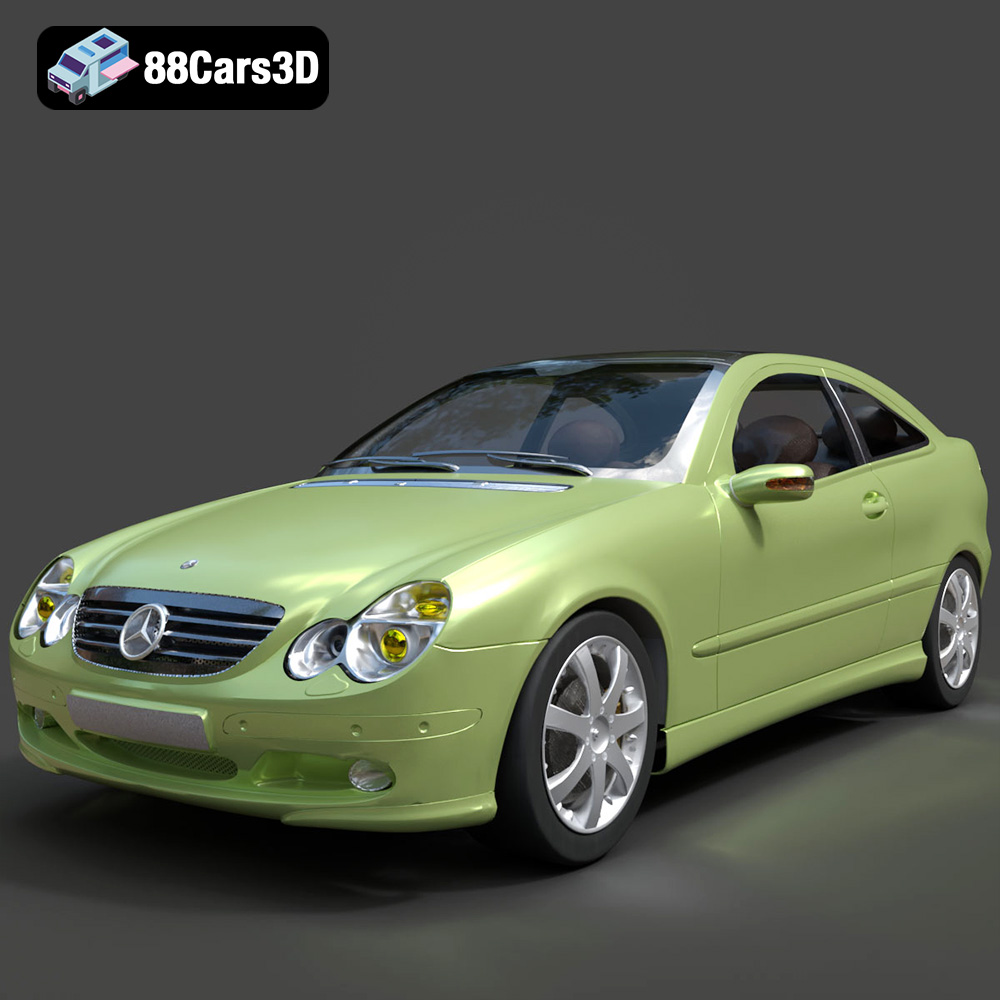
Mercedes-Benz C-Klasse Sportcoupe 2000 3D Model
Texture: Yes
Material: Yes
Download the Mercedes-Benz C-Klasse Sportcoupe 2000 3D Model featuring clean geometry, realistic detailing, and a fully modeled interior. Includes .blend, .fbx, .obj, .glb, .stl, .ply, .unreal, and .max formats for rendering, simulation, and game development.
Price: $38.99
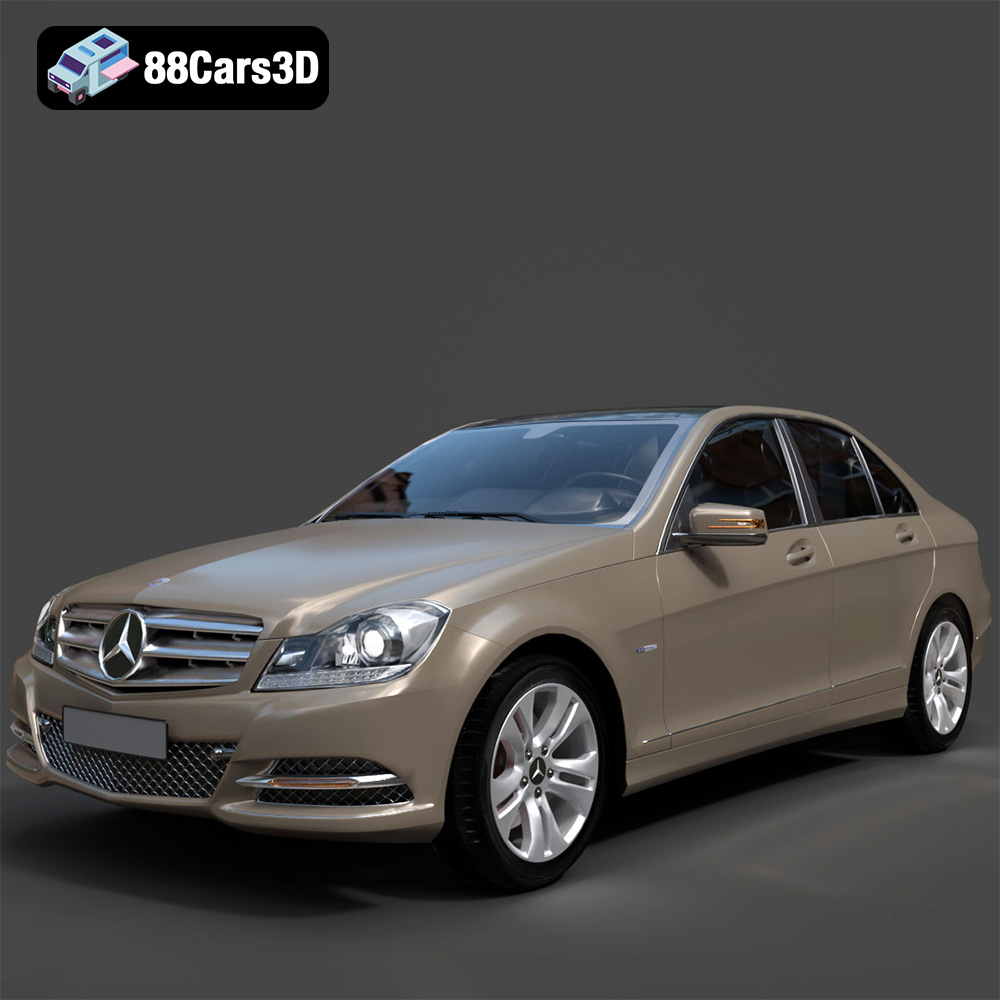
Mercedes-Benz C-Klasse 204 2011 3D Model
Texture: Yes
Material: Yes
Download the Mercedes-Benz C-Klasse 204 2011 3D Model featuring clean geometry, realistic detailing, and a fully modeled interior. Includes .blend, .fbx, .obj, .glb, .stl, .ply, .unreal, and .max formats for rendering, simulation, and game development.
Price: $38.99
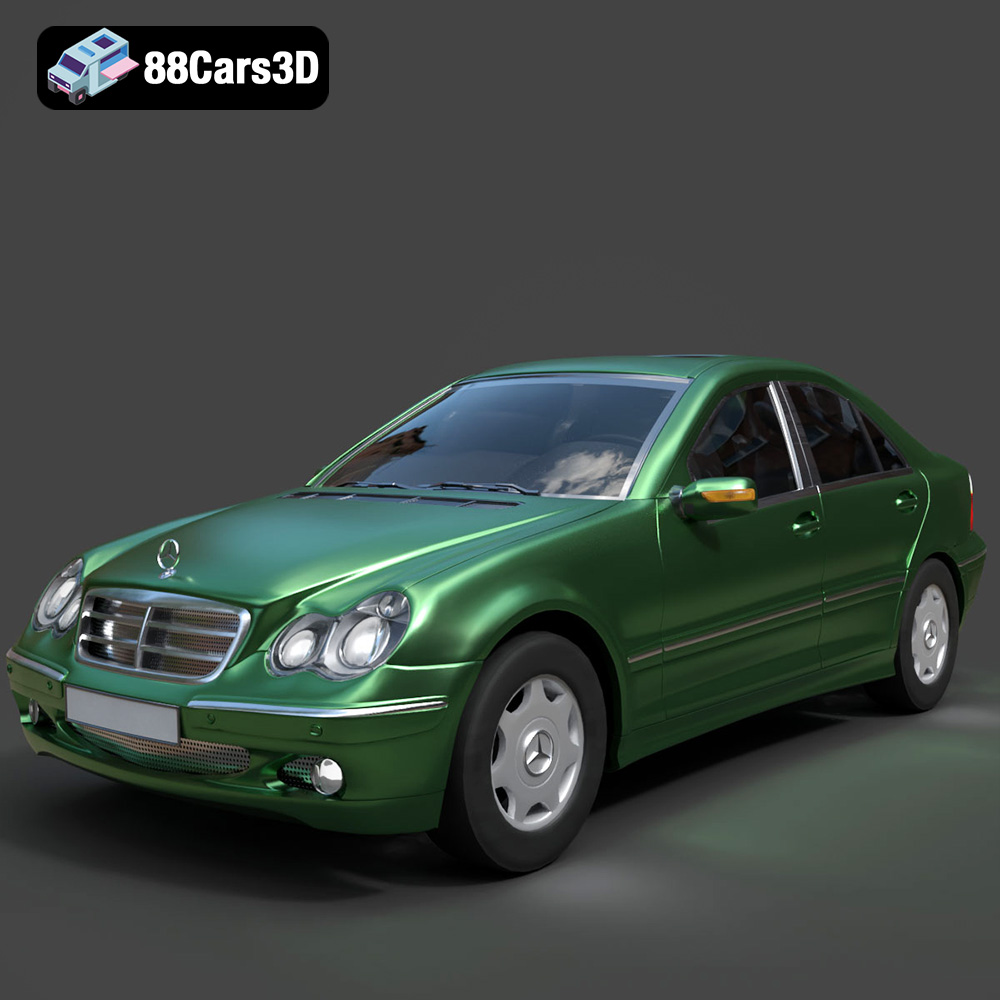
Mercedes-Benz C-Class Sedan 2000 3D Model
Texture: Yes
Material: Yes
Download the Mercedes-Benz C-Class Sedan 3D Model featuring clean geometry, realistic detailing, and a fully modeled interior. Includes .blend, .fbx, .obj, .glb, .stl, .ply, .unreal, and .max formats for rendering, simulation, and game development.
Price: $38.99

Mercedes E-Class w124 Kombi 3D Model
Texture: Yes
Material: Yes
Download the Mercedes E-Class w124 Kombi 3D Model featuring clean geometry, realistic detailing, and a fully modeled interior. Includes .blend, .fbx, .obj, .glb, .stl, .ply, .unreal, and .max formats for rendering, simulation, and game development.
Price: $38.99

Mercedes-Benz CL6540-005 3D Model
Texture: Yes
Material: Yes
Download the Mercedes-Benz CL6540-005 3D Model featuring clean geometry, realistic detailing, and a fully modeled interior. Includes .blend, .fbx, .obj, .glb, .stl, .ply, .unreal, and .max formats for rendering, simulation, and game development.
Price: $38.99
