
The High-Fidelity Dilemma: Bridging the Gap from CAD to Real-time

The allure of a perfectly rendered car is undeniable. From sleek concept vehicles to iconic classics, automotive visualization pushes the boundaries of real-time graphics. Historically, achieving cinematic quality in an interactive environment was a monumental challenge, often requiring extensive compromises on geometric detail or lighting fidelity. However, with the advent of Unreal Engine 5, a new era of photorealistic automotive experiences has begun.
The dream of seeing a high-fidelity 3D car model, indistinguishable from reality, move seamlessly in a real-time environment is now within reach. Yet, porting extremely detailed automotive models, often originating from CAD software or high-polygon DCC packages, into Unreal Engine 5 while maintaining both stunning visuals and peak performance presents its own unique set of complexities. This guide will walk you through a comprehensive Unreal Engine 5 automotive workflow, detailing the strategies and techniques required for optimizing high-detail 3D cars for breathtaking visuals and flawless real-time performance.
The High-Fidelity Dilemma: Bridging the Gap from CAD to Real-time
Automotive design models are renowned for their intricate detail and immense polygon counts. Created in CAD software like CATIA, SolidWorks, or Alias, these models are engineered for precision and manufacturing, not for real-time rendering. When these dense datasets are imported directly into a game engine, performance bottlenecks, visual glitches, and arduous optimization processes quickly emerge. This is the core of the high-fidelity dilemma: how to translate engineering-grade accuracy into an interactive, performant experience without sacrificing visual quality.
Traditional game development workflows relied heavily on aggressive retopology, baking normal maps, and extensive manual optimization to reduce polygon counts to manageable levels. While effective, this process was time-consuming and often led to a loss of subtle surface details inherent in the original CAD data. Modern engines, particularly Unreal Engine 5, offer groundbreaking solutions that challenge these old paradigms, but still require a strategic approach to Unreal Engine 5 optimization for automotive assets.
The goal is to harness the power of UE5’s innovative features like Nanite and Lumen while still employing smart data preparation and automotive rendering best practices. This ensures that every curve, reflection, and material interaction contributes to an immersive experience, not a performance drain.
Pre-Engine Preparation & Smart Geometry: Laying the Foundation for UE5
Before any model touches Unreal Engine, meticulous preparation is paramount. This foundational stage dictates the efficiency and quality of your final asset. A well-prepared model minimizes issues down the line and maximizes the benefits of UE5’s advanced features.
Model Cleanup and Data Integrity
Raw CAD data, or even models from high-poly DCC applications, often contain hidden geometry, non-manifold edges, duplicate vertices, and inverted normals. These issues are detrimental to real-time performance and rendering accuracy. The first step involves a thorough cleanup:
- Remove Hidden/Unnecessary Geometry: Delete any internal components or construction geometry that won’t be visible.
- Weld Vertices: Merge duplicate vertices that are within a small threshold to ensure a solid mesh.
- Fix Normals: Ensure all face normals are consistently pointing outwards. Inverted normals cause lighting artifacts.
- Check for Non-Manifold Geometry: Repair edges or vertices that have more than two faces attached, as these can cause issues with shading and physics.
- Scale and Units: Standardize the model’s scale and units (e.g., centimeters) to match Unreal Engine’s conventions. Inconsistent scaling can lead to problems with physics, lighting, and material scaling.
Tools like Autodesk Maya, 3ds Max, or Blender offer robust toolsets for these cleanup tasks. Investing time here saves significant headaches during the CAD to game engine conversion process.
Strategic UV Mapping
Even with advanced material systems, clean, organized UV maps are fundamental for high-quality textures and lighting. Automotive models require specific considerations:
- Non-Overlapping UVs for Textures: Ensure no UV islands overlap in your primary UV channel (UV0 or UV1). This prevents texture bleeding and ensures accurate material application for elements like decals, paint flakes, or carbon fiber patterns.
- Dedicated UVs for Lightmaps (Optional for Lumen): While Lumen largely negates the need for traditional baked lightmaps, some older workflows or specific scenarios might still benefit from a dedicated, non-overlapping UV channel for lightmaps (UV1 or UV2). Even for Nanite meshes, certain engine systems might still rely on proper UVs.
- UV Density: Strive for consistent UV density across the model, particularly for areas like the car body, to avoid texture stretching or pixelation.
Initial Mesh Optimization Strategies
While Nanite handles incredibly high polygon counts, not every part of an automotive model benefits equally from it. Strategic mesh topology optimization is still a key part of an efficient workflow.
- Identify Nanite Candidates: The car body, complex wheel meshes, and intricate interior details are perfect candidates for Nanite. These parts can retain their high polygon counts, preserving their original smoothness and detail.
- Traditional Mesh Candidates: Elements that require transparency (glass, headlights), deformation (tires for physics), or specific LODs that might be non-Nanite based (e.g., extreme distance LODs, or for older hardware) should be optimized using traditional methods. This involves reducing polygon count through manual retopology or automated decimation tools while preserving silhouettes.
- Hard Edges and Smoothing Groups: Define hard edges explicitly where sharp transitions are needed, and use smoothing groups or vertex normals to ensure smooth shading across curved surfaces. This is crucial for maintaining the sculpted look of a car.
At this stage, you might leverage the capabilities of Datasmith for CAD to game engine conversion. Datasmith, Unreal Engine’s powerful scene interchange plugin, is designed to bring complex scenes from CAD and DCC applications into UE5 while preserving hierarchy, materials, and sometimes even UVs. It’s an invaluable tool for streamlining the initial import process.
Harnessing Unreal Engine 5’s Core Technologies: Nanite & Lumen
Unreal Engine 5 introduces two revolutionary technologies that are game-changers for automotive visualization: Nanite and Lumen. Understanding how to effectively utilize them is central to achieving stunning visuals and maintaining performance.
Leveraging Nanite for Unprecedented Geometric Detail
Nanite is Unreal Engine 5’s virtualized geometry system, allowing artists to import and render movie-quality assets with millions or even billions of polygons. For high-detail 3D cars, this is transformative. Instead of spending weeks on manual retopology, you can often import your high-polygon model directly and convert it to a Nanite mesh.
- How Nanite Works: Nanite intelligently streams and processes only the geometric data relevant to the current view, adapting detail dynamically. This means distant objects render with fewer triangles, while close-up details remain perfectly sharp. This dynamic scaling is critical for Unreal Engine 5 optimization, especially in automotive scenes where users might inspect a vehicle up close.
- Ideal Use Cases for Cars: The car body, intricate wheel designs, brake calipers, engine components, and detailed interior dashboards are perfect for Nanite. It eliminates the need for complex normal maps to convey geometric detail, as the actual geometry is present.
- Implementing the Nanite Workflow: Simply enable Nanite on your static mesh assets within Unreal Engine. For models imported via Datasmith, you often have the option to enable Nanite during import or convert afterward. Pay attention to materials, as transparent or masked materials and meshes that require deformation currently cannot be Nanite-enabled. For those, traditional mesh optimization is still required.
The Nanite workflow dramatically speeds up asset creation and allows for an unprecedented level of geometric fidelity, bringing automotive assets closer to their CAD origins without the associated performance penalties of traditional high-poly meshes.
Achieving Photorealism with Lumen Global Illumination
Lumen is Unreal Engine 5’s fully dynamic global illumination and reflection system. It calculates indirect lighting and reflections in real-time, delivering incredibly realistic and interactive lighting environments. For automotive rendering, Lumen is a revelation.
- Dynamic Lighting: Lumen eliminates the need for static lightmaps, allowing you to change time of day, move light sources, or even open car doors and see the lighting react instantly and realistically. This is invaluable for showcasing vehicles in various environments or interactive configurators.
- Accurate Reflections: Automotive surfaces are highly reflective. Lumen provides accurate real-time reflections, capturing the environment and other objects in the scene dynamically. This is a significant improvement over traditional screen-space reflections or static reflection probes, which often break fidelity.
- Optimizing for Lumen: While Lumen is powerful, it does require careful scene setup. Ensure your materials have accurate PBR values. For large exterior scenes, consider combining Lumen with other lighting solutions like Sky Atmosphere, directional lights, and well-placed local lights to augment its output and control performance. Lumen contributes significantly to automotive rendering best practices, making every surface come alive with natural light interaction.
Crafting Authentic Automotive Materials: PBR Excellence
Beyond geometry and lighting, materials are where a car truly comes to life. Physically Based Rendering (PBR) is the cornerstone of realism, ensuring that surfaces interact with light in a believable way. For vehicles, achieving accurate PBR materials for vehicles is a highly specialized art.
Mastering Automotive Paint Shaders
Car paint is one of the most complex materials to replicate due to its multi-layered nature. A typical automotive paint shader in Unreal Engine 5 often involves:
- Base Coat: The underlying color, with controlled metallic and roughness values.
- Metallic Flakes: A crucial layer for metallic paints. This is often achieved through a separate normal map or procedural noise that influences reflectivity, giving the characteristic sparkle. A high metallic value with varying roughness can simulate this.
- Clear Coat: A highly reflective, perfectly smooth (low roughness) dielectric layer that sits on top of everything. This layer creates the primary reflections and highlights. Unreal Engine’s clear coat shading model is perfect for this.
- Subsurface Scattering (SSS): For translucent paints, or to simulate the very subtle light diffusion within the paint layer. This is generally subtle but adds to realism.
- Dirt/Scratches/Wear: Adding grime, dust, or subtle scratches through masked textures or procedural effects enhances realism and tells a story.
Leverage Unreal Engine’s layered material system to build complex paint shaders that can be instanced and customized easily for various color and finish options.
Realistic Glass and Translucent Materials
Car glass (windshields, windows, headlights) requires careful attention to refraction, reflection, and transparency. Since Nanite currently doesn’t support transparent materials, these parts must be traditionally optimized meshes.
- Refraction: Use the “Thin Translucency” or “Surface TranslucencyVolume” shading models. Ensure the IOR (Index of Refraction) is physically accurate (around 1.5 for glass).
- Reflection: Glass is also highly reflective. Ensure your material accurately reflects the environment. Use clear, high-resolution cube maps or rely on Lumen’s reflections for dynamic accuracy.
- Tint and Dirt: Subtle tinting, smudges, or raindrops (via normal maps and opacity masks) can significantly enhance realism.
- Optimization: Transparency is render-intensive. Keep polygon counts for glass relatively low and ensure efficient overdraw.
Chrome, Metal, and Other Reflective Surfaces
Chrome, brushed aluminum, and other metallic components demand precise PBR values to look convincing.
- Chrome: High metallic (1.0), very low roughness (0.01-0.05). Chrome is essentially a mirror, so it heavily relies on accurate environmental reflections provided by Lumen or reflection captures.
- Brushed Metals: High metallic (1.0), slightly higher roughness (0.1-0.3), often with an anisotropic texture or normal map to simulate the brushed effect, directing reflections in a specific direction.
- Rubber/Plastic: Low metallic (0.0), varying roughness depending on the material (matte plastics higher, shiny rubbers lower). Some plastics might benefit from subtle SSS.
Consistent lighting and accurate PBR texture maps (Albedo, Normal, Roughness, Metallic, Ambient Occlusion) are crucial for all these materials. Utilizing high-quality textures, whether created in Substance Painter or sourced from libraries, will elevate your results. For those looking for ready-to-use solutions, 88cars3d.com offers a selection of models already equipped with expertly crafted PBR materials for vehicles.
Advanced Optimization & Integration: Ensuring Peak Performance
Even with Nanite and Lumen, a truly performant and interactive automotive experience requires further refinement and strategic optimization. This involves addressing components that don’t fully leverage Nanite and ensuring the entire scene runs smoothly.
Implementing Efficient Level of Detail (LODs)
While Nanite handles detail scaling for its meshes, traditional meshes still require Level of Detail (LODs) to maintain performance. `Level of Detail (LODs) for game assets` are simplified versions of your mesh that swap in at increasing distances from the camera. This reduces the number of polygons rendered when an object is far away, saving significant GPU resources.
- Identify LOD Candidates: Tires (especially for deformation), interior components that are only visible up close, engine parts, and complex accessories are prime candidates for traditional LODs.
- LOD Generation: Unreal Engine has built-in LOD generation tools that can automatically decimate meshes. However, for critical components, manual creation of LODs in your DCC software often yields better visual results and performance.
- LOD Setup: Configure LODs in Unreal Engine’s static mesh editor, defining the screen size at which each LOD switches. Ensure smooth transitions between LODs to avoid popping.
Collision Meshes for Seamless Interaction
Collision meshes define the physical boundaries of your car, enabling realistic interactions with the environment, other vehicles, and character movement. Accurate collision is vital for immersive experiences.
- Simple vs. Complex Collision: For basic interactions, simple collision shapes (boxes, spheres, capsules) are efficient. For more precise physics (e.g., driving dynamics), use convex hull collision, which approximates the mesh’s shape, or a custom simplified mesh for “complex collision as simple.”
- Custom Collision Meshes: It’s best practice to create a simplified, low-polygon mesh in your DCC software specifically for collision. This mesh should accurately represent the car’s physical form without unnecessary detail, ensuring efficient physics calculations.
- Setup in UE5: Assign your custom collision mesh within the static mesh editor. Ensure appropriate collision presets are applied to your car components (e.g., ‘Vehicle’ or ‘PhysicsActor’).
Texture Management and Atlasing
Efficient texture management is crucial for reducing memory footprint and draw calls, contributing directly to Unreal Engine 5 optimization.
- Texture Atlasing: Combine multiple smaller textures into one larger texture atlas. This reduces the number of materials and draw calls, especially for smaller, numerous details like bolts, badges, or interior buttons.
- Texture Resolution: Use appropriate resolutions. A 4K texture for the main body might be ideal, but smaller details might only need 512×512 or 1K. Avoid unnecessarily high-resolution textures.
- Texture Compression: Use Unreal Engine’s built-in texture compression settings (e.g., DXT1, DXT5, BC7) to optimize memory usage without significant visual loss.
- Shader Complexity: Aim for efficient shaders. Complex material graphs with many instructions can impact performance. Utilize material functions and instances to streamline.
Performance Profiling and Debugging
Identifying and resolving performance bottlenecks is an ongoing process. Unreal Engine provides robust profiling tools.
- Stat Commands: Use console commands like
Stat GPU,Stat RHI,Stat Engine,Stat FPS, andStat Unitto get real-time performance readouts. - Unreal Insights: This powerful profiling tool allows for detailed analysis of CPU and GPU performance, helping you pinpoint exactly where your scene is losing frames.
- Optimizing Draw Calls: High draw calls often indicate too many unique meshes, materials, or unnecessary render states. Consolidate meshes, use atlases, and instanced static meshes where appropriate.
- Lighting Optimization: While Lumen is powerful, ensure your light sources are optimized. Avoid excessively large or numerous point/spot lights that aren’t contributing significantly.
The Complete Workflow: From CAD to Immersive Experience
Bringing a high-detail car from its initial design stages to a fully interactive Unreal Engine 5 experience is a multi-faceted journey. It involves a systematic approach that blends technical expertise with artistic vision, moving from CAD to game engine conversion seamlessly.
Streamlining CAD to Game Engine Conversion
The initial conversion from raw CAD data is often the most challenging step. It involves:
- Data Export: Exporting from CAD in a format suitable for DCC applications (e.g., STEP, IGES, FBX, OBJ).
- DCC Cleanup and Optimization: As detailed earlier, clean up geometry, create UVs, and perform initial mesh topology optimization in software like 3ds Max or Maya. This is where you prepare the model for its game engine destiny, making decisions about what will be Nanite, what needs LODs, and how materials will be structured.
- Material Baking (Optional): For non-Nanite parts, bake details from high-poly meshes to normal maps for low-poly versions.
- Modularization: Break the car into logical components (body, doors, wheels, interior parts). This aids in material assignment, animation, and Level of Detail (LODs) for game assets management.
Datasmith for Smooth Import
Unreal Engine’s Datasmith plugin is your ally for this conversion. It allows you to import complex scenes, including CAD data (via plugins for various CAD software), into Unreal Engine with much of the data structure, metadata, and even some material definitions preserved.
- Direct CAD Import: Datasmith has direct support for several CAD formats and DCC applications, streamlining the process significantly. It can intelligently tessellate CAD surfaces into polygon meshes suitable for UE5.
- Hierarchy Preservation: It maintains the original scene hierarchy, making it easier to animate parts like doors, hoods, or wheels.
- Material Conversion: Datasmith attempts to convert source materials into Unreal Engine materials, providing a good starting point for your PBR materials for vehicles.
- Iterative Workflow: Datasmith supports re-importing, allowing you to make changes in your DCC or CAD software and update the model in UE5 without losing all your work.
After import, the real work in UE5 begins: applying PBR materials, setting up Lumen for dynamic lighting, fine-tuning Nanite meshes, implementing collision, and ensuring overall Unreal Engine 5 optimization.
Conclusion
The Unreal Engine 5 automotive workflow represents a paradigm shift in real-time visualization. By strategically leveraging Nanite for unprecedented geometric fidelity, Lumen for dynamic global illumination, and mastering advanced PBR material techniques, artists and developers can now create automotive experiences that were once confined to offline renderers. From the initial CAD to game engine conversion to the final performance profiling, every step is crucial for balancing stunning visuals with peak real-time performance.
This comprehensive approach ensures that your high-detail 3D cars not only look breathtaking but also perform flawlessly in interactive configurators, immersive showrooms, and next-generation games. Embrace these techniques, and you’ll unlock the full potential of Unreal Engine 5 for your automotive projects, delivering a level of realism and immersion previously unattainable.
For artists and developers seeking a head start, 88cars3d.com offers an extensive library of production-ready, high-quality 3D car models meticulously prepared for optimal performance in Unreal Engine 5. Discover models that streamline your workflow and elevate your automotive visualizations today!
Featured 3D Car Models

Toyota Mark II (X100) 1998 3D Model
Texture: Yes
Material: Yes
Download the Toyota Mark II (X100) 3D Model featuring clean geometry, realistic detailing, and a fully modeled interior. Includes .blend, .fbx, .obj, .glb, .stl, .ply, .unreal, and .max formats for rendering, simulation, and game development.
Price: $10

Toyota Corona 1985 3D Model
Texture: Yes
Material: Yes
Download the Toyota Corona 1985 3D Model featuring clean geometry, realistic detailing, and a fully modeled interior. Includes .blend, .fbx, .obj, .glb, .stl, .ply, .unreal, and .max formats for rendering, simulation, and game development.
Price: $10

Toyota Mark II X81 1990 3D Model
Texture: Yes
Material: Yes
Download the Toyota Mark II X81 1990 3D Model featuring clean geometry, realistic detailing, and a fully modeled interior. Includes .blend, .fbx, .obj, .glb, .stl, .ply, .unreal, and .max formats for rendering, simulation, and game development.
Price: $10

Toyota iQ EV 2012 3D Model
Texture: Yes
Material: Yes
Download the Toyota iQ EV 2012 3D Model featuring clean geometry, realistic detailing, and a fully modeled interior. Includes .blend, .fbx, .obj, .glb, .stl, .ply, .unreal, and .max formats for rendering, simulation, and game development.
Price: $10

Toyota Aygo 2013 3D Model
Texture: Yes
Material: Yes
Download the Toyota Aygo 2013 3D Model featuring clean geometry, realistic detailing, and a fully modeled interior. Includes .blend, .fbx, .obj, .glb, .stl, .ply, .unreal, and .max formats for rendering, simulation, and game development.
Price: $10

Toyota Crown S180 2005 3D Model
Texture: Yes
Material: Yes
Download the Toyota Crown S180 2005 3D Model featuring clean geometry, realistic detailing, and a fully modeled interior. Includes .blend, .fbx, .obj, .glb, .stl, .ply, .unreal, and .max formats for rendering, simulation, and game development.
Price: $10

Toyota Celica 2004 3D Model
Texture: Yes
Material: Yes
Download the Toyota Celica 2004 3D Model featuring clean geometry, realistic detailing, and a fully modeled interior. Includes .blend, .fbx, .obj, .glb, .stl, .ply, .unreal, and .max formats for rendering, simulation, and game development.
Price: $10

Toyota Corolla AE100 1992 3D Model
Texture: Yes
Material: Yes
Download the Toyota Corolla AE100 1992 3D Model featuring clean geometry, realistic detailing, and a fully modeled interior. Includes .blend, .fbx, .obj, .glb, .stl, .ply, .unreal, and .max formats for rendering, simulation, and game development.
Price: $10

Toyota Mark II X110 2000 3D Model
Texture: Yes
Material: Yes
Download the Toyota Mark II X110 2000 3D Model featuring clean geometry, realistic detailing, and a fully modeled interior. Includes .blend, .fbx, .obj, .glb, .stl, .ply, .unreal, and .max formats for rendering, simulation, and game development.
Price: $10

Toyota Corolla 2020 3D Model
Texture: Yes
Material: Yes
Download the Toyota Corolla 2020 3D Model featuring clean geometry, realistic detailing, and a fully modeled interior. Includes .blend, .fbx, .obj, .glb, .stl, .ply, .unreal, and .max formats for rendering, simulation, and game development.
Price: $10

Toyota Yaris 2020 3D Model
Texture: Yes
Material: Yes
Download the Toyota Yaris 2020 3D Model featuring clean geometry, realistic detailing, and a fully modeled interior. Includes .blend, .fbx, .obj, .glb, .stl, .ply, .unreal, and .max formats for rendering, simulation, and game development.
Price: $9.9

Volkswagen Beetle 2012 3D Model
Texture: Yes
Material: Yes
Download the Volkswagen Beetle 2012 3D Model featuring clean geometry, realistic detailing, and a fully modeled interior. Includes .blend, .fbx, .obj, .glb, .stl, .ply, .unreal, and .max formats for rendering, simulation, and game development.
Price: $9.9

Toyota Matrix 2005 3D Model
Texture: Yes
Material: Yes
Download the Toyota Matrix 2005 3D Model featuring clean geometry, realistic detailing, and a fully modeled interior. Includes .blend, .fbx, .obj, .glb, .stl, .ply, .unreal, and .max formats for rendering, simulation, and game development.
Price: $9.9

Toyota Yaris Sedan 3D Model
Texture: Yes
Material: Yes
Download the Toyota Yaris Sedan 3D Model featuring clean geometry, realistic detailing, and a fully modeled interior. Includes .blend, .fbx, .obj, .glb, .stl, .ply, .unreal, and .max formats for rendering, simulation, and game development.
Price: $9.9

Volkswagen Golf R-004 2024 3D Model
Texture: Yes
Material: Yes
Download the Volkswagen Golf R-004 2024 3D Model featuring clean geometry, realistic detailing, and a fully modeled interior. Includes .blend, .fbx, .obj, .glb, .stl, .ply, .unreal, and .max formats for rendering, simulation, and game development.
Price: $9.9

Volkswagen Golf 5 Door 2010 3D Model
Texture: Yes
Material: Yes
Download the Volkswagen Golf 5 Door 2010 3D Model featuring clean geometry, realistic detailing, and a fully modeled interior. Includes .blend, .fbx, .obj, .glb, .stl, .ply, .unreal, and .max formats for rendering, simulation, and game development.
Price: $9.9

Toyota Premio 2010 3D Model
Texture: Yes
Material: Yes
Download the Toyota Premio 2010 3D Model featuring clean geometry, realistic detailing, and a fully modeled interior. Includes .blend, .fbx, .obj, .glb, .stl, .ply, .unreal, and .max formats for rendering, simulation, and game development.
Price: $9.9

Toyota Opa 2000 3D Model
Texture: Yes
Material: Yes
Download the Toyota Opa 2000 3D Model featuring clean geometry, realistic detailing, and a fully modeled interior. Includes .blend, .fbx, .obj, .glb, .stl, .ply, .unreal, and .max formats for rendering, simulation, and game development.
Price: $9.9

Volkswagen Polo 5 Door 2010 3D Model
Texture: Yes
Material: Yes
Download the Volkswagen Polo 5 Door 2010 3D Model featuring clean geometry, realistic detailing, and a fully modeled interior. Includes .blend, .fbx, .obj, .glb, .stl, .ply, .unreal, and .max formats for rendering, simulation, and game development.
Price: $9.9

Toyota Prius 2024 3D Model
Texture: Yes
Material: Yes
Download the Toyota Prius 2024 3D Model featuring clean geometry, realistic detailing, and a fully modeled interior. Includes .blend, .fbx, .obj, .glb, .stl, .ply, .unreal, and .max formats for rendering, simulation, and game development.
Price: $9.9

Toyota Yaris 1999 3D Model
Texture: Yes
Material: Yes
Download the Toyota Yaris 1999 3D Model featuring clean geometry, realistic detailing, and a fully modeled interior. Includes .blend, .fbx, .obj, .glb, .stl, .ply, .unreal, and .max formats for rendering, simulation, and game development.
Price: $9.9

Toyota Supra 2020 3D Model
Texture: Yes
Material: Yes
Download the Toyota Supra 2020 3D Model featuring clean geometry, realistic detailing, and a fully modeled interior. Includes .blend, .fbx, .obj, .glb, .stl, .ply, .unreal, and .max formats for rendering, simulation, and game development.
Price: $9.9

Volkswagen New Beetle 2000 3D Model
Texture: Yes
Material: Yes
Download the Volkswagen New Beetle 2000 3D Model featuring clean geometry, realistic detailing, and a fully modeled interior. Includes .blend, .fbx, .obj, .glb, .stl, .ply, .unreal, and .max formats for rendering, simulation, and game development.
Price: $14.99

Volkswagen Jetta 2005 3D Model
Texture: Yes
Material: Yes
Download the Volkswagen Jetta 2005 3D Model featuring clean geometry, realistic detailing, and a fully modeled interior. Includes .blend, .fbx, .obj, .glb, .stl, .ply, .unreal, and .max formats for rendering, simulation, and game development.
Price: $18.99

Volkswagen Golf 3-Door 3D Model
Texture: Yes
Material: Yes
Download the Volkswagen Golf 3-Door 3D Model featuring clean geometry, realistic detailing, and a fully modeled interior. Includes .blend, .fbx, .obj, .glb, .stl, .ply, .unreal, and .max formats for rendering, simulation, and game development.
Price: $14.99

Volvo V70 2005 3D Model
Texture: Yes
Material: Yes
Download the Volvo V70 2005 3D Model featuring clean geometry, realistic detailing, and a fully modeled interior. Includes .blend, .fbx, .obj, .glb, .stl, .ply, .unreal, and .max formats for rendering, simulation, and game development.
Price: $14.99

Volkswagen Bora 2004 3D Model
Texture: Yes
Material: Yes
Download the Volkswagen Bora 2004 3D Model featuring clean geometry, realistic detailing, and a fully modeled interior. Includes .blend, .fbx, .obj, .glb, .stl, .ply, .unreal, and .max formats for rendering, simulation, and game development.
Price: $14.99

Volkswagen Lupo 3D Model
Texture: Yes
Material: Yes
Download the Volkswagen Lupo 3D Model featuring clean geometry, realistic detailing, and a fully modeled interior. Includes .blend, .fbx, .obj, .glb, .stl, .ply, .unreal, and .max formats for rendering, simulation, and game development.
Price: $19.99

Volkswagen Passat B5 2000 3D Model
Texture: Yes
Material: Yes
Download the Volkswagen Passat B5 2000 3D Model featuring clean geometry, realistic detailing, and a fully modeled interior. Includes .blend, .fbx, .obj, .glb, .stl, .ply, .unreal, and .max formats for rendering, simulation, and game development.
Price: $19.99

Volkswagen Passat CC 3D Model
Texture: Yes
Material: Yes
Download the Volkswagen Passat CC 3D Model featuring clean geometry, realistic detailing, and a fully modeled interior. Includes .blend, .fbx, .obj, .glb, .stl, .ply, .unreal, and .max formats for rendering, simulation, and game development.
Price: $19.99

Volkswagen Golf V 2006 3D Model
Texture: Yes
Material: Yes
Download the Volkswagen Golf V 2006 3D Model featuring clean geometry, realistic detailing, and a fully modeled interior. Includes .blend, .fbx, .obj, .glb, .stl, .ply, .unreal, and .max formats for rendering, simulation, and game development.
Price: $19.99

Volvo S60 R-Design 2024 3D Model
Texture: Yes
Material: Yes
Download the Volvo S60 R-Design 3D Model featuring clean geometry, realistic detailing, and a fully modeled interior. Includes .blend, .fbx, .obj, .glb, .stl, .ply, .unreal, and .max formats for rendering, simulation, and game development.
Price: $19.99

Volkswagen Passat 2025 3D Model
Texture: Yes
Material: Yes
Download the Volkswagen Passat 2025 3D Model featuring clean geometry, realistic detailing, and a fully modeled interior. Includes .blend, .fbx, .obj, .glb, .stl, .ply, .unreal, and .max formats for rendering, simulation, and game development.
Price: $25.99

Volkswagen Passat Variant B6 2005 3D Model
Texture: Yes
Material: Yes
Download the Volkswagen Passat Variant B6 2005 3D Model featuring clean geometry, realistic detailing, and a fully modeled interior. Includes .blend, .fbx, .obj, .glb, .stl, .ply, .unreal, and .max formats for rendering, simulation, and game development.
Price: $25.99

Volkswagen Phaeton W12 2004 3D Model
Texture: Yes
Material: Yes
Download the Volkswagen Phaeton W12 2004 3D Model featuring clean geometry, realistic detailing, and a fully modeled interior. Includes .blend, .fbx, .obj, .glb, .stl, .ply, .unreal, and .max formats for rendering, simulation, and game development.
Price: $25.99

Volkswagen Scirocco 2015 3D Model
Texture: Yes
Material: Yes
Download the Volkswagen Scirocco 2015 3D Model featuring clean geometry, realistic detailing, and a fully modeled interior. Includes .blend, .fbx, .obj, .glb, .stl, .ply, .unreal, and .max formats for rendering, simulation, and game development.
Price: $25.99

Volvo S60 2024 3D Model
Texture: Yes
Material: Yes
Download the Volvo S60 2024 3D Model featuring clean geometry, realistic detailing, and a fully modeled interior. Includes .blend, .fbx, .obj, .glb, .stl, .ply, .unreal, and .max formats for rendering, simulation, and game development.
Price: $25.99

Volkswagen Polo 3D Model
Texture: Yes
Material: Yes
Download the Volkswagen Polo 3D Model featuring clean geometry, realistic detailing, and a fully modeled interior. Includes .blend, .fbx, .obj, .glb, .stl, .ply, .unreal, and .max formats for rendering, simulation, and game development.
Price: $25.99

Volkswagen Golf 5-Doors 2018 3D Model
Texture: Yes
Material: Yes
Download the Volkswagen Golf 5-Doors 3D Model featuring clean geometry, realistic detailing, and a fully modeled interior. Includes .blend, .fbx, .obj, .glb, .stl, .ply, .unreal, and .max formats for rendering, simulation, and game development.
Price: $25.99

Volvo C70 T5 2000 3D Model
Texture: Yes
Material: Yes
Download the Volvo C70 T5 2000 3D Model featuring clean geometry, realistic detailing, and a fully modeled interior. Includes .blend, .fbx, .obj, .glb, .stl, .ply, .unreal, and .max formats for rendering, simulation, and game development.
Price: $23.99

Volvo S40 Sedan 2004 3D Model
Texture: Yes
Material: Yes
Download the Volvo S40 Sedan 2004 3D Model featuring clean geometry, realistic detailing, and a fully modeled interior. Includes .blend, .fbx, .obj, .glb, .stl, .ply, .unreal, and .max formats for rendering, simulation, and game development.
Price: $23.99

Volvo C30 BEV 2012 3D Model
Texture: Yes
Material: Yes
Download the Volvo C30 BEV 2012 3D Model featuring clean geometry, realistic detailing, and a fully modeled interior. Includes .blend, .fbx, .obj, .glb, .stl, .ply, .unreal, and .max formats for rendering, simulation, and game development.
Price: $23.99

Volvo C70 1998 3D Model
Texture: Yes
Material: Yes
Download the Volvo C70 1998 3D Model featuring clean geometry, realistic detailing, and a fully modeled interior. Includes .blend, .fbx, .obj, .glb, .stl, .ply, .unreal, and .max formats for rendering, simulation, and game development.
Price: $23.99

Mazda B-Series 3D Model
Texture: Yes
Material: Yes
Download the Mazda B-Series 3D Model featuring clean geometry, realistic detailing, and a fully modeled interior. Includes .blend, .fbx, .obj, .glb, .stl, .ply, .unreal, and .max formats for rendering, simulation, and game development.
Price: $23.99

Mercsedes Benz Z3-006 3D Model
Texture: Yes
Material: Yes
Download the Mercsedes Benz Z3-006 3D Model featuring clean geometry, realistic detailing, and a fully modeled interior. Includes .blend, .fbx, .obj, .glb, .stl, .ply, .unreal, and .max formats for rendering, simulation, and game development.
Price: $23.99

Mazda RX-7 3D Model
Texture: Yes
Material: Yes
Download the Mazda RX-7 3D Model featuring clean geometry, realistic detailing, and a fully modeled interior. Includes .blend, .fbx, .obj, .glb, .stl, .ply, .unreal, and .max formats for rendering, simulation, and game development.
Price: $23.99

Volvo VCC-003 3D Model
Texture: Yes
Material: Yes
Download the Volvo VCC-003 3D Model featuring clean geometry, realistic detailing, and a fully modeled interior. Includes .blend, .fbx, .obj, .glb, .stl, .ply, .unreal, and .max formats for rendering, simulation, and game development.
Price: $23.99

Mercedes-Benz SLR McLaren 2005 3D Model
Texture: Yes
Material: Yes
Download the Mercedes-Benz SLR McLaren 2005 3D Model featuring clean geometry, realistic detailing, and a fully modeled interior. Includes .blend, .fbx, .obj, .glb, .stl, .ply, .unreal, and .max formats for rendering, simulation, and game development.
Price: $23.99

GAZ 3110 Pickup 2000 3D Model
Texture: Yes
Material: Yes
Download the GAZ 3110 Pickup 3D Model featuring clean geometry, realistic detailing, and a fully modeled interior. Includes .blend, .fbx, .obj, .glb, .stl, .ply, .unreal, and .max formats for rendering, simulation, and game development.
Price: $23.99

Mazda 626 GF 1997 3D Model
Texture: Yes
Material: Yes
Download the Mazda 626 GF 1997 3D Model featuring clean geometry, realistic detailing, and a fully modeled interior. Includes .blend, .fbx, .obj, .glb, .stl, .ply, .unreal, and .max formats for rendering, simulation, and game development.
Price: $23.99

Volvo S80 2011 3D Model
Texture: Yes
Material: Yes
Download the Volvo S80 2011 3D Model featuring clean geometry, realistic detailing, and a fully modeled interior. Includes .blend, .fbx, .obj, .glb, .stl, .ply, .unreal, and .max formats for rendering, simulation, and game development.
Price: $23.99

Volkswagen Touran restyle-006 3D Model
Texture: Yes
Material: Yes
Download the Volkswagen Touran restyle-006 3D Model featuring clean geometry, realistic detailing, and a fully modeled interior. Includes .blend, .fbx, .obj, .glb, .stl, .ply, .unreal, and .max formats for rendering, simulation, and game development.
Price: $23.99

Skoda Octavia Scout 3D Model
Texture: Yes
Material: Yes
Download the Skoda Octavia Scout 3D Model featuring clean geometry, realistic detailing, and a fully modeled interior. Includes .blend, .fbx, .obj, .glb, .stl, .ply, .unreal, and .max formats for rendering, simulation, and game development.
Price: $23.99

Volkswagen Golf V 2006 3D Model
Texture: Yes
Material: Yes
Download the Volkswagen Golf V 2006 3D Model featuring clean geometry, realistic detailing, and a fully modeled interior. Includes .blend, .fbx, .obj, .glb, .stl, .ply, .unreal, and .max formats for rendering, simulation, and game development.
Price: $23.99

Mazda CX-7 3D Model
Texture: Yes
Material: Yes
Download the Mazda CX-7 3D Model featuring clean geometry, realistic detailing, and a fully modeled interior. Includes .blend, .fbx, .obj, .glb, .stl, .ply, .unreal, and .max formats for rendering, simulation, and game development.
Price: $23.99

Mazda Familia 3D Model
Texture: Yes
Material: Yes
Download the Mazda Familia 3D Model featuring clean geometry, realistic detailing, and a fully modeled interior. Includes .blend, .fbx, .obj, .glb, .stl, .ply, .unreal, and .max formats for rendering, simulation, and game development.
Price: $23.99

GAS 21 3D Model
Texture: Yes
Material: Yes
Download the GAS 21 3D Model featuring clean geometry, realistic detailing, and a fully modeled interior. Includes .blend, .fbx, .obj, .glb, .stl, .ply, .unreal, and .max formats for rendering, simulation, and game development.
Price: $23.99

Mercedes-Benz SL500 AMG (R129) 3D Model
Texture: Yes
Material: Yes
Download the Mercedes-Benz SL500 AMG (R129) 3D Model featuring clean geometry, realistic detailing, and a fully modeled interior. Includes .blend, .fbx, .obj, .glb, .stl, .ply, .unreal, and .max formats for rendering, simulation, and game development.
Price: $23.99

Mercedes-Benz S-Class W221 2005 3D Model
Texture: Yes
Material: Yes
Download the Mercedes-Benz S-Class W221 2005 3D Model featuring clean geometry, realistic detailing, and a fully modeled interior. Includes .blend, .fbx, .obj, .glb, .stl, .ply, .unreal, and .max formats for rendering, simulation, and game development.
Price: $23.99

Mercedes-Benz E-Class W212 2009 3D Model
Texture: Yes
Material: Yes
Download the Mercedes-Benz E-Class W212 2009 3D Model featuring clean geometry, realistic detailing, and a fully modeled interior. Includes .blend, .fbx, .obj, .glb, .stl, .ply, .unreal, and .max formats for rendering, simulation, and game development.
Price: $23.99

Mercedes-Benz E-class Estate S212 2009 3D Model
Texture: Yes
Material: Yes
Download the Mercedes-Benz E-class Estate S212 2009 3D Model featuring clean geometry, realistic detailing, and a fully modeled interior. Includes .blend, .fbx, .obj, .glb, .stl, .ply, .unreal, and .max formats for rendering, simulation, and game development.
Price: $23.99

Mercedes-Benz 190 W201 3D Model
Texture: Yes
Material: Yes
Download the Mercedes-Benz 190 W201 3D Model featuring clean geometry, realistic detailing, and a fully modeled interior. Includes .blend, .fbx, .obj, .glb, .stl, .ply, .unreal, and .max formats for rendering, simulation, and game development.
Price: $23.99

Mercedes-Benz C230 SportCoupé 2005 3D Model
Texture: Yes
Material: Yes
Download the Mercedes-Benz C230 SportCoupé 2005 3D Model featuring clean geometry, realistic detailing, and a fully modeled interior. Includes .blend, .fbx, .obj, .glb, .stl, .ply, .unreal, and .max formats for rendering, simulation, and game development.
Price: $23.99

Mercedes-Benz SLK 3D Model
Texture: Yes
Material: Yes
Download the Mercedes-Benz SLK 3D Model featuring clean geometry, realistic detailing, and a fully modeled interior. Includes .blend, .fbx, .obj, .glb, .stl, .ply, .unreal, and .max formats for rendering, simulation, and game development.
Price: $23.99

Mercedes 600 SEC W140 1992 3D Model
Texture: Yes
Material: Yes
Download the Mercedes 600 SEC W140 1992 3D Model featuring clean geometry, realistic detailing, and a fully modeled interior. Includes .blend, .fbx, .obj, .glb, .stl, .ply, .unreal, and .max formats for rendering, simulation, and game development.
Price: $23.99

Mercedes S-Class 2010 3D Model
Texture: Yes
Material: Yes
Download the Mercedes S-Class 2010 3D Model featuring clean geometry, realistic detailing, and a fully modeled interior. Includes .blend, .fbx, .obj, .glb, .stl, .ply, .unreal, and .max formats for rendering, simulation, and game development.
Price: $23.99

McLaren MP4-12C-001 3D Model
Texture: Yes
Material: Yes
Download the McLaren MP4-12C-001 3D Model featuring clean geometry, realistic detailing, and a fully modeled interior. Includes .blend, .fbx, .obj, .glb, .stl, .ply, .unreal, and .max formats for rendering, simulation, and game development.
Price: $23.99

Mercedes-Benz SLK 350 2005 3D Model
Texture: Yes
Material: Yes
Download the Mercedes-Benz SLK 350 2005 3D Model featuring clean geometry, realistic detailing, and a fully modeled interior. Includes .blend, .fbx, .obj, .glb, .stl, .ply, .unreal, and .max formats for rendering, simulation, and game development.
Price: $23.99

Mercedes-Benz SL 65 AMG 3D Model
Texture: Yes
Material: Yes
Download the Mercedes-Benz SL 65 AMG 3D Model featuring clean geometry, realistic detailing, and a fully modeled interior. Includes .blend, .fbx, .obj, .glb, .stl, .ply, .unreal, and .max formats for rendering, simulation, and game development.
Price: $23.99

Mercedes-Benz S500 3D Model
Texture: Yes
Material: Yes
Download the Mercedes-Benz S500 3D Model featuring clean geometry, realistic detailing, and a fully modeled interior. Includes .blend, .fbx, .obj, .glb, .stl, .ply, .unreal, and .max formats for rendering, simulation, and game development.
Price: $23.99

Mercedes-Benz S55 W220 AMG 1999 3D Model
Texture: Yes
Material: Yes
Download the Mercedes-Benz S55 W220 AMG 1999 3D Model featuring clean geometry, realistic detailing, and a fully modeled interior. Includes .blend, .fbx, .obj, .glb, .stl, .ply, .unreal, and .max formats for rendering, simulation, and game development.
Price: $23.99

Mercedes-Benz CLA45 AMG 2017 3D Model
Texture: Yes
Material: Yes
Download the Mercedes-Benz CLA45 AMG 2017 3D Model featuring clean geometry, realistic detailing, and a fully modeled interior. Includes .blend, .fbx, .obj, .glb, .stl, .ply, .unreal, and .max formats for rendering, simulation, and game development.
Price: $38.99

Mercedes-Benz CL65 C215 AMG 3D Model
Texture: Yes
Material: Yes
Download the Mercedes-Benz CL65 C215 AMG 3D Model featuring clean geometry, realistic detailing, and a fully modeled interior. Includes .blend, .fbx, .obj, .glb, .stl, .ply, .unreal, and .max formats for rendering, simulation, and game development.
Price: $23.99

Mercedes-Benz A45 2021 3D Model
Texture: Yes
Material: Yes
Download the Mercedes-Benz A45 2021 3D Model featuring clean geometry, realistic detailing, and a fully modeled interior. Includes .blend, .fbx, .obj, .glb, .stl, .ply, .unreal, and .max formats for rendering, simulation, and game development.
Price: $23.99

Mercedes-Benz 300SL 1955 3D Model
Texture: Yes
Material: Yes
Download the Mercedes-Benz 300SL 1955 3D Model featuring clean geometry, realistic detailing, and a fully modeled interior. Includes .blend, .fbx, .obj, .glb, .stl, .ply, .unreal, and .max formats for rendering, simulation, and game development.
Price: $23.99

Mercedes-Benz 190SL 1955 3D Model
Texture: Yes
Material: Yes
Download the Mercedes-Benz 190SL 1955 3D Model featuring clean geometry, realistic detailing, and a fully modeled interior. Includes .blend, .fbx, .obj, .glb, .stl, .ply, .unreal, and .max formats for rendering, simulation, and game development.
Price: $23.99

Mercedes-Benz W124 Brabus V12 3D Model
Texture: Yes
Material: Yes
Download the Mercedes-Benz W124 Brabus V12 3D Model featuring clean geometry, realistic detailing, and a fully modeled interior. Includes .blend, .fbx, .obj, .glb, .stl, .ply, .unreal, and .max formats for rendering, simulation, and game development.
Price: $23.99

Mercedes-Benz SLS AMG GT3-002 3D Model
Texture: Yes
Material: Yes
Download the Mercedes-Benz SLS AMG GT3-002 3D Model featuring clean geometry, realistic detailing, and a fully modeled interior. Includes .blend, .fbx, .obj, .glb, .stl, .ply, .unreal, and .max formats for rendering, simulation, and game development.
Price: $38.99

Mercedes-Benz C-Class-001 3D Model
Texture: Yes
Material: Yes
Download the Mercedes-Benz C-Class-001 3D Model featuring clean geometry, realistic detailing, and a fully modeled interior. Includes .blend, .fbx, .obj, .glb, .stl, .ply, .unreal, and .max formats for rendering, simulation, and game development.
Price: $38.99

Mercedes-Benz B-Klasse 2023 3D Model
Texture: Yes
Material: Yes
Download the Mercedes-Benz B-Klasse 2023 3D Model featuring clean geometry, realistic detailing, and a fully modeled interior. Includes .blend, .fbx, .obj, .glb, .stl, .ply, .unreal, and .max formats for rendering, simulation, and game development.
Price: $38.99

Mercedes-Benz A-Klasse W168 3D Model
Texture: Yes
Material: Yes
Download the Mercedes-Benz A-Klasse W168 3D Model featuring clean geometry, realistic detailing, and a fully modeled interior. Includes .blend, .fbx, .obj, .glb, .stl, .ply, .unreal, and .max formats for rendering, simulation, and game development.
Price: $38.99

Mercedes-Benz 500SL 2000 3D Model
Texture: Yes
Material: Yes
Download the Mercedes-Benz 500SL 2000 3D Model featuring clean geometry, realistic detailing, and a fully modeled interior. Includes .blend, .fbx, .obj, .glb, .stl, .ply, .unreal, and .max formats for rendering, simulation, and game development.
Price: $38.99

Mercedes-Benz 500SEC 3D Model
Texture: Yes
Material: Yes
Download the Mercedes-Benz 500SEC 3D Model featuring clean geometry, realistic detailing, and a fully modeled interior. Includes .blend, .fbx, .obj, .glb, .stl, .ply, .unreal, and .max formats for rendering, simulation, and game development.
Price: $38.99

Mercedes-Benz Citan 2025 3D Model
Texture: Yes
Material: Yes
Download the Mercedes-Benz Citan 2025 3D Model featuring clean geometry, realistic detailing, and a fully modeled interior. Includes .blend, .fbx, .obj, .glb, .stl, .ply, .unreal, and .max formats for rendering, simulation, and game development.
Price: $38.99

Mercedes-Benz C63 AMG 2012 3D Model
Texture: Yes
Material: Yes
Download the Mercedes-Benz C63 AMG 2012 3D Model featuring clean geometry, realistic detailing, and a fully modeled interior. Includes .blend, .fbx, .obj, .glb, .stl, .ply, .unreal, and .max formats for rendering, simulation, and game development.
Price: $38.99

Mercedes-Benz E-Class S211 3D Model
Texture: Yes
Material: Yes
Download the Mercedes-Benz E-Class S211 3D Model featuring clean geometry, realistic detailing, and a fully modeled interior. Includes .blend, .fbx, .obj, .glb, .stl, .ply, .unreal, and .max formats for rendering, simulation, and game development.
Price: $38.99

Mercedes-Benz CLS63 AMG (C218) 2014 3D Model
Texture: Yes
Material: Yes
Download the Mercedes-Benz CLS63 AMG (C218) 2014 3D Model featuring clean geometry, realistic detailing, and a fully modeled interior. Includes .blend, .fbx, .obj, .glb, .stl, .ply, .unreal, and .max formats for rendering, simulation, and game development.
Price: $38.99

Mercedes-Benz CLS-Klasse 3D Model
Texture: Yes
Material: Yes
Download the Mercedes-Benz CLS-Klasse 3D Model featuring clean geometry, realistic detailing, and a fully modeled interior. Includes .blend, .fbx, .obj, .glb, .stl, .ply, .unreal, and .max formats for rendering, simulation, and game development.
Price: $38.99

Mercedes-Benz CLS 500 3D Model
Texture: Yes
Material: Yes
Download the Mercedes-Benz CLS 500 3D Model featuring clean geometry, realistic detailing, and a fully modeled interior. Includes .blend, .fbx, .obj, .glb, .stl, .ply, .unreal, and .max formats for rendering, simulation, and game development.
Price: $38.99

Mercedes-Benz CL-Klasse 2001 3D Model
Texture: Yes
Material: Yes
Download the Mercedes-Benz CL-Klasse 2001 3D Model featuring clean geometry, realistic detailing, and a fully modeled interior. Includes .blend, .fbx, .obj, .glb, .stl, .ply, .unreal, and .max formats for rendering, simulation, and game development.
Price: $38.99
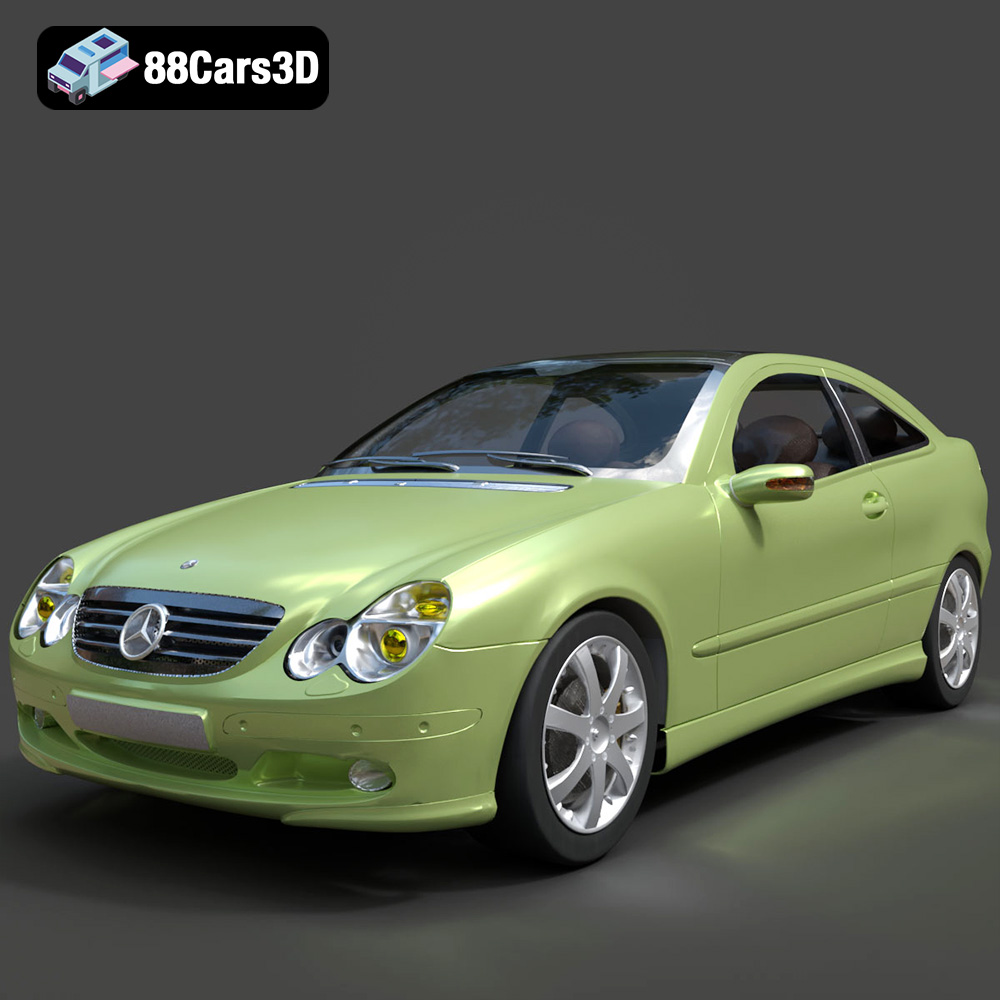
Mercedes-Benz C-Klasse Sportcoupe 2000 3D Model
Texture: Yes
Material: Yes
Download the Mercedes-Benz C-Klasse Sportcoupe 2000 3D Model featuring clean geometry, realistic detailing, and a fully modeled interior. Includes .blend, .fbx, .obj, .glb, .stl, .ply, .unreal, and .max formats for rendering, simulation, and game development.
Price: $38.99
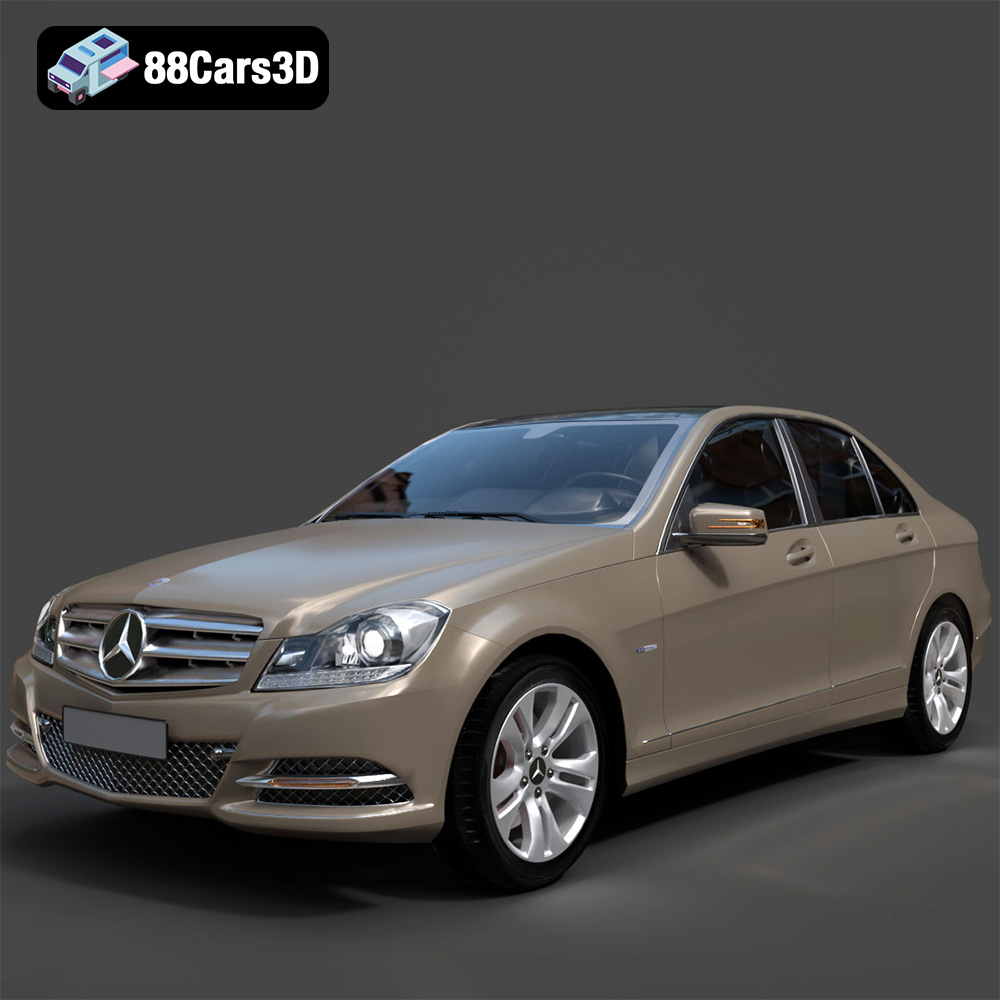
Mercedes-Benz C-Klasse 204 2011 3D Model
Texture: Yes
Material: Yes
Download the Mercedes-Benz C-Klasse 204 2011 3D Model featuring clean geometry, realistic detailing, and a fully modeled interior. Includes .blend, .fbx, .obj, .glb, .stl, .ply, .unreal, and .max formats for rendering, simulation, and game development.
Price: $38.99
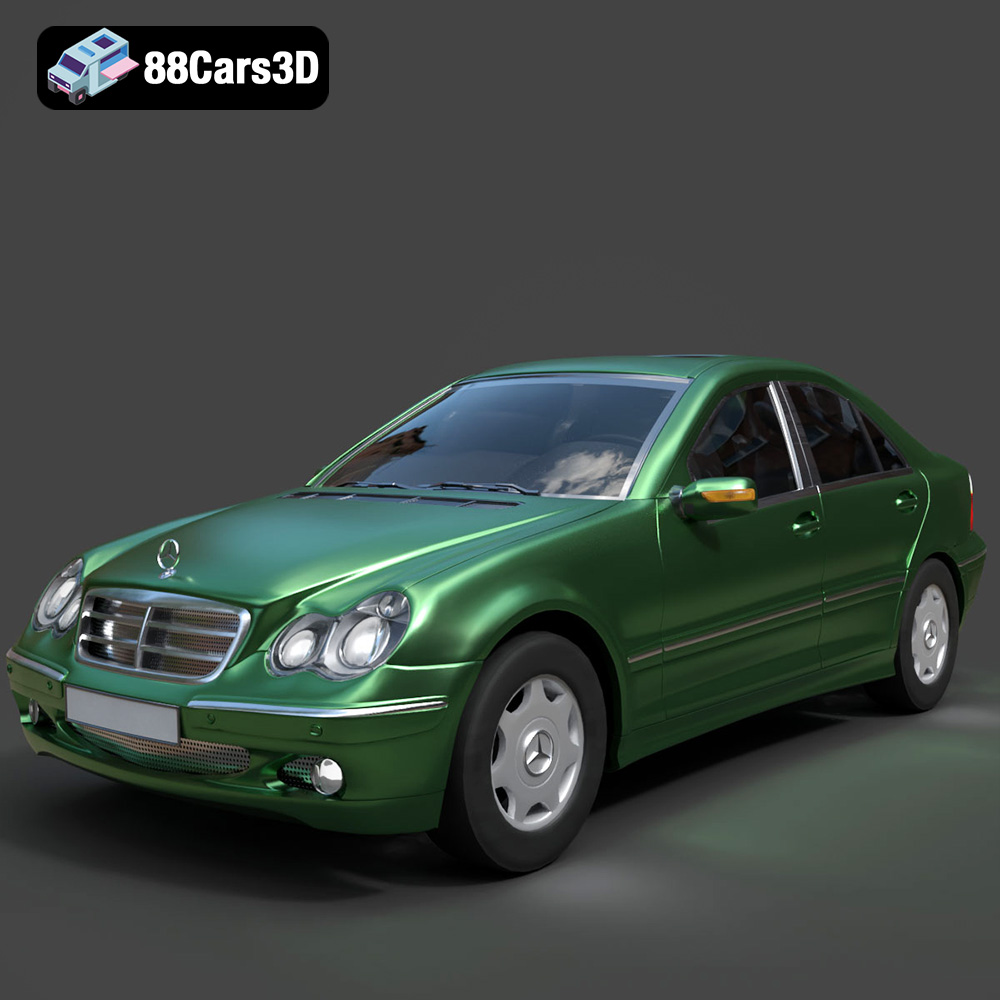
Mercedes-Benz C-Class Sedan 2000 3D Model
Texture: Yes
Material: Yes
Download the Mercedes-Benz C-Class Sedan 3D Model featuring clean geometry, realistic detailing, and a fully modeled interior. Includes .blend, .fbx, .obj, .glb, .stl, .ply, .unreal, and .max formats for rendering, simulation, and game development.
Price: $38.99

Mercedes E-Class w124 Kombi 3D Model
Texture: Yes
Material: Yes
Download the Mercedes E-Class w124 Kombi 3D Model featuring clean geometry, realistic detailing, and a fully modeled interior. Includes .blend, .fbx, .obj, .glb, .stl, .ply, .unreal, and .max formats for rendering, simulation, and game development.
Price: $38.99

Mercedes-Benz CL6540-005 3D Model
Texture: Yes
Material: Yes
Download the Mercedes-Benz CL6540-005 3D Model featuring clean geometry, realistic detailing, and a fully modeled interior. Includes .blend, .fbx, .obj, .glb, .stl, .ply, .unreal, and .max formats for rendering, simulation, and game development.
Price: $38.99
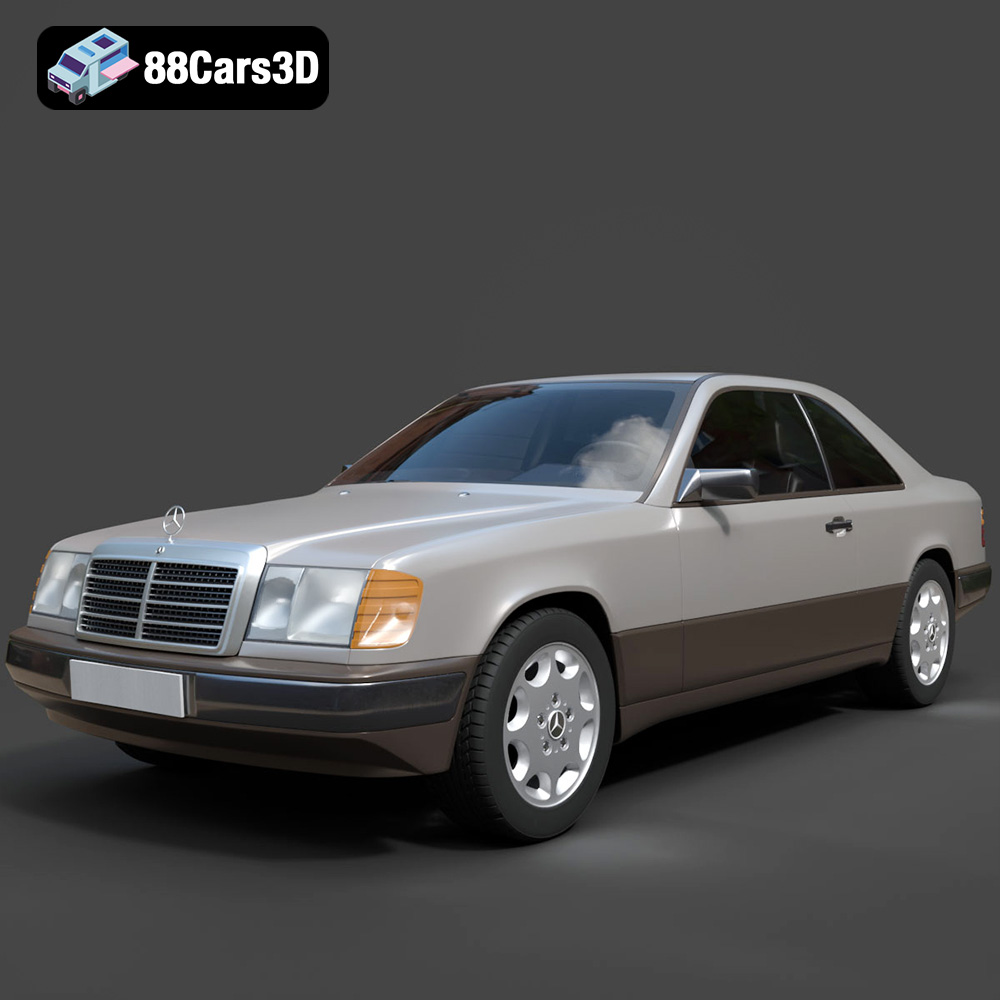
Mercedes E-Class w124 Coupe 3D Model
Texture: Yes
Material: Yes
Download the Mercedes E-Class w124 Coupe 3D Model featuring clean geometry, realistic detailing, and a fully modeled interior. Includes .blend, .fbx, .obj, .glb, .stl, .ply, .unreal, and .max formats for rendering, simulation, and game development.
Price: $38.99
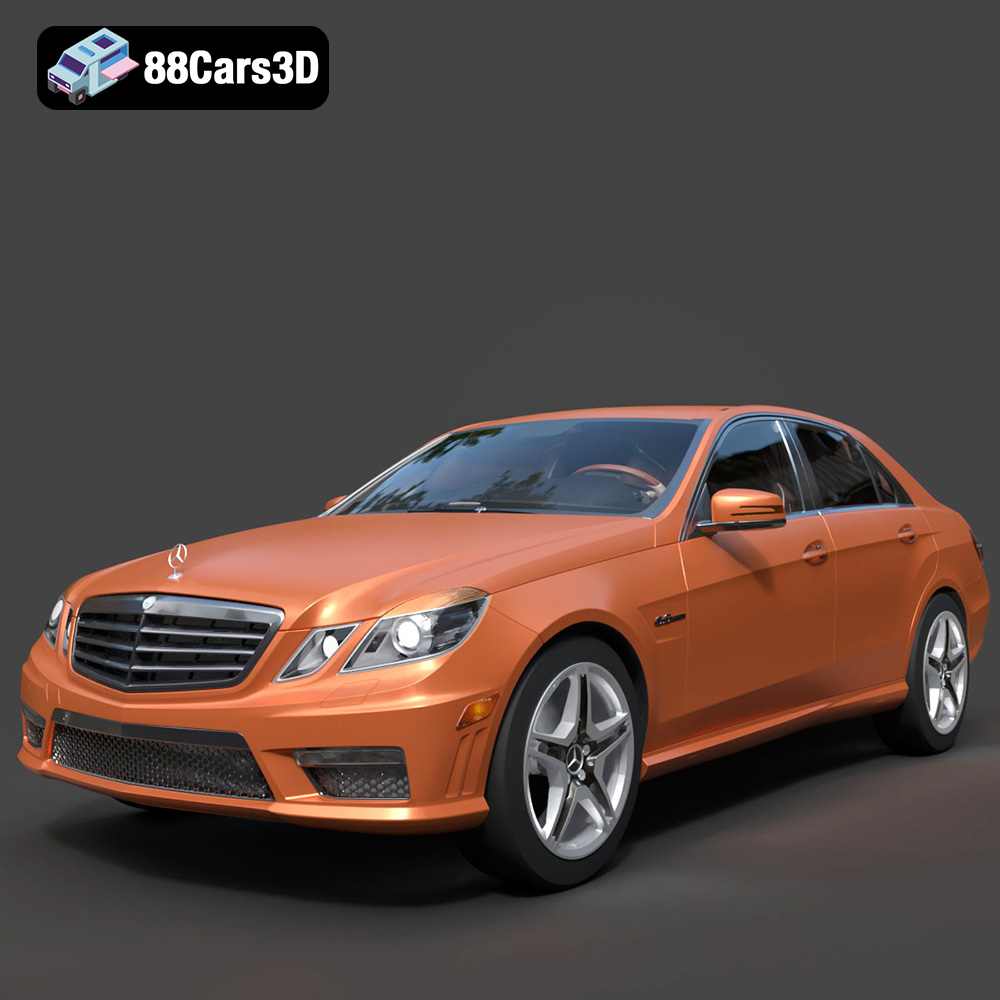
Mercedes-Benz E-Klasse 63 AMG 3D Model
Texture: Yes
Material: Yes
Download the Mercedes-Benz E-Klasse 63 AMG 3D Model featuring clean geometry, realistic detailing, and a fully modeled interior. Includes .blend, .fbx, .obj, .glb, .stl, .ply, .unreal, and .max formats for rendering, simulation, and game development.
Price: $38.99
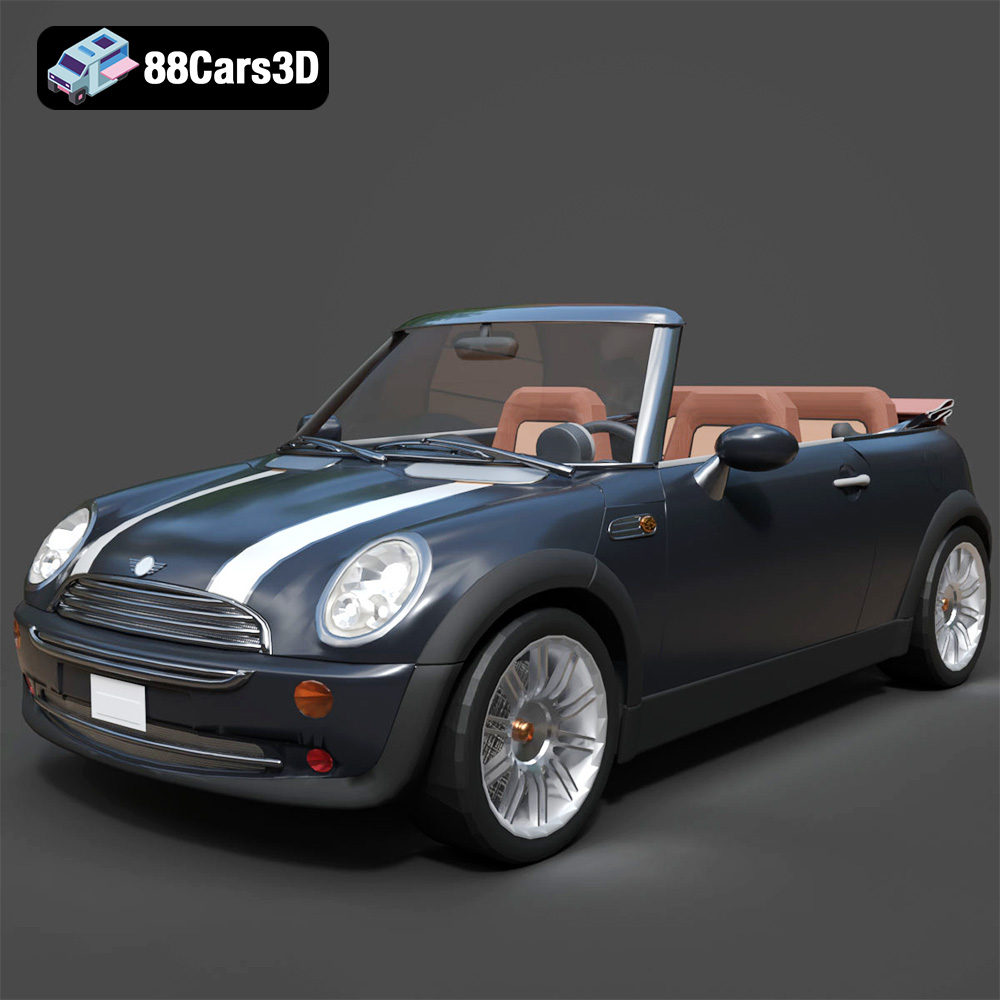
Mini Cabrio 2025 3D Model
Texture: Yes
Material: Yes
Download the Mini Cabrio 2025 3D Model featuring clean geometry, realistic detailing, and a fully modeled interior. Includes .blend, .fbx, .obj, .glb, .stl, .ply, .unreal, and .max formats for rendering, simulation, and game development.
Price: $38.99
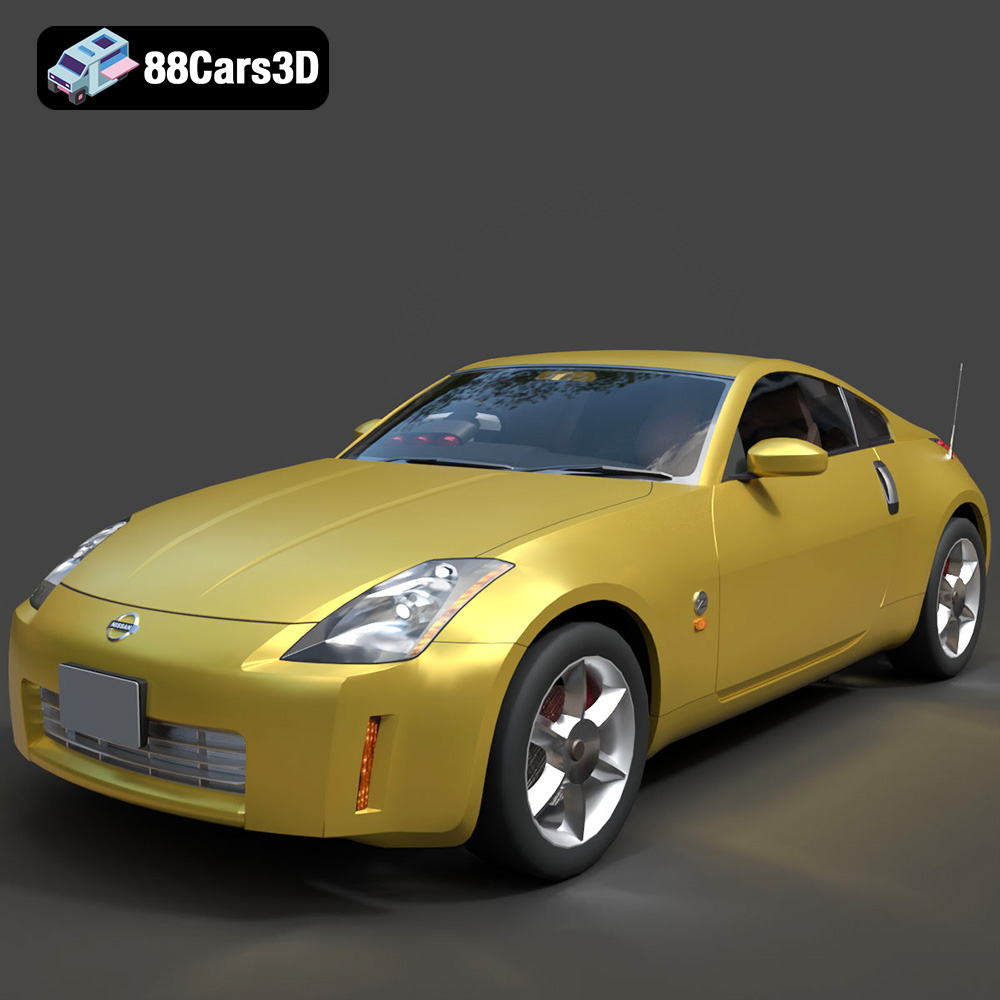
Nissan 350Z 3D Model
Texture: Yes
Material: Yes
Download the Nissan 350Z 3D Model featuring clean geometry, realistic detailing, and a fully modeled interior. Includes .blend, .fbx, .obj, .glb, .stl, .ply, .unreal, and .max formats for rendering, simulation, and game development.
Price: $38.99
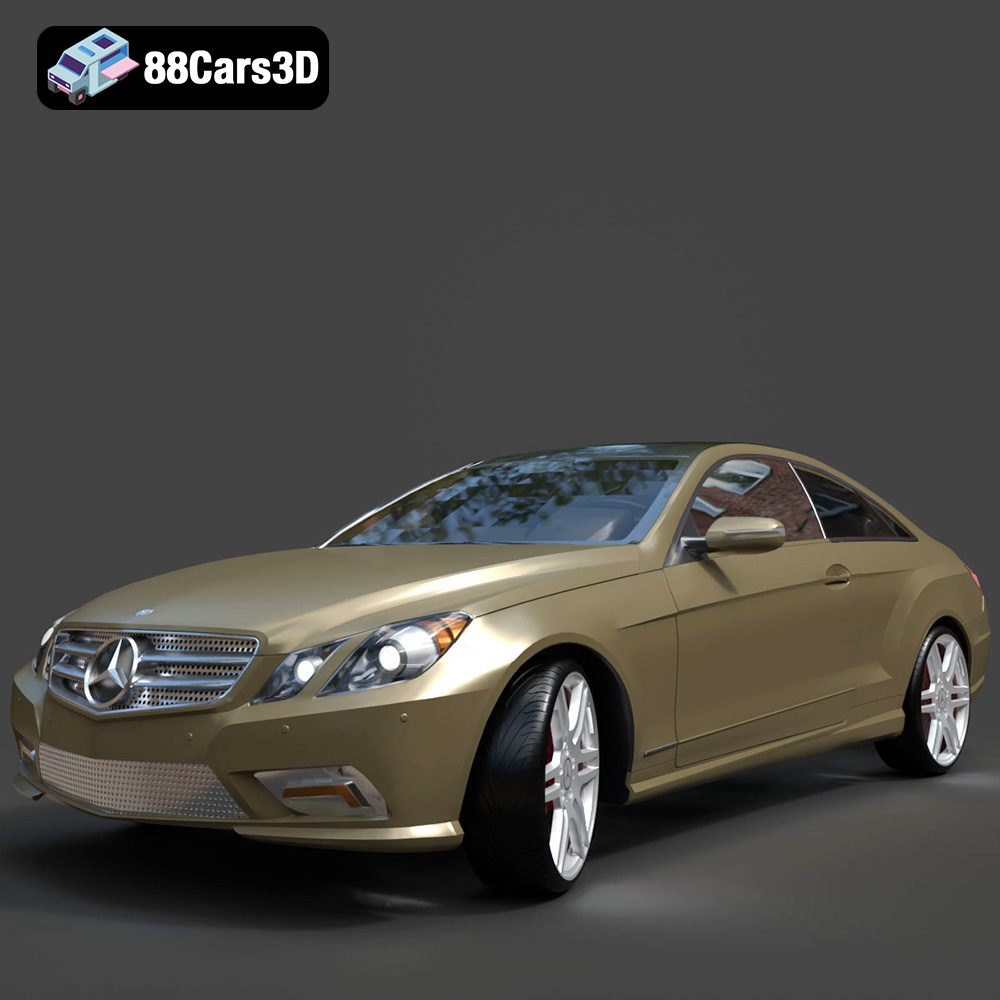
Mercedes-Benz E-Klasse Coupe 2010 3D Model
Texture: Yes
Material: Yes
Download the Mercedes-Benz E-Klasse Coupe 3D Model featuring clean geometry, realistic detailing, and a fully modeled interior. Includes .blend, .fbx, .obj, .glb, .stl, .ply, .unreal, and .max formats for rendering, simulation, and game development.
Price: $38.99