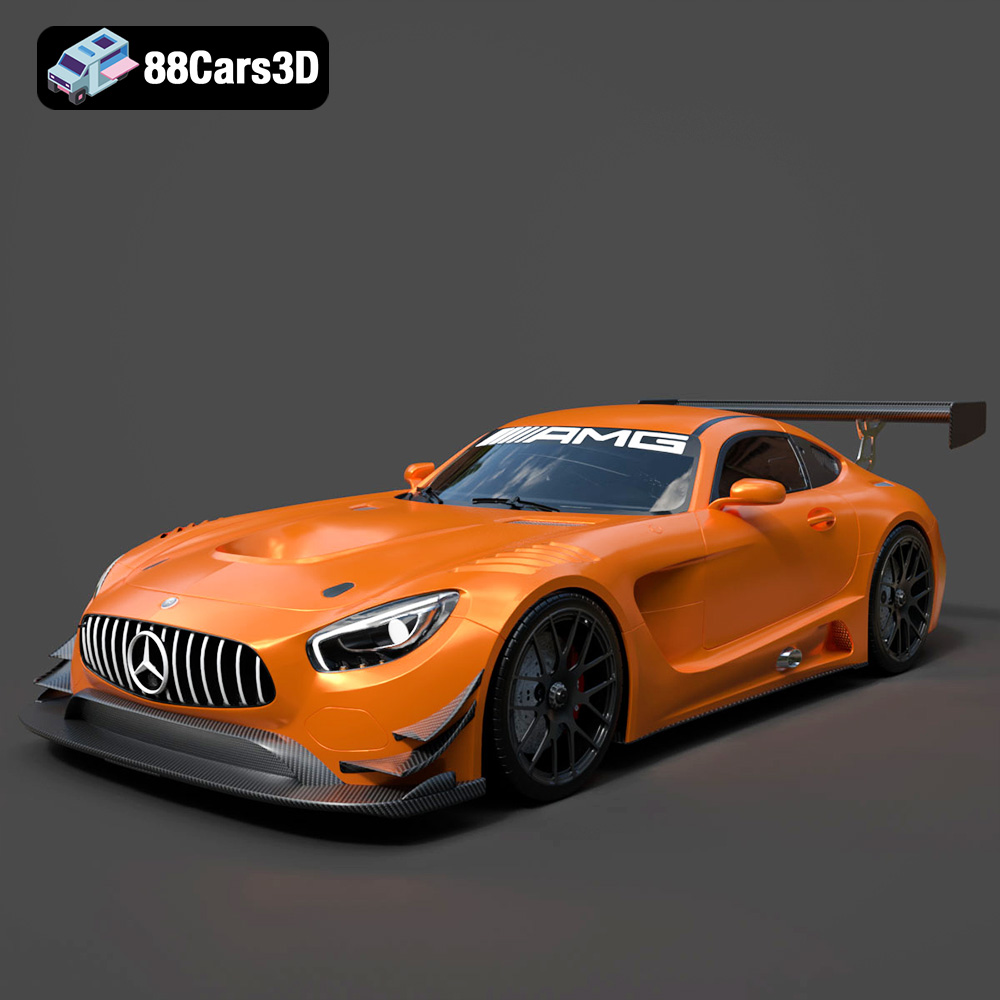
How to Convert Any 3D Car Model Into a Printable STL: Your Ultimate Guide
Dreaming of holding a physical replica of your favorite virtual sports car, a custom-designed concept vehicle, or even a classic automobile game asset? While the digital world offers endless possibilities for creating stunning 3D car models for rendering or gaming, translating these masterpieces into a print-ready format for your 3D printer can be a significant hurdle. Many enthusiasts quickly discover that a model optimized for screen display is often far from suitable for physical fabrication.
This comprehensive guide will demystify the process of converting any 3D car model into a printable STL. We’ll delve into the fundamental differences between display and print models, equip you with the essential software tools, walk you through a step-by-step conversion process, and provide advanced tips to overcome common challenges. By the end of this article, you’ll have the knowledge and confidence to transform virtually any digital car model into a tangible, ready-to-print STL file.
Understanding the Core Difference: Display vs. Print Models
The primary goal of a 3D model for rendering or game development is visual fidelity and efficient performance. This often means optimizing for polygon count, texturing, and animation, without much concern for physical integrity. A 3D printer, however, requires a precise, mathematically sound blueprint of a solid object.
What Makes a 3D Model “Printable”?
To successfully 3D print car models, your digital file must meet several crucial criteria:
-
Watertight (Solid): Imagine filling your model with water. If it leaks, it’s not watertight. This means no holes, gaps, or unjoined edges in the mesh. Every surface must form a continuous, closed volume.
-
Manifold Geometry: Every edge in your model must be shared by exactly two faces. Non-manifold geometry includes internal faces, zero-thickness walls, or edges shared by more than two faces – conditions that confuse a 3D printer’s slicer.
-
Correct Scale: Your model needs to be in a real-world scale that makes sense for 3D printing (e.g., millimeters, centimeters). A car model designed in “Blender units” without proper scaling will result in an unprintably tiny or enormous object.
-
Sufficient Wall Thickness: A 3D printer needs material to build. Very thin walls (less than 0.8mm for FDM, 0.5mm for resin) will likely break during printing or post-processing, or simply not print at all.
-
Optimized Detail Resolution: While high polygon counts look great on screen, excessive detail can make a print file unwieldy and introduce subtle errors. For FDM printing, a balance is key; for resin, higher detail is often acceptable.
Common Issues with Display-Ready Car Models for Printing
When you take a car model directly from a game engine or a rendering project, you’re likely to encounter these problems:
-
Open Edges & Gaps: Car models often have separate body panels, interiors, and engine components that might not be perfectly joined, leaving visible gaps. These translate to “holes” for a 3D printer.
-
Non-Manifold Geometry: Designers frequently use overlapping or intersecting meshes to create complex details or simply to save modeling time. This is acceptable for rendering but problematic for a physical object. Zero-thickness surfaces, like a single plane representing a window, are also non-manifold.
-
Inverted Normals: The “direction” a face is pointing matters. If normals are flipped, the printer won’t know if the material should be built inside or outside the surface.
-
Excessive Detail & Unnecessary Internal Geometry: Game models might have highly detailed interiors or undercarriages that are never meant to be seen or printed. These add unnecessary complexity and file size.
-
No Thickness: Many digital elements, like decals or thin plastic trims, are modeled as single planes without any real-world thickness.
Converting a 3D car model to STL involves a combination of modeling, repair, and optimization. Here are the tools you’ll need:
Dedicated 3D Modeling Software (High Control)
These tools offer the most control for intricate repairs and modifications.
-
Blender (Free, Open-Source): An incredibly powerful and versatile 3D suite. It features excellent tools for fixing manifold geometry, solidifying thin meshes, boolean operations (for combining or cutting objects), and even a dedicated 3D Print Toolbox add-on for analysis and basic repairs. It’s often the go-to for Blender 3D printing preparation.
-
Fusion 360 / SolidWorks (CAD, Precise): If your original car model is from a CAD package or needs extreme precision, CAD software excels. They inherently create watertight, solid models. Converting non-CAD meshes into solid bodies in these programs can be challenging but offers unparalleled accuracy.
-
ZBrush (Sculpting, Organic, High Detail): While primarily for sculpting, ZBrush’s Dynamesh and ZRemesher features are excellent for creating watertight meshes from complex, organic, or heavily damaged geometry, especially useful for highly detailed car body modifications.
Specialized 3D Print Preparation Software (Automated/Semi-Automated)
These tools are designed specifically for mesh repair and preparing files for printing.
-
MeshMixer (Free, Autodesk): An absolute workhorse for MeshMixer STL repair. Its “Inspector” tool automatically highlights and attempts to fix manifold errors and holes. The “Make Solid” feature is incredibly powerful for converting open meshes into watertight, solid objects, albeit sometimes with detail loss.
-
Netfabb (Professional, Autodesk): A leading professional tool for advanced mesh analysis, repair, and preparation. It offers robust automated and manual repair options, slicing, and support generation.
-
3D Builder (Windows, Basic Fixes): A free, often pre-installed Windows application that offers surprising capabilities for basic mesh repair, splitting models, and generating simple supports. Great for quick fixes.
-
Slicers with Repair Functions (PrusaSlicer, Cura): Many modern slicers have built-in basic mesh repair functionalities. While not as comprehensive as dedicated tools, they can sometimes fix minor issues during the import process.
Comparison Table: Software for STL Conversion & Repair
| Software |
Ease of Use |
Control Level |
Cost |
Key Features for Printing |
| Blender |
Medium-High (Steep learning curve) |
Very High |
Free |
Booleans, Solidify, Remesh, 3D Print Toolbox, Manual Mesh Editing |
| MeshMixer |
Medium |
Medium (Automated fixes) |
Free |
Inspector (auto-repair), Make Solid, Mesh Sculpting, Hollowing |
| Fusion 360 |
Medium |
High (CAD precision) |
Free (Personal Use) / Paid |
Solid modeling, precise measurements, mesh-to-brep conversion |
| Netfabb |
Medium-High |
High (Professional) |
Paid |
Advanced repair algorithms, hollowing, lattice generation, analysis |
| 3D Builder |
High (Beginner-friendly) |
Low-Medium (Basic) |
Free (Windows) |
Simple repair, splitting, hollowing |
Step-by-Step Conversion Process: From Car Model to Printable STL
Follow these steps to successfully prepare 3D model for printing and convert your car model into a printable STL car model.
Most 3D modeling software and repair tools support common 3D file formats like OBJ, FBX, DAE, 3DS, and sometimes even native formats.
-
Open your chosen software (e.g., Blender, MeshMixer).
-
Import the car model: File > Import > [Your File Type]. If the model comes in multiple parts, import them all.
-
Initial Scale Check: Immediately after import, ensure the model’s scale is somewhat reasonable. If it’s minuscule or gargantuan, adjust it before proceeding, as scale issues can complicate repairs.
Step 2: Initial Inspection and Analysis
Before diving into fixes, understand the extent of the damage.
-
Visual Check: Orbit around the model, zooming in on suspicious areas like gaps between panels, thin edges, or areas where meshes overlap.
-
Use Analysis Tools:
-
In MeshMixer: Go to ‘Analysis’ > ‘Inspector’. This tool automatically identifies and often suggests repairs for holes, non-manifold edges, and other issues. Use the ‘Auto Repair All’ or click on individual blue/pink spheres to fix.
-
In Blender: Activate the built-in ‘3D Print Toolbox’ add-on (Edit > Preferences > Add-ons). In the ‘N’ panel (sidebar) under the ‘3D Print’ tab, click ‘Checks All’ to identify issues like non-manifold edges, intersections, and thin walls.
Step 3: Fixing Non-Manifold Geometry and Open Edges
This is often the most critical and time-consuming step for fixing 3D model for printing.
-
Boolean Operations (Blender, Fusion 360): If you have multiple overlapping meshes (e.g., a car body and a separate bumper that intersects it), use a ‘Union’ boolean operation to merge them into a single, watertight mesh. Be cautious, as Booleans can sometimes create messy topology.
-
Solidify Modifier/Shell Tools (Blender, Fusion 360): For surfaces with zero thickness (like window panes or thin trims), apply a ‘Solidify’ modifier (Blender) or ‘Thicken/Shell’ tool (CAD software) to give them actual volume.
-
Filling Holes (Blender, MeshMixer):
-
Automatic: MeshMixer’s Inspector or Make Solid function will attempt to fill holes automatically.
-
Manual (Blender): Select edge loops bordering holes and use ‘Face > Grid Fill’ or ‘Bridge Edge Loops’. For simple holes, just select the boundary edges and press ‘F’ to create a face.
-
Manual Edge/Face Creation: For complex or stubborn gaps, you might need to manually create new edges and faces to close the mesh. Ensure all new faces have consistent normals (use ‘Mesh > Normals > Recalculate Outside’ in Blender).
-
Remove Internal Geometry: Delete any parts of the model that are completely hidden inside and don’t contribute to the exterior shape. This reduces file size and potential errors.
Step 4: Ensuring Watertightness and Wall Thickness
-
Merge All Meshes: In Blender, select all parts of your car model and use ‘Ctrl+J’ to join them into a single object. Then, in Edit Mode, select all vertices and ‘Merge by Distance’ to remove any overlapping vertices that are very close to each other.
-
Check Minimum Wall Thickness: After solidifying and joining, measure critical thin areas. For most FDM printers, aim for at least 1mm wall thickness. For resin printers, 0.5-0.8mm might suffice. If walls are too thin, you might need to use a ‘Solidify’ modifier again or carefully scale specific areas.
Step 5: Scaling and Orientation
The size and placement of your model are crucial for a successful print.
-
Set Real-World Scale: In your software, set the model’s dimensions to your desired print size (e.g., 1:24 scale for a model car). Most software uses millimeters as the default for 3D printing.
-
Orient for Optimal Printing: Position the car model flat on its base, or on an angle that minimizes overhangs and the need for excessive supports. Consider splitting the model if a single orientation is difficult.
Step 6: Decimation and Detail Management (Optional but Recommended)
High polygon counts can lead to large file sizes and slow slicing, especially for FDM printing.
-
Decimate/Reduce Polygons: Use a ‘Decimate’ modifier (Blender) or similar tools (MeshMixer’s ‘Reduce’ tool) to lower the polygon count without significantly affecting the visual shape. Aim for a balance where essential details are preserved.
-
Remeshing: Tools like Blender’s ‘Remesh’ modifier or ZBrush’s Dynamesh can create a uniform mesh density, which can simplify topology and create a clean, watertight surface, especially useful for complex, organic shapes.
The final step for STL conversion software.
-
Select your model.
-
Go to File > Export > STL.
-
Export Settings:
-
Selection Only: Ensure only your car model is exported.
-
Scale: Confirm units (usually millimeters).
-
Format: Binary STL is usually preferred as it’s smaller and faster than ASCII.
-
Save your .stl file.
Advanced Tips and Troubleshooting for Car Models
-
Dealing with Complex Interior Geometry: For realistic car models, interiors can be incredibly detailed. If you’re printing a solid model, remove or simplify the interior geometry entirely to reduce file size and errors. If you plan to print the interior separately, ensure it’s also prepared as a watertight model.
-
Splitting Models for Easier Printing: Very large or complex car models might be impossible to print in one piece due to printer build volume limits or support difficulties. Consider splitting the car into logical parts (body, wheels, chassis, separate doors, etc.). Design simple interlocking mechanisms (pins, slots) for easy assembly post-print.
-
Hollowing Models to Save Material: For resin printing especially, hollowing your model can save significant material and print time. Tools like MeshMixer or your slicer can often do this, but remember to add drain holes to prevent resin entrapment.
-
Designing for Interlocking Parts: If splitting, ensure joints are clean and have appropriate tolerances (e.g., 0.1-0.2mm gap for FDM) for easy assembly.
-
Test with a Slicer Immediately After Export: Before committing to a full print, load your exported STL into your preferred slicer (Cura, PrusaSlicer, Simplify3D). Check the layer view for any unexpected gaps, artifacts, or non-printable areas. The slicer is your final validation for a 3D printer car model.
Conclusion
Converting a display-ready 3D car model into a printable STL is a journey that bridges the gap between digital artistry and physical reality. While it demands attention to detail and a methodical approach, mastering these techniques opens up a world of possibilities for automotive 3D printing. By understanding the core requirements of watertight and manifold geometry, leveraging the right software tools, and following a structured repair process, you can transform virtually any virtual car into a tangible object.
Don’t let the initial complexities deter you. With practice, patience, and the insights from this guide, you’ll soon be confidently creating stunning 3D printed car models. So, pick your favorite digital vehicle, roll up your sleeves, and get ready to bring it to life!
Ready to bring your digital car models to life?
Start experimenting with the software tools mentioned above and apply these steps to your next project. Share your success stories and challenges in the comments below!
Explore More 3D Printing Guides