⚡ FLASH SALE: Get 60% OFF All Premium 3D & STL Models! ⚡

“`html
In the world of 3D automotive visualization, the pursuit of photorealism is the ultimate goal. You can have the most meticulously detailed 3D car model, with perfect topology and PBR materials, but without the right lighting, the final image will invariably fall flat. Lighting is the invisible artist that sculpts form, defines texture, and breathes life into a digital scene. Among the many lighting techniques available, one stands above the rest as the industry standard for achieving breathtaking realism: High Dynamic Range Imaging, or HDRI. It’s the secret sauce that separates a good render from a photographically believable masterpiece. This comprehensive guide will take you on a deep dive into the art and science of HDRI lighting for automotive rendering. We will explore what HDRIs are, why they are so critical for reflective surfaces like cars, and provide detailed, step-by-step workflows for setting them up in industry-leading software like Blender, 3ds Max with Corona, and V-Ray. You’ll learn not just the “how,” but the “why,” empowering you to make deliberate artistic choices that elevate your work from simply rendered to truly stunning.
Before we jump into practical application, it’s crucial to understand what an HDRI is and why it’s fundamentally different from a standard image. At its core, an HDRI is a 360-degree panoramic image that contains a massive amount of light intensity data. The “High Dynamic Range” part of the name is the key. While a standard photograph (like a JPEG) can only store a limited range of brightness values—from pure black to pure white—an HDRI captures a vastly wider spectrum of light, from the darkest shadows to the blindingly bright intensity of the direct sun. This allows it to store real-world lighting information with incredible accuracy.
Automotive visualization presents a unique set of challenges, primarily due to the complex and highly reflective nature of a car’s surface. This is where HDRIs become indispensable.
The environment you choose will dictate the entire mood and story of your render. HDRIs can be broadly categorized, and your choice should be a deliberate artistic decision.
The quality of your final render is directly tied to the quality of the assets you use, and this is especially true for HDRIs. A low-resolution or low-quality HDRI will result in blurry reflections and poor lighting, no matter how skilled you are. Investing time in sourcing the right file is a critical first step. When you start with a high-fidelity asset, like a professionally crafted model from a marketplace such as 88cars3d.com, you need lighting assets of equal caliber to do it justice.
There are numerous online resources for finding excellent HDRIs, catering to various budgets. For those starting out or working on personal projects, Poly Haven is an invaluable resource, offering a vast library of high-quality, completely free HDRIs. For professional commercial work, paid platforms like Poliigon, HDRI Maps, and Domeble offer exceptionally high-resolution files (up to 32K and beyond) with perfectly matched backplate images, ensuring the highest level of quality for hero shots.
When selecting an HDRI, there are several technical factors to consider to ensure you get the best possible result.
.hdr and .exr. While both work, .exr is the professional standard. It uses lossless compression (unlike .hdr‘s less efficient format) and supports 32-bit float precision, preserving the maximum amount of lighting data.In some cases, you may want to make minor adjustments to your HDRI before using it. Using software like Adobe Photoshop or Affinity Photo, you can perform tasks like removing the tripod or photographer’s reflection from the bottom of the image (the nadir), adjusting the overall color temperature to be warmer or cooler, or boosting the saturation. However, for most high-quality, professionally-shot HDRIs, this step is often unnecessary.
Blender, with its powerful Cycles render engine, offers a straightforward and highly flexible node-based system for setting up HDRI lighting. The process is non-destructive and allows for a great deal of artistic control. For accurate and up-to-date information on Blender’s features, it is always a good idea to consult the official Blender 4.4 documentation, which provides in-depth explanations of every tool and setting.
Getting your HDRI into your Blender scene is a simple process. Follow these steps:
.hdr or .exr file.If you switch your 3D Viewport’s shading mode to “Rendered,” you will immediately see your scene illuminated by the HDRI.
To truly master your lighting, you’ll want to use the Shader Editor for more advanced control over the HDRI’s orientation and power.
Now, you can use the Rotation Z value on the Mapping node to rotate the HDRI around your scene. This is a critical artistic step, as it allows you to position the key light (the sun) and reflections exactly where you want them to best showcase the car’s features. The Strength value on the Background node acts as a global multiplier for the HDRI’s brightness.
A common professional technique is to use the HDRI for its excellent lighting and reflections, but render a different background, such as a clean color or a high-resolution backplate image. This gives you more compositional freedom.
This setup tells Blender: “For everything the camera sees directly, use the new colored background. For all other light rays (reflections, global illumination), use the HDRI.” Your car will still have the beautiful HDRI reflections, but it will be rendered against a clean background.
For users of 3ds Max, setting up HDRI lighting with render engines like Corona and V-Ray is equally powerful, offering robust tools for seamless integration and control. The core principles are the same, but the specific implementation differs slightly between the two renderers.
Corona Renderer offers a very intuitive and flexible workflow for HDRI lighting. The most common method involves using the Environment slot.
.exr or .hdr file.The intensity of the light is controlled by the Output Amount in the Corona Bitmap settings or the Environment slot multiplier.
While you can use the environment slot in V-Ray, the recommended and more powerful method is to use a V-Ray Dome Light. This gives you better sampling and more direct control.
To make your 3D car model look like it’s truly part of the environment, you need to “ground” it. This is achieved by creating a plane underneath the car that will receive shadows and reflections but will itself be invisible in the final render.
For the highest quality results, professionals often use a high-resolution backplate image for the background, which is a still photograph taken from the same location as the HDRI. The camera in your 3D scene is then carefully matched to the perspective and lens of the real-world camera that took the backplate, creating a seamless composite.
While an HDRI provides a fantastic base for realistic lighting, there are times when you need to push the results further for more artistic control or to add extra visual punch. Relying solely on the HDRI can sometimes lead to lighting that feels a bit too soft or lacks a strong directional key light. These advanced techniques help you refine your lighting to perfection.
One of the most common challenges with HDRI lighting is that while the shadows are realistic, they may lack the sharp, defined quality you desire, especially for dramatic, sunny day shots. This happens because even a high-EV HDRI’s sun is just a small cluster of extremely bright pixels. To fix this, you can supplement the HDRI with a dedicated sun light.
This technique is borrowed directly from real-world automotive photography. Photographers use large black flags (known as gobos or blockers) to manipulate reflections and light on a car’s surface. You can easily replicate this in 3D.
These additions give you an extra layer of artistic control, allowing you to guide the viewer’s eye and accentuate the most important design elements of the 3D car model.
Mastering HDRI lighting is a transformative skill for any artist involved in automotive rendering. It is the single most effective technique for bridging the gap between a 3D model and a photorealistic image. We’ve journeyed from the fundamental principles of what makes an HDRI special to detailed, practical workflows in major 3D applications. Remember the key takeaways: the quality of your HDRI asset is paramount, with high resolution and a wide dynamic range being non-negotiable for professional results. Understanding how to rotate and control your environment is where the true artistry begins, allowing you to sculpt with light and reflection. And for that final 10% of polish, don’t be afraid to enhance your HDRI setup with supplementary lights and blockers to achieve the exact look you envision. The next step is to put this knowledge into practice. Find a high-quality HDRI, experiment with different environments and lighting angles. Of course, the perfect lighting needs a perfect subject. Starting your project with a meticulously crafted asset, such as the high-quality 3D car models available from 88cars3d.com, provides an ideal canvas. Their clean topology and realistic PBR materials are designed to react beautifully to complex, physically-based lighting, allowing you to achieve the stunning, portfolio-ready results you’re aiming for.
“`
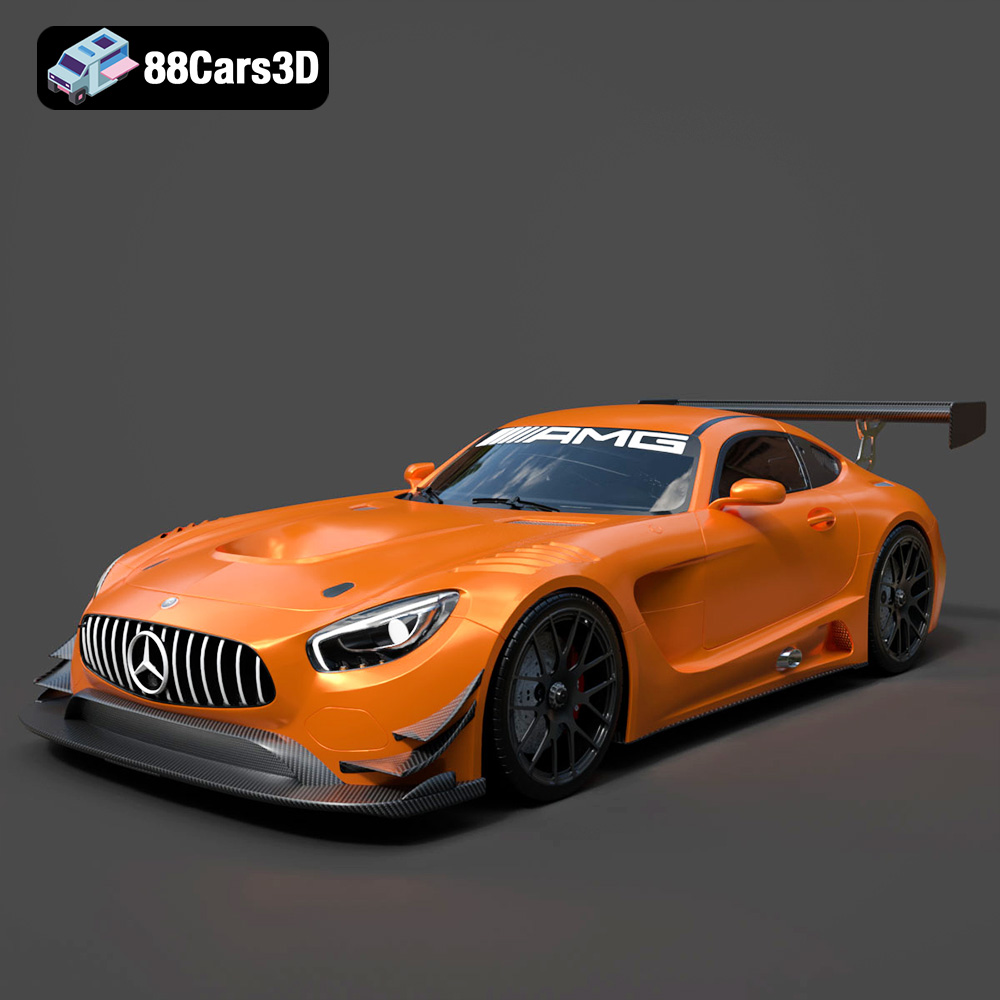
Texture: Yes
Material: Yes
Download the Mercedes-AMG GT S 3D Model featuring clean geometry, realistic detailing, and a fully modeled interior. Includes .blend, .fbx, .obj, .glb, .stl, .ply, .unreal, and .max formats for rendering, simulation, and game development.
Price: $25

Texture: Yes
Material: Yes
Download the Moto Guzzi Classic Motorcycle 2024 3D Model featuring clean geometry, realistic detailing, and a fully modeled interior. Includes .blend, .fbx, .obj, .glb, .stl, .ply, .unreal, and .max formats for rendering, simulation, and game development.
Price: $10

Texture: Yes
Material: Yes
Download the Horch 853 Sport Cabriolet 1937 3D Model featuring clean geometry, realistic detailing, and a fully modeled interior. Includes .blend, .fbx, .obj, .glb, .stl, .ply, .unreal, and .max formats for rendering, simulation, and game development.
Price: $10

Texture: Yes
Material: Yes
Download the Yamaha YZF-R1 Motorcycle 3D Model featuring clean geometry, realistic detailing, and a fully modeled interior. Includes .blend, .fbx, .obj, .glb, .stl, .ply, .unreal, and .max formats for rendering, simulation, and game development.
Price: $10

Texture: Yes
Material: Yes
Download the Mercedes Benz G63 AMG 2019 3D Model featuring clean geometry, realistic detailing, and a fully modeled interior. Includes .blend, .fbx, .obj, .glb, .stl, .ply, .unreal, and .max formats for rendering, simulation, and game development.
Price: $90

Texture: Yes
Material: Yes
Download the Daewoo Damas Mk2 2012 3D Model featuring clean geometry, realistic detailing, and a fully modeled interior. Includes .blend, .fbx, .obj, .glb, .stl, .ply, .unreal, and .max formats for rendering, simulation, and game development.
Price: $10

Texture: Yes
Material: Yes
Download the BMW 540 E34 3D Model featuring clean geometry, realistic detailing, and a fully modeled interior. Includes .blend, .fbx, .obj, .glb, .stl, .ply, .unreal, and .max formats for rendering, simulation, and game development.
Price: $10

Texture: Yes
Material: Yes
Download the BMW 8 Series Coupe 2020 3D Model featuring clean geometry, realistic detailing, and a fully modeled interior. Includes .blend, .fbx, .obj, .glb, .stl, .ply, .unreal, and .max formats for rendering, simulation, and game development.
Price: $10

Texture: Yes
Material: Yes
Download the Mercedes-Benz CLA45 AMG 2017 3D Model featuring clean geometry, realistic detailing, and a fully modeled interior. Includes .blend, .fbx, .obj, .glb, .stl, .ply, .unreal, and .max formats for rendering, simulation, and game development.
Price: $21.99

Texture: Yes
Material: Yes
Download the Dodge Charger Car-004 3D Model featuring clean geometry, realistic detailing, and a fully modeled interior. Includes .blend, .fbx, .obj, .glb, .stl, .ply, .unreal, and .max formats for rendering, simulation, and game development.
Price: $10

