⚡ FLASH SALE: Get 60% OFF All Premium 3D & STL Models! ⚡

“`html
The allure of seeing a classic car, a futuristic concept, or a rugged off-roader come to life on your 3D printer is undeniable. For enthusiasts and hobbyists alike, downloadable STL files of intricate vehicle models offer a gateway to creating stunning replicas. However, transforming a digital design into a tangible, high-quality print is a nuanced process that hinges on two critical factors: proper wall thickness and intelligent support structures. Simply hitting “print” on an unprepared file often leads to frustrating failures – weak parts, broken details, and unsightly print lines. This guide will delve deep into the technical intricacies of optimizing these settings, empowering you to achieve professional-grade results with your 3D printed car models. We’ll explore how file preparation, slicer settings, and printer configurations all play a vital role in ensuring your automotive creations are robust, detailed, and ready to impress, whether they’re destined for a display shelf or a functional prototype.
Before we even touch the slicer, the quality of the source STL file is paramount. An STL file describes the surface geometry of a 3D object using a collection of connected triangles. For intricate models like those found on 88cars3d.com, the fidelity and integrity of this mesh directly impact printability. A “watertight” or manifold mesh is essential, meaning there are no holes, inverted normals, or non-manifold edges that would confuse the slicing software. Poorly constructed meshes can lead to unpredictable slicing, resulting in missing walls, internal voids, or even complete print failures. Understanding the topology of your mesh – how the triangles are connected – is the first step to ensuring your car model prints as intended.
Software like Meshmixer, Blender, or Netfabb are invaluable tools for mesh analysis and repair. When you import an STL file, these programs can flag common issues. Look out for:
Most repair tools can automatically fix many of these problems. For instance, Meshmixer’s “Make Manifold” feature is a powerful one-click solution. In Blender, the “3D-Print Toolbox” add-on offers robust analysis and repair capabilities. For complex repairs, manual intervention might be necessary, such as bridging holes or deleting stray geometry. Thorough mesh repair is a non-negotiable step for ensuring consistent and successful prints, especially with complex automotive designs that feature sharp edges and fine details.
For any 3D printable object, especially detailed models like cars, maintaining adequate wall thickness is crucial. Walls that are too thin will be fragile, prone to breaking during printing, handling, or even during support removal. Conversely, excessively thick walls can lead to wasted material, longer print times, and potential issues like warping or infill collapse. When downloading models from marketplaces such as 88cars3d.com, reputable providers often design their models with printability in mind, ensuring minimum wall thicknesses are met.
The minimum acceptable wall thickness depends on several factors:
When preparing models in your slicer, you can often adjust the number of wall lines (or perimeters) and their thickness. Increasing the number of perimeters is a more effective way to achieve structural integrity than simply thickening the entire model, as it preserves fine external details.
The slicer software is where the digital 3D model is translated into layer-by-layer instructions for your 3D printer. Mastering its settings is key to achieving high-quality prints. For car models, balancing detail, strength, and print time is an art form. This involves carefully configuring wall settings, infill density and patterns, and layer height. The goal is to create a robust outer shell that captures the design’s nuances while using infill efficiently to support the structure without over-printing.
In most slicers (like Cura, PrusaSlicer, Simplify3D), you’ll find settings related to “Wall Line Count,” “Perimeters,” or “Shell Thickness.”
It’s vital to remember that these settings apply to all walls. If your model has very thin features (like mirrors, spoilers, or antennas), you might need to consider shelling the model or using repair software to thicken these specific areas if they fall below your minimum threshold. Some slicers offer advanced settings like “Hollow” or “Vase Mode” (for single-wall objects), but these are generally unsuitable for robust car models needing internal structure.
Infill provides the internal support for the outer walls and top layers. The density (percentage) and pattern significantly impact the model’s strength, weight, and print time.
For car models, a pattern like Gyroid or Cubic at 15-20% density usually provides a good balance of support, weight, and print efficiency. The key is that the infill provides a stable base for the walls and top surfaces to adhere to, preventing sagging or collapse. Ensure your infill settings are compatible with your chosen wall settings; too low an infill with too few walls can still result in a weak model.
Automotive models are rife with overhangs, bridges, and intricate details – from undercarriages and spoilers to complex engine bays and interior components. Without proper support, these features will sag, droop, or fail entirely, marring the final print. Effective support generation is about providing temporary scaffolding precisely where needed, without damaging the model during removal. This involves understanding the different types of supports, their placement, and how to fine-tune their settings for clean separation.
Most slicers offer several support types:
For vehicle models, a combination of support types might be most effective. Tree supports are excellent for the main body, while strategic normal supports might be needed for the undercarriage or wheel wells. Many platforms, including 88cars3d.com, strive to provide models that minimize the need for excessive supports by incorporating features like chamfered overhangs or split designs where possible. Always evaluate the model’s overhangs and choose the support type that best balances stability with ease of removal.
Fine-tuning support settings is crucial for successful printing and post-processing:
A spacing of 0.1-0.2mm between the model and the interface layers is often ideal. This small gap allows the interface to provide a flat surface for printing while making it easier to snap off.
Experimentation is key. Print a small test section with critical overhangs to dial in these settings before committing to a large print. Clean support removal is often the difference between a print you’re proud of and one that needs significant rework.
How you orient your car model on the print bed and ensuring that crucial first layer adheres properly are fundamental to a successful print. The chosen orientation affects not only the amount of support material needed but also the direction of layer lines, which can impact the visual quality and structural integrity of the final model. Bed adhesion ensures the entire print stays anchored throughout the process, preventing catastrophic failures.
When orienting a car model, consider the following:
For complex multipart models, consider orienting each part individually for optimal results before assembly. Platforms like 88cars3d.com often provide guidance or pre-oriented models to simplify this process.
A failed first layer can ruin an entire print. Here’s how to ensure good adhesion:
While wall thickness and supports are critical, the choice of material and the state of your 3D printer calibration play equally important roles in the success of your 3D printed car models. Different materials have unique properties that affect printability, strength, and post-processing. A well-calibrated printer ensures that your slicer settings are interpreted accurately, leading to consistent and predictable results.
The material you select will influence the final look, feel, and durability of your car model:
For hobbyist collectors seeking display pieces, PLA or standard resins are excellent choices. If the model needs to be more robust or withstand moderate stress, PETG or engineering-grade resins are recommended. Always check the recommended 3D printer settings for the specific material you are using.
A poorly calibrated printer will undermine even the most meticulously prepared STL file and slicer settings. Key calibration steps include:
Regular maintenance, such as cleaning hotend nozzle, checking belt tension, and lubricating moving parts, also contributes to consistent print quality. A well-maintained and calibrated printer is the foundation upon which all other 3D printing success is built.
The journey doesn’t end when the print finishes. Post-processing is where you transform a raw 3D print into a polished, professional-looking model. For car models, this often involves support removal, sanding, filling, priming, and painting. The quality of the print and the care taken during these steps will significantly impact the final aesthetic appeal. Efficient support structures and proper wall thickness from the start make this stage much more manageable and rewarding.
Careful support removal is paramount to avoid damaging the model. The strategy depends on the support type and settings:
After removing all supports, inspect the model for any stringing, blobs, or minor imperfections. These can typically be cleaned up with a hobby knife, sandpaper, or small files.
Achieving a smooth, paint-ready surface often requires iterative sanding and filling:
The time invested in sanding and filling directly correlates with the quality of the final painted finish. For realistic car models, a perfectly smooth surface is critical to capture the automotive aesthetic.
With a smooth, primed surface, you’re ready for painting. Whether using spray paints, airbrushes, or hand brushes, apply thin, even coats to avoid obscuring fine details. Multiple thin coats are always better than one thick coat. Once the paint is dry, you can add details like decals, weathering effects, or clear coats for protection. If your car model consists of multiple parts (e.g., body, chassis, wheels), this is the time for assembly. Use appropriate adhesives (e.g., CA glue, epoxy, plastic cement) for strong bonds. Careful alignment and clamping during gluing ensure a professional final assembly.
Even with careful preparation, 3D printing can present challenges. Many common failures can be traced back to inadequate wall thickness, poorly configured supports, or issues with bed adhesion and layer consistency. Understanding these common problems and their solutions will save you time, material, and frustration when printing complex automotive models.
These issues often stem from insufficient wall settings or poor layer adhesion:
Problems with supports often relate to their generation or removal:
Systematically addressing these common failures by adjusting wall settings, support configurations, and print orientation will significantly improve your success rate with detailed models from sources like 88cars3d.com.
Mastering the nuances of wall thickness and support structures is fundamental to achieving professional-quality 3D printed car models. By understanding the importance of clean STL files, optimizing slicer settings for walls and infill, strategically generating and removing supports, ensuring proper print orientation and bed adhesion, selecting the right materials, and maintaining a calibrated printer, you can overcome common printing challenges. These technical considerations are not merely guidelines; they are the building blocks for transforming digital designs into tangible, high-fidelity automotive replicas. Platforms like 88cars3d.com provide excellent starting points with their meticulously prepared models, but applying these advanced printing principles will elevate your creations from good to truly exceptional. Embrace the iterative process, experiment with settings, and enjoy the rewarding experience of bringing your favorite vehicles to life, one layer at a time.
“`
Texture: Yes
Material: Yes
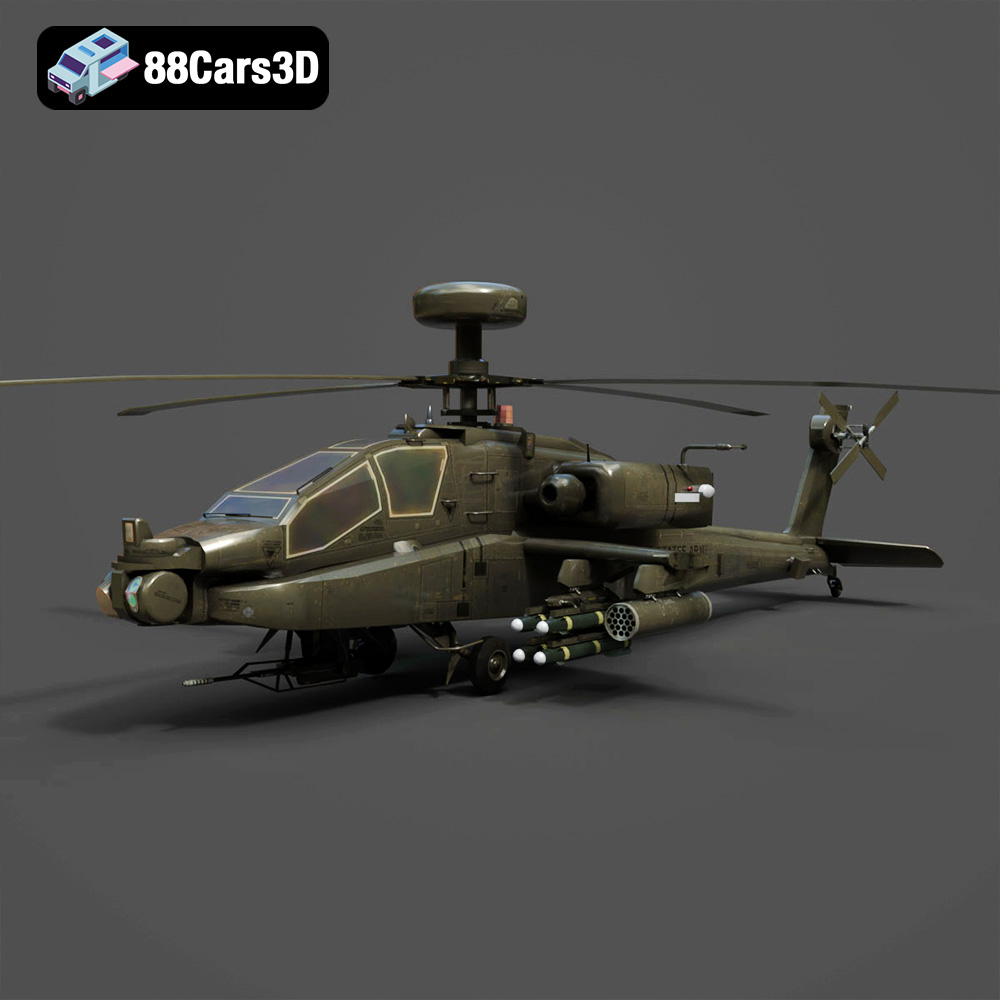
Download the Sikorsky AH-60 Black Hawk Helicopter 3D Model featuring detailed fuselage, fully articulated rotor systems, and cockpit detailing. Includes .blend, .fbx, .obj, .glb, .stl, .ply, .unreal, and .max formats for rendering, simulation, and game development.
Price: $10.79
Texture: Yes
Material: Yes
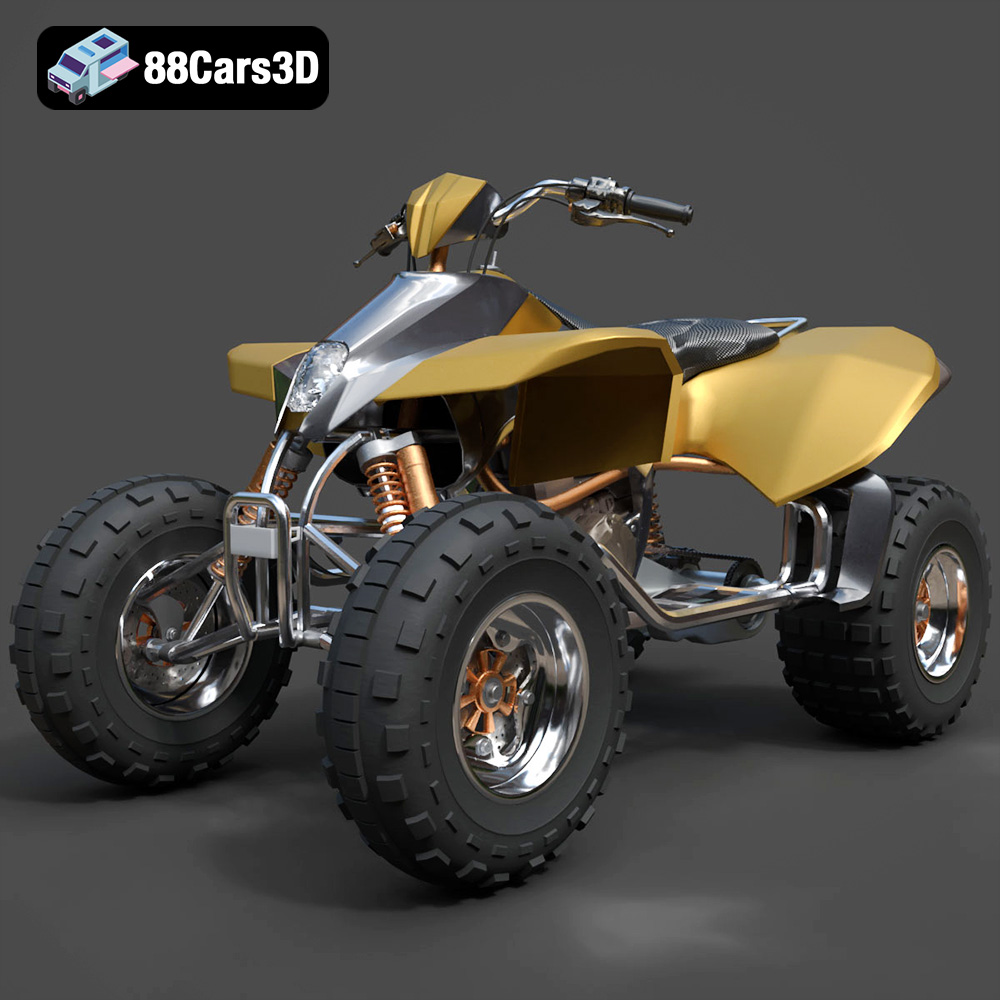
Download the Off-Road Quad ATV 2024 3D Model featuring rugged design and separated components for animation. Includes .blend, .fbx, .obj, .glb, .stl, .ply, .unreal, and .max formats for rendering, simulation, and game development.
Price: $10.79
Texture: Yes
Material: Yes
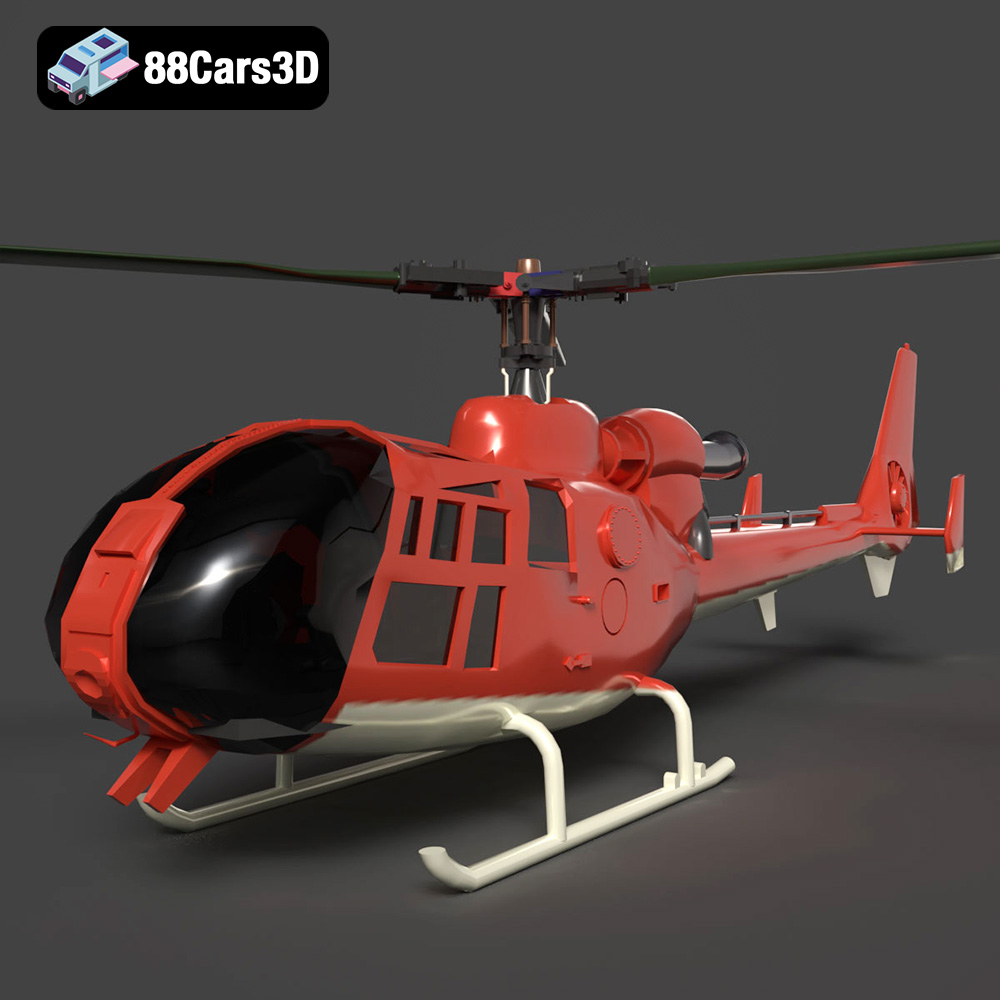
Download the Aerospatiale Gazelle SA 341 3D Model featuring clean geometry, realistic detailing, and a fully modeled interior. Includes .blend, .fbx, .obj, .glb, .stl, .ply, .unreal, and .max formats for rendering, simulation, and game development.
Price: $10
Texture: Yes
Material: Yes
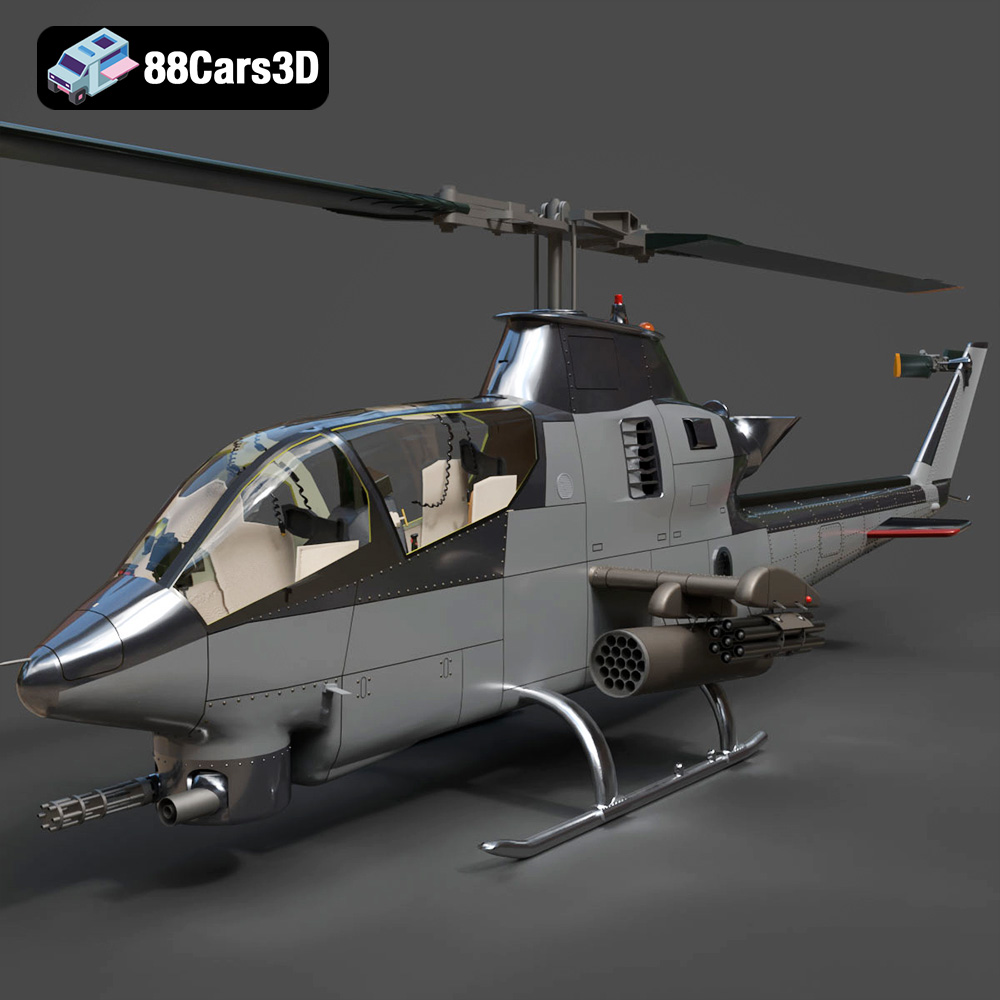
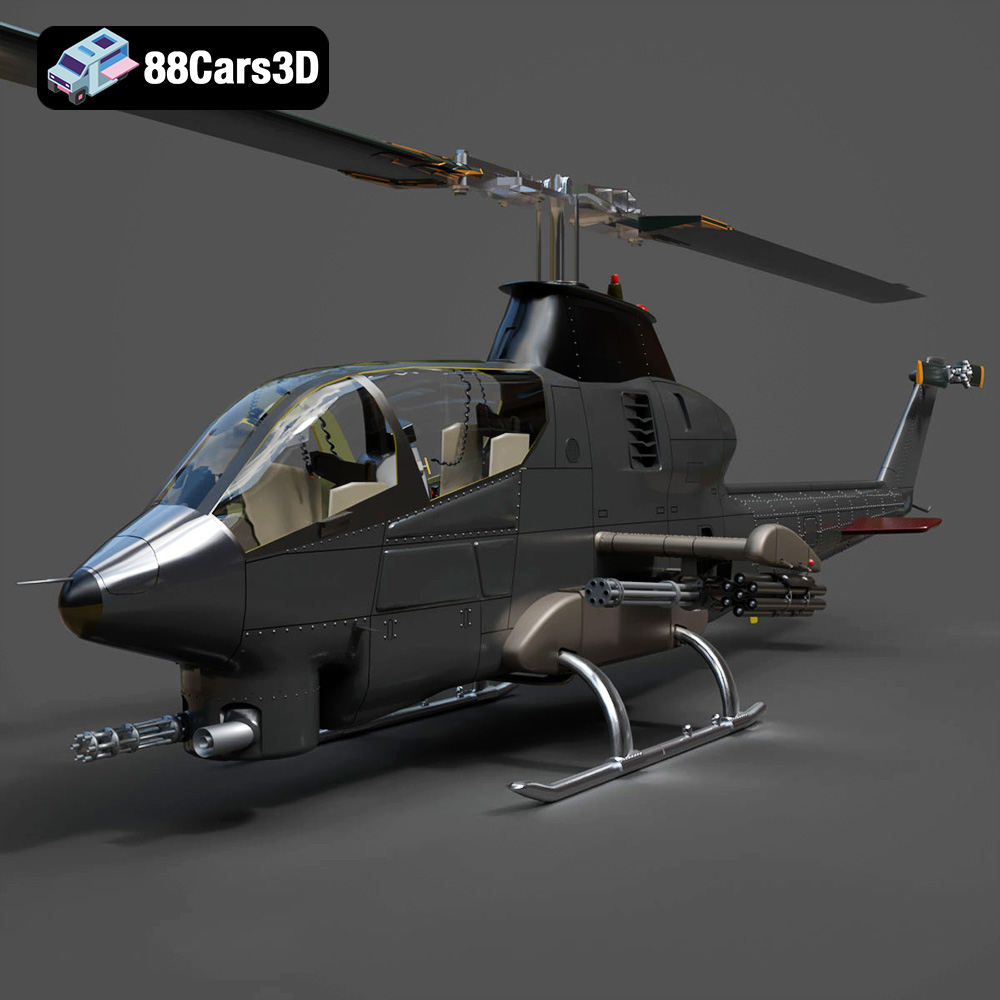
Download the Bell AH-1 Cobra 3D Model featuring detailed rotors, cockpit glass, and external armaments. Includes .blend, .fbx, .obj, .glb, .stl, .ply, .unreal, and .max formats for rendering, simulation, and game development.
Price: $10.79
Texture: Yes
Material: Yes
Download the Vertolety 200GT 2023 Helicopter 3D Model featuring a detailed cockpit, segmented rotor blades, and clean topology. Includes .blend, .fbx, .obj, .glb, .stl, .ply, .unreal, and .max formats for rendering, simulation, and game development.
Price: $10.79
Texture: Yes
Material: Yes
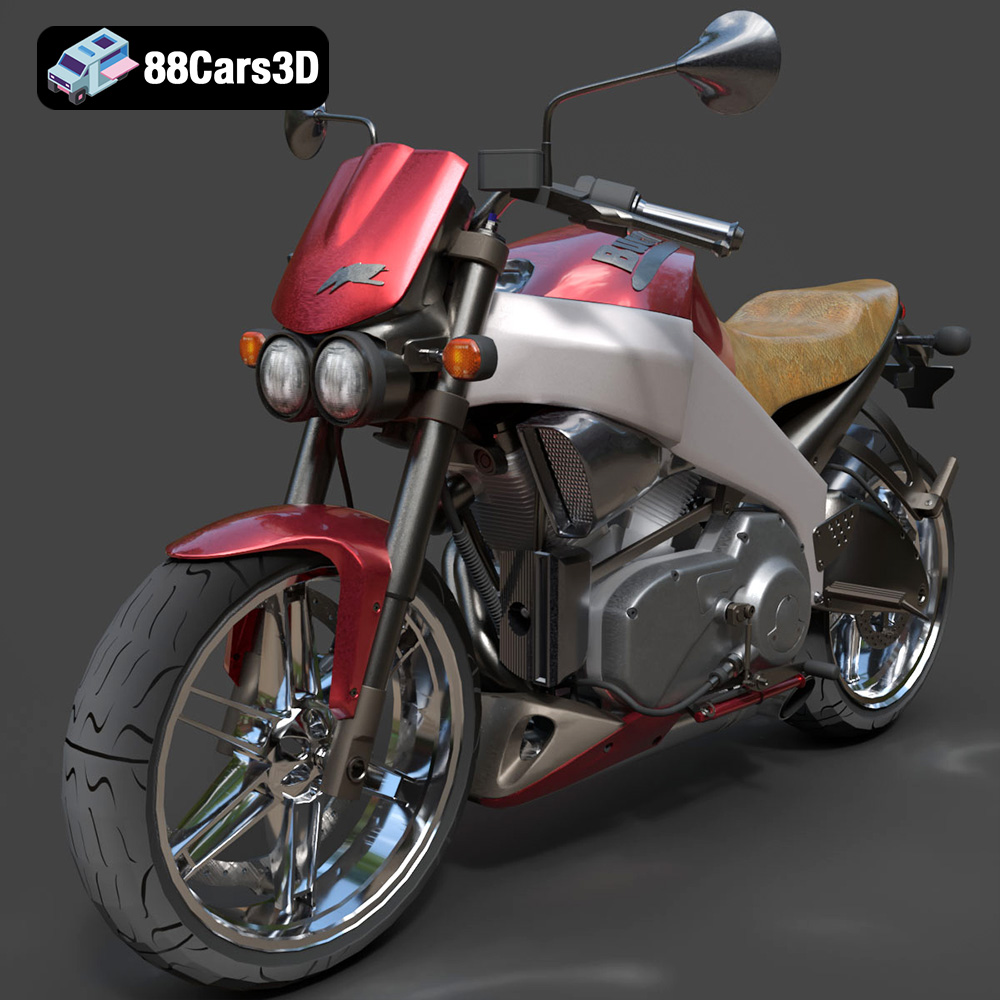
Download the Buell Lightning XB 12S 3D Model featuring aggressive design, detailed V-Twin engine, and animated components. Includes .blend, .fbx, .obj, .glb, .stl, .ply, .unreal, and .max formats for rendering, simulation, and game development.
Price: $10.79
Texture: Yes
Material: Yes
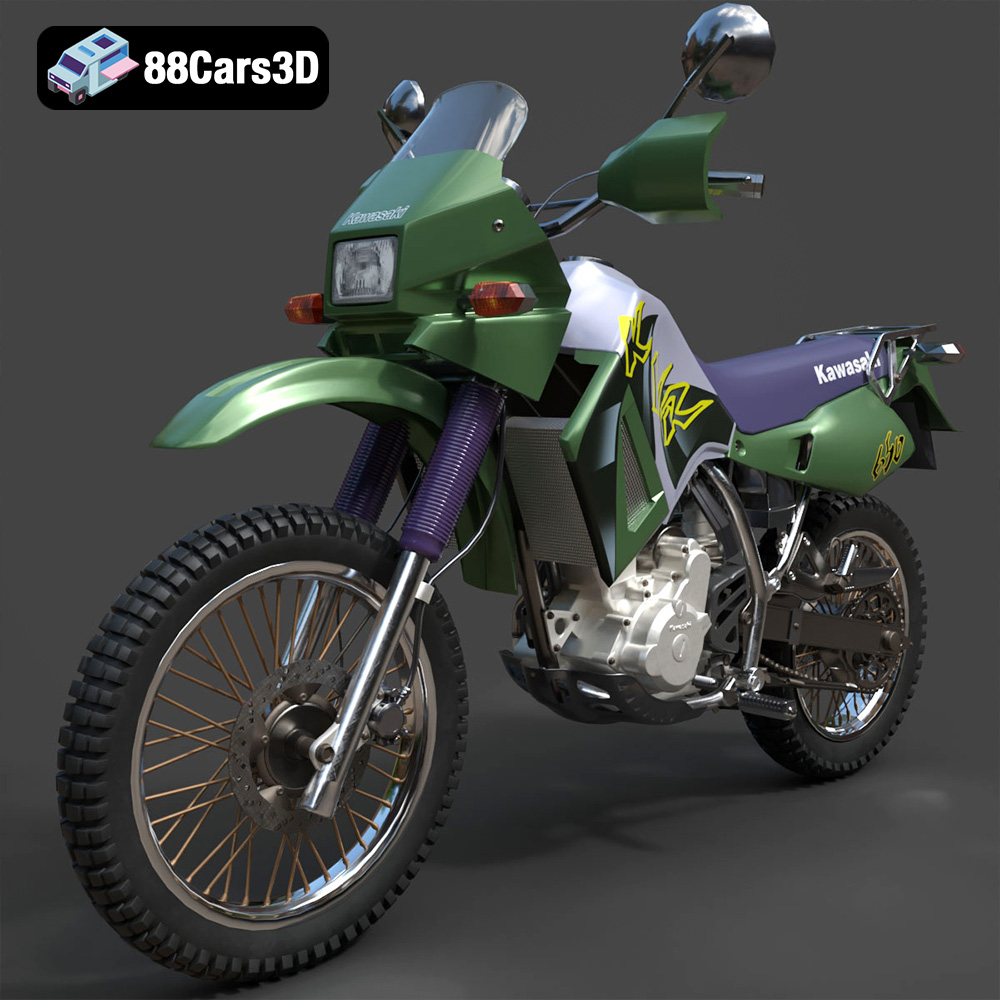
Download the Kawasaki KLR 650 3D Model featuring clean geometry, realistic detailing, and a fully modeled interior. Includes .blend, .fbx, .obj, .glb, .stl, .ply, .unreal, and .max formats for rendering, simulation, and game development.
Price: $10.79
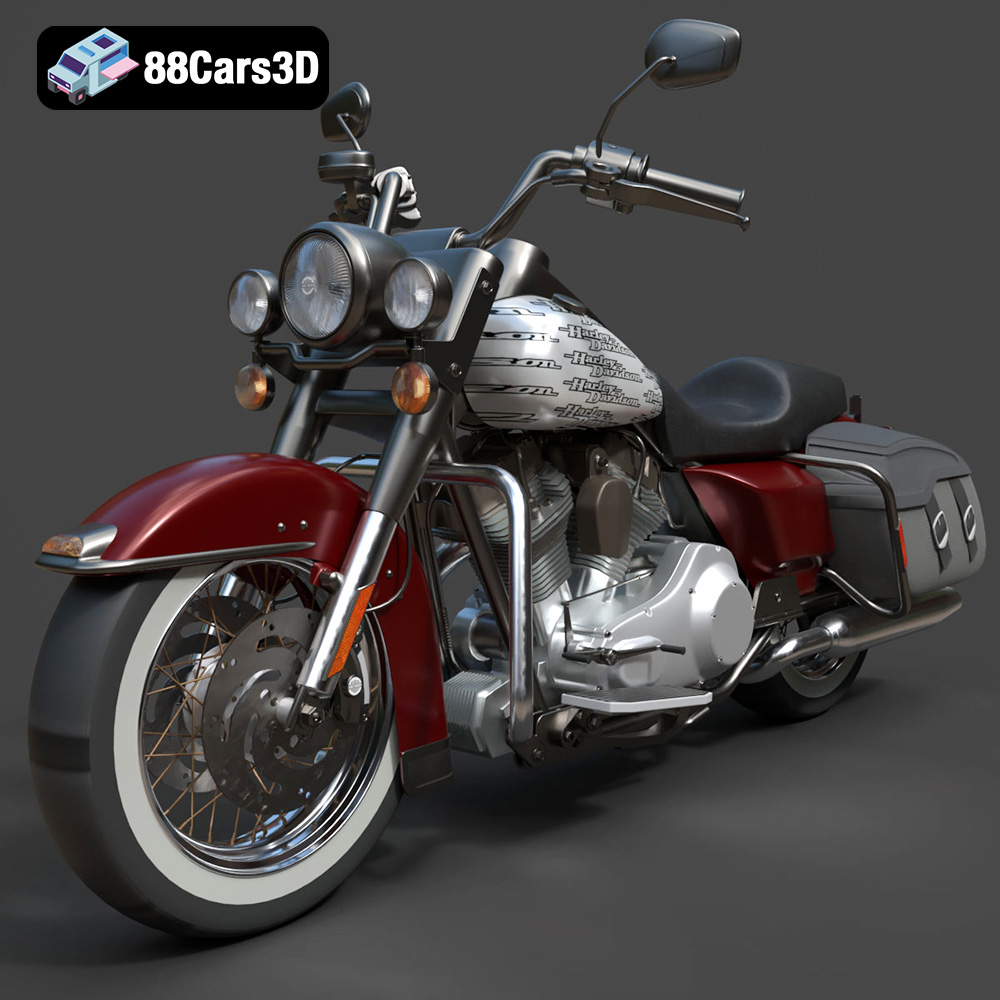
Download the Harley Davidson Road King Classic 2011 3D Model featuring clean geometry, realistic detailing, and a fully modeled interior. Includes .blend, .fbx, .obj, .glb, .stl, .ply, .unreal, and .max formats for rendering, simulation, and game development.
Price: $13.79

Texture: Yes
Material: Yes
Download the Monster 896-005 2024 3D Model featuring clean geometry, realistic detailing, and a fully modeled interior. Includes .blend, .fbx, .obj, .glb, .stl, .ply, .unreal, and .max formats for rendering, simulation, and game development.
Price: $13.49
Texture: Yes
Material: Yes
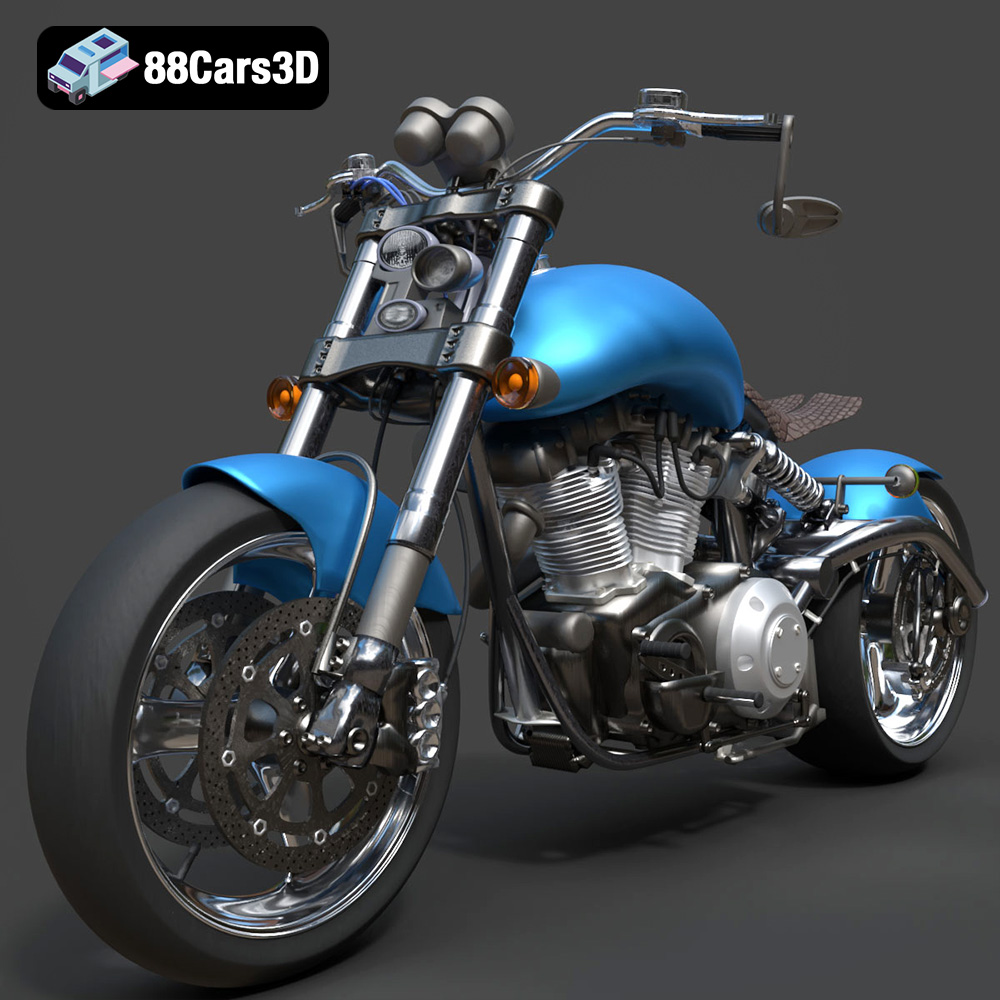
Download the Confederate F131 Hellcat 3D Model featuring clean geometry, realistic detailing, and a fully modeled interior. Includes .blend, .fbx, .obj, .glb, .stl, .ply, .unreal, and .max formats for rendering, simulation, and game development.
Price: $10

