⚡ FLASH SALE: Get 60% OFF All Premium 3D & STL Models! ⚡

The transition from a meticulously crafted digital 3D car model to a tangible physical object is nothing short of magical. For automotive designers, enthusiasts, and hobbyists alike, 3D printing offers an incredible avenue to bring their virtual creations into the real world – whether it’s for rapid prototyping, creating highly detailed scale models, custom accessories, or even functional components. However, this exciting leap from pixels to plastic isn’t always straightforward. A 3D model optimized for stunning renders or efficient game engine performance often harbors underlying complexities that can cause significant headaches when fed to a 3D printer.
Unlike rendering, where overlapping geometry or tiny gaps might go unnoticed, 3D printing demands absolute precision and integrity. A printer needs to know exactly what to build, and any ambiguity in the mesh can lead to failed prints, wasted material, and immense frustration. This comprehensive guide will equip you with the essential knowledge and step-by-step techniques required to transform your beautiful digital automotive masterpieces into robust, print-ready files. We’ll delve into the critical aspects of mesh integrity, specific software workflows, file format considerations, and advanced optimization strategies to ensure your next 3D printed car model rolls off the print bed exactly as you envisioned.
Before diving into specific software tools and techniques, it’s crucial to grasp the foundational principles that define a “3D print-ready” model. These concepts are universal, regardless of the modeling software you use or the type of 3D printer you own. Understanding these fundamentals will guide your preparation process and help you troubleshoot common issues.
The single most critical requirement for 3D printing is that your model must possess manifold geometry and be “watertight.” Imagine your 3D model as a hollow shell that needs to hold water. If there are any holes, gaps, inverted faces, or internal overlapping surfaces that create ambiguities, the “water” (or in this case, the printer’s extruder/laser) will not know where the inside ends and the outside begins. This results in errors during slicing and ultimately, failed prints.
Manifold geometry means every edge in your model must be connected to exactly two faces. If an edge is connected to one face (a hole), three or more faces (non-manifold), or if faces are flipped inside out (inverted normals), the slicer software will struggle to interpret the model correctly. Common causes include deleted faces, accidentally duplicated geometry, or poorly executed Boolean operations. Ensuring a watertight mesh involves systematically identifying and sealing any open edges or surfaces, and correcting any flipped normals so they consistently point outwards.
Another paramount consideration is the wall thickness of your model. Unlike digital representations, physical objects require a minimum thickness to be structurally sound and printable. This minimum thickness varies significantly based on the 3D printing technology and the material being used. For Fused Deposition Modeling (FDM) printers, which layer molten plastic, a minimum wall thickness of 0.8mm to 1.5mm is often recommended, corresponding to two to three nozzle passes. For Stereolithography (SLA) or Digital Light Processing (DLP) resin printers, which cure liquid resin with light, thinner walls (0.5mm to 1mm) might be achievable, offering finer detail but potentially less structural rigidity. Selective Laser Sintering (SLS) printers, using powdered material, can often achieve very thin walls, sometimes down to 0.4mm, due to the inherent strength of the sintered powder.
Similarly, the level of detail you include must be considered in relation to the printer’s resolution. Extremely fine details, thin antennas, or tiny text that look great on a screen might be too small to be accurately reproduced by the printer’s nozzle or laser spot. These elements might simply not print, or they could become fragile points of failure. It’s often necessary to strategically thicken small details or simplify complex geometries to ensure they survive the printing process.
The real-world scale of your model is critically important. Most 3D printing software and slicers operate in real-world units, typically millimeters. Your 3D modeling software might default to generic “units,” so it’s essential to ensure your model is scaled correctly from the outset. If your digital car model is meant to be 4.5 meters long, and you want a 1:24 scale physical model, it should be approximately 187.5 mm long (4500mm / 24). Incorrect scaling during export can lead to tiny, unprintable objects or massive models that don’t fit your print volume.
Finally, the print orientation can significantly impact print quality, success, and material usage. A poorly oriented model might require excessive support structures, leading to more post-processing and potential surface blemishes. It could also place stress on weak points or increase print time. For automotive models, careful consideration should be given to minimizing overhangs, placing flat surfaces directly on the build plate where possible, and aligning features that need strength along the printing axis rather than across layers.
The underlying structure of your 3D car model, its topology, plays a crucial role in its printability. While excellent topology is often associated with animation and deformation, for 3D printing, it primarily dictates the model’s integrity and how easily it can be repaired or prepared.
For automotive models, which often feature smooth, flowing surfaces, a clean mesh is paramount. Ideally, your base mesh should primarily consist of quadrilaterals (quads), as they offer the most predictable and controllable surface deformation. While 3D printers ultimately work with triangulated meshes (converting everything to triangles internally for slicing), starting with quads makes the modeling and repair process far more manageable. Avoid N-gons (faces with more than four vertices) whenever possible, as they can lead to unpredictable triangulation and shading issues, which, in turn, can create non-manifold geometry when exported for printing.
A consistent polygon density across the surface also contributes to a cleaner print. Areas with wildly varying polygon counts can introduce unwanted artifacts or make repairs more complex. For highly detailed curves and subtle surface changes, a higher polygon count is acceptable and often necessary, but ensure it’s distributed evenly to maintain surface integrity. When sourcing models from marketplaces such as 88cars3d.com, you often start with high-quality, well-optimized meshes, but even these may require specific adjustments for the unique demands of 3D printing.
Even the most experienced 3D artists can inadvertently introduce mesh errors. The key is to have a systematic approach to identifying and repairing them. Most 3D modeling software offers tools for mesh analysis. For instance, in Blender, the 3D Print Toolbox add-on (which can be enabled in Preferences > Add-ons) provides a suite of analysis tools. You can find detailed information on its usage in the official Blender 4.4 documentation on the 3D Print Toolbox. This toolbox allows you to check for non-manifold edges, open boundaries (holes), inverted normals, intersecting faces, and thin walls. In 3ds Max, the STL Check modifier can perform similar checks, highlighting potential issues. Maya’s Mesh > Cleanup tool offers options to address non-manifold geometry, zero-area faces, and other common problems.
Once identified, repairs involve a variety of techniques:
For rendering purposes, it’s common practice to model separate components that intersect slightly to create a visually seamless appearance. However, for 3D printing, a single, unified, watertight mesh is often preferred, especially for solid objects. If your car model consists of many overlapping parts (e.g., body panels, bumpers, mirrors), these intersections can lead to non-manifold geometry, particularly if they are simply touching rather than forming a single, continuous surface. When preparing a model for 3D printing, you often need to decide whether to merge these intersecting parts into one solid object using Boolean operations or to treat them as separate, interlocking components with appropriate tolerances.
If you choose to merge, careful use of Boolean Union operations is necessary. Always back up your model before performing Booleans, as they can sometimes produce messy topology. After a Boolean operation, it’s almost always necessary to clean up the resulting mesh, fixing any N-gons or excessive triangulation along the new seams. Alternatively, for complex assemblies, it might be better to ensure each part is independently watertight and then account for appropriate tolerances when exporting them as separate STL files for assembly after printing.
The actual preparation of your 3D car model for printing largely happens within your chosen 3D modeling software. Each package offers a unique set of tools and workflows to tackle the challenges of mesh integrity and optimization.
Blender, being a powerful open-source tool, has excellent capabilities for 3D print preparation, especially with its dedicated 3D Print Toolbox add-on. Once enabled, this toolbox provides a panel in the N-panel (press ‘N’ in the 3D viewport) under the ‘3D Print’ tab. Here, you can perform instant checks for various printability issues such as non-manifold edges, intersections, zero-area faces, and thin walls. The ‘Clean Up’ section offers one-click solutions for common problems like intersecting faces, non-manifold edges, and holes, although manual intervention is often required for optimal results.
Beyond the toolbox, Blender’s powerful modifiers are indispensable. The Solidify modifier is crucial for adding consistent thickness to thin surfaces or creating a shell from an open mesh, ensuring your walls meet minimum thickness requirements. The Decimate modifier can be used to reduce polygon count without significantly altering the model’s shape, helpful for optimizing larger, high-detail models that might overwhelm a slicer or printer. For merging complex intersecting parts into a single watertight mesh, the Boolean modifier is your go-to. Remember to apply modifiers before exporting for 3D printing to bake in their effects.
In 3ds Max, the STL Check modifier is the primary tool for identifying common printability issues. Applied to your mesh, it can highlight errors such as open edges, flipped normals, and self-intersections. For repairs, manual polygon modeling tools are essential for capping holes and bridging gaps. The ProBoolean tool is generally preferred over the older Boolean for more reliable merging of objects, though cleanup after use is still often necessary. To add thickness, you might use the Shell modifier, similar to Blender’s Solidify, ensuring your model has a consistent wall thickness. Utilizing the Edit Poly modifier for targeted vertex, edge, and face manipulation is key for intricate mesh repair.
Maya offers robust mesh cleanup capabilities. The Mesh > Cleanup tool allows you to target specific types of problematic geometry, such as non-manifold faces/vertices, zero-area faces, and lamina faces (faces sharing the same space). For adding thickness, the Extrude command on selected faces or the Thicken tool (available in some Maya versions or via plugins) can be employed. Boolean operations (Mesh > Booleans) are available for merging, but like in other software, they require careful post-operation cleanup. Maya’s robust modeling toolkit makes it adept at manual mesh repair, allowing precise control over topology.
It’s crucial to differentiate between detail for rendering and detail for physical printing. Micro-bevels, razor-sharp edges, or extremely thin design elements that look fantastic in a high-resolution render often simply won’t translate well to a physical print, especially on FDM machines. These elements might become too fragile, vanish entirely, or create unsightly artifacts. For 3D printing, especially at smaller scales, it’s often necessary to strategically simplify or exaggerate certain features.
For instance, if your car model has very sharp, delicate mirrors or antennas, consider slightly thickening them or rounding their edges to make them more robust. Intricate grilles or vents might need to be simplified into larger, more forgiving geometries that are easier for the printer to reproduce. For functional prototypes, you might even need to add internal structural supports or ribs that aren’t visible in the final render but significantly increase the print’s strength and stability. Remember, the goal is not always to replicate every single pixel of detail, but rather to create a physically robust and recognizable representation of your automotive design.
Once your 3D model is meticulously prepared and optimized within your modeling software, the next critical step is exporting it in a format that 3D printers and their slicing software can understand. This stage is just as important as the modeling phase, as incorrect export settings can undo all your hard work.
The industry standard for 3D printing is undeniably the STL (STereoLithography) file format. It represents a 3D model as a collection of triangulated surfaces, defining the external geometry of an object. While ubiquitous and widely supported, STL files have limitations: they do not store color, texture, or material information, meaning a multi-material or multi-color print requires separate STL files or manual assignment in the slicer. When exporting to STL, ensure your software provides options for binary or ASCII format (binary is smaller and faster) and allows you to set the resolution or deviation tolerance – a finer resolution results in a smoother surface but a larger file size. A typical deviation tolerance might be 0.01mm-0.1mm for decent quality without excessive file bloat.
The OBJ (Wavefront) format is another popular choice. While it can also represent geometry as a triangulated mesh, its advantage lies in its ability to store color, material, and UV mapping information, usually through an accompanying MTL (Material Template Library) file. While UV mapping and PBR materials are irrelevant for most single-color 3D prints, OBJ can be useful for advanced full-color printing (e.g., binder jetting) or when you want to retain some material information for post-processing or reference. However, many basic slicers will simply ignore the color data and treat it as a monochromatic print.
A newer, more comprehensive format gaining traction is 3MF (3D Manufacturing Format). Designed to be an improvement over STL, 3MF supports color, textures, material properties, multiple objects in a single file, and even print settings. It’s an XML-based format, making it more robust and extensible. For complex automotive models with intricate details or where future multi-material printing might be a consideration, 3MF offers a more holistic solution, though its support is still less widespread than STL.
When exporting, always confirm the units of measurement. If your modeling software uses generic units, convert them to millimeters (mm), which is the standard for most 3D printers and slicers. A mismatch here is a common culprit for models printing at an incorrect scale (e.g., printing a car that should be 180mm long as 180 inches long!). Most export dialogues will have a unit setting, or you might need to scale your model manually before export. For example, if your model is in meters in Blender and you need it in millimeters for export, you’d typically apply a scale factor of 1000.
Beyond units, pay attention to options like “export only selected” (useful for multi-part models), “apply modifiers” (essential for baking in thickness or Boolean operations), and “triangulate faces” (ensures all quads are converted to triangles, which is necessary for STL). Always ensure “normals” are correctly exported and consistent.
Your journey isn’t complete after export. The next crucial step is to import your model into a slicer software. Popular slicers include Ultimaker Cura, PrusaSlicer, Simplify3D, and Chitubox (for resin printers). These programs translate your 3D model into G-code, a set of instructions your 3D printer understands. More importantly, they serve as the final validation step.
Upon importing, the slicer will often perform its own mesh analysis. It might highlight errors that your modeling software missed or display a visual representation of how the model will be built layer by layer. Look for:
Many slicers also include a “repair” function, which can fix minor non-manifold issues automatically, but it’s always better to fix errors at the source in your 3D modeling software for optimal control.
For complex automotive models, going beyond the basic preparation steps can significantly enhance the success, quality, and efficiency of your 3D prints.
Large or intricate car models are often best printed as multiple separate components that are then assembled post-print. This allows for better print orientation for each part, reduces the need for excessive supports, and enables easier multi-color painting or finishing. When designing for multi-part assembly, tolerances are paramount. If parts are designed to slot together, a small gap (e.g., 0.1mm to 0.3mm, depending on your printer’s accuracy and material) must be added between mating surfaces to account for material expansion, printer precision, and potential post-processing. A common technique is to use a negative offset or a small Boolean difference operation on one of the mating parts. Always print small test pieces of interlocking components before committing to the full model to dial in your tolerances.
For example, if you design a separate wheel and axle for a model car, ensure the hole in the wheel is slightly larger than the axle diameter. If the axle is 3mm, the wheel hole might need to be 3.1mm or 3.2mm. Platforms like 88cars3d.com often provide highly detailed models, and breaking them down into printable sub-assemblies can be a smart strategy for hobbyists and professionals alike.
Printing solid models, especially large ones, can be expensive and time-consuming. Hollowing out your model can significantly reduce material consumption, print time, and even prevent warping in some cases. Most slicers offer a hollowing option, allowing you to specify a shell thickness (e.g., 1.5mm-2mm). However, for SLA/DLP resin prints, hollowing requires strategically placed “vent holes” to allow uncured resin to drain and to prevent suction forces from damaging the print during the build process. Without vent holes, trapped resin can cause blowouts or catastrophic print failures. These holes can be modeled directly into your object or added in specific software designed for resin printing preparation.
Conversely, for models requiring high strength, you might consider adding internal structural elements. For instance, a long, thin chassis might benefit from internal ribs or gussets that reinforce it without being visible on the exterior. This kind of structural reinforcement needs to be modeled into the object’s geometry, ensuring it forms a single, continuous, manifold interior structure.
While not strictly part of model preparation, understanding support structures is critical because your model’s design and orientation directly influence their necessity and placement. Overhangs and unsupported areas (typically anything beyond a 45-60 degree angle) will require supports. Slicer software automatically generates these, but manual adjustment is often possible and advisable. Minimize supports where possible through smart model design and orientation to reduce post-processing work and improve surface finish.
Finally, prepare for post-processing. Even the best 3D prints will require some level of cleanup, especially removing support material. For car models, this can involve sanding, filling gaps with putty, priming, and painting to achieve a professional finish. Resin prints might need UV curing and washing. Factor these steps into your overall workflow. While UV mapping and PBR materials are irrelevant for the raw 3D print, the knowledge of color and texture in your digital model can guide your real-world painting process.
The journey from a stunning digital 3D car model to a beautifully realized physical object through 3D printing is a rewarding one, but it demands meticulous preparation and a solid understanding of the underlying principles. We’ve traversed the critical landscape of ensuring manifold geometry, establishing appropriate wall thickness, and meticulously repairing mesh errors that can derail a print. We’ve explored software-specific workflows in Blender, 3ds Max, and Maya, emphasizing the tools and modifiers that transform your model from render-ready to print-perfect. Furthermore, we’ve highlighted the crucial steps of exporting in the correct file formats like STL and 3MF, along with the indispensable role of slicer software for final validation.
Remember, the core tenets for successful 3D printing lie in a watertight mesh, sufficient wall thickness, and accurate real-world scaling. By embracing these principles and diligently applying the techniques outlined, you’ll overcome common printing hurdles and consistently achieve high-quality results. Whether you’re prototyping a new automotive design, creating collectible models, or simply bringing a cherished digital concept to life, your attention to these preparation details will make all the difference. Now, take your refined 3D car models and confidently send them to the print bed, watching as they materialize into tangible testaments of your skill and vision. If you’re looking for an exceptional starting point, explore the vast collection of high-quality 3D car models on 88cars3d.com, knowing that with these preparation techniques, your next project is destined for success.
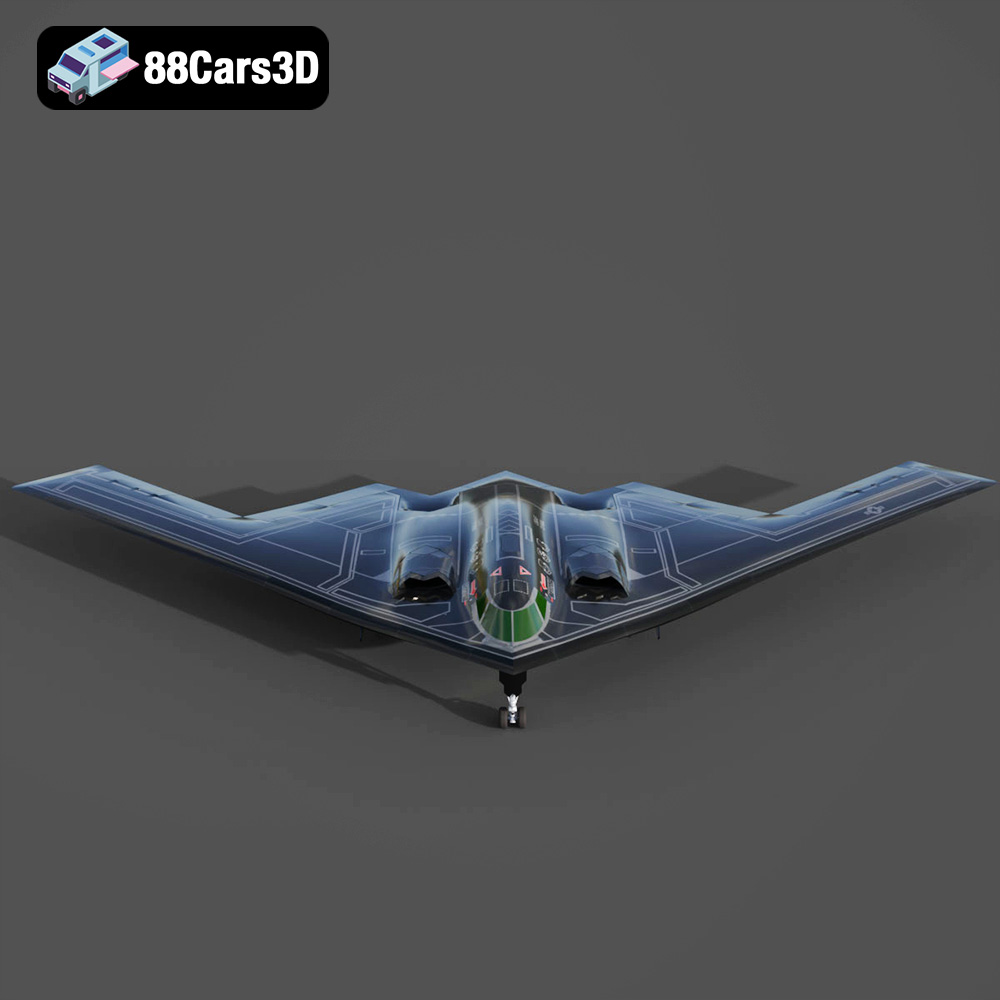
Texture: Yes
Material: Yes
Download the Generic B2 -005 Vehicle 3D Model featuring a detailed design and optimized topology. Includes .blend, .fbx, .obj, .glb, .stl, .ply, .unreal, and .max formats for rendering, simulation, and game development.
Price: $10.79
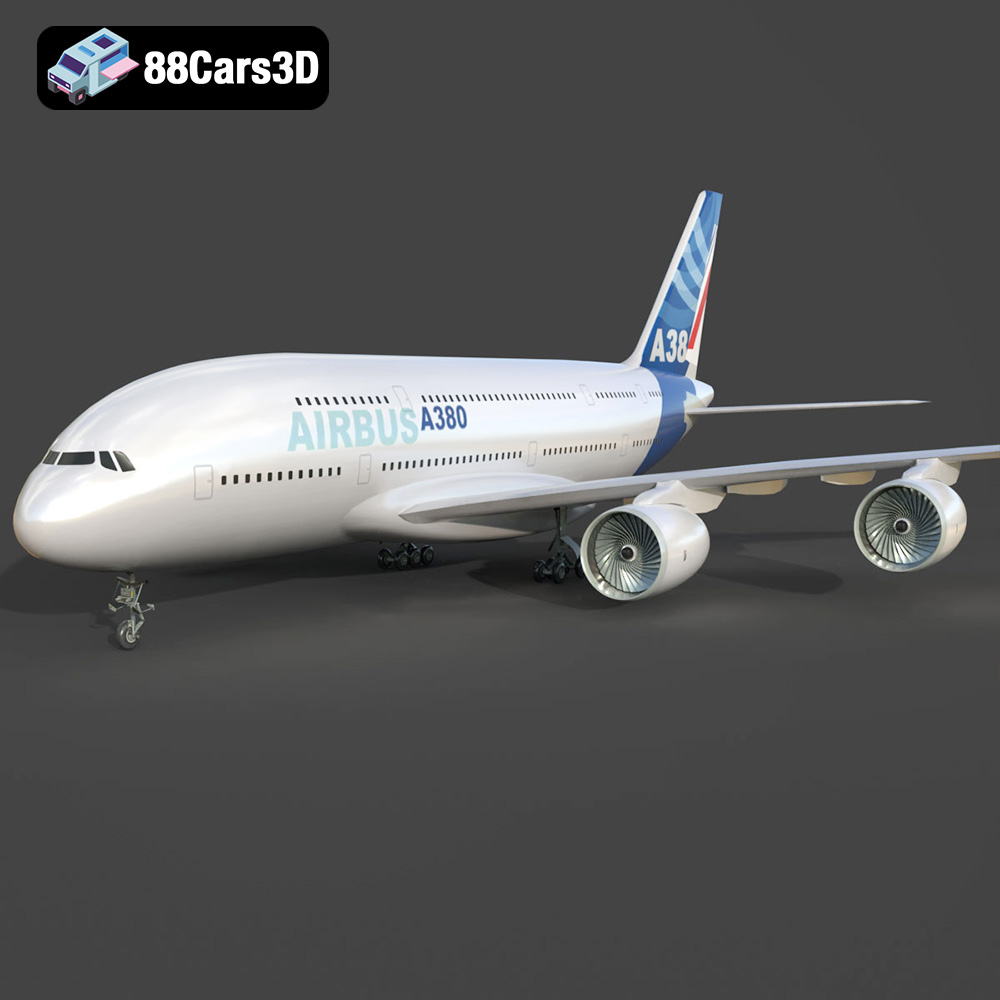
Texture: Yes
Material: Yes
Download the Airplane Factory Livery A380-007 3D Model featuring a detailed exterior, cockpit, and landing gear. Includes .blend, .fbx, .obj, .glb, .stl, .ply, .unreal, and .max formats for rendering, simulation, and game development.
Price: $10.79
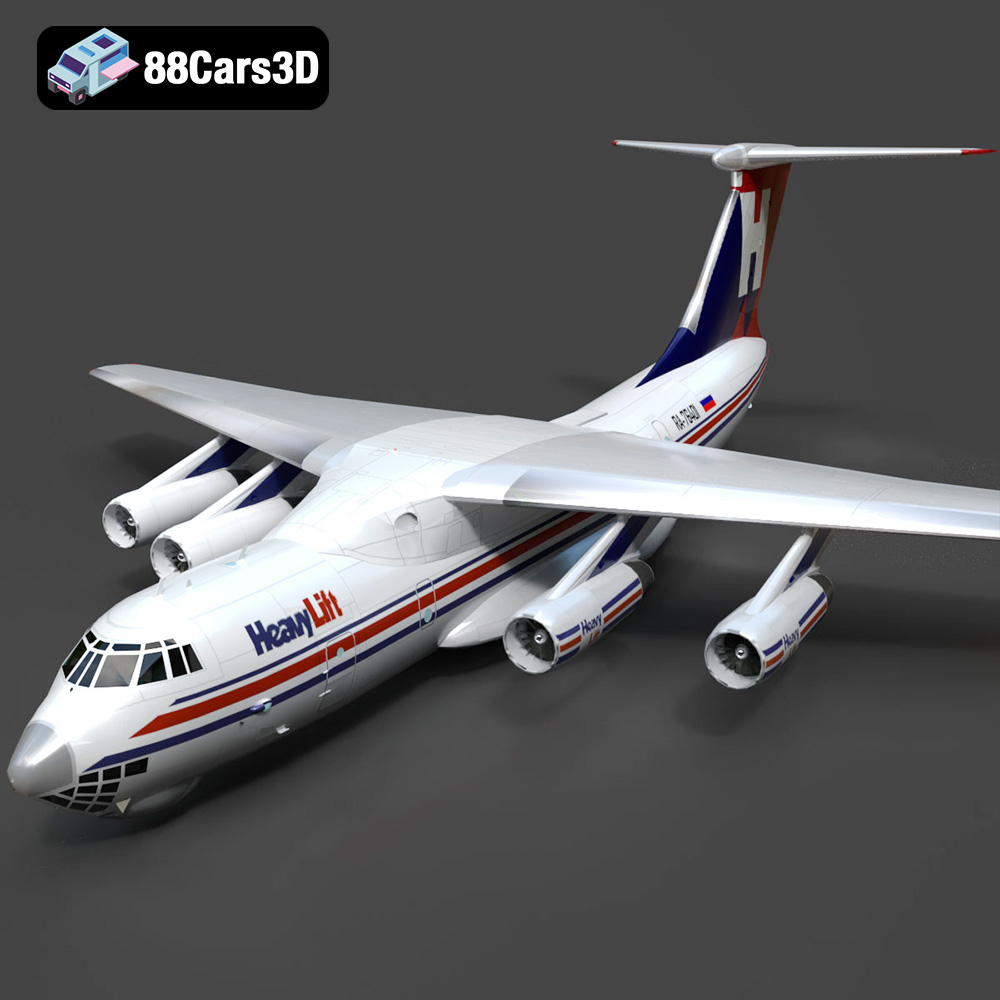
Texture: Yes
Material: Yes
Download the Ilyushin IL-76TD 3D Model featuring a highly detailed exterior and robust design, ideal as a heavy-lift strategic airlifter. Includes .blend, .fbx, .obj, .glb, .stl, .ply, .unreal, and .max formats for rendering, simulation, and game development.
Price: $10.79
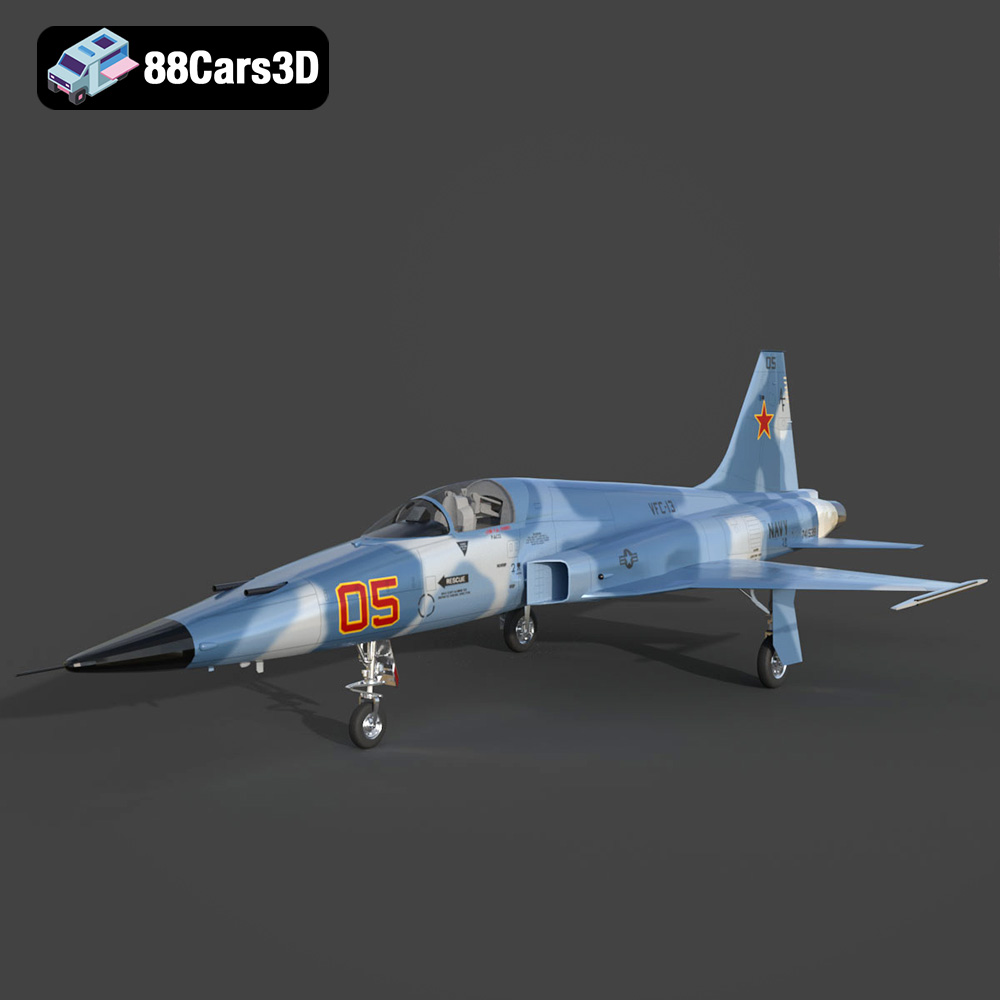
Texture: Yes
Material: Yes
Download the F-5E Tiger 3D Model featuring a detailed cockpit, authentic livery, and animated control surfaces. Includes .blend, .fbx, .obj, .glb, .stl, .ply, .unreal, and .max formats for rendering, simulation, and game development.
Price: $10.79
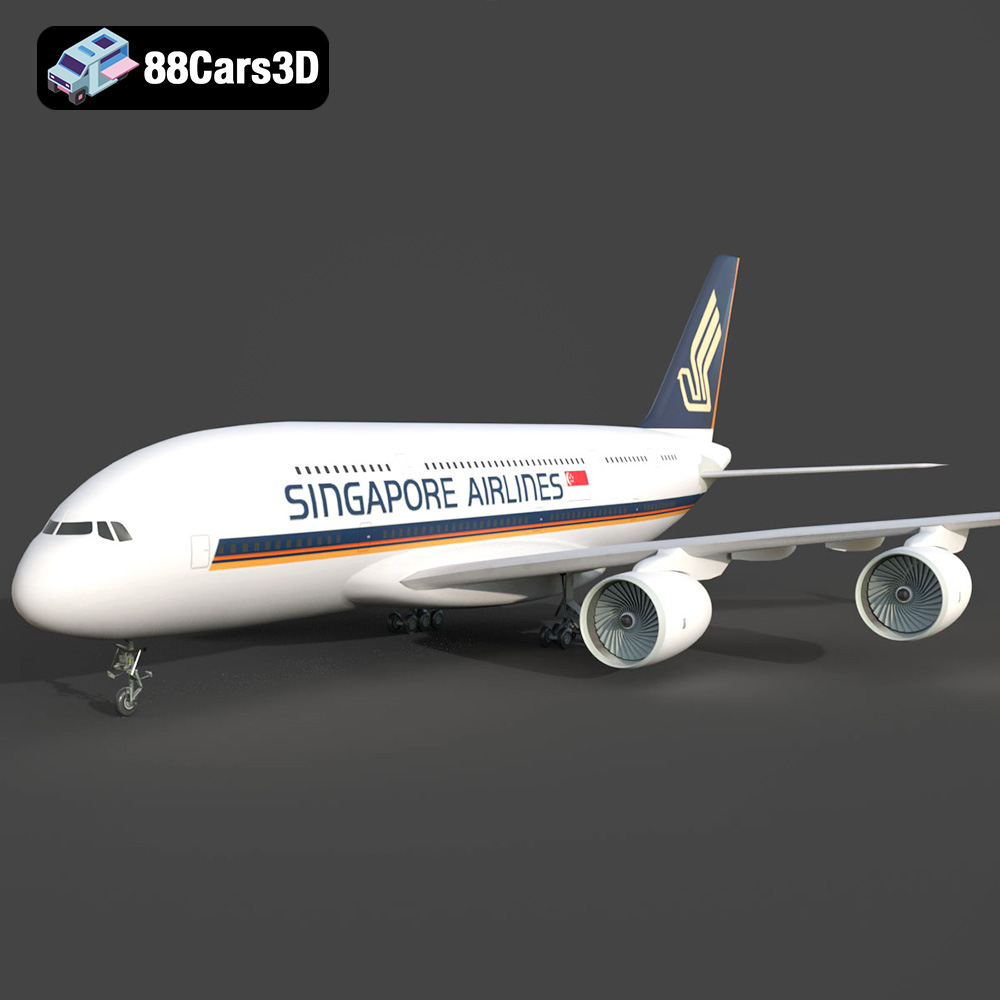
Texture: Yes
Material: Yes
Download the Singapore Airlines A380-001 3D Model featuring clean geometry, realistic detailing, and detailed cabin geometry. Includes .blend, .fbx, .obj, .glb, .stl, .ply, .unreal, and .max formats for rendering, simulation, and game development.
Price: $10
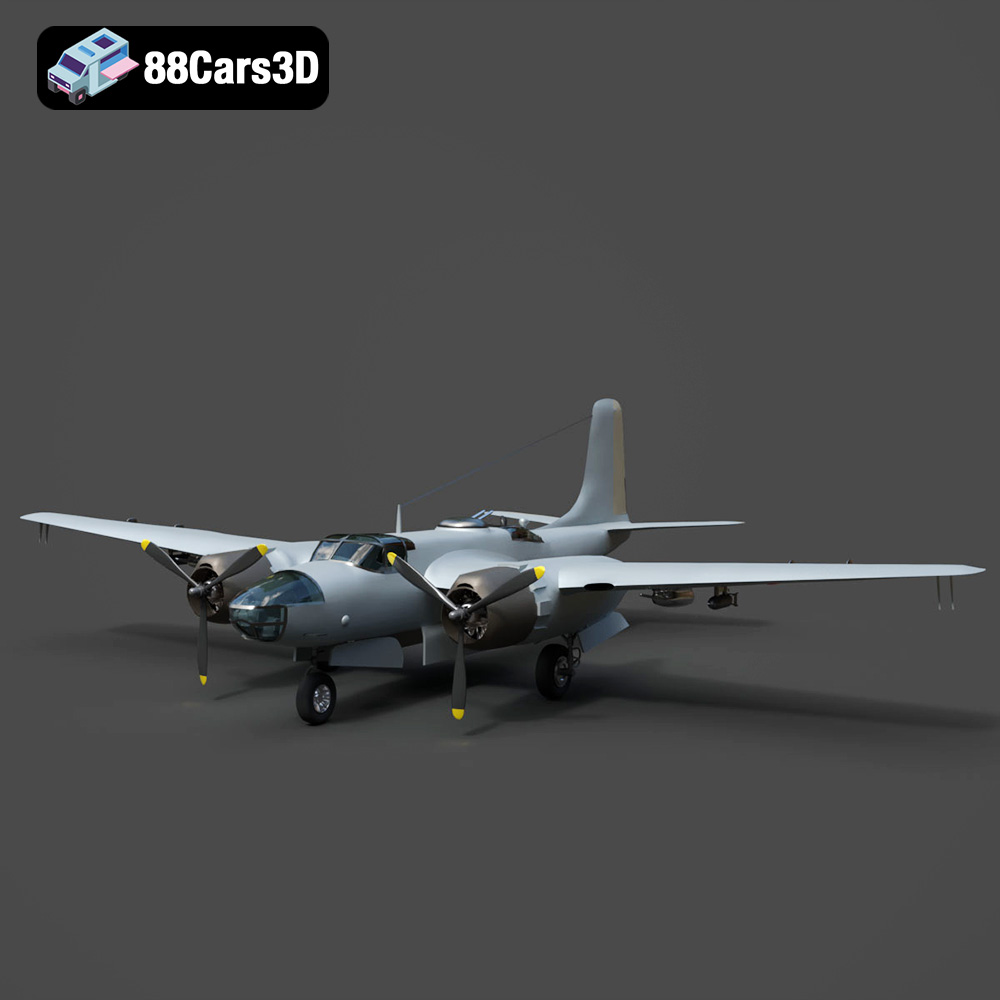
Texture: Yes
Material: Yes
Download the Douglas AB-26C Invader 3D Model featuring authentic historical geometry and separated components for animation (propellers, landing gear, bomb doors). Includes .blend, .fbx, .obj, .glb, .stl, .ply, .unreal, and .max formats for rendering, simulation, and game development.
Price: $10.79
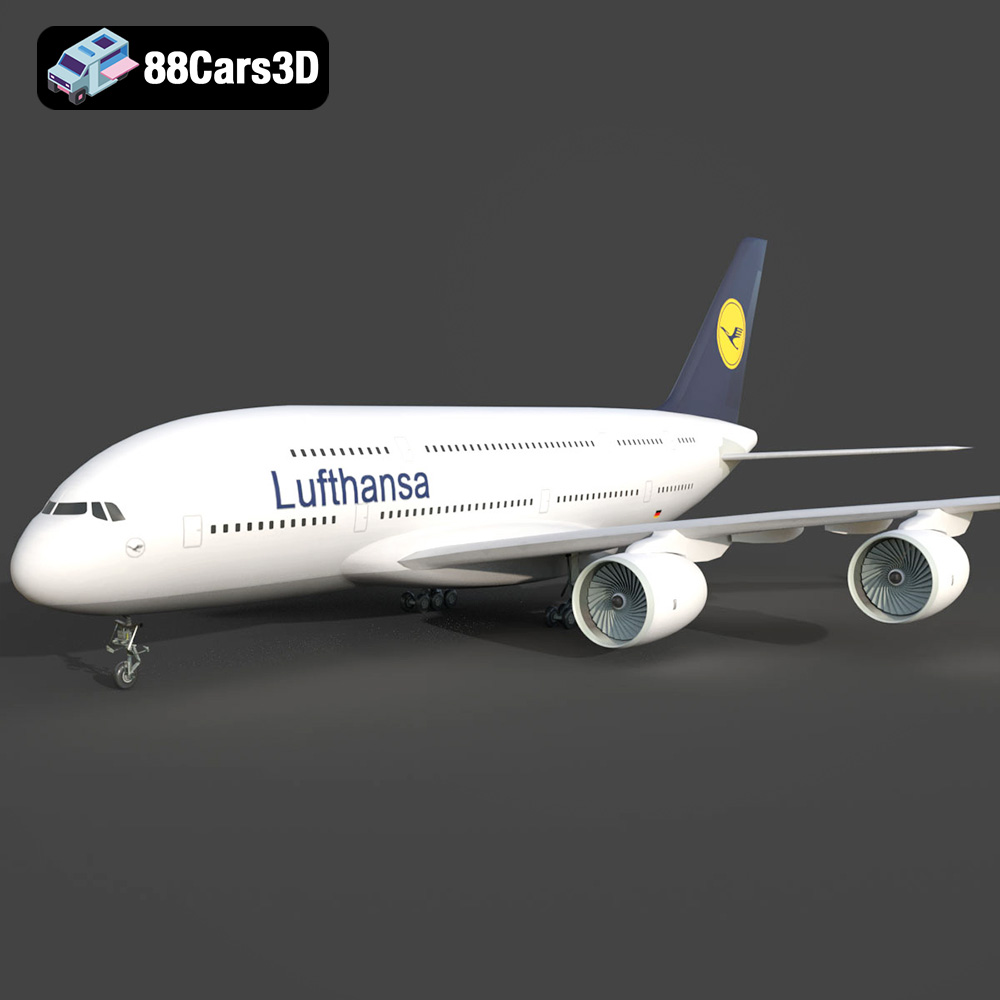
Texture: Yes
Material: Yes
Download the AirBus A380-004 3D Model featuring high-fidelity Lufthansa livery and separable animated control surfaces. Includes .blend, .fbx, .obj, .glb, .stl, .ply, .unreal, and .max formats for rendering, simulation, and game development.
Price: $10.79
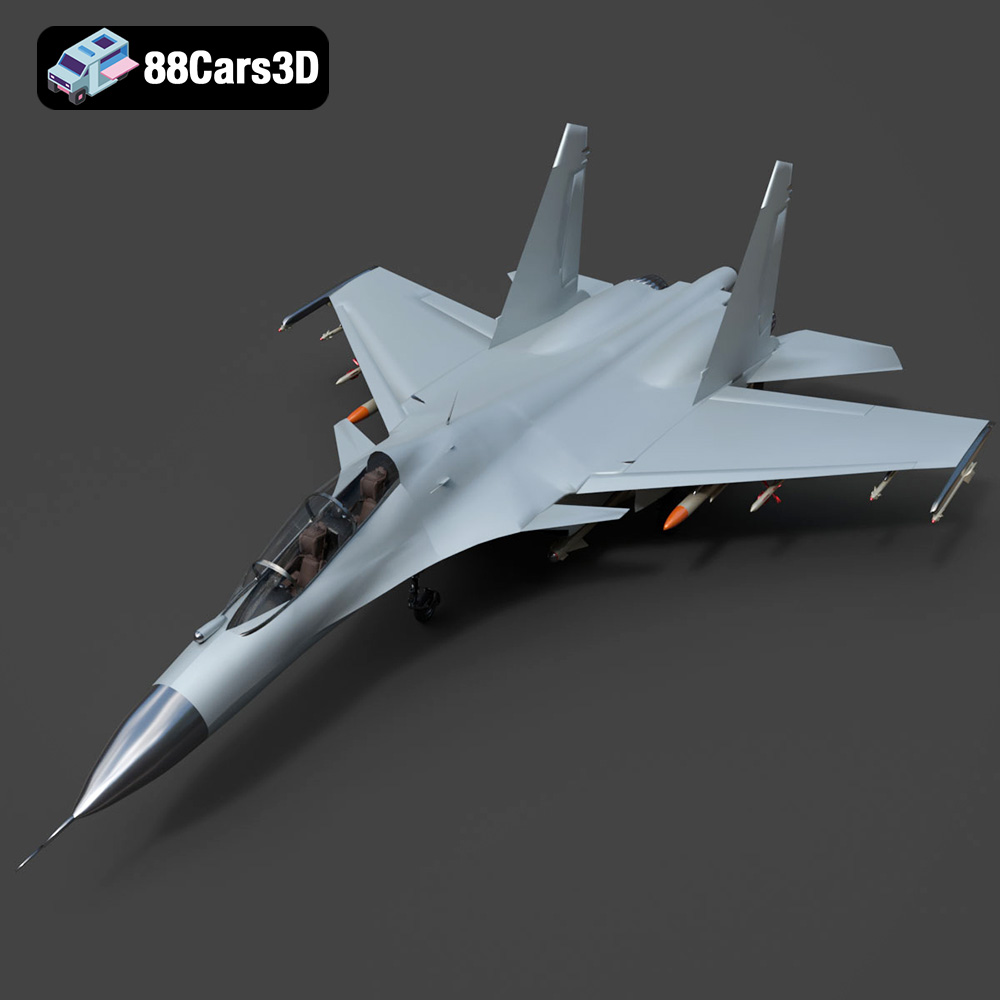
Texture: Yes
Material: Yes
Download the Sukhoi Su-30 Fighter Jet 3D Model featuring authentic aerodynamics and detailed weaponry hardpoints. Includes .blend, .fbx, .obj, .glb, .stl, .ply, .unreal, and .max formats for rendering, simulation, and game development.
Price: $10.79
Texture: Yes
Material: Yes
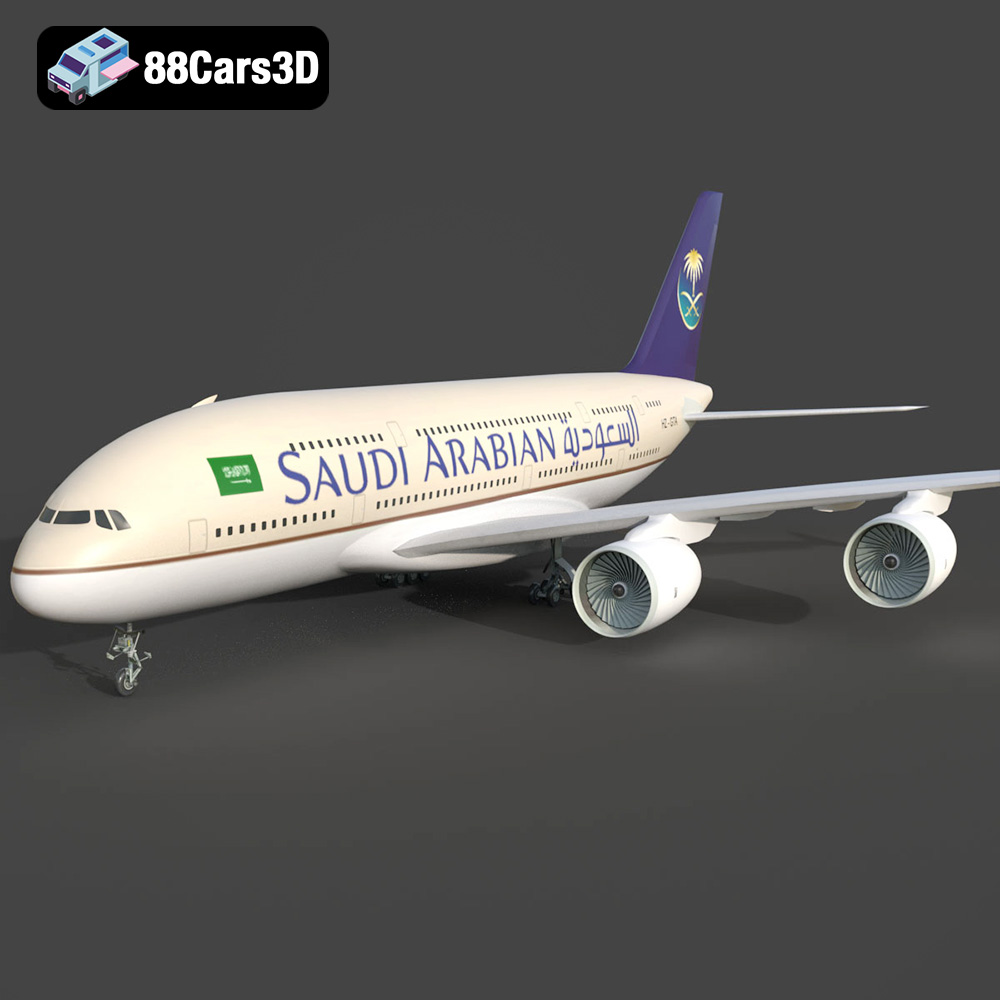
Download the AirBus A380-004 Saudi Arabian 3D Model featuring authentic airline livery and separated animated components. Includes .blend, .fbx, .obj, .glb, .stl, .ply, .unreal, and .max formats for rendering, simulation, and game development.
Price: $10.79
Texture: Yes
Material: Yes
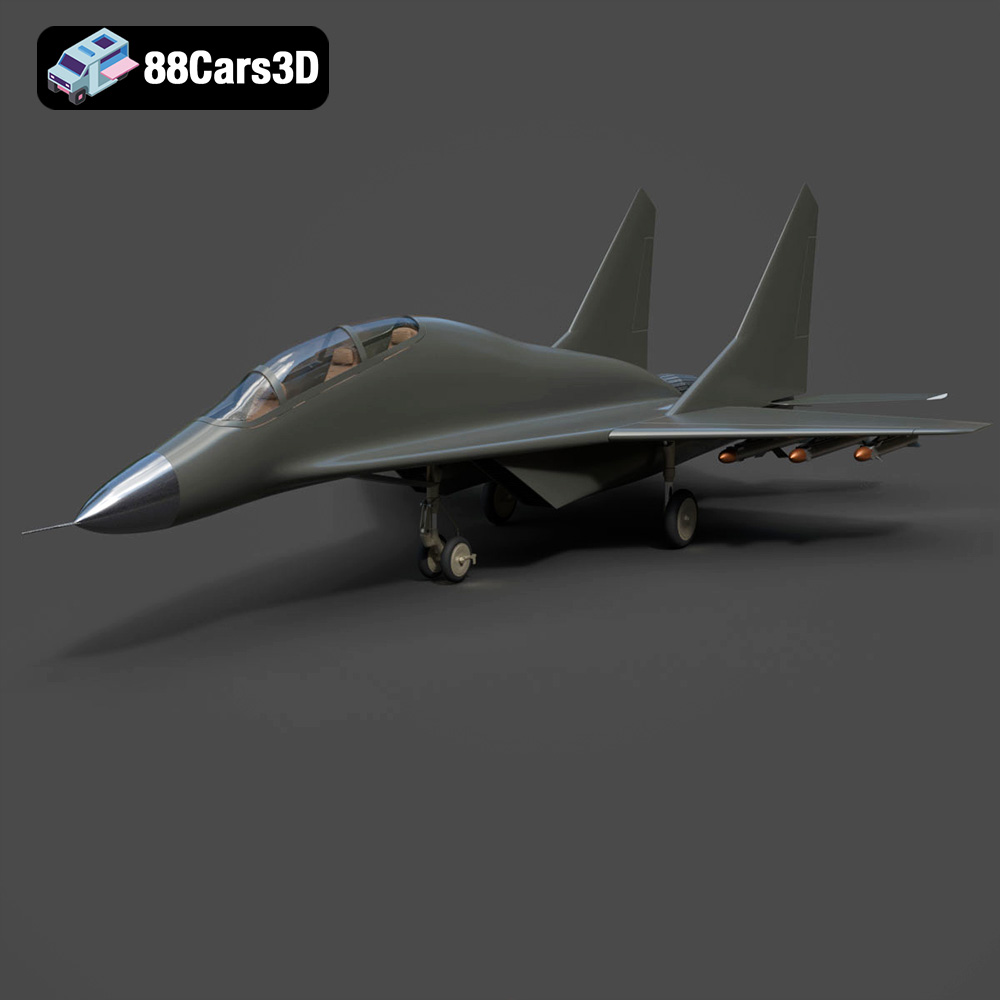
Download the MiG-17 Fighter Jet 3D Model featuring highly detailed control surfaces and realistic landing gear. Includes .blend, .fbx, .obj, .glb, .stl, .ply, .unreal, and .max formats for rendering, simulation, and game development.
Price: $10.79

