⚡ FLASH SALE: Get 60% OFF All Premium 3D & STL Models! ⚡

In the dynamic world of 3D visualization, nothing commands attention quite like a meticulously detailed automotive model. While sophisticated modeling provides the form, it’s the artistry of texturing that breathes life into the surface, transforming mere polygons into a gleaming, road-ready masterpiece. From the subtle metallic sheen of a polished body to the worn leather of an interior, realistic textures are paramount for captivating renders, immersive game environments, and convincing AR/VR experiences.
Enter Substance Painter, the industry-standard 3D painting software that has revolutionized the texturing workflow for countless artists and studios. Its powerful layer-based system, intelligent masks, and physically-based rendering (PBR) capabilities make it an indispensable tool for achieving unparalleled realism, especially for complex subjects like cars. This comprehensive guide will take you on a deep dive into mastering Substance Painter for automotive texturing, equipping you with the knowledge and techniques to create stunning, production-ready car models that truly stand out. We’ll explore everything from setting up your project and understanding PBR materials specific to vehicles, to advanced weathering techniques, optimization strategies for various platforms, and seamless integration into your final rendering pipeline. Whether you’re a seasoned 3D artist or an aspiring game developer, prepare to unlock the full potential of Substance Painter and elevate your automotive 3D models to a new level of visual fidelity.
Before diving into the intricate world of textures, a solid foundation is crucial. The quality of your 3D model’s topology and UV mapping directly influences the ease and success of your texturing process in Substance Painter. Automotive models, with their complex curves and distinct material zones, demand meticulous preparation to ensure flawless texture application and realistic PBR results. Understanding these initial steps is key to preventing headaches down the line and achieving the highest quality output for rendering, game development, or AR/VR applications.
Substance Painter operates on a PBR (Physically-Based Rendering) workflow, predominantly using the Metalness/Roughness convention. This means that materials are defined by properties that simulate how light interacts with real-world surfaces, resulting in highly realistic reflections, refractions, and diffuse lighting. For cars, this translates into accurately depicting everything from the glossy, reflective clear coat of the paint to the dull, porous texture of rubber tires or the metallic gleam of chrome trim. Setting up your project correctly and baking essential maps are the critical first steps that lay the groundwork for this PBR accuracy.
The saying “garbage in, garbage out” rings especially true for texturing. A well-prepared 3D model is the cornerstone of an efficient Substance Painter workflow. Primarily, this means having clean, non-overlapping UVs. For high-resolution automotive models, consider using UDIMs (U-Dimension) to distribute different parts of the car (e.g., body, interior, engine) across multiple UV tiles, allowing for higher texture resolutions without exceeding the limits of a single 0-1 UV space. This is crucial for maintaining crisp details on large surfaces like car bodies. Ensure your UV islands are appropriately scaled relative to their surface area on the model to avoid texture stretching or pixelation.
Mesh topology also plays a vital role. While Substance Painter is robust, it benefits immensely from models with clean quads, uniform scale, and properly defined hard and soft edges. Hard edges on your model should correspond to UV seams to ensure accurate normal map baking and prevent shading artifacts. Before exporting to Substance Painter (typically as an FBX or OBJ file), apply all transforms, reset your model’s scale, and ensure consistent face normals to avoid issues during the baking process. For models sourced from platforms like 88cars3d.com, these preparatory steps are often already handled, providing you with a high-quality foundation.
Baking maps is the process where Substance Painter extracts crucial geometric information from your 3D model and converts it into 2D textures. These maps are fundamental for driving smart materials, generators, and filters, allowing you to quickly add intricate details without manually painting them. The primary maps you’ll need for automotive texturing include:
When baking, pay close attention to settings like “Max Frontal Distance” and “Max Rear Distance” to ensure the baking cage encompasses your mesh accurately. Anti-aliasing settings should be increased (e.g., 4x or 8x) for smoother results, especially for high-resolution automotive models. Always check your baked maps for errors and artifacts before proceeding to the texturing phase; a clean bake saves significant time and effort.
The heart of realistic automotive texturing in Substance Painter lies in understanding and manipulating PBR materials. Car surfaces are a masterclass in varied material properties, from the complex, multi-layered nature of automotive paint to the distinct reflections of chrome, the dull absorption of rubber, and the subtle transparency of glass. Crafting these materials accurately requires a deep dive into Substance Painter’s PBR workflow, focusing on the interplay of color, metallic, and roughness values, alongside normal and height information.
The Metalness/Roughness workflow, favored by Substance Painter, defines materials by their base color (albedo), whether they are metallic (0 for dielectric, 1 for metallic), and their roughness (0 for perfectly smooth/reflective, 1 for completely rough/diffuse). For car models, this means carefully constructing layers that simulate each component of a real-world material, from the primer and base coat of the paint to the clear coat that provides its characteristic shine and protection. The flexibility of Substance Painter’s layer stack allows for intricate, non-destructive material creation, essential for iterating and refining complex automotive finishes.
Car paint is arguably the most critical and challenging material to get right on an automotive model. It’s not a single layer, but a sophisticated system comprising primer, a colored base coat, and multiple layers of clear coat, often with metallic or pearl flakes embedded. In Substance Painter, we simulate this complex structure using a strategic layering approach:
Always remember that the environment and lighting will heavily influence how your car paint appears. Realistic HDRI environments are essential for showcasing the reflections and highlights of a well-textured automotive paint job.
Beyond the gleaming exterior, the interior and engine bay of a car demand equal attention to detail. These areas feature a diverse array of materials, each requiring a specific PBR approach:
Leverage Substance Painter’s smart materials and generators extensively here. They provide excellent starting points and can be customized with masks and paint layers to achieve precise, localized details that bring interiors and engine bays to life.
A pristine, factory-fresh car model is impressive, but true realism often comes from the subtle imperfections and unique character that tell a story. Advanced texturing in Substance Painter allows you to go beyond basic materials, simulating the effects of time, environment, and use. This includes everything from the microscopic dust particles on a windshield to deep scratches, chipped paint, and custom decals that personalize a vehicle. These techniques are crucial for creating convincing game assets, realistic film props, or engaging visualization content where every detail matters.
Substance Painter’s non-destructive workflow, powered by masks, generators, and filters, is perfectly suited for these advanced detailing tasks. You can layer effects, adjust parameters on the fly, and even move or remove elements without affecting the underlying textures. This iterative process is invaluable when aiming for a specific level of wear, from a lightly used daily driver to a battle-hardened off-road vehicle or a derelict rust bucket. Mastering these techniques transforms a generic car model into a unique piece of automotive art.
Environmental wear adds credibility and history to your 3D car model. These effects are often subtle but profound in their impact on realism:
Remember to consider the narrative: where would this particular car accumulate dust? Where would it get scratched? Contextual wear is always more convincing.
Customization is a powerful way to add character and specific details to your automotive models, whether it’s a brand logo, a racing number, or a unique graphic pattern. Substance Painter offers robust tools for integrating these elements seamlessly:
When working with customization, always consider the resolution of your source images to maintain crispness and avoid pixelation, especially for close-up renders or high-detail game assets.
Creating highly detailed automotive textures in Substance Painter is only half the battle. The other crucial aspect is optimizing these textures and exporting them correctly for their intended destination, whether it’s a high-fidelity offline renderer, a real-time game engine, or an interactive AR/VR experience. Each platform has specific requirements and limitations regarding texture resolution, file formats, and channel packing. A well-optimized asset ensures smooth performance without sacrificing visual quality, a balance that is particularly challenging but essential for complex 3D car models.
Proper optimization strategies can significantly reduce memory footprint, improve loading times, and enhance overall application performance. For game developers and AR/VR creators, this directly impacts frame rates and user experience. Understanding how to efficiently manage your texture sets and configure your exports in Substance Painter is a skill that directly contributes to the usability and marketability of your 3D car models, especially when sourcing from or contributing to marketplaces like 88cars3d.com.
Striking the right balance between visual quality and performance is paramount, especially for real-time applications:
Always test your optimized assets within your target engine or platform to ensure they meet performance benchmarks without unacceptable visual degradation.
Substance Painter offers a wide range of export presets, catering to virtually every major renderer and game engine. Choosing the correct preset is vital for ensuring your textures are interpreted accurately:
When exporting, ensure you select the correct output template, adjust the output resolution, and specify the file format (PNG for lossless quality, JPG for smaller file sizes with some compression, or TGA for game engines). It’s also crucial to remember that Normal maps should often be exported in a non-color data space (or sRGB unchecked) in your rendering software to be interpreted correctly, while other maps like Base Color are usually sRGB.
With your meticulously textured car model and optimized texture sets in hand, the final stage is integration into your chosen 3D software for rendering or real-time display. This involves setting up PBR materials, establishing an appropriate lighting environment, and configuring rendering settings to showcase your automotive masterpiece in its best light. Whether you’re aiming for photorealistic renders for advertising, cinematic sequences for games, or interactive experiences, the way you present your textured model is as crucial as the texturing itself.
This phase is where all your hard work in Substance Painter comes to fruition. The goal is to ensure that the PBR properties you painstakingly defined translate accurately into the final image or interactive scene. Understanding how to correctly connect your exported texture maps to your material nodes and how lighting influences these PBR materials is essential for achieving the stunning visual fidelity that 3D car models demand. Platforms like 88cars3d.com often provide ready-to-render models, but knowing these steps allows for full customization and optimization.
Connecting your Substance Painter textures to your 3D software’s material system is a straightforward yet critical process. While the specifics vary slightly between applications, the core principles remain the same for PBR (Metalness/Roughness) workflows:
Example: Setting up a Car Paint Material in Blender (Cycles/Eevee)
In Blender 4.4 (Blender 4.4 documentation), using the Principled BSDF shader (which is a PBR shader):
Always verify your material setup by rendering a test image with proper lighting to ensure the PBR values are interpreted correctly, particularly reflections and roughness.
The best textures can fall flat without compelling lighting. For automotive renders, effective lighting is crucial for highlighting the intricate curves, reflections, and material properties of your car model:
Remember that the goal is to enhance, not overpower, the excellent textures you’ve created in Substance Painter. Post-processing should subtly elevate the realism and mood of your automotive render.
Mastering Substance Painter for automotive texturing is a journey that transforms raw 3D models into breathtaking digital realities. Throughout this guide, we’ve navigated the essential steps, from preparing your 3D car model with impeccable UVs and understanding the nuances of PBR, to crafting multi-layered car paints and simulating realistic wear and tear. We’ve explored advanced techniques for customization, discussed critical optimization strategies for diverse platforms, and outlined the seamless integration of your textures into popular 3D software for final rendering. The power of Substance Painter lies not just in its feature set, but in its non-destructive workflow, allowing for boundless creative exploration and iterative refinement.
The key takeaways from this comprehensive guide are the importance of a solid foundation (clean topology and UVs), a deep understanding of PBR principles specific to automotive materials, leveraging Substance Painter’s intelligent generators and masks for procedural detailing, and the necessity of tailoring your exports for the specific requirements of your target renderer or game engine. Whether your ambition is to create photorealistic renders for advertising, optimize car models for high-performance game engines, or develop immersive AR/VR experiences, the techniques shared here provide a robust framework for success.
The journey to becoming a master automotive texturer is an ongoing one, filled with continuous learning and experimentation. We encourage you to practice these techniques, push the boundaries of realism, and explore new creative avenues. And for those looking for a head start with expertly crafted 3D car models, platforms like 88cars3d.com offer a vast collection of high-quality assets, meticulously modeled and ready for you to apply your newfound Substance Painter skills. Dive in, experiment, and transform your 3D car models into compelling visual narratives that captivate and inspire.
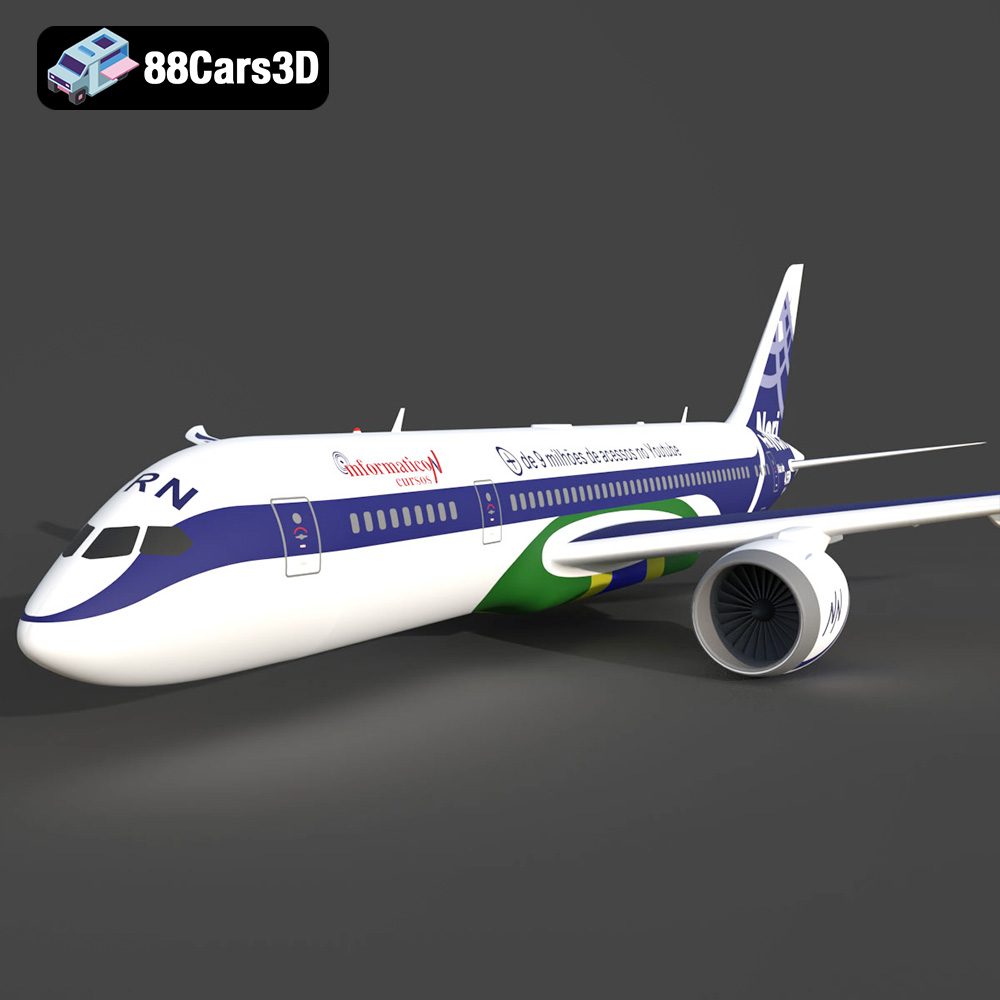
Texture: Yes
Material: Yes
Download the Airplane TRN-007 3D Model featuring clean geometry, realistic detailing, and a fully modeled interior. Includes .blend, .fbx, .obj, .glb, .stl, .ply, .unreal, and .max formats for rendering, simulation, and game development.
Price: $10
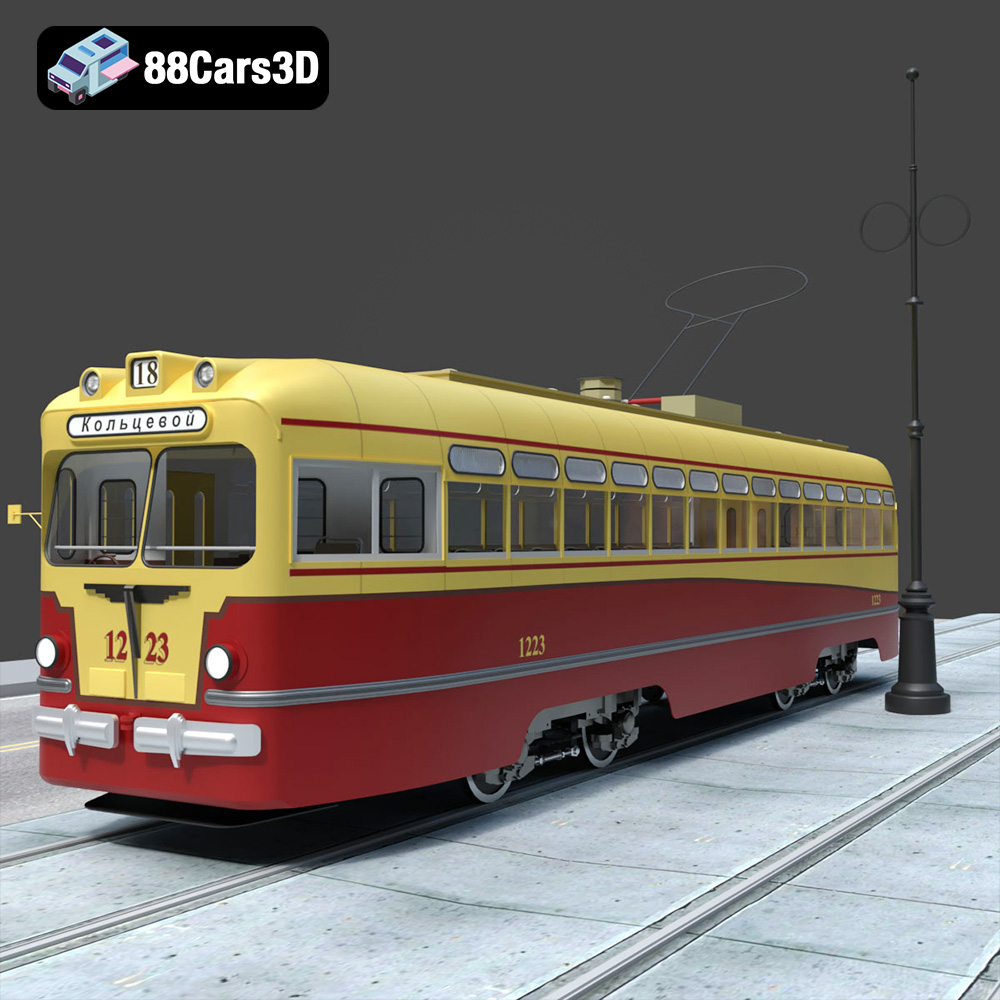
Texture: Yes
Material: Yes
Download the MTB-82 Tram 3D Model featuring clean geometry, realistic detailing, and a fully modeled interior. Includes .blend, .fbx, .obj, .glb, .stl, .ply, .unreal, and .max formats for rendering, simulation, and game development.
Price: $10
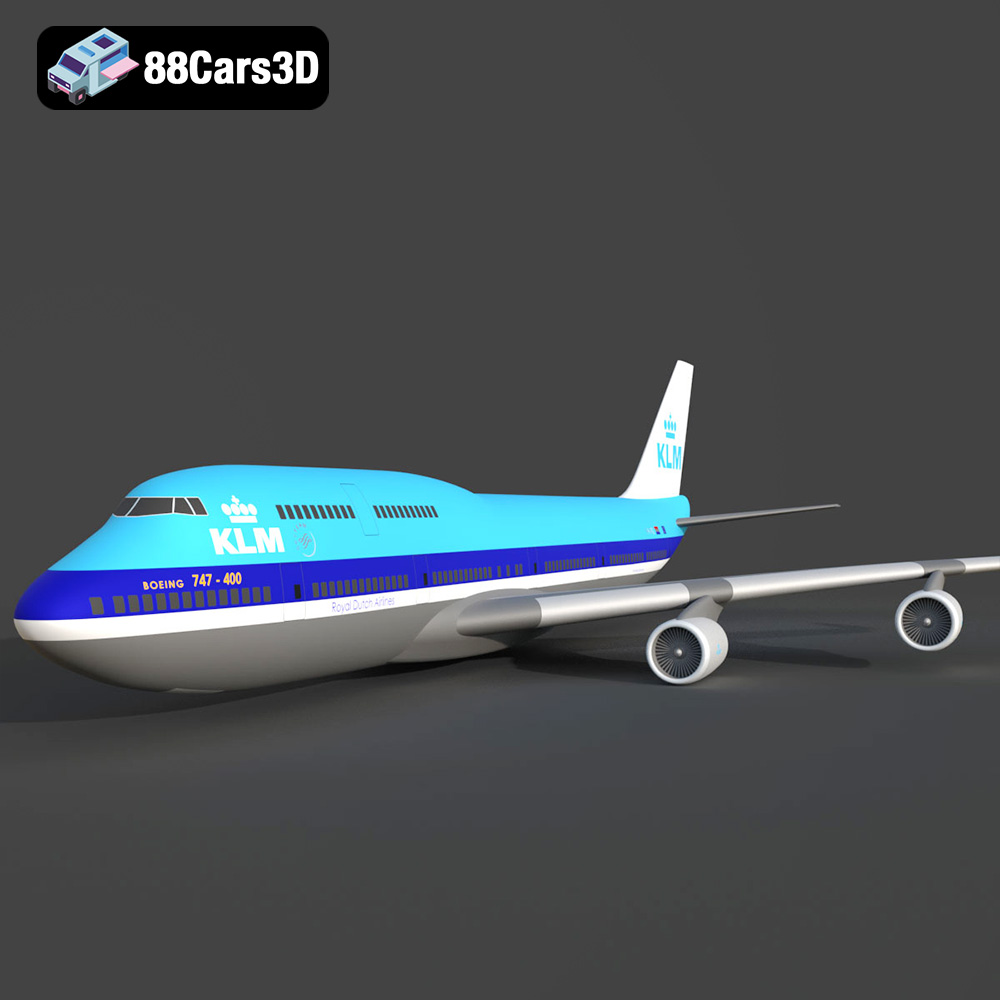
Texture: Yes
Material: Yes
Download the Boeing 747-400 KLM 3D Model featuring a detailed exterior, authentic livery, and realistic components. Includes .blend, .fbx, .obj, .glb, .stl, .ply, .unreal, and .max formats for rendering, simulation, and game development.
Price: $10.79
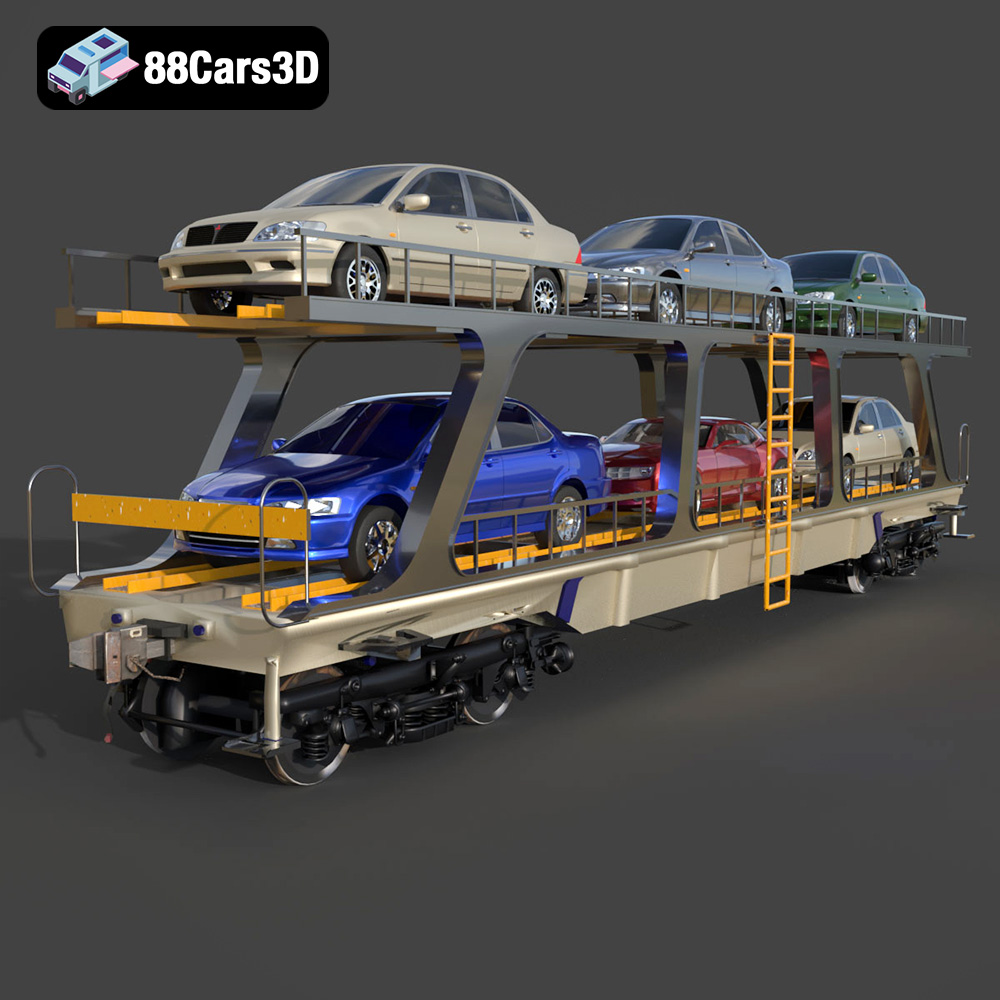
Texture: Yes
Material: Yes
Download the Avtovoz A Wagon 3D Model featuring a robust design for car transport. Includes .blend, .fbx, .obj, .glb, .stl, .ply, .unreal, and .max formats for rendering, simulation, and game development.
Price: $10.79
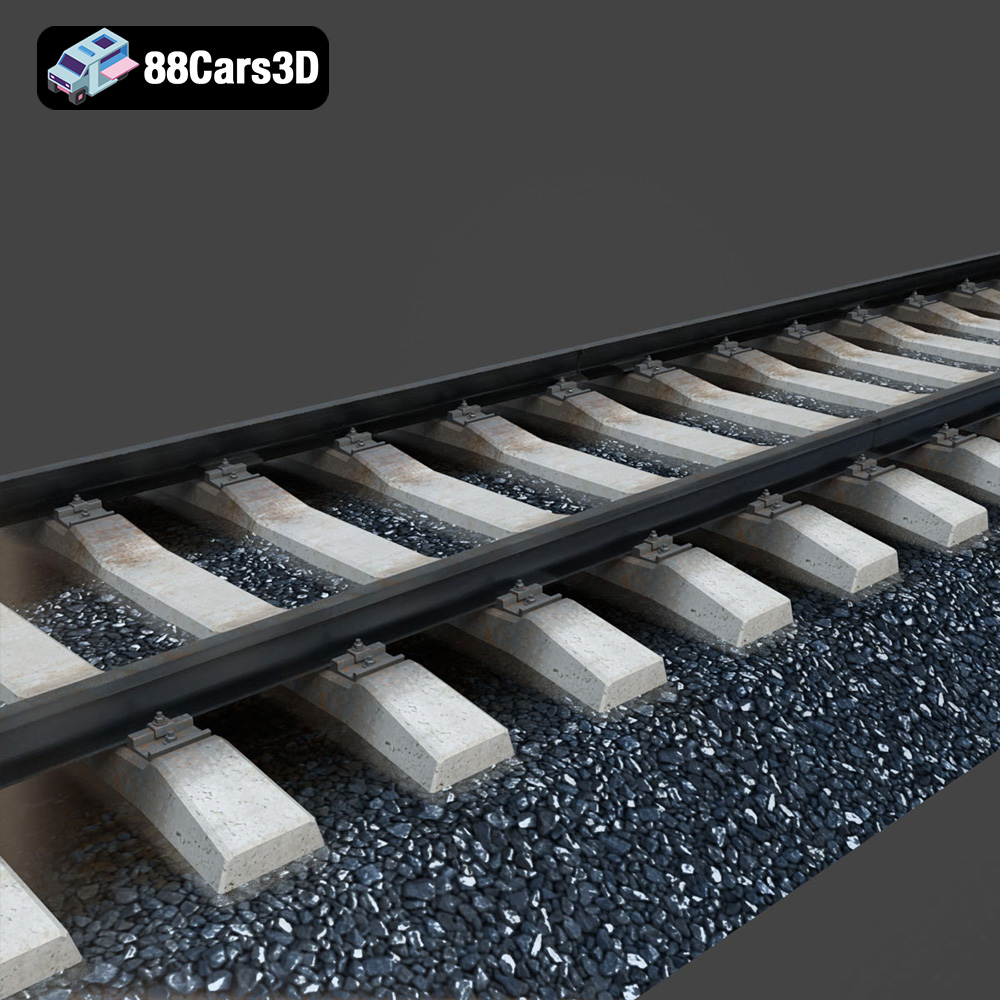
Texture: Yes
Material: Yes
Download the Rail Road 006 3D Model featuring a detailed exterior, accurate proportions, and realistic textures. Includes .blend, .fbx, .obj, .glb, .stl, .ply, .unreal, and .max formats for rendering, simulation, and game development.
Price: $10.79
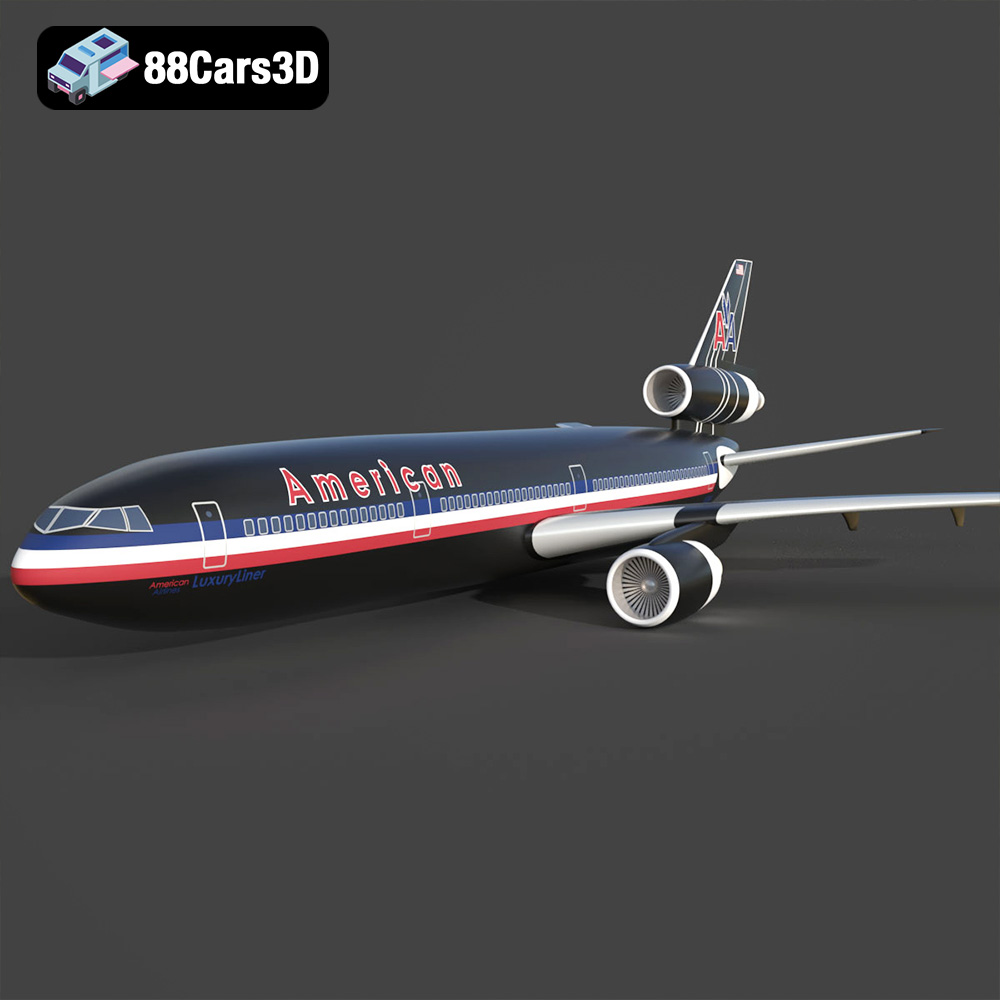
Texture: Yes
Material: Yes
Download the American AA-006 Airplane 3D Model featuring a detailed exterior, cockpit, and landing gear. Includes .blend, .fbx, .obj, .glb, .stl, .ply, .unreal, and .max formats for rendering, simulation, and game development.
Price: $10.79
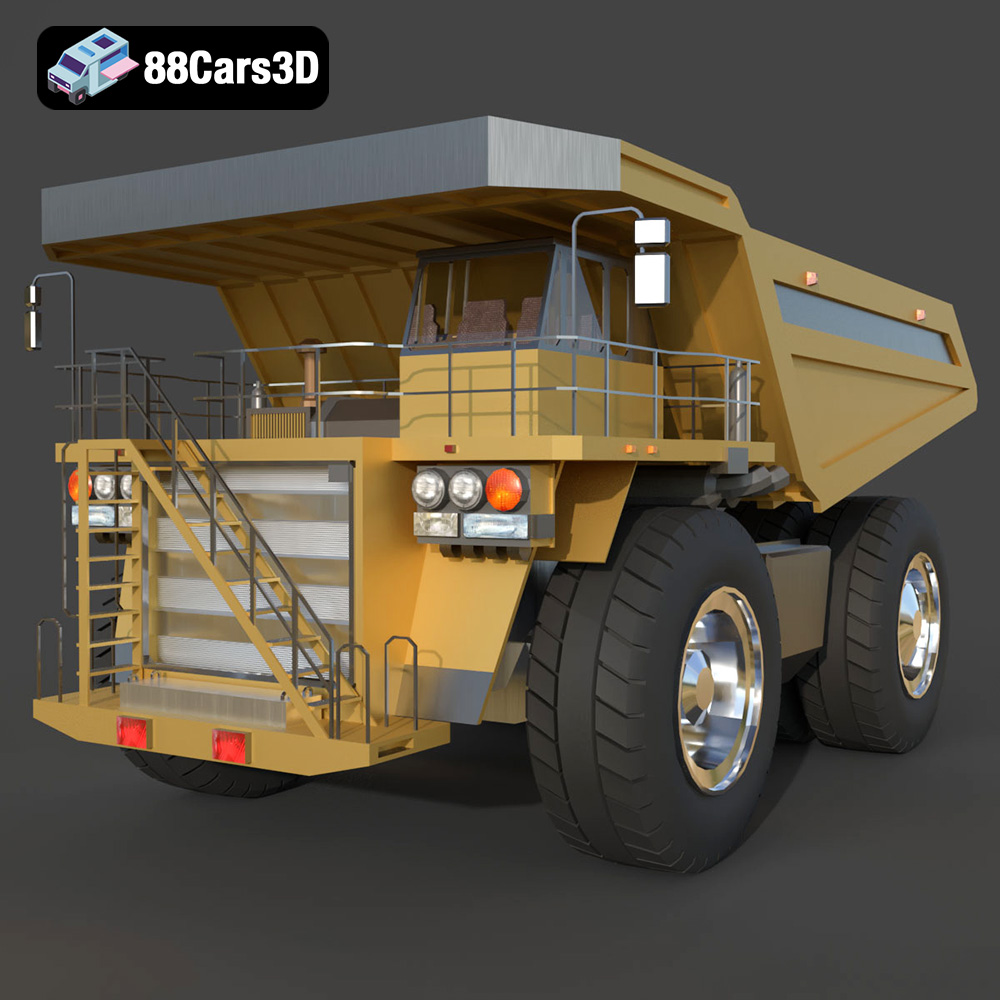
Texture: Yes
Material: Yes
Download the Samosval-003 3D Model featuring a robust dump truck design, detailed exterior and interior, and animatable components. Includes .blend, .fbx, .obj, .glb, .stl, .ply, .unreal, and .max formats for rendering, simulation, and game development.
Price: $10.79
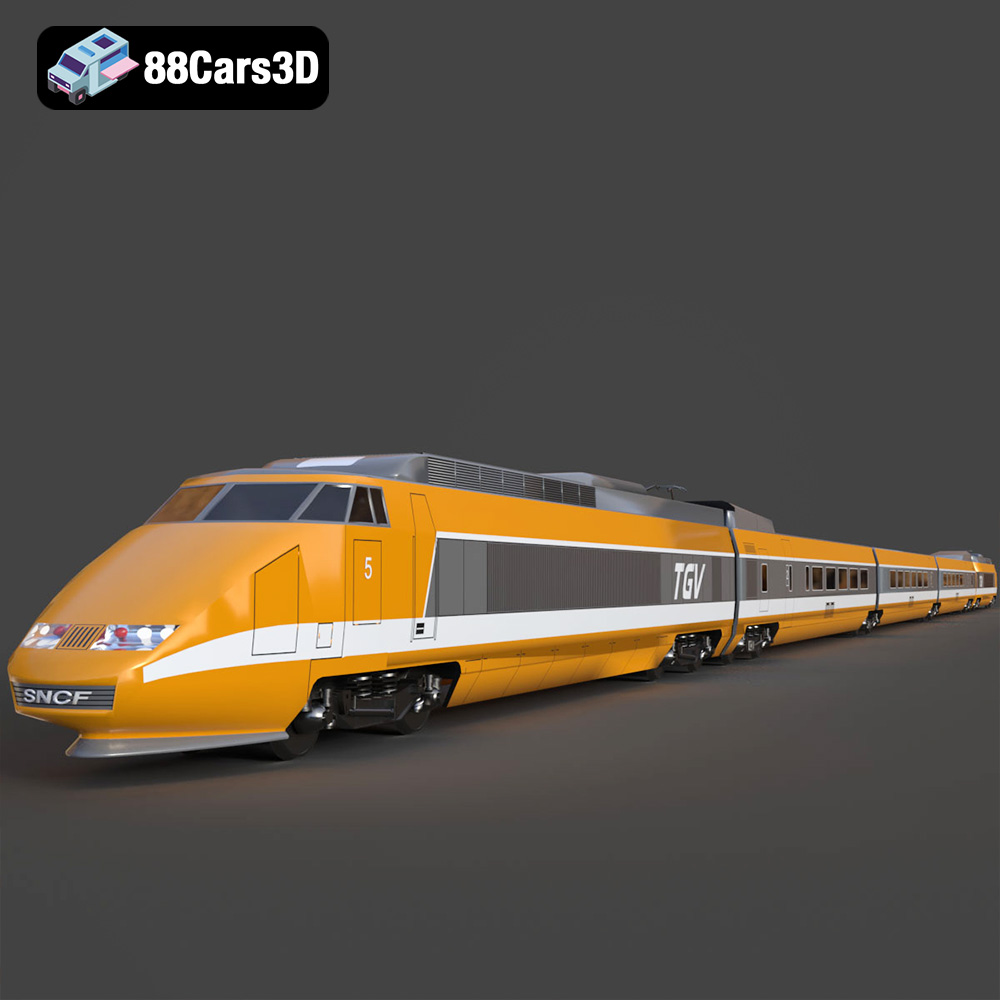
Texture: Yes
Material: Yes
Download the TGV High-Speed Train 3D Model featuring a meticulously detailed exterior, realistic materials, and authentic design. Includes .blend, .fbx, .obj, .glb, .stl, .ply, .unreal, and .max formats for rendering, simulation, and game development.
Price: $10.79
Texture: Yes
Material: Yes
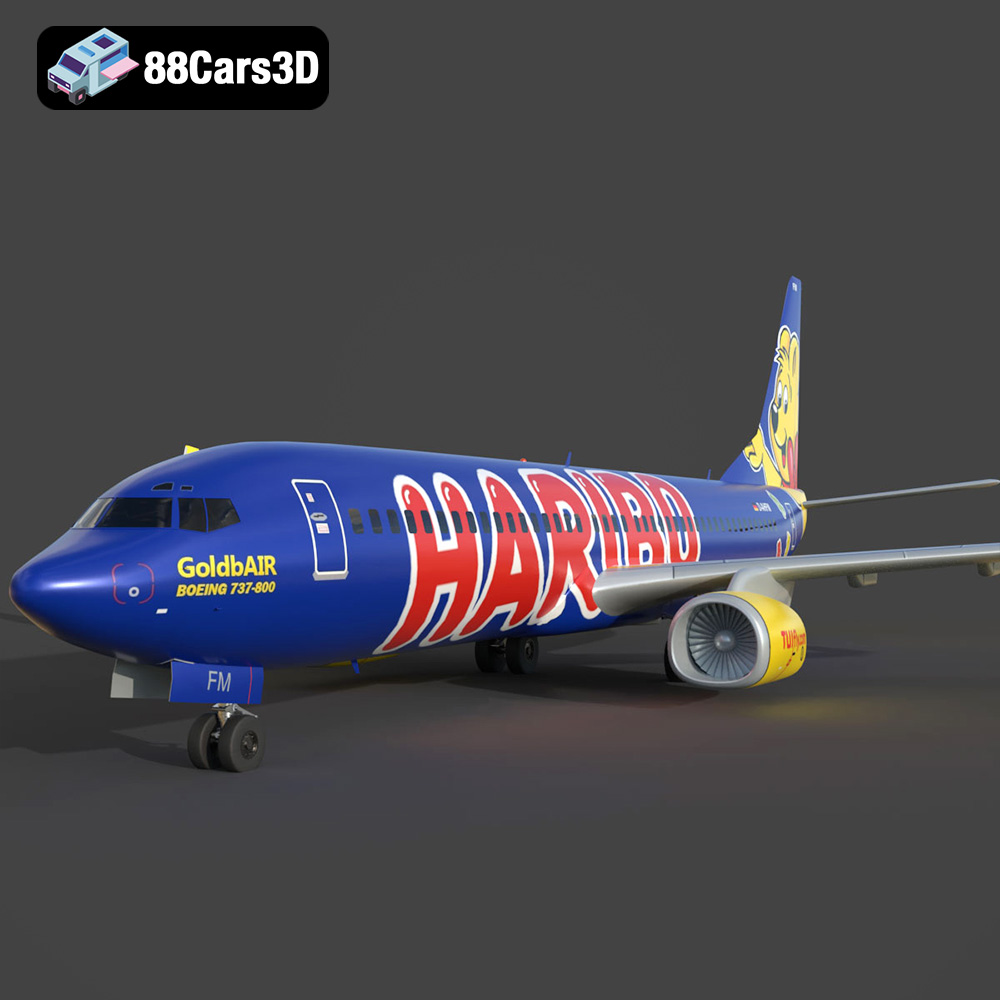
Download the Boeing 737 GoldbAir Haribo 3D Model featuring a meticulously detailed exterior, accurate custom livery, and complex mechanical components. Includes .blend, .fbx, .obj, .glb, .stl, .ply, .unreal, and .max formats for rendering, simulation, and game development.
Price: $10.79
Texture: Yes
Material: Yes
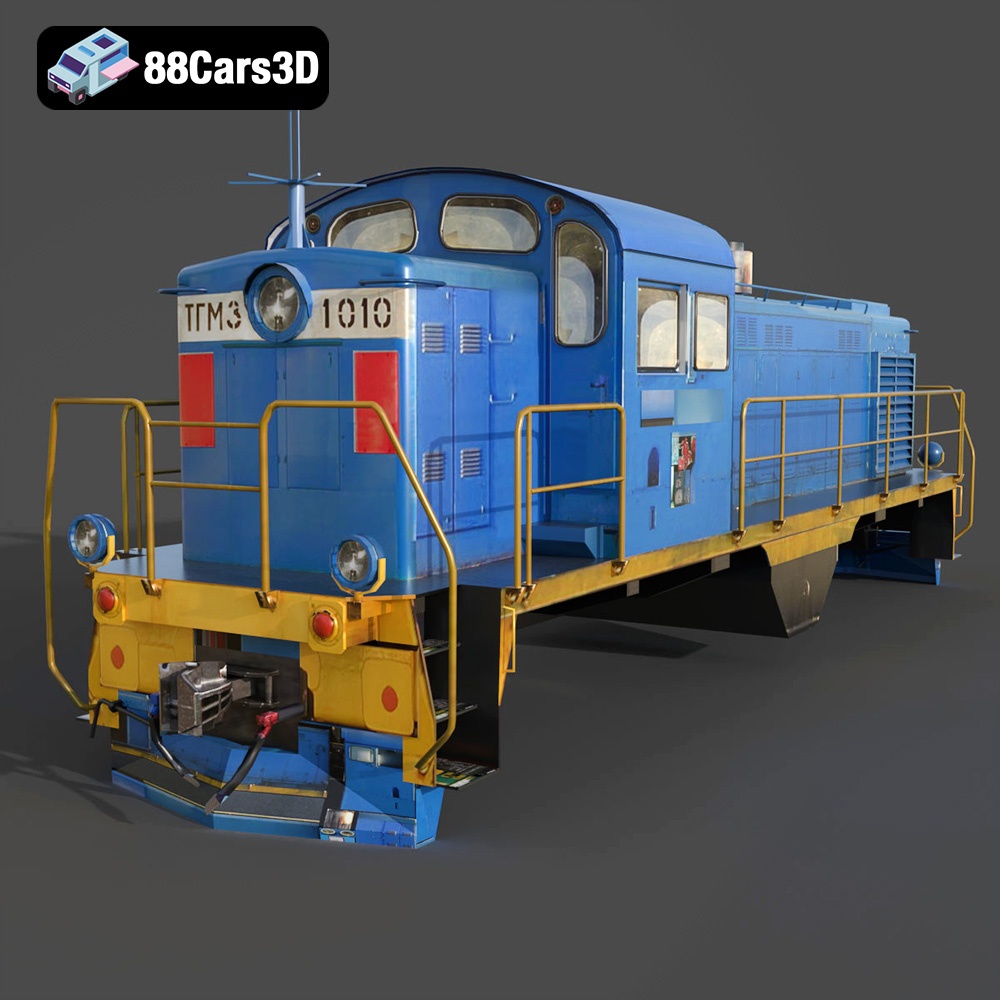
Download the Locomotive TGM3-006 3D Model featuring a detailed exterior, robust undercarriage, and realistic weathering. Includes .blend, .fbx, .obj, .glb, .stl, .ply, .unreal, and .max formats for rendering, simulation, and game development.
Price: $10.79

