⚡ FLASH SALE: Get 60% OFF All Premium 3D & STL Models! ⚡

In the dynamic worlds of automotive visualization, real-time rendering, and game development, efficiency and scalability are paramount. Unreal Engine stands as a powerhouse, enabling artists and developers to create breathtaking interactive experiences and cinematic content. However, the true potential of Unreal Engine is unlocked not just by its features, but by how effectively you manage the vast array of assets within your projects.
Poor asset management can quickly lead to a tangled mess of files, performance bottlenecks, and collaborative nightmares. Imagine trying to locate a specific texture for a dashboard, or debugging a Material Blueprint that inexplicably broke due to a misplaced asset. These common frustrations can derail timelines and inflate costs. This comprehensive guide will delve deep into the critical practices of Unreal Engine asset management and project organization, empowering you to build robust, performant, and maintainable projects. We’ll explore everything from establishing solid folder structures and naming conventions to leveraging advanced Unreal Engine features like Nanite and Data Assets, ensuring your projects – especially those featuring high-quality 3D car models from platforms like 88cars3d.com – run smoothly from concept to final delivery. By the end, you’ll have a clear roadmap to create highly optimized, production-ready automotive experiences that stand out.
The foundation of any successful Unreal Engine project lies in its organizational structure. Without a well-defined hierarchy and consistent naming conventions, even a small project can quickly become unmanageable. This is particularly true in automotive visualization, where you might deal with hundreds of highly detailed car models, intricate PBR materials, and complex Blueprint logic for interactive configurators. A strong organizational framework improves collaboration, streamlines workflows, enhances performance, and significantly reduces the time spent searching for misplaced assets.
Before importing your first 3D car model, take the time to plan your folder structure. Think about categories that make sense for your project type and team. A common approach is to categorize by asset type (e.g., Meshes, Materials, Textures, Blueprints, Maps) or by functional areas (e.g., Vehicles, Environments, UI). For automotive projects, a hybrid approach often works best, where you have a top-level ‘Vehicles’ folder, then individual folders for each car model, each containing its specific meshes, materials, and textures. This proactive planning pays dividends throughout the project lifecycle, making it easier to onboard new team members and locate assets quickly.
A logical folder hierarchy should be intuitive and scalable. Avoid overly deep structures that make navigation cumbersome, but also avoid flat structures that throw everything into one folder. A good balance is key. Consider a structure like this for an automotive project:
Content/
  Vehicles/
    CarBrandA/
      CarModelX/
        Meshes/
          SM_CarModelX_Body.uasset
          SM_CarModelX_Wheel.uasset
        Materials/
          M_CarModelX_Paint.uasset
          MI_CarModelX_Paint_Red.uasset
        Textures/
          T_CarModelX_Paint_BaseColor.uasset
          T_CarModelX_Paint_Normal.uasset
        Blueprints/
          BP_CarModelX.uasset
        Animations/
          ...
      CarModelY/
        ...
  Environments/
    StudioScene/
      Meshes/
      Materials/
      Textures/
    CityScene/
      ...
  UI/
    Widgets/
    Textures/
  Blueprints/
    BaseClasses/
    Tools/
  Materials/
    MasterMaterials/
    Functions/
  Textures/
    Common/
  Maps/
    Level_Showroom_Day.umap
    Level_Showroom_Night.umap
  Sequences/
    Shot_OpeningScene.uasset
This structure ensures that all assets related to ‘CarModelX’ are contained within its dedicated folder, making it simple to find and manage everything associated with that specific vehicle. Global assets like master materials or common textures can reside in top-level ‘Materials’ or ‘Textures’ folders. This clear segmentation prevents clutter and makes it easier to track dependencies.
Naming conventions are the silent heroes of project organization. They provide immediate context about an asset’s type and purpose without even opening it. Unreal Engine’s Content Browser relies heavily on these conventions for effective searching and filtering. A well-established convention, adhered to by the entire team, is crucial for efficiency.
The general format involves a prefix indicating the asset type, followed by a descriptive name, and sometimes a suffix for additional context. For instance:
SM_CarModelX_Body_LOD0SK_Character_DriverT_CarModelX_Paint_BaseColor_D (D for Diffuse/BaseColor)T_CarModelX_Paint_Normal_NM_CarPaint_BaseMI_CarPaint_RedMetallicBP_CarConfigurator, BP_Door_InteractiveWBP_ConfiguratorUIP_CarExhaustSmokeLS_OpeningCinematicDT_CarColorsConsistency is key. Document your chosen conventions and ensure all team members follow them rigorously. This disciplined approach eliminates ambiguity, simplifies debugging, and allows for more efficient bulk operations and content validation. By proactively implementing these organizational principles, you set your Unreal Engine project up for long-term success, especially when dealing with the high-fidelity 3D car models common in automotive visualization.
Once your project structure is in place, the next critical step is efficiently importing and integrating your 3D car models and other assets into Unreal Engine. This process isn’t just about dragging and dropping files; it involves careful preparation, optimization, and configuration to ensure performance and visual fidelity. For automotive projects, where models often boast intricate details and high polygon counts, a streamlined pipeline is crucial to prevent performance bottlenecks and maintain a smooth workflow.
Whether you’re creating models in external 3D software or sourcing them from marketplaces like 88cars3d.com, understanding the import settings and post-import optimizations within Unreal Engine is vital. The goal is to bring in assets in a way that is both efficient for the engine and easy to manage for the development team. This involves consideration of file formats, initial mesh settings, collision generation, and proper UV mapping to ensure textures display correctly and efficiently.
When sourcing automotive assets from marketplaces such as 88cars3d.com, you often receive models in standard formats like FBX, USD, or OBJ. FBX is typically preferred for its robust support for mesh data, materials, skeletal animations, and more within Unreal Engine. Before importing, it’s wise to perform a quick check of the FBX file in a 3D modeling application to ensure scale, pivot points, and normals are correctly set up. While 88cars3d.com provides optimized models, verifying these fundamental aspects can prevent common issues.
To import:
Content/Vehicles/CarBrandA/CarModelX/Meshes/).Once imported, the meshes, and potentially initial materials/textures, will appear in your Content Browser. Immediately rename them according to your established conventions (e.g., SM_CarModelX_Body_LOD0).
After importing, each static mesh needs further configuration to optimize performance and visual quality. Double-click your static mesh in the Content Browser to open the Static Mesh Editor:
LOD Settings > Number of LODs), but custom-made LODs from your 3D package often yield better results. For instance, a detailed car body might have LOD0 (full detail, ~100k-200k polys), LOD1 (~50k polys), LOD2 (~20k polys), and LOD3 (~5k polys) for distant views. We’ll explore Nanite as an alternative later.By meticulously addressing these settings during import and initial optimization, you lay the groundwork for a performant and visually stunning automotive project. This proactive approach ensures that your high-quality 3D car models integrate seamlessly into the Unreal Engine environment.
Materials are the skin of your 3D car models, defining their visual appearance, from the reflective sheen of metallic paint to the subtle imperfections of leather upholstery. In Unreal Engine, mastering PBR (Physically Based Rendering) workflows and organizing your material library is essential for achieving photorealistic results and maintaining project consistency. A well-managed material system not only produces stunning visuals but also optimizes performance by reducing redundant calculations and draw calls.
The core concept of PBR is to simulate how light interacts with surfaces in a physically accurate way, using properties like Base Color (Albedo), Metallic, Specular, Roughness, and Normal maps. This approach ensures that materials look consistent under various lighting conditions, enhancing realism. For automotive visualization, where the aesthetic quality of surfaces is paramount, an organized and efficient PBR material pipeline is non-negotiable.
Instead of creating unique materials for every single asset, the best practice is to build a library of reusable “Master Materials” and then create “Material Instances” from them. Master Materials contain the core logic, parameters, and texture samplers, while Material Instances allow artists to easily tweak properties (color, roughness values, texture maps) without recompiling shaders. This saves significant development time and improves performance.
Consider a typical car material setup:
Each master material would be placed in a designated folder like Content/Materials/MasterMaterials/. From these, you’d create Material Instances in your car-specific folders:
MI_CarModelX_Paint_RedMetallic (Instance of M_CarPaint_Base)MI_CarModelX_Glass_Tinted (Instance of M_CarGlass_Base)MI_CarModelX_Tire_Standard (Instance of M_CarTire_Base)This hierarchy ensures consistency, ease of iteration, and efficient rendering, as all instances share the same compiled shader instructions from their master. The Unreal Engine documentation on materials provides in-depth guidance on creating these sophisticated setups.
Textures are often the largest contributors to project size and memory usage. Proper texture management and optimization are critical for maintaining real-time performance, especially in AR/VR applications or highly detailed automotive configurators. When importing textures:
You can change compression settings by double-clicking a texture in the Content Browser and adjusting the ‘Compression Settings’ property.
Organize your textures alongside their corresponding materials or meshes. For example, textures for a specific car model’s paint might reside in Content/Vehicles/CarBrandA/CarModelX/Textures/. By diligently managing your materials and optimizing textures, you empower your automotive visualization projects with stunning realism and robust real-time performance, allowing the high-quality assets from 88cars3d.com to truly shine.
Unreal Engine constantly evolves, introducing groundbreaking features designed to push the boundaries of real-time rendering. For asset management, these features are not just about visual fidelity; they are about handling complexity and scale efficiently. Nanite, Level of Detail (LOD) systems, and robust data validation tools are prime examples of how Unreal Engine empowers developers to maintain high performance even with massive amounts of detailed content, such as dozens of high-polygon 3D car models in a large virtual environment.
Integrating these features into your asset pipeline from the outset is crucial for optimizing VRAM, CPU, and GPU usage. They allow artists to work with production-quality assets without immediate concerns about polygon limits, while ensuring the final experience remains smooth and responsive, whether in a game, an architectural walkthrough, or an interactive automotive configurator.
Nanite is Unreal Engine 5’s virtualized geometry system, a revolutionary technology that allows artists to import and render movie-quality assets with millions or even billions of polygons directly into Unreal Engine, without manual LOD creation or complex optimization. For detailed 3D car models, Nanite is a game-changer, eliminating the traditional polygon budget constraints and significantly reducing iteration time.
When you enable Nanite for a Static Mesh, Unreal Engine converts its geometry into a specialized internal format. At runtime, Nanite intelligently streams and renders only the necessary detail, essentially micro-LODing meshes on a per-pixel basis. This means objects retain their full detail up close, and seamlessly simplify in the distance, all automatically. You no longer need to manually create multiple LODs for Nanite-enabled meshes.
To enable Nanite on an imported Static Mesh (e.g., SM_CarModelX_Body):
Benefits for Car Models:
While Nanite is incredible, it’s not a silver bullet for *all* meshes. It’s best suited for static, opaque, high-poly meshes. Skeletal Meshes (for animated characters), transparent meshes (like glass, though techniques exist for Nanite-compatible transparency), and small, low-poly props might still benefit from traditional LODs or simply not enabling Nanite. For the best performance with Nanite, refer to the official Unreal Engine Nanite documentation.
Even with Nanite, traditional LODs remain crucial for non-Nanite meshes and for controlling asset behavior at different distances. LODs are simplified versions of a mesh that are swapped in as an object moves further from the camera, reducing polygon count and texture overhead. A well-implemented LOD strategy is fundamental for maintaining consistent frame rates in complex scenes.
Unreal Engine offers robust LOD generation tools:
For a car model, you might have LOD0 (full detail, enabled Nanite if applicable), LOD1 (slightly simplified, perhaps removing small bolts or interior details), LOD2 (more simplified, used for cars in the mid-distance), and LOD3 (highly simplified billboard or proxy mesh for cars very far away or in large crowds). The key is to find the sweet spot where the visual difference between LODs is imperceptible during gameplay or viewing, yet the performance gains are substantial.
As projects grow, maintaining asset quality and adherence to standards becomes challenging. Unreal Engine’s Data Validation and Asset Auditing tools are invaluable for catching issues early. These tools allow you to define rules and checks for your assets (e.g., naming conventions, texture resolutions, material parameters) and automatically flag assets that don’t meet these criteria. This prevents corrupted or improperly configured assets from propagating through the pipeline.
Content Browser Filters and Collections:
The Content Browser’s powerful filtering system (by type, name, collection, etc.) is your first line of defense. You can create custom filters to quickly find all materials, all static meshes, or even specific assets that contain a certain keyword. Collections are excellent for grouping related assets, regardless of their folder location, which is particularly useful for managing assets across different vehicle variants or scene setups.
Asset Audits:
For more systematic checks, consider custom Asset Audit tools. You can create Blueprint or C++ validation rules that run on assets. For example, a validation rule might check:
These proactive checks save immense time during quality assurance and ensure that assets from all sources, including those purchased from 88cars3d.com, conform to your project’s standards. By combining Nanite, strategic LODs, and diligent asset auditing, you build a resilient and performant asset pipeline for even the most demanding automotive visualization and real-time rendering projects.
Beyond visual assets like meshes and materials, Unreal Engine projects heavily rely on Blueprint visual scripting or C++ code to drive interactivity, game logic, and complex behaviors. Organizing these scripting assets is just as crucial as managing your 3D models and textures. A well-structured Blueprint architecture promotes reusability, reduces redundancy, simplifies debugging, and allows for easier collaboration among developers and designers.
For automotive visualization and interactive configurators, Blueprints are the heart of the experience. They handle everything from changing car colors and wheel types, opening doors, simulating physics, to managing user interface interactions. Without a clear organizational strategy, a project’s Blueprint graph can quickly become a sprawling, unmanageable mess, leading to bugs and significant development slowdowns.
The key to effective Blueprint organization is to think in terms of modularity and inheritance. Identify common functionalities and encapsulate them into reusable classes or functions. This follows the DRY (Don’t Repeat Yourself) principle, making your project more efficient and less prone to errors.
Consider a Car Configurator Blueprint setup:
ChangePaintColor(), OpenDoor()). This class might also define various mesh components (Body, Wheels, Interior, Lights) and their associated material slots.BP_Car_Base if a model had unique behaviors (e.g., a specific door opening animation).BP_Car_Base instance (e.g., BP_Car_ModelX) to change its properties.Folder Structure for Blueprints:
Content/
  Blueprints/
    Core/
      BP_Vehicle_Base.uasset
    Vehicles/
      CarBrandA/
        CarModelX/
          BP_Car_ModelX.uasset
      CarBrandB/
        ...
    UI/
      WBP_ConfiguratorUI.uasset
      WBP_ColorPicker.uasset
    Gameplay/
      BP_ConfiguratorManager.uasset
      BP_CameraPawn.uasset
    Components/
      BP_InteractiveDoorComponent.uasset (Reusable component)
This structure ensures that specific car model logic is localized, while shared functionalities are managed centrally. Utilizing Blueprint Interfaces, Function Libraries, and Parent-Child relationships extensively will make your Blueprint graph much cleaner and easier to maintain. For deeper dives into Blueprint design patterns, explore the Unreal Engine documentation on Blueprint scripting.
Hardcoding values directly into Blueprints can quickly become a maintenance nightmare. Imagine wanting to add a new car paint color or a new wheel option; you’d have to modify and recompile multiple Blueprints. This is where Data Assets and Data Tables become invaluable for configuration management.
Data Assets: These are custom Blueprint assets that hold structured data. You define a ‘Data Asset’ class (e.g., DA_CarPaintPreset) that contains variables like ‘Color (Linear Color)’, ‘Metallic (Float)’, ‘Roughness (Float)’, and ‘Normal Map (Texture2D)’. Then, you create instances of this Data Asset for each specific paint preset (e.g., DA_Paint_RedMetallic, DA_Paint_BlueMatte). Your BP_Car_Base can then simply reference these Data Assets to apply a paint preset, separating data from logic.
Data Tables: For larger collections of similar data, Data Tables are excellent. They are essentially CSV or JSON files imported into Unreal Engine, providing a spreadsheet-like structure. You define a ‘Struct’ (e.g., FCarConfigOption) with variables like ‘OptionName (Text)’, ‘MeshReference (Static Mesh Object Reference)’, ‘MaterialReference (Material Instance Reference)’, ‘Price (Float)’, etc. Then, populate a Data Table (e.g., DT_WheelOptions) with all available wheel types. Your configurator Blueprint can then easily query this Data Table to dynamically populate UI elements or apply changes.
Benefits:
By thoughtfully structuring your Blueprint classes and externalizing configuration data into Data Assets and Data Tables, you build a robust, flexible, and easily maintainable interactive experience. This approach is critical for complex automotive visualization projects and dynamic game environments, ensuring that the interactive elements built around your 3D car models are as organized and efficient as the models themselves.
As Unreal Engine projects grow in scope and team size, simple folder organization and naming conventions, while essential, are no longer sufficient. Collaborative development on large-scale automotive projects or ambitious games demands sophisticated asset management strategies. This involves integrating version control systems, understanding Unreal Engine’s internal asset reference system, and utilizing tools for efficient asset migration and dependency tracking. These advanced practices are the backbone of a successful production pipeline, preventing conflicts, ensuring data integrity, and streamlining teamwork.
Managing assets for multiple artists and developers working on different aspects – from modeling a car in Maya, texturing in Substance Painter, to implementing configurator logic in Blueprint – requires a centralized system that tracks changes, resolves conflicts, and provides a clear history of all modifications. Without these systems, chaos quickly ensues, leading to lost work and significant delays.
Source control (also known as version control) is non-negotiable for any professional Unreal Engine project, especially those with multiple contributors. It’s a system that records changes to a file or set of files over time so that you can recall specific versions later. Perforce Helix Core and Git (with Git LFS for large binary files) are the most common choices for Unreal Engine teams.
Perforce Helix Core: Often favored by large studios due to its robust handling of large binary files (like .uasset files), granular permissions, and excellent integration with Unreal Engine.
Edit > Project Settings > Source Control to connect. Always ‘Check Out’ assets before modifying them, and ‘Check In’ frequently with descriptive messages.Git LFS (Large File Storage): Git is excellent for text-based code, but .uasset files are binary. Git LFS allows Git to manage large binary files by replacing them with text pointers in the Git repository while storing the actual file content on a remote LFS server.
Regardless of the system, consistent communication and adherence to source control protocols are vital. Never make changes to an asset without checking it out first, and always pull the latest version before starting work to avoid merging conflicts. For comprehensive guidance on source control setup, consult the Unreal Engine documentation on Source Control.
The Unreal Engine Content Browser is more than just a file explorer; it’s a powerful asset management hub. Understanding its features, particularly how assets reference each other, is key to maintaining project integrity and performing advanced operations.
Reference Viewer: Right-click on any asset in the Content Browser and select Reference Viewer. This tool graphically displays all assets that reference the selected asset (direct references) and all assets that the selected asset references (indirect references).
Size Map: Right-click on a folder or asset and select Size Map. This tool visually represents the disk space occupied by assets and their dependencies. It’s invaluable for identifying large textures, meshes, or other content that is consuming excessive space, helping you optimize project size and loading times.
Fix Up Redirectors in Folder: When you rename or move an asset, Unreal Engine creates a ‘redirector’ file to maintain references. Over time, too many redirectors can clutter your project and potentially cause issues. Right-click on a folder in the Content Browser and select Fix Up Redirectors in Folder. This consolidates and cleans up these redirectors, ensuring your asset paths remain clean and optimized.
Migrate: To transfer assets from one Unreal Engine project to another, use the ‘Migrate’ feature. Right-click on the asset you want to migrate, select Asset Actions > Migrate.... Unreal Engine will automatically package the asset along with all its dependencies (textures, materials, child Blueprints) into a new folder structure, ensuring that nothing is left behind when transferring that detailed 3D car model to a new visualization project.
By effectively utilizing source control and mastering the Content Browser’s advanced features, teams can work concurrently on large, complex Unreal Engine projects with confidence. This robust approach to asset management not only prevents headaches but also significantly accelerates development, allowing you to focus on creating stunning real-time experiences and leveraging the high-quality assets available from sources like 88cars3d.com.
Effective asset management and project organization are not merely tedious chores; they are the bedrock upon which successful Unreal Engine projects are built. From the initial setup of a logical folder structure and consistent naming conventions to the meticulous optimization of high-fidelity 3D car models using Nanite and LODs, every decision impacts the performance, scalability, and maintainability of your automotive visualization, game development, or real-time rendering endeavors.
We’ve traversed the critical steps: establishing robust folder hierarchies, streamlining asset import pipelines for models from platforms like 88cars3d.com, mastering PBR material workflows, and leveraging Unreal Engine’s powerful features like Nanite and intelligent LODs. Furthermore, we’ve highlighted the crucial role of organized Blueprint scripting through modularity and data assets, and underscored the importance of advanced collaborative tools like source control and the Content Browser’s diagnostic features for large-scale production.
By internalizing these best practices, you empower your team to work more efficiently, minimize errors, and accelerate iteration cycles. A well-organized project is easier to debug, simpler to expand, and provides a clear path for new team members to contribute effectively. It transforms potential chaos into a predictable and productive development environment, ensuring that the incredible detail and realism of your assets translate into seamless, high-performance real-time experiences.
The journey to mastering Unreal Engine asset management is ongoing, requiring discipline and continuous refinement. Start small, implement these principles from day one, and watch as your projects become more manageable, your workflows more fluid, and your creative vision realized with unprecedented efficiency. The investment in robust organization pays dividends, enabling you to focus on innovation and deliver truly stunning results in the exciting world of real-time graphics.
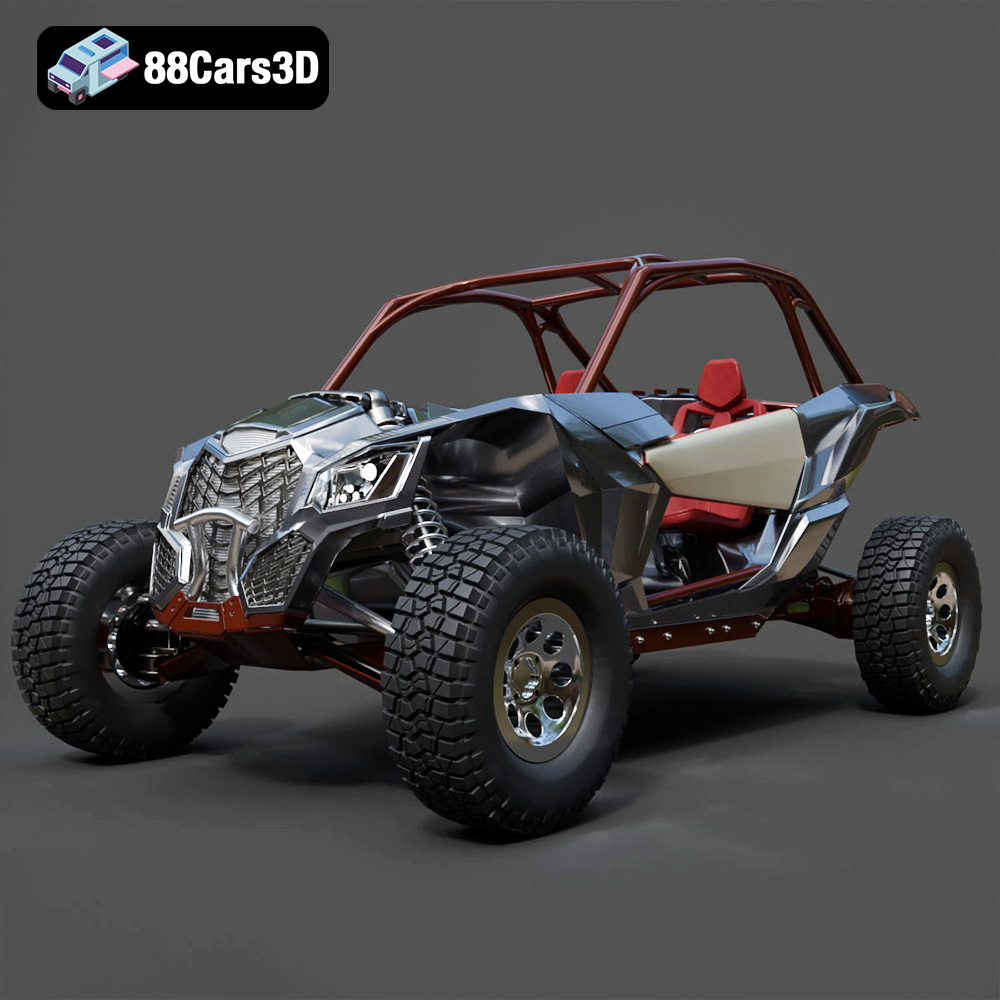
Texture: Yes
Material: Yes
Download the Can-Am Maverick 2019 3D Model featuring an aggressive off-road design, detailed chassis, and rugged tires. Includes .blend, .fbx, .obj, .glb, .stl, .ply, .unreal, and .max formats for rendering, simulation, and game development.
Price: $90.79
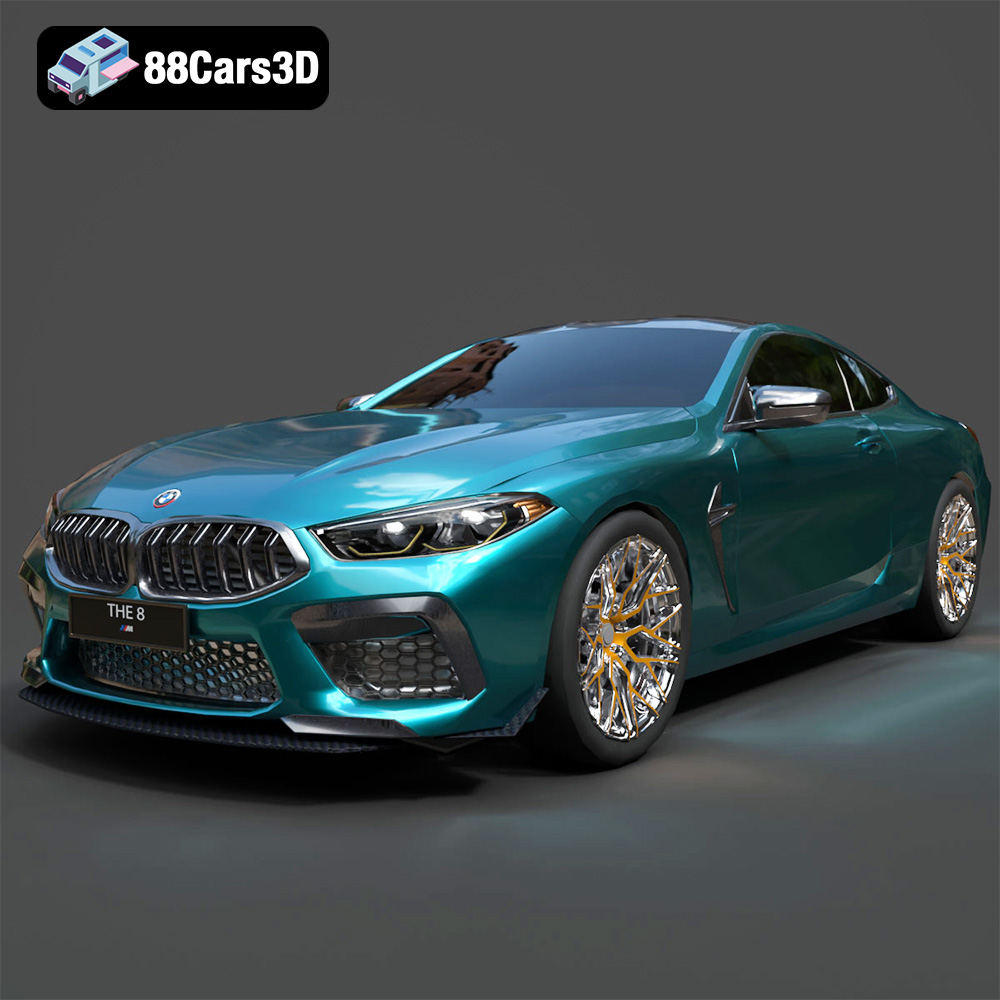
Texture: Yes
Material: Yes
Download the BMW M8 Competition 3D Model featuring aggressive styling, a luxurious interior, and high-performance detailing. Includes .blend, .fbx, .obj, .glb, .stl, .ply, .unreal, and .max formats for rendering, simulation, and game development.
Price: $110.79

Texture: Yes
Material: Yes
Download the Ferrari SF90 Spider 3D Model featuring a meticulously detailed exterior, intricate interior, and realistic PBR materials. Includes .blend, .fbx, .obj, .glb, .stl, .ply, .unreal, and .max formats for rendering, simulation, and game development.
Price: $110.79

Texture: Yes
Material: Yes
Download the Ferrari Portofino 3D Model featuring accurate body contours, detailed interior, and high-resolution textures. Includes .blend, .fbx, .obj, .glb, .stl, .ply, .unreal, and .max formats for rendering, simulation, and game development.
Price: $110.79

Texture: Yes
Material: Yes
Download the Ferrari SF90 Stradale 3D Model featuring aggressive lines and sophisticated aesthetics. Includes .blend, .fbx, .obj, .glb, .stl, .ply, .unreal, and .max formats for rendering, simulation, and game development.
Price: $110.79
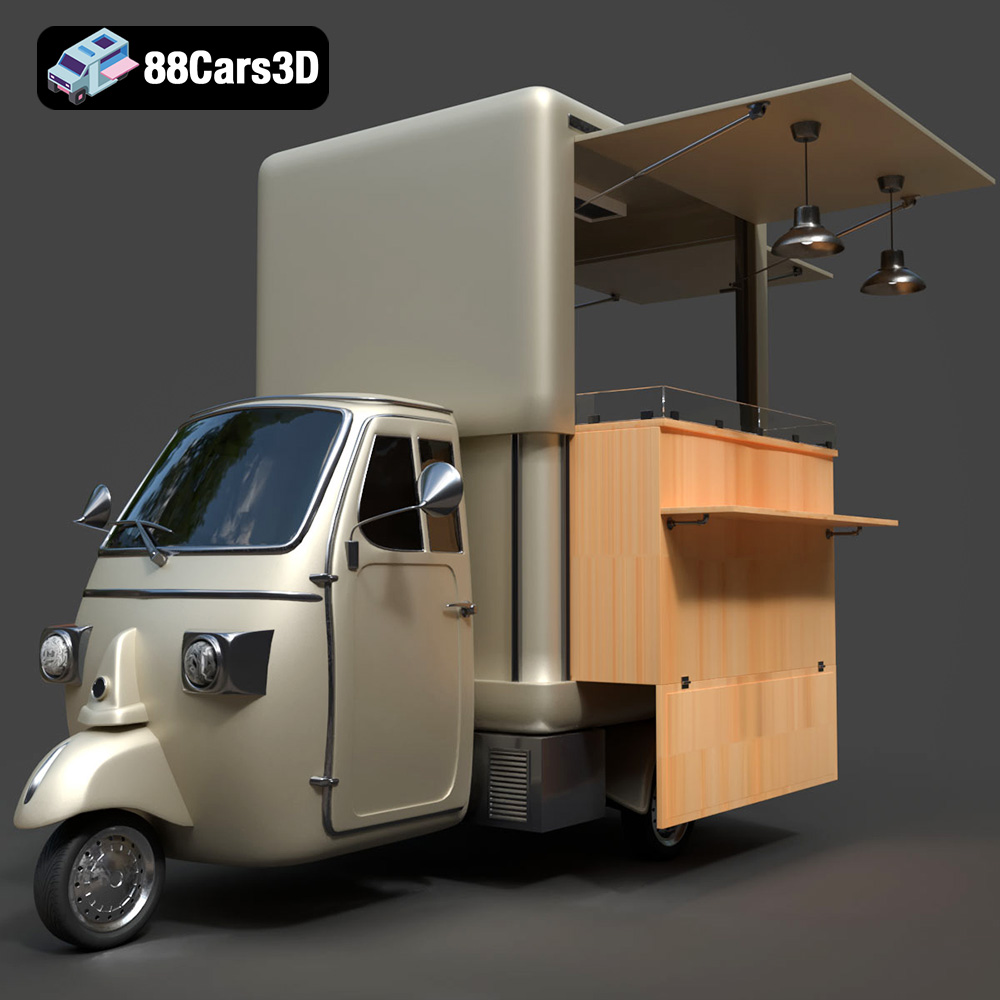
Texture: Yes
Material: Yes
Download the Foodtruck Set 3-006 3D Model featuring a detailed exterior and interior, optimized for various uses. Includes .blend, .fbx, .obj, .glb, .stl, .ply, .unreal, and .max formats for rendering, simulation, and game development.
Price: $23.79
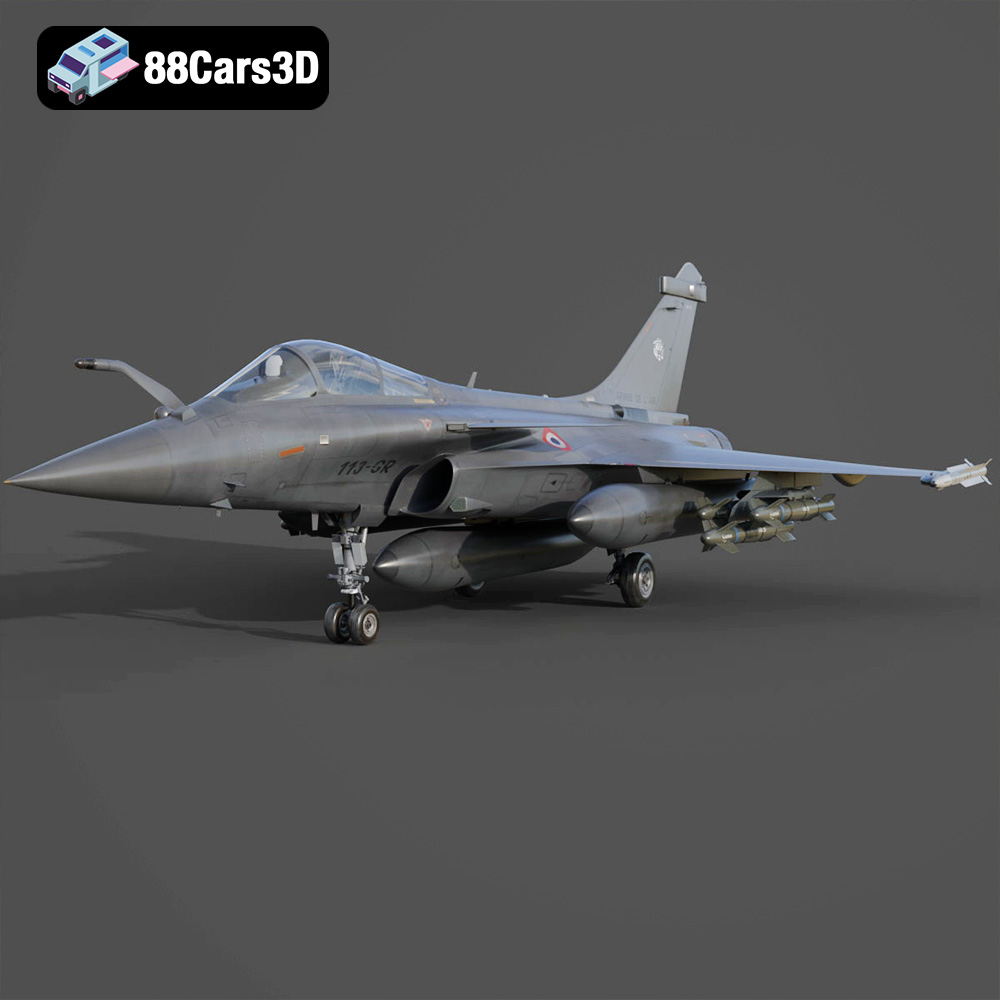
Texture: Yes
Material: Yes
Download the Dassault Rafale Fighter Jet 3D Model featuring a detailed exterior, cockpit, and propulsion system. Includes .blend, .fbx, .obj, .glb, .stl, .ply, .unreal, and .max formats for rendering, simulation, and game development.
Price: $22.79

Texture: Yes
Material: Yes
Download the BMW i8 2015 3D Model featuring its futuristic design and detailed interior, capturing the essence of a modern hybrid sports car. Includes .blend, .fbx, .obj, .glb, .stl, .ply, .unreal, and .max formats for rendering, simulation, and game development.
Price: $40.79
Texture: Yes
Material: Yes
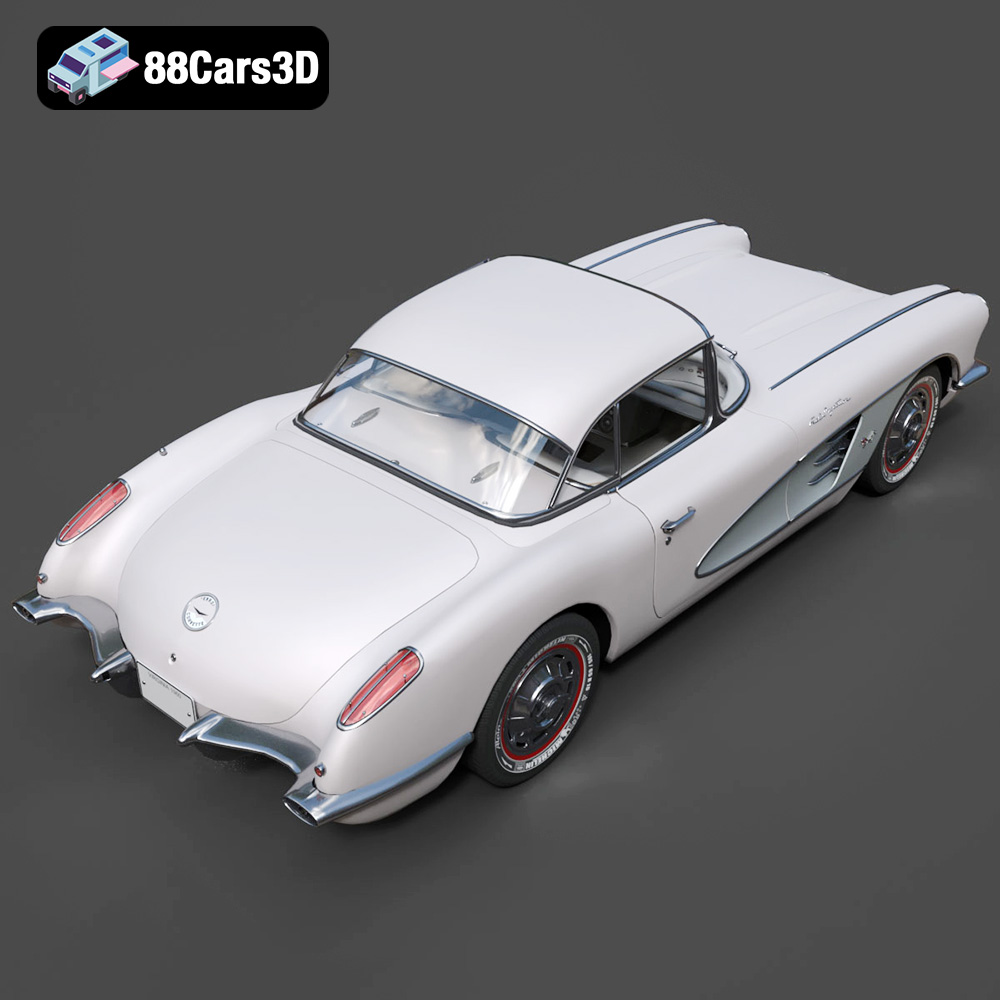
Download the Chevrolet Corvette Coupe 1960 3D Model featuring its iconic vintage design, detailed interior, and classic exterior styling. Includes .blend, .fbx, .obj, .glb, .stl, .ply, .unreal, and .max formats for rendering, simulation, and game development.
Price: $50.79
Texture: Yes
Material: Yes
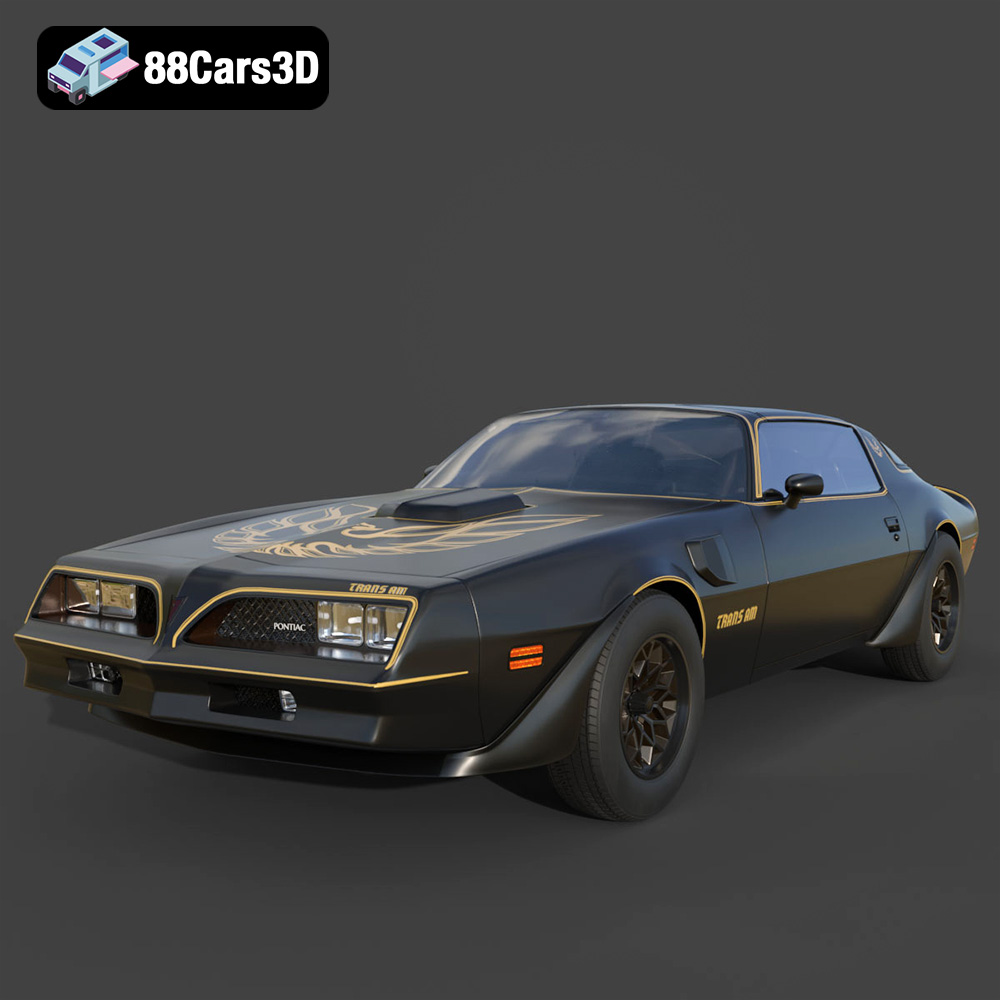
Download the Pontiac Firebird Trans Am 1977 3D Model featuring iconic muscle car design and detailed exterior and interior. Includes .blend, .fbx, .obj, .glb, .stl, .ply, .unreal, and .max formats for rendering, simulation, and game development.
Price: $30.79

