⚡ FLASH SALE: Get 60% OFF All Premium 3D & STL Models! ⚡

The automotive industry is in a constant state of evolution, and the way we visualize, design, and market vehicles is no exception. Gone are the days when static renders and physical prototypes were the only means of showcasing a car’s beauty and engineering. Today, Unreal Engine stands at the forefront of this transformation, empowering artists and developers to create breathtakingly realistic 3D car models and immersive experiences in real-time. From photorealistic marketing visuals to interactive configurators, virtual production, and cutting-edge AR/VR applications, Unreal Engine offers an unparalleled toolkit for automotive visualization.
Mastering this powerful engine requires not just technical prowess but also a deep understanding of workflows, optimization techniques, and the nuances of working with high-quality 3D car models. This comprehensive guide will take you on a journey through the essential steps, from initial project setup and seamless asset import to advanced material creation, dynamic lighting, and crucial performance optimization. We’ll delve into Unreal Engine’s groundbreaking features like Nanite and Lumen, explore the power of Blueprint for interactivity, and uncover best practices for producing stunning automotive visualization projects that captivate audiences and push the boundaries of real-time rendering. Whether you’re a game developer, an automotive designer, or a visualization professional, prepare to unlock the full potential of Unreal Engine for your next project.
Every successful project begins with a solid foundation. In Unreal Engine, this means configuring your project correctly and ensuring your 3D car models are imported efficiently and accurately. The quality of your source assets, such as those found on platforms like 88cars3d.com, is paramount for achieving professional results. These models often feature clean topology, realistic materials, and optimized UV mapping, which significantly streamlines the integration process into Unreal Engine.
Starting with the right project template can save significant time and effort. For automotive visualization, two primary templates are often recommended: the “Blank” Games template or the “Virtual Production” template under Film, Television & Live Events. The Blank template gives you maximum control with minimal pre-configured assets, ideal for custom setups. The Virtual Production template, however, comes with many essential virtual production tools and plugins already enabled, making it a strong choice for those targeting high-end cinematic or LED wall applications. Regardless of your choice, certain project settings are crucial to enable for modern real-time rendering. Navigate to Project Settings > Engine > Rendering and enable:
Furthermore, establishing a consistent folder structure from the outset is a best practice. Organize your assets logically into folders like “Meshes,” “Materials,” “Textures,” “Blueprints,” and “Maps.” This ensures project scalability and ease of collaboration, especially when dealing with numerous game assets and complex automotive scenes.
When sourcing automotive assets from marketplaces such as 88cars3d.com, you’ll typically receive models in formats like FBX, USD, or GLB. FBX remains the most widely supported and reliable format for importing into Unreal Engine. USD (Universal Scene Description) is gaining significant traction, offering robust interoperability and scene description capabilities, making it a future-proof choice for complex pipelines.
To import your 3D car model, simply drag and drop the FBX or USD file into your Content Browser. The Import Options dialog will appear, presenting critical settings:
Always verify the imported asset’s scale and pivot point immediately after import. A car’s pivot should ideally be at its base, centered, for intuitive placement and manipulation. If necessary, you can adjust the pivot point within the Static Mesh Editor. Proper import is the first critical step towards achieving stunning automotive visualization.
The visual fidelity of a 3D car model in Unreal Engine largely hinges on its materials and texturing. Physically Based Rendering (PBR) is the industry standard for achieving photorealism, mimicking how light interacts with surfaces in the real world. Understanding and correctly implementing PBR workflows are essential for creating believable automotive finishes that react accurately to various lighting conditions, a cornerstone of professional real-time rendering.
PBR materials in Unreal Engine are defined by several key parameters, each corresponding to a specific texture map:
The consistent interaction of these maps ensures that your materials behave predictably under various lighting scenarios, from bright sunlight to dim studio environments, crucial for versatile automotive visualization.
Creating realistic car paint is one of the most challenging aspects of Unreal Engine material authoring. Modern car paints are complex, featuring multiple layers like a base color, metallic flakes, and a clear coat. Unreal Engine offers powerful tools to achieve these effects:
Texture resolutions are vital for realism. For the main car body and prominent components, 4K (4096×4096) or even 8K textures are common. For less visible interior parts or chassis elements, 2K or 1K may suffice. Utilize Material Instances extensively. Once a master material is created for car paint, you can create dozens of instances to quickly change colors, flake densities, and clear coat properties without compiling new shaders, significantly speeding up iterations for automotive configurators.
Lighting is the soul of any compelling visual, and in Unreal Engine, its dynamic capabilities elevate automotive visualization to cinematic levels. From showcasing intricate reflections on a car’s surface to setting the mood of an environment, real-time lighting systems like Lumen provide unparalleled realism and flexibility. Mastering these tools is crucial for creating stunning renders and immersive experiences.
Lumen is Unreal Engine’s groundbreaking real-time global illumination and reflections system. It solves the long-standing problem of pre-baked lightmaps, allowing artists to make instant changes to lights, geometry, or materials and see their effects on indirect lighting and reflections in real-time. For automotive visualization, Lumen is a game-changer:
Lumen operates in two primary modes: Software Ray Tracing and Hardware Ray Tracing. Software Ray Tracing works on most modern GPUs and provides good quality, especially for larger scenes. Hardware Ray Tracing, when enabled, leverages dedicated RT cores on NVIDIA RTX and AMD RDNA2+ GPUs, offering superior accuracy for reflections and global illumination, albeit with a higher performance cost. For most high-end automotive visualization, Hardware Ray Tracing is preferred if the target platform supports it.
Optimizing Lumen involves adjusting settings in the Post Process Volume:
Common Lumen pitfalls include performance bottlenecks on lower-end hardware, visible noise, and artifacts with thin geometry. To mitigate noise, increase samples or adjust denoiser settings. Ensure your mesh distances are appropriate for Lumen’s trace distance to avoid light leaks or incorrect GI.
Beyond Lumen, strategic placement and configuration of traditional light sources are vital for cinematic automotive visualization. A well-lit scene highlights the car’s form, materials, and details, transforming a good model into a captivating visual:
For reflections, beyond Lumen and the Sky Light, consider:
Finally, a Post Process Volume is essential for the final look. Adjust parameters like Exposure, White Balance, Color Grading, Vignette, and Film Grain to achieve your desired aesthetic. Combining these lighting techniques with meticulous PBR materials ensures your automotive visualization projects achieve peak photorealism in real-time rendering.
In real-time rendering, visual fidelity often comes at a performance cost. For automotive visualization, where 3D car models demand incredibly high detail, managing this balance is critical. Unreal Engine provides a suite of powerful tools, most notably Nanite and Level of Detail (LOD) systems, to ensure your projects run smoothly across various platforms without compromising on visual quality. Effective optimization is not an afterthought; it’s an integral part of the development workflow.
Nanite is one of Unreal Engine 5’s most revolutionary features. It’s a virtualized geometry system that allows artists to import and render movie-quality assets with millions or even billions of polygons directly into Unreal Engine, without the traditional performance hit. For 3D car models, this means:
To enable Nanite for a static mesh, simply open the Static Mesh Editor, locate the “Nanite Settings” section, and check “Enable Nanite.” You can also adjust the “Fallback Relative Error” to control the geometric simplification for Nanite’s lower-detail representations, though for high-quality automotive visualization, you’ll generally want to keep this value low.
While powerful, Nanite has some limitations: it currently only supports static meshes (not skeletal meshes), and meshes with transparent materials or complex WPO (World Position Offset) can have issues. For these specific cases, traditional optimization methods are still necessary.
Even with Nanite handling your high-poly car body, other elements and scenarios still require traditional optimization strategies:
stat unit: Shows overall framerate, Game Thread, Draw Thread, and GPU times.stat GPU: Provides detailed GPU timings, helping pinpoint rendering expensive elements.stat rhi: Displays rendering hardware interface statistics, including draw calls and triangles.stat nanite: Specific statistics for Nanite meshes.By judiciously applying these optimization strategies, you can maintain high visual fidelity for your 3D car models while ensuring smooth and interactive real-time rendering performance, whether for a game, a configurator, or a virtual production setup.
Static renders, however beautiful, only tell part of the story. The true power of Unreal Engine for automotive visualization lies in its ability to create dynamic, interactive experiences. Blueprint, Unreal Engine’s visual scripting system, allows artists and designers to implement complex logic without writing a single line of code. This opens up a world of possibilities, from fully functional automotive configurators to immersive virtual test drives and beyond.
An automotive configurator allows users to customize a 3D car model in real-time, changing colors, wheels, interior trims, and other options. Blueprint is the backbone of such systems:
These interactive configurators provide an engaging way for potential customers to experience a vehicle before it even exists physically, proving invaluable for marketing and sales in the automotive sector.
Beyond configurators, Blueprint can bring your 3D car models to life with realistic physics and environmental interactions:
By leveraging Blueprint, you can transform a static 3D car model into an engaging, interactive asset, pushing the boundaries of what’s possible in real-time rendering for the automotive industry.
The capabilities of Unreal Engine extend far beyond traditional showrooms and renders, propelling automotive visualization into new frontiers like virtual production, augmented reality (AR), and digital twin applications. These advanced workflows demand highly optimized 3D car models and a deep understanding of real-time systems to deliver seamless, immersive experiences. With its robust toolset, Unreal Engine is at the heart of these innovative applications.
Virtual production, particularly with large LED volumes (LED walls), is revolutionizing filmmaking and advertising, offering an incredibly powerful way to integrate 3D car models into real-time environments. Instead of shooting on green screens and painstakingly compositing, cars can be filmed directly against dynamic, photorealistic backdrops rendered in Unreal Engine on massive LED screens:
For this workflow, your 3D car models must be extremely detailed and performant, often leveraging Nanite for the car itself and highly optimized assets for the background environments. The goal is to make the virtual background indistinguishable from a real location, a testament to the power of real-time rendering.
Augmented Reality (AR) and Virtual Reality (VR) represent significant growth areas for automotive visualization, offering immersive experiences for design review, training, and sales. Simultaneously, the concept of a ‘digital twin’ — a virtual replica of a physical asset — is gaining traction for its potential in product lifecycle management and real-time data integration.
These advanced applications underscore the transformative potential of Unreal Engine, positioning it as an indispensable tool for the evolving demands of the automotive industry. By combining robust assets, meticulous optimization, and innovative workflows, professionals can create experiences that are not only visually stunning but also profoundly functional and forward-looking.
The journey through integrating 3D car models into Unreal Engine for automotive visualization reveals a landscape brimming with artistic and technical possibilities. We’ve explored how a meticulous project setup, coupled with the seamless import of high-quality assets — such as those found on 88cars3d.com — forms the bedrock of any successful real-time project. From there, we delved into the artistry of PBR materials, dissecting how layers of paint, metallic flakes, and clear coats converge to create breathtakingly realistic car finishes.
The transformative power of Lumen has been highlighted, demonstrating its role in delivering dynamic global illumination and reflections that bring scenes to life. We also emphasized the critical importance of optimization, leveraging Nanite for unparalleled geometric detail and traditional LODs for granular control, ensuring smooth performance even with the most complex game assets. Finally, the versatility of Blueprint for creating interactive configurators, realistic physics simulations, and groundbreaking virtual production workflows underscores Unreal Engine’s role as a complete solution for the automotive sector.
The path to mastering real-time rendering for automotive is continuous, demanding both creativity and technical precision. We encourage you to start experimenting, apply these best practices, and continue exploring the vast capabilities of Unreal Engine. By focusing on high-quality source models, intelligent workflows, and strategic optimization, you can push the boundaries of what’s possible in automotive visualization. The future of showcasing vehicles is here, and it’s rendered in real-time.
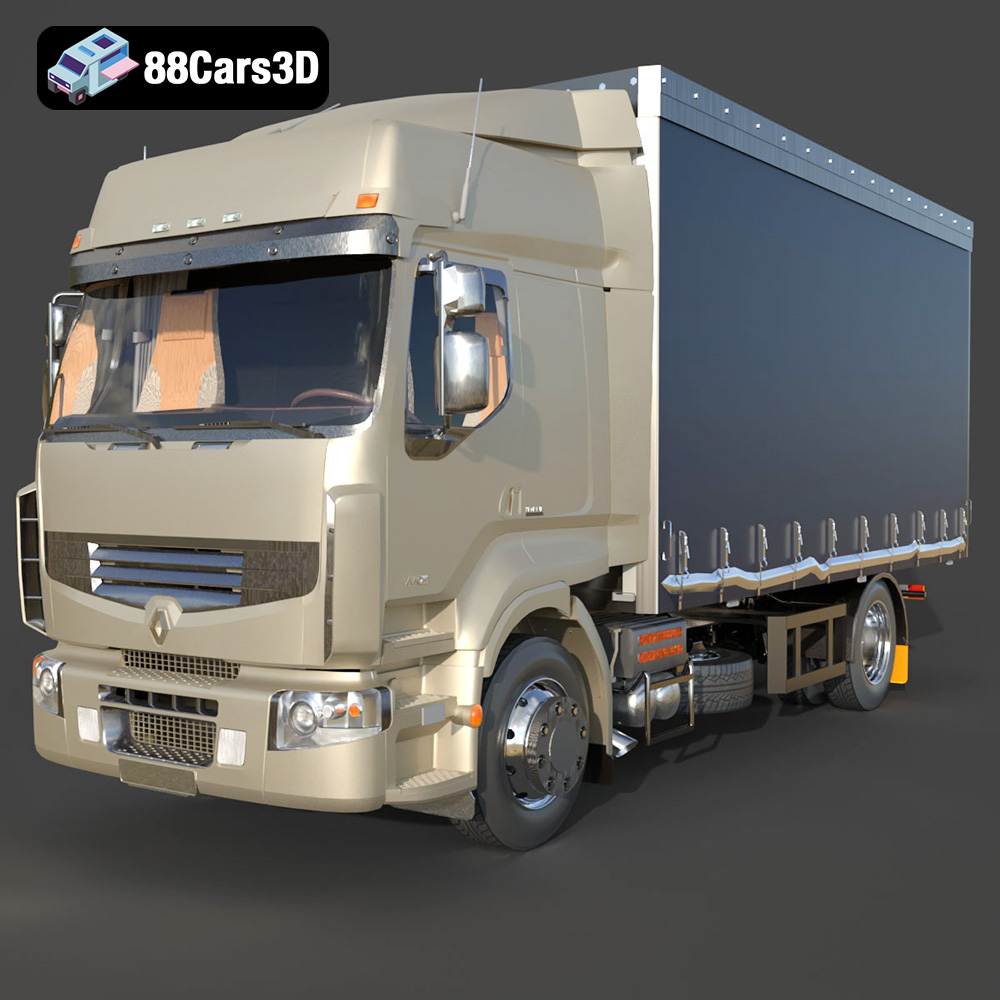
Texture: Yes
Material: Yes
Download the Renault Premium 440-002 3D Model featuring a detailed exterior, an optimized interior, and accurate real-world scale. Includes .blend, .fbx, .obj, .glb, .stl, .ply, .unreal, and .max formats for rendering, simulation, and game development.
Price: $10.79
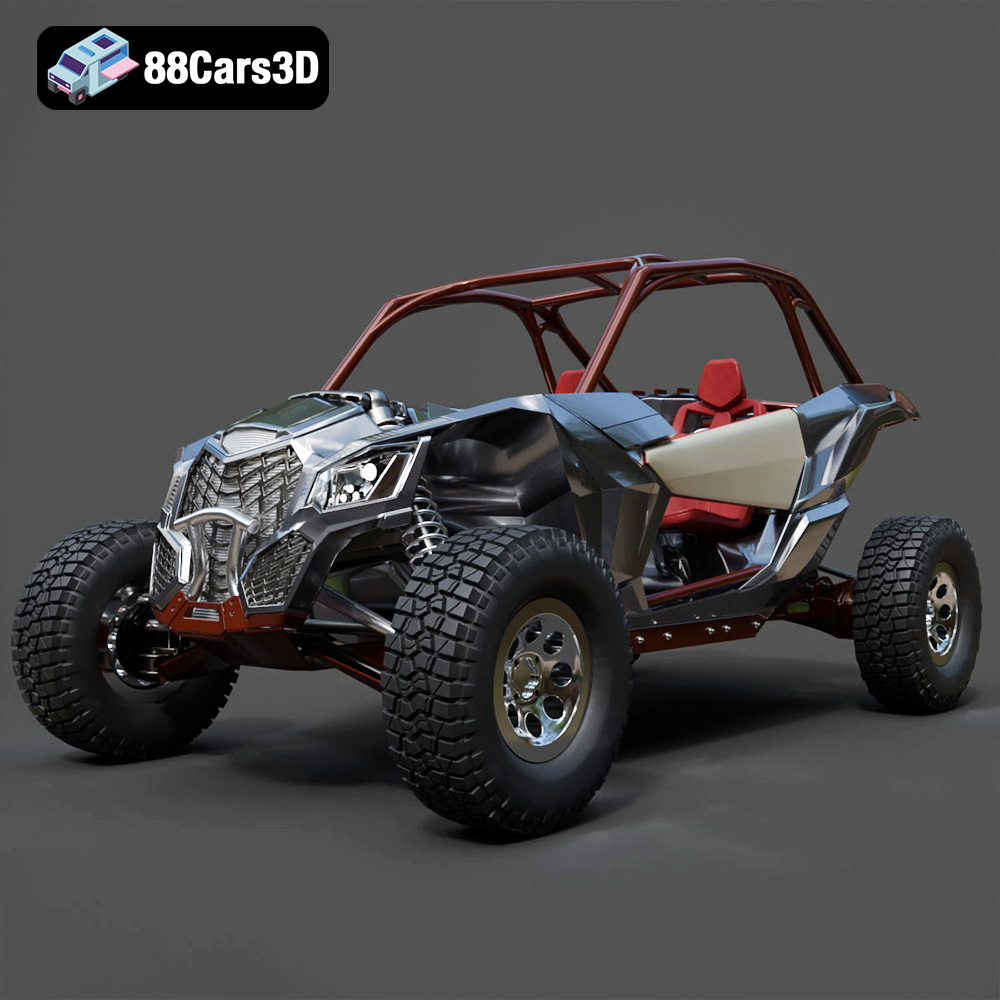
Texture: Yes
Material: Yes
Download the Can-Am Maverick 2019 3D Model featuring an aggressive off-road design, detailed chassis, and rugged tires. Includes .blend, .fbx, .obj, .glb, .stl, .ply, .unreal, and .max formats for rendering, simulation, and game development.
Price: $90.79
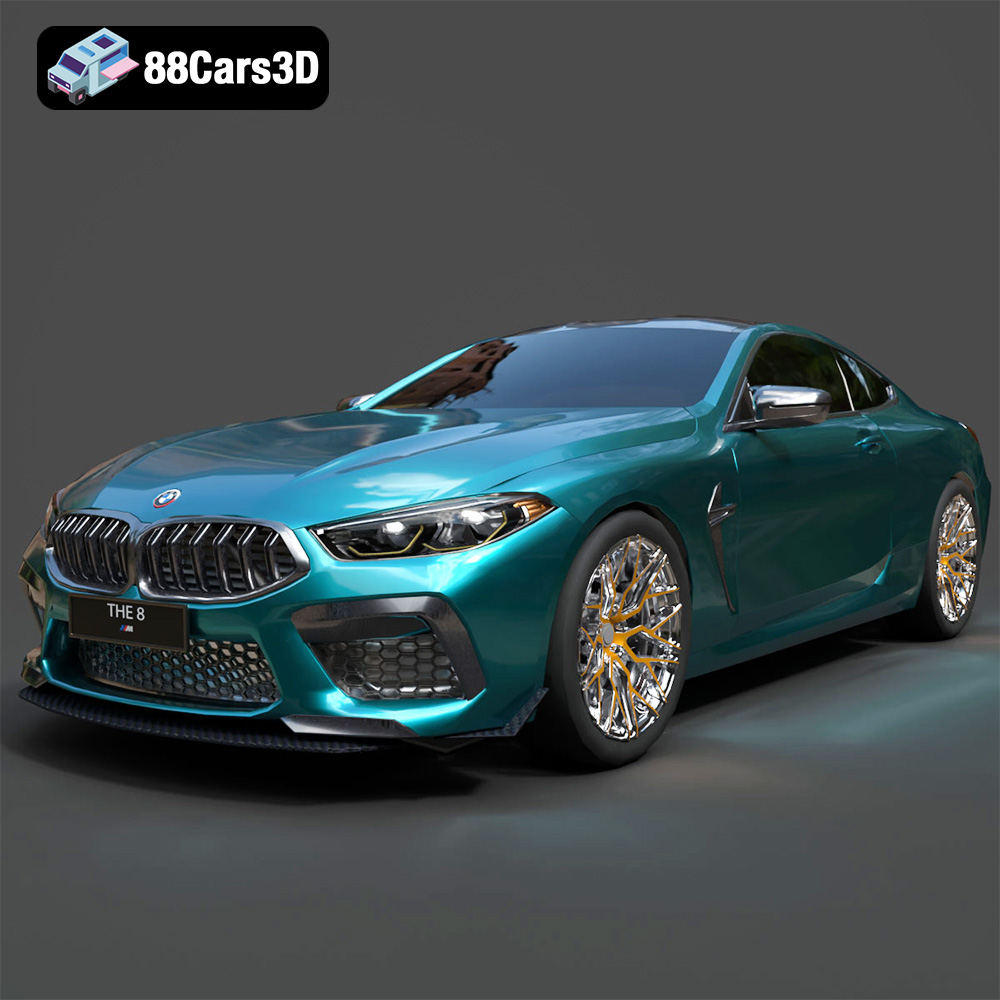
Texture: Yes
Material: Yes
Download the BMW M8 Competition 3D Model featuring aggressive styling, a luxurious interior, and high-performance detailing. Includes .blend, .fbx, .obj, .glb, .stl, .ply, .unreal, and .max formats for rendering, simulation, and game development.
Price: $110.79
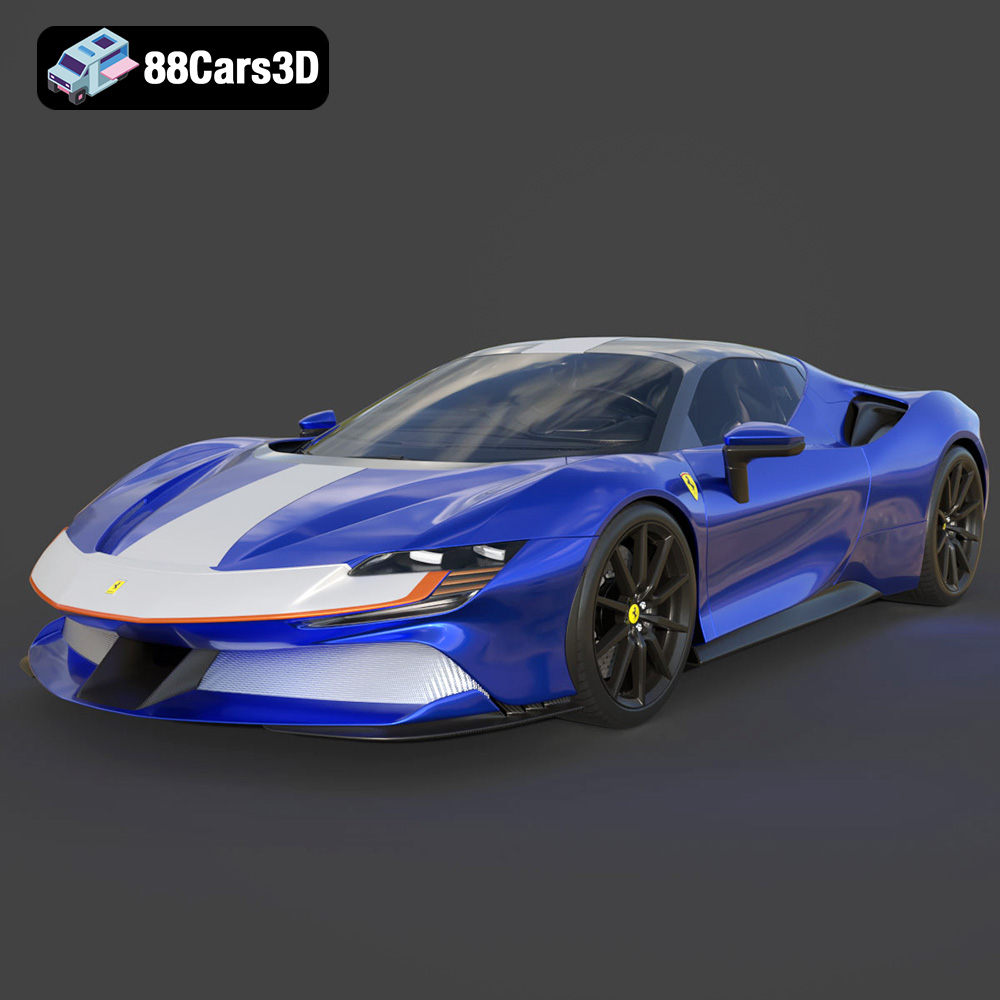
Texture: Yes
Material: Yes
Download the Ferrari SF90 Spider 3D Model featuring a meticulously detailed exterior, intricate interior, and realistic PBR materials. Includes .blend, .fbx, .obj, .glb, .stl, .ply, .unreal, and .max formats for rendering, simulation, and game development.
Price: $110.79
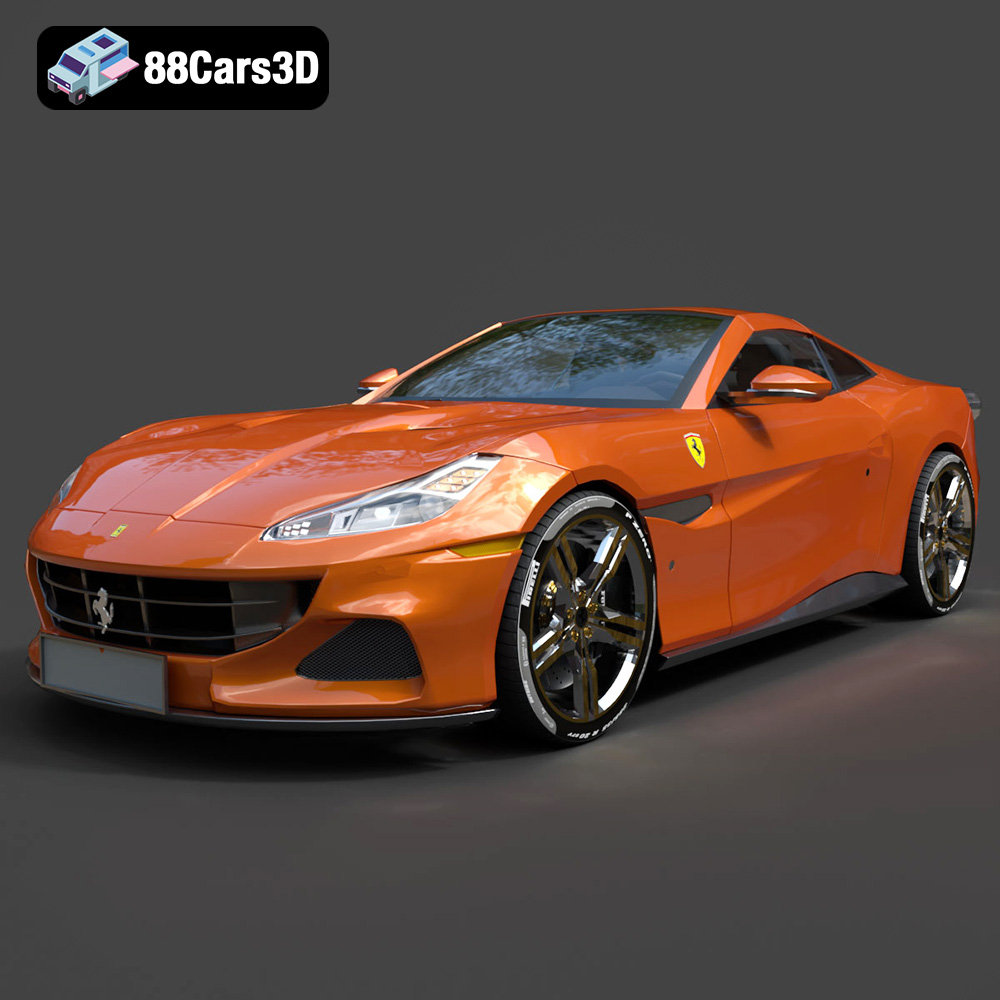
Texture: Yes
Material: Yes
Download the Ferrari Portofino 3D Model featuring accurate body contours, detailed interior, and high-resolution textures. Includes .blend, .fbx, .obj, .glb, .stl, .ply, .unreal, and .max formats for rendering, simulation, and game development.
Price: $110.79
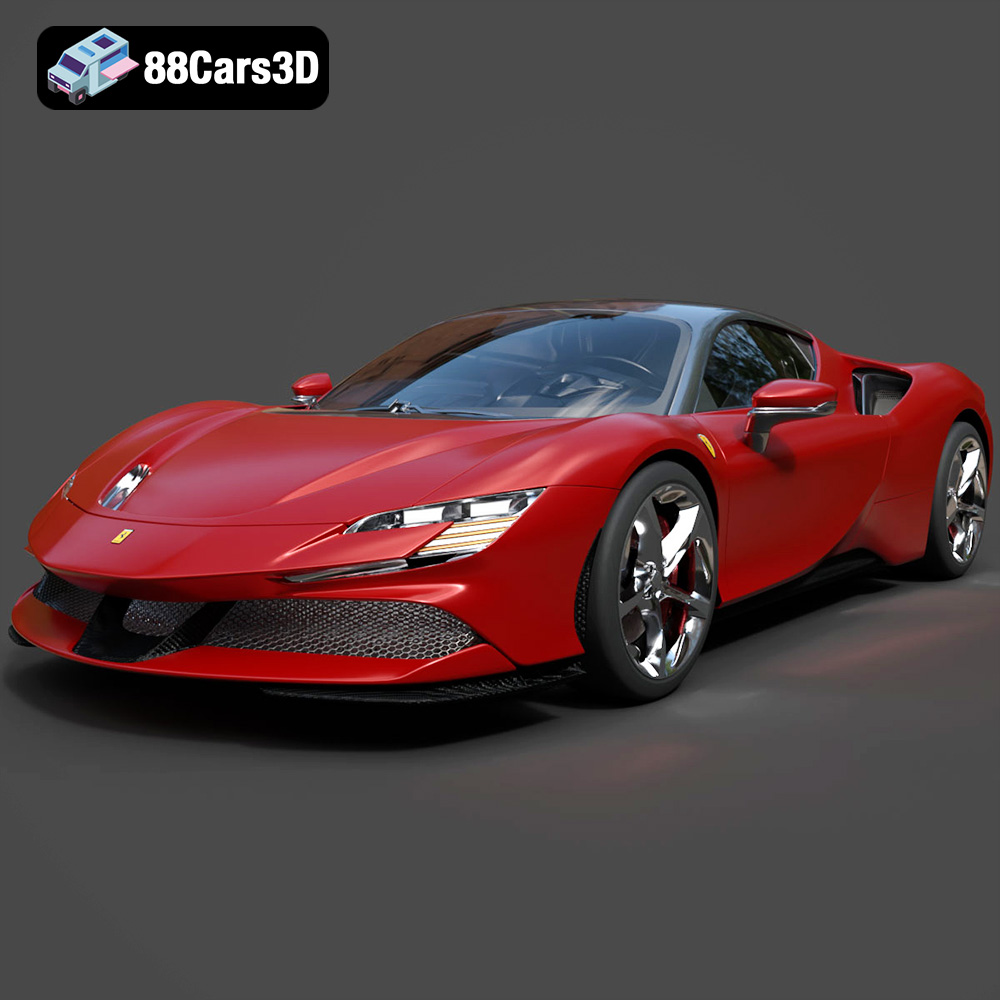
Texture: Yes
Material: Yes
Download the Ferrari SF90 Stradale 3D Model featuring aggressive lines and sophisticated aesthetics. Includes .blend, .fbx, .obj, .glb, .stl, .ply, .unreal, and .max formats for rendering, simulation, and game development.
Price: $110.79
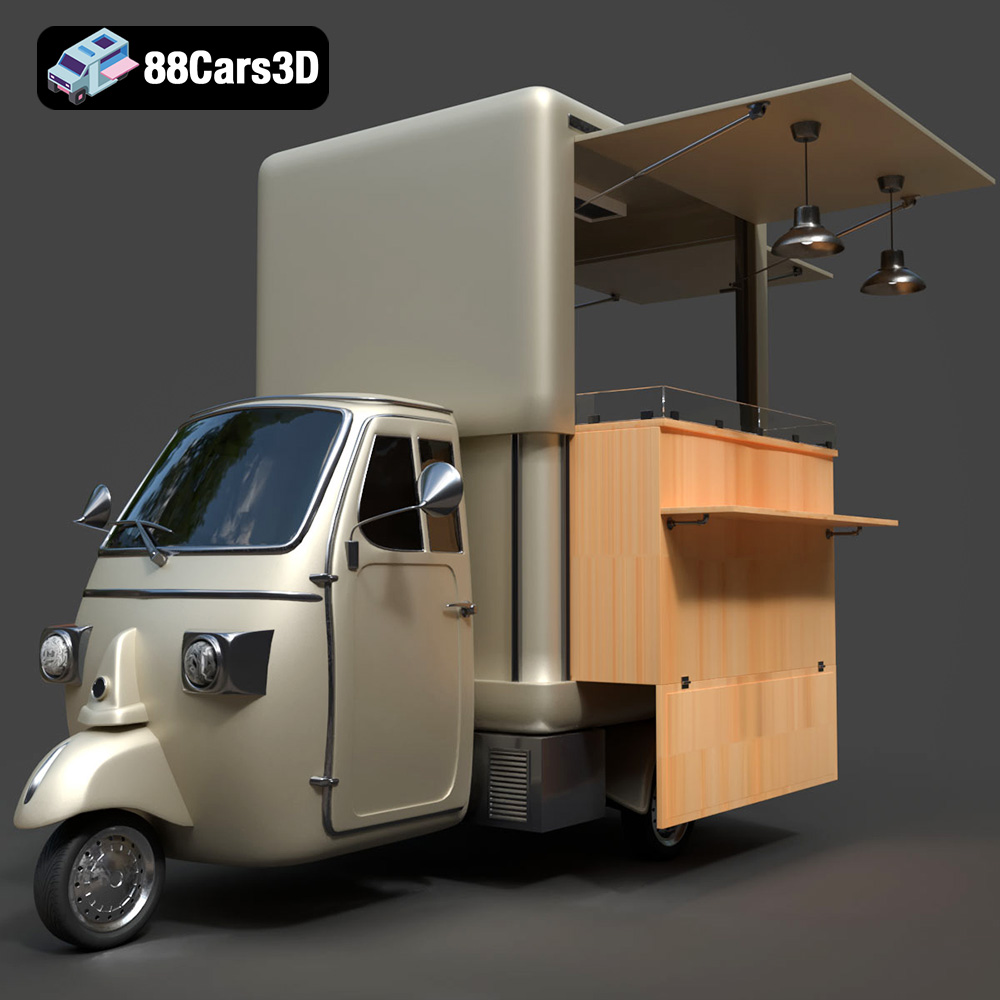
Texture: Yes
Material: Yes
Download the Foodtruck Set 3-006 3D Model featuring a detailed exterior and interior, optimized for various uses. Includes .blend, .fbx, .obj, .glb, .stl, .ply, .unreal, and .max formats for rendering, simulation, and game development.
Price: $23.79
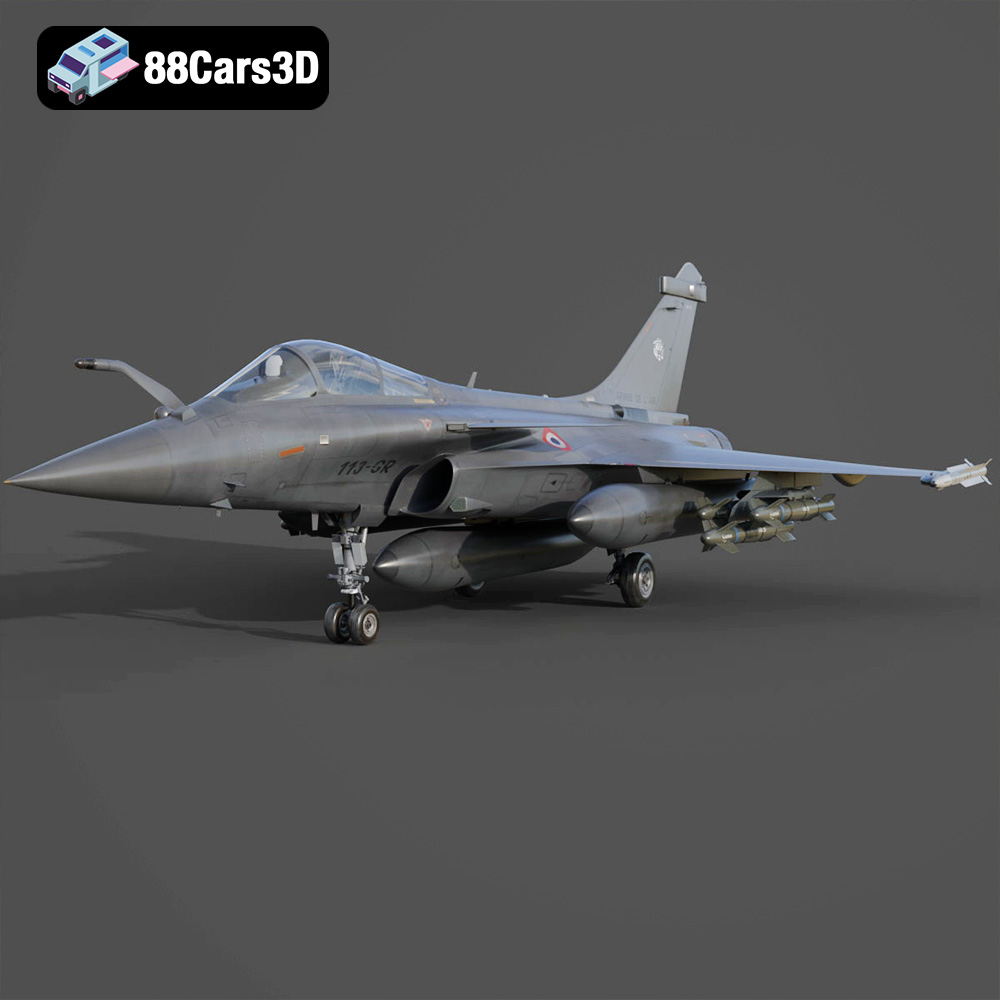
Texture: Yes
Material: Yes
Download the Dassault Rafale Fighter Jet 3D Model featuring a detailed exterior, cockpit, and propulsion system. Includes .blend, .fbx, .obj, .glb, .stl, .ply, .unreal, and .max formats for rendering, simulation, and game development.
Price: $22.79
Texture: Yes
Material: Yes
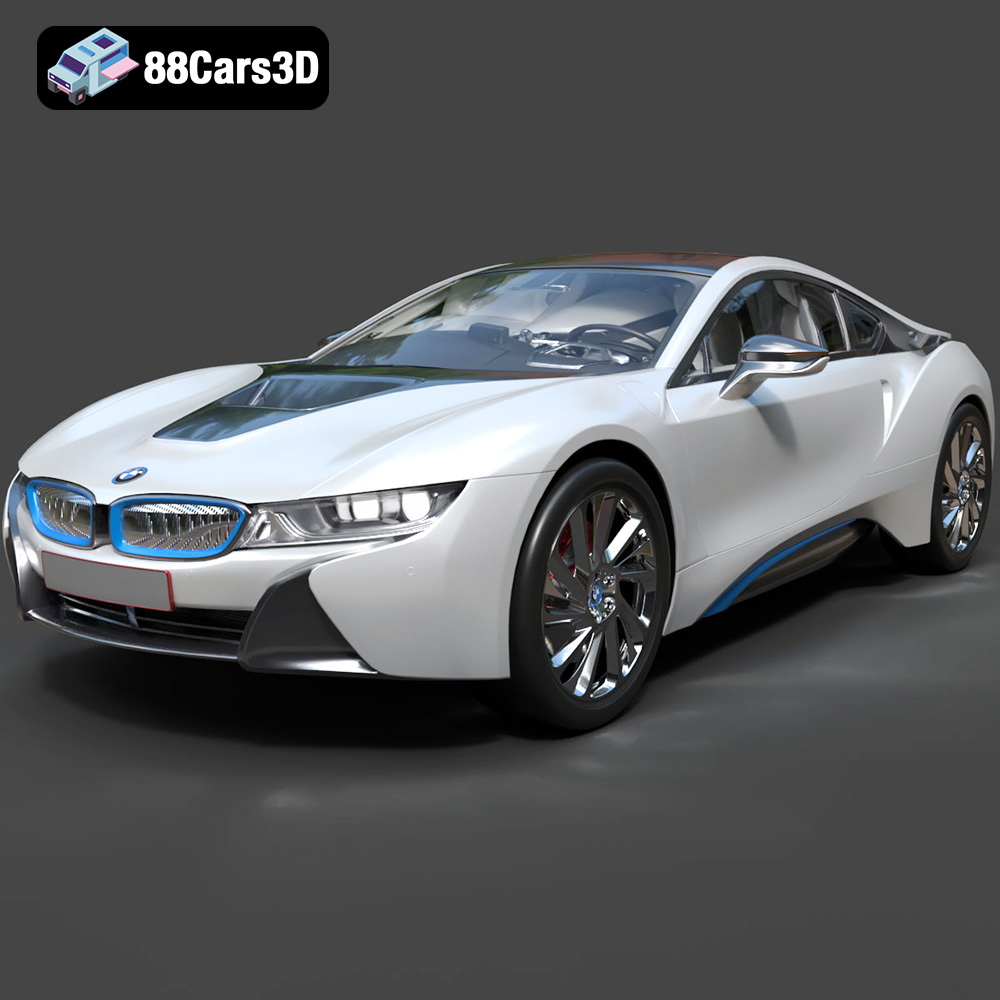
Download the BMW i8 2015 3D Model featuring its futuristic design and detailed interior, capturing the essence of a modern hybrid sports car. Includes .blend, .fbx, .obj, .glb, .stl, .ply, .unreal, and .max formats for rendering, simulation, and game development.
Price: $40.79
Texture: Yes
Material: Yes
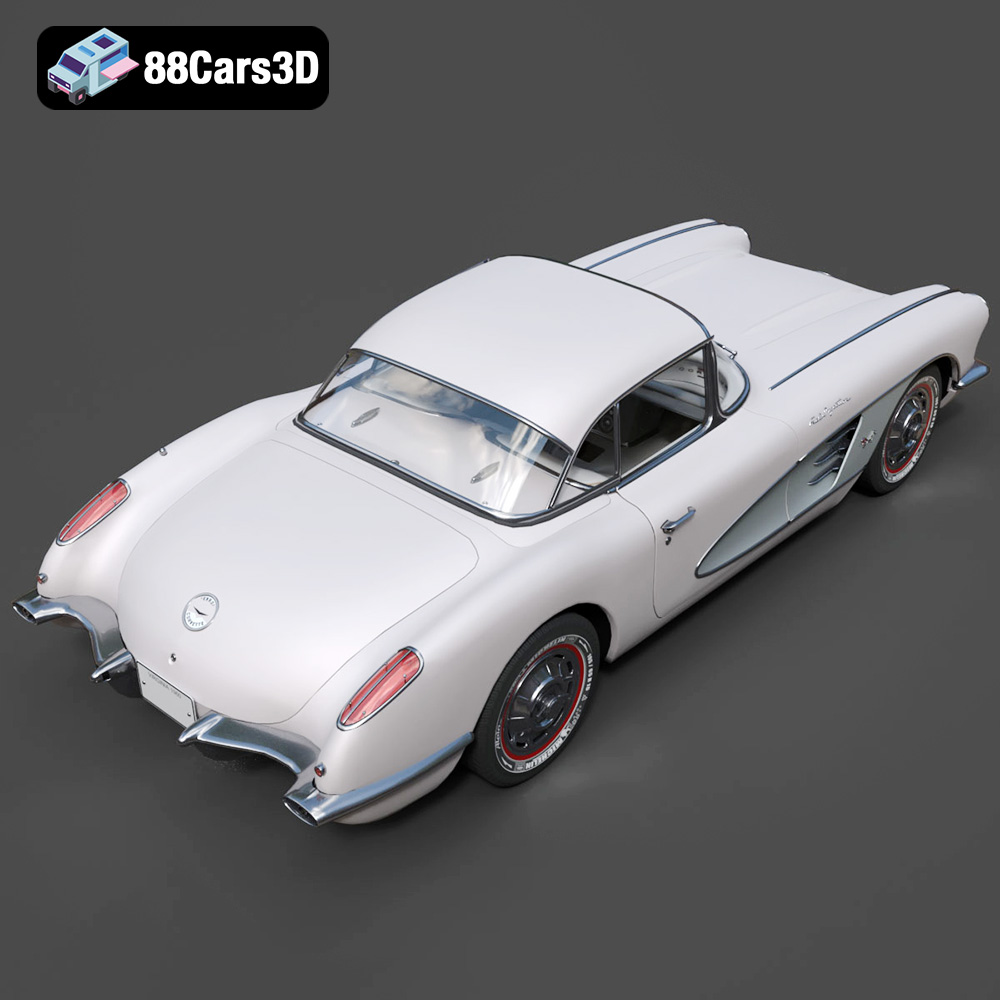
Download the Chevrolet Corvette Coupe 1960 3D Model featuring its iconic vintage design, detailed interior, and classic exterior styling. Includes .blend, .fbx, .obj, .glb, .stl, .ply, .unreal, and .max formats for rendering, simulation, and game development.
Price: $50.79

