⚡ FLASH SALE: Get 60% OFF All Premium 3D & STL Models! ⚡

In the rapidly evolving landscape of real-time 3D, interactivity and collaboration are no longer luxuries but expectations. From immersive multiplayer games featuring stunning vehicular combat to collaborative automotive design reviews and interactive virtual showrooms, the demand for networked experiences is soaring. For Unreal Engine developers and 3D artists specializing in automotive visualization, understanding the fundamentals of multiplayer networking is crucial to unlocking the full potential of their high-fidelity car models.
This comprehensive guide delves into the core principles of Unreal Engine’s robust networking framework. We’ll explore how to transform your exquisite 3D car models, like those available on 88cars3d.com, into dynamic, interactive networked assets. From setting up your project for multiplayer to replicating complex vehicle physics and creating collaborative configurators using Blueprint, you’ll gain the knowledge to build seamless, performant real-time multiplayer applications. Prepare to elevate your projects beyond solo showcases and into a shared, interactive future.
Unreal Engine’s networking architecture is built upon a client-server model, designed to manage complex interactions and maintain a consistent game state across multiple connected players. This foundational understanding is paramount before diving into implementation. At its heart, the engine distinguishes between authoritative servers and non-authoritative clients, a key concept for maintaining integrity and preventing cheating.
The server holds the definitive state of the world, executing game logic, simulating physics, and deciding what changes are valid. Clients connect to the server, sending their input and receiving updates about the world state. This server-authoritative approach is critical for competitive or sensitive applications where fairness and security are paramount. While a dedicated server is often used for large-scale games, Unreal also supports a “listen server” where one client also acts as the server, suitable for smaller peer-to-peer style sessions.
Understanding Unreal Engine’s official documentation on networking is an excellent starting point for any developer. It details the intricate dance between client and server, laying the groundwork for how data is shared and synchronized. Replication, the process of synchronizing data from the server to clients, is the engine’s primary mechanism for achieving this consistency.
In a client-server setup, the server is the single source of truth. When a player interacts with a car model, moves it, or changes its material, these actions are first processed by the server. The server then validates these actions and, if valid, replicates the updated state to all relevant clients. This replication process ensures that every client sees the same version of the world, albeit with a slight delay known as latency.
Replication isn’t an all-or-nothing affair; it’s granular and optimized. Unreal Engine allows developers to specify which properties (variables), functions (Remote Procedure Calls or RPCs), and even entire Actors need to be replicated. For instance, a high-quality 3D car model from a platform like 88cars3d.com, when imported into Unreal Engine, might have its position, rotation, velocity, and current material variant replicated. However, individual polygons or high-resolution textures, especially if optimized with Nanite virtualized geometry, are generally not replicated directly; instead, their states or parameters that drive their appearance are.
Efficient replication is crucial for performance. Replicating too much data, too frequently, can quickly saturate bandwidth and lead to network lag. Unreal Engine provides tools and techniques, such as replication conditions and relevance, to intelligently control what data is sent and to whom, ensuring that only necessary information is transmitted over the network.
Every Actor in an Unreal Engine multiplayer game has an owner, and this ownership dictates its authority. Typically, Actors spawned by the server are “server-owned” and the server has “authority” over them. Player-controlled Actors, like a vehicle possessed by a player, are usually owned by the client controlling them, but the server still maintains ultimate authority over its state. For instance, a player might input commands to accelerate a car, but the server calculates the car’s true physics and then replicates the new position back to the client.
The concept of authority is particularly important when dealing with player input and sensitive game logic. If a client had full authority over its car’s speed, it could easily cheat. By having the server retain authority, it can validate client inputs, ensuring fair gameplay and preventing exploits. For a high-fidelity car model, this means the server will simulate the vehicle’s physics, handle collisions, and then update its position and other relevant properties to all connected clients.
For designers working on interactive automotive visualization, understanding authority dictates how interactive elements are handled. If a client attempts to open a car door, that action request is sent to the server. The server verifies the action (e.g., “Is the client close enough to the door?”), executes the logic, and then replicates the door’s new open state to all clients. This ensures everyone sees the door open simultaneously and consistently.
To facilitate communication and state synchronization, Unreal Engine offers two primary mechanisms: replicated variables and Remote Procedure Calls (RPCs). Replicated variables are properties of an Actor that are automatically synchronized from the server to all relevant clients whenever their value changes. You simply mark a variable as “Replicated” or “RepNotify” in Blueprint or C++.
For instance, a ‘CurrentColorIndex’ variable on your 3D car model could be replicated. When the server changes this index (e.g., through an interactive configurator), all clients automatically receive the update, allowing them to adjust the car’s material. ‘RepNotify’ is particularly useful as it triggers a notification function on both the server and clients when the variable changes, allowing you to execute logic (like updating a material instance) immediately.
RPCs, on the other hand, are functions that can be called on one machine (client or server) and executed on another. There are three types:
Proper use of replicated variables and RPCs is fundamental to building any interactive multiplayer experience in Unreal Engine, ensuring that your high-quality car models and their interactive features behave consistently across all users.
Initiating a multiplayer project in Unreal Engine requires a few specific configurations, but the engine is designed to make this process relatively straightforward. Unlike traditional single-player development, you need to consider how multiple instances of your application will communicate and how your game world will be shared across them. This initial setup establishes the foundation for all subsequent networking logic.
The beauty of Unreal Engine is that many Actors and components are designed with networking in mind, meaning a substantial amount of basic replication can be enabled with just a few clicks. However, for a polished, performant experience, especially with detailed assets like those from 88cars3d.com, a deeper understanding of the settings and testing methodologies is essential. This proactive approach helps in identifying and resolving network-related issues early in the development cycle.
Before writing any network-specific code, it’s wise to review and configure your project settings. In the Project Settings (Edit -> Project Settings), navigate to the ‘Maps & Modes’ section. Here, you can define your default game mode, which is crucial for multiplayer. A GameMode exists only on the server and dictates game rules, player spawning, and initial setup. Its client-side counterpart is the GameState, which replicates information about the game state to all clients.
For multiplayer functionality, ensure your PlayerController and PlayerState classes are set up correctly. The PlayerController exists on both the client (as a local controller) and the server (to represent the client). The PlayerState, on the other hand, is an Actor that replicates across the network and holds player-specific information like score, name, or character class, which is vital for displaying information to other players. You’ll also want to look into the ‘Network’ section under Project Settings to adjust things like default client timeout settings or maximum network bandwidth if your project has specific needs.
When creating your custom Actors for multiplayer, ensure that “Replicates” is checked in their Blueprint Class Defaults or C++ constructor. This fundamental setting tells Unreal Engine that the Actor should exist and synchronize its state across the network. Without this, your custom car model might appear on one client but be invisible to others, leading to a disjointed experience.
The most basic multiplayer setup involves spawning players and allowing them to move. In a typical multiplayer game, the GameMode handles player spawning using PlayerStart Actors placed in your level. When a new player connects, the server’s GameMode finds an available PlayerStart and spawns a Pawn or Character for that player.
For a vehicle-centric application, this might involve spawning a specialized ‘CarPawn’ or ‘CarCharacter’ for each connecting player. The movement component of these Pawns/Characters (e.g., UFloatingPawnMovement, UCharacterMovementComponent, or a custom VehicleMovementComponent) is typically designed to handle network replication automatically. When a player inputs movement commands, these are sent to the server. The server processes the movement and replicates the car’s new position and rotation back to all clients.
If you’re using high-quality vehicle models from 88cars3d.com, you’ll likely attach these static mesh components to your networked Pawn. For accurate replication of complex physics-based movement, Unreal Engine’s built-in VehicleMovementComponent is highly optimized for networking. It uses sophisticated prediction and correction algorithms to minimize perceived latency and ensure smooth driving experiences even over high-latency connections. This means that while clients can predict their own car’s movement instantly, the server continuously corrects and synchronizes the definitive position, preventing desynchronization.
Unreal Engine provides excellent tools for testing multiplayer directly within the editor. The “Play In Editor” (PIE) options under the Play dropdown allow you to launch multiple instances of your game. You can select “Number of Players” to spawn multiple clients, and “Net Mode” to choose between “Play As Listen Server” (one client is also the server) or “Play As Client” (you connect to a separate server). “Run Dedicated Server” allows you to launch a separate dedicated server instance. For robust testing, running a dedicated server and multiple client instances (or even packaging a build and running clients manually) is highly recommended.
When testing, pay close attention to the Unreal Engine console commands, especially those related to networking. Commands like ‘stat net’, ‘stat replication’, and ‘net showdebug’ are invaluable for debugging. ‘stat net’ displays bandwidth usage, ping, and packet loss. ‘stat replication’ shows which Actors and properties are replicating and how frequently. ‘net showdebug’ overlays a visual representation of network debugging information directly onto your game screen, which is extremely helpful for visualizing replicated Actors and properties.
Always test with varying network conditions. Unreal Engine allows you to simulate packet loss, latency, and reduced bandwidth through console commands (e.g., ‘net pktloss 10’, ‘net ping 100’). This helps identify issues that might not appear on a local, low-latency network but would severely impact players over the internet. Thorough testing across different scenarios ensures a stable and enjoyable multiplayer experience for users interacting with your meticulously crafted automotive assets.
Bringing high-fidelity 3D car models into a networked environment presents unique challenges and opportunities. Beyond simply spawning a car, you need to ensure that its complex visual properties, dynamic physics, and interactive elements are accurately and efficiently synchronized across all connected players. This is where the intricacies of Unreal Engine’s replication system truly shine, allowing for immersive shared experiences, whether it’s a multiplayer race or a collaborative design review.
The goal is to maintain a consistent state for every car in the scene without overwhelming the network with excessive data. This requires a strategic approach to what information is replicated, how often, and under what conditions. Leveraging the optimization inherent in well-made assets, such as those from 88cars3d.com with their clean topology and efficient UV mapping, provides a strong foundation for networked performance.
Replicating vehicle movement, especially physics-driven movement, is one of the more complex aspects of multiplayer networking. Simple position and rotation replication can lead to choppy movement due to latency. Unreal Engine’s Chaos Vehicle Physics system, integrated with its networking framework, addresses this through advanced techniques like client-side prediction and server-side reconciliation.
When a player drives a car, their client immediately predicts the vehicle’s movement based on input, providing instant visual feedback. Simultaneously, the client sends its inputs to the server. The server then simulates the definitive movement, verifies the client’s prediction, and sends back authoritative updates. If there’s a discrepancy, the client smoothly “corrects” its predicted position to match the server’s truth. This predictive interpolation minimizes the perceived lag and ensures a fluid driving experience for the player and an accurate representation for others.
For custom vehicle physics or simpler non-physics-based movement (e.g., for an architectural walkthrough where cars move along splines), you might replicate the car’s transform (location, rotation) and velocity, or even key parameters that drive its movement logic. The key is to find the balance: replicate enough data to ensure smooth visuals, but not so much that it chokes bandwidth. Using ‘Net Update Frequency’ on your car’s Actor can help control how often these updates are sent.
One of the most exciting applications of multiplayer automotive visualization is the ability to create shared interactive showrooms or collaborative design configurators. This involves synchronizing visual properties like paint color, rim type, interior trim, or even body kit variants across all clients. High-quality 3D car models from marketplaces like 88cars3d.com, which often include multiple material slots, UV mapping, and PBR-ready textures, are perfectly suited for this.
To achieve this, you’ll typically use replicated variables and RPCs. For instance, if a user changes the car’s paint color in a UI, a Server RPC would be triggered by the client, informing the server of the desired new color. The server then validates this change and updates a replicated variable (e.g., a FLinearColor or an index to a preset material) on the car Actor. Because this variable is replicated, all clients receive the updated value. An ‘OnRep_FunctionName’ (RepNotify) for this variable can then be used to apply the new material instance or color directly to the car’s mesh on each client.
For more complex customizations involving mesh swaps (e.g., changing wheels or spoilers), you might replicate an integer index representing the active mesh variant. The RepNotify function would then toggle the visibility of static mesh components or update a Static Mesh asset reference. This allows multiple users to simultaneously configure a car, seeing each other’s changes in real-time, greatly enhancing the collaborative experience.
Beyond movement and visual appearance, modern car models boast numerous interactive elements: opening doors, lifting hoods, adjusting seats, or even turning on interior lights. Replicating these interactions requires careful consideration of authority and state synchronization. A common pattern is to have the client initiate an interaction request, which is then handled by the server.
Consider opening a car door: a player on a client machine interacts with the door. The client sends a Server RPC to the server, saying “I want to open this door.” The server receives the RPC, checks if the client is allowed to interact with that door (e.g., if they are near it, or if it’s unlocked). If valid, the server executes the logic to open the door (e.g., by playing an animation or rotating a mesh component). Then, crucially, the server triggers a Multicast RPC to all connected clients, instructing them to also play the door-opening animation or update the door’s transform. This ensures that every player sees the door open simultaneously and consistently.
For animations, simply playing an animation locally on each client when a Multicast RPC is received is often sufficient. If the interaction involves physics (e.g., a car door swinging open and colliding), the physics simulation should primarily occur on the server, with the resulting transforms replicated to clients. This server-authoritative approach prevents desynchronization and ensures a stable, fair, and immersive interactive experience, leveraging the detailed articulation of quality 3D car models.
While Unreal Engine’s networking capabilities are powerful, achieving a smooth and scalable multiplayer experience, especially with detailed assets like those for automotive visualization, demands rigorous optimization. High-fidelity 3D car models, featuring detailed meshes (potentially with Nanite), complex PBR materials, and extensive textures, can quickly consume network bandwidth and client resources if not managed carefully. Optimization is not just about reducing lag; it’s about ensuring a stable, enjoyable experience for all users, regardless of their connection speed.
The goal is to transmit the minimum necessary data to maintain a consistent and believable game state. This involves intelligently culling irrelevant updates, compressing data, and utilizing prediction techniques to mask latency. A well-optimized network system can support a larger number of players or more complex interactions without performance degradation, making your automotive applications truly robust.
Bandwidth is often the most critical bottleneck in multiplayer applications. Every byte sent over the network contributes to bandwidth usage. Unreal Engine provides powerful tools to manage this:
These techniques, when applied strategically to your high-polygon car models and their associated data, are key to preventing network congestion.
Latency, the delay between sending information and receiving a response, is an unavoidable reality of networking. While you can’t eliminate it, you can minimize its impact through various techniques. As mentioned, client-side prediction for character and vehicle movement is crucial. The client predicts its own future state, allowing for immediate feedback, and the server later reconciles any discrepancies.
Beyond movement, client-side prediction can be applied to other interactive elements. For example, if a client clicks to open a car door, they might immediately see the animation start on their local client. The actual server RPC for opening the door would still be sent, and if the server validates it, the multicast RPC would confirm the action for all. If the server invalidates it (e.g., the door was locked), the client would “snap back” to the closed state. This provides a more responsive user experience by masking the network delay.
Additionally, prioritizing critical network traffic can help. Unreal Engine allows for different replication priorities. For instance, the player’s own car might have a higher priority than a distant static prop, ensuring its updates are sent more frequently. This is particularly important for interactive automotive experiences where a smooth, real-time feel for the primary vehicle is paramount.
While Nanite handles mesh complexity beautifully on the rendering side, ensuring that high-polygon 3D car models don’t impact network performance requires a different approach. You generally don’t replicate the raw mesh data itself. Instead, you replicate the *state* of the car (e.g., its transform, material index, current damage state). However, the *rendering* of these models on each client still needs to be efficient.
By combining intelligent replication strategies with efficient asset management, developers can create truly scalable and immersive multiplayer automotive experiences using the stunning assets available from sources like 88cars3d.com.
Moving beyond the fundamentals, advanced networking concepts enable more sophisticated and robust multiplayer automotive experiences. Whether you’re building a massive online racing game, a secure collaborative design platform, or a seamless virtual production environment, understanding these concepts allows for greater control, scalability, and security in your Unreal Engine projects. These techniques become especially relevant when dealing with the high demands of real-time automotive visualization and its interactive components.
The flexibility of Unreal Engine’s networking framework means you can tailor your approach to suit specific project needs, from choosing the right server architecture to implementing custom communication protocols and securing your application against potential vulnerabilities. Mastering these advanced topics will empower you to create truly cutting-edge automotive applications.
The choice of network topology significantly impacts performance, scalability, and cost. While a “listen server” (where one player’s client also acts as the host) is simple to set up for small, casual sessions, it has limitations:
For professional-grade automotive applications, especially those requiring high player counts, competitive integrity, or continuous availability, a dedicated server is the industry standard. A dedicated server runs purely as a server application without any graphical rendering or local player input, maximizing its processing power for game logic and networking. This provides:
Implementing dedicated servers typically involves creating a separate server build of your Unreal Engine project and deploying it to cloud platforms (like AWS, Azure, Google Cloud) or physical hardware. For large-scale interactive automotive showrooms or virtual production environments, a dedicated server can host multiple collaborative sessions or a persistent world, seamlessly handling many high-quality car models and user interactions.
Security is paramount in any networked application. In the context of automotive visualization, this might mean protecting intellectual property in collaborative design sessions or preventing unfair advantages in a virtual racing simulation. Unreal Engine’s server-authoritative model is the first line of defense, but additional measures are vital:
By actively considering security from the outset, developers can build robust and trustworthy multiplayer automotive applications.
One of the most powerful applications of multiplayer networking for 88cars3d.com’s assets is creating collaborative automotive configurators. Imagine multiple designers from different locations simultaneously modifying a car model, seeing each other’s changes in real-time. Unreal Engine’s Blueprint visual scripting combined with networking features makes this highly achievable.
Here’s a simplified Blueprint workflow:
This Blueprint-driven approach allows for rapid prototyping and iteration of interactive features, transforming static 3D models into dynamic, shared experiences. High-quality PBR materials and well-organized assets from 88cars3d.com are essential here, as the configurator directly manipulates these visual properties.
Developing multiplayer applications in Unreal Engine, while powerful, comes with its own set of unique challenges. Debugging network issues can be notoriously tricky, often involving discrepancies between client and server states, bandwidth limitations, and unpredictable latency. However, Unreal Engine provides a comprehensive suite of debugging tools and console commands that, when used effectively, can help you quickly identify and resolve most network-related problems. Patience and systematic testing are your greatest allies here.
Replication issues are among the most common and frustrating problems in multiplayer development. This typically manifests as:
Here’s a systematic approach to debugging replication:
For more detailed technical insights into Unreal Engine’s networking framework and debugging, consult the official Unreal Engine documentation.
Robust multiplayer applications must gracefully handle network errors, latency spikes, and player disconnections. Ignoring these can lead to a poor user experience or even game crashes.
By anticipating and gracefully handling network instability, your multiplayer automotive applications will feel much more polished and reliable.
Network performance profiling is critical to identify bandwidth hogs and CPU bottlenecks caused by replication. Unreal Engine offers a suite of tools for this:
Profiling is an iterative process. Identify a bottleneck, implement an optimization (e.g., lower Net Update Frequency for a distant car), and then re-profile to see the impact. This continuous refinement ensures your multiplayer automotive experience is smooth and scalable for users worldwide.
Mastering Unreal Engine’s multiplayer networking fundamentals opens up a vast new realm of possibilities for automotive visualization and interactive experiences. From creating collaborative design reviews where multiple stakeholders can simultaneously customize exquisite 3D car models to developing engaging multiplayer driving simulations, the ability to connect users in a shared real-time environment is a game-changer. We’ve explored the core principles of client-server architecture, the nuances of replicating complex vehicle physics and visual states, and critical optimization strategies essential for delivering a performant and scalable experience.
Remember that high-quality assets, like the meticulously crafted 3D car models found on 88cars3d.com, form the foundation of any compelling visual experience. By combining these assets with Unreal Engine’s powerful networking tools, you can build applications that not only look stunning but also offer unparalleled interactivity and collaboration. Embrace the iterative process of development, leveraging Unreal Engine’s robust debugging tools to tackle the unique challenges that multiplayer brings.
The journey into networked automotive applications is rewarding, transforming passive viewing into active participation. Now, take these insights, experiment with the concepts, and begin crafting the next generation of interactive automotive experiences that truly connect users. The open road of multiplayer development awaits!
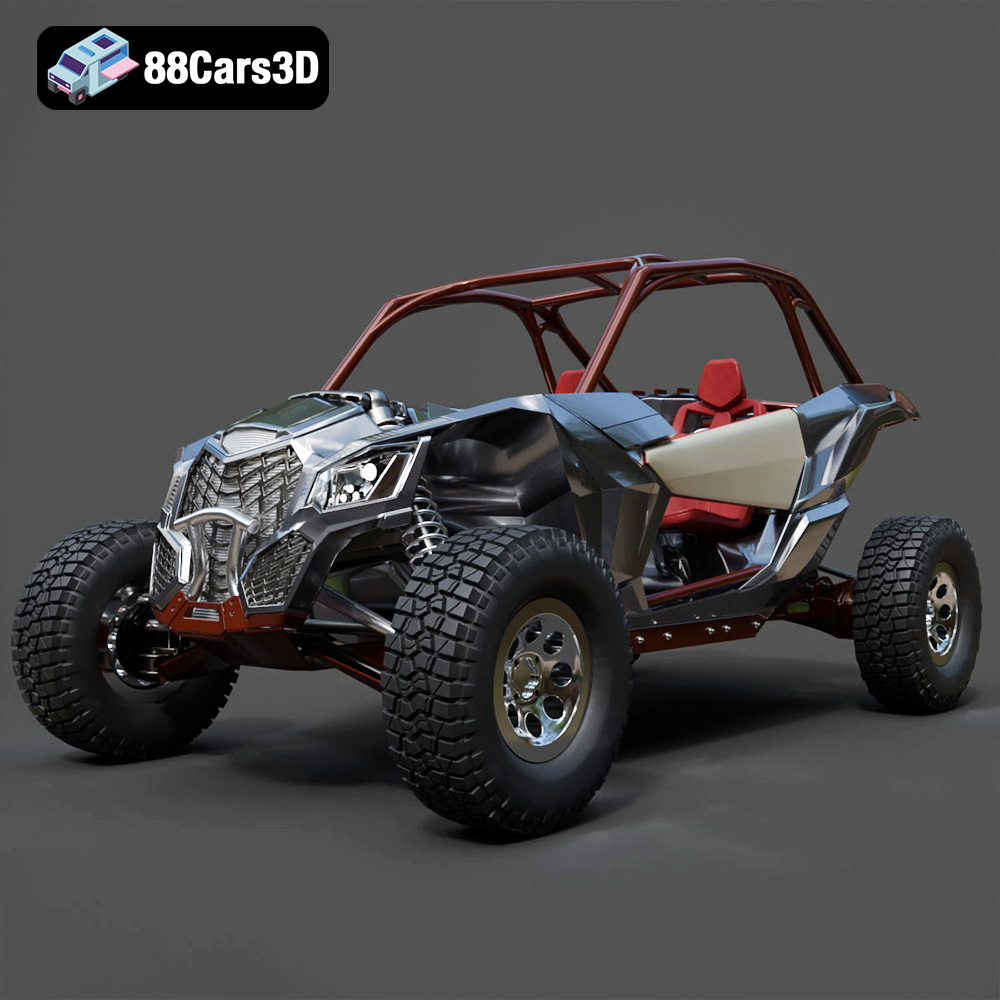
Texture: Yes
Material: Yes
Download the Can-Am Maverick 2019 3D Model featuring an aggressive off-road design, detailed chassis, and rugged tires. Includes .blend, .fbx, .obj, .glb, .stl, .ply, .unreal, and .max formats for rendering, simulation, and game development.
Price: $90.79
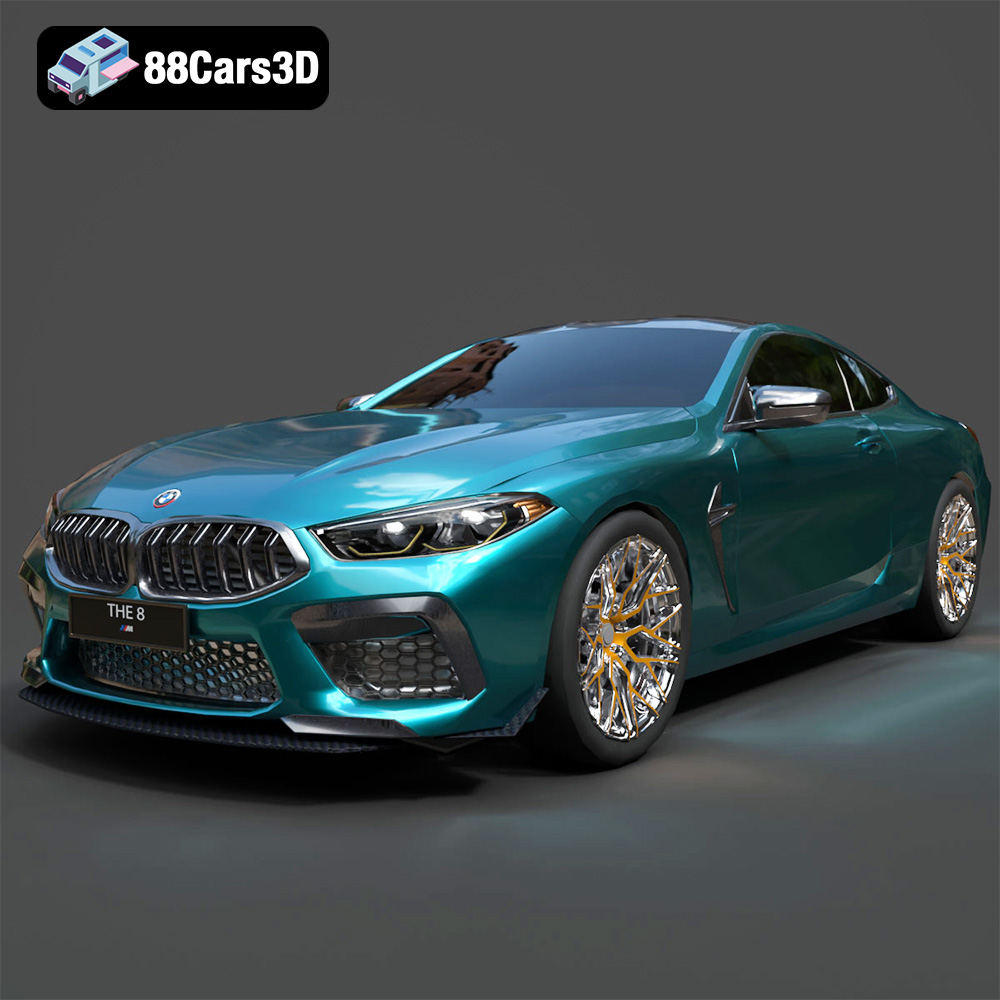
Texture: Yes
Material: Yes
Download the BMW M8 Competition 3D Model featuring aggressive styling, a luxurious interior, and high-performance detailing. Includes .blend, .fbx, .obj, .glb, .stl, .ply, .unreal, and .max formats for rendering, simulation, and game development.
Price: $110.79
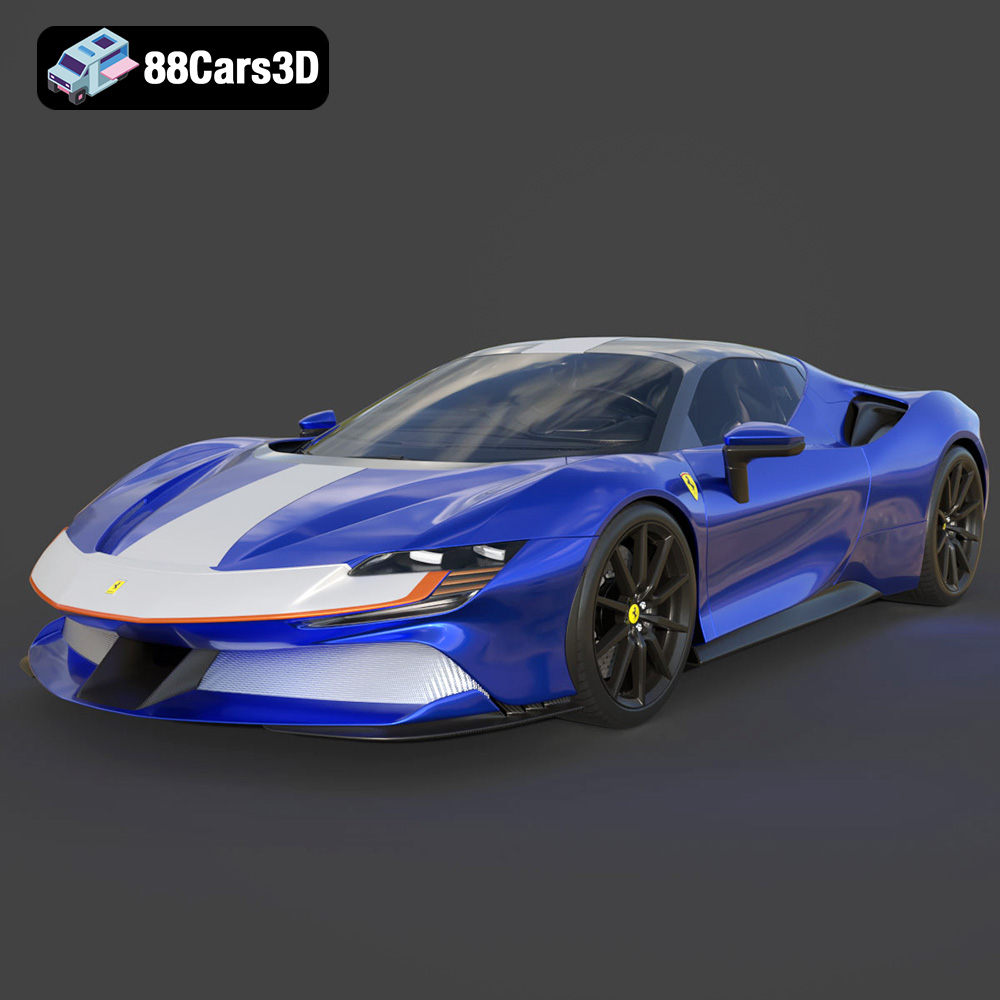
Texture: Yes
Material: Yes
Download the Ferrari SF90 Spider 3D Model featuring a meticulously detailed exterior, intricate interior, and realistic PBR materials. Includes .blend, .fbx, .obj, .glb, .stl, .ply, .unreal, and .max formats for rendering, simulation, and game development.
Price: $110.79

Texture: Yes
Material: Yes
Download the Ferrari Portofino 3D Model featuring accurate body contours, detailed interior, and high-resolution textures. Includes .blend, .fbx, .obj, .glb, .stl, .ply, .unreal, and .max formats for rendering, simulation, and game development.
Price: $110.79
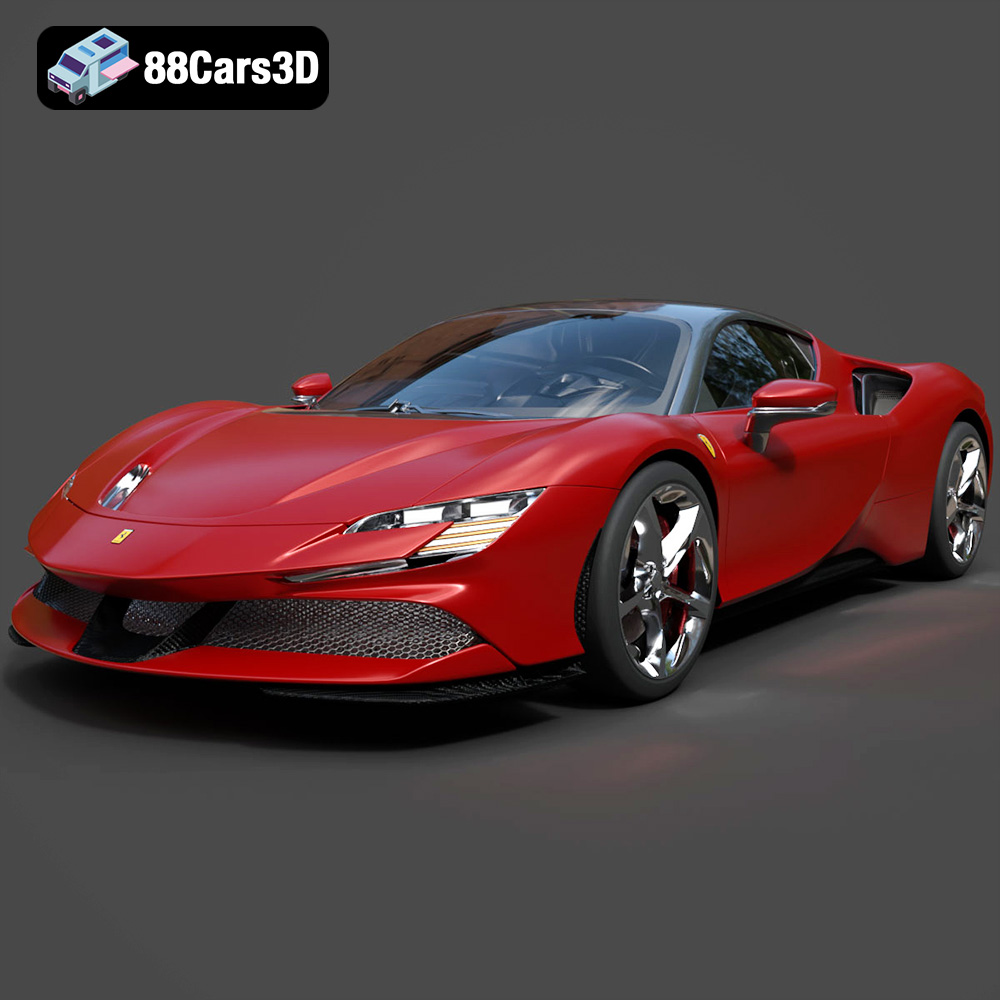
Texture: Yes
Material: Yes
Download the Ferrari SF90 Stradale 3D Model featuring aggressive lines and sophisticated aesthetics. Includes .blend, .fbx, .obj, .glb, .stl, .ply, .unreal, and .max formats for rendering, simulation, and game development.
Price: $110.79
Texture: Yes
Material: Yes
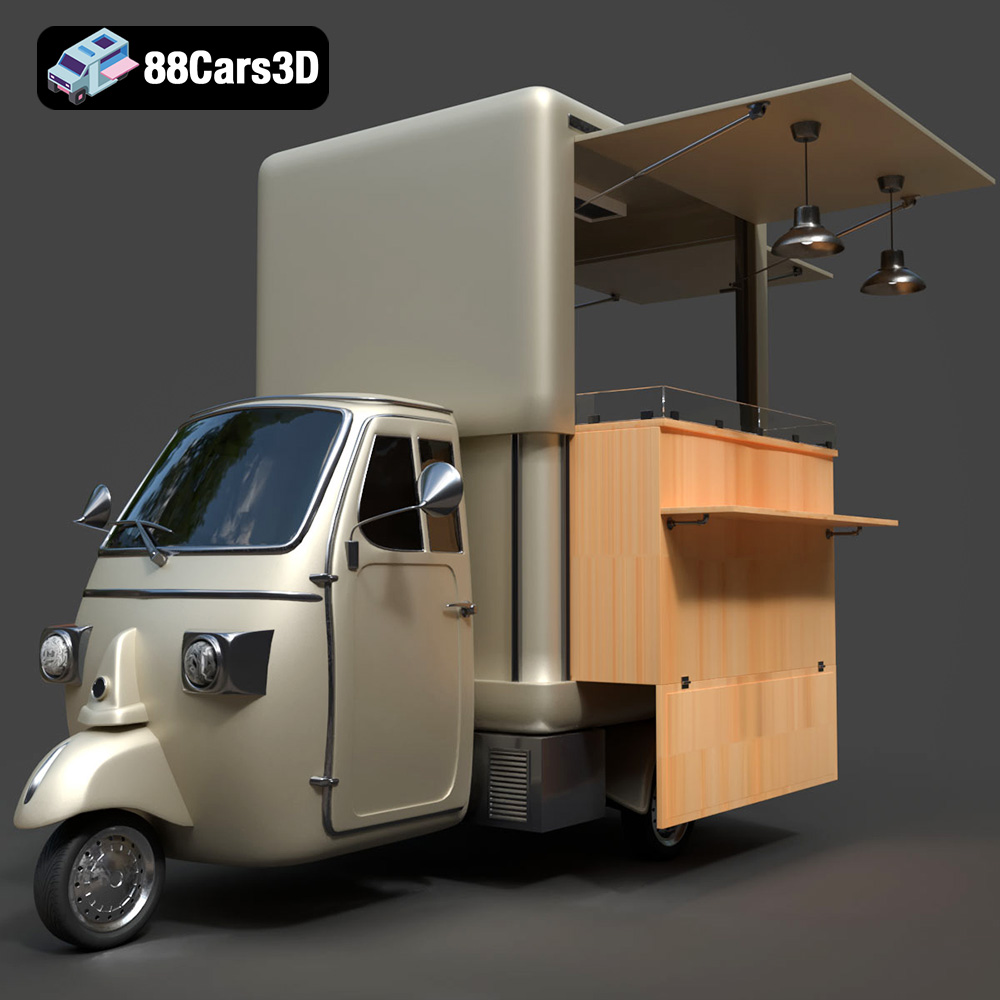
Download the Foodtruck Set 3-006 3D Model featuring a detailed exterior and interior, optimized for various uses. Includes .blend, .fbx, .obj, .glb, .stl, .ply, .unreal, and .max formats for rendering, simulation, and game development.
Price: $23.79
Texture: Yes
Material: Yes
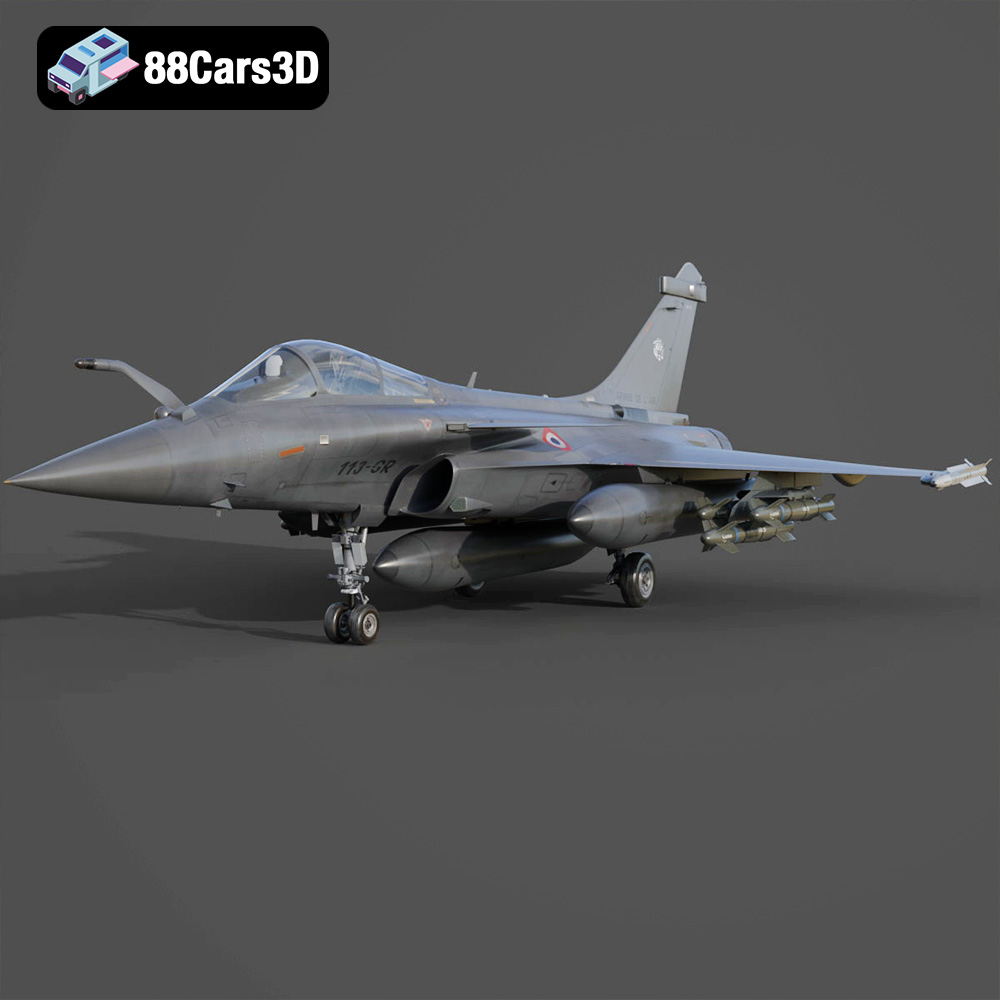
Download the Dassault Rafale Fighter Jet 3D Model featuring a detailed exterior, cockpit, and propulsion system. Includes .blend, .fbx, .obj, .glb, .stl, .ply, .unreal, and .max formats for rendering, simulation, and game development.
Price: $22.79

Texture: Yes
Material: Yes
Download the BMW i8 2015 3D Model featuring its futuristic design and detailed interior, capturing the essence of a modern hybrid sports car. Includes .blend, .fbx, .obj, .glb, .stl, .ply, .unreal, and .max formats for rendering, simulation, and game development.
Price: $40.79
Texture: Yes
Material: Yes
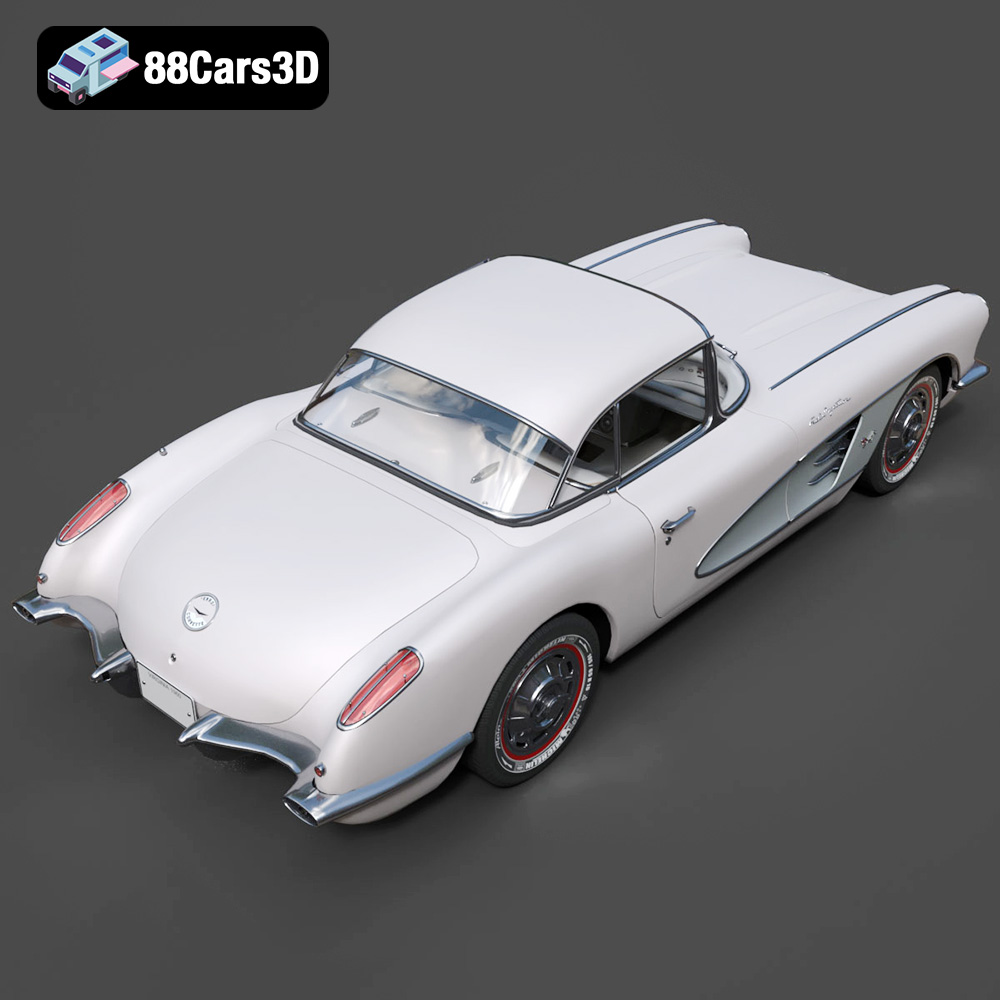
Download the Chevrolet Corvette Coupe 1960 3D Model featuring its iconic vintage design, detailed interior, and classic exterior styling. Includes .blend, .fbx, .obj, .glb, .stl, .ply, .unreal, and .max formats for rendering, simulation, and game development.
Price: $50.79
Texture: Yes
Material: Yes
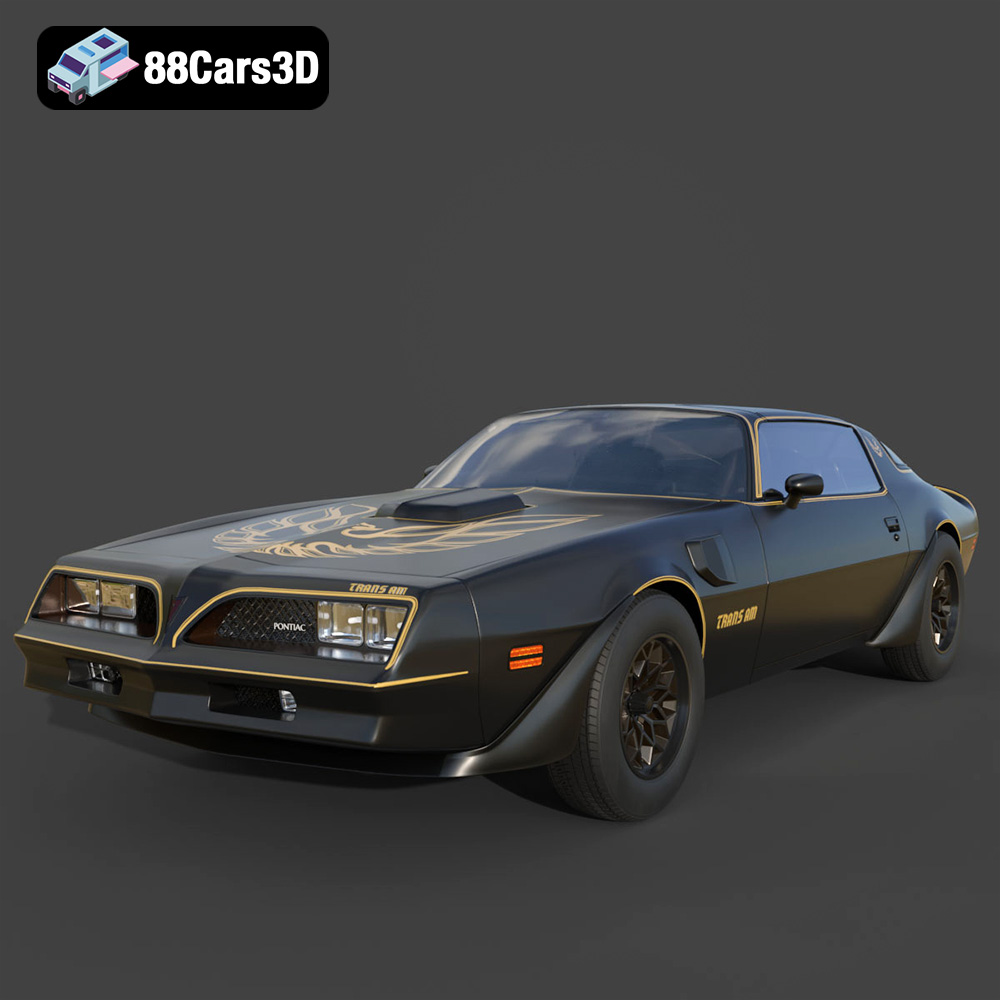
Download the Pontiac Firebird Trans Am 1977 3D Model featuring iconic muscle car design and detailed exterior and interior. Includes .blend, .fbx, .obj, .glb, .stl, .ply, .unreal, and .max formats for rendering, simulation, and game development.
Price: $30.79

