⚡ FLASH SALE: Get 60% OFF All Premium 3D & STL Models! ⚡

The quest for photorealism in 3D automotive rendering is a captivating journey, pushing the boundaries of digital artistry to create visuals indistinguishable from reality. For automotive designers, advertisers, game developers, and visualization specialists, the ability to render a car with breathtaking accuracy is not just a skill, but a powerful storytelling tool. This comprehensive guide will take you through the intricate process of creating stunning, photorealistic car renders using Corona Renderer, a CPU-based physically unbiased renderer known for its ease of use and incredible output quality. We’ll delve into every critical stage, from preparing your 3D car model with impeccable topology and UVs to crafting sophisticated PBR materials, mastering advanced lighting setups, optimizing render settings, and finessing the final image with expert post-processing. By the end of this journey, you’ll possess the knowledge and techniques to elevate your automotive renders to a professional, industry-leading standard, transforming your digital creations into compelling visual experiences.
The journey to a photorealistic render begins long before you even open your rendering software. It starts with the integrity of your 3D model. A high-quality 3D car model with clean, optimized topology is the bedrock upon which all subsequent stages—UV mapping, texturing, and especially rendering—are built. Without this solid foundation, even the most advanced lighting and material techniques will struggle to produce convincing results. When light interacts with the surface of a car, subtle variations in curvature and reflections tell a story. Poor topology, characterized by triangles, N-gons, or stretched polygons, can lead to visible artifacts, pinching, and uneven shading, breaking the illusion of realism.
For automotive models, clean quad flow is paramount. This means your mesh should primarily consist of four-sided polygons, arranged in a way that gracefully follows the natural contours and creases of the vehicle. Consistent polygon density across the model ensures that details are evenly distributed, and subdivision surfaces (like TurboSmooth or OpenSubdiv) can be applied smoothly without introducing unwanted distortions. Sharp creases and panel gaps, crucial for defining the car’s design language, must be supported by adequate edge loops. These additional edges, strategically placed, allow the surface to retain its crispness even after subdivision, preventing a ‘blobby’ or overly softened look.
Achieving realistic automotive surfaces involves a meticulous approach to modeling. Every curve, every transition, and every edge must be carefully sculpted. Maintaining curvature is vital; smooth, flowing lines are a hallmark of automotive design. Avoid sudden changes in direction unless they are intentional design elements. Fillets and chamfers, which are slight rounding or beveling of edges, play a crucial role in catching reflections and softening hard transitions. These should be modeled with precise control, ensuring they are consistent across the entire vehicle. For instance, the fillet where a car door meets the body panel might be very subtle but will dramatically impact how light reflects off that edge. Pay close attention to these small details; they collectively contribute to the perception of realism and craftsmanship.
Not every artist has the time or expertise to model a complex vehicle from scratch, especially one with production-ready topology. This is where high-quality 3D model marketplaces become invaluable. Platforms like 88cars3d.com specialize in providing meticulously crafted 3D car models that are already optimized for various applications, including rendering and game development. When sourcing models, always inspect the wireframe for clean quad topology, consistent edge flow, and proper scale. A good model will often come with multiple levels of detail (LODs) and pre-optimized UVs, saving you significant time and effort. Investing in a professional-grade model from a reputable source is a critical first step towards achieving truly photorealistic results, allowing you to focus your creative energy on materials, lighting, and rendering.
Once you have a topologically sound 3D car model, the next crucial step is UV mapping. UVs are the 2D coordinates that tell your rendering software how to project 2D textures onto the 3D surface of your model. Think of it as carefully unfolding a complex 3D shape into a flat pattern, much like you’d unwrap a gift box. Without proper UVs, textures will appear stretched, distorted, or misaligned, ruining the illusion of realism. For complex car bodies with intricate curves and panel lines, a well-thought-out UV strategy is absolutely essential for applying realistic paint, decals, and details.
The primary goal of UV mapping for automotive surfaces is to minimize seams and distortion. Seams are the edges where your 3D mesh is “cut” in the UV space, and while unavoidable, they should be placed strategically in less visible areas, such as along natural panel lines, under the car, or within crevices. Distortion occurs when the proportions of the 3D surface are not accurately represented in the 2D UV layout, leading to squashed or stretched textures. Achieving minimal distortion requires careful unwrapping and often involves breaking down the car body into logical, manageable sections like the hood, roof, doors, fenders, and bumpers. Each section can then be unwrapped individually and arranged efficiently within the UV space.
Beyond simply unwrapping, an advanced UV layout focuses on achieving consistent texel density and efficient packing. Texel density refers to the number of texture pixels per unit of 3D surface area. For photorealism, it’s crucial that all visible parts of the car have a similar texel density, ensuring that textures appear equally sharp across the entire model. For example, a door panel shouldn’t have significantly blurrier textures than the hood. Many 3D software packages offer tools to visualize and adjust texel density. After unwrapping individual pieces, UV packing tools are used to arrange all the UV islands (the individual unwrapped pieces) within the 0-1 UV space as efficiently as possible, maximizing texture resolution and minimizing wasted space. This often involves rotating and scaling islands to fit snugly, much like solving a jigsaw puzzle.
While the exterior of a car demands pristine UVs, the interior and underbody present their own set of challenges. For the interior, elements like seats, dashboard, and steering wheel require individual attention. Fabric textures for seats, wood or carbon fiber for trim, and leather for the dashboard all rely on dedicated UVs. Distortion here can be particularly noticeable on repeating patterns. For the underbody, while often less visible, it still benefits from efficient UVs for grime, dirt, and mechanical textures. In these less prominent areas, you might prioritize packing efficiency over minimizing every single seam, as small imperfections will be less apparent. For intricate components like engine parts or suspension, cylindrical or spherical mapping might be more appropriate for specific elements, alongside planar mapping for flat surfaces. The key is to select the unwrapping method that best suits the geometry and texture requirements of each part.
With a solid model and precise UVs, the next monumental step towards photorealism is the creation of physically based rendering (PBR) materials. PBR materials simulate how light interacts with surfaces in the real world, producing highly accurate and consistent results across different lighting conditions. Corona Renderer excels at PBR, offering an intuitive and powerful material editor. The core PBR channels you’ll primarily work with are Albedo (or Base Color), Metallic, Roughness, Normal, and Height/Displacement. Understanding how these channels influence light reflection and absorption is fundamental.
Car paint is arguably the most complex and visually striking material on a vehicle, defining its character and appeal. A realistic car paint material in Corona Renderer typically involves several layers to simulate the intricate structure of real-world automotive finishes. The base coat defines the primary color and often incorporates metallic flakes. To simulate these, you might use a procedural noise map or a dedicated flake texture applied as a mask or blended layer, adjusting its scale and density to match real-world car paints. The crucial element is the clear coat – a transparent, highly reflective layer that sits on top. In Corona’s material editor, this is achieved by layering materials or using a complex Corona Physical Material setup. The clear coat typically has a high Index of Refraction (IOR), around 1.5 to 1.6, and a very low roughness value to create sharp, mirror-like reflections. Slight variations in roughness or an additional subtle grunge map can introduce realistic imperfections, preventing an overly sterile look. For a deeper dive into Corona’s material capabilities, consider exploring the official Corona Renderer documentation.
The Corona Physical Material is your workhorse for PBR. It consolidates many parameters into an intuitive interface, allowing you to define base color, metallicness, roughness, IOR, and more. For complex materials like multi-layered car paint or carbon fiber, you’ll extensively use layering and blend masks. Corona Layered Material allows you to stack multiple materials and control their blending with masks (e.g., texture maps, procedural noises, or vertex colors). This is perfect for combining a metallic base paint with a clear coat, or applying decals and grime over a painted surface. Understanding how to build these shader networks is key to achieving intricate and believable surface details.
Beyond the primary materials, cars feature a multitude of intricate details that demand sophisticated shader networks. Carbon fiber, for example, requires a complex setup involving diffuse patterns, normal maps for weave detail, and anisotropic reflections to accurately capture its unique shimmer. Chrome and polished metals rely on high metallic values and extremely low roughness, often combined with subtle brushed normal maps for authenticity. Leather materials for interiors benefit from detailed normal maps for grain, combined with slight variations in roughness and subsurface scattering for a soft, realistic feel. The power of Corona lies in its flexibility to combine various maps and procedural textures to create these complex, believable materials, turning a simple model into a visual masterpiece.
Lighting is the single most critical factor in achieving photorealism in any 3D render, and automotive renders are no exception. It’s the interplay of light and shadow, reflection and refraction, that breathes life into your 3D car model, defining its form, surfacing, and the environment it inhabits. Corona Renderer offers a robust and physically accurate lighting system that allows for incredible control and stunning results.
High Dynamic Range Images (HDRIs) are the cornerstone of realistic automotive lighting in Corona. These panoramic images capture the full spectrum of light information from a real-world location, including direct sunlight, ambient sky light, and even subtle reflections from surrounding objects. When used with a Corona Dome Light, HDRIs not only illuminate your scene with incredibly accurate global illumination but also provide realistic reflections on the car’s reflective surfaces. The quality of your HDRI directly impacts the realism of your render; invest in high-resolution, professionally captured HDRIs. Experiment with different HDRIs (e.g., studio setups, outdoor environments, overcast skies) to evoke different moods and showcase your vehicle in various contexts. Crucially, rotate your HDRI within the Corona Dome Light settings to find the optimal angle that highlights the car’s curves and creates appealing reflections along its body panels. The position of the sun or key light source within the HDRI will dictate the primary shadows and highlights, which are vital for defining form.
While HDRIs provide excellent base lighting, supplementary lights are often necessary to refine the look, add drama, or emphasize specific details. Corona Renderer provides various light types, including Sphere, Disc, Rectangle, and Portal lights, each with its unique characteristics. Rectangle lights are particularly useful for simulating softbox studio setups, creating long, elegant reflections that highlight the car’s contours. Positioning these lights strategically as key lights, fill lights, or rim lights can dramatically alter the mood of your render. For example, a soft, large rectangle light positioned above and slightly in front of the car can act as a beautiful key light, while smaller strip lights placed along the side can create stunning reflections that emphasize the car’s body lines. Light linking, a feature available in Corona, allows you to control which objects a specific light affects, giving you granular control over your lighting setup. This is invaluable for preventing unwanted reflections or shadows, or for selectively illuminating certain parts of the vehicle.
For outdoor scenes, seamlessly integrating your 3D car into a photographic backplate is essential for realism. This involves careful camera matching, ensuring that the perspective and focal length of your 3D camera precisely match that of the background photograph. Many 3D applications offer tools for camera matching. Once matched, the Corona Dome Light, paired with an HDRI that corresponds to the backplate’s environment (e.g., sunny day HDRI for a sunny backplate), will provide consistent lighting. A crucial element here is the ground plane. Place a simple plane beneath your car, apply a matte material (e.g., Corona Shadow Catcher or a material with “Matte” options enabled) to it, allowing it to receive shadows and reflections from your car without being visible itself. This seamlessly grounds your vehicle in the scene, creating believable contact shadows and reflections on the virtual ground that blend with the photographic backplate.
To push your renders further, explore advanced lighting techniques such as volumetric effects. Using Corona Volume Material in conjunction with Corona lights can simulate atmospheric haze or fog, adding depth and mood to your scene, especially for moody or cinematic shots. For instance, a subtle volumetric fog could enhance the feeling of a cold morning or a dusty garage. Beyond lighting, realistic camera settings are paramount. Match real-world photographic principles: use appropriate focal lengths (e.g., 85mm-135mm for flattering automotive shots), adjust f-stop for desired depth of field (e.g., lower f-stop for a shallow depth of field to isolate the car), and consider shutter speed for motion blur if rendering animations. Depth of Field (DOF), when used sparingly, can effectively guide the viewer’s eye and add a photographic quality to your renders.
Once your model, materials, and lighting are meticulously set up, it’s time to bring your creation to life through rendering. Corona Renderer is renowned for its progressive rendering approach, which continuously refines the image, allowing you to see results quickly and make adjustments on the fly. However, achieving high-quality, noise-free renders efficiently requires an understanding of Corona’s settings and optimization strategies.
Corona’s rendering process is iterative; it starts with a grainy image and progressively refines it until a specified noise level or time limit is reached. The key settings to control this are the “Noise Level Limit” and “Time Limit (minutes)”. For final production renders, a noise level limit of 3-5% is often sufficient, although hero shots might benefit from even lower percentages (e.g., 1-2%). The time limit acts as a safeguard, stopping the render if the noise limit isn’t met within a certain duration. Balancing these two parameters is crucial for render efficiency. For previews and look development, you can set a higher noise limit or a shorter time limit to get quick feedback.
Optimizing your scene is critical for managing render times, especially with complex automotive models and intricate lighting. One of the most powerful tools in Corona for post-processing flexibility is the use of Render Elements. These are separate passes (e.g., ZDepth, Reflection, Refraction, ID Mask, Wirecolor, Beauty, CESSENTIAL_AO) that can be rendered alongside your main image. They allow for non-destructive adjustments and enhancements in post-production, saving you from re-rendering the entire image for minor tweaks. For example, a ZDepth pass allows you to add or adjust depth of field in Photoshop, while ID masks provide precise selections for color grading specific materials. Another significant optimization is Distributed Rendering, which allows you to harness the power of multiple computers on your network to render a single image, drastically reducing render times for large, complex scenes. Furthermore, Corona’s built-in Denoiser (both NVIDIA AI Denoiser and Corona High-Quality Denoiser) is a game-changer. It intelligently removes noise from the rendered image, allowing you to stop renders earlier at a higher noise level and still achieve clean results, significantly speeding up your workflow. The Denoiser should be activated in your render settings and offers parameters for strength and radius to fine-tune its effect.
When it comes to saving your final renders, choose appropriate output settings for maximum flexibility in post-processing. Always render to high bit-depth formats like OpenEXR (.exr) or TIFF (.tif) with 32-bit or 16-bit float channels. These formats preserve a vast amount of color and light information, preventing banding and allowing for extensive exposure and color adjustments in post-production without data loss. JPEG or PNG are suitable for web delivery but should never be used for final render output, as they are lossy formats with limited dynamic range. Ensure your render resolution is appropriate for its intended use—e.g., 4K or 8K for print and high-resolution displays, full HD for web. Remember that rendering at higher resolutions significantly increases render times, so plan your output resolution wisely.
Effective rendering is an iterative process. Don’t aim for a perfect final render on your first attempt. Use quick, low-quality previews to test lighting, camera angles, and material properties. This rapid feedback loop allows you to identify and correct issues early, saving immense amounts of time compared to waiting for full-resolution renders. Gradually increase render quality as you refine your scene, only committing to the final, high-resolution render once you are confident in all aspects of your composition.
The rendering process delivers a raw image, often referred to as a “beauty pass.” While Corona Renderer produces exceptional results straight out of the virtual camera, the true magic of photorealism often happens in post-production. Post-processing and compositing are critical final stages that elevate a good render to an extraordinary one, adding the subtle photographic nuances and artistic flourishes that make it truly shine. This is where you infuse your image with the realism and emotional impact often seen in professional automotive photography.
Using image editing software like Adobe Photoshop, Affinity Photo, or even DaVinci Resolve, you can make non-destructive adjustments to enhance your render. The first steps typically involve adjusting exposure and contrast to ensure the image has appropriate brightness levels and dynamic range. A slightly underexposed render with good dynamic range is often preferred, as it allows for more flexibility in post-processing without blowing out highlights. Next, color grading and color balance are crucial. This involves adjusting the overall color temperature, tint, and saturation to establish a mood or to match a specific aesthetic. For example, a cooler color grade might emphasize the sleekness of a modern car, while warmer tones could evoke a classic, luxurious feel. Carefully adjust highlights, midtones, and shadows to prevent color shifts in extreme ranges. Finally, subtle applications of sharpening can enhance details, while a touch of noise reduction (if any render noise remains after denoising) can smooth out imperfections without losing detail. Consider adding subtle effects like vignetting to draw attention to the car or a very mild chromatic aberration for a photographic lens feel, but use these sparingly to avoid an artificial look.
This is where the power of render elements truly comes into play. By rendering out separate passes like ZDepth, Reflection, Refraction, ID Mask, Wirecolor, and others, you gain unparalleled control over every aspect of your image in post-production. For instance, the ZDepth pass (a grayscale image where white is far and black is near) allows you to accurately apply or modify depth of field effects in Photoshop. This is far more efficient than re-rendering the entire scene if you want to tweak the focus point or intensity of the blur. ID masks (often generated by Corona Wirecolor or Material ID passes) provide precise selections for specific materials or parts of the car. Want to subtly boost the reflections on the car paint without affecting the glass? Simply load the car paint ID mask as a selection and apply your adjustments. Similarly, reflection and refraction passes can be selectively enhanced, masked, or color-corrected to give your car paint an extra pop or to refine the transparency of the glass. By blending and manipulating these layers in a compositing environment, you can achieve a level of realism and artistic refinement that is simply not possible with a single beauty pass.
To further enhance the cinematic appeal of your automotive renders, consider incorporating subtle effects like lens flares, glow, and atmospheric hazes. Lens flares, when added judiciously in post-production, can simulate light sources and add an extra layer of realism to headlights or bright reflections. Glow effects can make emissive elements like taillights or digital displays appear more luminous and integrated. For outdoor or moody scenes, a subtle atmospheric haze, generated by blending a slight color gradient or a soft light effect in post, can add depth and realism, especially when combined with a ZDepth pass to create a sense of distance. Remember to always work non-destructively, using adjustment layers and smart objects, allowing you to go back and tweak any setting without degrading your original render. The final presentation of your image, with appropriate cropping and framing, is also key to a professional outcome. For artists looking to showcase their work, knowing these post-processing techniques is as crucial as the rendering itself.
Creating photorealistic car renders with Corona Renderer is a rewarding endeavor that demands a blend of technical expertise, artistic vision, and meticulous attention to detail. We’ve journeyed through every critical stage, starting with the indispensable foundation of a high-quality 3D car model, emphasizing the importance of clean topology and efficient UV mapping. We then delved into the intricate world of PBR materials, learning to craft believable car paint, glass, and rubber shaders that react realistically to light. Our exploration of lighting and environment setup highlighted the power of HDRIs and supplementary lights in sculpting form and mood, while also stressing the integration of backplates for seamless outdoor scenes.
Finally, we covered the practicalities of rendering and optimization within Corona, understanding how to balance quality and efficiency, and leveraging render elements for maximum flexibility. The journey culminates in the crucial post-processing and compositing stage, where subtle adjustments and artistic enhancements transform a raw render into a polished, professional masterpiece. Each step, from the precise curvature of your model to the final nuanced color grade, plays a vital role in achieving the ultimate goal: a render so realistic it blurs the line between digital art and photography.
Mastering these techniques requires practice, patience, and a keen eye for detail. Experiment with different HDRIs, explore various material parameters, and always analyze real-world automotive photography for inspiration. By consistently applying these principles, you will undoubtedly elevate your automotive renders to an exceptional level. To begin your journey with a strong foundation, remember that platforms like 88cars3d.com offer a wide selection of high-quality 3D car models, meticulously crafted with optimized topology and UVs, ready to be brought to life with your newfound Corona Renderer expertise. Elevate your automotive renders today and transform your digital creations into compelling visual experiences!
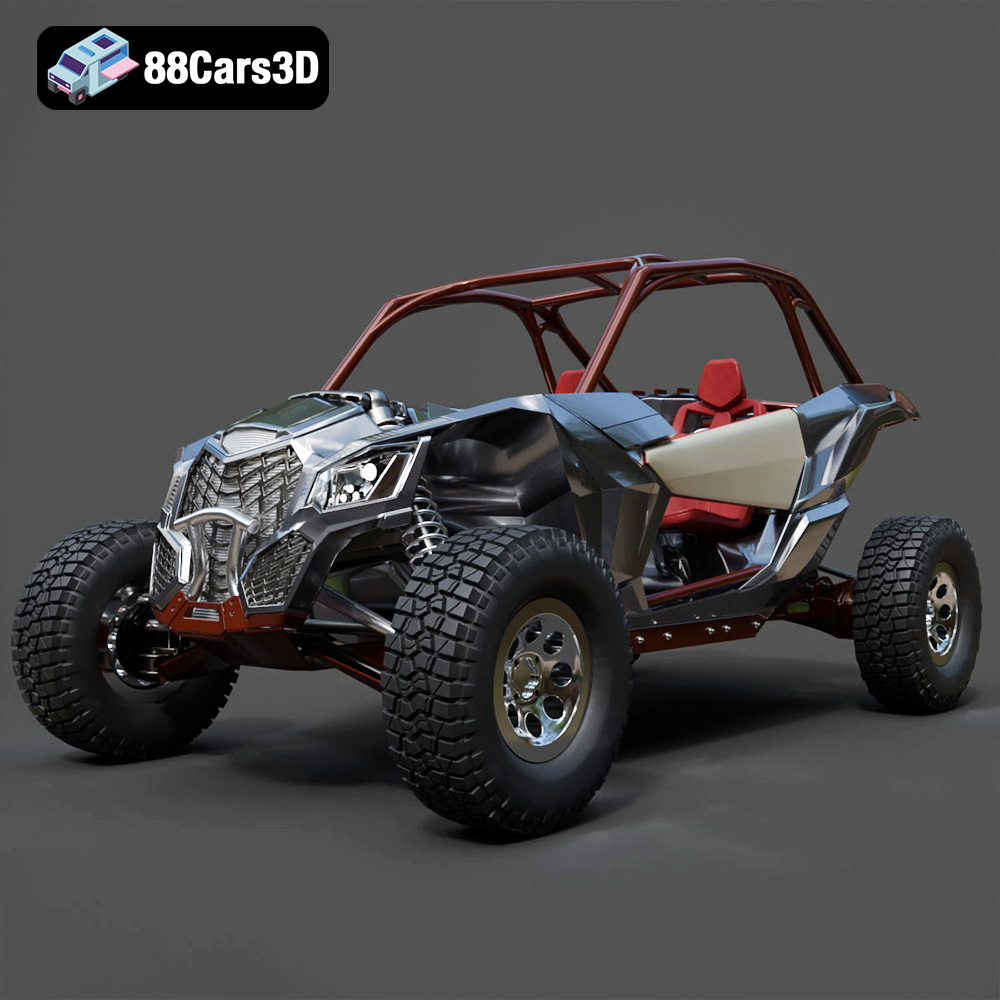
Texture: Yes
Material: Yes
Download the Can-Am Maverick 2019 3D Model featuring an aggressive off-road design, detailed chassis, and rugged tires. Includes .blend, .fbx, .obj, .glb, .stl, .ply, .unreal, and .max formats for rendering, simulation, and game development.
Price: $90.79
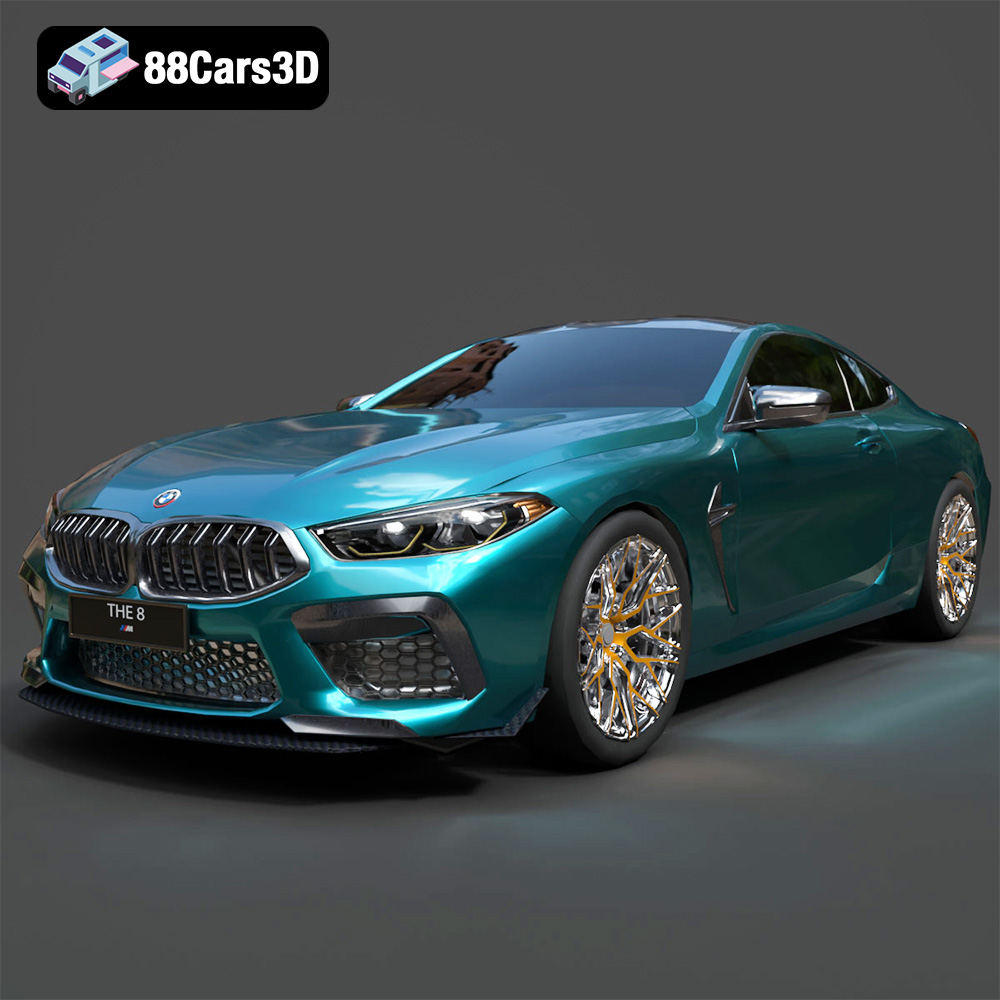
Texture: Yes
Material: Yes
Download the BMW M8 Competition 3D Model featuring aggressive styling, a luxurious interior, and high-performance detailing. Includes .blend, .fbx, .obj, .glb, .stl, .ply, .unreal, and .max formats for rendering, simulation, and game development.
Price: $110.79
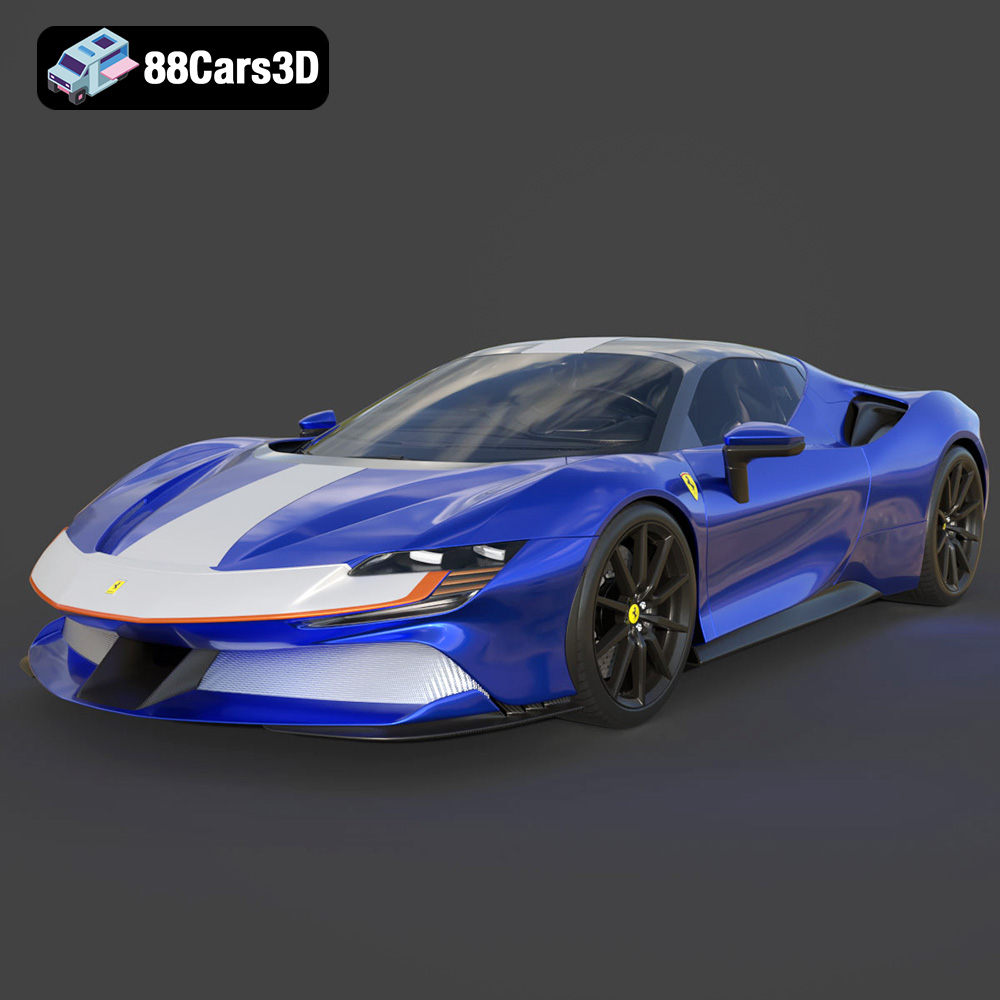
Texture: Yes
Material: Yes
Download the Ferrari SF90 Spider 3D Model featuring a meticulously detailed exterior, intricate interior, and realistic PBR materials. Includes .blend, .fbx, .obj, .glb, .stl, .ply, .unreal, and .max formats for rendering, simulation, and game development.
Price: $110.79
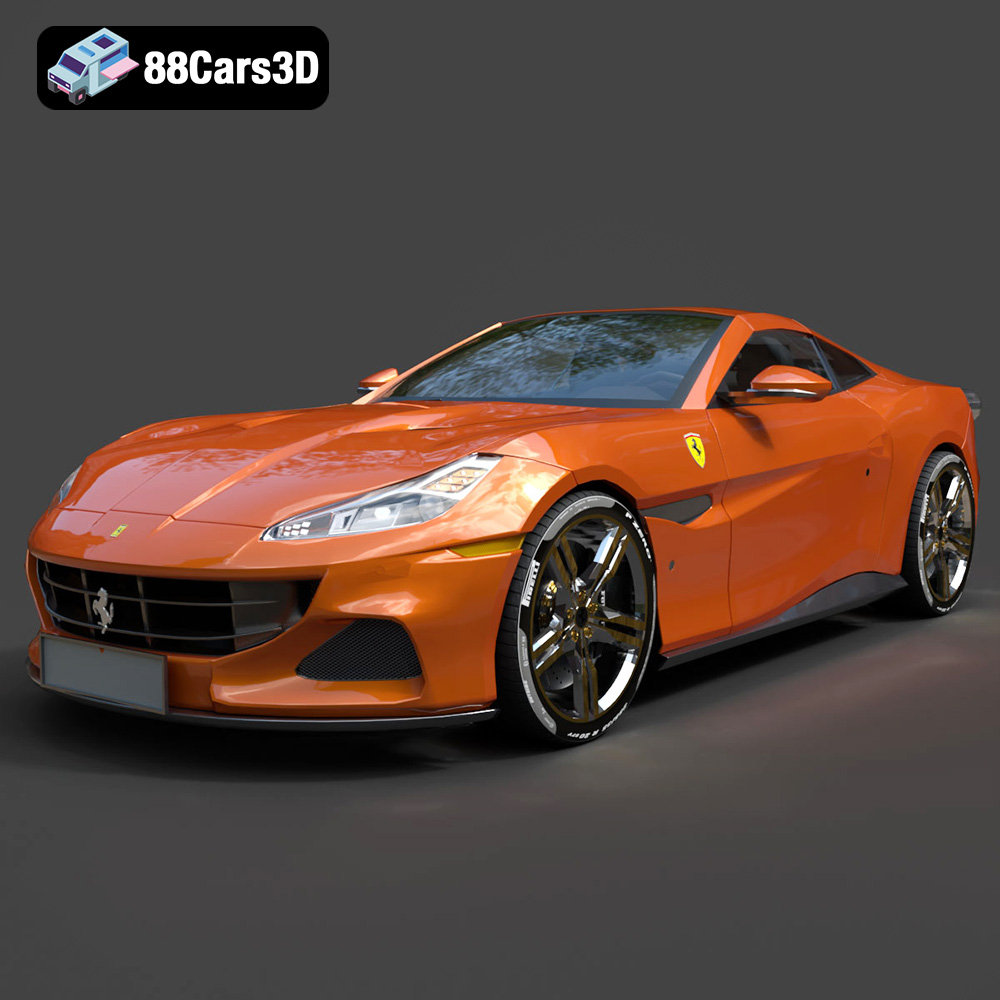
Texture: Yes
Material: Yes
Download the Ferrari Portofino 3D Model featuring accurate body contours, detailed interior, and high-resolution textures. Includes .blend, .fbx, .obj, .glb, .stl, .ply, .unreal, and .max formats for rendering, simulation, and game development.
Price: $110.79
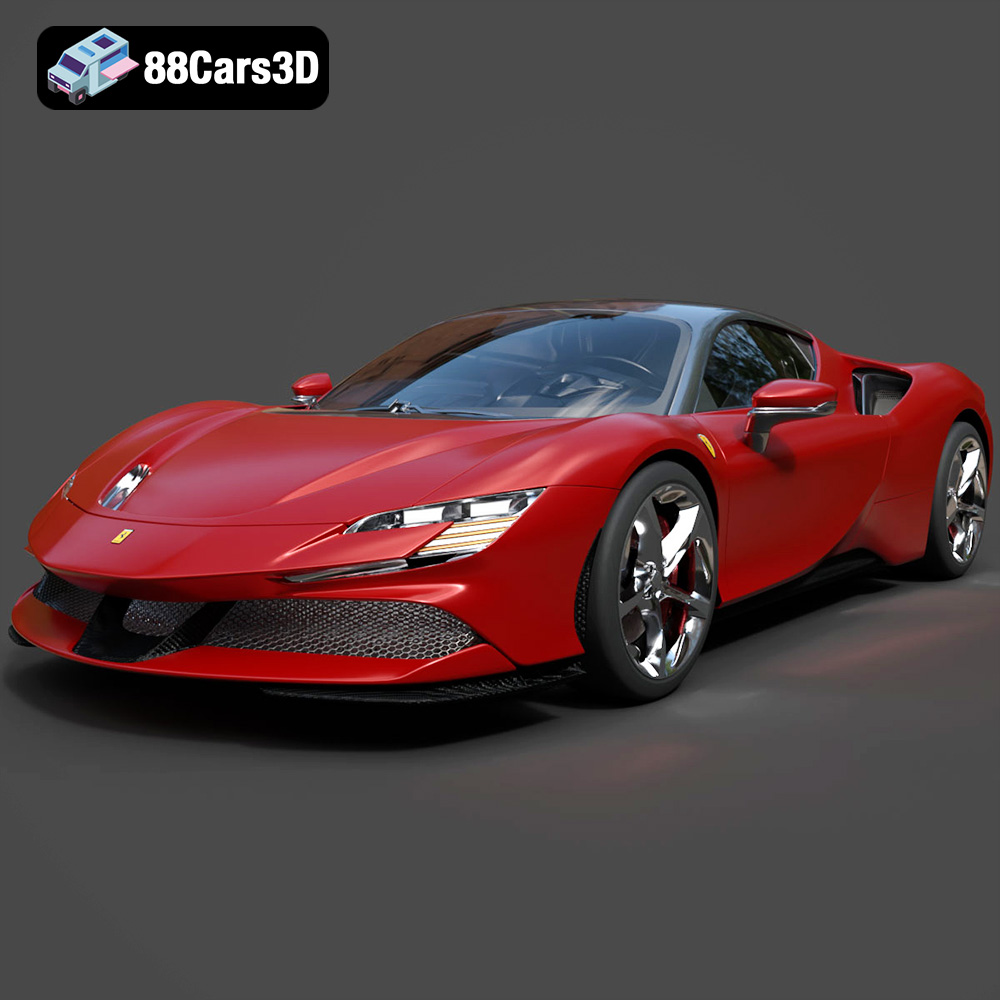
Texture: Yes
Material: Yes
Download the Ferrari SF90 Stradale 3D Model featuring aggressive lines and sophisticated aesthetics. Includes .blend, .fbx, .obj, .glb, .stl, .ply, .unreal, and .max formats for rendering, simulation, and game development.
Price: $110.79
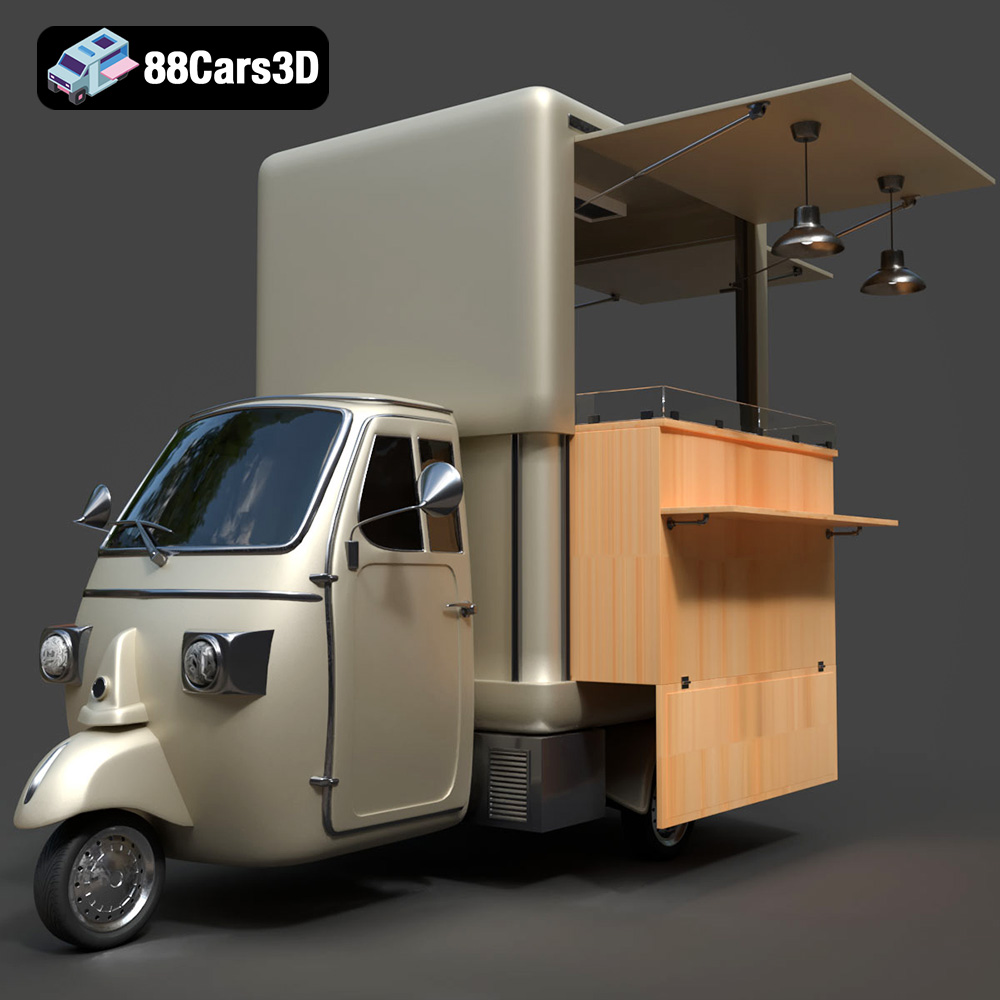
Texture: Yes
Material: Yes
Download the Foodtruck Set 3-006 3D Model featuring a detailed exterior and interior, optimized for various uses. Includes .blend, .fbx, .obj, .glb, .stl, .ply, .unreal, and .max formats for rendering, simulation, and game development.
Price: $23.79
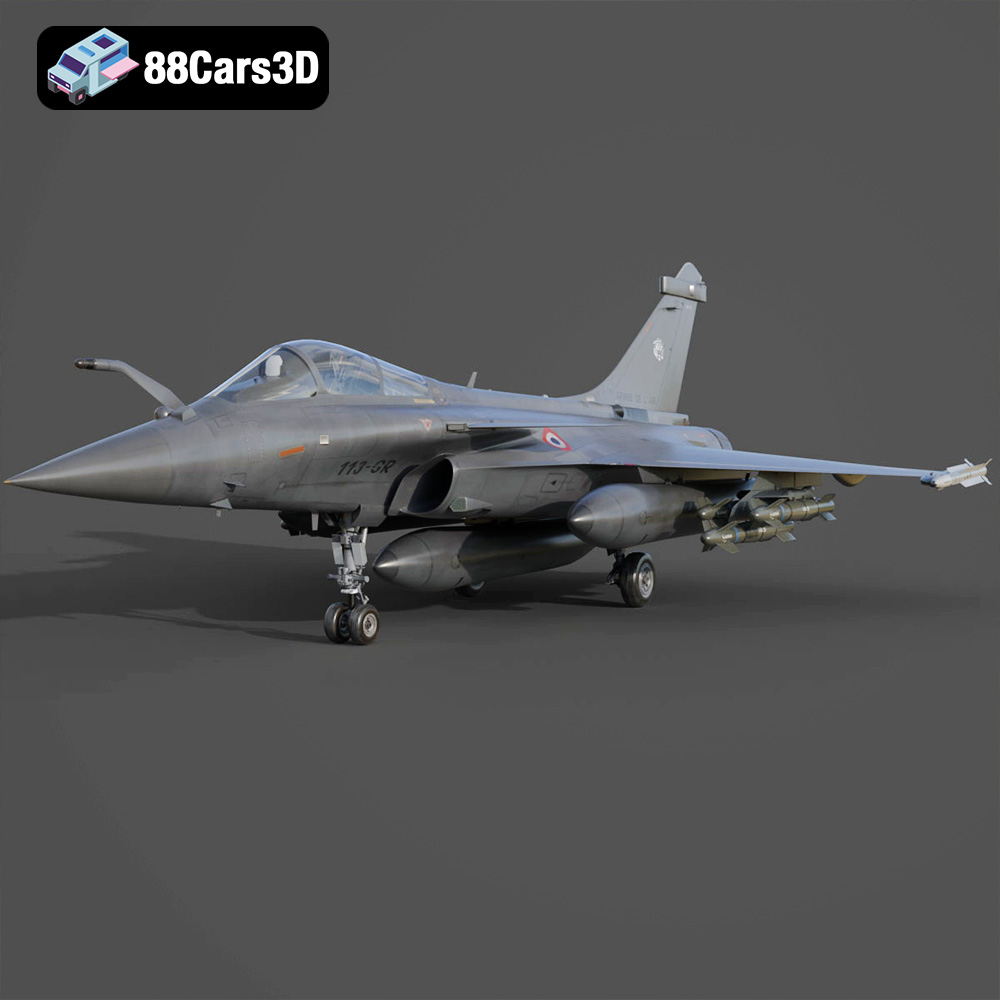
Texture: Yes
Material: Yes
Download the Dassault Rafale Fighter Jet 3D Model featuring a detailed exterior, cockpit, and propulsion system. Includes .blend, .fbx, .obj, .glb, .stl, .ply, .unreal, and .max formats for rendering, simulation, and game development.
Price: $22.79
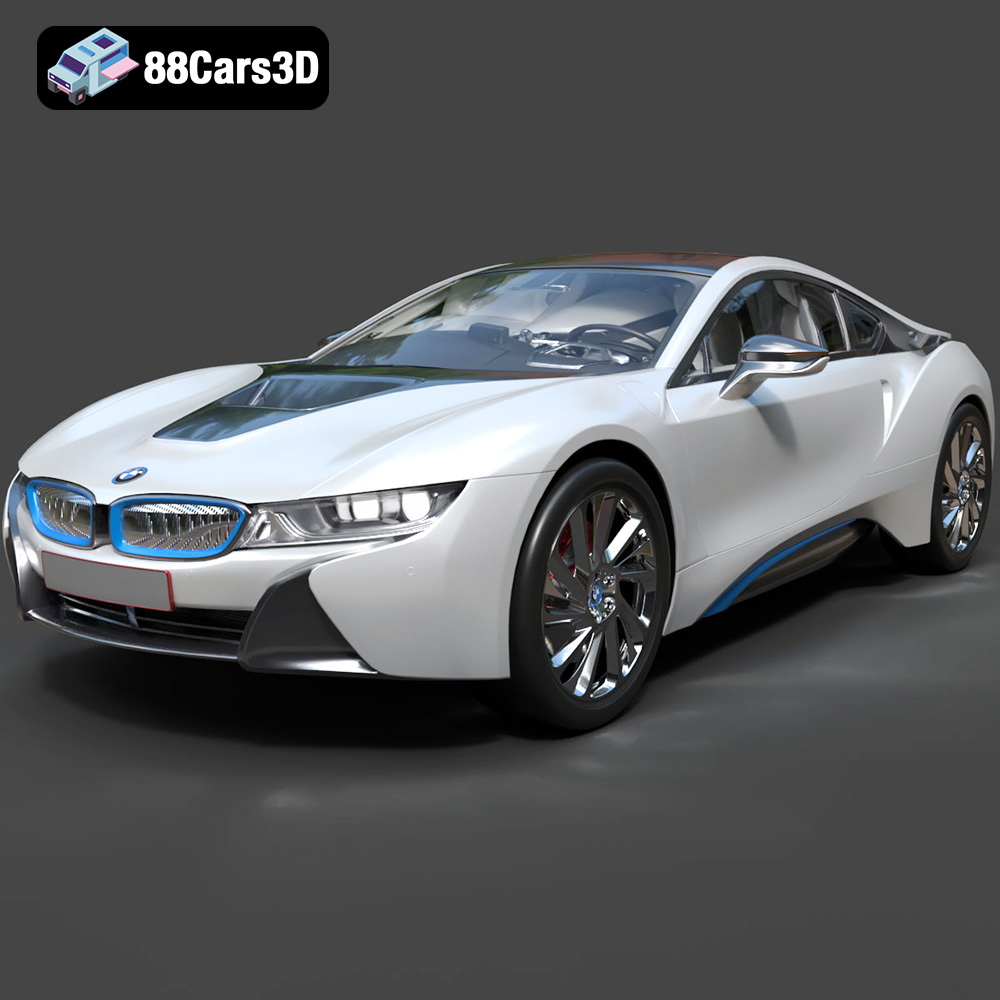
Texture: Yes
Material: Yes
Download the BMW i8 2015 3D Model featuring its futuristic design and detailed interior, capturing the essence of a modern hybrid sports car. Includes .blend, .fbx, .obj, .glb, .stl, .ply, .unreal, and .max formats for rendering, simulation, and game development.
Price: $40.79
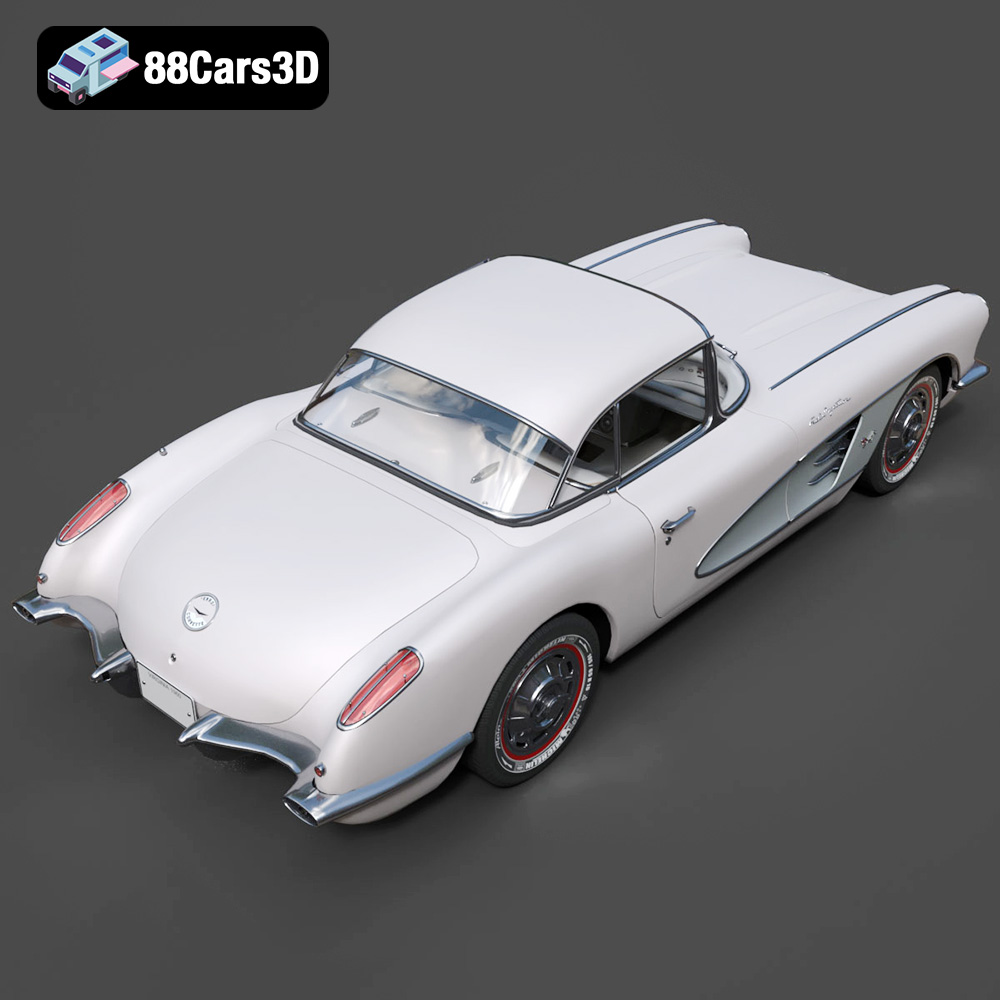
Texture: Yes
Material: Yes
Download the Chevrolet Corvette Coupe 1960 3D Model featuring its iconic vintage design, detailed interior, and classic exterior styling. Includes .blend, .fbx, .obj, .glb, .stl, .ply, .unreal, and .max formats for rendering, simulation, and game development.
Price: $50.79
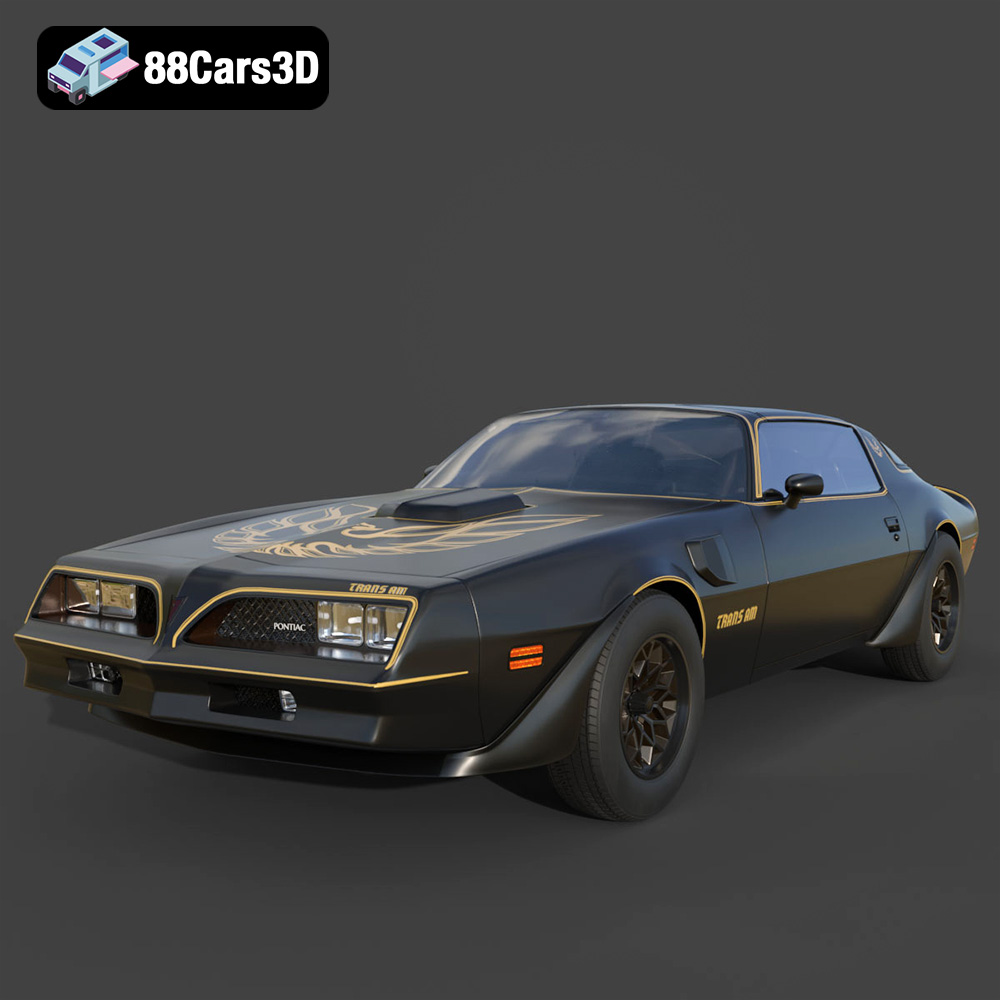
Texture: Yes
Material: Yes
Download the Pontiac Firebird Trans Am 1977 3D Model featuring iconic muscle car design and detailed exterior and interior. Includes .blend, .fbx, .obj, .glb, .stl, .ply, .unreal, and .max formats for rendering, simulation, and game development.
Price: $30.79

