⚡ FLASH SALE: Get 60% OFF All Premium 3D & STL Models! ⚡

In the demanding world of real-time rendering and automotive visualization, where every detail matters and performance is paramount, managing high-resolution textures is a persistent challenge. From the intricate paint reflections on a luxury sports car to the subtle stitching on its leather interior, the visual fidelity demanded by modern projects often pushes hardware to its limits. For Unreal Engine developers and 3D artists striving to create breathtaking automotive experiences, understanding advanced texture management techniques is not just an advantage—it’s a necessity.
This comprehensive guide delves into two cornerstone technologies within Unreal Engine: Texture Streaming and Virtual Texturing. We’ll explore how these powerful systems work in tandem to optimize memory usage, enhance performance, and allow you to leverage truly high-fidelity assets without compromising frame rates. Whether you’re developing an interactive automotive configurator, a cutting-edge game, or an immersive virtual production experience, mastering these techniques will unlock the full potential of your 3D car models and elevate your real-time visualizations to new heights. Prepare to navigate the technical intricacies, uncover best practices, and gain actionable insights to conquer texture-related bottlenecks in your Unreal Engine projects.
Automotive visualization demands an unparalleled level of detail. A realistic car model, especially one sourced from marketplaces like 88cars3d.com, often comes with an extensive suite of high-resolution PBR textures: albedo, normal, roughness, metallic, ambient occlusion, and sometimes emissive maps. These textures, frequently at resolutions of 4K, 8K, or even higher, contribute immensely to the visual realism but also pose significant challenges for real-time rendering environments like Unreal Engine.
The primary hurdle is the sheer volume of data. Each 4K RGBA texture, for instance, can consume 21MB of VRAM (4096×4096 * 4 bytes/pixel). An 8K texture jumps to 85MB. When you consider a single car model might have dozens of such textures across its body, interior, wheels, and various components, the cumulative VRAM footprint quickly escalates into hundreds of megabytes, if not gigabytes, for just one asset. This massive memory consumption can lead to performance bottlenecks, dropped frame rates, and even application crashes, particularly on systems with limited video memory or in projects featuring multiple highly detailed vehicles.
Moreover, loading all these textures into memory simultaneously, even if they’re not immediately visible or needed at full resolution, wastes valuable resources and contributes to longer load times. In a real-time interactive environment, users expect seamless transitions and instant feedback, which are directly impacted by how efficiently texture data is managed. This is where Unreal Engine’s advanced texture systems step in, offering sophisticated solutions to intelligently handle these large datasets without sacrificing visual quality.
Every texture loaded into your Unreal Engine project consumes VRAM, whether it’s currently on screen or not. This memory is a finite resource. When your project exceeds available VRAM, the system starts swapping data between VRAM and system RAM, a process known as “thrashing,” which severely impacts performance and can lead to stuttering or hitches. Beyond VRAM, the CPU also spends time processing texture data, and the GPU bandwidth is consumed transferring texture information. High-resolution textures, if not managed correctly, can choke any of these pathways.
For automotive models, the problem is compounded by the typical close-up camera angles and the expectation of flawless, showroom-quality visuals. Viewers will scrutinize paint imperfections, tire tread patterns, and dashboard textures, meaning that compromises in texture resolution are often unacceptable. This necessitates techniques that can deliver high detail where it’s needed while intelligently managing the overall texture budget.
Traditionally, artists had to make difficult choices: either reduce texture resolutions globally (sacrificing fidelity) or accept lower frame rates. Texture streaming and virtual texturing aim to alleviate this trade-off by dynamically delivering the appropriate level of detail based on factors like distance, screen space, and material usage. They allow developers to import high-quality textures into the engine and then let the engine intelligently manage their real-time memory footprint, ensuring that visual fidelity is maintained for critical elements while optimizing less important areas.
The goal is to provide the illusion of infinite detail without the crushing performance cost. By leveraging these systems, artists can focus on creating stunning, high-resolution PBR materials for their 3D car models, confident that Unreal Engine will handle the underlying technical complexities of delivery and optimization.
Texture Streaming is Unreal Engine’s fundamental mechanism for managing texture memory. At its core, it prevents the engine from loading every mipmap of every texture into VRAM at all times. Instead, it intelligently determines which mipmap levels are necessary based on the texture’s screen size, distance from the camera, and other factors, loading only those required for the current view. This dramatically reduces VRAM usage and improves load times, especially in scenes with many textures or large environments.
Every texture imported into Unreal Engine, by default, generates a series of progressively smaller versions of itself called mipmaps (an acronym for “multum in parvo,” Latin for “much in little”). A 4K texture might have mipmaps ranging from 4096×4096 down to 1×1. When a texture is far away or occupies a small portion of the screen, the engine streams in a lower-resolution mipmap. As the camera moves closer, progressively higher-resolution mipmaps are loaded, ensuring crisp detail without wasting memory on parts of the texture that are barely visible. This process is largely automatic, but understanding its underlying mechanics allows for powerful optimization and fine-tuning.
Unreal Engine maintains a “streaming pool” in VRAM, a dedicated budget for streaming textures. When the engine needs to load a texture, it checks the streaming pool. If there’s enough space, the required mipmaps are loaded. If the pool is full, the engine will unload mipmaps that are no longer needed or are of lower priority to free up space. The priority of a texture is influenced by several factors, including:
This dynamic loading and unloading ensures that only the necessary texture data resides in VRAM, making it incredibly efficient for managing complex scenes. For a deeper dive into these concepts, refer to the official Unreal Engine documentation on Texture Streaming.
To effectively manage texture streaming for high-fidelity 3D car models, several settings within Unreal Engine can be configured:
r.Streaming.PoolSize. The default is typically 1000MB (1GB). If you’re consistently seeing textures stream in slowly or blurry, especially during close-ups, increasing this value (e.g., r.Streaming.PoolSize 2000 for 2GB) might help. However, be mindful of target hardware VRAM. You can monitor streaming statistics using `stat streaming` in the console.For high-quality assets from platforms like 88cars3d.com, which are often meticulously crafted, carefully applying these settings ensures that their visual integrity is preserved while maintaining optimal performance. It’s a balance between delivering exquisite detail and respecting hardware limitations.
While Texture Streaming is highly effective, it still operates on a per-texture basis. This means if you have dozens or hundreds of unique, high-resolution textures on a single complex mesh (like a highly detailed 3D car model), each of those textures still needs its own mip chain managed individually. This can lead to overhead and complexity. Virtual Texturing (VT), particularly Runtime Virtual Texturing (RVT) in Unreal Engine, offers a more advanced, unified approach to texture management, especially for massive or complex scenes and meshes.
Virtual Texturing acts like a giant, seamless texture atlas that covers a designated area or object. Instead of managing many individual textures, Unreal Engine renders all relevant texture data onto this single “virtual” texture, which is then streamed in pages (tiles) as needed. This significantly reduces draw calls, simplifies material creation for complex surfaces, and is incredibly powerful for scenarios involving large terrains, decals, and detailed mesh surfaces like those found on high-end automotive models.
The core concept behind VT is similar to virtual memory in an operating system. Instead of loading an entire large file, only the “pages” or “tiles” of data that are currently being accessed are loaded into physical memory. For textures, this means that only the visible parts of the mega-texture, at the necessary resolution, are streamed into VRAM. This is a game-changer for several reasons:
Runtime Virtual Textures are particularly impactful when working with Nanite, Unreal Engine’s virtualized geometry system. Nanite handles millions of polygons with ease, and RVT complements this by providing the texture detail for those highly complex meshes without incurring the usual texture memory overhead.
Implementing RVT in your Unreal Engine project involves a few key steps:
RVT_CarDetails). In its settings, you define the type of data it will store (e.g., Base Color, Normal, Roughness, Specular, World Height). For automotive details, you might choose to store Base Color, Normal, and a packed material channel (e.g., Roughness, Metallic, AO).RVT_CarDetails).With this setup, the engine will render the contributing materials into the RVT buffer. Any material sampling the RVT will then retrieve the combined, optimized texture data. This is particularly powerful for creating complex materials for 3D car models, where you might have multiple layers of paint, clear coat, and subtle decals all contributing to the final look, yet sampled efficiently through a single RVT.
Leveraging Runtime Virtual Texturing goes beyond basic setup, offering powerful workflows for specialized automotive visualization needs. Its ability to unify complex material data provides unique opportunities for enhancing realism, streamlining development, and boosting performance for intricate 3D car models.
One of the most effective ways to use RVT for automotive assets is to create a shared RVT for major components of a car, such as the entire body, the interior, or the chassis. Instead of having dozens of individual PBR textures for different parts of the car body (fenders, hood, doors), you can have all these materials output to a single RVT. This approach dramatically reduces the number of texture lookups and draw calls on the GPU.
Consider a highly detailed car from 88cars3d.com. It might have separate materials for the metallic paint, the plastic trim, rubber seals, and various badges, each with its own set of textures. By routing these materials through an RVT, the engine effectively bakes their texture data into a single, streamed virtual texture. When a camera views the car, it samples from this consolidated RVT, leading to:
To implement this, ensure all relevant car body materials output to the same RVT asset, and any blending or overlay effects then sample from that RVT. This is especially useful for LODs (Levels of Detail) where lower LODs can benefit significantly from simplified material instructions.
RVT is an exceptional tool for creating layered materials and dynamic decals without the need for traditional texture baking or complex blend materials. Imagine a scenario where you want to add dynamic dirt, dust, or scratches to a car’s paint job in real time. Instead of pre-baking these effects or using expensive blend layers, you can use an RVT.
Here’s a common workflow:
This approach is incredibly powerful for:
By blending multiple material types into a single RVT, you achieve complex visual effects with a streamlined performance footprint, a crucial factor for real-time automotive projects. For more details on material blending and RVT, refer to the official Unreal Engine documentation on Runtime Virtual Textures.
While RVT directly benefits individual car models, its true power often shines in larger contexts. When you place your high-fidelity 3D car models into expansive virtual environments—be it an open-world game, an architectural visualization, or a virtual production stage—RVT becomes critical for the ground, walls, and other large surfaces. By using RVT for these environments, you ensure that the surroundings are also rendered efficiently, leaving more VRAM and GPU cycles for your detailed car assets.
In Virtual Production, especially with LED wall workflows, seamless integration of foreground (your car) and background (the virtual world on the LED wall) is paramount. RVT allows for:
This holistic approach to texture management, combining traditional streaming for certain elements with RVT for large-scale surfaces and blended materials, is key to achieving the highest visual fidelity and performance in complex automotive visualization scenarios.
Effective texture management is central to real-time performance. While Unreal Engine’s streaming and virtual texturing systems handle much of the heavy lifting, understanding how to optimize their usage is critical for achieving consistent frame rates, especially with demanding 3D car models and intricate environments. Proactive optimization can prevent costly performance bottlenecks and ensure your automotive projects run smoothly across target hardware.
The first step in optimization is always to identify where your resources are going. Unreal Engine provides powerful profiling tools:
stat streaming: Type this into the console to get a detailed breakdown of your texture streaming pool. It shows the current VRAM usage, the total pool size, how much is resident, how much is requested, and the current streaming speed. Look for “Pool Overbudget” to identify if your streaming pool is too small. If this value is consistently high, you may need to increase r.Streaming.PoolSize or optimize individual textures.stat GPU: Provides a breakdown of GPU frame time, including categories like “Deferred Lighting,” “Base Pass,” and crucially, “Texture Streaming” or “VT Processing.” If texture-related sections are consuming a significant portion of your frame time, it indicates a bottleneck.r.VT.Stats 1: For Runtime Virtual Textures, this command displays statistics related to VT usage, including page sizes, memory footprint, and any potential issues with page requests.Establish a texture budget early in your project, defining maximum resolutions for different asset types (e.g., 8K for car body paint, 4K for interior materials, 2K for engine components). Adhering to this budget and regularly profiling will keep your project on track.
Levels of Detail (LODs) are crucial for geometry optimization, but they also play a significant role in texture streaming. When a mesh switches to a lower LOD, it typically occupies less screen space, prompting the texture streaming system to load lower mipmaps for its materials. For complex 3D car models from 88cars3d.com, generating appropriate LODs is essential for performance at varying distances.
In addition to automatic streaming, you can manually control texture resolution using the LOD Bias setting within each texture’s editor. A positive LOD Bias (e.g., 1 or 2) forces the texture to use a mipmap one or two levels lower than it would normally. This is a powerful tool for textures that are only visible at a distance or for non-critical details, effectively giving them a smaller VRAM footprint without deleting original high-resolution data. Use a negative LOD Bias (e.g., -1) sparingly and only for textures that absolutely require higher detail than the streaming system would normally allow at a specific distance.
For example, a car’s undercarriage textures might have an LOD Bias of +2, while its dashboard instruments might have an LOD Bias of -1 if they need to be perfectly readable up close, even if the streaming system would normally opt for a lower mip.
Nanite, Unreal Engine’s virtualized geometry system introduced in UE5, is a revolutionary technology for handling extremely high polygon counts. While Nanite effectively manages geometry complexity, it still relies on efficient texture delivery. This is where its synergy with Virtual Texturing becomes incredibly powerful.
Nanite meshes can have millions of triangles, but the texture maps that define their surface appearance can still be massive. By feeding the texture data of a Nanite mesh into an RVT, you achieve a truly “virtualized” asset pipeline: Nanite handles the geometry streaming and LODs, while RVT handles the texture streaming and density. This allows you to import incredibly detailed 3D car models and environments without worrying about the traditional polygon or texture budget limitations. When you have a high-poly car from 88cars3d.com that is Nanite-enabled, pairing its intricate PBR materials with an RVT for various parts (e.g., paint, interior details, engine block) ensures peak performance and visual fidelity.
AR/VR and mobile platforms present the most stringent performance constraints. Here, texture streaming and virtual texturing are not just beneficial, but often critical:
For high-fidelity automotive visualization in AR/VR, where the user is often close to the model, finding the sweet spot between visual quality (through judicious use of streaming and VT) and performance is a delicate balance that requires diligent testing and optimization.
Even with advanced systems like Texture Streaming and Virtual Texturing, challenges can arise. Understanding how to diagnose and resolve common texture-related issues is a vital skill for any Unreal Engine developer working with high-fidelity assets. The goal is to ensure your 3D car models always look their best, free from visual anomalies that can break immersion.
One of the most frequent complaints related to texture streaming is “mipmap blur” or “texture popping.” This occurs when the engine struggles to load higher-resolution mipmaps in time, resulting in blurry textures that suddenly “pop” into sharper detail as the camera gets closer or after a delay.
Causes:
r.Streaming.PoolSize is too small, the engine can’t load all requested high-resolution mipmaps.Solutions:
r.Streaming.PoolSize (e.g., r.Streaming.PoolSize 2000 for 2GB). Always test on target hardware.r.Streaming.MaxTempMemoryAllowed: This console variable controls how much temporary memory the streaming system can use. Increasing it can sometimes help if you have sudden, large requests.r.Streaming.FullyLoadUsedTextures: Setting this to 1 (in editor or config) will force all currently referenced textures to be fully loaded, useful for debugging to see if blurriness is due to streaming or the texture itself.Runtime Virtual Textures, while powerful, can also introduce their own set of visual artifacts if not configured correctly.
Unreal Engine offers additional visualization and debugging tools:
r.Streaming.UseFixedPoolSize 1 or by setting r.Streaming.FullyLoadUsedTextures 1. This loads all textures at their highest mip, consuming maximum VRAM but eliminating streaming as a variable.By systematically using these tools and understanding the underlying mechanisms of Texture Streaming and Virtual Texturing, you can efficiently troubleshoot and optimize your high-fidelity automotive visualization projects, ensuring that your 3D car models always look pristine and perform smoothly.
Mastering texture management in Unreal Engine is an indispensable skill for anyone working with high-fidelity 3D car models and striving for photorealistic automotive visualization. As we’ve explored, Texture Streaming provides the essential framework for efficient VRAM usage, intelligently delivering mipmaps based on visibility and demand. It’s the foundational technology that allows your detailed PBR materials to shine without overwhelming your system’s resources.
Building upon this, Virtual Texturing (RVT) offers a revolutionary leap forward, consolidating complex texture data into seamless, streamed pages. This not only reduces draw calls and simplifies material layering but also unlocks new possibilities for dynamic effects, large-scale environments, and unparalleled detail, especially when paired with Nanite. For projects ranging from interactive configurators to cutting-edge virtual production, RVT provides the scalability and performance needed to achieve truly cinematic quality in real time.
By diligently configuring texture settings, leveraging LODs, strategically employing RVT for shared materials and decals, and rigorously profiling your scenes, you can overcome the inherent challenges of high-resolution textures. The result is a stunning visual experience where every metallic flake, every stitch, and every reflection on your 3D car models is rendered with breathtaking fidelity, all while maintaining optimal performance.
The journey to creating visually spectacular and performant automotive experiences in Unreal Engine is continuous. We encourage you to experiment with these powerful tools, integrate them into your workflows, and explore the vast potential they offer. When sourcing your foundational high-quality automotive assets, remember that platforms like 88cars3d.com provide meticulously crafted 3D car models that are prime candidates for these advanced texture optimization techniques, ensuring you start with the best possible foundation for your next project.

Texture: Yes
Material: Yes
Download the POJARNIY 004 3D Model featuring a robust exterior with detailed emergency equipment and a functional interior. Includes .blend, .fbx, .obj, .glb, .stl, .ply, .unreal, and .max formats for rendering, simulation, and game development.
Price: $10.79
Texture: Yes
Material: Yes
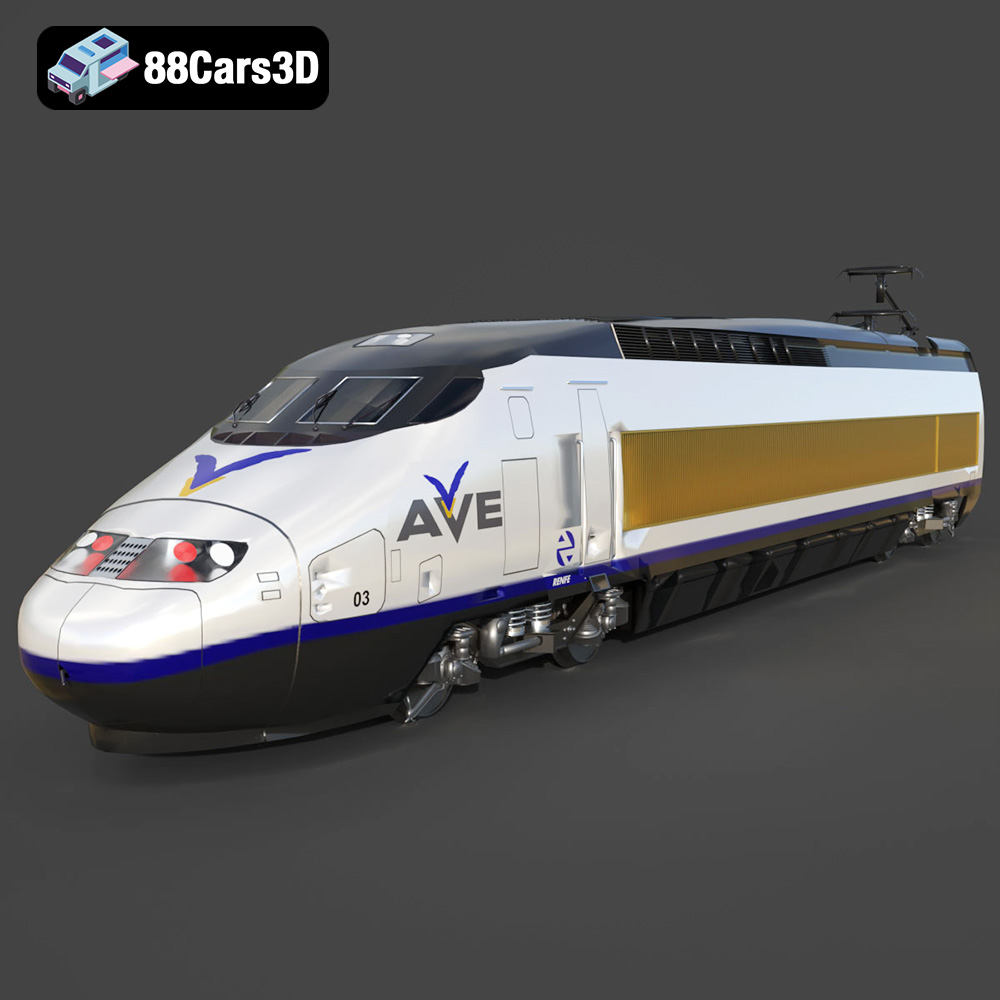
Download the Poezd AVE 147-102-002 3D Model featuring a detailed high-speed train design. Includes .blend, .fbx, .obj, .glb, .stl, .ply, .unreal, and .max formats for rendering, simulation, and game development.
Price: $10.79
Texture: Yes
Material: Yes
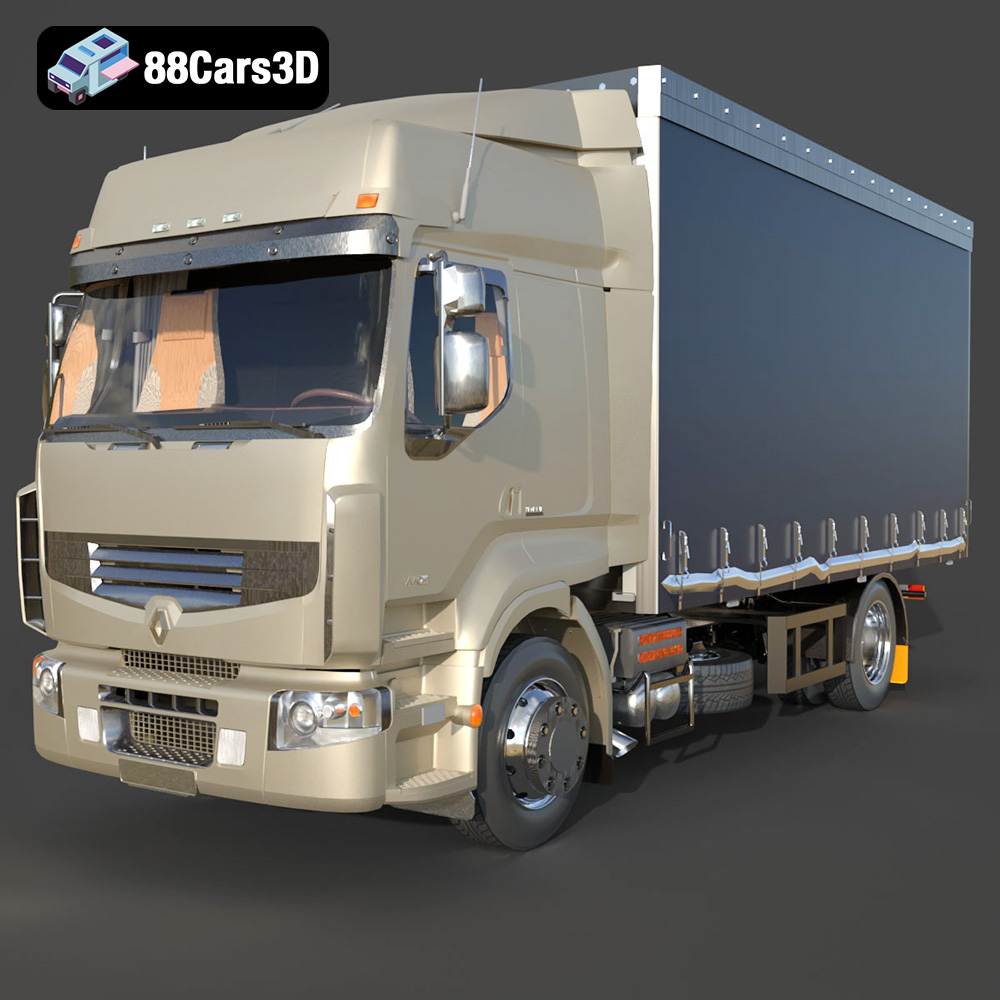
Download the Renault Premium 440-002 3D Model featuring a detailed exterior, an optimized interior, and accurate real-world scale. Includes .blend, .fbx, .obj, .glb, .stl, .ply, .unreal, and .max formats for rendering, simulation, and game development.
Price: $10.79
Texture: Yes
Material: Yes
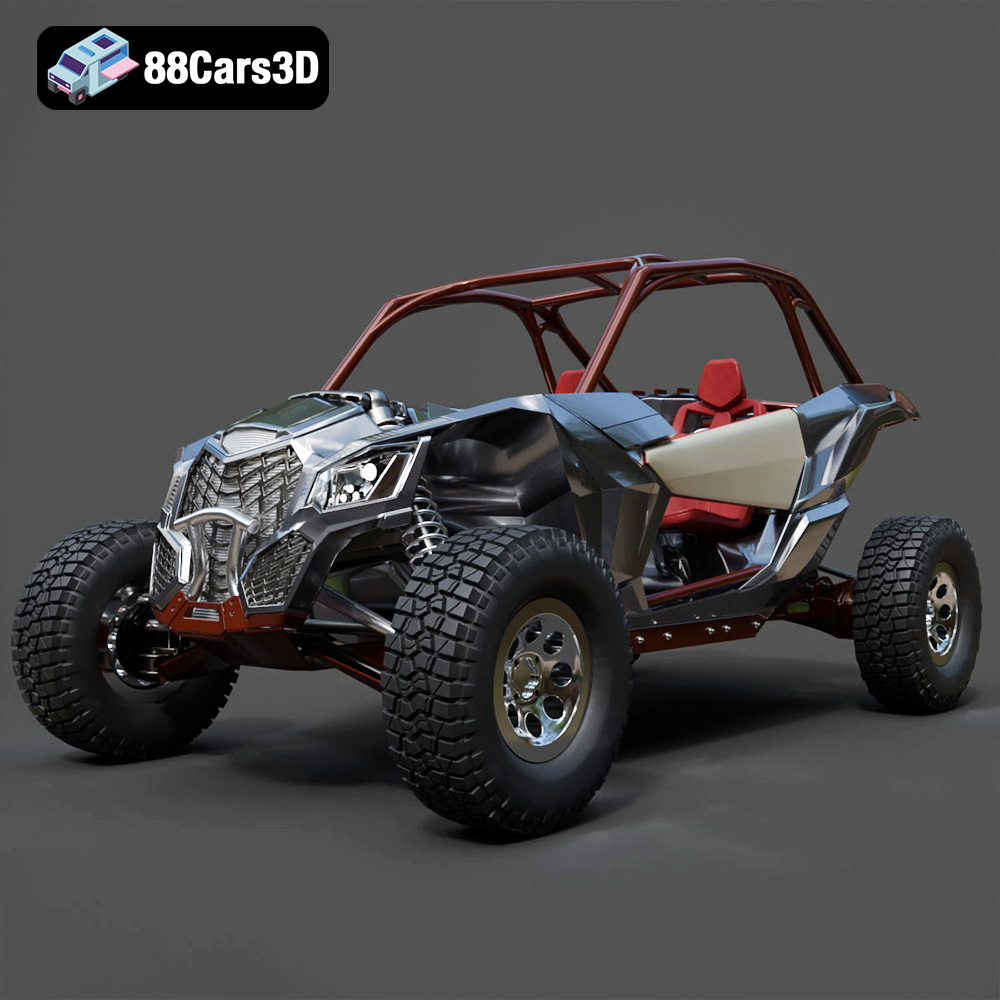
Download the Can-Am Maverick 2019 3D Model featuring an aggressive off-road design, detailed chassis, and rugged tires. Includes .blend, .fbx, .obj, .glb, .stl, .ply, .unreal, and .max formats for rendering, simulation, and game development.
Price: $90.79
Texture: Yes
Material: Yes
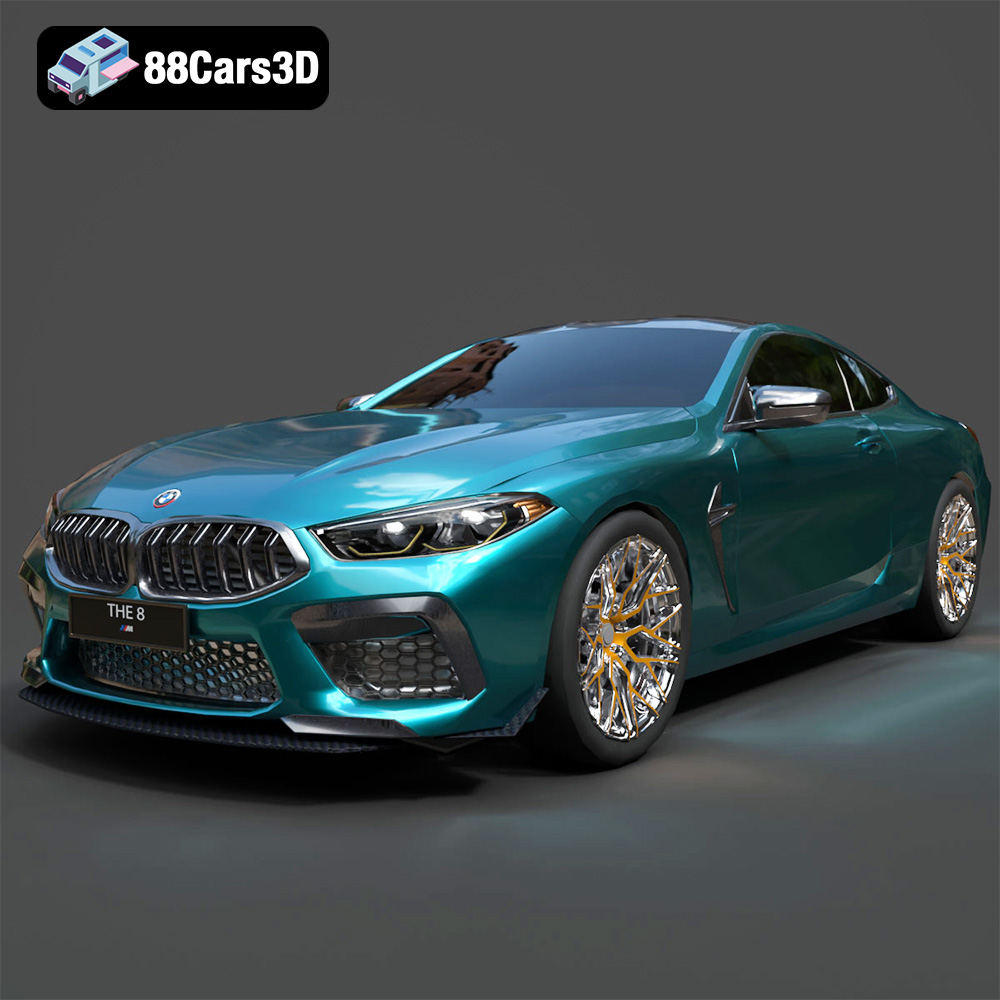
Download the BMW M8 Competition 3D Model featuring aggressive styling, a luxurious interior, and high-performance detailing. Includes .blend, .fbx, .obj, .glb, .stl, .ply, .unreal, and .max formats for rendering, simulation, and game development.
Price: $110.79

Texture: Yes
Material: Yes
Download the Ferrari SF90 Spider 3D Model featuring a meticulously detailed exterior, intricate interior, and realistic PBR materials. Includes .blend, .fbx, .obj, .glb, .stl, .ply, .unreal, and .max formats for rendering, simulation, and game development.
Price: $110.79

Texture: Yes
Material: Yes
Download the Ferrari Portofino 3D Model featuring accurate body contours, detailed interior, and high-resolution textures. Includes .blend, .fbx, .obj, .glb, .stl, .ply, .unreal, and .max formats for rendering, simulation, and game development.
Price: $110.79

Texture: Yes
Material: Yes
Download the Ferrari SF90 Stradale 3D Model featuring aggressive lines and sophisticated aesthetics. Includes .blend, .fbx, .obj, .glb, .stl, .ply, .unreal, and .max formats for rendering, simulation, and game development.
Price: $110.79
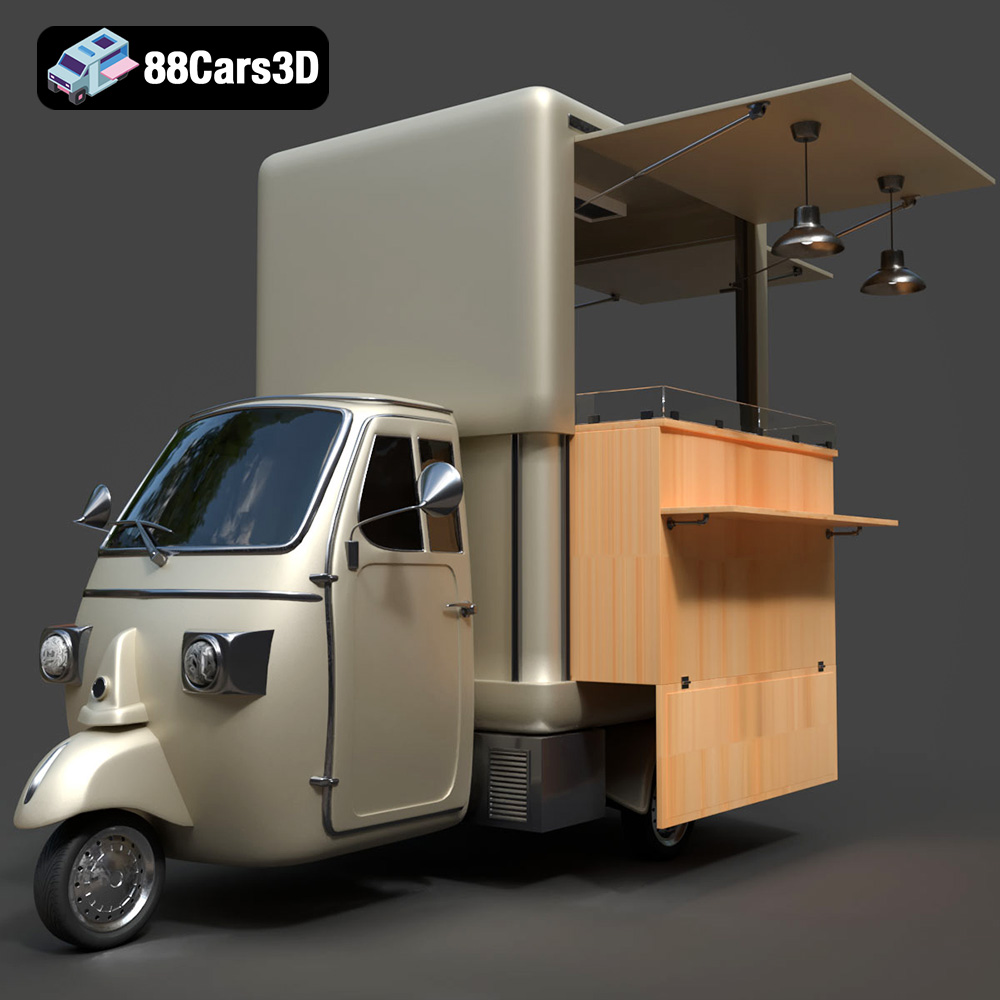
Texture: Yes
Material: Yes
Download the Foodtruck Set 3-006 3D Model featuring a detailed exterior and interior, optimized for various uses. Includes .blend, .fbx, .obj, .glb, .stl, .ply, .unreal, and .max formats for rendering, simulation, and game development.
Price: $23.79
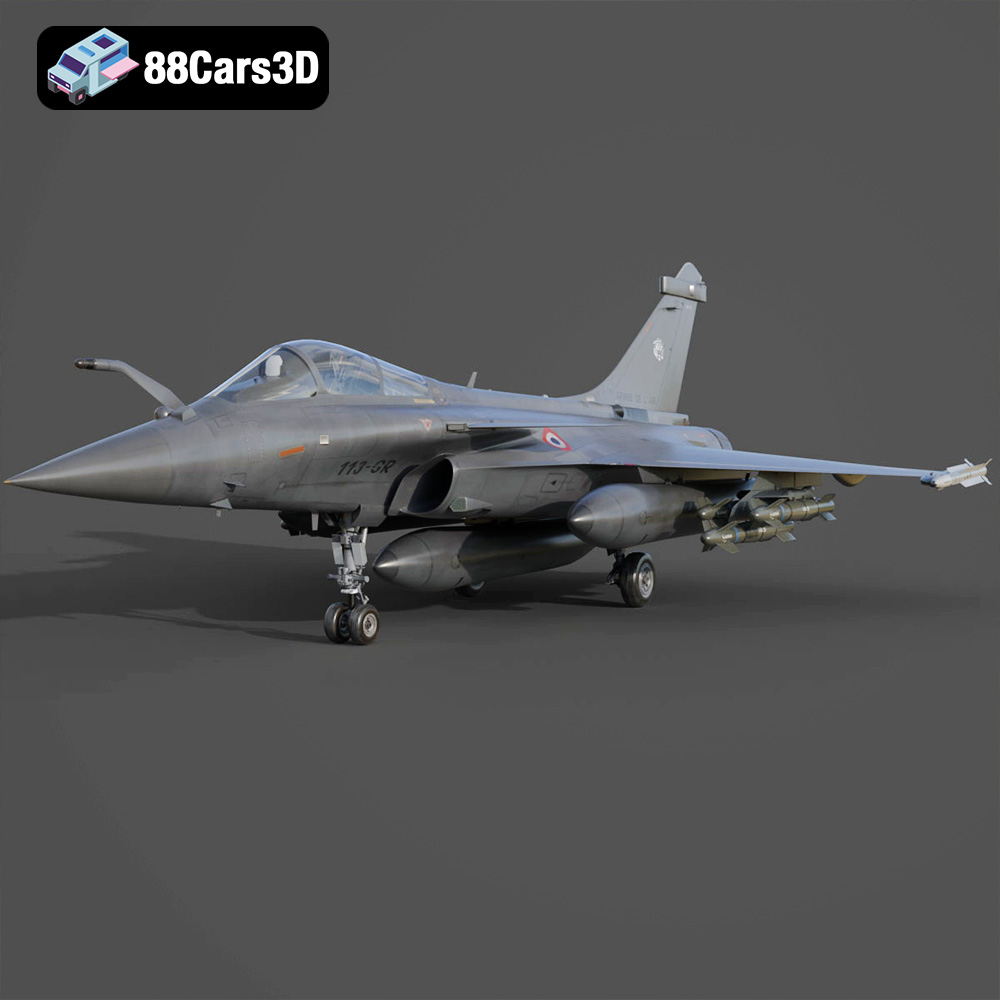
Texture: Yes
Material: Yes
Download the Dassault Rafale Fighter Jet 3D Model featuring a detailed exterior, cockpit, and propulsion system. Includes .blend, .fbx, .obj, .glb, .stl, .ply, .unreal, and .max formats for rendering, simulation, and game development.
Price: $22.79

