Unleashing Creativity: Blueprint Visual Scripting for Non-Programmers in Unreal Engine
Unreal Engine has revolutionized real-time rendering, empowering artists, designers, and developers to create stunning visuals and immersive experiences across industries. While its capabilities are vast, many creatives might feel daunted by the prospect of traditional coding. This is where Unreal Engine’s Blueprint Visual Scripting system emerges as a game-changer. For non-programmers, Blueprint offers an intuitive, node-based interface to build complex gameplay mechanics, interactive environments, and sophisticated cinematic sequences without writing a single line of C++ code. This comprehensive guide will demystify Blueprint, demonstrating how even those without prior programming experience can harness its power to bring their automotive visualization, game development, and architectural projects to life. We’ll explore everything from setting up your first interactive car model to crafting dynamic configurators, optimizing performance, and leveraging advanced techniques, transforming abstract ideas into interactive realities within Unreal Engine.
Whether you’re an automotive designer looking to showcase a new vehicle in an interactive virtual showroom, a game developer aiming to add unique vehicle mechanics, or a visualization professional seeking to create engaging client presentations, mastering Blueprint is an invaluable skill. It bridges the gap between artistic vision and technical implementation, democratizing the development process and allowing your creative impulses to take center stage. By the end of this article, you’ll have a clear understanding of how to leverage Blueprint to create compelling, high-fidelity experiences, particularly with high-quality assets sourced from marketplaces like 88cars3d.com.
Understanding Blueprints: The Visual Scripting Paradigm
Blueprint Visual Scripting is Unreal Engine’s powerful and flexible system for creating game logic and functionality. Instead of writing code in a text editor, you connect nodes visually in a graph editor. Each node represents a specific action, event, or data manipulation, and by connecting them, you define the flow of execution and the behavior of your objects. This intuitive approach makes development accessible to a wider audience, including artists and designers who might not have a background in programming, yet still require precise control over interactive elements. The core philosophy behind Blueprint is to provide a comprehensive scripting solution that is both easy to learn for beginners and powerful enough for experienced developers to prototype and even finalize complex systems.
At its heart, Blueprint is an object-oriented system. You create Blueprints from existing C++ classes or other Blueprints, extending their functionality. For example, you might create a Blueprint based on a “Static Mesh Actor” to add interactive elements to a 3D car model, or a “Pawn” Blueprint to define controllable vehicle behavior. This inheritance model allows for robust and scalable development. Blueprints can encapsulate properties, functions, and events, making them reusable and modular. This modularity is crucial for managing complex projects, as it allows different team members to work on separate components without conflicting, and ensures that systems can be easily updated or extended in the future.
Core Concepts: Actors, Components, Events, and Functions
Understanding a few fundamental concepts is key to navigating the Blueprint editor:
- Actors: These are the base class for any object that can be placed or spawned in a level (e.g., a 3D car model, a light source, a camera). All interactive elements in your scene will likely be derived from an Actor.
- Components: These are modular pieces of functionality that can be added to an Actor. Examples include a Static Mesh Component (to give an Actor a visual mesh), a Camera Component, or a Vehicle Movement Component (for car physics). Components allow you to assemble complex behaviors from smaller, manageable parts.
- Events: These are triggers that execute a sequence of actions. Common events include “Event BeginPlay” (when the game starts), “Event Tick” (every frame), or “OnComponentHit” (when an object collides). Events are the starting points for most Blueprint scripts, responding to user input, game state changes, or physics interactions.
- Functions: These are reusable blocks of Blueprint nodes that perform a specific task. Functions can take inputs and produce outputs, making your graphs cleaner and more efficient. For example, a function could be created to “ChangeCarColor” which takes a new color as an input.
By combining these elements, you can build incredibly sophisticated interactive systems. The visual nature of Blueprint also aids in debugging; you can easily trace the execution flow through the nodes, identifying where and why issues might be occurring.
Blueprint Types: Actor, Pawn, Character, and Level Blueprints
Unreal Engine provides several types of Blueprints, each suited for different purposes:
- Actor Blueprint: The most common type, used for any object that exists in the world, such as an interactive door, a collectible item, or a display screen. Your 3D car models will often be Actor Blueprints to encapsulate their specific behaviors.
- Pawn Blueprint: A type of Actor specifically designed to be controlled by a player or AI. This is ideal for vehicles, as it provides the foundation for input processing and movement.
- Character Blueprint: An extension of the Pawn Blueprint, optimized for humanoid characters, providing built-in movement components like walking, jumping, and falling. While not directly for cars, understanding it helps differentiate.
- Level Blueprint: Unique to each level, this Blueprint allows you to script events that are specific to that particular map. It’s often used for one-off events, cinematic triggers, or environmental interactions that aren’t tied to a specific Actor. For example, you might use a Level Blueprint to open a garage door when the player’s car enters a specific volume.
Choosing the correct Blueprint type at the outset ensures that you’re building on the most appropriate foundation for your intended functionality, leveraging Unreal Engine’s optimized class hierarchy for better performance and easier development.
Setting Up Your First Interactive Car in Unreal Engine
Bringing a high-quality 3D car model into Unreal Engine and making it interactive is an exciting first step for any automotive visualization or game development project. The process begins with proper asset preparation and import, followed by setting up the foundational Blueprint for interactivity. Sourcing high-quality 3D car models from platforms like 88cars3d.com is your first step, as these models are often optimized with clean topology, proper UV mapping, and PBR-ready materials, significantly streamlining your workflow. Once imported, we’ll create a custom Blueprint to house the car model and add basic components, ready for interactive scripting.
The success of your interactive car model hinges on the quality of your source asset. Unreal Engine thrives on optimized meshes and properly set up materials. When importing, ensure your FBX or USD files are correctly scaled and that all individual parts (body, wheels, doors, interior components) are separate meshes or properly grouped within the file. This allows for individual manipulation in Blueprint, such as rotating wheels or opening doors. Unreal Engine’s import dialogue provides numerous options for controlling mesh merge, material import, and collision generation. For PBR materials, ensure your textures (Albedo/Base Color, Normal, Roughness, Metallic, Ambient Occlusion) are consistently named and correctly assigned during import or shortly after in the Material Editor.
Importing and Optimizing 3D Car Models
The import process itself is straightforward, but attention to detail is crucial:
- Importing Mesh: Drag your FBX or USD file directly into the Content Browser, or use the “Import” button. In the import dialogue, ensure “Combine Meshes” is unchecked if you want to animate individual parts (like doors or wheels). Check “Generate Missing Collision” for basic physics, though custom collision is often preferred for vehicles.
- Material Setup: Unreal Engine will attempt to import materials based on your source file. It’s best practice to verify these in the Material Editor. PBR materials require specific channel packing for optimal performance and realism. For instance, you might combine Roughness, Metallic, and Ambient Occlusion into a single texture’s R, G, B channels respectively, reducing texture sample count. Learn more about PBR material creation in Unreal Engine.
- Nanite Virtualized Geometry: For incredibly detailed car models, enable Nanite on import or in the Static Mesh Editor. Nanite intelligently scales mesh detail, allowing you to use film-quality assets directly in real-time, drastically simplifying LOD management and boosting performance, especially for static high-poly components like the car body.
- LOD Management: Even with Nanite, traditional LODs are still useful for non-Nanite meshes or for specific optimization scenarios. Unreal Engine can automatically generate LODs, but manual creation often yields better results. For high-performance scenarios or AR/VR, having well-optimized LODs is essential.
Properly importing and setting up your 3D assets forms the bedrock of a robust interactive experience.
Creating a Car Blueprint and Adding Components
Once your model is imported, the next step is to create a Blueprint to encapsulate its behavior:
- Create a New Blueprint Class: Right-click in the Content Browser, select “Blueprint Class,” and choose “Actor.” Name it appropriately, e.g., “BP_InteractiveCar.”
- Add Static Mesh Components: Open your new Blueprint. In the “Components” panel, click “Add” and search for “Static Mesh.” Add one for each distinct part of your car (e.g., “CarBody,” “FrontLeftWheel,” “Door_Driver”). Assign the corresponding imported static meshes to these components in the Details panel.
- Parenting Components: Arrange your components hierarchically. For example, parent the “FrontLeftWheel” to “CarBody” so that if the body moves, the wheel moves with it. This forms a logical structure for animation and interaction.
- Adding a Spring Arm and Camera: For basic inspection or interactive viewing, add a “Spring Arm Component” and parent a “Camera Component” to it. Adjust the Spring Arm’s target arm length and rotation to position the camera around the car, allowing for orbit controls later via Blueprint.
This foundational setup provides a clean structure within your Blueprint, making it easy to reference specific car parts and implement interactive logic later. For more complex vehicle physics, consider using the Chaos Vehicle Plugin, which provides specialized Vehicle Movement Components and Physics Assets that integrate seamlessly with Blueprint.
Crafting Dynamic Experiences: Basic Blueprint Interactions
With your car Blueprint established, it’s time to breathe life into it with basic interactivity. Blueprint excels at handling user input and triggering visual changes, making it ideal for creating interactive configurators, virtual showrooms, or simple game mechanics. We’ll focus on implementing common interactions such as changing materials (e.g., car paint colors), opening/closing doors, and rotating wheels, all driven by straightforward Blueprint logic. These fundamental techniques will form the basis for more complex systems and provide a solid understanding of how to manipulate assets dynamically within Unreal Engine.
The core of interactive Blueprint scripting revolves around events and targetable nodes. An event, such as a keyboard press or a mouse click, initiates a sequence of actions. These actions are performed by nodes that target specific components within your Blueprint. For instance, to change a car’s color, you would target the car body’s material, create a dynamic material instance, and then modify its parameters. This approach ensures that your interactivity is always tied to specific elements of your scene, making the logic clear and manageable. One of the powerful aspects of Blueprint is the ability to easily prototype and iterate on these interactions, getting immediate visual feedback within the editor.
Changing Car Paint Colors with Material Instances
Dynamic material changes are a cornerstone of automotive configurators:
- Create a Master Material: Start with a robust Master Material for your car paint. This material should expose parameters for color, metallic, roughness, and possibly clear coat properties via “Scalar Parameter” and “Vector Parameter” nodes.
- Create a Dynamic Material Instance: In your car Blueprint’s “Event BeginPlay,” get the “CarBody” static mesh component. From its reference, drag out and search for “Create Dynamic Material Instance.” Select your Master Material. Promote the return value to a variable (e.g., “DynamicPaintMaterial”). This ensures you have a unique, modifiable instance of the material.
- Implement Color Change Logic: Create an “Input Action” (e.g., “ChangeColorButton”) in your Project Settings for a specific key press. In your Event Graph, use the “Input Action Event.”
- Set Vector Parameter Value: From your “DynamicPaintMaterial” variable, drag out and search for “Set Vector Parameter Value.” Connect this to the input event. Specify the name of your color parameter from the Master Material (e.g., “BaseColor”) and provide a new color value using a “Make Color (Linear)” node or a “Color Picker” widget.
This setup allows you to cycle through predefined colors or assign colors based on user input, instantly updating the car’s appearance. You can extend this for interior materials, rim finishes, and more.
Opening and Closing Doors with Timeline Animation
Animating mechanical parts like doors provides a tactile sense of realism:
- Create a Timeline: In your car Blueprint, right-click in the Event Graph and search for “Add Timeline.” Double-click the Timeline node to open its editor.
- Add a Float Track: Click the “F+” button to add a new float track. Create two keyframes: one at time 0.0, value 0.0, and another at time 1.0, value 1.0. This creates a 0-1 interpolation over one second. Name the track “DoorOpenAmount.” Set interpolation types to “Auto” for smooth animation.
- Control Door Rotation: Back in the Event Graph, connect the Timeline’s “Update” pin. Get your “Door_Driver” Static Mesh Component. From it, drag out and search for “Set Relative Rotation.”
- Interpolate Rotation: Use a “Lerp (Rotator)” node. Connect the Timeline’s “DoorOpenAmount” float to the “Alpha” pin. For “A,” use the door’s initial relative rotation (e.g., 0,0,0). For “B,” use the final open rotation (e.g., 0,0,-70 for a typical car door). Connect the Lerp’s output to the “New Rotation” of the “Set Relative Rotation” node.
- Trigger Timeline: Use an “Input Action Event” (e.g., “ToggleDoor”) to call “Play” on the Timeline for opening and “Reverse” for closing. You can use a “FlipFlop” node to alternate between playing and reversing.
This method offers precise control over animation, allowing you to fine-tune the speed and easing of any moving part, from trunks to hoods, using the intuitive Timeline editor.
Implementing Wheel Rotation and Steering
Basic wheel rotation and steering add realism to vehicle showcases:
- Continuous Wheel Rotation: In the “Event Tick” of your Blueprint (or a custom function called regularly), get your “Wheel” Static Mesh Components (e.g., “FrontLeftWheel”).
- Add Relative Rotation: From each wheel component, drag out and search for “Add Relative Rotation.” For simple continuous spin, set the “Delta Rotation” (e.g., Pitch) to a small negative value multiplied by “Delta Seconds” (from Event Tick) to make it frame-rate independent.
- Steering (Input-Driven): For steering, use a new input axis mapping (e.g., “SteerInput” mapped to A/D keys or gamepad stick). In the Event Graph, use an “Input Axis Event.”
- Set Relative Rotation for Front Wheels: Get your “FrontLeftWheel” and “FrontRightWheel” components. Use “Set Relative Rotation” (or “Set Relative Rotation (Target Only)” if already attached to a rig). Use a “Lerp (Rotator)” or directly set the Yaw value based on the “Axis Value” from the input event, clamped to a reasonable steering angle (e.g., -30 to 30 degrees). Remember to inverse the rotation for the right wheel for correct steering.
While this is a simplified approach, it lays the groundwork for more advanced physics-driven vehicle control, particularly when combined with Unreal Engine’s Chaos Vehicle Plugin.
Advanced Blueprint Techniques for Automotive Visualization
Beyond basic interactions, Blueprint offers a wealth of advanced features that can elevate automotive visualization projects to new heights. These techniques enable the creation of highly dynamic, customizable, and immersive experiences, pushing the boundaries of what’s possible in real-time. We’ll delve into utilizing Blueprint for complex configurator logic, integrating with Unreal Engine’s robust rendering features like Lumen and Nanite for visual fidelity, and creating interactive UI elements to enhance user control.
Leveraging these advanced Blueprint features allows artists and developers to craft experiences that are not only visually stunning but also deeply engaging. Imagine a virtual showroom where users can seamlessly switch between different car models, customize every detail, and even simulate driving conditions – all controlled through intuitive Blueprint logic. This level of sophistication transforms a static render into a living, breathing demonstration. The key is to understand how different Blueprint systems interact and how to combine them efficiently to achieve complex behaviors without sacrificing performance. Remember to consult the official Unreal Engine learning resources for in-depth information on specific nodes and functionalities.
Building Complex Configurators and UI Integration
Automotive configurators are a prime application for Blueprint:
- Data-Driven Design: Instead of hardcoding options, use Data Tables (CSV or JSON) or Data Assets to store car variants, colors, materials, and accessory options. Blueprint can easily query these data structures.
- User Interface (UI) with UMG: Design your configurator UI using Unreal Motion Graphics (UMG) Widgets. Create buttons for color changes, dropdowns for rim styles, and toggles for interior options.
- Widget to Blueprint Communication: In your UMG Widget Blueprint, when a button is clicked, use “Event Dispatchers” to send signals back to your “BP_InteractiveCar.” Your car Blueprint can then “Bind Event to Dispatcher” and execute the corresponding logic (e.g., change material, swap mesh). Alternatively, directly call functions on your car Blueprint if it’s referenced within the widget.
- Modular Component Swapping: For different rim designs or spoilers, you can have multiple Static Mesh Components set to “Hidden in Game.” When a user selects an option, hide the current mesh and unhide the selected one. For more dynamic swapping, use “Set Static Mesh” on a single component, replacing its mesh asset.
This approach creates a powerful, extensible configurator where new options can be added easily by updating data tables and assets without modifying core Blueprint logic.
Dynamic Lighting, Lumen, and Nanite Control via Blueprint
Blueprint can interact with Unreal Engine’s cutting-edge rendering features:
- Dynamic Lighting Scenarios: Use Blueprint to change lighting conditions. For example, toggle between day and night scenes by adjusting “Directional Light” rotation, “Sky Atmosphere” parameters, and “Exponential Height Fog” settings. You can use a Timeline to smoothly transition between these states.
- Lumen Settings: While Lumen (Unreal Engine 5’s global illumination system) is primarily configured in Project Settings and Post Process Volumes, Blueprint can dynamically adjust parameters within a Post Process Volume at runtime. For instance, you could change the “Lumen Scene Lighting Quality” or “Reflections Quality” based on performance needs or user preference.
- Nanite Visibility: Although Nanite primarily optimizes mesh rendering automatically, Blueprint can be used to toggle the visibility of Nanite-enabled meshes or components. This is useful for dynamically appearing/disappearing elements or for debugging purposes, where you might want to show/hide specific high-poly parts of the car. Remember that Nanite works best when active, and toggling visibility is usually for specific interactive scenarios rather than optimization.
These integrations allow you to create visually stunning and dynamically responsive environments, showcasing your 3D car models under various conditions with unparalleled realism.
Sequencer Integration for Cinematic Presentations
For high-fidelity cinematic presentations, Blueprint and Sequencer work hand-in-hand:
- Triggering Sequences: Use Blueprint to play, pause, or stop Sequencer cinematics. For example, an “Event BeginPlay” or a trigger volume can initiate a car reveal animation created in Sequencer. Use the “Play Sequence” node, referencing your Level Sequence Asset.
- Blueprint as Master Control: Sequencer can animate nearly any property on an Actor. You can expose Blueprint variables as animatable properties in Sequencer. This allows artists to use Sequencer to keyframe complex Blueprint logic, such as a car transforming or changing colors over time, without diving into the Blueprint graph itself.
- Event Tracks in Sequencer: Sequencer has “Event Tracks” where you can trigger Blueprint events at specific points in your cinematic. This is incredibly powerful for syncing gameplay events (e.g., a car engine starting, specific UI elements appearing) with your animations. You can even pass parameters to the triggered Blueprint events.
Combining Blueprint’s logic with Sequencer’s animation prowess allows for the creation of sophisticated, interactive cinematics, perfect for product launches or engaging marketing materials.
Optimizing Blueprint Performance and Workflow
While Blueprint offers incredible flexibility, inefficient scripting can impact performance, especially in real-time applications like games or high-fidelity visualizations. Optimizing your Blueprint graphs is crucial for maintaining smooth frame rates and a responsive user experience. This section focuses on best practices for efficient Blueprint design, techniques for debugging and profiling, and strategies for maintaining a clean and manageable workflow. A well-optimized Blueprint not only runs faster but is also easier to maintain and extend in the long run.
The visual nature of Blueprint, while advantageous for ease of use, can sometimes lead to verbose or inefficient graphs if not managed carefully. Understanding common pitfalls and applying optimization techniques will significantly improve your project’s performance. Remember that every node and every connection contributes to the overall computational load. Prioritizing efficiency, especially in “Event Tick” driven logic, is paramount. By adhering to a structured approach and utilizing Unreal Engine’s built-in profiling tools, you can ensure your interactive automotive experiences are both visually impressive and technically robust.
Best Practices for Efficient Blueprint Design
- Minimize Event Tick Usage: “Event Tick” runs every frame, making it a common source of performance bottlenecks. Avoid complex calculations or heavy operations on Tick. Instead, use “Timers” for periodic updates, “Event Dispatchers” for event-driven communication, or “Delegates” where appropriate.
- Use Pure vs. Impure Nodes Wisely: Pure nodes (no execution pins, often getter functions) are executed every time their output is requested, which can be inefficient if called multiple times in one execution path. Impure nodes (with execution pins) execute once per call. Understand when to cache results into variables.
- Functions and Macros: Encapsulate reusable logic within Functions (which support local variables and return values) or Macros (which are essentially copy-pasted sets of nodes). This reduces graph clutter and promotes reusability.
- Avoid Casting and Hard References: Excessive “Cast To” nodes can be slow. Use “Interfaces” for generic communication between Blueprints without hard dependencies. Prefer “Soft References” or “Soft Class References” for assets that don’t need to be loaded immediately, preventing unnecessary memory usage.
- Validate References: Always use “Is Valid?” checks before attempting to interact with object references, preventing crashes if an object is null or destroyed.
- Comments and Reroute Nodes: Maintain clean graphs using comments to explain complex sections and “Reroute Nodes” to organize wires and reduce spaghetti.
Adhering to these principles will result in more performant and maintainable Blueprints, making your development process smoother and your final product more polished.
Debugging and Profiling Blueprint Performance
Identifying and resolving performance issues is a critical skill:
- Blueprint Debugger: Use the built-in Blueprint Debugger (Window > Developer Tools > Blueprint Debugger) to step through your Blueprint execution, inspect variable values, and identify where logic might be going wrong. You can set breakpoints and observe the flow of execution.
- Stat Commands: Use console commands like `stat unit`, `stat fps`, and `stat startfile/stopfile` to monitor frame rates and gather performance data. `stat game` provides detailed information about game thread performance, including Blueprint execution time.
- Session Frontend (Unreal Insights): For more in-depth profiling, use Unreal Insights (Window > Developer Tools > Session Frontend). This powerful tool allows you to record and analyze detailed performance data, including Blueprint execution times, memory usage, and asset loading. You can pinpoint specific Blueprint functions or events that are consuming the most CPU time.
- Print String and Log Messages: For quick debugging, use “Print String” nodes to output messages to the screen or “Print Log” to output to the Output Log, helping you trace values and execution paths.
Proactive debugging and profiling are essential to ensure your real-time applications run smoothly and efficiently, even with complex Blueprint logic.
C++ Integration for Performance-Critical Logic
While Blueprint is powerful, some performance-critical tasks are better suited for C++:
- Heavy Math and Iteration: If you have complex mathematical computations or large loops that execute very frequently (e.g., custom physics calculations), implementing these in C++ can provide significant performance gains.
- Native Components: For custom functionality that needs to be highly optimized and reusable across many Blueprints, consider writing native C++ components that can then be added and configured within Blueprint.
- BlueprintCallable Functions: You can expose C++ functions to Blueprint using the `BlueprintCallable` specifier. This allows you to perform heavy-duty calculations in C++ and then trigger or retrieve results from Blueprint, combining the best of both worlds.
Understanding when to transition from Blueprint to C++ for specific functionalities is a mark of advanced Unreal Engine development. For most interactive automotive visualization tasks, Blueprint alone is often sufficient, but knowing this option exists is crucial for truly optimized projects.
Real-World Applications: Blueprints in Automotive Projects
Blueprint Visual Scripting’s versatility makes it an indispensable tool across a wide range of real-world automotive projects. From creating captivating marketing materials to enabling innovative design workflows, Blueprint empowers professionals to deliver immersive and interactive experiences. We’ll explore how Blueprint is utilized in automotive configurators, interactive virtual showrooms, virtual production pipelines, and even in optimizing experiences for AR/VR platforms, demonstrating its broad applicability and impact.
The ability to rapidly prototype, iterate, and deploy interactive content without extensive coding knowledge has democratized complex development tasks. Automotive brands and visualization studios can now quickly showcase new vehicle models, explore design variations, and engage potential customers in novel ways. With assets from 88cars3d.com, artists and designers can bypass complex modeling and texturing, focusing directly on bringing interactivity to their projects using Blueprint. This focus on practical application highlights Blueprint’s value not just as a technical tool, but as a creative enabler in a competitive industry.
Automotive Configurator and Virtual Showroom Development
Automotive configurators are arguably one of the most impactful applications of Blueprint:
- Interactive Customization: Blueprint drives the logic for changing paint colors, interior trims, rim styles, and optional accessories. Users can interactively select features, and Blueprint handles the material swaps, mesh visibility toggles, and potentially even dynamically loading new assets.
- Pricing and Option Display: Integrate Blueprint with data tables to display real-time pricing updates as users select different options. Create UI elements with UMG and use Blueprint to populate them with relevant information (e.g., engine specs, fuel efficiency).
- Dynamic Environments: Allow users to change the showroom environment – switch between a studio setup, an urban street, or a scenic landscape. Blueprint can load different levels, adjust lighting scenarios, or swap out static mesh backgrounds based on user selection.
- Virtual Walkthroughs: Implement character or camera movement controls using Blueprint, allowing users to freely explore the car’s interior and exterior in a virtual showroom. Add interactive hotspots to highlight key features.
These configurators provide an unparalleled level of engagement, allowing customers to personalize their dream car in a highly realistic virtual space.
Virtual Production and LED Wall Workflows
Blueprint plays a crucial role in the evolving field of virtual production:
- Stage Control: For LED wall stages, Blueprint can be used to control dynamic elements within the virtual environment displayed on the walls. This includes changing background scenery, adjusting time of day, or triggering special effects synchronized with live-action filming.
- Camera Tracking Integration: Blueprint can receive data from camera tracking systems (e.g., Mo-Sys, Stype) to drive the in-engine camera, ensuring perfect parallax and perspective on the LED wall. This allows for seamless blending of physical and virtual elements.
- Lighting Synchronization: Blueprint can be used to synchronize physical stage lighting with the virtual lighting in Unreal Engine, creating a cohesive lighting environment that impacts both the physical car and the virtual background.
- Sequencer Triggering: As mentioned, Blueprint can trigger Sequencer cinematics that animate elements of the virtual world, providing dynamic backdrops for vehicle photography or filming.
This integration of Blueprint logic facilitates a real-time iterative workflow, dramatically speeding up traditional automotive advertising and film production.
AR/VR Optimization and Interactive Experiences
For immersive AR/VR automotive applications, Blueprint is indispensable for interactivity and optimization:
- AR Object Placement and Interaction: In Augmented Reality, Blueprint handles the detection of real-world surfaces, the placement of 3D car models, and interactive gestures (e.g., scaling, rotating, opening doors with touch controls). It manages the UI overlay for AR experiences.
- VR Teleportation and Comfort: For Virtual Reality, Blueprint can implement locomotion systems like teleportation or smooth movement, ensuring user comfort. It also manages interactive elements within the VR environment, such as grabbing a car door handle to open it.
- Performance-Driven Logic: While 3D car models from 88cars3d.com are optimized, AR/VR requires meticulous performance management. Blueprint can implement LOD switching based on proximity, intelligently hide unseen elements, or even dynamically adjust rendering quality settings to maintain target frame rates on resource-constrained devices.
- Haptic Feedback: Use Blueprint to trigger haptic feedback on AR/VR controllers, adding another layer of immersion to interactions, such as feeling a vibration when a button is pressed or a door clicks shut.
Blueprint allows developers to craft compelling and highly optimized AR/VR experiences that enable users to explore vehicles in entirely new and intuitive ways.
Conclusion
Unreal Engine’s Blueprint Visual Scripting system stands as a beacon for non-programmers, offering an unparalleled gateway into the world of interactive content creation. Throughout this guide, we’ve journeyed from understanding its core principles to implementing advanced techniques for automotive visualization, real-time rendering, and interactive experiences. We’ve seen how Blueprint empowers artists and designers to create dynamic configurators, breathtaking virtual showrooms, and engaging AR/VR applications, all without the steep learning curve of traditional coding. The ability to visually connect nodes, define logic, and immediately witness the results fosters a creative and iterative workflow that is both powerful and accessible.
As you continue your journey with Unreal Engine, remember that the quality of your assets, coupled with intelligent Blueprint logic, will be the cornerstone of your success. Sourcing meticulously crafted 3D car models, such as those found on 88cars3d.com, provides a solid foundation, allowing you to focus your energy on the exciting process of bringing them to life with interactivity. Embrace the power of Blueprint, experiment with its vast array of nodes, and always strive for clean, optimized graphs. The real-time revolution is here, and with Blueprint, you have the tools to be at its forefront, transforming your creative visions into interactive realities. Start building your next immersive experience today, and unlock the full potential of your automotive projects in Unreal Engine.
Featured 3D Car Models
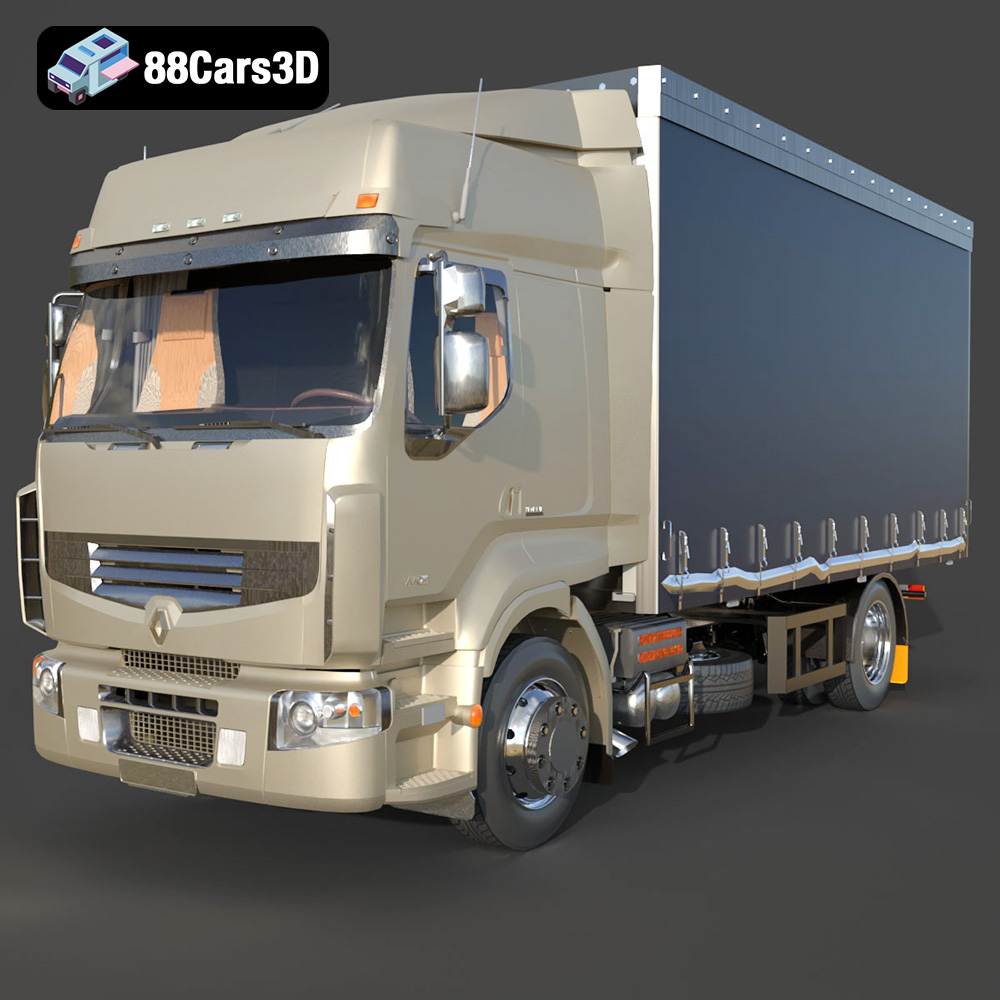
Texture: Yes
Material: Yes
Download the Renault Premium 440-002 3D Model featuring a detailed exterior, an optimized interior, and accurate real-world scale. Includes .blend, .fbx, .obj, .glb, .stl, .ply, .unreal, and .max formats for rendering, simulation, and game development.
Price: $10.79
View Product
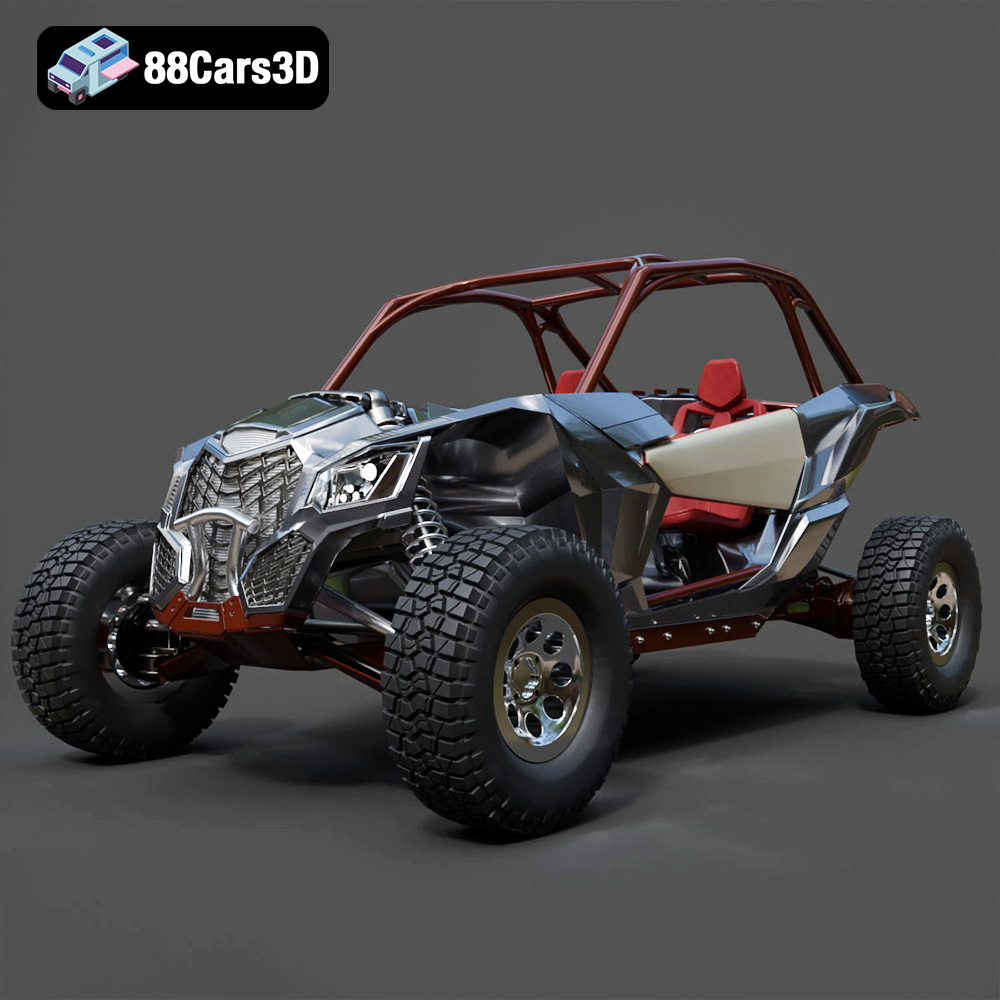
Texture: Yes
Material: Yes
Download the Can-Am Maverick 2019 3D Model featuring an aggressive off-road design, detailed chassis, and rugged tires. Includes .blend, .fbx, .obj, .glb, .stl, .ply, .unreal, and .max formats for rendering, simulation, and game development.
Price: $90.79
View Product
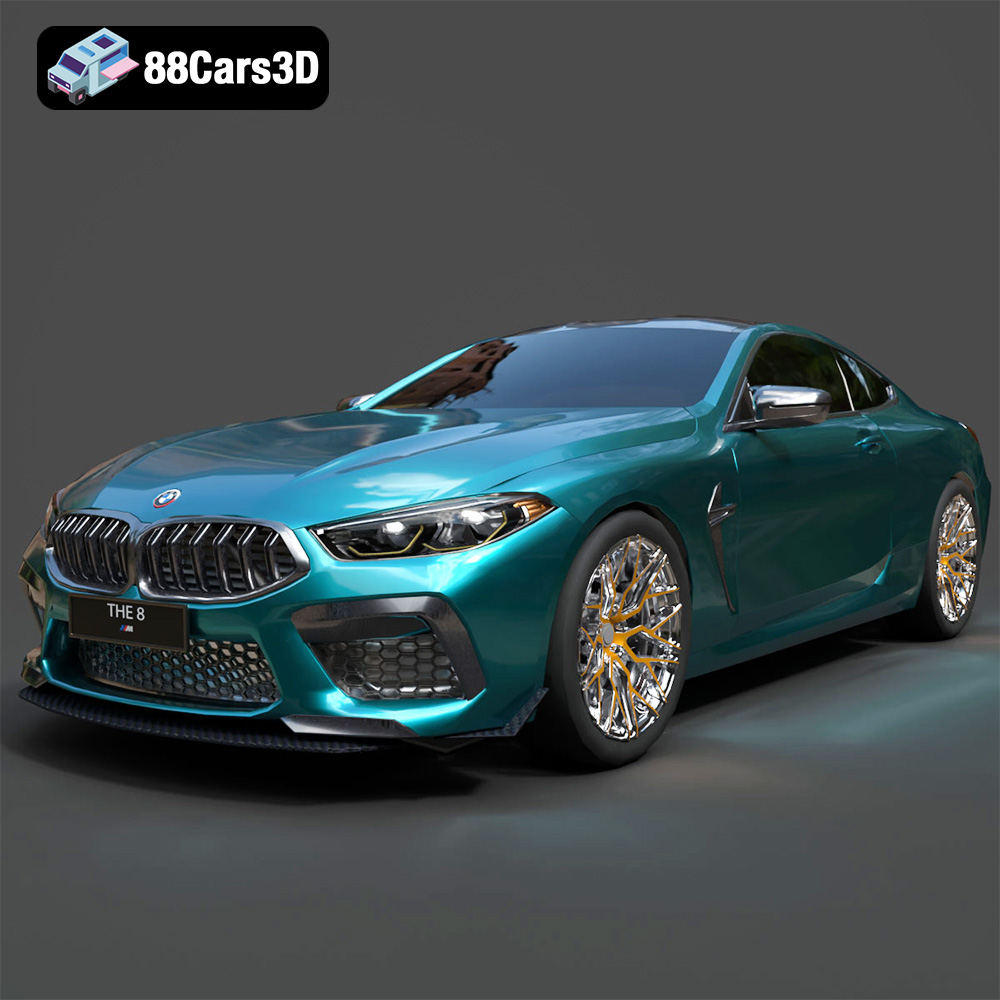
Texture: Yes
Material: Yes
Download the BMW M8 Competition 3D Model featuring aggressive styling, a luxurious interior, and high-performance detailing. Includes .blend, .fbx, .obj, .glb, .stl, .ply, .unreal, and .max formats for rendering, simulation, and game development.
Price: $110.79
View Product
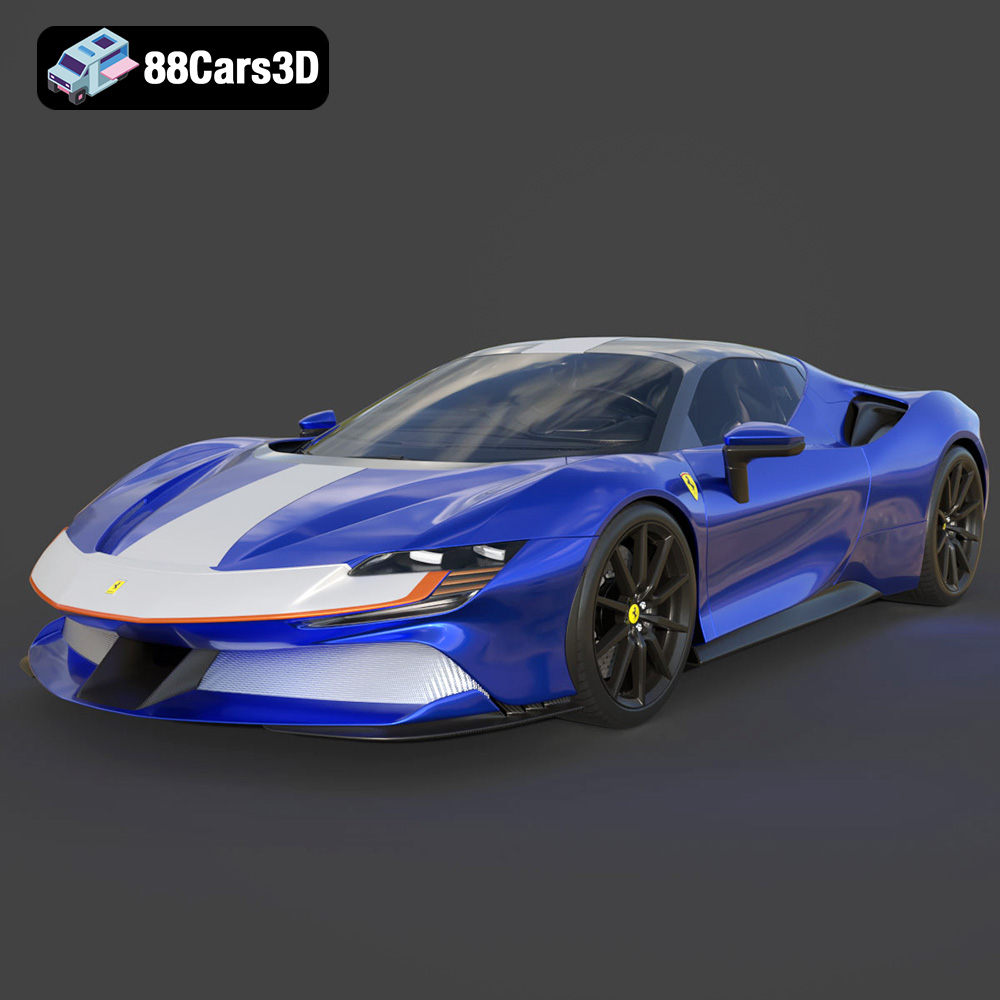
Texture: Yes
Material: Yes
Download the Ferrari SF90 Spider 3D Model featuring a meticulously detailed exterior, intricate interior, and realistic PBR materials. Includes .blend, .fbx, .obj, .glb, .stl, .ply, .unreal, and .max formats for rendering, simulation, and game development.
Price: $110.79
View Product
Texture: Yes
Material: Yes
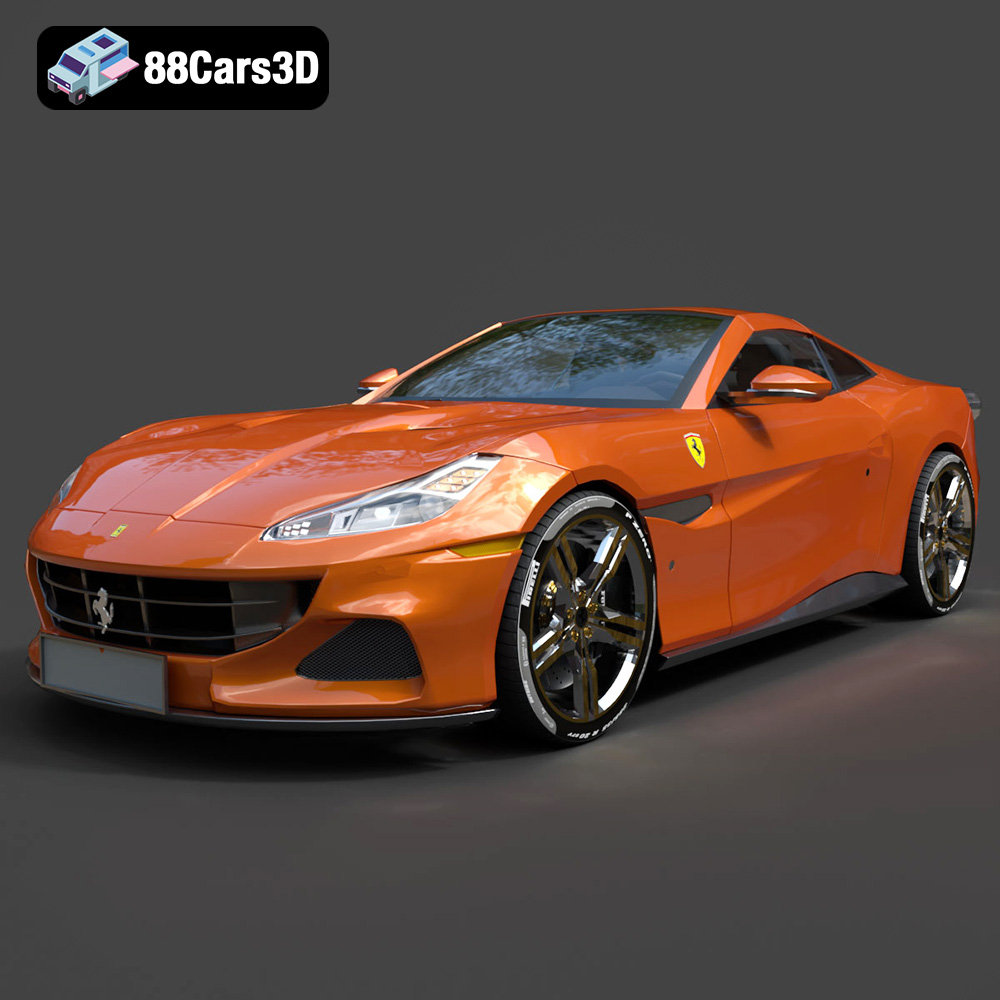
Download the Ferrari Portofino 3D Model featuring accurate body contours, detailed interior, and high-resolution textures. Includes .blend, .fbx, .obj, .glb, .stl, .ply, .unreal, and .max formats for rendering, simulation, and game development.
Price: $110.79
View Product
Texture: Yes
Material: Yes
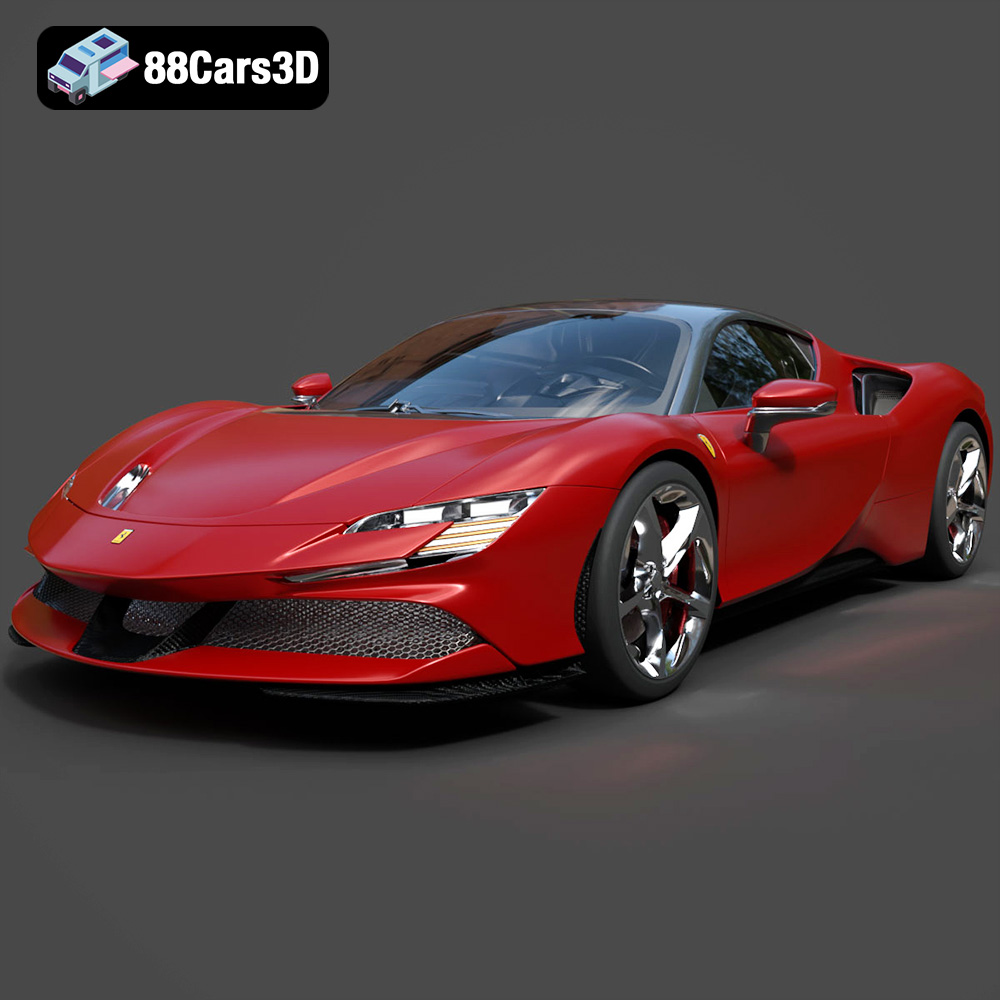
Download the Ferrari SF90 Stradale 3D Model featuring aggressive lines and sophisticated aesthetics. Includes .blend, .fbx, .obj, .glb, .stl, .ply, .unreal, and .max formats for rendering, simulation, and game development.
Price: $110.79
View Product
Texture: Yes
Material: Yes
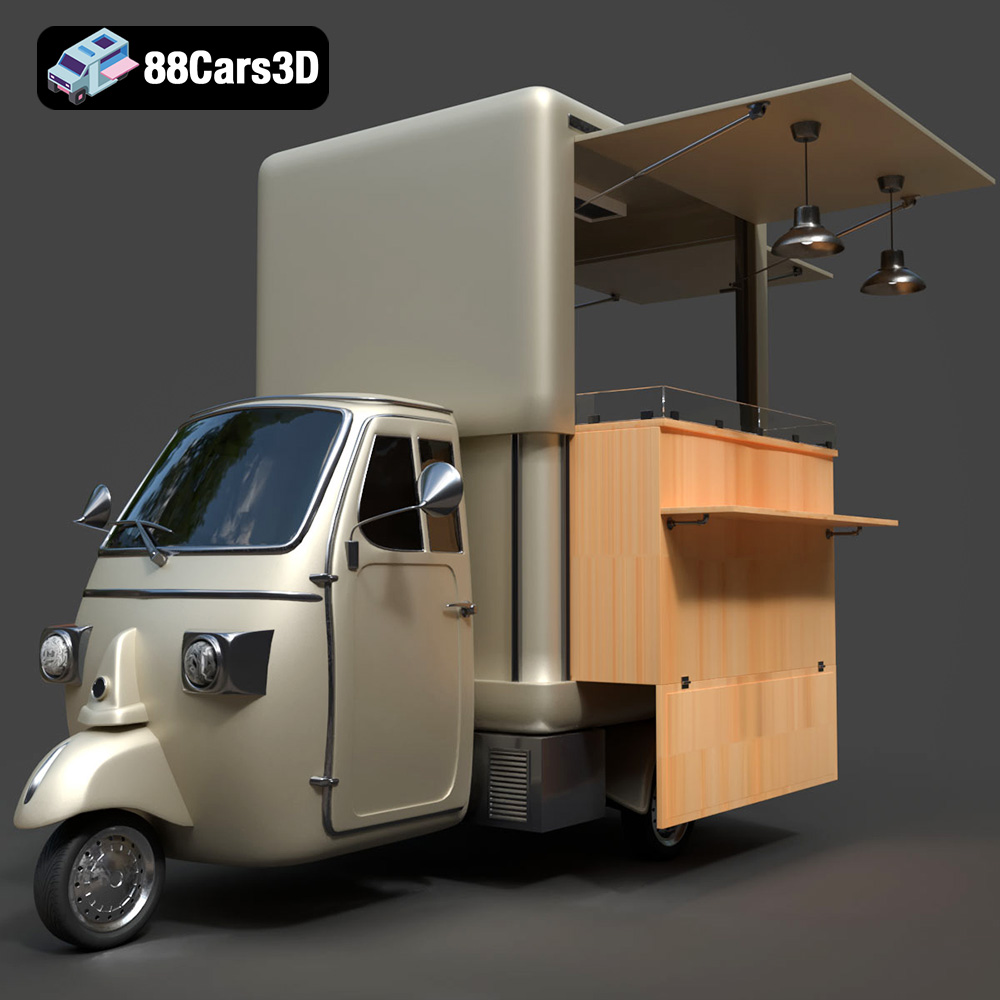
Download the Foodtruck Set 3-006 3D Model featuring a detailed exterior and interior, optimized for various uses. Includes .blend, .fbx, .obj, .glb, .stl, .ply, .unreal, and .max formats for rendering, simulation, and game development.
Price: $23.79
View Product
Texture: Yes
Material: Yes
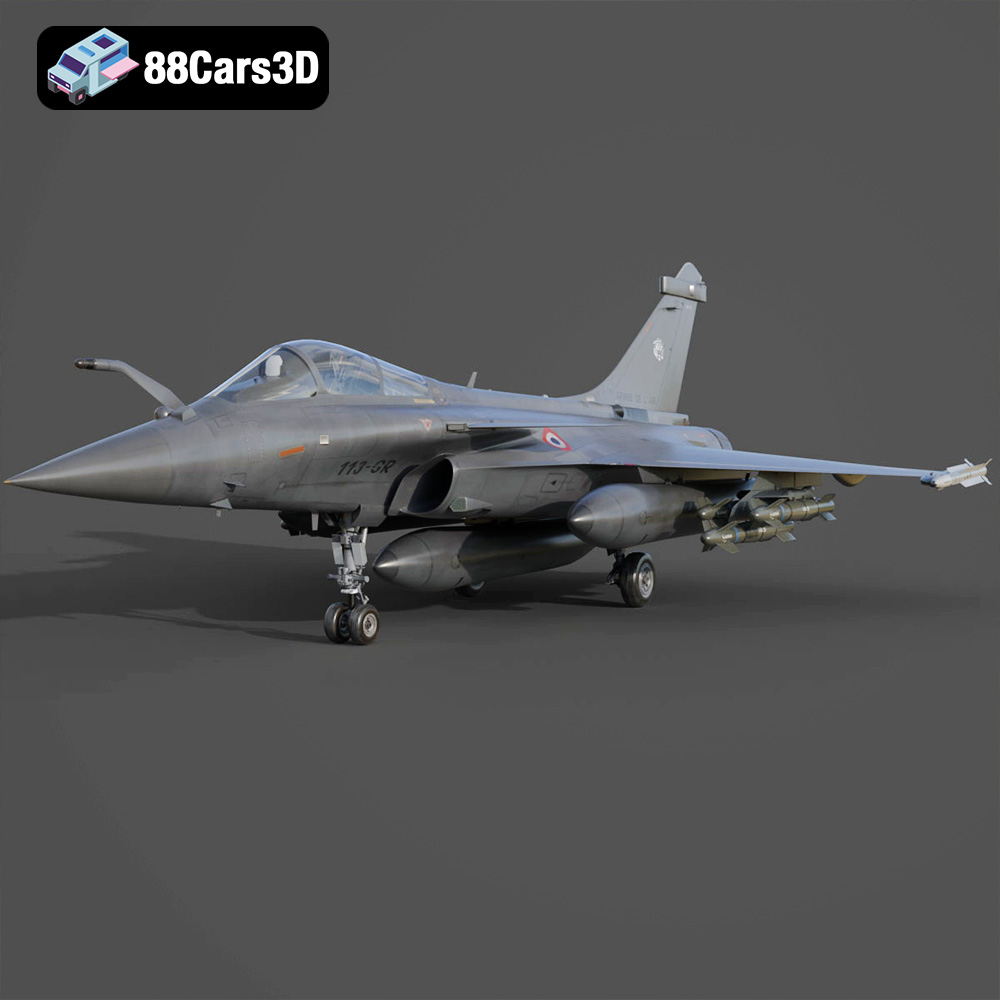
Download the Dassault Rafale Fighter Jet 3D Model featuring a detailed exterior, cockpit, and propulsion system. Includes .blend, .fbx, .obj, .glb, .stl, .ply, .unreal, and .max formats for rendering, simulation, and game development.
Price: $22.79
View Product
Texture: Yes
Material: Yes
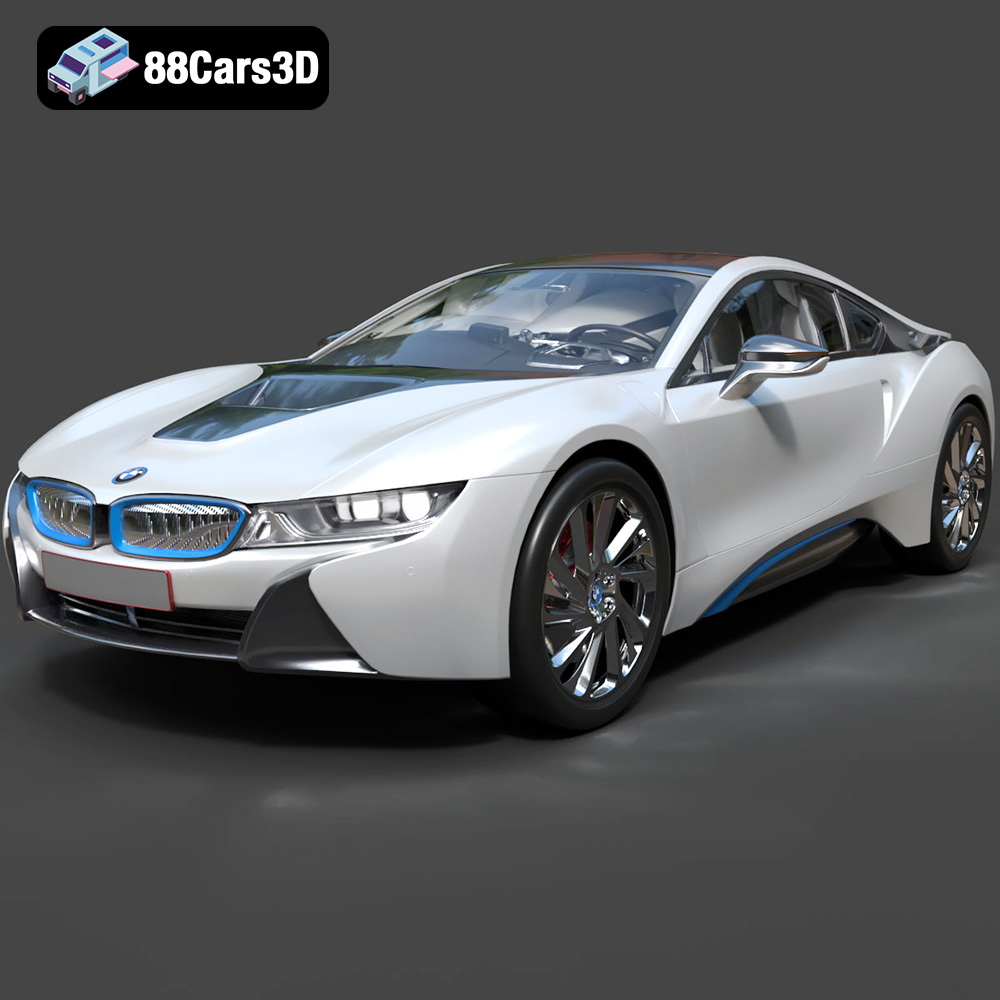
Download the BMW i8 2015 3D Model featuring its futuristic design and detailed interior, capturing the essence of a modern hybrid sports car. Includes .blend, .fbx, .obj, .glb, .stl, .ply, .unreal, and .max formats for rendering, simulation, and game development.
Price: $40.79
View Product
Texture: Yes
Material: Yes
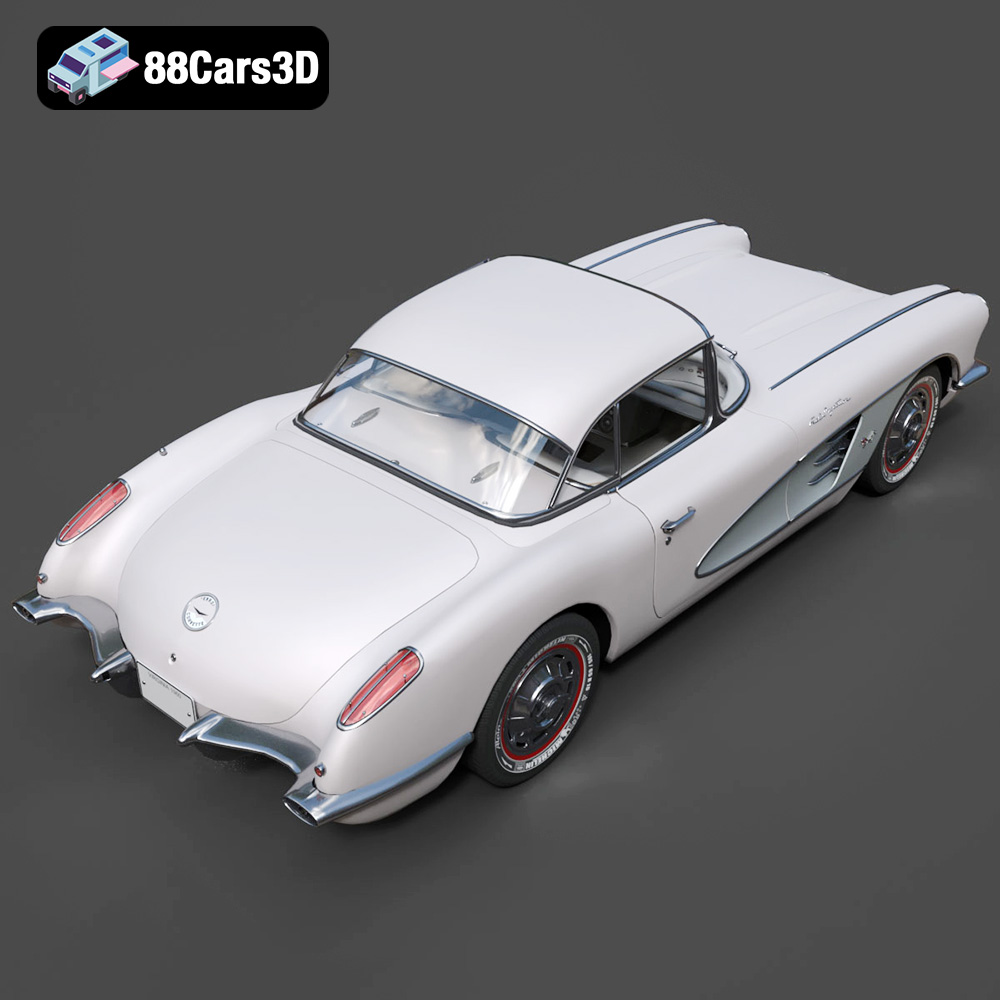
Download the Chevrolet Corvette Coupe 1960 3D Model featuring its iconic vintage design, detailed interior, and classic exterior styling. Includes .blend, .fbx, .obj, .glb, .stl, .ply, .unreal, and .max formats for rendering, simulation, and game development.
Price: $50.79
View Product


