⚡ FLASH SALE: Get 60% OFF All Premium 3D & STL Models! ⚡

“`html
The world of 3D printing, especially for intricate creations like detailed automotive models, hinges on a fundamental file format: STL. Often seen as the universal language for additive manufacturing, understanding the STL format – its structure, its reliance on triangles, and how to ensure its precision – is paramount for anyone looking to bring digital designs to life. Whether you’re a hobbyist eager to print your favorite classic car from a marketplace like 88cars3d.com, a seasoned maker optimizing for FDM printing, or an engineer prototyping a complex part, a thorough grasp of STL files is your first critical step. This article will demystify the STL format, explaining the underlying mesh topology, the importance of watertight models, and how to prepare and troubleshoot these files for flawless prints. We’ll delve into the technical nuances of slicing, support structures, and the crucial role of file integrity in achieving high-fidelity results, ensuring your 3D printed car models are as stunning as their real-world counterparts.
At its core, an STL (STereoLithography or Standard Tessellation Language) file describes the surface geometry of a three-dimensional object using a collection of connected triangles. This is known as a polygonal mesh. Unlike formats that store vector data or complex mathematical surfaces (like NURBS), STL simplifies everything into flat, planar triangles. Each triangle is defined by three vertices (points in 3D space) and a normal vector. The normal vector is crucial; it points outwards from the surface and indicates the direction the triangle’s surface is facing. This directional information is vital for 3D printers to understand which side is “inside” and which is “outside” the model, ensuring proper printing and preventing errors. The collection of all these triangles forms a continuous surface that approximates the original object’s shape. For highly detailed models, such as the printable car models found on 88cars3d.com, this means a large number of triangles are required to accurately represent curves, sharp edges, and subtle details like panel gaps or aerodynamic elements.
Each triangle in an STL file is precisely defined by three sets of X, Y, and Z coordinates, representing the locations of its vertices. Alongside these coordinates, a normal vector is provided. This vector, typically represented by its own X, Y, and Z components, is perpendicular to the plane of the triangle. Its magnitude is usually normalized to 1. The orientation of the normal vector is critical. By convention, it should point towards the outside of the model. If the normals are inconsistent (e.g., some pointing inwards, some outwards), the slicing software will struggle to interpret the model correctly, potentially leading to printing failures. For example, a normally oriented triangle indicates the “front” face of the surface, essential for algorithms that fill the interior or calculate surface normals for rendering and printing.
A fundamental requirement for a printable STL file is that it must be “watertight” or “manifold.” This means the mesh forms a closed, solid volume with no holes, gaps, or self-intersecting surfaces. Imagine filling the object with water; if it’s watertight, no water will leak out. Holes can occur where triangles are missing, edges are not properly connected, or surfaces overlap. Self-intersecting geometry happens when a surface folds over and passes through itself, creating confusing internal structures. Slicing software relies on the watertight nature of the mesh to determine the boundaries between the model’s interior and exterior. Non-manifold meshes can cause slicers to misinterpret the model, leading to missing sections in the print, incorrect support generation, or failed prints altogether. Ensuring your STL files are watertight is a non-negotiable step before sending them to the printer.
Once you have a clean, watertight STL file, the next crucial step is slicing. Slicing software (like Cura, PrusaSlicer, or Simplify3D) takes your 3D model and divides it into hundreds or thousands of thin horizontal layers. For each layer, it generates the toolpath (the path the printer’s nozzle or laser will follow) and defines all the necessary parameters for the print. This process is where the magic happens, translating your static 3D model into a series of instructions for the additive manufacturing machine. The quality of your final print is heavily influenced by the settings you choose during slicing. For intricate car models, optimizing these settings is key to capturing fine details, achieving smooth surfaces, and ensuring structural integrity. Parameters like layer height, print speed, infill density, and retraction settings all play a significant role.
Layer height is perhaps the most impactful slicing parameter regarding print quality and time. It determines the thickness of each individual layer deposited by the printer. A smaller layer height (e.g., 0.05mm or 0.1mm) results in finer detail, smoother curves, and a finish that requires less post-processing. This is particularly important for car models where smooth body panels and sharp lines are desired. However, printing with very fine layer heights significantly increases the print time, as the printer must lay down many more layers to complete the object. Conversely, a larger layer height (e.g., 0.2mm or 0.3mm) dramatically reduces print time but results in more visible layer lines and less fine detail. For most detailed automotive models, a layer height between 0.1mm and 0.15mm often strikes a good balance between detail and acceptable print duration.
The interior of a 3D printed object isn’t typically printed solid. Instead, a pattern of internal walls and structures is created, known as infill. Infill density, expressed as a percentage, determines how much material is used inside the model. A higher infill density (e.g., 50-100%) makes the object stronger, heavier, and more rigid, but consumes more filament and increases print time. A lower infill density (e.g., 10-20%) uses less material, prints faster, and results in a lighter object, which is often sufficient for display models or prototypes where extreme strength isn’t required. Various infill patterns exist, such as grid, cubic, gyroid, and honeycomb. The gyroid pattern is often favored for its excellent strength-to-weight ratio and ability to print without needing as many support structures in certain orientations. For printable car models, 15-25% infill is usually adequate for a sturdy yet lightweight result.
Print speed dictates how quickly the printer’s nozzle moves while extruding filament. Higher speeds can drastically cut down print times but can lead to a decrease in print quality, such as ringing artifacts, poor layer adhesion, or under-extrusion if the hotend can’t melt plastic fast enough. Conversely, very slow speeds can sometimes cause heat creep or filament jamming. Typical FDM print speeds for PLA range from 40-80 mm/s, with outer perimeters often printed slower (e.g., 20-40 mm/s) to achieve a smoother surface finish. Print temperature needs to be matched to the specific filament material being used. For standard PLA, temperatures between 190-220°C are common. ABS might require 230-260°C. It’s crucial to perform temperature towers and retraction tests to dial in the optimal settings for your chosen filament and printer combination, ensuring clean extrusion and strong layer bonding for your car models.
Many car models, with their overhanging fenders, spoilers, and intricate undercarriages, feature geometries that cannot be printed in mid-air without support. Support structures are temporary scaffolding printed alongside the model that hold up these overhanging sections. The proper generation, placement, and removal of supports are critical for achieving successful prints and maintaining the aesthetic integrity of your model. Poorly generated supports can leave unsightly marks, damage delicate features, or be incredibly difficult to remove. Sophisticated slicing software offers a range of options for customizing support structures, allowing for fine-tuning to minimize surface scarring and ease of removal.
Most slicers offer automatic support generation, which analyzes the model and places supports where it detects overhangs exceeding a certain threshold angle (typically 45-60 degrees). While convenient, automatic supports can sometimes be overly dense, difficult to remove, or place supports in undesirable locations. Manual support placement gives you direct control, allowing you to add or remove support pillars precisely where needed. This is invaluable for complex models where you want to avoid marring specific details, such as emblems or grilles. Many advanced users combine automatic generation with manual adjustments, refining the automatically placed supports to optimize the print. For high-detail car models, carefully considering where supports are placed is key to preserving the sharp lines and smooth surfaces.
Different types of supports exist, including standard “tree” or “branching” supports and “normal” or “grid” supports. Tree supports, often generated by newer slicer versions, are designed to be more material-efficient and easier to remove as they branch out from the model. Normal supports create a denser scaffolding. A critical aspect for easy removal is the support interface. This is a dense layer of material printed just below the actual model surface. By adjusting the “Support Interface Density,” “Support Interface Top/Bottom Spacing,” and “Support Interface Z Distance,” you can control how strongly the support adheres to the model. A small Z distance (e.g., 0.1-0.2mm) creates a more robust interface, while increasing the spacing or reducing density can make removal easier. Experimentation is key to finding the sweet spot that provides adequate support without damaging the model surface upon removal.
Once the print is complete and cooled, support removal begins. For FDM prints, this often involves carefully breaking away the support material with pliers, tweezers, or a hobby knife. If support interface settings were dialed in correctly, the supports should detach relatively cleanly. For more stubborn supports or very delicate parts, dissolving supports made of a soluble filament (like PVA or HIPS) using a dual-extruder printer is an option, though this adds complexity. After support removal, the model may require further post-processing. This can include sanding to smooth layer lines and remove any remaining support marks, filling small imperfections with putty, and finally, priming and painting to achieve a realistic finish. For highly detailed car models, patience and precision during support removal and subsequent sanding are crucial for a professional look.
Even seemingly perfect STL files can harbor hidden issues that can derail a 3D print. Mesh repair is a vital step, especially when downloading models from various sources or when creating complex designs. Issues like non-manifold edges, inverted normals, holes, or disconnected components can plague STL files. Fortunately, several software tools are available to diagnose and repair these problems, ensuring your models are print-ready. This proactive step saves time, filament, and frustration, making the printing process smoother, particularly for high-quality models like those from marketplaces such as 88cars3d.com, which generally strive for print-ready files but occasional issues can still arise.
Software like Meshmixer (free), Netfabb (commercial/free basic), or even Blender (free) can analyze your STL file for errors. They often provide visual cues for issues like:
The repair process usually involves running automated analysis and repair tools within the software, followed by manual inspection and correction where necessary.
The resolution of an STL file is determined by the number of triangles used to represent the object. A low-resolution STL will result in a blocky, faceted appearance, especially on curved surfaces. Conversely, a very high-resolution STL with millions of triangles can create excessively large file sizes, slowing down slicers and potentially causing performance issues. When exporting from CAD software or 3D modeling programs, you can often control the tessellation or export quality. For car models, aiming for a balance is key. You want enough triangles to capture the smooth curves of the bodywork and sharp edges of spoilers, but not so many that the file becomes unmanageable. A common approach is to export at a quality setting that renders smooth curves without excessive file bloat. For example, in many programs, specifying angular deviation or edge length tolerances during export allows you to fine-tune the mesh density.
While STL is ubiquitous for 3D printing, it’s not the only format. OBJ and FBX are other common formats that can store more information, such as color, texture mapping, and material properties. However, for the core purpose of defining printable geometry, STL remains the most widely supported. Some advanced workflows might involve using OBJ or FBX for initial design and then converting to STL for printing. For example, if you’re using a printer that can handle multi-color or multi-material printing, formats like 3MF or AMF offer more advanced capabilities than STL. However, for standard single-material FDM or resin printing, a well-prepared STL file is almost always sufficient and often preferred for its simplicity and universal compatibility.
Achieving the fine details and smooth finishes expected from high-quality automotive 3D prints requires not only excellent STL files and slicing but also a well-calibrated printer and appropriate material choices. The interplay between your printer’s hardware, its firmware settings, and the filament or resin you use is critical. For detailed car models, precision, dimensional accuracy, and surface finish are paramount, making calibration and material selection more important than for simpler objects.
A perfectly level print bed is foundational for successful prints. An uneven bed will lead to inconsistent first layers, causing prints to detach, warp, or have poor adhesion in certain areas. Most FDM printers offer automatic or manual bed leveling routines. Ensuring your Z-offset (the distance between the nozzle and the bed at the start of the print) is correctly set is also vital. A Z-offset that’s too high will result in a weak first layer that peels easily, while one that’s too low can cause nozzle clogs or scrape the build surface. For smooth, continuous first layers that form the base of your car model, meticulous bed leveling is non-negotiable.
Proper extrusion calibration ensures that your printer extrudes the correct amount of filament. This is done by calibrating the “E-steps” (extruder steps per millimeter) and adjusting the “Flow Rate” (or extrusion multiplier) in your slicer. If your printer extrudes too little filament (under-extrusion), your print will be weak with gaps between lines. If it extrudes too much (over-extrusion), dimensions can be skewed, and fine details can become blobs or merge together. For intricate car models where precise panel gaps and sharp edges are critical, accurately calibrated extrusion is essential to prevent over-extrusion from filling in these delicate features.
The choice of printing material significantly impacts the final look and feel of your car model.
For detailed printable car models, PLA is often a good starting point on FDM printers due to its ease of use and finish. For higher detail, especially with smaller scales, resin printing is often superior.
Mastering the art of 3D printing detailed car models begins with a profound understanding of the STL file format. From the fundamental structure of triangular meshes and the critical need for watertight geometry to the nuanced settings within slicing software, each step plays a vital role. By meticulously preparing your STL files, ensuring they are free of errors and appropriately tessellated, you lay the groundwork for success. Optimizing slicing parameters like layer height, infill, and print speed allows you to balance detail, strength, and print time. Furthermore, skillfully generating and removing support structures is essential for recreating the complex curves and overhangs characteristic of automotive designs. Finally, maintaining a well-calibrated printer and selecting the right materials will elevate your prints from hobbyist creations to show-stopping models. Platforms like 88cars3d.com provide access to a vast library of meticulously crafted printable car models, but achieving the best results always requires diligence in file preparation, slicing, and printing execution. Armed with this knowledge, you are well-equipped to tackle any automotive 3D printing project, bringing your passion for cars into the tangible world with exceptional precision and detail.
“`
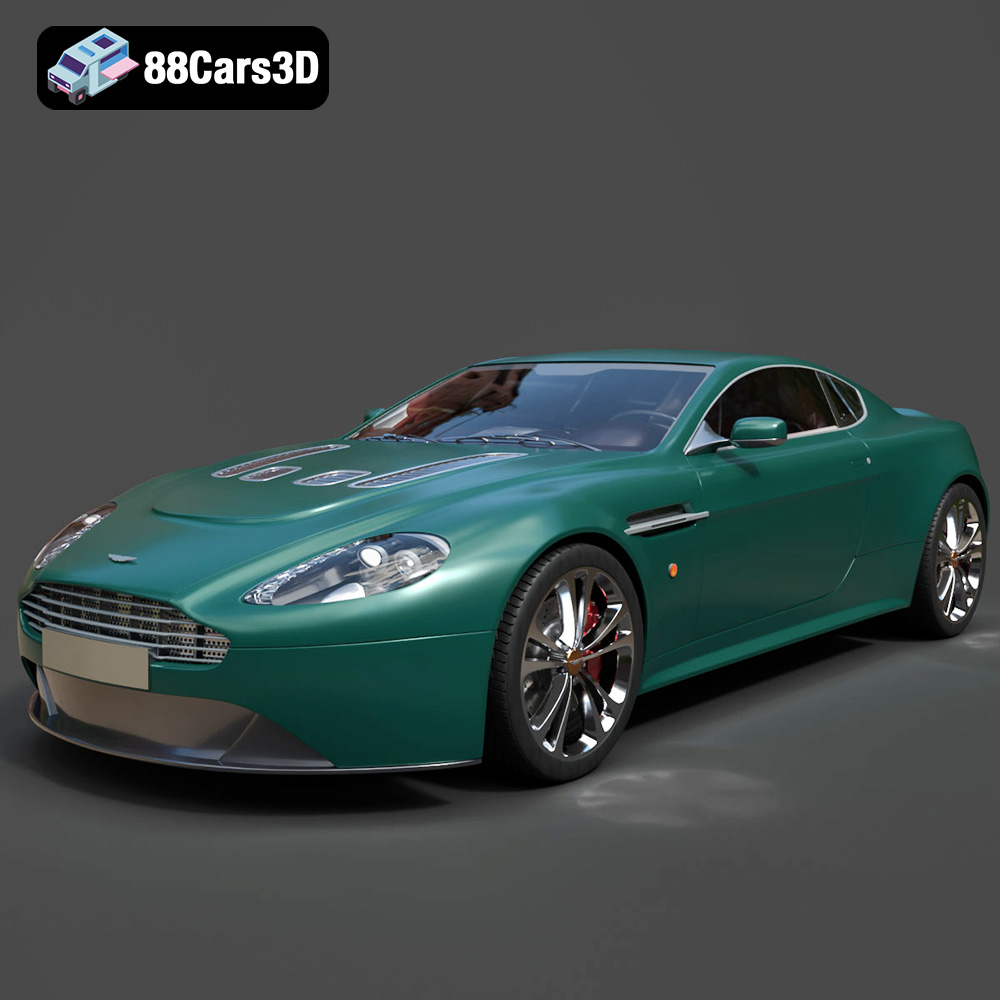
Texture: Yes
Material: Yes
Download the Aston Martin V12 Vantage 2010 3D Model featuring its luxurious design, powerful performance, and detailed interior and exterior. Includes .blend, .fbx, .obj, .glb, .stl, .ply, .unreal, and .max formats for rendering, simulation, and game development.
Price: $75.99

Texture: Yes
Material: Yes
Download the Aston Martin One-77 3D Model featuring an iconic design, detailed interior, and realistic exterior. Includes .blend, .fbx, .obj, .glb, .stl, .ply, .unreal, and .max formats for rendering, simulation, and game development.
Price: $99.79
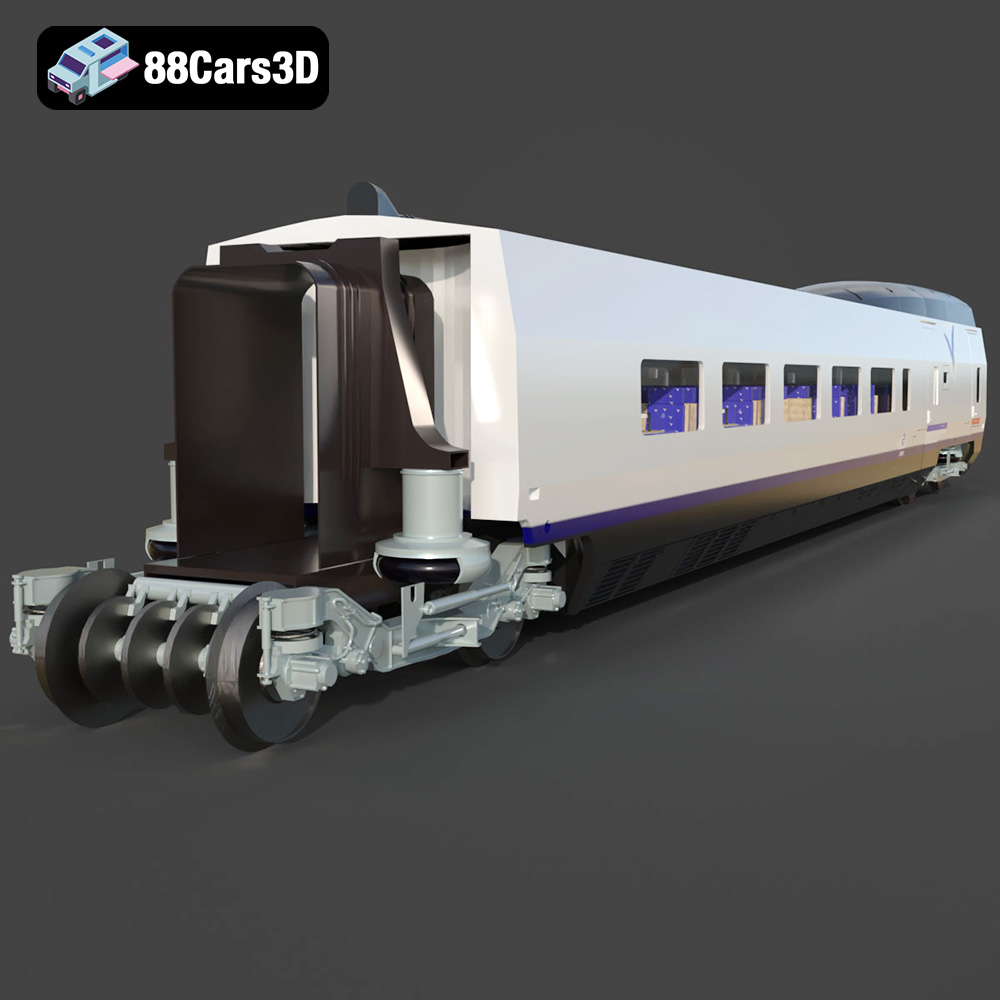
Texture: Yes
Material: Yes
Download the Vagon-Turist AVE Club 007 3D Model featuring a detailed interior, realistic exterior, and animation-ready components. Includes .blend, .fbx, .obj, .glb, .stl, .ply, .unreal, and .max formats for rendering, simulation, and game development.
Price: $10.79
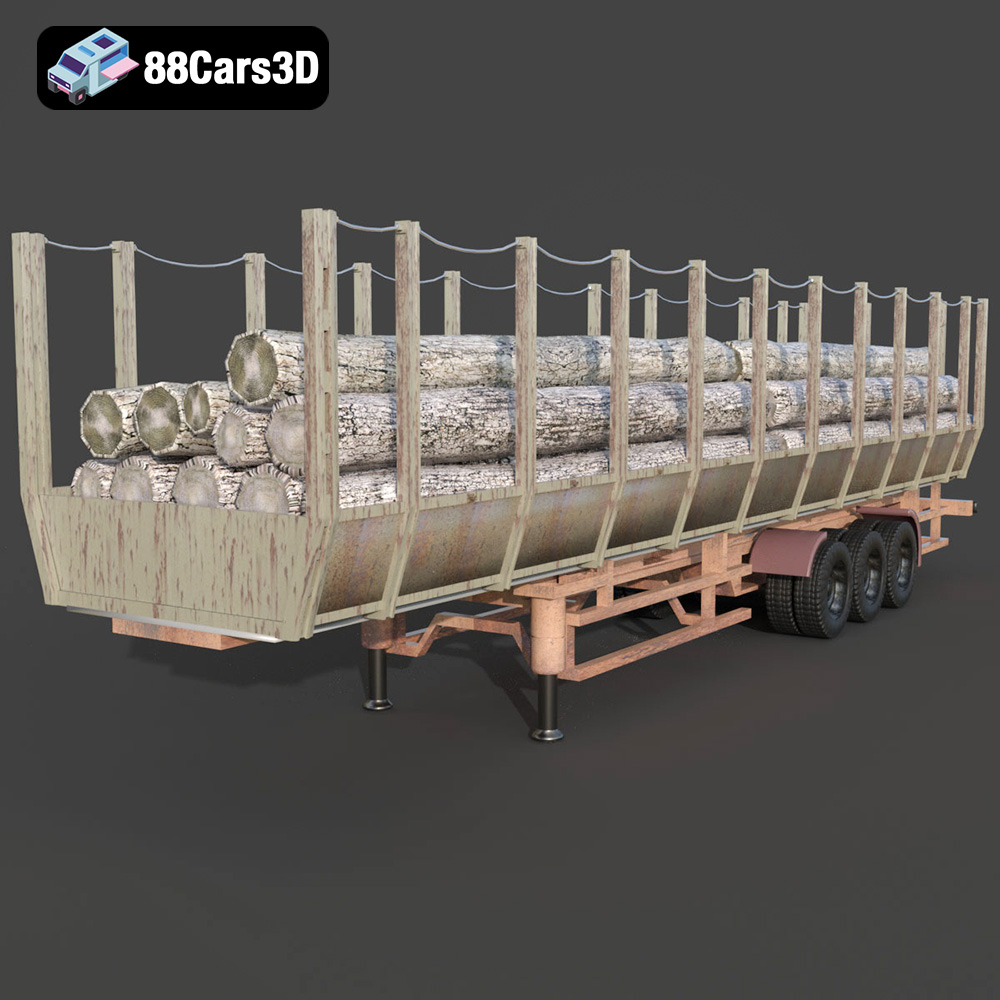
Texture: Yes
Material: Yes
Download the Forestry Trailer 006 3D Model featuring a heavy-duty frame, realistic wheels, and a functional design. Includes .blend, .fbx, .obj, .glb, .stl, .ply, .unreal, and .max formats for rendering, simulation, and game development.
Price: $10.79
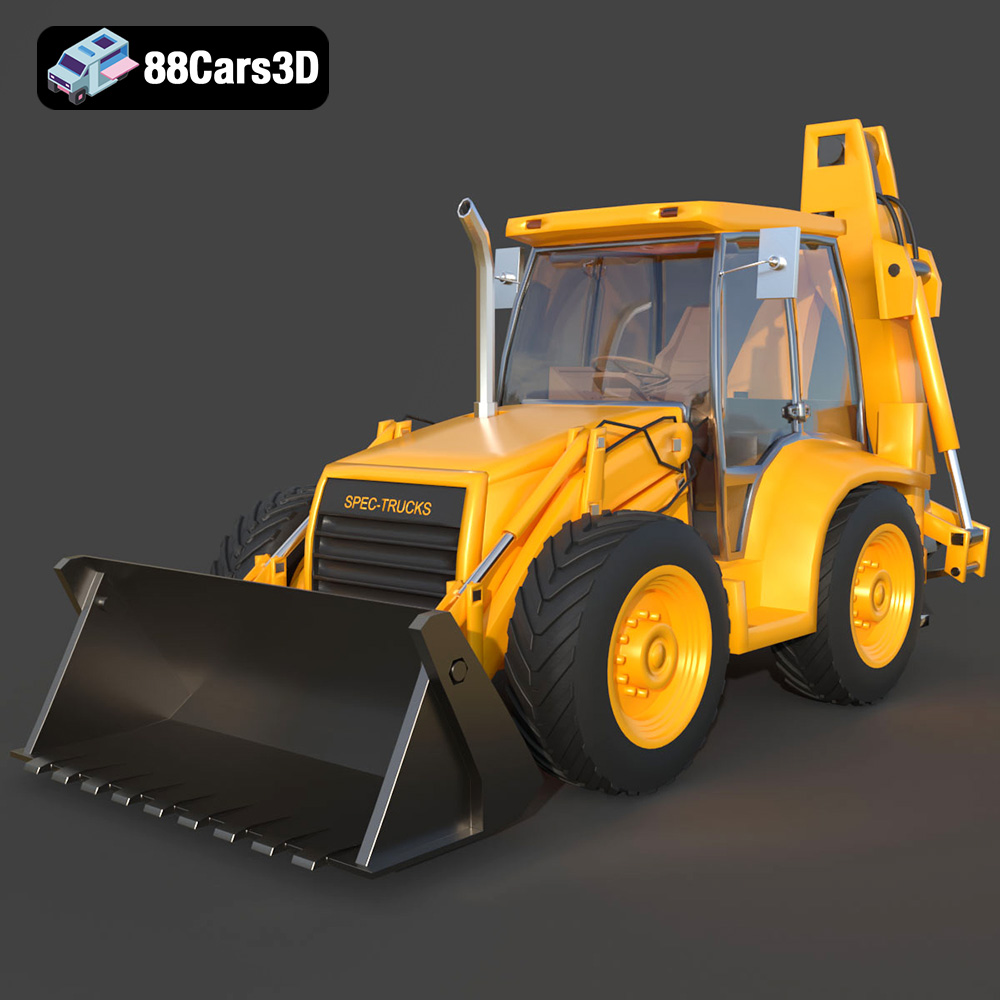
Texture: Yes
Material: Yes
Download the Spec Truck 3D Model featuring a rugged design and heavy-duty aesthetic. Includes .blend, .fbx, .obj, .glb, .stl, .ply, .unreal, and .max formats for rendering, simulation, and game development.
Price: $13.79
Texture: Yes
Material: Yes
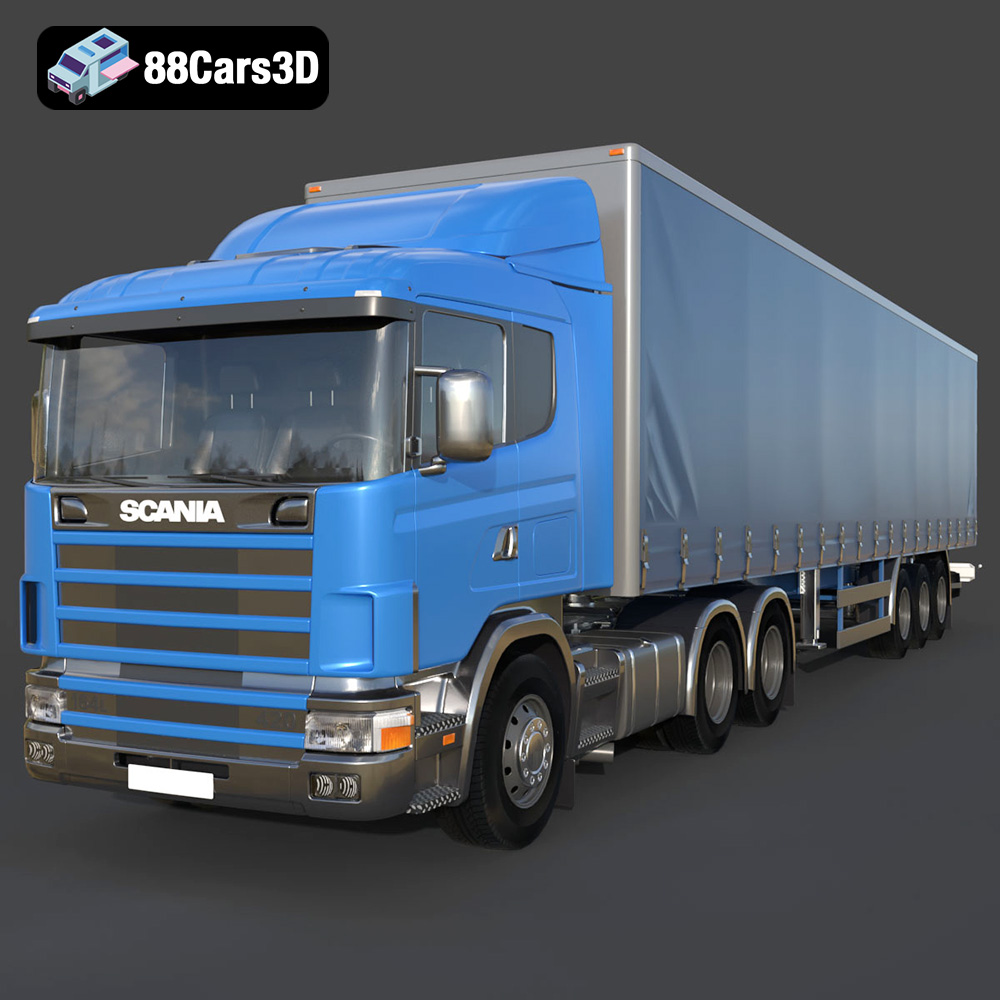
Download the Scania R420 3D Model featuring a detailed exterior cabin, robust chassis, and realistic wheel assemblies. Includes .blend, .fbx, .obj, .glb, .stl, .ply, .unreal, and .max formats for rendering, simulation, and game development.
Price: $10.79
Texture: Yes
Material: Yes
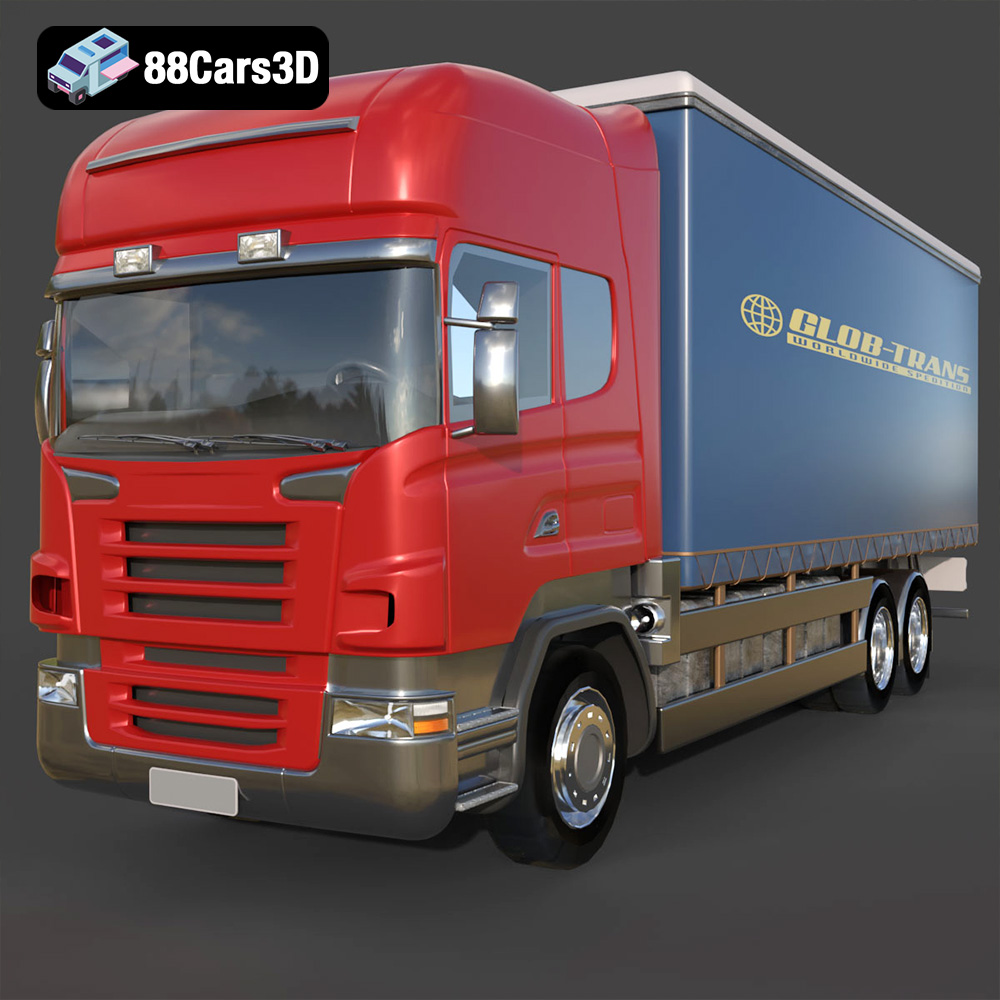
Download the Scania R-Series 002 3D Model featuring a detailed exterior and interior. Includes .blend, .fbx, .obj, .glb, .stl, .ply, .unreal, and .max formats for rendering, simulation, and game development.
Price: $10.79
Texture: Yes
Material: Yes
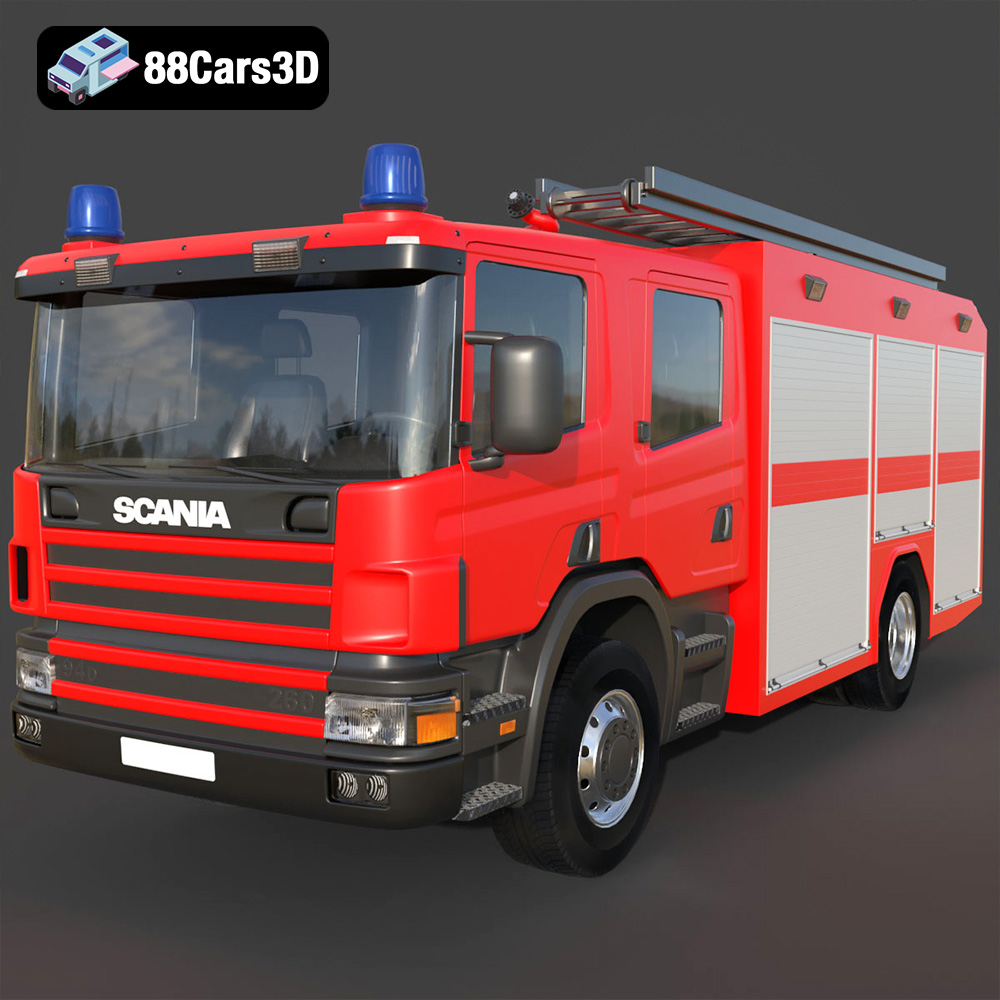
Download the Scania 94D 260 Fire Engine 3D Model featuring a detailed exterior with emergency lighting, robust chassis, and a functional cabin. Includes .blend, .fbx, .obj, .glb, .stl, .ply, .unreal, and .max formats for rendering, simulation, and game development.
Price: $10.79
Texture: Yes
Material: Yes
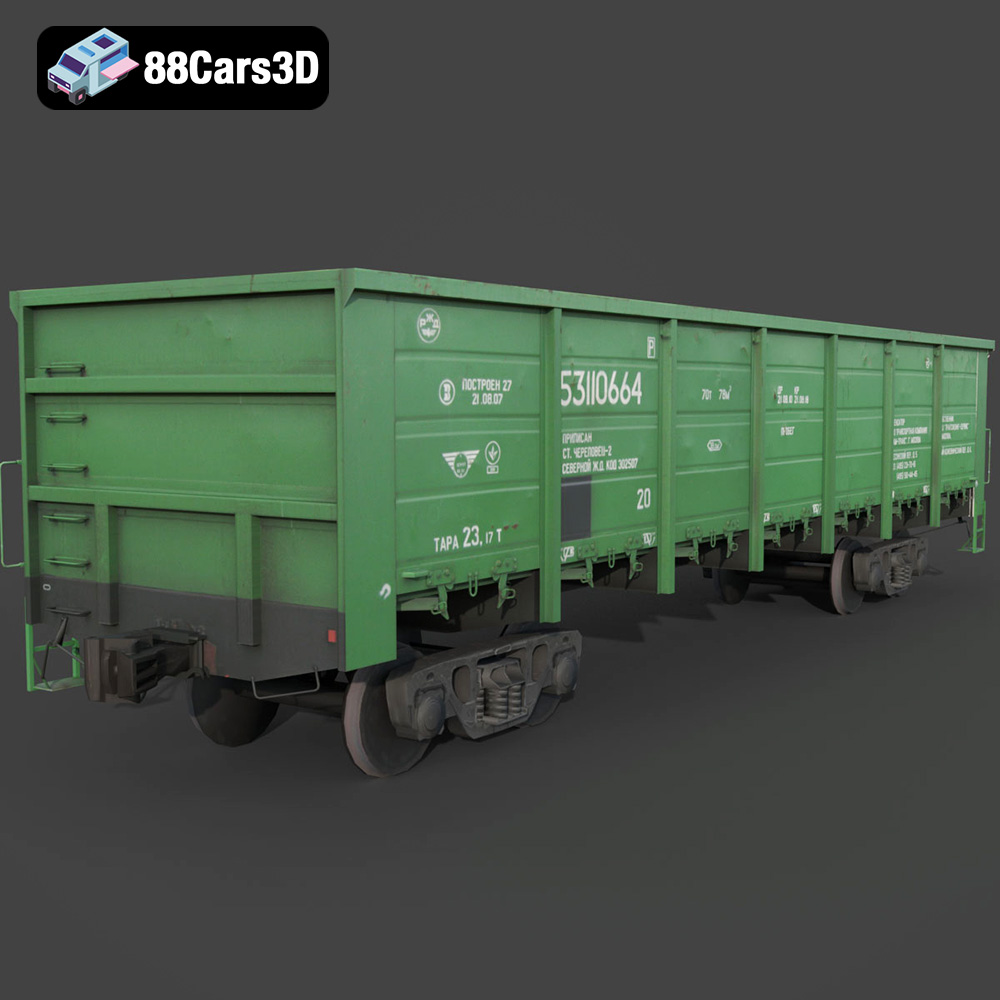
Download the Polu Vagon-17940-006 3D Model featuring a detailed exterior, realistic bogies, and modular components. Includes .blend, .fbx, .obj, .glb, .stl, .ply, .unreal, and .max formats for rendering, simulation, and game development.
Price: $10.79
Texture: Yes
Material: Yes
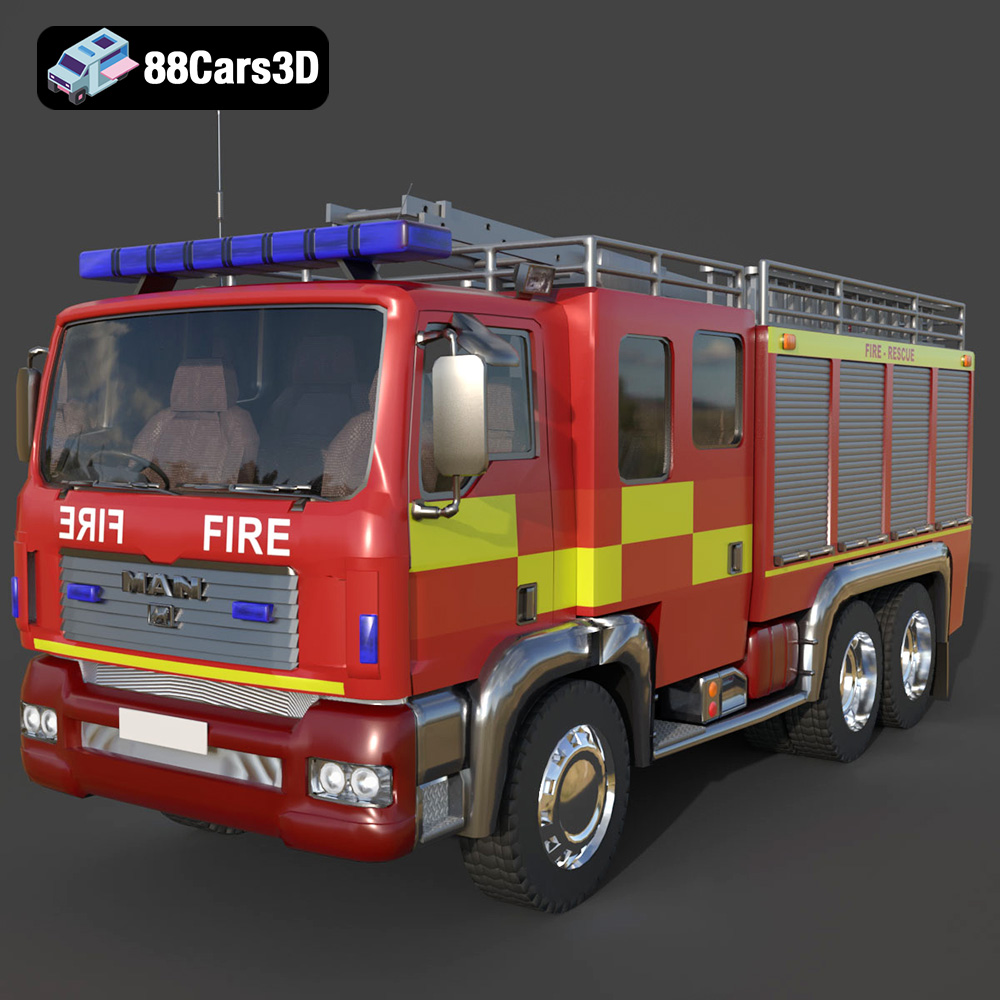
Download the POJARNIY 004 3D Model featuring a robust exterior with detailed emergency equipment and a functional interior. Includes .blend, .fbx, .obj, .glb, .stl, .ply, .unreal, and .max formats for rendering, simulation, and game development.
Price: $10.79

