⚡ FLASH SALE: Get 60% OFF All Premium 3D & STL Models! ⚡

“`html
Embarking on the journey to bring your favorite vehicles to life in 3D, whether as a static display model, a functional prototype, or an educational tool, begins with a digital blueprint. For 3D printing enthusiasts, this blueprint often takes the form of an STL file. Converting complex 3D vehicle models into a printable STL format can seem daunting, especially when aiming for the high-quality results expected by collectors and makers. This comprehensive guide will demystify the process, from understanding the intricacies of STL files and mesh topology to mastering software tools and optimizing settings for your specific 3D printer. We’ll cover everything from initial file preparation and mesh repair to slicer settings and post-processing, ensuring you can transform any digital car model into a successful 3D print. Whether you’re sourcing models from platforms like 88cars3d.com or working with your own designs, this article provides the essential technical knowledge to achieve stunning printable car models.
The Stereolithography (STL) file format is the de facto standard for 3D printing. At its core, an STL file describes the surface geometry of a 3D object using a collection of triangular facets. Each facet is defined by the coordinates of its three vertices and a normal vector, which indicates the outward-pointing direction of the surface. This seemingly simple representation, however, carries significant implications for printability. For a model to be successfully translated into a physical object by a 3D printer, its STL representation must be “watertight” or manifold, meaning it encloses a volume without any holes, gaps, or self-intersections. A non-manifold mesh can lead to slicing errors, resulting in missing sections, incorrect infill, or outright print failures. Understanding this fundamental aspect is the first step towards creating successful 3D printable car models.
The way a 3D model’s surface is tessellated into triangles is known as its mesh topology. For 3D printing, clean and well-structured topology is crucial. This involves ensuring that all triangles are oriented correctly (their normal vectors consistently point outwards), edges are shared by no more than two triangles, and there are no internal faces or coincident vertices. Models sourced from professional marketplaces like 88cars3d.com are typically designed with these principles in mind, offering clean geometry. However, when working with models from other sources or performing significant modifications, checking and correcting topology becomes paramount. Poor topology can manifest as visual artifacts in the slicer, such as holes or inverted surfaces, which directly translate into printing problems.
Key considerations for mesh topology:
When exporting a 3D model to STL format, you’ll encounter settings related to resolution, often expressed as deviation or angle tolerance. These settings control how accurately the curved surfaces of the original model are approximated by flat triangles. A lower deviation or angle tolerance results in more triangles and a smoother, more detailed surface, but also a larger file size. Conversely, a higher tolerance simplifies the mesh, reducing file size but potentially introducing faceting artifacts, especially on curved surfaces like a car’s body panels.
For printable car models, striking a balance is key. You want enough detail to capture the curves and lines of the vehicle, but not so much that the file becomes unmanageable or unnecessarily complex. For detailed models like those found on 88cars3d.com, it’s often recommended to export with a relatively low tolerance (e.g., 0.01mm or less) to preserve fine features, and then consider mesh reduction techniques if file size becomes an issue.
Before exporting to STL, the vehicle model itself needs careful preparation. This stage is critical for ensuring that the final printable car model is accurate, detailed, and free from common issues that plague 3D prints. Whether you are modifying an existing model or creating one from scratch, understanding the implications of scale, wall thickness, and feature design is essential. The goal is to create a digital representation that translates seamlessly into a physical object with minimal or no post-conversion repair.
It’s crucial to establish the correct scale and units for your vehicle model early in the process. Most 3D modeling software allows you to set working units (e.g., millimeters, centimeters, inches). For 3D printing, millimeters are the most common standard. Ensure your vehicle model is scaled appropriately for your intended print size. A common mistake is designing a model at a very large scale and then trying to shrink it down for printing, which can lead to tiny, unprintable details. Conversely, starting with a small scale and trying to enlarge it can result in pixelated or blocky geometry.
When downloading models from marketplaces such as 88cars3d.com, the intended scale is often clearly indicated. If not, it’s good practice to verify the model’s dimensions within your slicer or modeling software. If you need to rescale a model, do so uniformly across all axes to maintain its proportions. Be aware that scaling can sometimes affect wall thicknesses and feature sizes, so it’s wise to re-check these aspects after resizing.
3D printers build objects layer by layer, and these layers have a finite thickness determined by your chosen layer height and nozzle diameter (for FDM) or pixel size (for resin). Therefore, all parts of your vehicle model must have a minimum wall thickness that is printable. Thin walls, such as delicate spoilers, mirrors, or antenna, can be extremely fragile or fail to print entirely. Likewise, very small details might not be resolvable by your 3D printer, especially on FDM printers with larger nozzle sizes.
For FDM printing, a general rule of thumb is to ensure walls are at least 2-3 times your nozzle diameter. For example, with a 0.4mm nozzle, aiming for a minimum wall thickness of 0.8mm to 1.2mm is advisable. For resin printers, the minimum printable feature size is much smaller, often in the range of 0.1mm to 0.3mm, but excessively thin features can still be prone to breakage. When preparing models, pay close attention to areas like door handles, wipers, and grille details. If they are too thin, they may need to be thickened, simplified, or designed as separate pieces for assembly.
The inherent nature of 3D printing involves building objects layer by layer, which makes printing features that overhang existing layers challenging. Excessive overhangs require support structures to prevent the molten plastic or liquid resin from sagging or collapsing during the print. While slicer software can automatically generate supports, designing your vehicle model with printability in mind can significantly reduce the need for them, leading to cleaner prints with less post-processing and fewer marks on the model’s surface.
Consider the orientation of your model. Features like wheel arches, spoilers, and undercarriages often create overhangs. By strategically orienting the model in your slicer, you can minimize the severity of these overhangs. For example, printing a car body upright might require extensive supports under the roof and chassis. However, printing it at a slight angle or even upside down could reduce the amount of support needed on the most visible surfaces. When generating printable car models, designers often split complex vehicles into multiple parts (body, chassis, wheels) to allow for optimal printing orientation of each component.
Once your model is prepared, the next step is to convert it into a watertight STL file. This often involves using specialized software to check for and repair any mesh errors. Even models exported from professional sources may sometimes require minor adjustments depending on the specific requirements of your 3D printer and slicer.
Autodesk Meshmixer is a free and powerful tool for repairing and editing 3D meshes. It excels at automated mesh analysis and repair functions. You can import various 3D file formats (including OBJ, FBX, and even native CAD files if imported via other software) and then use Meshmixer’s tools to ensure your model is manifold before exporting it as an STL.
Workflow in Meshmixer:
Blender is a free and open-source 3D creation suite that offers robust modeling and mesh editing tools. While it has a steeper learning curve than Meshmixer, it provides unparalleled control over mesh topology. Blender can import and export a wide range of file formats, including STL.
Workflow in Blender:
Some advanced software like Autodesk Netfabb (now part of Fusion 360) offers professional-grade mesh repair capabilities. Additionally, many modern slicers, including PrusaSlicer and Ultimaker Cura, have basic mesh repair functions that can automatically fix simple issues when importing an STL file. While these built-in slicer tools are convenient for minor problems, they are often less sophisticated than dedicated mesh editing software for complex repairs.
When using PrusaSlicer or Cura:
Converting your vehicle model to a watertight STL is only half the battle. The other crucial part is configuring your 3D printer’s slicer software to produce a high-quality print. Slicer settings dictate how the STL file is translated into machine instructions (G-code) that your 3D printer follows. Fine-tuning these parameters is essential for achieving the desired level of detail, strength, and surface finish for your printable car models.
Layer height is one of the most significant settings affecting print quality and time. It determines the thickness of each individual layer deposited by the printer. A smaller layer height (e.g., 0.1mm) results in finer details, smoother curves, and less visible layer lines, making it ideal for intricate models like collectible cars. However, it also significantly increases print time as the printer has to lay down many more layers to build the object.
Conversely, a larger layer height (e.g., 0.2mm or 0.3mm) prints much faster but results in more pronounced layer lines and less detail. For FDM printers, a layer height of 0.1mm to 0.15mm often strikes a good balance for detailed car models. For resin printers, layer heights are typically much smaller (0.02mm to 0.05mm), providing exceptional detail automatically.
Choosing the right layer height:
Infill refers to the internal structure printed within the outer walls of your model. For most display models, high infill density is not necessary and only wastes material and print time. A lower infill percentage (e.g., 10-20%) is often sufficient to provide internal support for the outer layers and add some rigidity.
The choice of infill pattern can also impact strength and print time. Common patterns include:
For printable car models, especially those that might be handled frequently, a pattern like Gyroid or Cubic at 15-20% infill usually provides a good balance of strength and material efficiency. Ensure the infill doesn’t create too much stress on thin walls.
Print speed is another critical factor. Printing too fast can lead to poor layer adhesion, ringing artifacts (ghosting), and reduced detail. Printing too slowly can increase print time unnecessarily and may even cause heat creep or oozing issues.
A good starting point for FDM printing detailed models like cars is around 40-60 mm/s for general movement, with outer walls printed even slower (e.g., 20-30 mm/s) for better surface finish. Always perform temperature towers and retraction calibration tests for your specific filament to find the optimal temperature and retraction settings, as these directly influence print quality and stringing, which can mar the smooth surfaces of a car model.
Key calibration prints:
Properly generated and placed support structures are vital for printing models with overhangs, and ensuring good bed adhesion prevents the print from detaching from the build plate during the printing process. These two elements are often closely linked, as a detached print is a failed print, regardless of support quality.
Most slicers offer automatic support generation. You can typically choose between ‘Normal’ supports (standard tree-like structures) and ‘Tree’ supports (which branch out from a single point, often using less material and being easier to remove). For printable car models, Tree supports are often preferred as they can minimize contact points on the model’s surface, reducing the amount of sanding and cleanup required.
However, automatic supports are not always perfect. You may need to manually add supports to critical overhangs or remove supports from areas where they would be difficult to access. Some slicers allow you to paint on supports or define support blockers. For complex models, spending time refining support placement can save hours of post-processing and prevent print failures.
Tips for effective supports:
As mentioned earlier, the orientation of your vehicle model on the build plate is paramount. A clever orientation can dramatically reduce the need for supports, especially on the most visible surfaces. For instance, a car body might be best printed at a 15-30 degree angle tilted backward to reduce overhangs on the hood and roof. Wheels are often best printed standing upright.
Experiment with different orientations in your slicer. Visualize the overhangs and anticipate where supports will be generated. The goal is to have supports primarily on the bottom surfaces or areas that will be hidden after assembly.
A solid first layer is the foundation of any successful 3D print. If your model detaches from the build plate, the entire print is compromised. Several strategies can improve bed adhesion:
For most vehicle models printed with PLA or PETG on a well-leveled bed with appropriate bed temperature, a brim is usually sufficient. For materials like ABS or if you experience consistent adhesion issues, consider using a raft or specialized build surface adhesives (glue stick, hairspray).
Once your printable car model has successfully emerged from the 3D printer, the journey isn’t over. Post-processing is where you refine the print, remove imperfections, and prepare it for display or further assembly. The techniques you employ will depend on the printing technology (FDM vs. Resin), material, and your desired finish.
Carefully remove support structures using pliers, flush cutters, or specialized tools. For resin prints, this is often done after washing and curing, sometimes while the model is still slightly flexible. Be patient, especially with intricate parts, to avoid breaking delicate features.
After support removal, you’ll likely see small marks or blemishes where the supports connected to the model. For FDM prints, sanding is the primary method for smoothing these areas and the overall surface. Start with coarser grit sandpaper (e.g., 150-220 grit) and progressively move to finer grits (e.g., 400, 800, 1000+). Wet sanding can help reduce dust and achieve a smoother finish.
For resin prints, a gentle sanding process similar to FDM can be used, or specific resin smoothing techniques like isopropyl alcohol baths or specialized smoothing compounds can be employed. Airbrushing a filler primer can also reveal imperfections and create a uniform surface for painting.
For FDM prints, especially those intended for painting, filling small gaps or layer lines might be necessary. Hobby-grade putty or specialized 3D print fillers can be used. Apply thin layers, allowing them to dry thoroughly before sanding. Multiple applications might be needed for a perfectly smooth finish.
Priming is a crucial step before painting any 3D print. A good quality primer (e.g., a spray primer designed for plastics) will create a uniform surface, highlight any remaining imperfections that need further attention, and provide a base for your paint to adhere to. Apply primer in thin, even coats, allowing adequate drying time between applications.
With the model smoothed, filled, and primed, it’s ready for painting. Acrylic paints are popular for model making due to their versatility and ease of use. You can use brushes for detailed work or airbrushes for smooth, uniform coverage. Take your time and apply multiple thin coats rather than one thick one to avoid obscuring details.
If your vehicle model was designed in multiple parts, this is the stage for assembly. Use appropriate adhesives like super glue (cyanoacrylate), model cement, or epoxy, depending on the plastic type and the strength required. Ensure proper alignment before the adhesive sets.
Creating high-quality 3D printable car models from digital designs is a rewarding process that blends technical understanding with artistic execution. By mastering the nuances of the STL file format, meticulously preparing your models with attention to scale, wall thickness, and printability, and leveraging powerful software for mesh repair, you lay a solid foundation. The journey continues through the careful optimization of slicer settings—layer height, infill, speed, and temperature—and the strategic application of supports and bed adhesion techniques to ensure successful physical reproduction.
Finally, dedicated post-processing, from meticulous support removal and surface smoothing to precise painting and assembly, transforms a raw print into a finished masterpiece. Whether you’re downloading intricate designs from curated platforms like 88cars3d.com or preparing your own creations, the principles discussed here will empower you to overcome challenges and achieve exceptional results. Embrace the iterative nature of 3D printing, learn from each print, and continually refine your techniques. With practice and this comprehensive guide, you’ll be well on your way to producing stunning, detailed, and truly collectible 3D printed vehicle models that stand out.
“`
Texture: Yes
Material: Yes
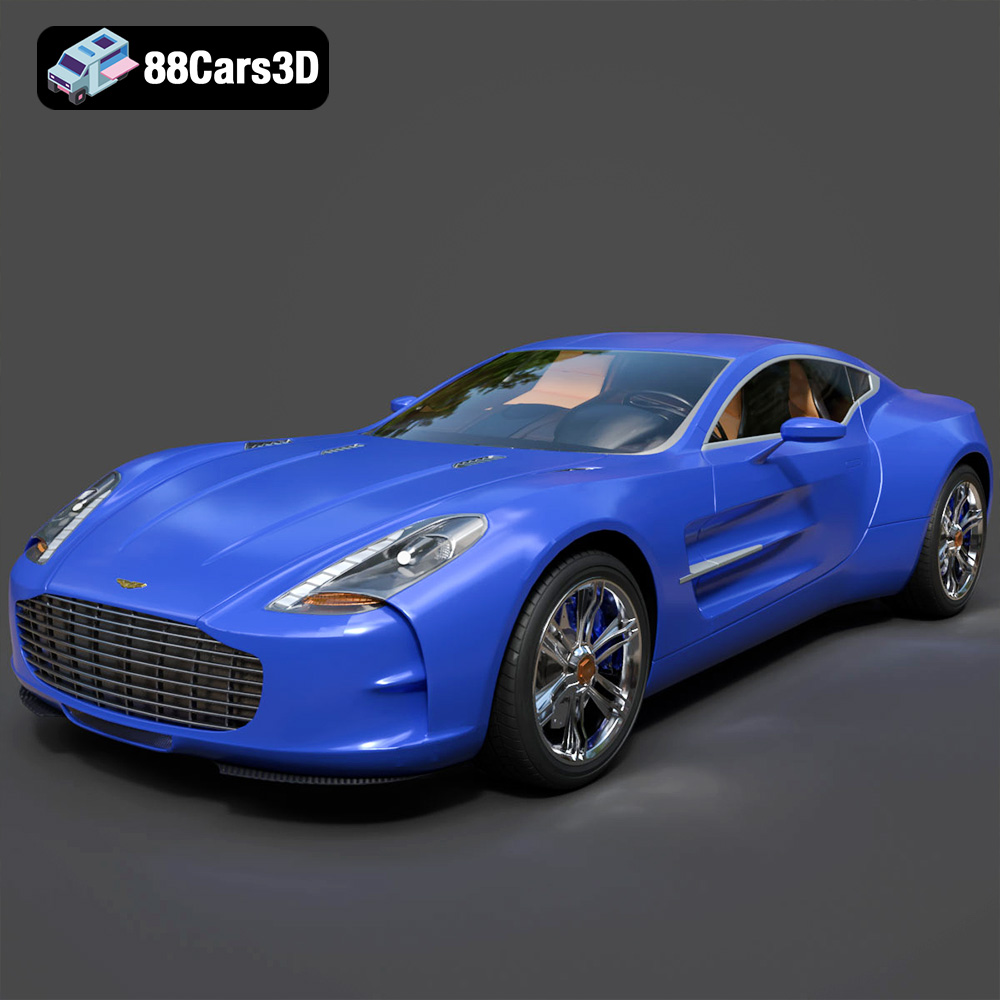
Download the Aston Martin One-77 3D Model featuring an iconic design, detailed interior, and realistic exterior. Includes .blend, .fbx, .obj, .glb, .stl, .ply, .unreal, and .max formats for rendering, simulation, and game development.
Price: $99.79
Texture: Yes
Material: Yes
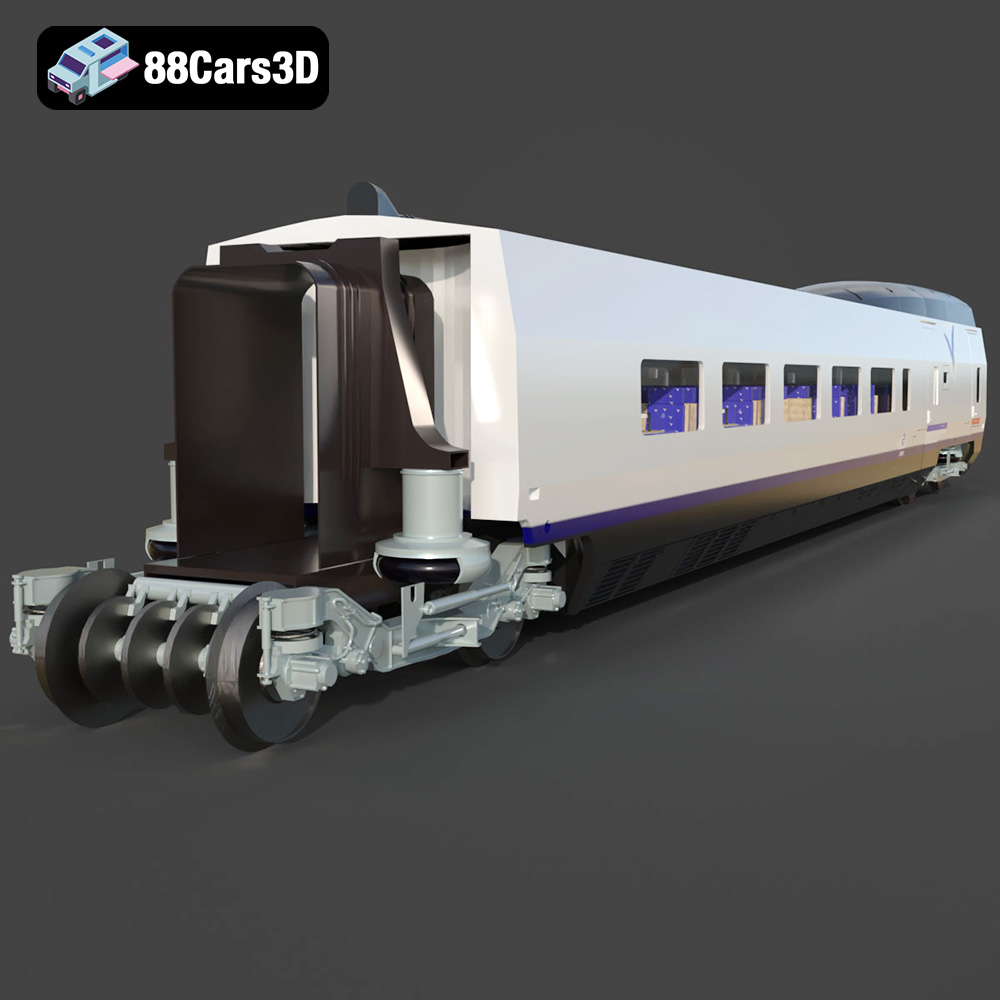
Download the Vagon-Turist AVE Club 007 3D Model featuring a detailed interior, realistic exterior, and animation-ready components. Includes .blend, .fbx, .obj, .glb, .stl, .ply, .unreal, and .max formats for rendering, simulation, and game development.
Price: $10.79
Texture: Yes
Material: Yes
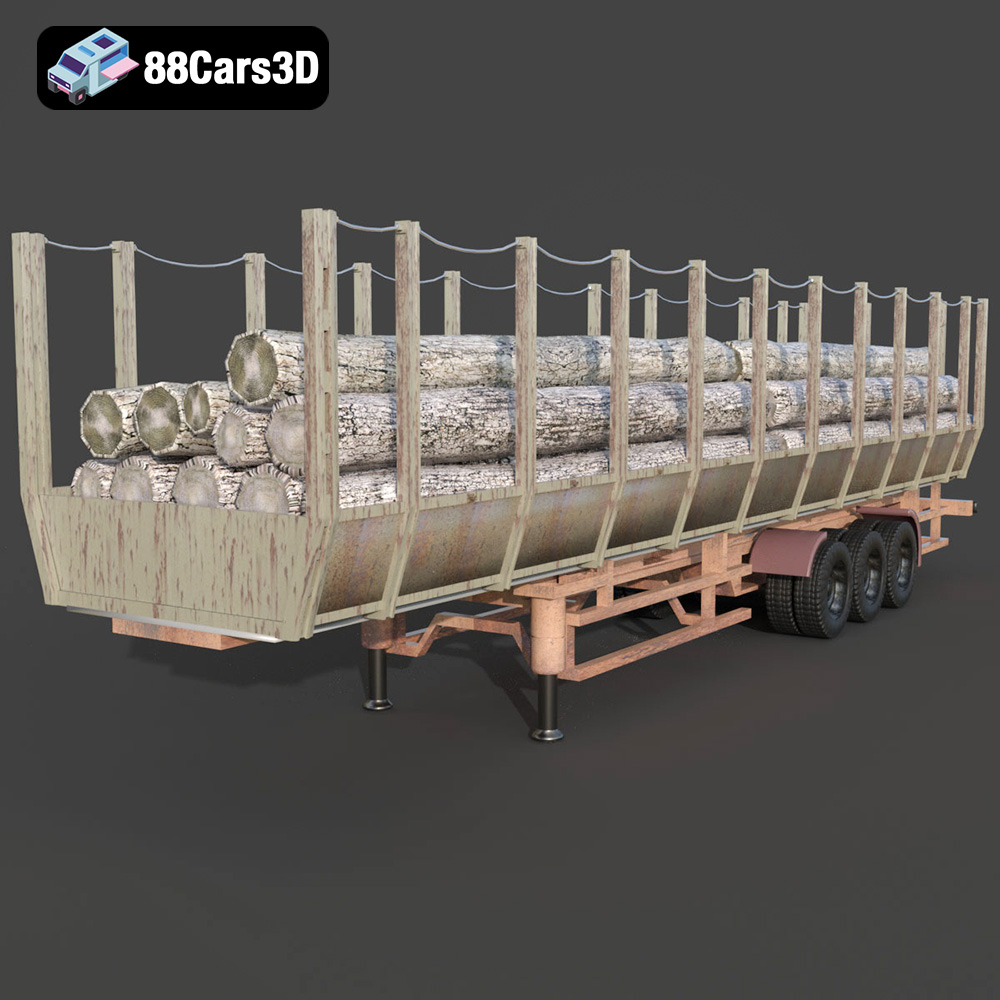
Download the Forestry Trailer 006 3D Model featuring a heavy-duty frame, realistic wheels, and a functional design. Includes .blend, .fbx, .obj, .glb, .stl, .ply, .unreal, and .max formats for rendering, simulation, and game development.
Price: $10.79
Texture: Yes
Material: Yes
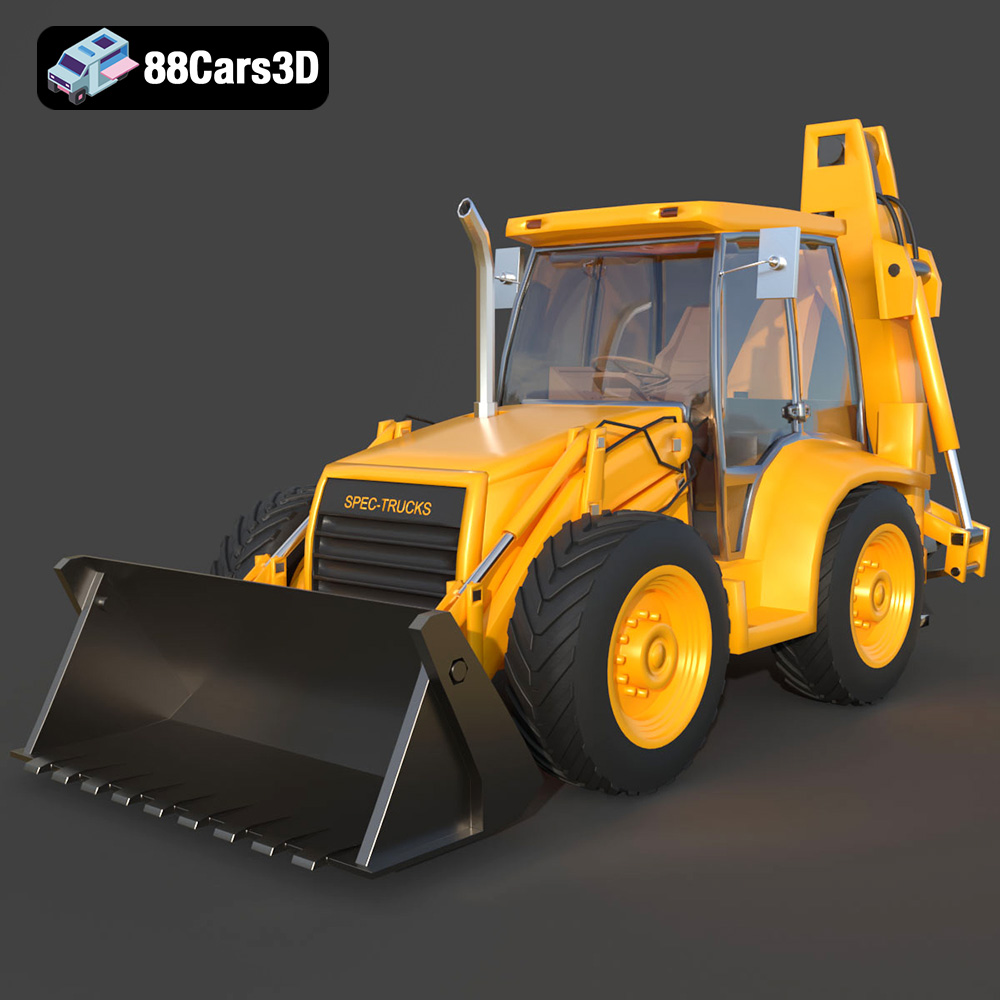
Download the Spec Truck 3D Model featuring a rugged design and heavy-duty aesthetic. Includes .blend, .fbx, .obj, .glb, .stl, .ply, .unreal, and .max formats for rendering, simulation, and game development.
Price: $13.79
Texture: Yes
Material: Yes
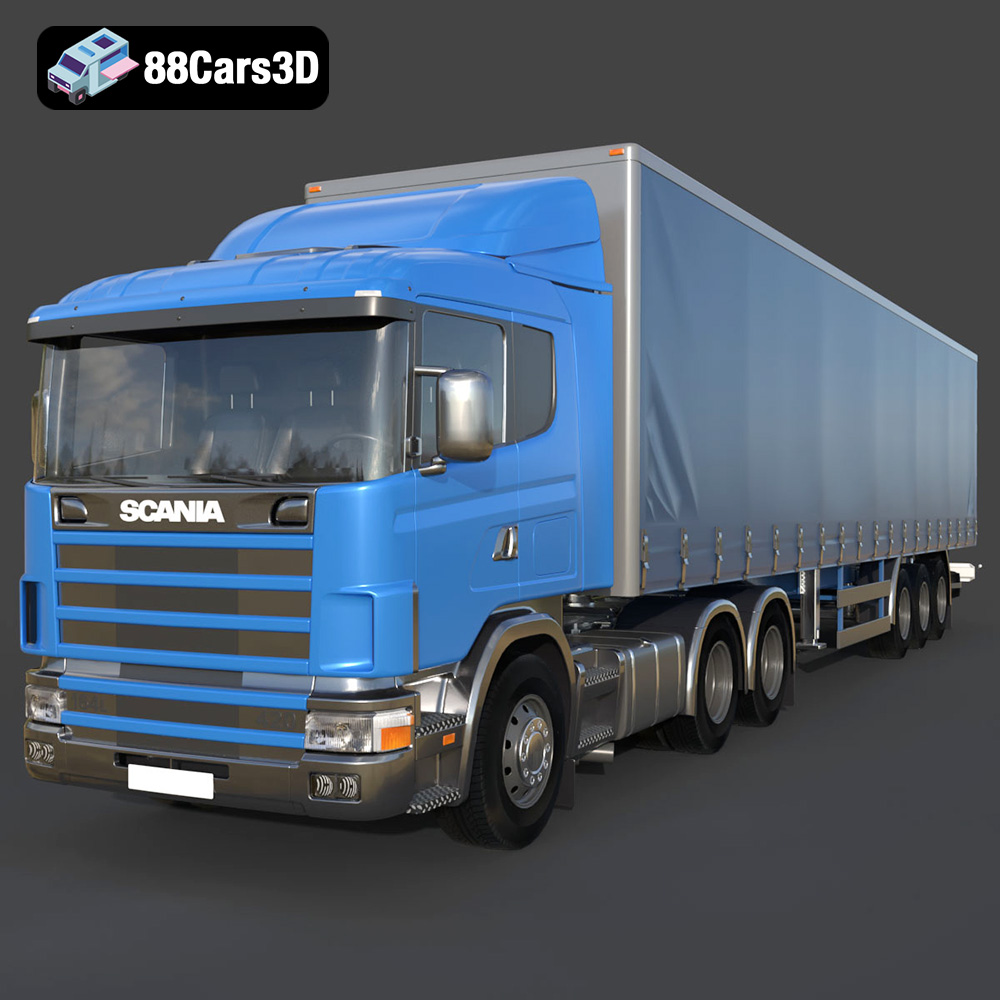
Download the Scania R420 3D Model featuring a detailed exterior cabin, robust chassis, and realistic wheel assemblies. Includes .blend, .fbx, .obj, .glb, .stl, .ply, .unreal, and .max formats for rendering, simulation, and game development.
Price: $10.79
Texture: Yes
Material: Yes
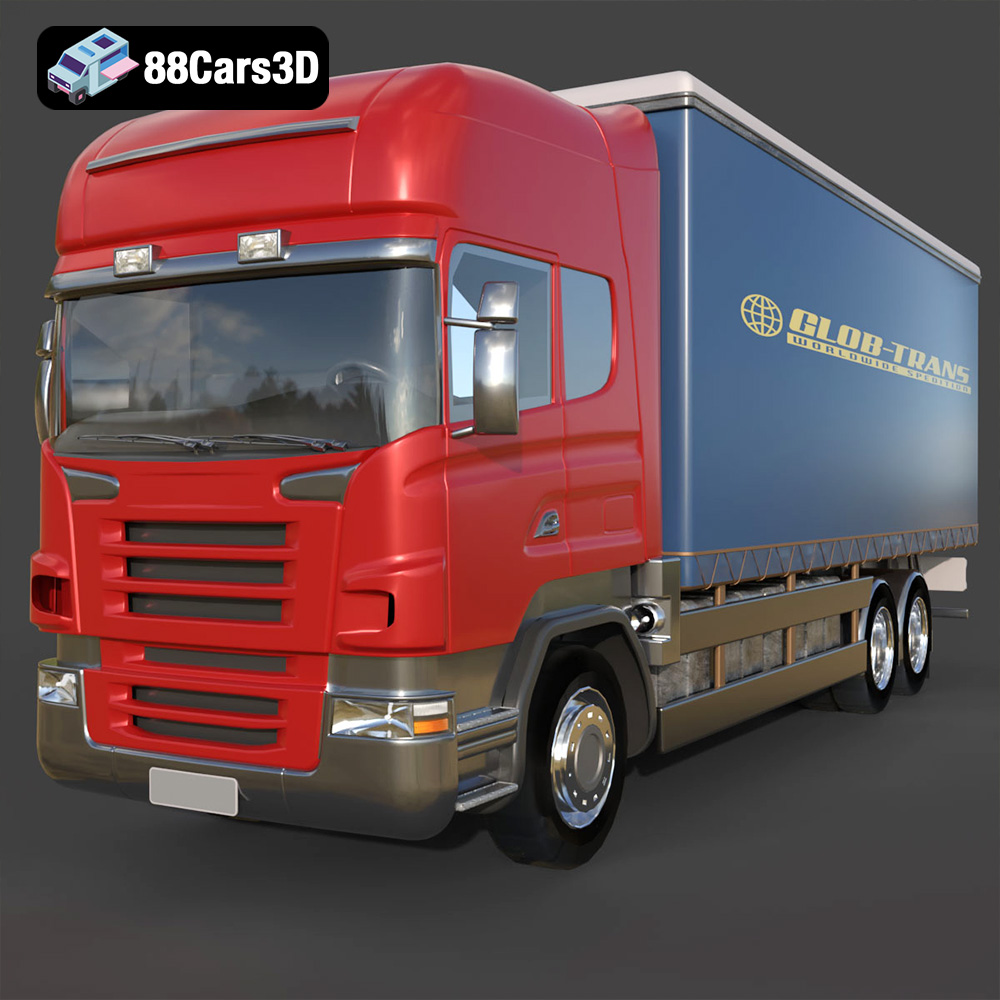
Download the Scania R-Series 002 3D Model featuring a detailed exterior and interior. Includes .blend, .fbx, .obj, .glb, .stl, .ply, .unreal, and .max formats for rendering, simulation, and game development.
Price: $10.79
Texture: Yes
Material: Yes
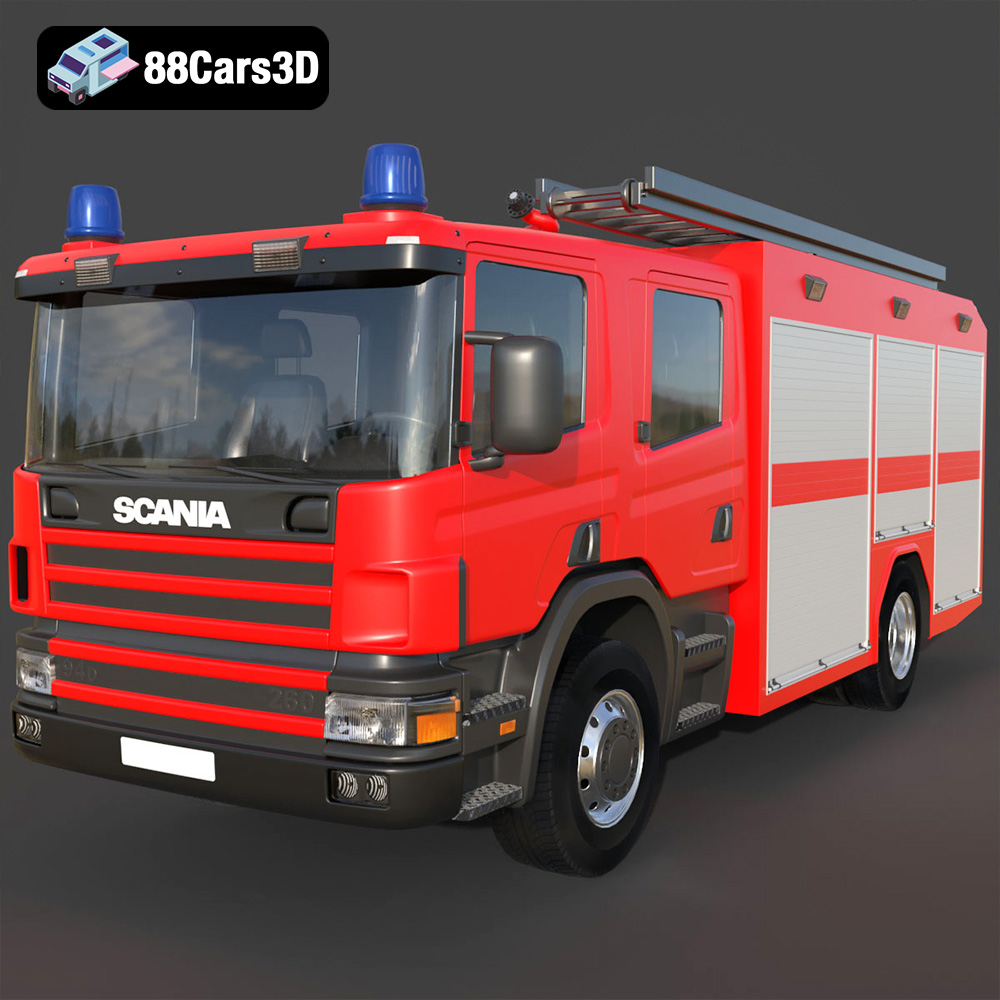
Download the Scania 94D 260 Fire Engine 3D Model featuring a detailed exterior with emergency lighting, robust chassis, and a functional cabin. Includes .blend, .fbx, .obj, .glb, .stl, .ply, .unreal, and .max formats for rendering, simulation, and game development.
Price: $10.79
Texture: Yes
Material: Yes
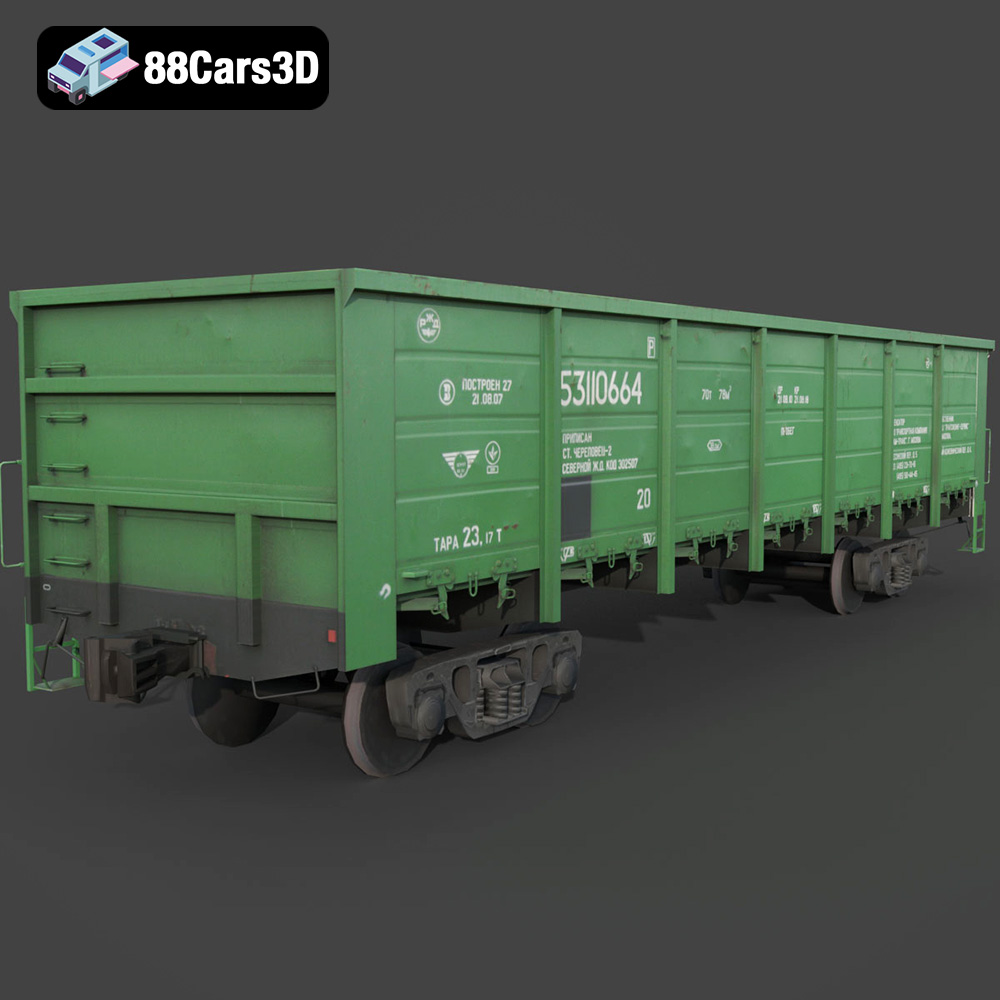
Download the Polu Vagon-17940-006 3D Model featuring a detailed exterior, realistic bogies, and modular components. Includes .blend, .fbx, .obj, .glb, .stl, .ply, .unreal, and .max formats for rendering, simulation, and game development.
Price: $10.79
Texture: Yes
Material: Yes
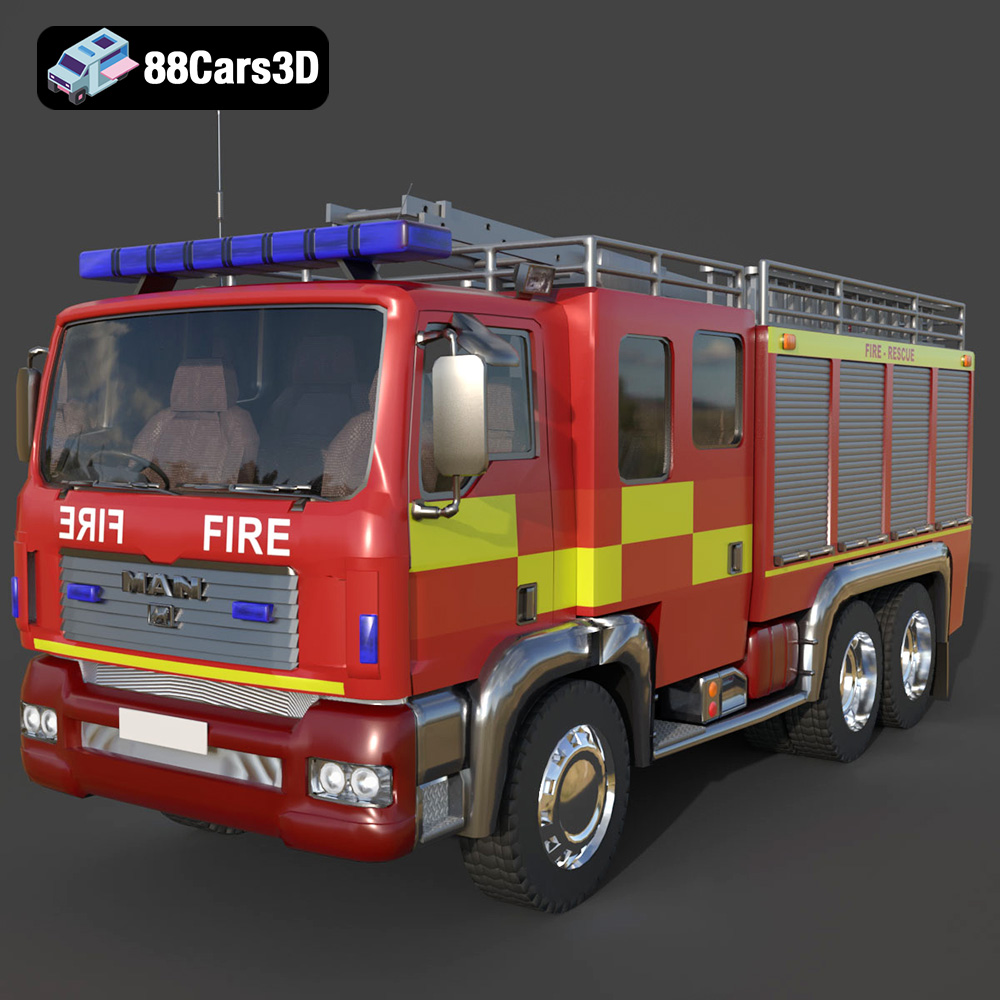
Download the POJARNIY 004 3D Model featuring a robust exterior with detailed emergency equipment and a functional interior. Includes .blend, .fbx, .obj, .glb, .stl, .ply, .unreal, and .max formats for rendering, simulation, and game development.
Price: $10.79
Texture: Yes
Material: Yes
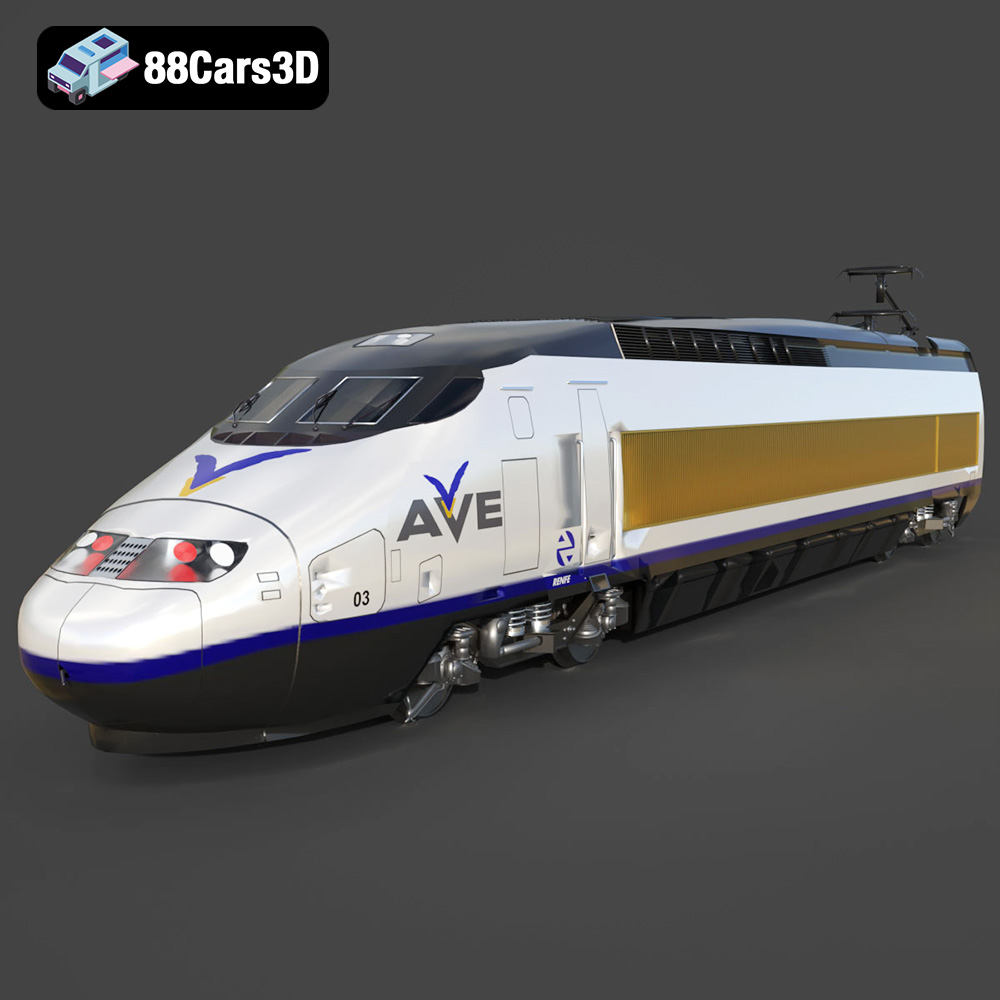
Download the Poezd AVE 147-102-002 3D Model featuring a detailed high-speed train design. Includes .blend, .fbx, .obj, .glb, .stl, .ply, .unreal, and .max formats for rendering, simulation, and game development.
Price: $10.79

