⚡ FLASH SALE: Get 60% OFF All Premium 3D & STL Models! ⚡

In the vibrant, ever-evolving landscape of interactive experiences, a visually appealing and intuitive User Interface (UI) coupled with exceptional User Experience (UX) design is no longer a luxury—it’s a fundamental necessity. Whether you’re crafting an immersive game, a sophisticated automotive configurator, an architectural visualization walkthrough, or an engaging AR/VR application, the UI serves as the crucial bridge between your creation and its audience. A poorly designed UI can frustrate users, hinder engagement, and ultimately detract from even the most stunning visual content, such as high-fidelity 3D car models. Conversely, a well-executed UI elevates the entire experience, making complex interactions feel seamless and enjoyable.
Unreal Engine, renowned for its unparalleled capabilities in real-time rendering and visual fidelity, offers a powerful and flexible solution for UI/UX design: the Unreal Motion Graphics (UMG) Widget System. UMG empowers developers and artists to build everything from intricate in-game HUDs and comprehensive main menus to dynamic interactive dashboards for virtual vehicles or full-fledged product configurators. This comprehensive guide will delve deep into UMG, exploring its foundational principles, advanced techniques, optimization strategies, and real-world applications, particularly within the context of automotive visualization and interactive experiences. By the end of this journey, you’ll have a robust understanding of how to leverage UMG to design captivating and highly functional user interfaces for your Unreal Engine projects.
Unreal Motion Graphics (UMG) is Unreal Engine’s visual UI designer that allows you to create user interfaces using a drag-and-drop interface and a powerful Blueprint scripting system. At its core, UMG is composed of ‘Widgets’ – visual elements like buttons, text blocks, images, sliders, and more complex containers like canvas panels or horizontal boxes. These widgets are organized hierarchically within ‘Widget Blueprints,’ which are specialized Blueprint classes dedicated solely to UI construction. This system seamlessly integrates with the rest of Unreal Engine’s Blueprint visual scripting, allowing you to easily connect UI events (like a button click) to gameplay logic, asset manipulation, or data display. UMG provides a robust framework that scales from simple interactive elements to entire complex application interfaces, making it an indispensable tool for any Unreal Engine developer.
The power of UMG lies in its ability to separate UI logic from game logic, promoting cleaner code and easier maintenance. Instead of writing complex C++ code for every UI element, UMG allows artists and designers to assemble interfaces visually, then add interactivity using intuitive Blueprint nodes. This approach significantly accelerates development, enabling rapid prototyping and iteration. Furthermore, UMG widgets are rendered directly within the engine, allowing for tight integration with the 3D scene, dynamic lighting, and post-processing effects, which is particularly beneficial for creating immersive, context-aware UIs, such as interactive dashboards within a virtual car cockpit or AR overlays displaying vehicle information.
Creating your inaugural UMG UI is a straightforward process. To begin, right-click in the Content Browser and select User Interface > Widget Blueprint. Give it a meaningful name, such as WBP_MainMenu or WBP_CarConfigurator. Double-clicking this asset opens the Widget Blueprint Editor, which is divided into Designer and Graph tabs. The Designer tab is where you visually construct your UI using a palette of widgets. Drag a Canvas Panel from the palette onto the canvas – this serves as your root container, providing a flexible space for arranging other widgets. Next, drag a Button and a Text Block onto the Canvas Panel. You can adjust their size, position, and anchor points to control their layout relative to the screen. To make this UI visible, you’ll typically create it in a level Blueprint or a game mode Blueprint. Use the Create Widget node, select your WBP_MainMenu class, and then call the Add to Viewport node. This simple workflow gets your UI onto the screen, ready for interaction.
UMG offers a rich array of widgets and layout panels to build any UI. Basic widgets include: Text Block (for displaying text), Image (for displaying textures and sprites), Button (for clickable elements), Slider (for inputting numeric values), and Progress Bar (for visualizing progress). These are the building blocks of most interfaces. Beyond individual widgets, UMG provides powerful layout panels designed to organize widgets effectively and make your UI responsive. The Canvas Panel, as mentioned, is highly flexible for absolute positioning and anchoring. For structured layouts, Horizontal Box and Vertical Box arrange widgets in a row or column, respectively, with options for padding and fill weights. The Grid Panel is excellent for table-like layouts. An Overlay allows widgets to be stacked on top of each other, useful for combining images with text or creating complex visual effects. Understanding how to combine these panels effectively is key to building adaptive and professional-looking interfaces that scale well across different screen resolutions and aspect ratios, a critical consideration for broad application deployments.
Designing an effective UI extends far beyond merely placing widgets on a canvas; it involves a thoughtful approach to layout, visual hierarchy, and user interaction to create a truly engaging and intuitive experience. The goal is to guide the user’s eye, provide clear feedback, and ensure that interactions feel natural and responsive. This is particularly important for complex applications like automotive configurators, where users need to make numerous selections and adjustments without feeling overwhelmed. Poor layout can lead to visual clutter, confusion, and a frustrating user experience, ultimately detracting from the high-quality 3D car models or environments being showcased. By applying sound UI/UX design principles alongside UMG’s robust layout tools, developers can create interfaces that not only look polished but also enhance usability and drive user satisfaction.
Consider the target audience and the specific context of your application. For instance, an automotive configurator might require a clean, minimalist UI that highlights the vehicle’s features, while a game’s HUD needs to convey critical information quickly without obstructing gameplay. UMG provides the flexibility to cater to these diverse needs, but success hinges on careful planning and an understanding of visual design principles. Aspects such as consistency in visual language, appropriate use of whitespace, and clear typographic hierarchy are paramount. Regularly soliciting user feedback and performing iterative design improvements are crucial steps in refining the UI/UX until it meets both aesthetic and functional requirements, ensuring that the interface is as impressive and efficient as the underlying real-time rendering of your 3D assets.
Achieving a responsive UI that adapts gracefully to various screen sizes and aspect ratios is fundamental in modern application development. UMG provides powerful tools for this, primarily through its anchoring system, padding, margins, and the intelligent use of layout panels. When placing a widget on a Canvas Panel, you’ll notice anchor presets. These anchors define how a widget’s position scales relative to its parent container. For example, anchoring to the top-left corner ensures the widget remains fixed there, while anchoring to all four corners makes the widget scale proportionally with the screen. Size Boxes and Scale Boxes offer further control over widget dimensions, allowing you to enforce minimum/maximum sizes or scale content uniformly. Within Horizontal Box and Vertical Box, the “Fill” option for slots, combined with padding and margins, enables dynamic spacing and distribution of elements. For instance, in an automotive configurator, you might use a Horizontal Box to display car color options, with each color swatch filling an equal portion of the available width, maintaining a consistent layout regardless of screen size. Understanding and strategically combining these tools is critical for building UIs that look great on any device.
When designing UI for automotive applications, whether it’s an in-car infotainment system, a virtual showroom configurator, or an AR service app, specific visual design principles come into play. Clarity and Legibility are paramount; text, especially in motion or AR environments, must be easily readable. Choose appropriate fonts, sizes, and contrast ratios. Consistency across all UI elements (colors, iconography, interaction patterns) reinforces brand identity and reduces user confusion. For example, if a button for “next color” is green, all “next” actions should use a similar visual cue. Minimalism and Focus are often preferred; automotive UIs should avoid clutter, presenting only essential information to prevent distraction. Leverage iconography and subtle animations to convey status or feedback without excessive text. Consider the psychological impact of colors – blue for trust and technology, silver/grey for sophistication. When integrating 3D car models from platforms like 88cars3d.com into an interactive configurator, the UI should complement the realism of the models, not distract from it. The UI should subtly guide the user through the customization process, providing clear feedback on selections and updates, making the interaction feel premium and intuitive, akin to the quality of the vehicles themselves.
A static UI, however aesthetically pleasing, serves little purpose in an interactive application. The true power of UMG lies in its ability to facilitate dynamic interactions and data binding, allowing your UI to respond to user input, reflect real-time game state, and display dynamic information. This is where Blueprint visual scripting integrates seamlessly with your UMG Widget Blueprints, transforming passive elements into active components of your experience. For instance, in an automotive visualization project, users expect to click a button to change a car’s paint color, select different wheel options, or view detailed specifications that update instantly. UMG provides the event-driven framework and data management capabilities to make all of these interactions not only possible but also straightforward to implement, even for complex systems.
The ability to connect UI elements directly to underlying game or application logic without writing extensive code is a major advantage. This enables rapid prototyping of interactive features and allows designers to experiment with different interaction models. From simple button presses to complex slider manipulations that drive real-time parameter changes, UMG’s event system and data binding features ensure that your UI is constantly in sync with the application’s backend. This dynamic link is crucial for creating immersive and believable experiences, where user actions in the UI directly translate to visible changes in the 3D world, providing instant feedback and enhancing the sense of control and engagement.
Every interactive widget in UMG exposes a set of events that can be captured and responded to using Blueprint. The most common event is OnClicked for buttons, but there are many others: OnHovered and OnUnhovered for mouse-over states, OnValueChanged for sliders or checkboxes, and more specific events for text input fields. To handle an event, select the widget in the Designer tab, go to the Details panel, and click the green ‘+’ button next to the desired event. This automatically creates an event node in the Graph tab of your Widget Blueprint. From there, you can drag off the execution pin to connect it to any Blueprint logic. For example, when a “Change Color” button is clicked in an automotive configurator, the OnClicked event can trigger a function that sets a new material parameter on the 3D car model, instantly updating its appearance. Or, an OnValueChanged event from a slider could smoothly adjust the intensity of an environmental light or rotate the car model to show different angles. This direct link between UI action and game logic is what makes UMG incredibly powerful for interactive content.
Beyond simple events, UMG excels at dynamic data binding, allowing you to display and update information on the UI automatically as data changes. This is achieved in several ways. For basic properties like a Text Block’s content or an Image’s brush, you can use the “Bind” option in the Details panel to link it to a function or a variable within your Widget Blueprint. For instance, a Text Block displaying the current car model name can be bound to a function that retrieves this information from a game instance or a configuration struct. Whenever the underlying data changes, the UI updates. For more complex scenarios, you can create custom functions or use Blueprint interfaces to pull data from other actors (e.g., the currently selected 3D car model in the scene) and update multiple UI elements simultaneously. Consider a car configurator where selecting an engine option not only updates the engine model but also changes a Text Block displaying horsepower, another for torque, and a Progress Bar for fuel efficiency. All this can be driven by a single data structure and propagated efficiently across various UI elements through binding and custom logic, ensuring your UI accurately reflects the real-time state of your application.
While the foundational aspects of UMG provide a robust starting point, the system truly shines when developers delve into its more advanced capabilities. These features enable the creation of highly polished, immersive, and complex user interfaces that go beyond basic button-and-text layouts. Sophisticated UIs often require intricate animations, seamless transitions between states, and intuitive navigation systems that cater to various input methods, including traditional mouse/keyboard, gamepad controllers, and even spatial interactions in AR/VR environments. Mastering these advanced UMG tools is essential for delivering a premium user experience, particularly in high-fidelity applications like virtual production, advanced automotive configurators, or interactive training simulations.
The integration of advanced UMG functionalities allows for a level of design and interactivity that can significantly elevate the perceived quality of an application. Imagine a car configurator where menu options smoothly slide into view, revealing detailed specifications with elegant visual effects, or an AR overlay that intelligently tracks the user’s gaze to highlight specific vehicle components. These experiences are not merely about displaying information; they are about crafting an intuitive and engaging journey for the user. Leveraging UMG’s animation tools, state management patterns, and robust input handling empowers developers to build interfaces that feel alive, responsive, and deeply integrated with the underlying 3D content and real-time rendering environment, transforming a functional UI into an integral part of the user’s overall experience.
Adding animations and smooth transitions to your UI can dramatically improve the user experience, making interactions feel more fluid and responsive. UMG allows you to create simple animations directly within the Widget Blueprint Editor using the “Animation” track. You can animate properties like position, scale, opacity, and rotation over time. For more complex sequences, you can integrate with Unreal Engine’s Sequencer, a powerful cinematic tool, to drive UI animations, although usually direct Widget Blueprint animations are sufficient. Common patterns include fading in/out menus, sliding panels, or highlighting elements on hover. For state management, you can use Widget Switcher to swap between different child widgets based on a selected index, perfect for tabbed menus or multi-page forms. Alternatively, you can use custom Blueprint logic to control the visibility of various panels, ensuring a clean transition between UI states. For example, when a user selects “Exterior Customization” in an automotive configurator, a UI panel containing color swatches and wheel options could smoothly slide in, replacing the “Interior Options” panel, providing a cohesive and non-abrupt user journey.
Robust navigation is critical for UIs that support multiple input methods, such as gamepads, keyboards, or even specialized AR/VR controllers. UMG provides built-in mechanisms for UI navigation. For gamepad/keyboard input, Unreal Engine automatically handles basic navigation using the Widget’s “Is Focusable” property and the Widget Navigation settings in the Details panel (often found under ‘Navigation’). You can define explicit navigation rules (e.g., “Up to Widget X,” “Down to Widget Y”) to ensure a logical flow. For 3D UIs, common in AR/VR or interactive kiosks where the UI exists as part of the 3D world, the Widget Interaction Component is invaluable. This component, often attached to a player character or an external controller, can ‘trace’ into the world, interact with 3D Widget Components, and simulate mouse clicks, hovers, and drags. This allows for immersive interactions, such as using a virtual hand to “touch” a button on a car’s virtual dashboard or interact with a floating configurator panel. When dealing with complex scenes, such as those using high-quality 3D car models from platforms like 88cars3d.com, ensuring that the UI navigation feels as natural and responsive as the visual fidelity is paramount for a cohesive experience.
While UMG offers immense flexibility and power, inefficient UI design can significantly impact application performance, leading to dropped frame rates, laggy interactions, and a degraded user experience. This is especially critical in real-time rendering environments, such as high-fidelity games, automotive visualizations, or performance-sensitive AR/VR applications, where every millisecond counts. A beautiful UI that causes performance bottlenecks is ultimately detrimental. Therefore, understanding and implementing optimization strategies is just as important as mastering the visual design and interactive elements of your UMG interfaces. Proactive optimization ensures that your UI remains snappy and responsive, even when displaying complex information or operating in demanding scenarios alongside detailed 3D assets like those found on 88cars3d.com.
Optimization in UMG involves a multi-faceted approach, addressing everything from the number of widgets rendered to how often they update and the resources they consume. It’s not just about reducing draw calls; it’s about intelligent management of UI elements, efficient data handling, and mindful asset utilization. By adopting best practices early in the development cycle, developers can prevent common pitfalls and build UIs that are not only visually striking and highly interactive but also performant and scalable. A well-optimized UMG interface contributes directly to the overall smoothness and professional polish of your Unreal Engine project, allowing the main content, such as stunning real-time rendered cars, to shine without compromise.
Optimizing UMG performance primarily revolves around reducing overdraw, batching operations, and minimizing unnecessary widget updates. Each widget, especially complex ones or those with transparency, contributes to rendering cost. A common culprit is excessive nesting of layout panels; aim for the shallowest possible hierarchy. Utilize the Widget Reflector (found in the “Tools” menu in the Widget Blueprint Editor or via `~` then `WidgetReflector` command) to inspect the widget tree and identify costly elements, such as those with high draw calls or complicated clipping. Minimize the number of widgets that are constantly updating, especially in the Tick event; only update UI elements when their underlying data actually changes. For elements that are frequently updated, consider using a custom C++ class for performance-critical calculations or complex logic. Use texture atlases for UI images to improve batching and reduce draw calls. Finally, properly manage widget visibility: remove widgets from the viewport or collapse them when not needed, rather than just hiding them, as hidden widgets can still incur rendering costs if they are part of the active widget hierarchy. For detailed information on UMG performance, consult the official Unreal Engine documentation at https://dev.epicgames.com/community/unreal-engine/learning.
Building scalable and maintainable UI systems requires foresight and adherence to architectural best practices. Modularity is key: break down complex UIs into smaller, reusable User Widgets. For instance, an automotive configurator might have separate User Widgets for “Color Swatch,” “Wheel Option,” or “Engine Stats Panel,” which can then be assembled into larger UIs. This approach not only promotes reusability but also makes debugging and iteration much easier. Utilize Blueprint Interfaces to communicate between widgets and other game components, decoupling dependencies and allowing for more flexible systems. For text, leverage Unreal Engine’s Localization Dashboard and text tables; avoid hardcoding text strings directly into widgets to facilitate easy translation for different markets. When dealing with assets, use consistent naming conventions for UI textures, fonts, and materials. Consider creating a centralized UI Style Guide or a library of common UI components to maintain visual consistency across your project. By investing in a well-structured UMG system, you ensure that your UI can evolve and expand alongside your project, accommodating new features and content—such as additional 3D car models or customization options from platforms like 88cars3d.com—without becoming a convoluted mess.
The versatility of UMG extends far beyond traditional game menus, finding powerful applications in specialized domains like automotive visualization, virtual production, and interactive AR/VR experiences. In these fields, the ability to create dynamic, data-driven, and highly interactive user interfaces is not just a convenience but a core requirement. From enabling seamless customization in a virtual car showroom to providing crucial information in an AR maintenance app, UMG serves as the backbone for bridging the gap between sophisticated 3D models and intuitive user interaction. As real-time rendering technologies continue to advance, the demand for equally impressive and functional UIs in these high-stakes applications grows exponentially.
The future of automotive UI with UMG is exciting, pushing towards more immersive, context-aware, and intelligent interfaces. We are moving beyond flat 2D menus into integrated 3D UIs, virtual cockpits, and mixed-reality overlays that blend seamlessly with the physical world. UMG’s deep integration with Unreal Engine’s core features—like Lumen for realistic lighting, Nanite for ultra-high detail geometry, and Niagara for advanced visual effects—means that UI elements can become active participants in the scene, reacting to environmental changes and enhancing the overall sense of realism. By understanding these applications and trends, developers can leverage UMG to create cutting-edge interactive experiences that truly showcase the power of real-time technology and the detail of assets sourced from marketplaces like 88cars3d.com.
Automotive configurators are prime examples of UMG’s power. Imagine a user exploring a high-fidelity 3D car model, perhaps sourced from 88cars3d.com, in real-time. The UMG UI would provide intuitive navigation for customization options: buttons for paint colors, sliders for wheel sizes, dropdowns for interior trim, and checkboxes for optional features. Each UI interaction would trigger updates to the 3D model, dynamically changing its materials, swapping mesh components (e.g., spoilers, mirrors), and displaying real-time pricing adjustments or performance statistics. UMG allows for creating a robust system where complex data structures (like vehicle option lists and material parameters) are exposed to the UI through data binding, ensuring seamless communication. Furthermore, UMG can be used to design “information hotspots” that appear when hovering over specific parts of the car, providing details about an engine component or a particular design feature. This allows for a deeply interactive and informative exploration of the vehicle, offering an unparalleled virtual showroom experience.
For AR/VR applications, UMG is indispensable for creating immersive 3D UIs that feel native to the virtual environment. Instead of a flat screen overlay, UMG can be rendered onto a Widget Component attached to a 3D object in the world – perhaps a tablet held by the user in VR, a virtual dashboard in a car, or an interactive panel on an LED wall in a virtual production studio. In AR, UMG can power contextual overlays, such as displaying repair instructions when looking at an engine bay or showing car specifications floating next to a real-world vehicle. The Widget Interaction Component, mentioned earlier, becomes crucial here for allowing users to interact with these 3D widgets using VR controllers or hand tracking. For virtual production, UMG UIs can act as sophisticated control panels for camera settings, lighting adjustments, or even for swapping virtual backgrounds and vehicle models on the fly, directly controlled by the crew on set. These immersive UIs blur the line between interface and environment, enhancing engagement and utility in cutting-edge real-time workflows.
UMG doesn’t operate in a vacuum; it synergizes powerfully with other Unreal Engine features to create richer experiences. When paired with Lumen, Unreal Engine’s global illumination system, UI elements rendered on screens within the 3D world (via Widget Components) can realistically emit light and cast reflections, further integrating them into the scene. While UMG itself doesn’t directly use Nanite, the virtualized geometry system, any 3D environment or car model you display alongside your UI (e.g., the high-fidelity 3D car models from 88cars3d.com) can benefit from Nanite’s performance for ultra-high polygon counts, freeing up resources for complex UMG interactions. Niagara, Unreal Engine’s advanced particle system, can be used to create stunning visual effects for UI feedback, such as glittering particle trails when a button is clicked or subtle dust effects around an aging vehicle in a configurator. Finally, Sequencer, Unreal’s cinematic tool, can be used to orchestrate complex UI animations alongside camera movements and character actions, creating polished interactive presentations or promotional videos for your automotive visualizations.
The Unreal Motion Graphics (UMG) Widget System stands as a cornerstone for creating compelling and highly functional user interfaces within Unreal Engine. From the foundational elements of Widget Blueprints and layout panels to advanced interactions, dynamic data binding, and critical performance optimization strategies, UMG provides a comprehensive toolkit for developers and artists alike. We’ve explored how a well-designed UI, powered by UMG, can transform an otherwise impressive 3D scene—such as a photorealistic automotive visualization featuring high-quality 3D car models—into an immersive, interactive experience that truly engages the user.
Mastering UMG is not just about technical proficiency; it’s about blending design acumen with Unreal Engine’s capabilities to craft interfaces that are intuitive, aesthetically pleasing, and highly performant. Whether you are developing complex game menus, sophisticated automotive configurators, or cutting-edge AR/VR applications, the principles and techniques discussed in this guide will empower you to build UIs that elevate your projects. Remember to prioritize responsiveness, optimize for performance, and always consider the user’s journey. Dive into the Unreal Engine documentation, experiment with the features, and start building your next great interactive UI. When sourcing top-tier 3D assets for your projects, such as incredibly detailed 3D car models, be sure to visit platforms like 88cars3d.com to complement your exceptional UMG-driven user interfaces.

Texture: Yes
Material: Yes
Download the BMW 760Li E66 2005 3D Model featuring a detailed exterior, refined interior, and robust chassis. Includes .blend, .fbx, .obj, .glb, .stl, .ply, .unreal, and .max formats for rendering, simulation, and game development.
Price: $10.79
Texture: Yes
Material: Yes
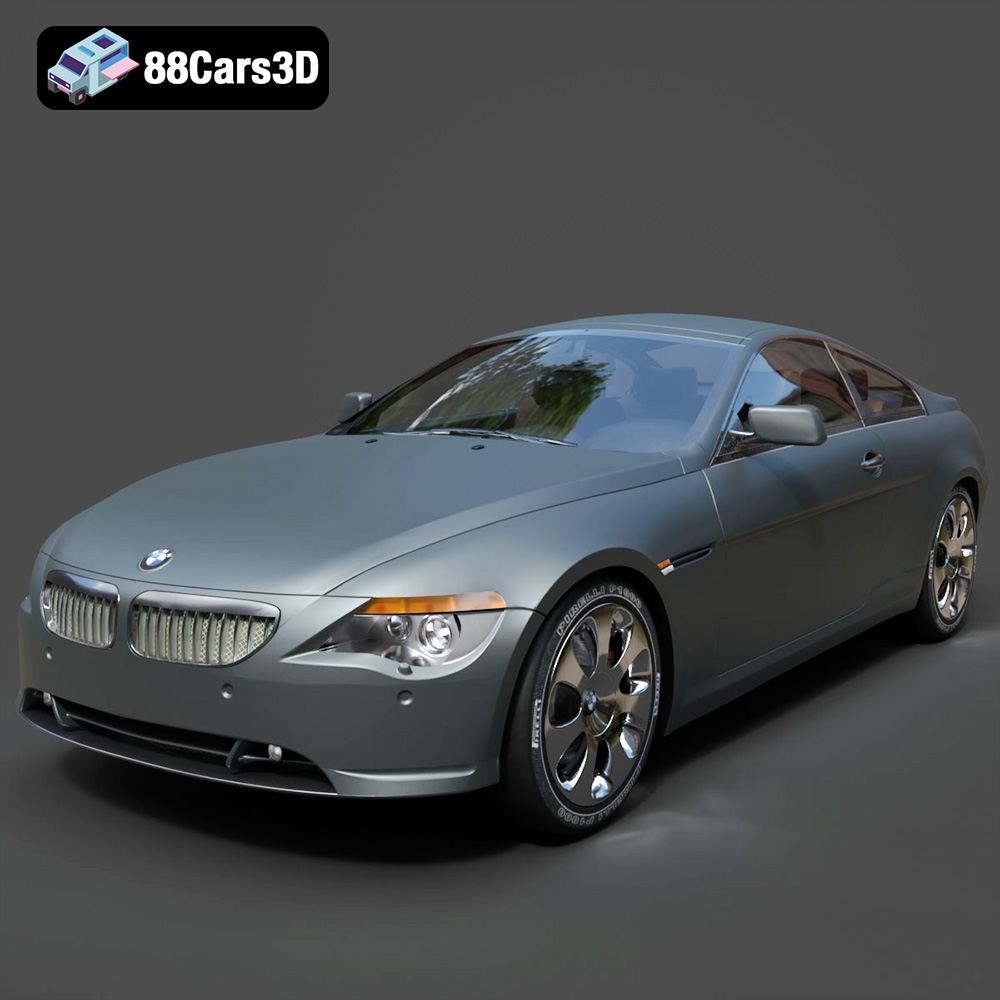
Download the BMW 6 Series 3D Model featuring precisely modeled body panels, detailed interior, and authentic wheels. Includes .blend, .fbx, .obj, .glb, .stl, .ply, .unreal, and .max formats for rendering, simulation, and game development.
Price: $10.79

Texture: Yes
Material: Yes
Download the BMW M6 Coupe (F12) 3D Model featuring its iconic sporty design and luxurious details. Includes .blend, .fbx, .obj, .glb, .stl, .ply, .unreal, and .max formats for rendering, simulation, and game development.
Price: $10.79

Texture: Yes
Material: Yes
Download the BMW M5 F10 3D Model featuring high-performance luxury sedan design, detailed interior, and realistic PBR textures. Includes .blend, .fbx, .obj, .glb, .stl, .ply, .unreal, and .max formats for rendering, simulation, and game development.
Price: $10.79

Texture: Yes
Material: Yes
Download the BMW M3 Coupe E92-002 3D Model featuring authentic styling, detailed exterior, and a faithful interior. Includes .blend, .fbx, .obj, .glb, .stl, .ply, .unreal, and .max formats for rendering, simulation, and game development.
Price: $10.79

Texture: Yes
Material: Yes
Download the BMW 6 Series Gran Coupe 2013 3D Model featuring a sophisticated design, detailed exterior, and well-appointed interior. Includes .blend, .fbx, .obj, .glb, .stl, .ply, .unreal, and .max formats for rendering, simulation, and game development.
Price: $20.79

Texture: Yes
Material: Yes
Download the BMW 7 Series 750 F01 3D Model featuring a detailed exterior and a luxurious interior. Includes .blend, .fbx, .obj, .glb, .stl, .ply, .unreal, and .max formats for rendering, simulation, and game development.
Price: $10.79

Texture: Yes
Material: Yes
Download the Buick Skylark Convertible 1953 3D Model featuring iconic 1950s styling, a detailed exterior with chrome accents, and an accurately modeled interior. Includes .blend, .fbx, .obj, .glb, .stl, .ply, .unreal, and .max formats for rendering, simulation, and game development.
Price: $10.79

Texture: Yes
Material: Yes
Download the Buick Roadmaster Hardtop Coupe 1957 3D Model featuring a classic American design with detailed exterior and interior. Includes .blend, .fbx, .obj, .glb, .stl, .ply, .unreal, and .max formats for rendering, simulation, and game development.
Price: $10.79

Texture: Yes
Material: Yes
Download the Buick Riviera 1963 3D Model featuring classic American muscle car design and iconic styling. Includes .blend, .fbx, .obj, .glb, .stl, .ply, .unreal, and .max formats for rendering, simulation, and game development.
Price: $10.79

