⚡ FLASH SALE: Get 60% OFF All Premium 3D & STL Models! ⚡

The mobile gaming landscape is a vast and competitive arena, where stunning visuals and smooth performance dictate success. For developers aiming to create immersive racing titles, open-world adventures, or simulation experiences, the quality of their 3D car models is paramount. However, unlike their high-fidelity PC or console counterparts, mobile game assets demand rigorous optimization. This means mastering the art of crafting low-poly automotive assets that look fantastic without sacrificing precious performance on a myriad of devices. At 88cars3d.com, we understand the intricate balance between visual fidelity and optimization.
This comprehensive guide delves deep into the technical intricacies of creating exceptional low-poly game assets for mobile platforms. We’ll explore critical aspects such as efficient topology, smart UV mapping, mobile-friendly PBR material creation, and advanced game engine optimization techniques. Whether you’re a seasoned 3D artist, an aspiring game developer, or an automotive designer looking to bring your creations to life in a mobile environment, this article will equip you with the knowledge and actionable strategies needed to build performant, visually appealing 3D car models that drive engaging player experiences.
Creating compelling low-poly automotive models for mobile games is a discipline that marries artistic vision with technical precision. Unlike high-poly models where minute details are sculpted into the mesh, low-poly models demand that critical contours and silhouette lines are conveyed with the absolute minimum number of polygons. The goal is to make a car instantly recognizable and visually appealing from various angles, even with a constrained polygon budget. A typical mobile car model might range from 5,000 to 30,000 triangles, depending on its importance (player car vs. background prop), rendering distance, and the target mobile hardware generation.
When starting, a common strategy is to block out the primary shapes of the vehicle using simple primitives. Focus on the main body panels, wheel arches, roofline, and windows. During this stage, every edge and vertex must be deliberate. Avoid unnecessary subdivisions in flat areas. For instance, a flat door panel needs only enough polygons to define its outer perimeter, not an intricate grid across its surface. Curvature is where polygons are essential. Use edge loops strategically to define smooth transitions, such as along the fender flares or the windshield’s curve. For complex shapes, consider using a high-poly sculpt as a reference for baking normal maps, allowing the low-poly mesh to retain visual detail without the geometric cost. This process demands a keen eye for balancing aesthetic impact with the rigid constraints of mobile performance budgets.
Topology and edge flow are the bedrock of a good low-poly model. For automotive assets, this means ensuring that the quad-based mesh flows logically along the natural contours of the car, even before triangulation. Good edge flow not only aids in UV mapping but also ensures that the model deforms predictably if it needs to be animated (e.g., suspension, opening doors). When reducing polygons, identify and remove redundant edge loops that do not contribute significantly to the silhouette or critical detail. Use tools like Blender’s “Decimate” modifier (with caution, as it can sometimes introduce triangles in undesirable patterns) or manual poly-by-poly reduction. Prioritize areas that will be seen most by the player, like the front and sides of the car, over the undercarriage or extreme rear, which might have a slightly higher polygon count if crucial to the design. Always maintain quads as long as possible before the final triangulation for export, as this facilitates cleaner editing and UV unwrapping. A common target for a hero car in a mobile racing game might be 15,000-25,000 triangles, while background traffic cars could be as low as 3,000-8,000 triangles.
Before even touching modeling software, understanding the target platform’s limitations and establishing clear polygon budgets is crucial. Mobile devices, especially older generations, have finite processing power and memory. An iPhone 8, for instance, has significantly less graphical horsepower than a modern gaming phone. Therefore, developers must define clear polygon and vertex count limits for different categories of cars. A “hero” player car might have a budget of 18,000-25,000 triangles, while an AI opponent car might be capped at 8,000-12,000 triangles. Environmental props or background traffic might be as low as 2,000-5,000 triangles. These budgets include all components, such as wheels, interiors (if visible), and detached parts like brake calipers. Exceeding these budgets can lead to dropped frames, overheating, and a poor user experience. Regular monitoring of triangle and vertex counts within your 3D software (e.g., Blender’s Statistics overlay or 3ds Max’s Polygon Counter) and profiling in the game engine are essential throughout the development process.
Efficient UV mapping is as crucial as good topology for mobile game assets. Poor UVs lead to wasted texture space, resolution issues, and increased draw calls. For car models, which often feature complex curves and distinct panels, careful unwrapping is essential to maximize texel density and minimize seams. The goal is to lay out the 2D representation of your 3D model in a way that is organized, non-overlapping, and utilizes the available texture space (UV tile) as efficiently as possible.
When unwrapping a car, consider breaking it down into logical components: the main body, wheels, interior (if applicable), and smaller details like lights or grilles. Each of these components can have its own UV islands. Crucially, try to keep these islands as rectangular as possible to prevent texture stretching and make packing more efficient. Use hard edges in your 3D model (or mark seams in Blender, for example) to guide where the UV seams will be. Strategically place these seams in less visible areas, such as along the underside of the car, behind bumpers, or where panels naturally meet. This helps to prevent noticeable discontinuities in your textures. Ensuring uniform texel density across all UV islands is vital for consistent visual quality; areas like the car’s body should not appear pixelated while smaller details are super sharp, or vice versa.
Creating efficient UV layouts for mobile performance focuses on two main principles: minimizing wasted space and optimizing for consistent texel density. For a car body, project it using a combination of planar, cylindrical, or box mapping, then strategically cut seams. For example, a common approach for the main body involves unfolding it into a relatively flat shape, placing seams along natural panel lines or hidden edges. Wheels are often unwrapped cylindrically, with the tread and sidewall as separate islands. Windows, lights, and other flat surfaces can use simple planar projections. In Blender 4.4, you can find detailed information on unwrapping techniques in the manual, specifically under the “UV Unwrapping” section. Always ensure that UV islands are scaled appropriately to give higher resolution to more prominent or detailed parts of the car (e.g., the front grille) and lower resolution to less important areas (e.g., the undercarriage). Automated packing tools in your 3D software can help arrange islands, but manual adjustments are often necessary to achieve optimal density and prevent small, scattered islands that waste space.
Texture atlasing is a cornerstone of mobile game optimization. Instead of having multiple individual textures and materials for different parts of a car (e.g., one texture for the body, another for the wheels, another for the interior), an atlas combines all these textures into a single, larger texture map. The UVs for all car components are then packed into this single atlas. The primary benefit is a drastic reduction in draw calls. Each material typically represents a draw call in a game engine; consolidating multiple materials into one means fewer calls to the GPU, leading to smoother performance, especially on mobile devices with limited processing power. For a single car, aiming for one or two atlases (one for the main car, another for potentially transparent elements like windows or unique emissive parts) is an excellent target. This technique also helps manage memory more efficiently as the engine only needs to load a few large textures rather than many small ones.
Physically Based Rendering (PBR) has become the industry standard, even for mobile games, due to its ability to create realistic and consistent materials under various lighting conditions. However, implementing PBR for mobile requires a pragmatic approach to avoid performance bottlenecks. Full desktop-grade PBR shaders, with complex calculations for reflections, refractions, and micro-surface details, are too demanding for most mobile GPUs. The key is to simplify while retaining the PBR aesthetic.
For mobile PBR materials, focus on the core maps: Albedo (or Base Color), Metallic, Roughness, and Normal. Occlusion (AO) can be baked directly into the Albedo or used as a separate map. Avoid highly complex shader graphs with multiple layers, blend modes, or advanced parallax mapping. Instead, streamline your material setup to use a single, simple PBR shader provided by the game engine (e.g., Unity’s Standard Shader or Unreal Engine’s Mobile PBR shader). Texture resolutions are also critical: a hero car might use 2048×2048 or 1024×1024 texture maps for its primary atlas, while smaller details or less important vehicles might use 512×512 or even 256×256. The aim is to create visually convincing materials that respond realistically to light without overburdening the GPU.
Achieving realistic PBR visuals on mobile devices involves making smart compromises. Instead of relying on real-time global illumination or complex screen-space reflections, mobile PBR often leverages baked lighting information and cubemap reflections. For the car paint, instead of intricate clear-coat shaders, a simpler Metallic/Roughness workflow combined with a subtle normal map can achieve convincing results. The normal map should primarily capture larger surface details, panel lines, and subtle imperfections rather than fine-grain texture. Glossy surfaces, like glass and chrome, often benefit from using baked reflection probes or simplified real-time reflections to avoid expensive screen-space calculations. When creating your PBR texture maps, ensure they are authored with mobile compression in mind. Formats like ETC2 (Android) or PVRTC (iOS) are common, but they can introduce artifacts if textures are not prepared correctly. Avoid excessive gradients in normal maps and ensure clear definition between different material properties to prevent compression issues.
Texture baking is an indispensable technique for mobile PBR. It allows you to transfer high-fidelity details from a high-polygon model onto a low-polygon mesh, drastically reducing geometric complexity while preserving visual richness. The most common maps to bake are Normal, Ambient Occlusion (AO), and Curvature. A Normal Map (from high-poly to low-poly) can simulate intricate panel gaps, vents, and surface imperfections without adding a single polygon. An Ambient Occlusion map captures soft shadows and contact shadows where surfaces meet, enhancing depth and realism. Curvature maps are useful for procedural wear and tear effects in shaders. Other maps like World Space Normals or Position Maps can also be baked for more advanced shader effects, but always consider the performance cost. For creating these maps, software like Substance Painter, Marmoset Toolbag, or even Blender’s internal baking tools are ideal. The Blender 4.4 manual provides comprehensive guidance on baking, particularly useful for PBR workflows, which can be found in the “Cycles Baking” section. Always export baked textures in appropriate formats and resolutions for mobile, prioritizing efficiency.
Once your low-poly 3D car models and optimized PBR materials are ready, integrating them into a game engine like Unity or Unreal Engine requires a systematic approach to ensure optimal mobile performance. This stage focuses on reducing draw calls, managing memory, and ensuring the car renders efficiently from various distances and angles.
The primary concern in game engine integration for mobile is to minimize the GPU’s workload. Every time the engine has to switch materials, shaders, or render states, it incurs a performance cost known as a draw call. High draw call counts are a major performance killer on mobile. Therefore, strategies like texture atlasing (as discussed previously), static batching, and GPU instancing become paramount. Additionally, managing Level of Detail (LODs) and culling mechanisms ensures that only necessary geometry is rendered at any given time. Properly setting up physics, collision meshes, and interactive elements also needs to be done with performance in mind, often requiring simpler representations than their visual counterparts.
Level of Detail (LODs) is a critical optimization technique for mobile games. Instead of rendering a single high-resolution model regardless of distance, LODs allow you to define multiple versions of a model, each with progressively fewer polygons and lower-resolution textures. As the car moves further from the camera, the game engine automatically switches to a lower LOD, significantly reducing the rendering burden. A common setup for a hero car might involve 3-4 LODs:
Each LOD should maintain the visual silhouette as much as possible. Dynamic culling (frustum culling, occlusion culling) also plays a vital role, ensuring that objects outside the camera’s view or hidden behind other geometry are not rendered at all. Game engines like Unity and Unreal Engine provide robust LOD systems that can be easily configured, optimizing render performance automatically.
Beyond texture atlasing, further reducing draw calls is paramount. GPU Instancing is a powerful technique where the GPU can render multiple copies of the same mesh using the same material in a single draw call, even if each instance has different positions, rotations, or scales. This is incredibly effective for rendering multiple identical cars in traffic or many instances of car parts like wheels. In Unity, materials must be set up to support instancing, typically by using the “Standard” shader and enabling “Enable GPU Instancing” on the material. Unreal Engine also supports instancing for static and skeletal meshes. Another technique is Static Batching, where multiple static meshes that share the same material are combined into a single, larger mesh by the engine at runtime. This reduces draw calls but consumes more memory. Dynamic Batching attempts to do the same for moving objects, but it has stricter limitations on vertex counts and other criteria. By strategically applying these techniques, you can drastically cut down on draw calls, ensuring your mobile game runs smoothly even with many vehicles on screen.
The transition from a 3D modeling application like Blender to a game engine is a critical step that demands precision. When preparing your model in Blender, ensure:
For export, FBX is the industry standard format. When exporting from Blender (File > Export > FBX), use settings optimized for game engines. Key settings include: ‘Selected Objects’ (if only exporting specific parts), ‘Apply Transform’ (often redundant if transforms are applied in Blender, but can be a safety measure), and ‘Mesh’ settings to export smooth groups and tangent space. For more detailed Blender export settings for game engines, consult the official Blender 4.4 manual, especially sections related to FBX export options.
Effective lighting and environmental setup are crucial for enhancing the visual appeal of your 3D car models in mobile games. However, real-time global illumination, dynamic shadows from multiple light sources, and complex screen-space effects can quickly cripple mobile performance. The approach for mobile environments involves strategic use of baked lighting, simplified real-time lights, and carefully chosen post-processing effects.
The goal is to create a vibrant and believable scene that complements the car models without excessive computational overhead. This often means relying heavily on pre-calculated lighting, especially for static scene elements. Dynamic lighting should be reserved for essential elements like headlights, brake lights, or direct sunlight if it’s crucial for gameplay or visual impact. Environmental considerations also include realistic reflections, which are typically achieved through baked reflection probes or cubemaps rather than expensive real-time ray tracing or screen-space solutions. Post-processing, while tempting, needs to be used sparingly and intelligently, as each effect adds to the render cost.
Baked lighting is the cornerstone of performant mobile rendering. Instead of calculating complex lighting interactions in real-time, baked lighting pre-calculates global illumination, ambient occlusion, and static shadows and stores this information in lightmaps or vertex colors. This significantly reduces the runtime overhead. For cars, while the car itself is often dynamic, the environment it moves through (roads, buildings, landscapes) can extensively use baked lighting. The car’s direct lighting and shadows from dynamic light sources will be calculated in real-time, but the ambient bounce light and subtle shading from the environment can be derived from reflection probes or simplified irradiance volumes that capture the baked lighting data. When setting up baked lighting in Unity or Unreal Engine, define static objects correctly, set up lightmap UVs for your environment meshes (distinct from your main UVs), and configure light baking parameters carefully. This approach delivers rich, realistic lighting without the performance cost of real-time global illumination.
Post-processing can dramatically enhance the visual quality of a scene, but for mobile, it must be applied with extreme caution. Expensive effects like Screen Space Ambient Occlusion (SSAO), Depth of Field, or elaborate Anti-Aliasing solutions can easily halve your framerate. Prioritize subtle, low-cost effects that have a high visual impact. Good candidates include:
Always profile your game with and without each post-processing effect to understand its precise performance impact. Many mobile games opt for minimal post-processing or highly optimized custom solutions to maintain high frame rates.
Selecting the correct file formats and understanding their implications for compatibility and deployment is crucial for delivering optimized 3D car models across various mobile platforms. Different engines and platforms prefer or require specific formats, and choosing wisely can streamline your workflow and avoid unforeseen issues.
Beyond simply getting the model into the engine, considerations include metadata, animation support, and how textures and materials are embedded or referenced. While FBX is the de facto standard for general 3D asset exchange, newer formats like GLB and USDZ are gaining traction, especially in contexts beyond traditional game engines, such as AR/VR experiences and web-based 3D viewers. Understanding the strengths and weaknesses of each format allows developers to make informed decisions that benefit performance, file size, and the overall deployment pipeline.
For traditional mobile game development within Unity or Unreal, FBX remains the most common choice due to its robustness and full feature set. However, for interactive web demos or AR features, GLB and USDZ offer significant advantages.
Developing for mobile often means targeting both iOS and Android, which introduces cross-platform considerations. While game engines abstract away many low-level differences, certain asset optimizations are platform-specific:
When sourcing models from marketplaces such as 88cars3d.com, check the provided file formats and optimization levels to ensure they align with your project’s cross-platform requirements. Ensuring your asset pipeline accounts for these variations from the outset will prevent costly rework later in the development cycle.
Crafting exceptional low-poly 3D car models for mobile games is a multifaceted endeavor that demands a blend of artistic skill, technical acumen, and meticulous optimization. From sculpting lean, efficient topology and intelligently mapping UVs for texture atlasing, to building performant PBR materials and leveraging advanced game engine techniques like LODs and draw call reduction, every step contributes to a polished, high-performing end product. The insights shared in this guide underscore the importance of establishing clear polygon budgets, baking intricate details, and strategically utilizing file formats like FBX, GLB, and USDZ for diverse deployment needs.
By adhering to these best practices, you can create visually stunning automotive rendering assets that not only captivate players but also run smoothly across the wide spectrum of mobile devices. Remember, the journey of optimization is continuous; regular profiling and testing are essential to maintain peak performance. For developers seeking to enhance their mobile racing games, simulations, or AR/VR experiences with top-tier vehicles, platforms like 88cars3d.com offer a curated selection of high-quality game assets designed with optimization in mind. Embrace these techniques, and drive your mobile game development to new heights of realism and performance.

Texture: Yes
Material: Yes
Download the BMW 760Li E66 2005 3D Model featuring a detailed exterior, refined interior, and robust chassis. Includes .blend, .fbx, .obj, .glb, .stl, .ply, .unreal, and .max formats for rendering, simulation, and game development.
Price: $10.79
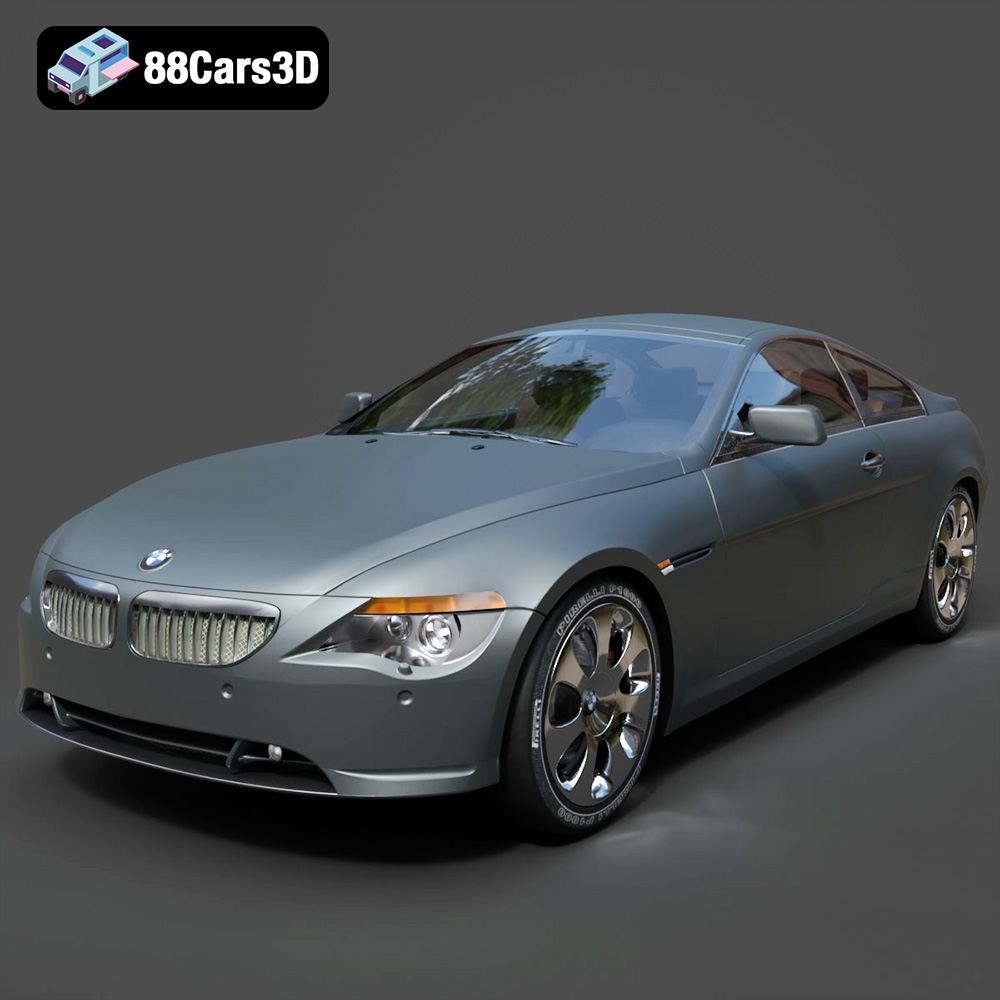
Texture: Yes
Material: Yes
Download the BMW 6 Series 3D Model featuring precisely modeled body panels, detailed interior, and authentic wheels. Includes .blend, .fbx, .obj, .glb, .stl, .ply, .unreal, and .max formats for rendering, simulation, and game development.
Price: $10.79

Texture: Yes
Material: Yes
Download the BMW M6 Coupe (F12) 3D Model featuring its iconic sporty design and luxurious details. Includes .blend, .fbx, .obj, .glb, .stl, .ply, .unreal, and .max formats for rendering, simulation, and game development.
Price: $10.79

Texture: Yes
Material: Yes
Download the BMW M5 F10 3D Model featuring high-performance luxury sedan design, detailed interior, and realistic PBR textures. Includes .blend, .fbx, .obj, .glb, .stl, .ply, .unreal, and .max formats for rendering, simulation, and game development.
Price: $10.79

Texture: Yes
Material: Yes
Download the BMW M3 Coupe E92-002 3D Model featuring authentic styling, detailed exterior, and a faithful interior. Includes .blend, .fbx, .obj, .glb, .stl, .ply, .unreal, and .max formats for rendering, simulation, and game development.
Price: $10.79

Texture: Yes
Material: Yes
Download the BMW 6 Series Gran Coupe 2013 3D Model featuring a sophisticated design, detailed exterior, and well-appointed interior. Includes .blend, .fbx, .obj, .glb, .stl, .ply, .unreal, and .max formats for rendering, simulation, and game development.
Price: $20.79

Texture: Yes
Material: Yes
Download the BMW 7 Series 750 F01 3D Model featuring a detailed exterior and a luxurious interior. Includes .blend, .fbx, .obj, .glb, .stl, .ply, .unreal, and .max formats for rendering, simulation, and game development.
Price: $10.79

Texture: Yes
Material: Yes
Download the Buick Skylark Convertible 1953 3D Model featuring iconic 1950s styling, a detailed exterior with chrome accents, and an accurately modeled interior. Includes .blend, .fbx, .obj, .glb, .stl, .ply, .unreal, and .max formats for rendering, simulation, and game development.
Price: $10.79

Texture: Yes
Material: Yes
Download the Buick Roadmaster Hardtop Coupe 1957 3D Model featuring a classic American design with detailed exterior and interior. Includes .blend, .fbx, .obj, .glb, .stl, .ply, .unreal, and .max formats for rendering, simulation, and game development.
Price: $10.79

Texture: Yes
Material: Yes
Download the Buick Riviera 1963 3D Model featuring classic American muscle car design and iconic styling. Includes .blend, .fbx, .obj, .glb, .stl, .ply, .unreal, and .max formats for rendering, simulation, and game development.
Price: $10.79

