⚡ FLASH SALE: Get 60% OFF All Premium 3D & STL Models! ⚡

In the demanding world of 3D automotive rendering, achieving photorealism is the ultimate pursuit. Every curve, every reflection, every subtle highlight on a meticulously crafted 3D car model from platforms like 88cars3d.com must resonate with the viewer, evoking the visceral sensation of a real-world vehicle. While sophisticated materials, intricate geometry, and powerful render engines play crucial roles, the unsung hero of truly believable renders is often the lighting. Specifically, High Dynamic Range Image (HDRI) lighting has revolutionized how 3D artists illuminate their scenes, offering an unparalleled level of realism and efficiency. This comprehensive guide will delve deep into the art and science of utilizing HDRI lighting for automotive renders, equipping you with the knowledge and techniques to elevate your visualizations to professional standards.
From understanding the technical underpinnings of HDRIs to implementing them across various software packages like 3ds Max, Blender, and Maya, we’ll cover everything you need to master this essential lighting technique. You’ll learn how to select the perfect HDRI, fine-tune its impact, and blend it seamlessly with other lighting elements and 3D car models to create breathtaking automotive imagery. Prepare to unlock the full potential of your automotive renders and infuse them with the dynamic, nuanced light of the real world.
At its core, an HDRI is a panoramic image that captures an extreme range of light intensities, far beyond what a standard photographic image (like a JPEG or PNG) can store. Unlike a conventional image that clamps light values, an HDRI records the actual brightness of light sources, from the dim ambient illumination to the blinding intensity of the sun or a bright light fixture. This vast range of data is crucial for accurate global illumination in 3D rendering.
HDRIs are typically created by taking multiple exposures of a scene, ranging from very dark to very bright, and then merging them into a single 32-bit image. Each pixel in an HDRI contains not just color information, but also a numerical value representing the light’s intensity. This allows the 3D render engine to accurately calculate how light bounces and reflects within the scene, creating realistic shadows, reflections, and overall illumination that closely mimic real-world physics. The most common file formats for HDRIs are .hdr and .exr, both capable of storing this extensive dynamic range. A typical high-quality automotive HDRI might range from 10,000 to over 100,000 nits (candelas per square meter) of brightness, ensuring that even the most specular surfaces like car paint and chrome reflect their environment accurately.
For automotive rendering, the advantages of HDRI lighting are transformative. Firstly, it provides an instant, cohesive, and physically accurate lighting solution. Instead of manually placing numerous lights to simulate an environment, a single HDRI can generate complex lighting, intricate shadows, and lifelike reflections. This not only saves immense time but also eliminates the guesswork involved in recreating natural light. Secondly, the realistic reflections captured in an HDRI are paramount for automotive surfaces. The highly reflective nature of car bodies means that the environment plays a massive role in how the vehicle appears. An HDRI accurately projects the surrounding environment onto the car’s paint, glass, and chrome, creating convincing reflections that would be incredibly difficult to achieve with traditional light sources alone. Finally, HDRIs inherently promote consistent color and mood, ensuring that the car looks like it belongs in the environment it’s placed in, making for truly immersive visualization.
Selecting the appropriate HDRI is paramount for conveying the right mood, environment, and realism for your 3D car model. The wrong HDRI can make an otherwise perfect render look out of place, while the right one can elevate it to a masterpiece. Considerations extend beyond mere aesthetics to technical specifications and their impact on your final output.
HDRIs come in a wide array of environments, each imparting a distinct look and feel. For automotive renders, common types include:
When selecting, consider the narrative you want to tell. Is the car a luxury vehicle in a pristine showroom (studio HDRI), a rugged off-roader (outdoor, natural light HDRI), or a sleek sports car cruising through a metropolis (urban HDRI)? Matching the HDRI’s character to your car model and desired aesthetic is key.
Beyond the visual content, several technical aspects of an HDRI directly influence render quality and performance:
Investing in high-quality HDRIs is a worthwhile endeavor for any serious automotive rendering artist. They are the backbone of realistic global illumination and reflection. Many reputable sources offer vast libraries, and some even provide accompanying backplates for seamless integration.
Integrating HDRIs into your 3D scene is a fairly universal process across different software, though the specifics of each application’s interface will vary. We’ll explore the common workflows in 3ds Max with Corona/V-Ray, Blender with Cycles/Eevee, and Maya with Arnold, highlighting key settings for automotive rendering.
In 3ds Max, HDRIs are primarily used as environment maps, driving both illumination and reflections. Both Corona Renderer and V-Ray have straightforward methods for incorporating them:
Rendering > Environment.Pro Tip for 3ds Max: For V-Ray, the V-Ray HDRI map offers fine-tuned controls for gamma, horizontal rotation, and mapping. In Corona Renderer, the CoronaBitmap allows excellent control over exposure, mapping, and even basic color correction directly within the map settings.
Blender, particularly with its powerful Cycles renderer, makes HDRI implementation intuitive through its node-based World Shader system. For Blender 4.4, the process is streamlined and offers great flexibility, as detailed in the official Blender 4.4 documentation on Environment Texture Node.
Add > Texture > Environment Texture).Add > Vector > Mapping) and a ‘Texture Coordinate’ node (Add > Input > Texture Coordinate). Connect the ‘Generated’ or ‘Window’ output of the ‘Texture Coordinate’ to the ‘Vector’ input of the ‘Mapping’ node, and the ‘Vector’ output of the ‘Mapping’ node to the ‘Vector’ input of the ‘Environment Texture’ node.Pro Tip for Blender: For precise control over reflections versus diffuse lighting from the HDRI, you can duplicate the ‘Environment Texture’ and ‘Mapping’ nodes. Connect one set to the ‘Color’ of the ‘Background’ node (for diffuse light) and the other to a ‘Mix Shader’ with a ‘Light Path’ node’s ‘Is Camera Ray’ or ‘Is Reflection Ray’ output. This allows you to have different HDRI rotations or intensities for direct camera view vs. reflections, or even use a different HDRI for background visibility while maintaining a separate one for actual lighting and reflections.
Maya’s Arnold renderer also provides a robust system for image-based lighting:
Arnold > Lights > Skydome Light. This creates a spherical light source that samples an image.Pro Tip for Maya: Arnold’s Skydome light is excellent for both direct and indirect illumination. For complex scenes, you might use a lower resolution HDRI for distant reflections and a higher resolution one for direct lighting, or even use a different HDRI for camera background versus lighting. This can be achieved by using a ‘Ray Switch’ shader within your Hypershade network.
While basic HDRI implementation provides a solid foundation, truly exceptional automotive renders often benefit from advanced techniques. These methods offer greater artistic control and allow for more nuanced and compelling results, particularly when working with high-quality 3D car models.
One of the most powerful advanced HDRI techniques involves using backplates. A backplate is a still photograph that serves as the background for your render. The key is to use an HDRI that was captured at the exact same location and time as the backplate. This ensures perfect photographic matching of lighting, perspective, and reflections.
The workflow typically involves:
This approach results in hyper-realistic images because the background is a real photograph, and your car is lit by the actual light of that environment, visible in its reflections. When sourcing models from marketplaces such as 88cars3d.com, ensure they are prepared for such workflows with clean UV maps and PBR materials that respond accurately to HDRI lighting.
The beauty of HDRI lighting lies in its flexibility. Rotating and slightly manipulating the HDRI can drastically alter the look of your car render without changing any physical light sources. You’re essentially changing where the “sun” or “key light” from the environment hits your car and how the environment reflects off its surfaces.
While an HDRI provides holistic environmental lighting, it doesn’t mean you can’t enhance it. Supplementary lights are often essential for artistic emphasis and control.
By blending the global illumination of the HDRI with strategically placed artificial lights, you gain complete artistic control, allowing you to highlight specific features of your 3D car models and create truly captivating renders.
Working with high-resolution HDRIs and complex automotive models can be resource-intensive. Optimizing your workflow ensures you get the best possible quality without sacrificing render times or system stability. It’s about smart choices and leveraging renderer features.
As mentioned earlier, HDRI resolution directly impacts detail and file size. A 16K or 32K HDRI provides stunning, crisp reflections, but its memory footprint is substantial (often hundreds of megabytes or even gigabytes). This can slow down viewport performance, increase render setup times, and ultimately prolong final renders, especially on systems with limited RAM or older GPUs. For contexts like game development or real-time AR/VR experiences, resolutions might need to be significantly lower (e.g., 2K or 4K) to meet performance targets. For high-end marketing renders, pushing to 8K or 16K might be acceptable.
Perfect UV mapping on your 3D car model is crucial for HDRIs to work their magic. UVs dictate how textures (including the HDRI, when used for reflections via shader nodes) are projected onto the model’s surface. If your car model has poor, overlapping, or stretched UVs, the reflections generated by the HDRI will appear distorted, blurry, or incorrect, regardless of the HDRI’s quality. This is particularly noticeable on the highly polished surfaces of a car. When acquiring 3D car models, especially from a marketplace like 88cars3d.com, always ensure they come with clean, professional UVs.
Each renderer has specific settings that influence how HDRIs are processed, affecting both quality and speed:
Proper color management is crucial when working with HDRIs. Since they contain real-world light data, they should be treated correctly within your linear workflow. Most 3D software and renderers default to a linear color space, but it’s important to confirm this.
By diligently optimizing these aspects, you can achieve stunningly realistic automotive renders that are both visually impressive and render efficiently.
Mastering HDRI lighting isn’t just about technical proficiency; it’s about applying that knowledge to create compelling visual narratives. Real-world applications for automotive renders are vast, and adopting best practices ensures consistent, high-quality results.
The power of HDRIs lies in their ability to transform a scene with a simple swap. Imagine presenting the same high-quality 3D car model from 88cars3d.com in multiple compelling scenarios:
Each HDRI tells a different story and influences the mood, color, and reflections, proving that a single 3D model can have endless photographic possibilities.
Even without extensive lighting setups, HDRIs can provide excellent results:
The synergy between high-quality 3D car models and HDRI lighting is undeniable. When you start with a meticulously crafted model from 88cars3d.com, featuring:
The higher the fidelity of the 3D car model, the more pronounced and impactful the benefits of HDRI lighting become. The nuanced light information in an HDRI will react perfectly with the model’s precise surfaces and calibrated materials, bringing it to life in a way that generic lighting cannot. This combination is essential for professional-grade automotive visualization, whether for marketing, game development, or interactive AR/VR experiences.
High Dynamic Range Image (HDRI) lighting is an indispensable tool for any 3D artist aiming to achieve photorealistic automotive renders. By capturing and leveraging the complex, nuanced light of real-world environments, HDRIs provide an efficient and physically accurate foundation for illumination, shadows, and, critically, reflections on your 3D car models. We’ve explored how understanding the technical specifications of an HDRI, from its dynamic range to its resolution, directly impacts the visual quality of your output.
From the practical steps of integrating HDRIs in major software like 3ds Max, Blender, and Maya, to advanced techniques such as backplate compositing and supplementing with additional lights, you now have a robust toolkit to enhance your automotive visualization projects. The ability to manipulate HDRI rotation, fine-tune exposure, and ensure impeccable UV mapping on models (such as those found on 88cars3d.com) will be key to unlocking truly captivating results. Remember, the true artistry lies in balancing technical precision with creative vision, using HDRIs as your canvas to paint light onto your automotive masterpieces.
Continue to experiment with different HDRIs, master your chosen render engine’s settings, and always strive for that perfect blend of realism and artistic expression. The journey to photorealistic automotive rendering is a continuous one, and HDRI lighting is a powerful companion on that path.
Texture: Yes
Material: Yes
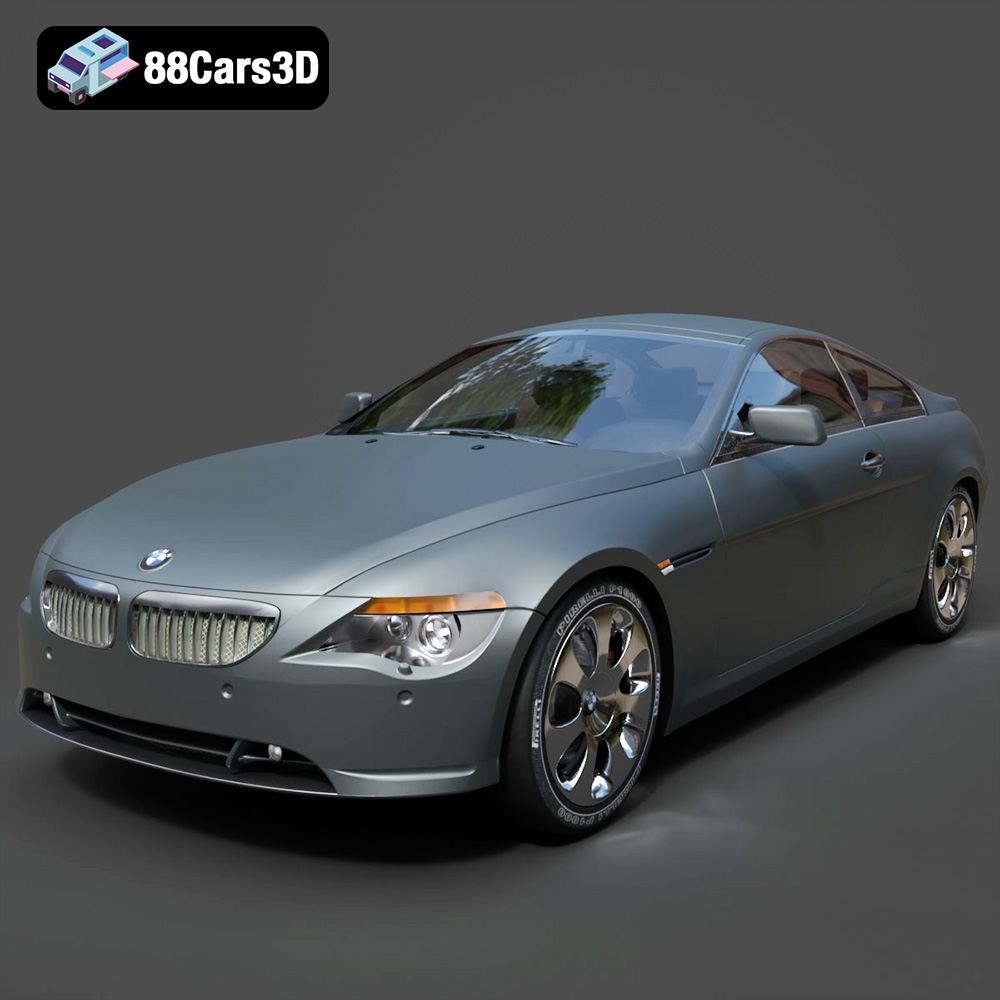
Download the BMW 6 Series 3D Model featuring precisely modeled body panels, detailed interior, and authentic wheels. Includes .blend, .fbx, .obj, .glb, .stl, .ply, .unreal, and .max formats for rendering, simulation, and game development.
Price: $10.79

Texture: Yes
Material: Yes
Download the BMW M6 Coupe (F12) 3D Model featuring its iconic sporty design and luxurious details. Includes .blend, .fbx, .obj, .glb, .stl, .ply, .unreal, and .max formats for rendering, simulation, and game development.
Price: $10.79

Texture: Yes
Material: Yes
Download the BMW M5 F10 3D Model featuring high-performance luxury sedan design, detailed interior, and realistic PBR textures. Includes .blend, .fbx, .obj, .glb, .stl, .ply, .unreal, and .max formats for rendering, simulation, and game development.
Price: $10.79

Texture: Yes
Material: Yes
Download the BMW M3 Coupe E92-002 3D Model featuring authentic styling, detailed exterior, and a faithful interior. Includes .blend, .fbx, .obj, .glb, .stl, .ply, .unreal, and .max formats for rendering, simulation, and game development.
Price: $10.79

Texture: Yes
Material: Yes
Download the BMW 6 Series Gran Coupe 2013 3D Model featuring a sophisticated design, detailed exterior, and well-appointed interior. Includes .blend, .fbx, .obj, .glb, .stl, .ply, .unreal, and .max formats for rendering, simulation, and game development.
Price: $20.79

Texture: Yes
Material: Yes
Download the BMW 7 Series 750 F01 3D Model featuring a detailed exterior and a luxurious interior. Includes .blend, .fbx, .obj, .glb, .stl, .ply, .unreal, and .max formats for rendering, simulation, and game development.
Price: $10.79

Texture: Yes
Material: Yes
Download the Buick Skylark Convertible 1953 3D Model featuring iconic 1950s styling, a detailed exterior with chrome accents, and an accurately modeled interior. Includes .blend, .fbx, .obj, .glb, .stl, .ply, .unreal, and .max formats for rendering, simulation, and game development.
Price: $10.79

Texture: Yes
Material: Yes
Download the Buick Roadmaster Hardtop Coupe 1957 3D Model featuring a classic American design with detailed exterior and interior. Includes .blend, .fbx, .obj, .glb, .stl, .ply, .unreal, and .max formats for rendering, simulation, and game development.
Price: $10.79

Texture: Yes
Material: Yes
Download the Buick Riviera 1963 3D Model featuring classic American muscle car design and iconic styling. Includes .blend, .fbx, .obj, .glb, .stl, .ply, .unreal, and .max formats for rendering, simulation, and game development.
Price: $10.79

Texture: Yes
Material: Yes
Download the Buick Regal 3D Model featuring a classic American sedan design, detailed exterior, and optimized interior. Includes .blend, .fbx, .obj, .glb, .stl, .ply, .unreal, and .max formats for rendering, simulation, and game development.
Price: $10.79

