⚡ FLASH SALE: Get 60% OFF All Premium 3D & STL Models! ⚡

In the world of real-time rendering, particularly within automotive visualization and game development, the environment surrounding a vehicle is just as crucial as the vehicle itself. A stunning 3D car model, perhaps sourced from a platform like 88cars3d.com, truly shines when placed within a meticulously crafted, immersive landscape. Unreal Engine’s powerful Landscape tools provide artists and developers with an intuitive yet robust suite for creating vast, detailed, and highly optimized terrains that can range from serene coastal drives to rugged off-road trails.
This comprehensive guide delves deep into the art and science of leveraging Unreal Engine’s Landscape tools. We’ll explore everything from initial project setup and basic terrain sculpting to advanced material layering, foliage placement, and critical optimization strategies essential for maintaining high performance in real-time applications. Whether you’re building an interactive automotive configurator, a cutting-edge racing game, or a photorealistic visualization project, mastering these tools is paramount. You’ll learn how to breathe life into your virtual worlds, ensuring your high-fidelity car models are presented in environments that are equally captivating and performant.
Unreal Engine’s Landscape system provides a highly efficient and scalable solution for creating vast outdoor environments. Unlike traditional static mesh terrains, Landscapes are specifically designed for large-scale, editable surfaces with integrated LOD (Level of Detail) and streaming capabilities. This architecture is vital for automotive visualization, where expansive, detailed backdrops are often required to showcase vehicles dynamically. Landscapes are composed of a grid of components, each housing a subsection of the terrain’s height data and material information, allowing for granular control and efficient rendering.
The core advantage of a Landscape over a simple plane or sculpted mesh lies in its optimized rendering path. Unreal Engine handles the tessellation, LOD generation, and material blending for Landscapes automatically, significantly reducing the manual effort typically associated with large environments. This system allows for massive terrains, stretching many kilometers in size, without crippling performance. For projects demanding realistic driving scenarios or extensive scenic routes for vehicle cinematics, the scalability and inherent performance benefits of the Landscape system are indispensable.
At its heart, an Unreal Engine Landscape is a collection of components, each a square grid of heightmap data. These components are automatically generated based on the overall landscape size and resolution you define. A common component size is 63×63 quads, which translates to 64×64 vertices. The number of components directly impacts performance; fewer, larger components can be more efficient for distant views, while more, smaller components offer finer detail closer to the camera. Understanding this relationship is crucial for balancing visual fidelity and runtime performance, especially when planning environments for detailed 3D car models.
The total resolution of your Landscape (e.g., 2017×2017 vertices) determines its potential detail. It’s important to choose resolutions that are ‘power of two plus one’ (e.g., 505×505, 1009×1009, 2017×2017) to ensure optimal tessellation and LOD generation. These specific dimensions ensure that each component neatly subdivides without seams, providing a smooth, continuous surface across the entire terrain. For automotive scenes, where ground contact and reflections are critical, a seamless landscape is non-negotiable.
For truly massive open worlds, Unreal Engine 5 introduces World Partition, a game-changer for landscape management. World Partition automatically divides your world into a grid of cells, streaming in only the necessary cells based on the camera’s proximity. This eliminates the need for manual level streaming and significantly improves editor performance and collaboration on large projects. For automotive game development or extensive virtual driving experiences, World Partition ensures that vast landscapes, perfect for showcasing the scale and realism of high-quality 3D car models, can be managed and rendered efficiently without loading the entire world into memory at once. It’s a critical feature for building believable, explorable environments for vehicle simulations and interactive demos.
Creating a Landscape in Unreal Engine is a straightforward process, but getting the initial setup right is critical for long-term success and performance. The process begins in the Landscape mode, accessible via the Modes dropdown in the main editor toolbar. Here, you’ll define the fundamental characteristics of your terrain, including its size, resolution, and the method of creation – either from scratch or by importing a heightmap.
When planning an environment for automotive visualization, consider the scale of your intended scene. A driving simulation might require a landscape several kilometers wide, while a cinematic backdrop for a single car could be smaller but require greater detail. The initial dimensions you choose will dictate the number of components and overall vertex count, directly impacting performance. It’s often beneficial to start with a moderately sized landscape and scale it up or down as needed, or to leverage World Partition for extremely large projects to manage performance efficiently.
To create a new Landscape: navigate to the “Modes” dropdown (Shift+1) and select “Landscape.” In the “Manage” tab, choose “Create New.” You’ll then be presented with several options:
Once these parameters are set, click “Create” to generate your new, flat landscape. This provides a clean slate for sculpting the desired contours for your automotive scenes.
For highly realistic or geographically accurate terrains, importing a heightmap is the preferred method. Heightmaps are grayscale images where pixel intensity represents elevation (white for high, black for low). You can generate heightmaps from real-world data (e.g., USGS, OpenTopography) or create them in external 3D software (like World Machine, Gaea) or image editors (Photoshop, GIMP).
To import a heightmap: In Landscape mode, select “Import From File.” You’ll need a 16-bit grayscale PNG or RAW image file for best results, as 8-bit images lack the necessary precision for smooth elevation changes, leading to banding artifacts. After selecting your heightmap, Unreal Engine will automatically adjust the landscape dimensions to match the image resolution. Ensure the “Heightmap Import Offset” and “Heightmap Import Scale” values are adjusted to achieve the desired vertical exaggeration and ground level for your scene. Importing heightmaps is an excellent way to quickly establish a realistic base for showcasing high-quality 3D car models from 88cars3d.com within a geographically accurate context.
With your base landscape established, the true artistry begins: sculpting. Unreal Engine offers a comprehensive set of sculpting tools designed to manipulate the terrain’s height data intuitively. This phase is crucial for defining the flow of your environment, creating natural-looking hills, valleys, mountains, and crucially, pathways suitable for vehicle interaction. Think about the type of automotive experience you’re building: a winding mountain road, a desert rally track, or a smooth urban landscape. Each requires a distinct approach to sculpting.
The sculpting tools operate like brushes in an image editor, allowing you to raise, lower, smooth, and flatten sections of the terrain. Precision and an understanding of natural geological formations are key to creating convincing landscapes. Avoid uniform patterns; real-world terrain is often irregular and organic. When designing for automotive applications, pay close attention to the slope and curvature of the terrain, ensuring it supports realistic vehicle physics and prevents frustrating player experiences (e.g., excessively steep slopes, abrupt elevation changes).
The “Sculpt” tab in Landscape mode provides the core tools:
When sculpting for automotive visualization, constantly visualize how a car would navigate the terrain. Are the roads wide enough? Are the turns too sharp? Are there any bumps that would cause unwanted physics glitches? Using the built-in measurement tools or even quickly placing a placeholder car model can help test these aspects in real-time.
For interactive automotive experiences, creating convincing roads and driving surfaces is paramount. While Unreal Engine has dedicated spline-based road tools (which we’ll touch on later), the sculpting tools are fundamental for preparing the underlying terrain.
Begin by using the “Flatten” tool to establish the general width and elevation of your road. Then, use “Sculpt” with a low strength and a soft brush to gently blend the edges of the flattened road into the surrounding terrain, creating natural embankments. The “Ramp” tool is excellent for managing consistent inclines and declines for long stretches of road. For dirt tracks or off-road segments, use a combination of “Sculpt” (with a slightly textured alpha brush) and “Noise” to create a bumpy, organic surface that feels appropriate for rugged driving. Remember to consider the turning radius and speed of the vehicles you plan to use when defining curves and elevation changes. An automotive visualization project using precise 3D car models from 88cars3d.com deserves a driving surface that is equally precise and realistic.
Once your landscape’s form is sculpted, the next critical step is to give it texture and color through material painting. Unreal Engine’s Landscape material system is incredibly powerful, allowing you to blend multiple PBR (Physically Based Rendering) materials seamlessly across your terrain, simulating everything from dirt and gravel to rock, grass, and snow. This layering system is non-destructive and highly efficient, ensuring your vast environments look realistic without excessive draw calls.
A well-designed landscape material is central to achieving visual fidelity. It should utilize high-quality PBR textures (Albedo, Normal, Roughness, Metallic, Ambient Occlusion) to react correctly to light. The goal is to create a dynamic material that artists can paint onto the terrain, with automatic blending between different surface types based on artist input or even procedural rules. This system is crucial for breaking up visual repetition and adding environmental context that enhances the realism of any vehicle placed within the scene.
Before you can paint, you need a Landscape Material. This is created like any other material in Unreal Engine, but with specific nodes for landscape layering. Key components of a basic landscape material include:
Once your material is created and saved, assign it to your Landscape in the Details panel. The Landscape Layer Blend node will automatically expose the named layers in the Landscape painting tool, ready for use.
Unreal Engine provides several blend types for your landscape layers:
To implement Height Blending, each layer in your Landscape Layer Blend node needs a height input. You’ll typically use a single channel (e.g., the red channel) from a grayscale texture that represents the height variations of that specific material. The “Layer Height” blend type then uses this information, along with a specified “Blend Height” value, to determine how the layers transition. Experiment with these values to achieve convincing, natural-looking transitions that make your automotive scenes truly shine. For further technical details on landscape materials, refer to the official Unreal Engine documentation.
A bare landscape, no matter how well-sculpted and textured, often feels incomplete. Adding foliage and environmental details is crucial for bringing your automotive scenes to life and enhancing immersion. Unreal Engine’s Foliage tool allows you to efficiently populate your terrain with millions of instances of static meshes, such as trees, bushes, rocks, and grass, without a significant performance hit. This is achieved through instancing, where multiple identical objects share a single draw call, dramatically reducing rendering overhead.
The strategic placement of foliage can define the character of an environment, frame cinematic shots of vehicles, and provide visual interest for interactive driving experiences. However, achieving dense, believable vegetation while maintaining real-time performance requires careful planning and optimization. This is where features like Nanite and efficient LODs become paramount, especially when working with high-quality models, whether they are environmental assets or high-fidelity 3D car models from 88cars3d.com.
Access the Foliage mode from the Modes dropdown. Here, you’ll drag and drop Static Mesh assets (trees, rocks, etc.) from your Content Browser into the “Foliage” panel. For each mesh, you can adjust various properties:
For large-scale grass coverage, consider using the ‘Grass Output’ node directly in your Landscape Material. This node allows you to procedurally spawn instanced static meshes (like grass clumps) based on the landscape’s material layers or weight maps, offering a highly optimized way to cover vast areas with dense vegetation. This approach is superior to manually painting millions of individual grass patches.
Unreal Engine 5’s Nanite virtualized geometry is a game-changer for high-fidelity foliage. By enabling Nanite on your tree and rock static meshes, you can use assets with millions of polygons directly in your scene without performance degradation. Nanite handles the automatic LOD generation and streaming, allowing for incredibly dense and detailed forests or rocky outcrops that were previously impossible in real-time. This is particularly beneficial for automotive visualizations that require extreme close-ups or highly detailed background elements. While Nanite is fantastic for visual fidelity, remember that it works best with opaque meshes; translucent foliage (like many leaves) might still benefit from traditional LODs or specialized shaders. Combining Nanite for trees and large rocks with traditional instancing for grass and smaller bushes offers the best balance of visual quality and performance.
Creating expansive, detailed landscapes for automotive visualization and game development inevitably introduces performance challenges. A visually stunning terrain is useless if it runs at unplayable frame rates. Therefore, robust optimization strategies are not optional; they are essential. Unreal Engine provides a suite of tools and techniques to manage the complexity of large terrains, ensuring smooth performance even with high-fidelity assets and demanding real-time rendering features.
The goal of optimization is to reduce the amount of data the engine needs to process and render at any given moment. This involves smart asset management, efficient material setup, and leveraging Unreal Engine’s built-in culling and streaming systems. For projects showcasing high-quality 3D car models, maintaining a stable frame rate is critical for a polished and professional presentation, allowing viewers or players to fully appreciate the vehicle’s design and features without visual stutter.
Landscape LODs: Unreal Engine’s Landscape system automatically generates LODs for terrain geometry. As the camera moves further away, lower-resolution versions of the terrain components are rendered. While this is automatic, you can influence the LOD transition distances and screen sizes in the Landscape’s Details panel. Tuning these values correctly ensures that terrain geometry is simplified effectively without noticeable popping or degradation in quality for your automotive scenes.
HLODs (Hierarchical LODs): For very large landscapes, especially those using World Partition, HLODs are invaluable. HLODs group clusters of static meshes (like buildings, large rock formations, or dense forests) into single, simplified mesh proxies. When far away, instead of rendering dozens or hundreds of individual static meshes, the engine renders a single, optimized HLOD mesh. This significantly reduces draw calls and vertex counts, providing a massive performance boost for distant views of your environment. For automotive open-world games or expansive architectural visualizations, HLODs are crucial for maintaining performance across vast distances.
Additionally, for environments designed for automotive configurators or virtual showrooms, consider using Data Layers with World Partition to only load the necessary environment sections around the vehicle. This modular approach to environment loading ensures that system resources are always focused on rendering the car and its immediate surroundings at the highest possible fidelity.
Beyond the core sculpting and painting, Unreal Engine offers several advanced techniques and tools that elevate landscape creation to new levels, enabling highly realistic and interactive automotive visualization experiences. These range from precise road generation to dynamic water systems and cinematic integration, all contributing to a richer and more believable backdrop for high-fidelity 3D car models.
Integrating these advanced features ensures that your environment isn’t just a static backdrop but a dynamic, responsive world where vehicles can interact convincingly. Whether it’s driving along a perfectly contoured road, reflecting off a realistic water body, or being highlighted by cinematic camera movements, these techniques are vital for pushing the boundaries of real-time automotive rendering and creating compelling showcases for products sourced from marketplaces like 88cars3d.com.
While basic road shapes can be sculpted, Unreal Engine’s Spline tools (often paired with custom Blueprint components) offer unparalleled precision for creating roads, paths, and rivers that conform perfectly to your landscape. The typical workflow involves:
Spline-based roads are critical for any driving simulator or interactive vehicle experience, as they provide a smooth, predictable surface for vehicle physics and allow for highly detailed road markings, curbs, and other elements.
These advanced techniques, when combined, create a truly compelling and believable environment, ensuring that the visual impact of your carefully chosen automotive assets is maximized.
Mastering Unreal Engine’s Landscape tools is a journey that transforms a flat, empty canvas into a living, breathing world. From the foundational understanding of component architecture and the nuances of sculpting natural contours to the intricate art of PBR material layering and the strategic placement of foliage, each step is critical for building immersive environments that elevate your real-time rendering projects.
For automotive visualization, game development, and interactive experiences, the landscape isn’t just a backdrop; it’s an integral part of the narrative and the user’s interaction. By leveraging features like Nanite for unprecedented detail, Lumen for breathtaking global illumination, and advanced optimization techniques, you can ensure that your environments are not only visually stunning but also performant and scalable. The ability to create dynamic roads, realistic water bodies, and cinematic sequences further empowers you to present your high-quality 3D car models in the most compelling light possible.
We encourage you to experiment with these tools, push the boundaries of detail, and always consider the interplay between your vehicles and their surroundings. Whether you’re simulating a challenging off-road adventure or composing a serene cinematic showcase, a well-crafted Unreal Engine landscape provides the perfect stage. Remember, high-fidelity car models from marketplaces like 88cars3d.com deserve environments that are equally impressive. Dive in, start sculpting, and bring your automotive visions to life!

Texture: Yes
Material: Yes
Download the BMW 760Li E66 2005 3D Model featuring a detailed exterior, refined interior, and robust chassis. Includes .blend, .fbx, .obj, .glb, .stl, .ply, .unreal, and .max formats for rendering, simulation, and game development.
Price: $10.79
Texture: Yes
Material: Yes
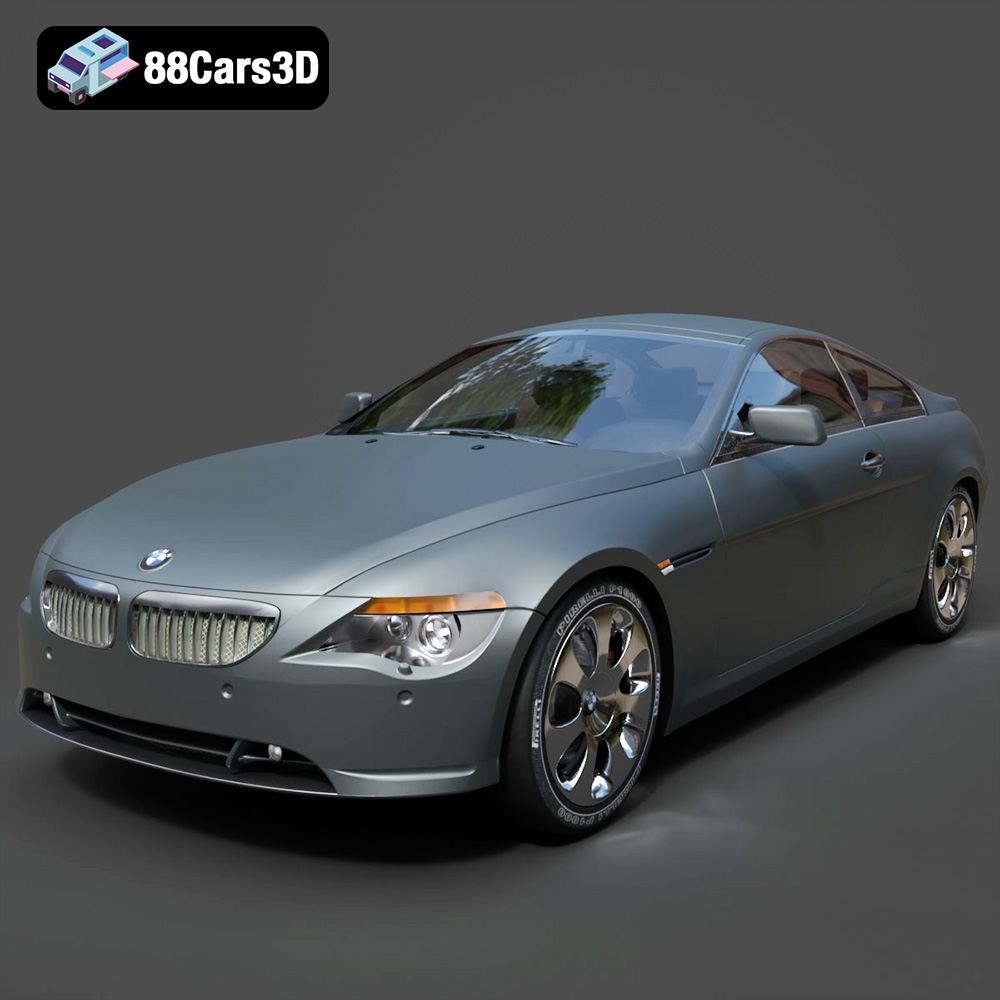
Download the BMW 6 Series 3D Model featuring precisely modeled body panels, detailed interior, and authentic wheels. Includes .blend, .fbx, .obj, .glb, .stl, .ply, .unreal, and .max formats for rendering, simulation, and game development.
Price: $10.79

Texture: Yes
Material: Yes
Download the BMW M6 Coupe (F12) 3D Model featuring its iconic sporty design and luxurious details. Includes .blend, .fbx, .obj, .glb, .stl, .ply, .unreal, and .max formats for rendering, simulation, and game development.
Price: $10.79

Texture: Yes
Material: Yes
Download the BMW M5 F10 3D Model featuring high-performance luxury sedan design, detailed interior, and realistic PBR textures. Includes .blend, .fbx, .obj, .glb, .stl, .ply, .unreal, and .max formats for rendering, simulation, and game development.
Price: $10.79

Texture: Yes
Material: Yes
Download the BMW M3 Coupe E92-002 3D Model featuring authentic styling, detailed exterior, and a faithful interior. Includes .blend, .fbx, .obj, .glb, .stl, .ply, .unreal, and .max formats for rendering, simulation, and game development.
Price: $10.79

Texture: Yes
Material: Yes
Download the BMW 6 Series Gran Coupe 2013 3D Model featuring a sophisticated design, detailed exterior, and well-appointed interior. Includes .blend, .fbx, .obj, .glb, .stl, .ply, .unreal, and .max formats for rendering, simulation, and game development.
Price: $20.79

Texture: Yes
Material: Yes
Download the BMW 7 Series 750 F01 3D Model featuring a detailed exterior and a luxurious interior. Includes .blend, .fbx, .obj, .glb, .stl, .ply, .unreal, and .max formats for rendering, simulation, and game development.
Price: $10.79

Texture: Yes
Material: Yes
Download the Buick Skylark Convertible 1953 3D Model featuring iconic 1950s styling, a detailed exterior with chrome accents, and an accurately modeled interior. Includes .blend, .fbx, .obj, .glb, .stl, .ply, .unreal, and .max formats for rendering, simulation, and game development.
Price: $10.79

Texture: Yes
Material: Yes
Download the Buick Roadmaster Hardtop Coupe 1957 3D Model featuring a classic American design with detailed exterior and interior. Includes .blend, .fbx, .obj, .glb, .stl, .ply, .unreal, and .max formats for rendering, simulation, and game development.
Price: $10.79

Texture: Yes
Material: Yes
Download the Buick Riviera 1963 3D Model featuring classic American muscle car design and iconic styling. Includes .blend, .fbx, .obj, .glb, .stl, .ply, .unreal, and .max formats for rendering, simulation, and game development.
Price: $10.79

