⚡ FLASH SALE: Get 60% OFF All Premium 3D & STL Models! ⚡

Creating truly realistic vehicle physics in Unreal Engine is one of the most challenging yet rewarding aspects of developing automotive simulations, racing games, or interactive visualization projects. It’s about more than just making a car move; it’s about conveying the feeling of weight, momentum, grip, and the intricate dance between tires and tarmac. A poorly implemented physics system can break immersion, while a finely tuned one can elevate a project from good to exceptional, offering an authentic driving experience that captivates users.
Whether you’re an aspiring game developer, an automotive visualization artist, or an architect creating interactive walkthroughs, mastering Unreal Engine’s Chaos Vehicle physics system is paramount. This comprehensive guide will take you on a deep dive into the technical intricacies, best practices, and advanced techniques required to achieve compelling vehicle dynamics. We’ll explore everything from model preparation and core Chaos setup to engine calibration, suspension tuning, input handling, and crucial optimization strategies. By the end, you’ll have a robust understanding of how to bring your high-quality 3D car models, perhaps sourced from 88cars3d.com, to life with incredibly realistic physics within Unreal Engine.
Before you even think about complex physics, a solid foundation is essential. This begins with properly setting up your Unreal Engine project and meticulously preparing your 3D vehicle model. Neglecting these initial steps can lead to countless headaches down the line, from incorrect scaling to unpredictable physics behavior. A well-structured workflow ensures a smoother development process and more accurate results.
Start by creating a new project, typically using the “Games” or “Automotive, Product Design, and Manufacturing” template, though a blank project is perfectly fine. The critical first step is to ensure Unreal Engine’s Chaos physics engine is active. Navigate to Edit > Plugins and search for “Chaos Vehicles” and “Chaos Physics.” Make sure both are enabled. You might also want to enable “Enhanced Input” for a more robust and flexible input system, which we’ll discuss later. After enabling, restart the editor when prompted. For detailed information on plugin management, refer to the official Unreal Engine documentation at https://dev.epicgames.com/community/unreal-engine/learning.
Next, consider your project settings. Go to Edit > Project Settings. Under the “Physics” section, you can review global physics settings. While Chaos Vehicle handles much of its internal physics, understanding these global parameters can sometimes help diagnose unexpected behavior. Ensure the world gravity is set appropriately for your desired simulation (default is typically fine for Earth-like gravity). Also, under “Maps & Modes,” set a default GameMode and PlayerController if you haven’t already, as these will eventually manage your vehicle’s spawning and input.
The quality of your 3D model is paramount. When sourcing automotive assets from marketplaces such as 88cars3d.com, you’re generally guaranteed high-quality, clean topology, which is ideal for physics simulation. However, even the best models require specific preparation steps before they can become a Chaos Vehicle. Import your model (preferably as an FBX or USD file) into Unreal Engine. During import, ensure “Skeletal Mesh” is selected, as Chaos Vehicles require a skeletal mesh for wheel movement and suspension articulation. Also, select “Import Mesh” for the chassis and “Import Materials” if you want to bring in your PBR textures.
Once imported, open your Skeletal Mesh asset. The key to successful Chaos Vehicle setup lies in correctly defining the skeletal hierarchy and collision geometry. Your vehicle should have a root bone (e.g., “Chassis_Root” or “Car_Root”), and each wheel should be a separate bone, parented to the chassis or an intermediate axle bone. The pivot points of these wheel bones are crucial, as they define the center of rotation for each wheel. They should ideally be at the center of the wheel’s rotation axis. The vehicle’s overall scale in Unreal Engine should represent real-world dimensions (e.g., 1 unit = 1cm is common, so a 4-meter car would be 400 units long). Incorrect scaling will drastically impact physics calculations.
Unreal Engine 5 fully embraces Chaos Physics, providing a robust and highly customizable system for vehicle dynamics. Unlike previous iterations that relied on PhysX, Chaos offers more flexibility and better performance, especially with complex simulations. Getting your vehicle Blueprint set up correctly with the Chaos Vehicle Movement Component is the critical next step after model preparation.
To begin, right-click in your Content Browser and create a new Blueprint Class. Search for “Vehicle” and select “Wheeled Vehicle Pawn” (or “Wheeled Vehicle” for a non-pawn actor, if preferred). Name it appropriately, e.g., “BP_MyCar.” Open this Blueprint. The first thing you’ll notice is the “Mesh” component in the Components panel. Replace the default placeholder mesh with your prepared Skeletal Mesh from the previous step. Ensure its transform is reset to (0,0,0) relative to the Blueprint’s root component.
Below the Mesh component, you’ll find the “Chaos Vehicle Movement Component.” This is the heart of your vehicle’s physics. Select it, and in the Details panel, you’ll see a plethora of settings organized under categories like “Wheel Setup,” “Engine,” “Transmission,” “Suspension,” and “Tires.” These settings directly control how your vehicle interacts with the environment. Initially, many values will be at their defaults. The goal is to progressively tune these parameters to achieve realistic behavior. For a deeper dive into the component’s structure, consult the Chaos Vehicle documentation.
A crucial early step is to assign your vehicle’s wheel bones to the corresponding wheel setups within the Chaos Vehicle Movement Component. Under “Wheel Setup,” expand the “Wheels” array. For each element, select your skeletal mesh’s wheel bone (e.g., “FL_Wheel,” “FR_Wheel,” “RL_Wheel,” “RR_Wheel”) from the “Bone Name” dropdown. This links the physics simulation directly to the visual representation of your wheels. Also, ensure the “Steer Angle” and “Drive” properties are correctly assigned to your front and rear wheels respectively, defining which wheels steer and which receive engine power.
The “Wheel Setup” array in the Chaos Vehicle Movement Component is where you define the physical properties of each individual wheel. Each wheel entry has its own “Wheel Class” and “Tire Config” asset. While you can use the default “ChaosWheeledVehicleWheel,” it’s highly recommended to create custom “Vehicle Wheel” Blueprint classes for your front and rear wheels respectively. Right-click in the Content Browser, go to Physics > Vehicle Wheel, and create two: “VW_FrontWheel” and “VW_RearWheel.” Assign these to the appropriate wheel entries in your vehicle Blueprint.
Open your custom “Vehicle Wheel” Blueprints. Here, you’ll find parameters specific to the wheel’s physical dimensions and suspension. Key settings include:
Adjusting these parameters requires an iterative process of testing and tweaking. Start with realistic values based on real-world car specifications if possible. The interaction between spring rate, damping, and the vehicle’s overall mass (set in the Chaos Vehicle Movement Component) determines how responsive and stable your suspension feels. Don’t be afraid to experiment with small increments, as changes can have a significant impact on vehicle behavior.
With your vehicle’s physical structure and wheels defined, the next crucial step is to breathe life into it by configuring its engine, transmission, and control inputs. These elements dictate how the vehicle accelerates, shifts gears, and responds to player commands, directly impacting the driving experience.
The “Engine” section within the Chaos Vehicle Movement Component is where you define your vehicle’s power delivery. This isn’t just a simple horsepower number; it involves a torque curve, which describes the engine’s torque output at various RPMs. Unreal Engine uses a torque curve asset (right-click in Content Browser > Physics > Torque Curve) to allow for detailed customization. Create one (e.g., “TC_MyCarEngine”) and assign it to your vehicle Blueprint.
Open your Torque Curve asset. It consists of an array of points, each defining a specific RPM and the corresponding torque output (in Nm). Realistic torque curves typically start low, peak in the mid-range, and then gradually drop off at higher RPMs. You’ll also set:
The “Engine Torque Curve” section within the Chaos Vehicle Movement Component allows you to define these points graphically. Start with a relatively flat curve to understand its effect, then add more points to simulate a realistic power band. The “Max RPM” and “Idle RPM” within the Torque Curve asset should align with the “Max RPM” and “Idle RPM” in the main Chaos Vehicle Movement Component. Fine-tuning this curve, along with the transmission’s gear ratios, is key to achieving believable acceleration and top speed.
The “Transmission” settings govern how engine power is delivered to the wheels. Within the Chaos Vehicle Movement Component, you can configure:
Choosing between an automatic or manual gearbox largely depends on your project’s goals. For most simulations or arcade-style games, an automatic gearbox simplifies player interaction. For more realistic driving experiences or racing games, implementing manual shifting via Blueprints can add significant depth. When setting up gear ratios, consider the car’s real-world specifications. A sports car will have different ratios than a heavy truck. The goal is to create a progression that feels natural, with smooth transitions between gears and appropriate acceleration for each.
To control your vehicle, you’ll utilize Unreal Engine’s Enhanced Input System, which offers a robust and flexible way to manage player controls. First, ensure the “Enhanced Input” plugin is enabled. Create three core assets in your Content Browser:
Now, in your “BP_MyCar” Event Graph:
This setup provides granular control over your vehicle, allowing you to quickly iterate and test different input schemes.
Achieving realistic vehicle handling goes beyond basic engine and suspension settings. It requires meticulous fine-tuning of subtle parameters that influence stability, responsiveness, and grip. This is where your vehicle truly begins to feel like a real machine, reacting authentically to steering, braking, and varying road surfaces.
Suspension tuning is an iterative process that dramatically impacts how your vehicle handles bumps, corners, and weight shifts. Beyond the basic spring rate and damping discussed earlier in the Wheel Blueprints, consider these aspects:
When tuning, pay close attention to how the vehicle behaves under various conditions: hard braking (does it dive?), hard acceleration (does it squat?), and aggressive cornering (how much body roll and tire slip?). Record your changes and test them thoroughly.
Tire grip is perhaps the most critical factor in realistic vehicle handling. Unreal Engine’s Chaos Vehicle system handles this through Tire Config assets. Create a new Tire Config asset (e.g., “TC_DefaultRoad”) by right-clicking in the Content Browser > Physics > Tire Config. Assign this to your Vehicle Wheel Blueprints.
Inside the Tire Config asset, you’ll find an array of curves, most notably:
Additionally, you can create multiple Tire Configs for different surface types (e.g., “TC_WetRoad,” “TC_Gravel”). In your vehicle Blueprint, you can then use a Line Trace (or other collision detection) to determine the underlying physical material of the ground. Based on this, you can dynamically swap the “Tire Config” asset used by your wheels in real-time, simulating changing grip levels. For instance, if the car drives onto a patch of ice, you’d switch to a Tire Config with very low friction multipliers. This creates a highly immersive and reactive driving experience.
Effective braking is as important as powerful acceleration for realistic vehicle dynamics. In the Chaos Vehicle Movement Component, you can adjust:
When implementing input for braking, ensure your brake input (e.g., ‘S’ key or Left Trigger) directly feeds into the “Set Brake Input” node on the Chaos Vehicle Movement Component. For the handbrake, use “Set Handbrake Input.” Realistic braking involves understanding weight transfer; as you brake hard, weight shifts to the front, increasing front tire grip and decreasing rear tire grip. While Chaos Vehicle handles much of this inherently, a very high “Max Brake Torque” without proper suspension tuning can lead to excessive nose-diving or rear-wheel lock-up. You can also implement a basic Anti-lock Braking System (ABS) in Blueprint by monitoring wheel slip and dynamically reducing brake input if a wheel is about to lock up, further enhancing realism and control.
Realistic physics is only half the battle. To truly immerse players, you need to complement those dynamics with compelling visual and audio feedback, all while ensuring optimal performance. This integrated approach makes the simulation feel complete and believable.
Visual cues like tire smoke and skid marks are essential for conveying the intensity of driving.
These visual effects, when tied directly to the physics simulation, provide immediate and satisfying feedback to the player, reinforcing the feeling of control and interaction with the vehicle.
Sound design plays a crucial role in creating an immersive vehicle experience. Engine sounds, tire squeals, and impact noises all contribute to the sense of realism.
Blending these various audio elements dynamically creates a rich and convincing soundscape that complements the visual and physical feedback.
High-fidelity vehicle physics, combined with detailed models from platforms like 88cars3d.com and numerous visual effects, can be demanding. Optimization is key to maintaining a smooth frame rate.
Regular profiling with Unreal Engine’s built-in profilers (e.g., Stat Commands, Session Frontend) will help identify bottlenecks and guide your optimization efforts.
Beyond the core physics, realistic vehicle simulations open doors to a multitude of advanced applications, from interactive configurators to virtual production, each requiring specific workflows and optimizations.
Interactive configurators are a prime use case for high-fidelity 3D car models and realistic physics, especially for automotive visualization. Here, the vehicle physics might run in the background, subtly responding to UI changes, but the primary focus is visual customization.
These configurators provide a powerful, immersive way for customers or designers to explore vehicle options in real-time 3D.
While the focus has been on vehicle motion, Unreal Engine’s Chaos Physics also excels at destruction, which can be applied to vehicles to simulate damage.
Implementing dynamic damage adds another layer of realism and interactivity, especially valuable for game development or highly detailed simulation scenarios.
Bringing realistic vehicle physics into Augmented Reality (AR) and Virtual Reality (VR) environments presents unique challenges and opportunities.
AR scenarios might involve placing a virtual car in a real-world environment. Here, accurate scaling, seamless blending with real-world lighting (using tools like ARKit/ARCore’s light estimation), and the ability for the virtual vehicle to interact realistically with real-world surfaces become critical. The robust Chaos Vehicle system provides the physics foundation, but the integration with AR/VR platforms requires careful attention to performance and user experience.
Creating realistic vehicle physics in Unreal Engine is a journey that intertwines art and science, demanding patience, an eye for detail, and a deep understanding of both automotive mechanics and Unreal Engine’s powerful tools. We’ve explored the entire spectrum, from meticulous model preparation and the intricate setup of the Chaos Vehicle Movement Component to the fine-tuning of engine torque curves, suspension dynamics, tire friction, and the integration of immersive visual and audio feedback.
The key takeaway is that realism stems from an iterative process of experimentation and refinement. Start with a solid foundation, leveraging high-quality 3D car models from trusted sources like 88cars3d.com, and systematically work through each parameter. Utilize Unreal Engine’s Blueprint system for dynamic control, Niagara for stunning particle effects, and always keep performance optimization at the forefront, especially for demanding applications like AR/VR or high-fidelity simulators.
Now, equipped with this comprehensive knowledge, it’s time to put theory into practice. Dive into Unreal Engine, experiment with the Chaos Vehicle system, and start crafting the next generation of incredibly realistic and immersive automotive experiences. The road to mastery is long, but the journey of creating a truly believable virtual vehicle is an incredibly rewarding one.

Texture: Yes
Material: Yes
Download the Wheel-001 Component 3D Model featuring clean geometry, realistic detailing, and a fully modeled interior. Includes .blend, .fbx, .obj, .glb, .stl, .ply, .unreal, and .max formats for rendering, simulation, and game development.
Price: $10.99
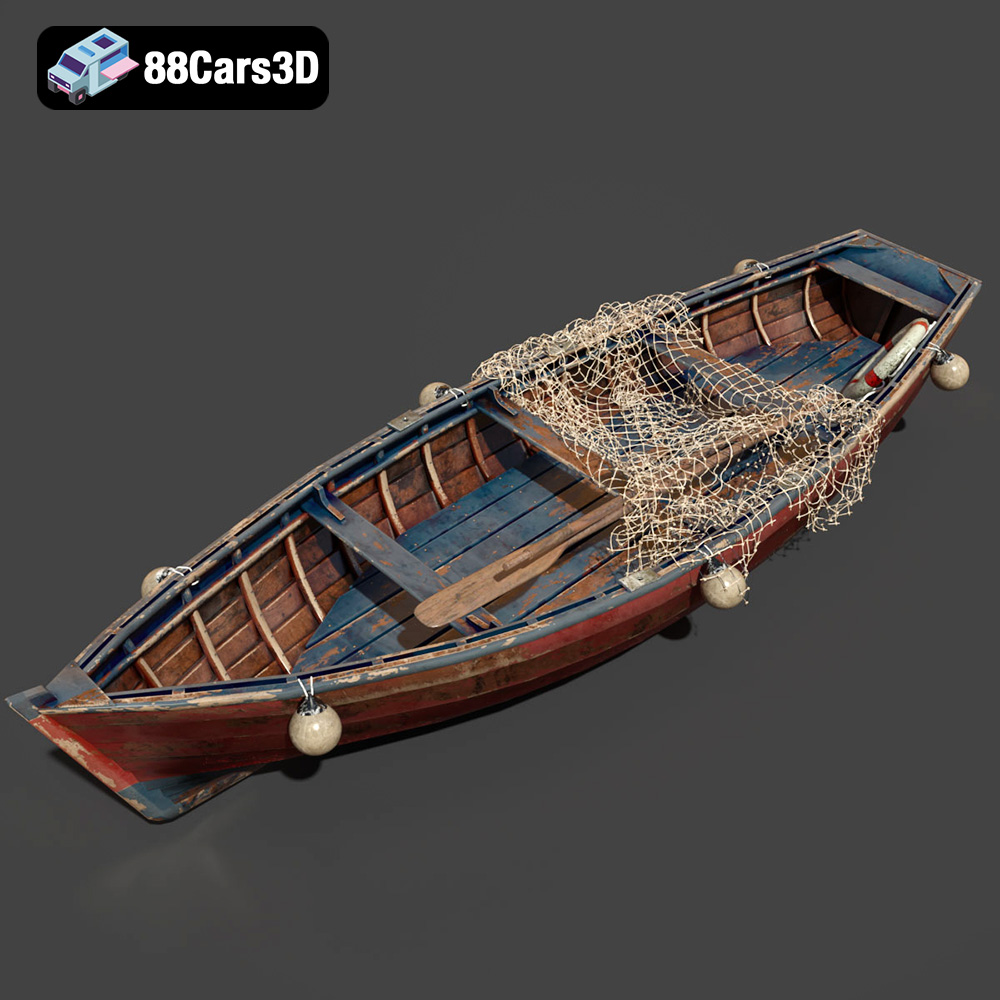
Texture: Yes
Material: Yes
Download the Old Fishing Boat 2014 3D Model featuring clean geometry, realistic detailing, and a fully modeled interior. Includes .blend, .fbx, .obj, .glb, .stl, .ply, .unreal, and .max formats for rendering, simulation, and game development.
Price: $9.99
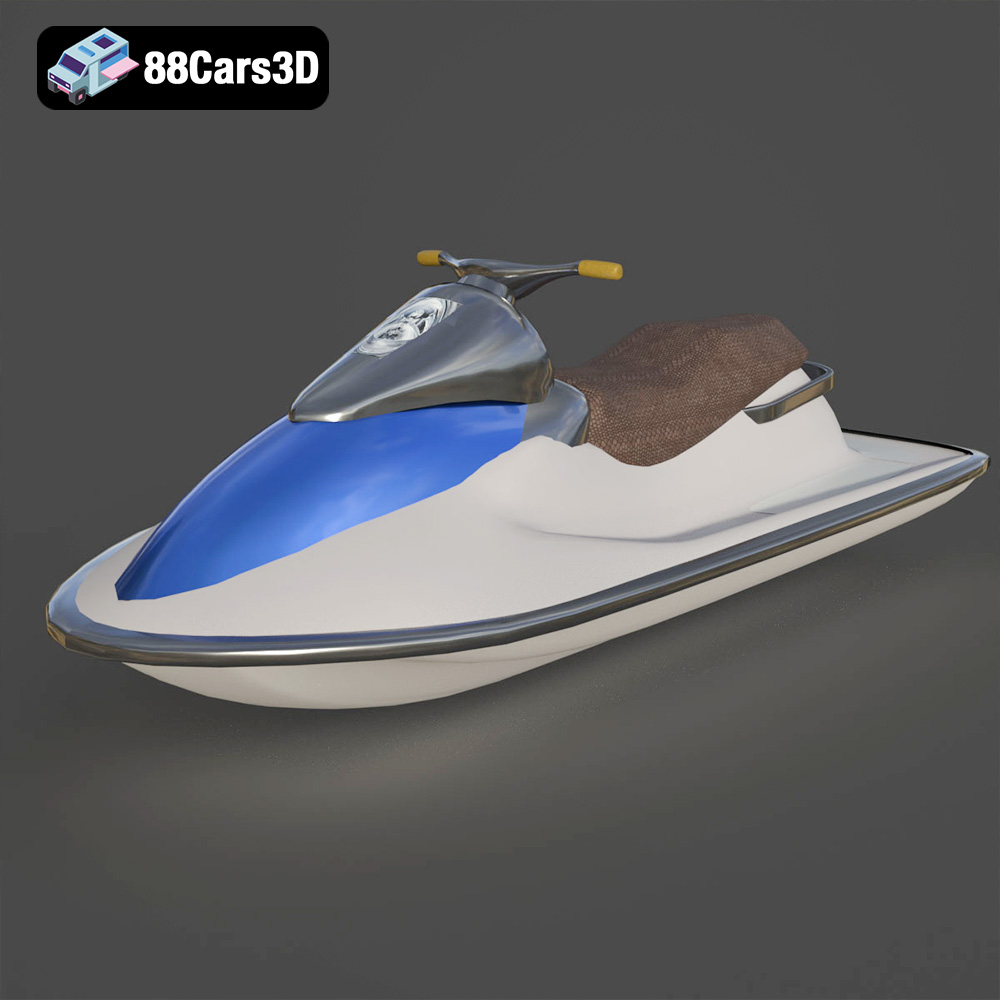
Texture: Yes
Material: Yes
Download the Chevrolet Corvette Stingray 2023 3D Model featuring clean geometry, realistic detailing, and a fully modeled interior. Includes .blend, .fbx, .obj, .glb, .stl, .ply, .unreal, and .max formats for rendering, simulation, and game development.
Price: $10
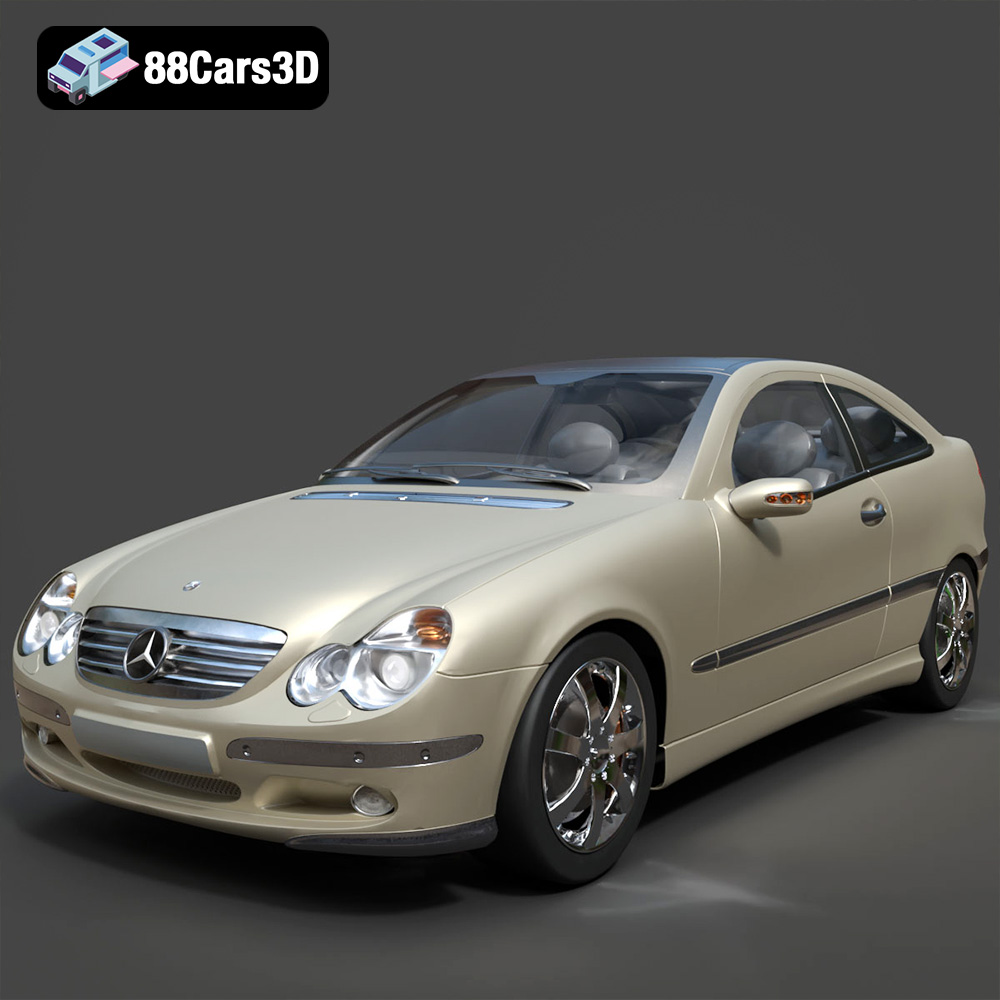
Texture: Yes
Material: Yes
Download the Mercedes Benz C230 3D Model featuring clean geometry, realistic detailing, and a fully modeled interior. Includes .blend, .fbx, .obj, .glb, .stl, .ply, .unreal, and .max formats for rendering, simulation, and game development.
Price: $14.99
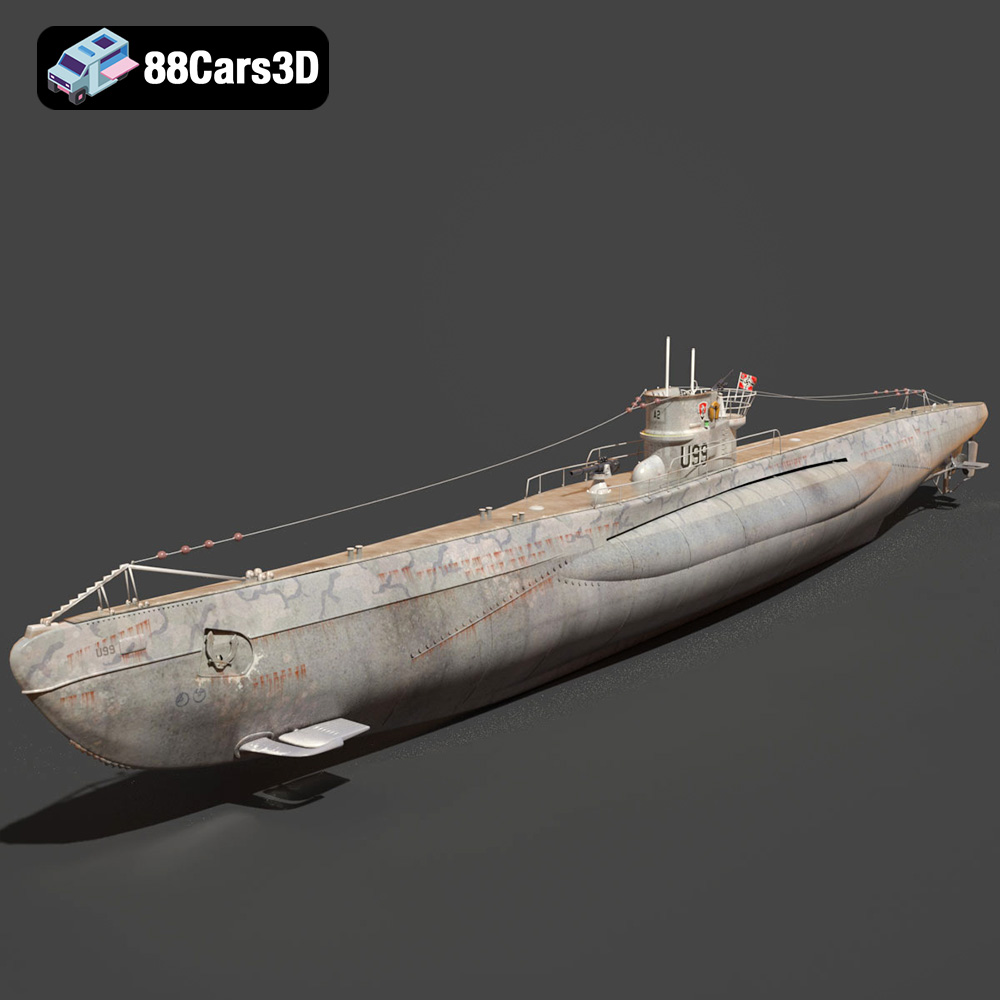
Texture: Yes
Material: Yes
Download the German U-Boat U-99 Submarine 3D Model featuring clean geometry, realistic detailing, and a fully modeled interior. Includes .blend, .fbx, .obj, .glb, .stl, .ply, .unreal, and .max formats for rendering, simulation, and game development.
Price: $10
Texture: Yes
Material: Yes
Download the KEMA ELKANLI-001 3D Model featuring clean geometry, realistic detailing, and a fully modeled interior. Includes .blend, .fbx, .obj, .glb, .stl, .ply, .unreal, and .max formats for rendering, simulation, and game development.
Price: $9.99

Texture: Yes
Material: Yes
Download the Carrier 006 3D Model featuring a robust design and detailed components. Includes .blend, .fbx, .obj, .glb, .stl, .ply, .unreal, and .max formats for rendering, simulation, and game development.
Price: $10.79

Texture: Yes
Material: Yes
Download the BMW 3 series Touring 335i (F31) 2013 3D Model featuring a highly detailed exterior, realistic interior, and modular design. Includes .blend, .fbx, .obj, .glb, .stl, .ply, .unreal, and .max formats for rendering, simulation, and game development.
Price: $30.79

Texture: Yes
Material: Yes
Download the BMW 3 Series E21 3D Model featuring authentic exterior design, detailed interior, and accurate proportions. Includes .blend, .fbx, .obj, .glb, .stl, .ply, .unreal, and .max formats for rendering, simulation, and game development.
Price: $20.79

Texture: Yes
Material: Yes
Download the BMW 1 Series 3-Door E81 3D Model featuring a detailed exterior, functional interior elements, and clean geometry. Includes .blend, .fbx, .obj, .glb, .stl, .ply, .unreal, and .max formats for rendering, simulation, and game development.
Price: $14.79

