⚡ FLASH SALE: Get 60% OFF All Premium 3D & STL Models! ⚡

The automotive industry is in constant motion, driven by innovation, design, and an insatiable desire to push boundaries. As vehicles become more advanced, so too does the way we visualize, interact with, and even sell them. Enter Augmented Reality (AR) – a technology that’s no longer confined to sci-fi but is rapidly transforming how we experience digital content within our physical world. When combined with the unparalleled real-time rendering capabilities of Unreal Engine, AR offers an incredibly powerful platform for automotive visualization, design review, interactive configurators, and immersive marketing experiences.
For professionals in game development, automotive design, and real-time rendering, building AR applications with Unreal Engine opens up a new realm of possibilities. Imagine placing a photorealistic 3D car model directly in your driveway, walking around it, inspecting its intricate details, or even customizing its paint and rims – all through your smartphone or tablet. This comprehensive guide will walk you through the technical intricacies of leveraging Unreal Engine to create stunning automotive AR applications, from project setup and model optimization to advanced interactivity and deployment. We’ll explore essential tools, best practices, and performance strategies to help you deliver truly captivating experiences.
Unreal Engine has long been synonymous with cutting-edge graphics and real-time rendering, powering everything from AAA games to blockbuster films and architectural visualizations. Its adoption as a leading tool for automotive visualization is a testament to its photorealism, robust feature set, and extensive ecosystem. When it comes to Augmented Reality, Unreal Engine extends its prowess, offering a comprehensive framework for creating immersive AR experiences that bridge the gap between digital content and the real world. This synergy is particularly impactful in the automotive sector, where visual fidelity and interactive engagement are paramount.
Unreal Engine stands out as the premier choice for AR development due to several key advantages. Firstly, its real-time rendering pipeline ensures photorealistic quality, allowing 3D car models to appear incredibly lifelike when placed in a real-world environment. The engine’s physically based rendering (PBR) system means that materials react accurately to light, producing authentic reflections, refractions, and surface details crucial for convincing automotive visualization. Secondly, Unreal Engine boasts robust native support for major AR frameworks like Apple’s ARKit and Google’s ARCore, as well as the OpenXR standard, enabling developers to target a wide range of mobile and standalone AR devices with a single codebase. This cross-platform compatibility is invaluable for reaching a broad audience. Furthermore, Unreal Engine’s visual scripting language, Blueprint, empowers artists and designers to create complex interactive AR experiences without writing a single line of C++ code, significantly accelerating development workflows. Its comprehensive toolset, including the Material Editor, Sequencer for cinematics, and Niagara for particle effects, allows for an unparalleled level of detail and artistic control, pushing the boundaries of what’s possible in real-time AR.
The applications of AR in the automotive industry are vast and revolutionary. For marketing and sales, AR empowers customers to visualize vehicles in their own environment, explore configurations, and even “test drive” virtually before visiting a dealership. Imagine an interactive automotive configurator that allows users to change car colors, swap rim designs, or view interior options in real-time, right on their driveway. Beyond sales, AR is invaluable for design review, enabling engineers and designers to overlay digital prototypes onto physical models or collaborate remotely on design iterations. Training and maintenance also benefit immensely, with AR overlays providing technicians with step-by-step instructions and real-time diagnostics on complex vehicle systems. This enhanced engagement and practical utility translate into improved decision-making, reduced costs, and a more compelling overall user experience. The demand for high-quality, optimized 3D car models is exploding, making platforms like 88cars3d.com an indispensable resource for obtaining production-ready assets perfectly suited for these demanding AR applications.
Before you can bring a sleek 3D car model into an AR experience, you need to properly configure your Unreal Engine project. A solid foundation is crucial for performance, stability, and a smooth development workflow. This setup involves enabling the correct plugins, configuring project settings for mobile devices, and understanding the fundamental concepts of AR session management within Unreal Engine.
To begin, open Unreal Engine and create a new project. While a Blank project template provides maximum flexibility, the AR Template can give you a head start with some basic AR functionality pre-configured. Regardless of your choice, the next critical step is to enable the necessary AR plugins. Navigate to Edit > Plugins. For iOS development, enable ARKit. For Android, enable ARCore. If you plan to target various AR devices or use more generic AR functionality, consider enabling OpenXR and the OpenXR AR Extension. Additionally, if you’re importing CAD data or complex scenes, the Datasmith plugin can streamline the import process. Remember to restart the engine after enabling plugins.
Project settings are equally vital for mobile AR. Go to Edit > Project Settings. Under the Platforms section (Android and iOS), ensure you have the necessary SDKs configured. For Android, verify your SDK, NDK, and Java paths are correct. Under Android > Build, select ETC2 as the texture compression format for broader device compatibility. For iOS, set your Bundle Identifier and Signing Certificate. In the Engine > Rendering section, set your Mobile MSAA to 2x or 4x for smoother edges, but be mindful of the performance impact. Consider enabling Mobile HDR if your project demands higher fidelity lighting, but disable it if targeting older or lower-end devices to save performance. For more detailed guidance on mobile project setup, the official Unreal Engine documentation at https://dev.epicgames.com/community/unreal-engine/learning is an invaluable resource.
At the core of any AR application in Unreal Engine is the concept of an AR Session. This session manages the connection to the device’s AR capabilities, handling tasks like camera feed acquisition, motion tracking, and environmental understanding (e.g., plane detection). You typically control the AR session using Blueprint nodes. The primary nodes you’ll interact with are Start AR Session and Pause AR Session/Stop AR Session.
To configure your AR session, you’ll use an AR Session Config asset. This asset allows you to specify crucial parameters such as:
A common workflow involves creating a GameMode or an Actor Blueprint that, upon being spawned or on BeginPlay, executes the Start AR Session node, passing in your configured AR Session Config asset. This initiates the camera feed and begins world tracking, allowing the application to understand the surrounding environment and eventually place your 3D car model accurately within it. Proper management of the AR session ensures efficient use of device resources and a stable AR experience.
The visual quality of your AR application hinges on the quality and optimization of your 3D assets. For automotive visualization, this means sourcing highly detailed, yet performant, 3D car models. Platforms like 88cars3d.com specialize in providing such assets, making the integration process much smoother for Unreal Engine developers. However, even with pre-optimized models, understanding the nuances of import and further optimization for mobile AR is critical.
When developing an automotive AR application, the fidelity of your 3D car models is paramount. Low-quality or poorly optimized models can break immersion and severely impact performance. This is where marketplaces like 88cars3d.com prove invaluable, offering a curated selection of high-quality, production-ready 3D car models designed with game development and real-time rendering in mind. These models often come with clean topology, proper UV mapping, and PBR-ready materials, significantly reducing post-import cleanup.
Common file formats for importing 3D models into Unreal Engine include FBX, USD (Universal Scene Description), and potentially USDZ for direct AR deployment in some ecosystems. FBX is a widely supported format that can encapsulate geometry, materials, animations, and skeletal data. For architectural and product visualization workflows, Datasmith can be used to import complex CAD models or entire scenes from software like 3ds Max, Maya, or CAD packages. When importing an FBX file, simply drag and drop it into your Content Browser or use the Add/Import button. In the FBX Import Options dialog, pay close attention to:
After importing, always perform initial checks. Verify the model’s scale by placing it next to a known reference object (e.g., a default Unreal Engine cube). Check its pivot point and orientation, as these will affect how the car rotates and is placed in AR. Adjusting these in the modeling software before export is ideal, but they can also be modified in Unreal Engine by using a dummy actor or re-importing with adjusted settings.
Even with high-quality assets, rigorous optimization is non-negotiable for mobile AR, where performance is severely constrained. Every frame must render quickly to maintain a smooth user experience and prevent motion sickness. Here are key optimization strategies:
By diligently applying these optimization techniques, you ensure that your high-quality 3D car models from marketplaces like 88cars3d.com perform smoothly and efficiently in your mobile AR applications, providing a truly immersive experience without performance hiccups.
Once your 3D car models are imported and optimized, the next crucial step is to give them life through realistic materials and convincing lighting. In AR, this is doubly challenging because your virtual objects must seamlessly integrate with the real world, reacting to its light and shadows. Unreal Engine’s PBR Material Editor and versatile lighting systems provide the tools to achieve this authenticity, even within the constraints of mobile AR.
Physically Based Rendering (PBR) is the cornerstone of realism in modern real-time graphics, and it’s essential for making your virtual car feel tangible in an AR scene. PBR materials simulate how light interacts with surfaces in the real world, ensuring consistent and believable results under various lighting conditions. In Unreal Engine, you’ll primarily work with the Material Editor to create these PBR materials.
A standard PBR workflow involves several key texture maps:
Creating car paint materials in Unreal Engine requires special attention. Beyond the standard PBR maps, you might use additional techniques for advanced effects:
Once you’ve crafted a robust master material, create Material Instances from it. This allows you to quickly create variations (e.g., different car colors, varying roughness for different wheel finishes) by adjusting parameters without recompiling the entire material, which is great for performance and iteration speed.
Lighting is arguably the most challenging aspect of AR, as the virtual objects need to appear grounded and correctly lit by the real environment. Unlike traditional game development where you control all light sources, AR requires reacting to the real world.
ARLightEstimate data, which Unreal Engine can use to adjust the lighting of your virtual objects. This typically includes ambient intensity, color temperature, and sometimes even a spherical harmonics lighting probe. You can integrate this data into your master material to ensure your car models are illuminated by the estimated real-world light, making them feel more cohesive with the environment.By meticulously crafting your PBR materials and leveraging the AR framework’s light estimation alongside optimized shadow techniques, you can achieve a remarkable level of realism, making your virtual automotive assets truly shine in any real-world setting.
A static 3D car model, however beautiful, only tells half the story. The true power of AR lies in interaction – allowing users to manipulate, customize, and explore virtual objects in a dynamic way. Unreal Engine’s Blueprint visual scripting system is the ideal tool for implementing these interactive AR experiences without diving into complex C++ code, making advanced interactivity accessible to a broader range of artists and designers.
The first step in any interactive AR application is enabling the user to place and manipulate objects in the real world. This involves two core AR concepts: hit testing and object placement.
Line Trace for Objects (or Line Trace by Channel) node, but for AR, you’ll specifically use the Deproject Screen Position to World node combined with AR-specific hit test nodes (e.g., ARLineTrace from ScreenPoint). This node allows you to perform a raycast from the touch location on the screen into the AR world, returning information about any detected AR planes (horizontal, vertical, or feature points) it intersects.Spawn Actor from Class Blueprint node to instantiate your 3D car model Blueprint (or a container Actor holding the car) at the precise hit location and rotation. It’s often beneficial to have a visual indicator (like a simple translucent circle) to show the user where the car will be placed before they tap. These interactions are built by capturing touch events (Input > Touch Input > On Input Touch Begin/End/Moved) and using Blueprint nodes to calculate the appropriate transformations based on touch deltas.
One of the most powerful applications of AR in automotive is the interactive configurator. Users can customize a vehicle in real-time, visualizing changes directly in their environment. Blueprints make this incredibly manageable.
Set Scalar Parameter Value on Materials or Set Vector Parameter Value on Materials node (for color) to update the material instance applied to the car body.Set Static Mesh node on the car’s wheel components to swap out the current rim mesh with the newly selected one. This same principle applies to changing interior elements or other modular components.On Clicked event would trigger a custom event in your car Blueprint, which then applies the corresponding material change.Through the intuitive power of Blueprints, you can transform a static 3D car model into a fully interactive AR experience, allowing users to customize and explore vehicles with unprecedented freedom and immersion.
Achieving a smooth, high-fidelity AR experience on mobile devices is a delicate balance of visual quality and raw performance. Even with careful asset optimization, continuous profiling and strategic rendering adjustments are essential. Furthermore, successfully deploying your AR application to various mobile platforms requires understanding their specific build processes and testing considerations.
While basic asset optimization covers polygons and textures, pushing the boundaries of mobile AR requires more granular control over rendering processes. Identifying performance bottlenecks is the first step, and Unreal Engine provides powerful profiling tools:
Stat GPU (shows GPU timings for various passes), Stat rhi (Render Hardware Interface stats), and Stat Engine (general engine performance). These stats help identify if you’re CPU-bound (too many draw calls, complex Blueprints) or GPU-bound (too many pixels, complex shaders).Once your AR application is optimized, the final hurdle is packaging and deploying it to target devices.
Thorough testing on actual target devices is non-negotiable. What performs well in the editor or on a high-end development device might struggle on an older or less powerful phone. Monitor frame rates, AR tracking stability, and user interaction across your target hardware spectrum.
As AR technology continues to evolve, Unreal Engine is at the forefront, integrating new features that enable increasingly sophisticated and immersive experiences. For automotive visualization, these advanced capabilities promise even richer interactions and more practical applications.
Imagine configuring a car in AR, leaving it in your driveway, and returning to it later with all your customizations intact. This is the promise of Persistent AR. AR frameworks like ARKit and ARCore allow you to save and load “AR worlds” or “anchors,” which are essentially spatial maps of a real-world environment. In Unreal Engine, you can leverage these capabilities by saving and loading AR session data. This allows digital content (like your customized car) to remain anchored to its real-world position even after the application is closed or the device moves away and returns. This is invaluable for design reviews, training, or even showing off a configuration to multiple people over time.
Taking this a step further, Multi-User AR experiences allow multiple users to see and interact with the same virtual content in a shared real-world space. For automotive, this means design teams can collaboratively review a car prototype, or sales associates can guide multiple customers through a virtual showroom, all seeing the same vehicle and its changes in real-time. Implementing multi-user AR typically involves network synchronization of AR anchors and object transforms, often using Unreal Engine’s built-in networking capabilities combined with cloud-based anchor sharing services (e.g., ARCore Cloud Anchors, ARKit Multipeer Connectivity). This enables truly collaborative and engaging automotive experiences.
Newer mobile devices, particularly high-end iPhones and iPads, are integrating LiDAR (Light Detection and Ranging) scanners. LiDAR provides highly accurate depth maps of the environment, offering several significant advantages for AR:
Unreal Engine’s AR frameworks are continually updated to leverage these advanced sensor capabilities. Developers can access LiDAR data to create more immersive and believable automotive AR scenarios, from placing a car accurately on a sloped driveway to having virtual reflections from the car interact with real-world objects.
Looking ahead, the convergence of AR with other real-time technologies promises even more exciting applications. We’re already seeing the rise of virtual production techniques, where LED walls display Unreal Engine environments to create seamless backgrounds for physical sets. While not strictly AR, the underlying principles of real-time rendering, scene composition, and high-fidelity assets are shared. We could see AR playing a role in pre-visualization for such setups or even in location-based AR experiences that merge physical props with dynamic digital automotive content. The future of automotive visualization with Unreal Engine and AR is bright, offering unprecedented levels of immersion, customization, and interactivity.
The journey of building high-fidelity AR applications for automotive visualization with Unreal Engine is a rewarding one, unlocking unprecedented possibilities for engagement and realism. We’ve explored the essential steps, from configuring your Unreal Engine project for mobile AR and meticulously optimizing your 3D car models, to crafting photorealistic PBR materials and implementing dynamic interactive experiences using Blueprints. Mastering performance for mobile devices, understanding the nuances of lighting in AR, and leveraging advanced features like persistent AR and LiDAR are crucial for creating truly compelling and immersive applications.
The power of Unreal Engine, combined with access to expertly crafted 3D car models from marketplaces like 88cars3d.com, empowers developers and artists to push the boundaries of automotive visualization. Whether you’re creating an interactive configurator for a new vehicle launch, a design review tool for engineers, or an innovative sales experience, the technical insights and best practices outlined in this guide provide a robust foundation. The future of automotive interaction is undoubtedly intertwined with AR, and with Unreal Engine as your platform, you’re equipped to be at the forefront of this exciting revolution.
Begin your AR development journey today. Experiment with Unreal Engine’s powerful tools, explore the diverse range of high-quality 3D car models available on 88cars3d.com, and start building the next generation of immersive automotive experiences. The road ahead is open, and it’s full of incredible AR possibilities.

Texture: Yes
Material: Yes
Download the Wheel-001 Component 3D Model featuring clean geometry, realistic detailing, and a fully modeled interior. Includes .blend, .fbx, .obj, .glb, .stl, .ply, .unreal, and .max formats for rendering, simulation, and game development.
Price: $10.99
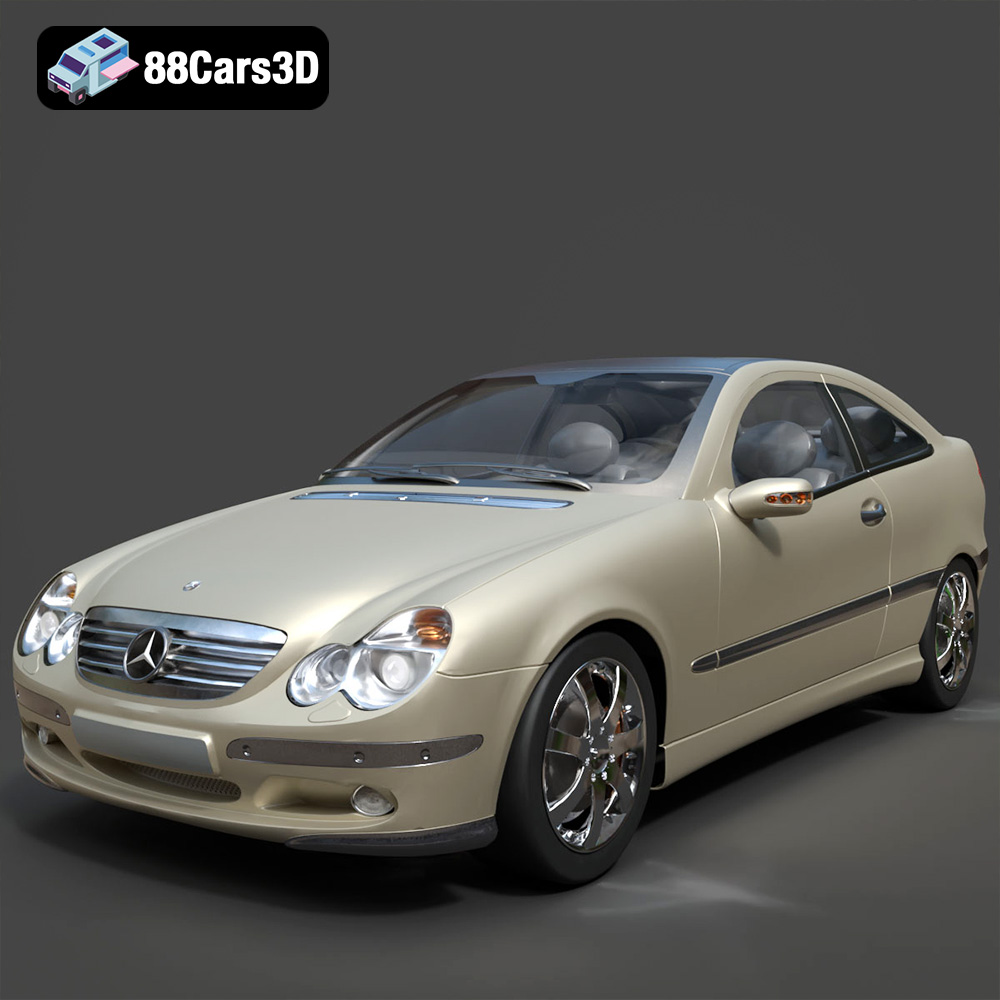
Texture: Yes
Material: Yes
Download the Mercedes Benz C230 3D Model featuring clean geometry, realistic detailing, and a fully modeled interior. Includes .blend, .fbx, .obj, .glb, .stl, .ply, .unreal, and .max formats for rendering, simulation, and game development.
Price: $14.99
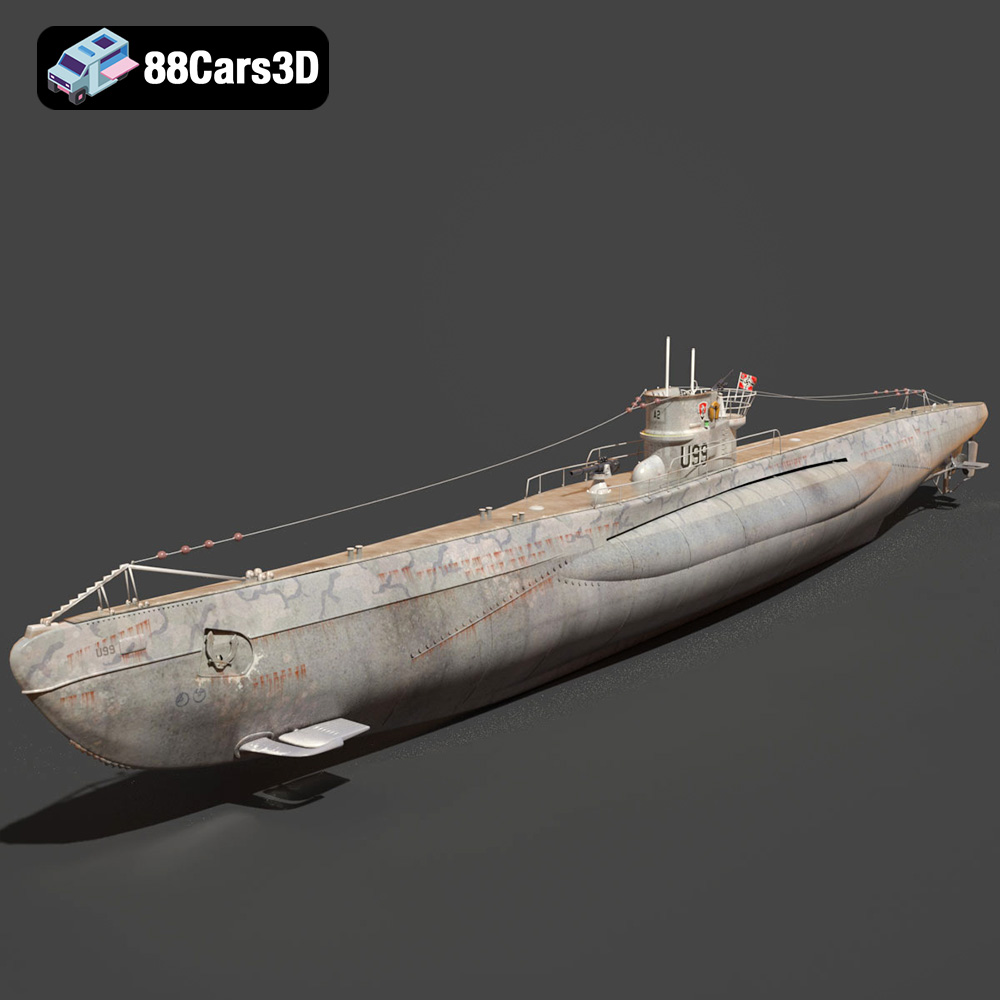
Texture: Yes
Material: Yes
Download the German U-Boat U-99 Submarine 3D Model featuring clean geometry, realistic detailing, and a fully modeled interior. Includes .blend, .fbx, .obj, .glb, .stl, .ply, .unreal, and .max formats for rendering, simulation, and game development.
Price: $10
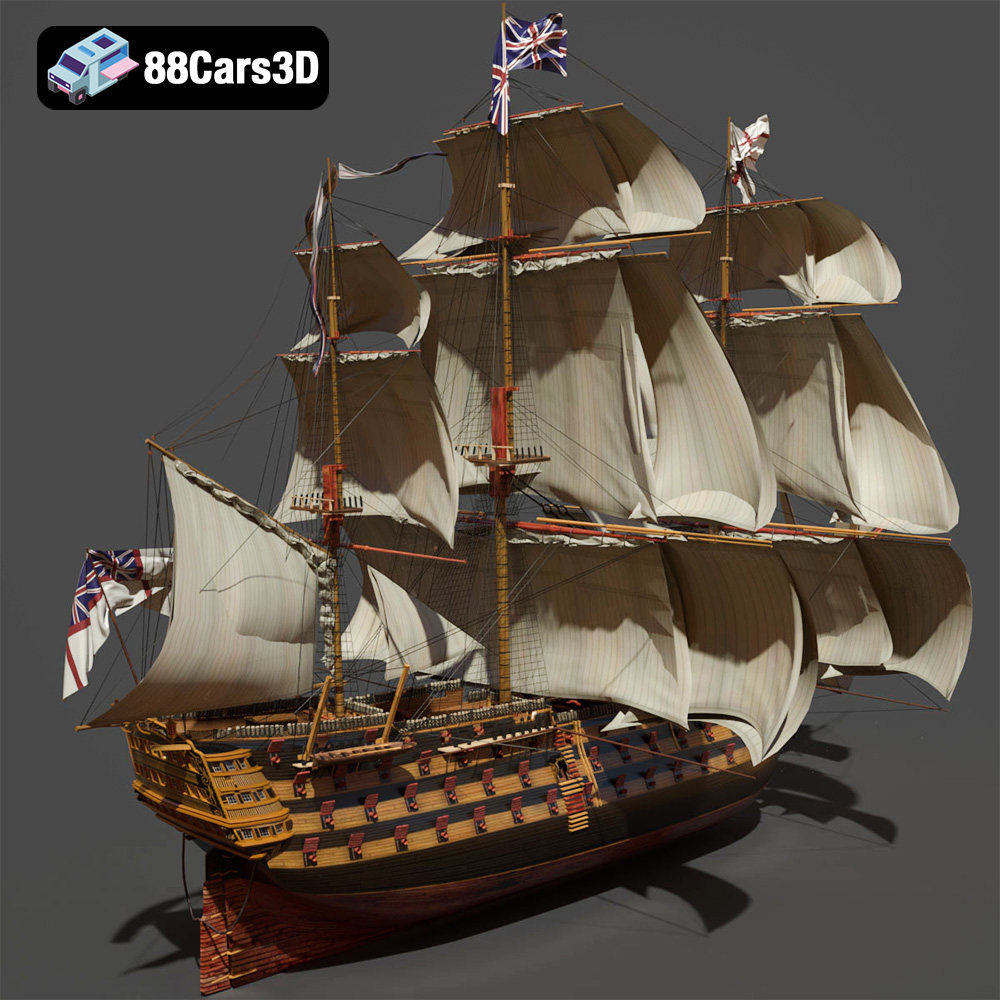
Texture: Yes
Material: Yes
Download the KEMA ELKANLI-001 3D Model featuring clean geometry, realistic detailing, and a fully modeled interior. Includes .blend, .fbx, .obj, .glb, .stl, .ply, .unreal, and .max formats for rendering, simulation, and game development.
Price: $9.99

Texture: Yes
Material: Yes
Download the Carrier 006 3D Model featuring a robust design and detailed components. Includes .blend, .fbx, .obj, .glb, .stl, .ply, .unreal, and .max formats for rendering, simulation, and game development.
Price: $10.79

Texture: Yes
Material: Yes
Download the BMW 3 series Touring 335i (F31) 2013 3D Model featuring a highly detailed exterior, realistic interior, and modular design. Includes .blend, .fbx, .obj, .glb, .stl, .ply, .unreal, and .max formats for rendering, simulation, and game development.
Price: $30.79

Texture: Yes
Material: Yes
Download the BMW 3 Series E21 3D Model featuring authentic exterior design, detailed interior, and accurate proportions. Includes .blend, .fbx, .obj, .glb, .stl, .ply, .unreal, and .max formats for rendering, simulation, and game development.
Price: $20.79

Texture: Yes
Material: Yes
Download the BMW 1 Series 3-Door E81 3D Model featuring a detailed exterior, functional interior elements, and clean geometry. Includes .blend, .fbx, .obj, .glb, .stl, .ply, .unreal, and .max formats for rendering, simulation, and game development.
Price: $14.79

Texture: Yes
Material: Yes
Download the Mercedes-Benz S500 2022 3D Model featuring clean geometry, realistic detailing, and a fully modeled interior. Includes .blend, .fbx, .obj, .glb, .stl, .ply, .unreal, and .max formats for rendering, simulation, and game development.
Price: $19.99

Texture: Yes
Material: Yes
Download the Jaguar S-Type Sedan 3D Model featuring clean geometry, realistic detailing, and a fully modeled interior. Includes .blend, .fbx, .obj, .glb, .stl, .ply, .unreal, and .max formats for rendering, simulation, and game development.
Price: $18.99

