Get 50% OFF All Premium 3D & STL Models!

In the world of high-fidelity automotive visualization, the hero asset—the car—is undeniably the star of the show. However, a masterpiece is incomplete without the right frame. A breathtakingly realistic 3D car model placed in a flat, uninspired environment loses its impact and fails to evoke the emotion and dynamism it deserves. This is where Unreal Engine’s powerful Landscape tools come into play. Creating a compelling, realistic, and performant environment is not just background dressing; it is a critical component that grounds your vehicle in reality, enhances lighting and reflections, and tells a story. Whether you’re crafting a winding mountain pass, a rugged desert track, or a serene coastal highway, the terrain you build sets the stage for an unforgettable visual experience.
This comprehensive guide will take you on a deep dive into Unreal Engine’s terrain creation and sculpting workflow. We will move beyond the basics to explore the technical nuances that separate amateur scenes from professional-grade automotive visualization. You will learn how to properly configure and create a new landscape, master the core sculpting tools for artistic control, leverage procedural techniques for rapid and realistic results, build complex PBR materials for your terrain, integrate roads seamlessly, and most importantly, optimize everything for buttery-smooth real-time rendering. Let’s sculpt the perfect world for your next automotive project.
Before you can sculpt your masterpiece, you must first create your canvas. In Unreal Engine, this begins in the Landscape Mode (Shift+2). The initial creation settings are arguably the most critical step in the entire process, as they define the fundamental structure and performance characteristics of your terrain. Making the wrong choices here can lead to performance bottlenecks or insufficient detail down the line, so it’s crucial to understand what each parameter does. When you open the Landscape panel, you’re presented with options under the “New Landscape” tab that dictate the size, resolution, and structure of your terrain. These settings are a permanent foundation for your environment, so planning is key.
The core of a landscape’s structure is its hierarchy of components, sections, and quads. Think of it as a grid system laid over your world. The settings you choose here are a trade-off between detail and performance.
A common and highly recommended setup for good performance and detail is using a Section Size of 63×63 Quads, with Sections Per Component set to 1×1, and then scaling the Number of Components (e.g., 16×16) to achieve your desired world size. These “Epic-recommended” numbers are optimized for the engine’s LOD and memory management systems. You can find extensive details on these configurations in the official Unreal Engine documentation, a vital resource for any serious developer available at https://dev.epicgames.com/community/unreal-engine/learning.
You have two primary options for creating your landscape’s initial shape. You can create a perfectly flat plane and sculpt everything manually within Unreal, which offers maximum artistic control. Alternatively, you can import a heightmap. A heightmap is a grayscale image where white represents the highest peaks and black represents the lowest valleys. You can generate these using external software like World Creator, Gaea, or Houdini, or even from real-world topographical data. For automotive visualization, importing a heightmap of a famous road like the Stelvio Pass or the Pacific Coast Highway can provide an incredible, realistic base to build upon. When importing, ensure your heightmap dimensions match the overall resolution you’ve configured in the Landscape tool to avoid stretching or distortion.
Once your landscape actor is created, the real artistry begins. Unreal Engine provides a robust suite of sculpting tools that function much like digital clay modeling tools. Mastering these core brushes is essential for shaping the broad strokes and fine details of your terrain. Each tool has settings for Brush Size, Brush Falloff (how soft the edges of the brush are), and Tool Strength, which you should constantly adjust to suit your needs. Working with a pressure-sensitive tablet can provide a much more intuitive and organic sculpting experience.
The Sculpt tool is your primary workhorse. In its default mode, it raises the terrain. Holding the Shift key while using it will invert its function, allowing you to lower the terrain and carve out valleys, riverbeds, or canyons. The key to natural-looking terrain is to vary your brush size and strength constantly. Use a large, soft brush with low strength to create broad, rolling hills. Switch to a smaller, harder brush with higher strength to create more defined rocky outcrops or sharp ridges.
The Smooth tool is just as important as the Sculpt tool. It averages the height of the vertices within the brush’s radius, softening hard edges and creating more natural transitions. After making significant changes with the Sculpt tool, it’s best practice to run a low-strength Smooth pass over the area to blend it more naturally into the surrounding landscape. It’s the perfect tool for softening the jagged, “digital” look that procedural noise or aggressive sculpting can sometimes create.
The Flatten tool is indispensable for creating perfectly level areas. It samples the height of the terrain at the center of your cursor when you first click and then raises or lowers all other terrain within the brush’s radius to match that exact height. This is essential for creating plateaus, building foundations, or, in our case, carving out a flat showcase area for a vehicle. You can even use the “Flatten Target” option to specify a precise world-space height value.
The Ramp tool is a powerful utility for creating linear inclines with a consistent grade. You simply click to set a start point and an end point, and the tool generates a smooth ramp between them. You can control the width and falloff of the ramp on either side. This is incredibly useful for creating approach roads, driveways, or any man-made slope that needs to be perfectly straight and consistent, blending seamlessly into your organically sculpted terrain.
While manual sculpting provides artistic control, it can be incredibly time-consuming to add fine, natural detail across a large landscape. This is where Unreal Engine’s procedural tools come in. They simulate natural phenomena to add a layer of believable complexity and realism that would take days to sculpt by hand. Integrating these tools into your workflow allows you to build a convincing foundation quickly, leaving you more time to focus on bespoke details.
The Erosion tool is one of the most powerful features in the Landscape toolset. It simulates the effects of weather over time, carving realistic details into your terrain. It has two primary modes:
When using the Erosion tool, it’s best to apply it subtly with low strength over several passes. Over-eroding can create a messy, noisy result. The goal is to enhance the features you’ve already sculpted, not obliterate them.
The Noise tool is perfect for breaking up flat, boring areas and adding large-scale or small-scale surface variations. It applies a procedural noise pattern to the terrain height. You can control the Noise Scale (the size or frequency of the noise pattern) and the Tool Strength (how much it affects the height). Using a large noise scale with low strength is an excellent way to add subtle, rolling imperfections to a flat plain. A small noise scale can add a bumpy, rough texture to the ground. Experimenting with different noise patterns and strengths is a fast and effective way to make your landscape feel less artificial and more organic.
A beautifully sculpted terrain is only half the battle; its realism is ultimately defined by its surface material. Landscape materials in Unreal Engine are a specialized type of material that allows you to paint different surface textures—like grass, rock, dirt, and sand—onto different parts of your terrain. A well-crafted landscape material can dramatically elevate the quality of your scene, providing realistic ground textures that react properly to lighting from features like Lumen.
The heart of any landscape material is the LandscapeLayerBlend node in the Material Editor. This node acts as a switchboard, allowing you to define multiple layers and blend them together. Each layer typically consists of a set of PBR (Physically-Based Rendering) textures (Base Color, Normal, Roughness, Ambient Occlusion). You create a layer by giving it a name (e.g., “Grass,” “Rock”) and connecting your texture networks to it. In the Landscape Mode, these names will appear in your Paint tool, allowing you to select a layer and paint its corresponding textures directly onto the terrain.
The `LandscapeLayerBlend` node offers two primary blending methods. Weight Blending is the default and simplest method. It smoothly fades between textures based on the “weight” you paint for each layer, resulting in a soft transition. While efficient, it can sometimes produce blurry or smudged-looking results where textures meet.
For more realistic transitions, you can use Height Blending. This method requires you to provide a black-and-white height map for each layer. The engine then uses this height data to blend the layers together, allowing the details of one texture to appear to protrude through the other. For example, rocks can appear to poke through the grass, or pebbles can settle in the cracks of a dirt path. This creates a much sharper, more complex, and more believable transition between surfaces, which is critical for close-up shots in automotive rendering.
For large landscapes, painting every single surface by hand is impractical. A more advanced and efficient approach is to create an “auto-material.” This is a material that uses the landscape’s own data—primarily its slope or “steepness”—to automatically apply different textures. Using a `World_Aligned_Blend` node or by calculating the vertex normal, you can set up logic that says, “If the slope is gentle, apply the Grass layer; if the slope is steep, apply the Rock layer.” This allows you to texture an entire mountain range in seconds, providing a fantastic base layer that you can then refine with manual painting.
No automotive scene is complete without a road. Unreal Engine provides a dedicated, non-destructive workflow for creating roads, paths, and rivers using Landscape Splines. Instead of permanently sculpting a road into your terrain—which can be difficult to edit—splines lay on top of the landscape and deform the terrain beneath them. This gives you immense flexibility to adjust the path, width, and banking of your road at any time.
Within Landscape Mode, you can select the Splines tool. To create a spline, simply Ctrl+Click on the landscape to add control points. These points form a path that can be moved, rotated, and scaled. You can add new points between existing ones to refine the curve. Each control point and segment has properties you can adjust in the Details panel. You can control the width of the road at any point, the smoothness of the falloff on the sides, and even add banking to your turns. This non-destructive workflow is perfect for iterating on track design for a driving simulator or framing the perfect shot for a cinematic render.
Simply deforming the terrain isn’t enough; the road needs to look like a road. You can assign a specific material layer to your spline, which will override the base landscape material. This allows you to “paint” an asphalt or dirt road material that precisely follows the path of the spline.
For even more detail, you can add Spline Meshes. This powerful feature allows you to attach a Static Mesh that will deform and repeat along the length of the spline. This is the ideal way to add elements like guardrails, curbs, tire walls, or fences. You can add multiple mesh elements to a single spline, allowing you to build complex road structures quickly and efficiently. When sourcing your primary vehicle from a marketplace like 88cars3d.com, which provides game-ready assets, ensuring your environment’s details like roads and barriers are equally high-quality is key to a cohesive final product.
A sprawling, high-detail landscape can be one of the most performance-intensive elements in a real-time scene. When your primary focus is a high-polygon 3D car model, featuring tens of millions of triangles thanks to Nanite, you cannot afford to waste performance on the surrounding environment. Fortunately, Unreal Engine has powerful, built-in optimization systems specifically for landscapes.
The primary optimization tool is the automatic Level of Detail (LOD) system. The landscape is broken down into components, and the engine will dynamically reduce the geometric complexity of components that are further away from the camera. This is controlled by the LOD Distribution settings in your Landscape Actor’s details panel. By default, more geometry is preserved closer to the camera. You can tweak these settings to be more or less aggressive based on your project’s performance budget.
Additionally, you can use Cull Distance Volumes to completely unload or hide parts of the landscape and other objects when they are beyond a certain distance from the player. This is extremely effective for managing memory and rendering costs in very large open worlds, ensuring the engine only worries about what’s currently visible.
The complexity of your landscape material can also have a significant performance impact. Using many texture layers, complex blending modes like Height Blending, or expensive material instructions can increase the GPU cost. Use the Shader Complexity view mode (Alt+8) to visualize the performance cost of your material. Areas in green are cheap, while areas trending towards red or white are very expensive. To optimize, you can:
We’ve journeyed from a blank canvas to a fully realized, optimized, and realistic landscape, ready to serve as the perfect backdrop for any automotive project. We learned that a successful terrain begins with a solid foundation, understanding the critical choices of resolution and component size. We explored the artist’s toolkit, from the broad strokes of the Sculpt tool to the naturalistic detail added by procedural Erosion and Noise. We saw how a sophisticated PBR material can breathe life into the surface, and how Landscape Splines provide the ultimate flexibility for creating the roads our vehicles will conquer. Finally, we underscored the non-negotiable importance of optimization, ensuring our beautiful world runs smoothly in real-time.
The environment is more than just a background; it’s a character in its own right that complements and elevates your main subject. By mastering these powerful landscape tools, you gain the ability to create not just a scene, but an experience. The next step is to take these techniques and apply them to your own projects. Start experimenting, combine manual sculpting with procedural workflows, and push the boundaries of realism. Combine these world-building skills with high-quality assets from sources like 88cars3d.com, and you will be well on your way to producing world-class automotive visualization that captivates and inspires.
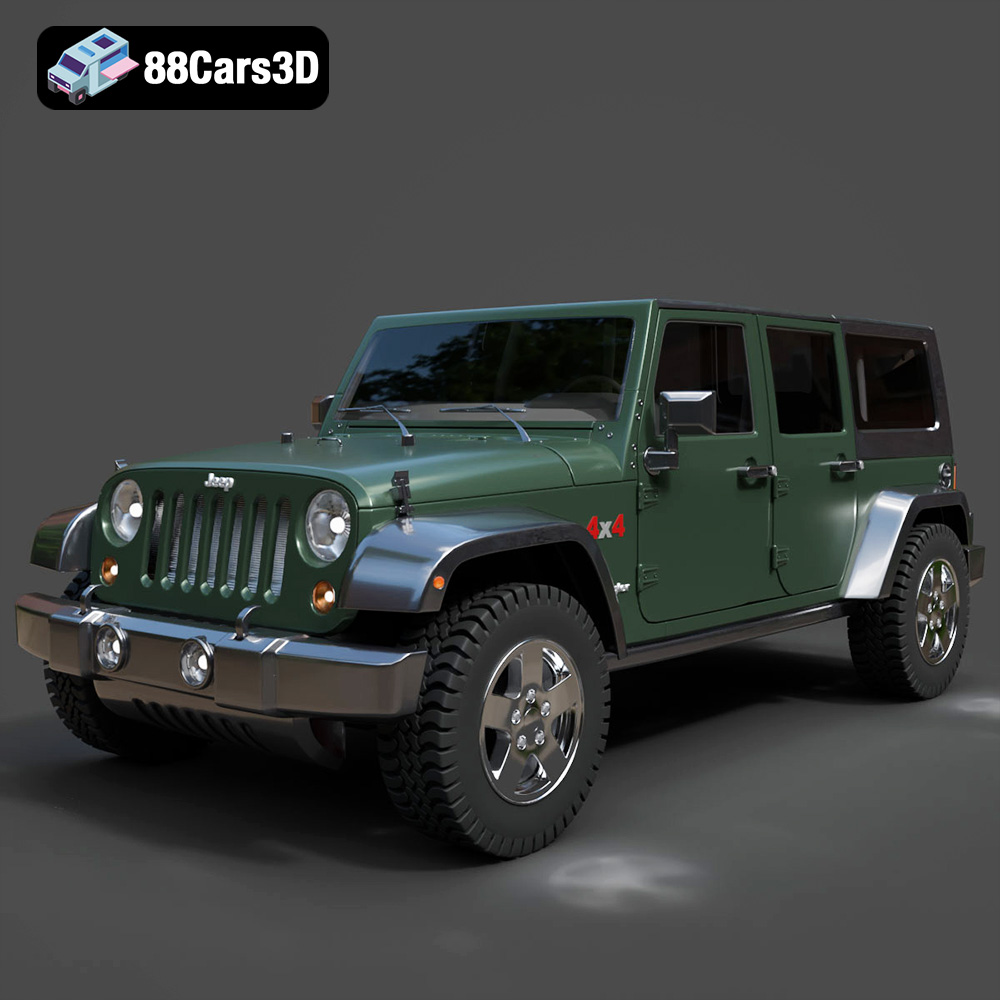
Texture: Yes
Material: Yes
Download the Jeep Wrangler JK Unlimited 2018 3D Model featuring clean geometry, realistic detailing, and a fully modeled interior. Includes .blend, .fbx, .obj, .glb, .stl, .ply, .unreal, and .max formats for rendering, simulation, and game development.
Price: $10
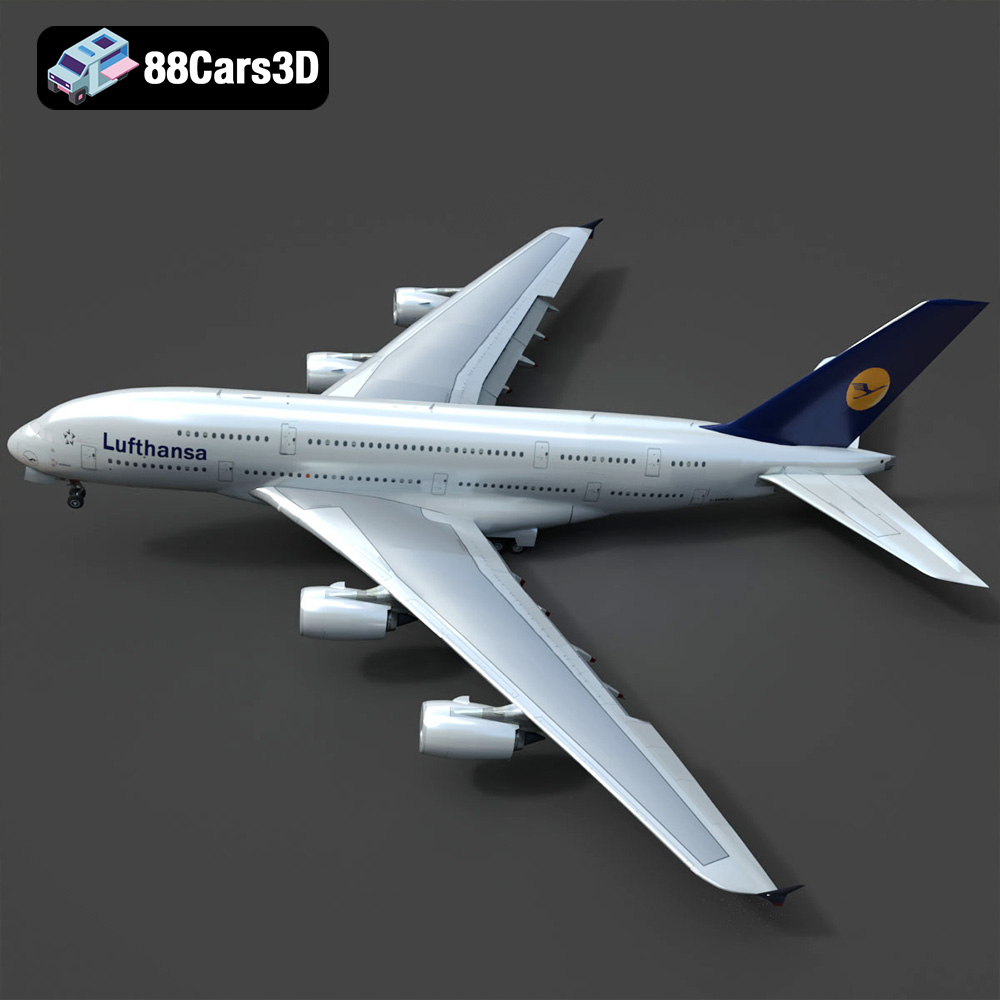
Texture: Yes
Material: Yes
Download the Airbus A380 Lufthansa Aircraft 3D Model featuring clean geometry, realistic detailing, and a fully modeled interior. Includes .blend, .fbx, .obj, .glb, .stl, .ply, .unreal, and .max formats for rendering, simulation, and game development.
Price: $10

Texture: Yes
Material: Yes
Download the Airbus A380 Etihad 3D Model featuring clean geometry, realistic detailing, and a fully modeled interior. Includes .blend, .fbx, .obj, .glb, .stl, .ply, .unreal, and .max formats for rendering, simulation, and game development.
Price: $10
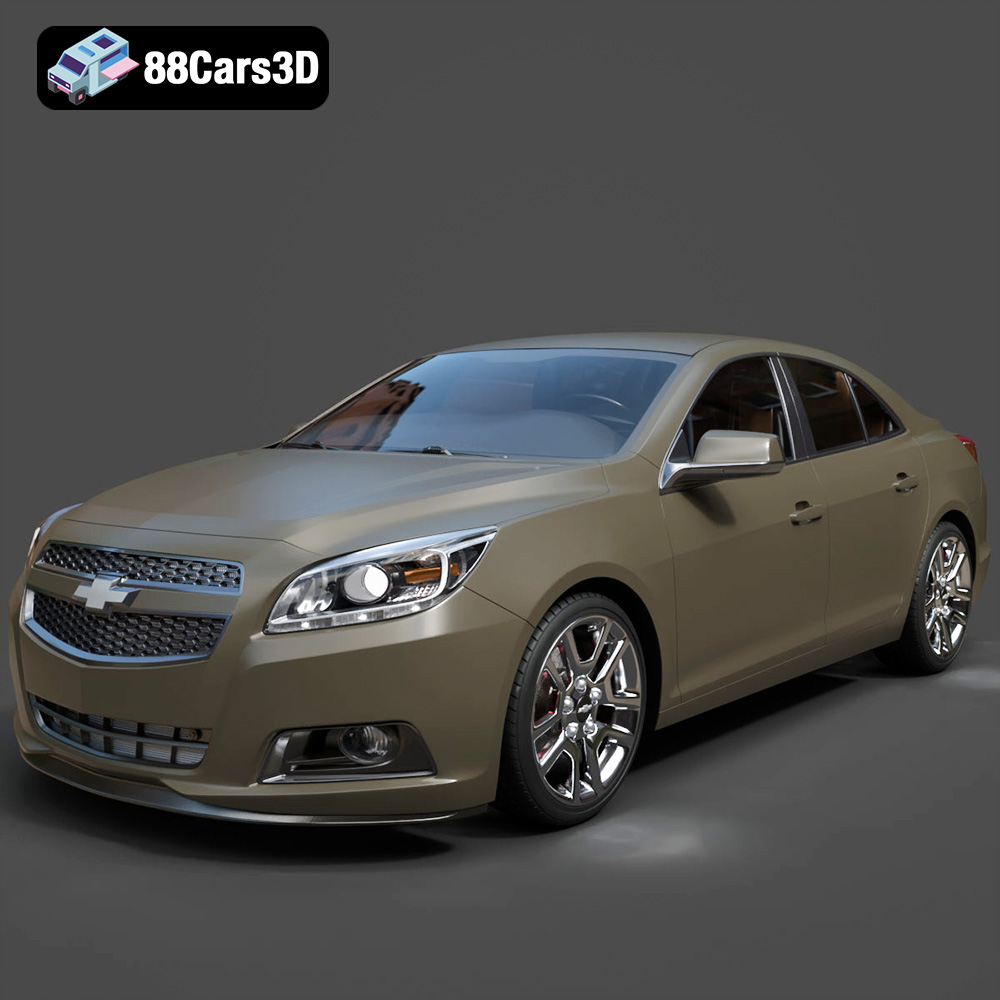
Texture: Yes
Material: Yes
Download the Chevrolet Malibu 2013 3D Model featuring clean geometry, realistic detailing, and a fully modeled interior. Includes .blend, .fbx, .obj, .glb, .stl, .ply, .unreal, and .max formats for rendering, simulation, and game development.
Price: $10
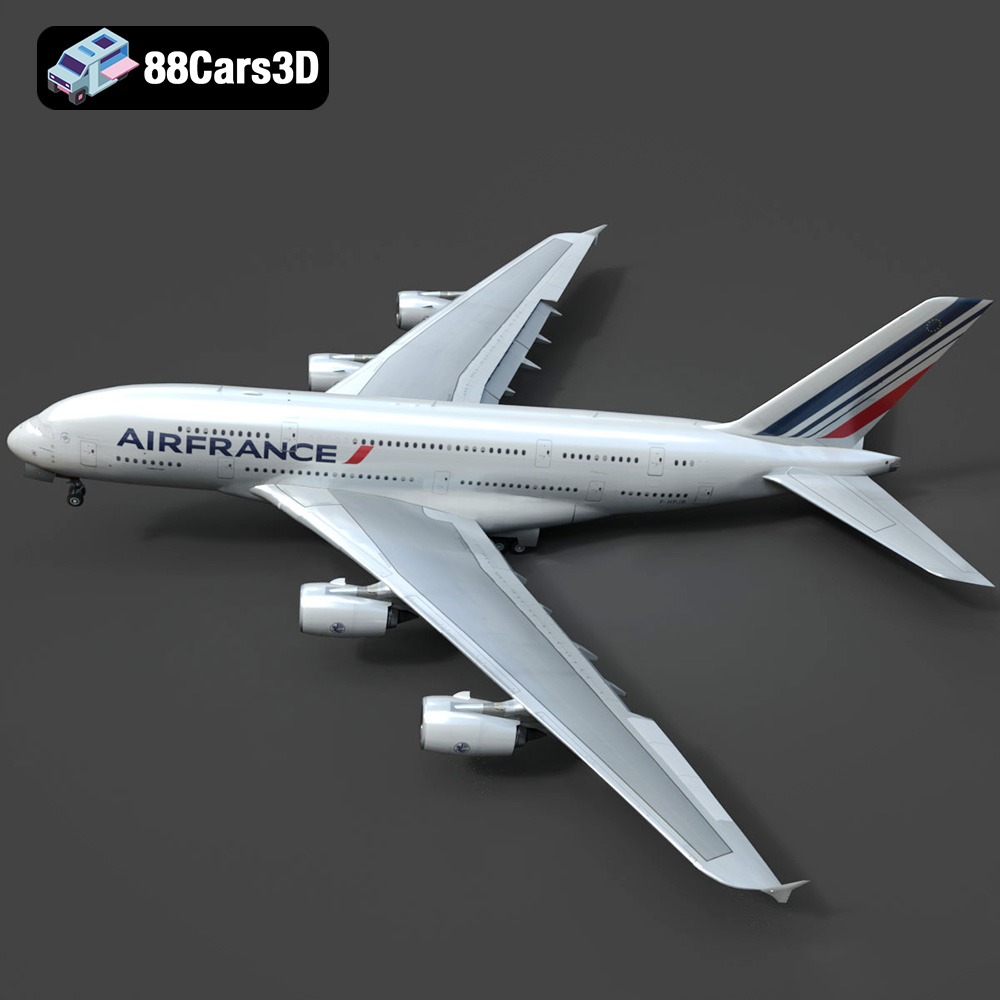
Texture: Yes
Material: Yes
Download the Airbus A380 AIRFRANCE 3D Model featuring clean geometry, realistic detailing, and a fully modeled interior. Includes .blend, .fbx, .obj, .glb, .stl, .ply, .unreal, and .max formats for rendering, simulation, and game development.
Price: $10

Texture: Yes
Material: Yes
Download the Toyota Crown Hybrid Athlete 2013 3D Model featuring clean geometry, realistic detailing, and a fully modeled interior. Includes .blend, .fbx, .obj, .glb, .stl, .ply, .unreal, and .max formats for rendering, simulation, and game development.
Price: $10
Texture: Yes
Material: Yes
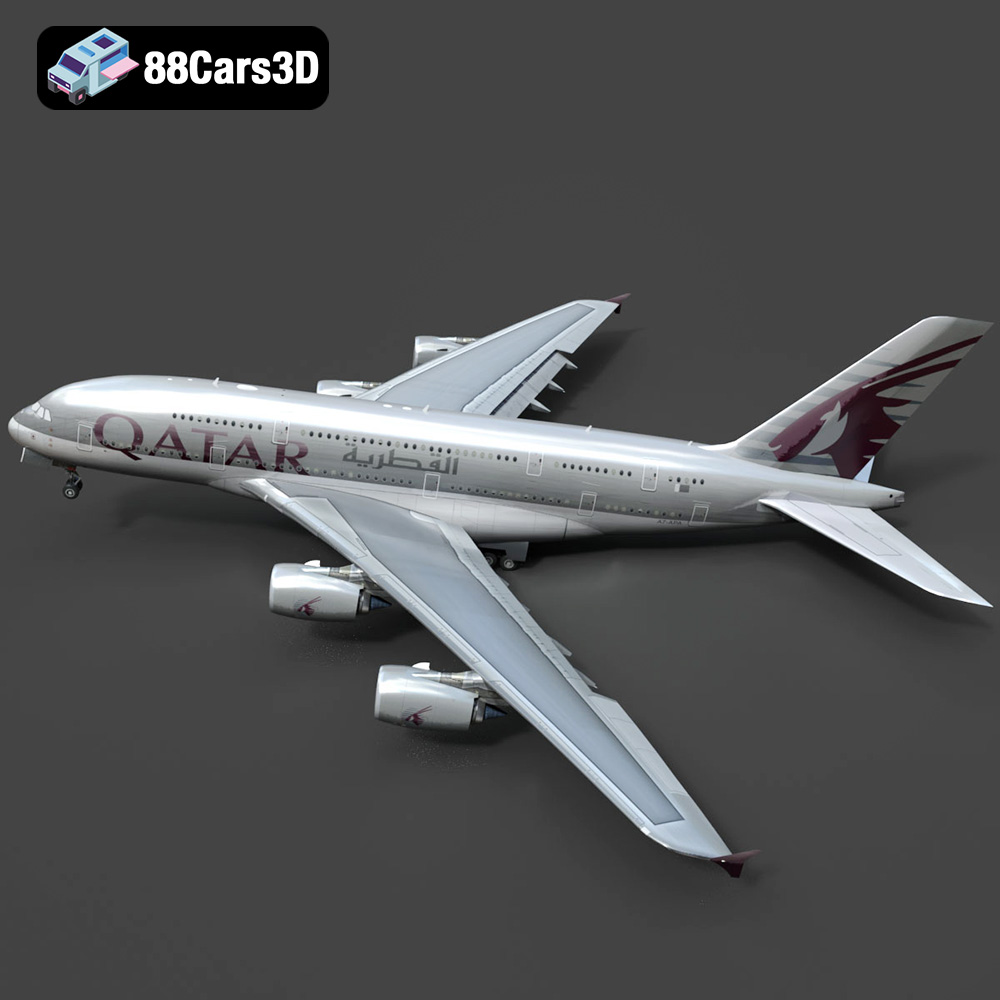
Download the Airbus A-380 Qatar Livery 3D Model featuring clean geometry, realistic detailing, and a fully modeled interior. Includes .blend, .fbx, .obj, .glb, .stl, .ply, .unreal, and .max formats for rendering, simulation, and game development.
Price: $10

Texture: Yes
Material: Yes
Download the Mercedes-Benz G-Class 2024 3D Model featuring clean geometry, realistic detailing, and a fully modeled interior. Includes .blend, .fbx, .obj, .glb, .stl, .ply, .unreal, and .max formats for rendering, simulation, and game development.
Price: $92

Texture: Yes
Material: Yes
Download the Daewoo Matiz 1998 3D Model featuring clean geometry, realistic detailing, and a fully modeled interior. Includes .blend, .fbx, .obj, .glb, .stl, .ply, .unreal, and .max formats for rendering, simulation, and game development.
Price: $10
Texture: Yes
Material: Yes
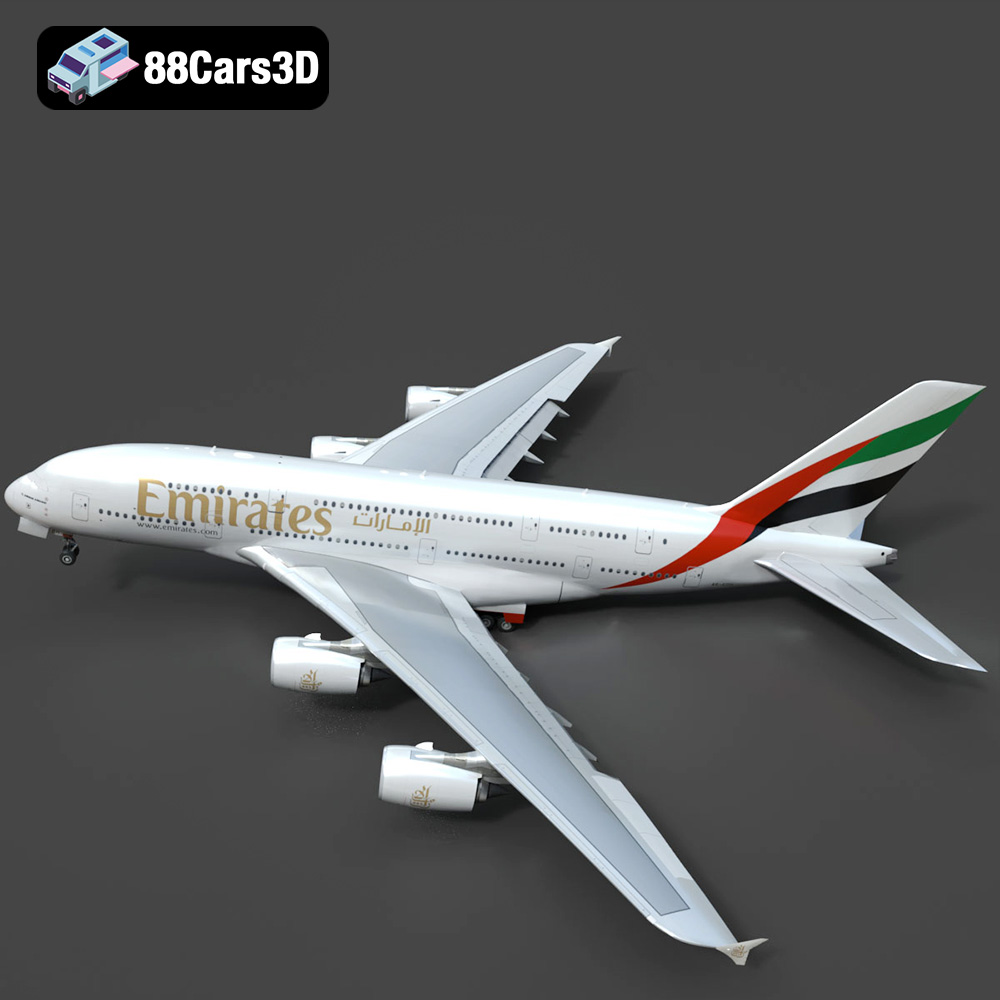
Download the Airbus A-380 Emirates 3D Model featuring clean geometry, realistic detailing, and a fully modeled interior. Includes .blend, .fbx, .obj, .glb, .stl, .ply, .unreal, and .max formats for rendering, simulation, and game development.
Price: $10

