Get 50% OFF All Premium 3D & STL Models!

The roar of an engine, the glint of chrome under virtual sunlight, the thrill of a high-speed chase – these experiences are only truly immersive when powered by meticulously optimized 3D car models. In the demanding world of game development, bringing high-fidelity automotive assets into engines like Unity and Unreal isn’t just about visual appeal; it’s about delivering buttery-smooth frame rates, minimizing load times, and ensuring a seamless experience across diverse hardware. Poorly optimized models can cripple performance, leading to frustrating stutters and a compromised player experience.
This comprehensive guide delves deep into the technical intricacies of preparing 3D car models for peak performance in modern game engines. We’ll explore everything from the foundational principles of topology and UV mapping to advanced PBR material creation, intricate engine-specific optimization strategies, and the critical role of file formats. Whether you’re a seasoned 3D artist, an aspiring game developer, or an automotive designer looking to bring your creations to life in real-time simulations, understanding these techniques is paramount. By the end of this article, you’ll have a robust toolkit of professional best practices to ensure your 3D car models not only look stunning but also run flawlessly, pushing the boundaries of realism and immersion in your projects.
At the heart of any high-quality 3D car model lies its topology – the arrangement of polygons (faces, edges, and vertices) that define its surface. For game engines, clean, efficient topology is non-negotiable. Automotive models, with their complex curves, sharp angles, and intricate details, present unique challenges. The goal is to achieve visual fidelity with the lowest possible polygon count, while also ensuring the mesh deforms correctly and supports necessary details without adding unnecessary overhead. A well-constructed mesh not only renders faster but is also easier to UV map, texture, and animate. It’s the bedrock upon which all subsequent optimizations are built.
One of the most critical aspects of game asset optimization is managing polygon count. A single unoptimized car model can contain millions of polygons, a figure perfectly acceptable for high-end cinematic renders but catastrophic for real-time game engines. The key is intelligent distribution of detail. Areas that are frequently seen up close, like the car’s exterior body panels, headlights, and wheels, will naturally require a higher polygon density to maintain smooth curves and intricate shapes. Conversely, less visible areas, such as the underside or hidden interior components, can be significantly simplified.
For a typical hero vehicle (the player’s car or a main AI opponent) in a modern game, a target polygon count might range from **50,000 to 150,000 triangles**. For secondary vehicles or background traffic, this could drop to **10,000-30,000 triangles**, and for distant cars, even just a few thousand. It’s crucial to use primarily **quads** (four-sided polygons) in your base mesh, as they deform more predictably and are easier to work with. While game engines ultimately triangulate everything, starting with quads provides a cleaner foundation for modeling, sculpting, and baking. Avoid long, thin triangles or n-gons (polygons with more than four sides), as these can lead to shading artifacts and messy deformations. Tools like Blender’s Clean Up function can help identify and address these issues, ensuring your mesh is robust for game integration.
Beyond just polygon count, the *flow* of edges across your model is paramount, especially for automotive assets that might feature moving parts or require smooth curvature. Good edge flow means that the edges follow the natural contours and creases of the vehicle, effectively defining its shape with minimal polygons. This becomes critical for:
* **Smooth Shading:** Proper edge flow prevents pinching and undesirable hard edges where they shouldn’t exist, ensuring a smooth, aesthetically pleasing surface when normals are calculated.
* **Deformation and Animation:** If your car model needs to have articulated parts (e.g., opening doors, rotating wheels, or working suspension), the edge loops must accurately follow the lines of these separate components. This ensures that when a door opens, its mesh deforms cleanly along the intended hinge line without stretching or breaking the surface.
* **Subdivision Surface Modifiers:** While not typically used directly in game engines for real-time rendering, a clean quad-based mesh with proper edge flow is essential for generating high-resolution sculpts or baking normal maps. Supporting edge loops around sharp creases (like door gaps or fender edges) are vital to hold the form when subdivision is applied, ensuring the baked normal map accurately captures the desired detail.
Think of edge flow as the skeletal structure of your model. If the skeleton is poorly aligned, the skin (surface) will look unnatural. Always prioritize defining the major shapes and critical areas with purposeful edge loops before adding fine details.
UV mapping is the process of unfolding your 3D model into a 2D space, allowing you to apply 2D textures (like paint, rust, or carbon fiber patterns) to its surfaces. For complex automotive models, effective UV mapping is a blend of art and technical strategy. A well-executed UV layout minimizes texture distortion, maximizes texel density (the number of pixels per unit of surface area), and ultimately improves rendering performance by allowing for efficient texture sampling. Poor UVs can lead to blurry textures, noticeable seams, and wasted texture space.
The primary goal of UV mapping for game assets is to use as much of the 0-1 UV space as possible without significant overlap or wasted areas, while maintaining consistent texel density. Consistent texel density ensures that all parts of the car appear equally detailed when viewed from the same distance. For example, if the car door has a much higher texel density than the roof, the door’s texture will appear much sharper, creating an inconsistent look.
Strategies for efficient UV layouts include:
* **Minimal Seams:** While some seams are unavoidable, especially on complex curved surfaces, try to place them in less visible areas (e.g., along natural panel lines, under the car, or hidden behind other objects). Excessive seams can complicate texturing and lead to noticeable visual breaks.
* **Straightening UV Shells:** Wherever possible, straighten UV shells to make them more rectangular. This makes texture creation easier and minimizes distortion when applying tileable textures. Many 3D software packages offer tools for straightening or relaxing UVs.
* **Packing Algorithms:** Once individual UV shells are unwrapped, use automatic packing algorithms (found in Blender, 3ds Max, Maya, etc.) to efficiently arrange them within the 0-1 UV space. However, always manually review and adjust the packing to ensure critical areas receive adequate space and that there are no tiny, wasted gaps.
A common workflow involves creating separate UV sets for different material types (e.g., body paint, glass, tires, interior plastics) or utilizing texture atlases to combine multiple smaller textures into one larger texture. This helps reduce draw calls in game engines, as described later.
Automotive models are notoriously challenging to UV map due to their intricate shapes. Specific techniques help manage these complexities:
* **Body Panels:** For the main body panels, use “peel” or “flatten” unwrapping methods that follow the natural curvature. Often, a single large shell for the main body can work, with seams strategically placed along natural breaks or the bottom edge.
* **Wheels and Tires:** Wheels are often unwrapped as separate circular shells for the rim and cylindrical shells for the tire walls. The tire tread usually requires a tileable texture, so ensure its UVs are perfectly aligned and repeat seamlessly.
* **Grilles and Vents:** These can be tricky due to their detailed, often repeating patterns. Sometimes, an orthographic projection from the front can work, combined with a tileable texture or a baked normal map to capture the intricate geometry.
* **Glass and Transparent Objects:** Glass requires careful UV mapping to avoid distortion, especially if it’s textured with details like rain streaks or dirt. Ensure these elements are mapped cleanly.
For those using Blender, understanding its robust UV editing tools is key. Blender 4.4’s manual provides extensive documentation on various unwrapping methods, including seams, marks, and packing algorithms (see https://docs.blender.org/manual/en/4.4/modeling/meshes/uv/unwrapping.html for more details). Mastering these tools will significantly streamline the UV mapping process for even the most complex automotive designs.
Physically Based Rendering (PBR) has revolutionized real-time graphics, enabling artists to create materials that react to light in a physically plausible way, resulting in incredibly realistic surfaces. Understanding PBR principles and how to implement them with optimized shader networks is crucial for any 3D car model destined for Unity or Unreal Engine. PBR materials ensure your automotive assets look consistent and convincing under various lighting conditions, enhancing immersion and visual quality.
There are two primary PBR workflows, both widely supported by game engines:
1. **Metallic-Roughness:** This is the more common workflow in modern game development (and the default in many engines like Unreal Engine and Blender’s Principled BSDF).
* **Albedo/Base Color Map:** Defines the diffuse color and, for metallic surfaces, the base reflection color.
* **Metallic Map:** A grayscale map where white (1.0) indicates a purely metallic surface (e.g., chrome, polished aluminum) and black (0.0) indicates a dielectric (non-metal like paint, plastic, rubber). Values in between represent metallic surfaces mixed with dielectric properties, though this is less common.
* **Roughness Map:** A grayscale map indicating the microscopic surface imperfections that scatter light. Black (0.0) is perfectly smooth (mirror-like), white (1.0) is perfectly rough (matte).
* **Normal Map:** Adds high-frequency surface detail without adding actual geometry (e.g., rivets, fine scratches, panel lines).
* **Ambient Occlusion (AO) Map:** Simulates indirect shadowing in crevices and recessed areas, enhancing depth.
2. **Specular-Glossiness:** While less prevalent for new projects, some older pipelines or specific assets may still use this.
* **Diffuse Map:** Defines the base color for dielectric surfaces.
* **Specular Map:** Defines the color and intensity of reflections for both metals and dielectrics. It’s often colored for metals.
* **Glossiness Map:** The inverse of roughness; white (1.0) is perfectly smooth, black (0.0) is perfectly rough.
* **Normal Map & AO Map:** Same as Metallic-Roughness.
The key is consistency. Choose one workflow and stick to it for all your assets to ensure predictable results. Both Unity and Unreal Engine have robust PBR shader systems that natively support these workflows, allowing for highly realistic car paint, chrome, glass, and rubber effects.
High-resolution textures are critical for realism, but they also consume significant memory and GPU bandwidth. Optimization is key:
* **Texture Resolution:** Use appropriate resolutions. A hero car might use 4K (4096×4096) or 2K (2048×2048) textures for critical parts like body paint, but less visible components like the underside or engine bay could use 1K or even 512×512 textures. Always power-of-two resolutions (256, 512, 1024, 2048, 4096).
* **Texture Formats:**
* **PNG:** Good for general use, supports alpha channels, lossless compression.
* **TGA:** Historically popular in games, supports alpha, often faster to load.
* **EXR:** High dynamic range, primarily for lighting and high-quality normal maps, but large file sizes.
* **Compressed Formats (DDS, KTX):** Game engines often convert textures to these GPU-native compressed formats upon import (e.g., DXT1/5 for color, BC4/5 for normal maps). These significantly reduce memory footprint on the GPU.
* **Texture Atlasing:** Combine multiple smaller textures (e.g., for interior buttons, emblems, small trim pieces) into a single larger texture atlas. This reduces the number of draw calls, improving rendering performance.
* **Material Instances (Unreal) / Material Variants (Unity):** Instead of creating unique materials for every slight variation (e.g., different car paint colors, slightly different roughness values), create a master material with exposed parameters. Then, create instances/variants of this master material, allowing artists to adjust parameters like color, metallic value, or roughness without compiling a new shader. This significantly reduces shader complexity and memory usage.
* **Shader Complexity:** Keep your shader networks as simple as possible. Avoid overly complex node graphs that perform unnecessary calculations. Profile your shaders within the engine to identify performance bottlenecks.
Platforms like 88cars3d.com provide high-quality 3D car models often pre-calibrated with PBR materials, ensuring a great starting point for integration into your game engine. However, even with excellent base models, understanding these optimization techniques allows you to further refine and adapt them for your specific project’s performance targets.
Once your 3D car model is meticulously crafted with optimized topology, UVs, and PBR materials, the next crucial step is seamless integration and further performance tuning within Unity and Unreal Engine. These engines offer powerful tools and methodologies to ensure that even complex automotive assets run efficiently in real-time environments. Effective integration isn’t just about importing the model; it’s about making it an integral, performant part of your game world.
**Level of Detail (LODs)** are an indispensable optimization technique. The principle is simple: objects closer to the camera require more geometric detail, while objects further away can be represented by simpler, lower-polygon versions without a noticeable drop in visual quality. For 3D car models, this is critical. A hero car might have 3-5 LOD levels:
* **LOD0 (High Poly):** Full detail, for close-up views (e.g., 50,000 – 150,000 triangles).
* **LOD1 (Medium Poly):** Reduced detail, for mid-range views (e.g., 20,000 – 50,000 triangles).
* **LOD2 (Low Poly):** Significantly reduced, for distant views (e.g., 5,000 – 20,000 triangles).
* **LOD3 (Very Low Poly):** For cars barely visible or in large crowds (e.g., 1,000 – 5,000 triangles).
* **LOD4 (Billboard/Imposter):** A simple 2D image for extremely distant vehicles, saving significant rendering resources.
Both Unity and Unreal Engine have built-in LOD systems that automatically swap between these meshes based on the camera’s distance. You can set the transition distances for each LOD level, ensuring a smooth visual transition. When creating LODs, it’s vital to maintain consistent UV mapping and material assignments across all levels so that textures do not ‘pop’ or change drastically during transitions.
**Culling strategies** complement LODs:
* **Frustum Culling:** The engine only renders objects visible within the camera’s view frustum (the pyramid-shaped visible area). Objects outside are not rendered.
* **Occlusion Culling:** More advanced, this technique prevents rendering of objects that are hidden behind other objects, even if they are within the camera’s frustum. For example, a car behind a building would be culled. Both Unity and Unreal offer baked occlusion culling solutions that analyze your static scene geometry to pre-calculate visibility.
**Draw calls** are instructions sent from the CPU to the GPU to render a batch of triangles. Each draw call has overhead, so minimizing their number is paramount for CPU performance. A single complex car model can easily generate multiple draw calls if it has many separate meshes or materials.
Strategies to reduce draw calls:
* **Combine Meshes:** Where possible, combine separate meshes of a car (e.g., combining the main body with fixed spoiler, side mirrors, etc.) into a single mesh. This is particularly effective for static parts.
* **Texture Atlasing:** As mentioned in the PBR section, combining multiple smaller textures into one larger texture atlas allows multiple parts of the model to share the same material, thus reducing draw calls.
* **Static Batching (Unity):** For static (non-moving) objects that share the same material, Unity can combine them into larger batches at runtime, significantly reducing draw calls. Ensure your car parts that are intended to be static have the same material.
* **Dynamic Batching (Unity):** For small moving meshes that share the same material and are within certain vertex limits, Unity can also batch them.
* **GPU Instancing (Unity & Unreal):** This powerful technique allows the GPU to render multiple copies of the same mesh (e.g., multiple identical cars in a race) with a single draw call, providing per-instance data like color or transformation. This is incredibly efficient for crowds of vehicles.
Realistic car physics in games require accurate collision detection. Using the high-resolution visual mesh for collision detection is highly inefficient and can lead to performance bottlenecks. Instead, optimized **collision meshes** are used:
* **Simplified Proxy Meshes:** Create a much simpler, lower-polygon mesh specifically for collision detection. This mesh should approximate the car’s overall shape but omit fine details. It often consists of a few convex hulls or primitive shapes (boxes, spheres, capsules) parented together.
* **Convex Hulls:** In both Unity (via convex mesh colliders) and Unreal Engine (via physics assets), you can define collision geometry using convex hulls. A convex hull is the smallest convex shape that completely encloses a given set of points. Multiple convex hulls can be used to approximate complex shapes more accurately than a single primitive, without the performance cost of a complex mesh collider.
* **Per-Wheel Colliders:** For detailed car physics, individual wheel colliders are essential, separate from the main body collider.
In Unreal Engine, a **Physics Asset** is created, which consists of a hierarchy of rigid bodies (often convex hulls) connected by constraints. This allows for realistic car deformations and interactions with the environment. Similarly, Unity uses various Collider components that can be combined and configured to simulate vehicle physics.
The choice of file format is a critical decision when exporting 3D car models for game development, directly impacting compatibility, data integrity, and workflow efficiency. Different formats excel in different areas, and understanding their strengths and weaknesses is key to a smooth asset pipeline. Furthermore, ensuring your models can be easily transferred between various software and platforms is essential in today’s multi-faceted creative environment.
* **FBX (Filmbox): The Industry Standard**
* **Pros:** Highly versatile, supports meshes, materials, textures, animations, skinning, and blend shapes. It maintains scene hierarchy and object pivot points accurately. It’s the de facto standard for exchanging assets between 3D software (e.g., 3ds Max, Maya, Blender) and game engines (Unity, Unreal).
* **Cons:** Proprietary Autodesk format, can sometimes have versioning issues, and may introduce slight data discrepancies if not exported carefully.
* **Best Use:** The primary choice for exporting rigged, animated, or complex static 3D car models into Unity and Unreal Engine.
* **OBJ (Wavefront Object): Universal but Limited**
* **Pros:** Open standard, widely supported by almost every 3D application. Simple text-based format, easy to parse.
* **Cons:** Only supports mesh geometry (vertices, normals, UVs, faces) and basic material references (MTL file). Does *not* support animations, rigging, cameras, or lights. Can become large for very detailed meshes.
* **Best Use:** Good for simple static meshes, environmental props, or when FBX is causing issues. Often used as a fallback.
* **GLB (Binary glTF): Web-Optimized for Real-time 3D**
* **Pros:** Efficient, compact, and designed for web-based real-time 3D and AR/VR applications. Supports PBR materials, animations, and scene hierarchy. GLB is the binary version of glTF, bundling all assets into a single file.
* **Cons:** While gaining wider engine support, it’s not as universally supported as FBX for complex game engine pipelines.
* **Best Use:** Excellent for sharing 3D car models for web viewers, AR/VR experiences, or applications that prioritize lightweight, single-file assets.
* **USDZ (Universal Scene Description Zip): Apple’s AR Format**
* **Pros:** Developed by Apple, specifically for AR applications on iOS devices. Supports PBR materials, animations, and scene hierarchy, similar to glTF/GLB but optimized for Apple’s ecosystem. Bundles all assets into a single file.
* **Cons:** Primarily focused on Apple’s platforms; limited native support outside of that ecosystem.
* **Best Use:** For delivering 3D car models to AR applications on iOS (e.g., viewing cars in AR on an iPhone or iPad).
When sourcing models from marketplaces such as 88cars3d.com, you’ll often find models provided in a variety of these formats, giving you the flexibility to choose the best option for your specific project needs. Always check the included formats before purchasing to ensure compatibility with your pipeline.
Regardless of the chosen format, meticulous attention to export settings is crucial to maintain data integrity:
* **Units:** Ensure consistent unit scales between your 3D software and the game engine. Unreal Engine defaults to centimeters, while Unity often works well with meters. Mismatched units can lead to models being imported at incorrect sizes.
* **Pivot Points:** Verify that object pivot points are correctly placed (e.g., at the center bottom for a car, or at the hinge for a door). Incorrect pivots will make positioning, rotation, and animation difficult.
* **Transformation Freezing:** Apply (or “freeze”) all transformations (scale, rotation, position) before export. This ensures that the engine interprets the model’s base state correctly, preventing unexpected scaling or orientation issues.
* **Normals and Tangents:** Ensure your normals are correctly calculated and pointing outwards. For PBR, tangent space normals are essential, and most exporters will calculate these correctly, but it’s worth verifying.
* **Include/Exclude Data:** When exporting FBX, choose exactly what data to include (meshes, materials, animations, cameras, lights). Only export what you need to keep file sizes manageable.
While the core focus here is on Unity and Unreal Engine for traditional games, AR/VR experiences demand even more stringent optimization. For AR/VR, especially mobile VR, polygon counts and texture resolutions need to be significantly lower than for PC games. Draw calls and complex shader instructions are major performance bottlenecks in these environments. GLB and USDZ become particularly relevant here for their efficiency and platform-specific optimizations. LODs, instancing, and aggressive culling are absolutely paramount for achieving smooth frame rates in immersive AR/VR car visualizations.
Achieving truly optimized 3D car models often requires leveraging advanced techniques that streamline geometry, bake complex details, and rigorously test performance. These methods bridge the gap between high-fidelity source models and game-ready assets, allowing for stunning visuals without compromising real-time performance.
Even with careful initial modeling, a raw 3D car model can often benefit from further polygon reduction, especially for LODs or less critical parts.
* **Decimation:** This process intelligently reduces the polygon count of a mesh while attempting to preserve its overall shape and detail. Tools like Blender’s **Decimate Modifier** (accessible via `Modifier Properties > Generate > Decimate`, refer to the Blender 4.4 manual at https://docs.blender.org/manual/en/4.4/modeling/modifiers/generate/decimate.html) are invaluable. You can specify a ratio or a target face count. It works by removing vertices and merging faces, making it excellent for quickly generating lower LODs from a high-poly source. However, decimation can sometimes introduce triangles and less-than-ideal topology, so it’s often followed by manual cleanup or retopology.
* **Retopology:** This is the process of creating a new, optimized mesh on top of an existing high-polygon mesh. It’s more labor-intensive than decimation but yields superior results in terms of clean quad topology, ideal edge flow, and precise control over polygon distribution. Retopology is critical when your source model has messy topology from sculpting or CAD data. Tools like Blender’s **Shrinkwrap modifier** combined with snap-to-face features, or dedicated retopology tools in software like TopoGun or QuadRemesher, allow artists to build a new, clean mesh that closely follows the surface of the high-poly model. This is particularly useful for hero car models where perfect deformation and shading are required.
Baking is a cornerstone of game asset optimization, allowing you to capture high-frequency detail from a high-polygon source model and transfer it to a low-polygon target model using textures. This provides the illusion of immense detail without the performance cost of actual geometry.
* **Normal Maps:** These specialized textures store directional information about the surface normal at each pixel. When applied to a low-poly mesh, a normal map makes flat surfaces appear to have intricate details (e.g., bolts, panel lines, fine scratches, carbon fiber weave) by influencing how light interacts with them. The process involves rendering the normal direction from the high-poly mesh onto the low-poly mesh’s UV space. Both Blender and dedicated baking software like Substance Painter or Marmoset Toolbag excel at this.
* **Ambient Occlusion (AO) Maps:** An AO map is a grayscale texture that simulates soft, indirect shadowing where surfaces are close together or in crevices. It enhances perceived depth and realism without adding real-time lighting calculations. Baking AO involves calculating how much light reaches each point on the surface from all directions, then storing that information as a texture.
* **Other Maps:** You can also bake other maps like curvature maps (for edge wear), thickness maps (for subsurface scattering on materials like rubber or translucent plastics), and position maps, all contributing to a richer PBR material.
The workflow typically involves:
1. Create a high-poly model with all desired details.
2. Create a low-poly model with optimized topology and UVs.
3. Position the low-poly model to enclose the high-poly model, with a “cage” or ray distance to guide the bake.
4. Bake the normal, AO, and other relevant maps from the high-poly to the low-poly’s UV space.
5. Apply these baked textures to the low-poly model’s PBR material in the game engine.
Optimization is not a one-time task; it’s an ongoing process. Once your car models are integrated into Unity or Unreal Engine, it’s absolutely critical to continuously test and profile their performance.
* **Game Engine Profilers:** Both Unity (Window > Analysis > Profiler) and Unreal Engine (Ctrl + Shift + , to open the console and type `stat fps`, `stat unit`, `stat gpu`) provide robust profiling tools. These profilers give you detailed insights into CPU usage (draw calls, script execution, physics), GPU usage (shader complexity, texture memory, render time), and memory consumption.
* **Identify Bottlenecks:** Use the profiler to pinpoint exactly where performance issues are occurring. Is it too many draw calls? Overly complex shaders? High polygon counts on screen? Excessive physics calculations?
* **Iterate and Refine:** Based on profiling results, go back to your 3D software or adjust settings in the game engine. For instance, if draw calls are high, consider more texture atlasing or combining meshes. If GPU time is excessive, simplify shaders or reduce texture resolutions.
* **Test on Target Hardware:** Always test your game with the car models on your target platforms (PC, console, mobile). What performs well on a high-end development machine might struggle on a lower-spec target device.
This iterative feedback loop of building, importing, testing, profiling, and refining is the hallmark of professional game development and ensures your 3D car models contribute to a high-performance, visually stunning experience.
Optimizing 3D car models for game engines like Unity and Unreal is a multifaceted discipline that demands technical expertise, artistic finesse, and a keen eye for performance. It’s a journey from meticulously crafted topology and efficient UV maps to sophisticated PBR materials, intelligent LODs, and strategic game engine configurations. Every decision, from the placement of an edge loop to the choice of a texture resolution, impacts the final in-game experience.
By embracing best practices such as maintaining clean quad topology, strategically reducing polygon counts, creating efficient UV layouts with consistent texel density, and leveraging PBR material workflows, you lay a solid foundation for your automotive assets. Further optimization through LOD generation, draw call reduction via batching and instancing, and the creation of simplified collision meshes are critical steps for maximizing real-time performance. Finally, a thorough understanding of file formats like FBX, GLB, and USDZ, coupled with rigorous iterative testing and profiling, ensures your models are not only visually captivating but also technically sound across diverse platforms.
The pursuit of realism in game development is relentless, and high-quality, optimized 3D car models are at the forefront of this evolution. By mastering these techniques, you’re not just creating digital cars; you’re crafting immersive experiences that captivate players and push the boundaries of virtual worlds. Remember, excellent performance doesn’t happen by accident; it’s the result of diligent, informed optimization at every stage of the development pipeline. For artists and developers seeking a head start with premium, production-ready 3D car models, platforms like 88cars3d.com offer a vast selection of expertly crafted assets, providing a strong foundation for your next automotive visualization or game project.
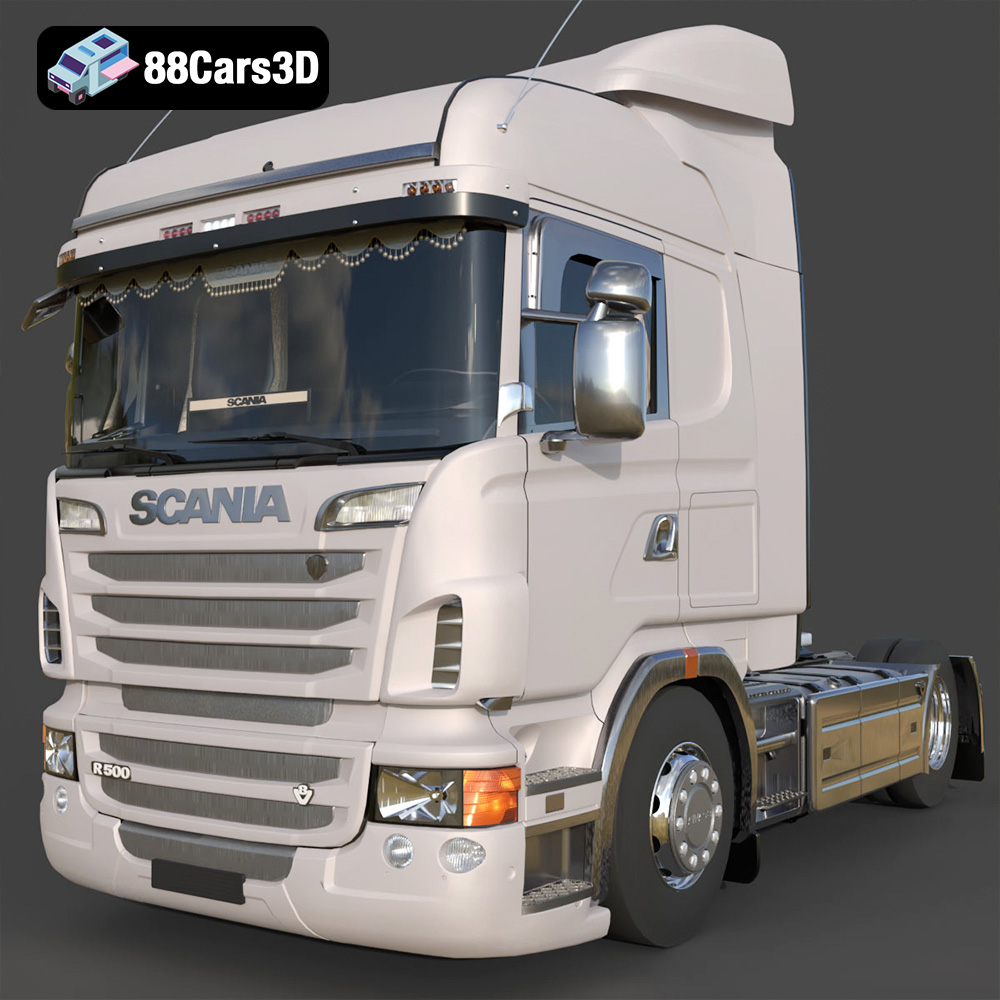
Texture: Yes
Material: Yes
Download the Scania R500 004 3D Model featuring its powerful design, detailed exterior, and functional interior. Includes .blend, .fbx, .obj, .glb, .stl, .ply, .unreal, and .max formats for rendering, simulation, and game development.
Price: $10.79
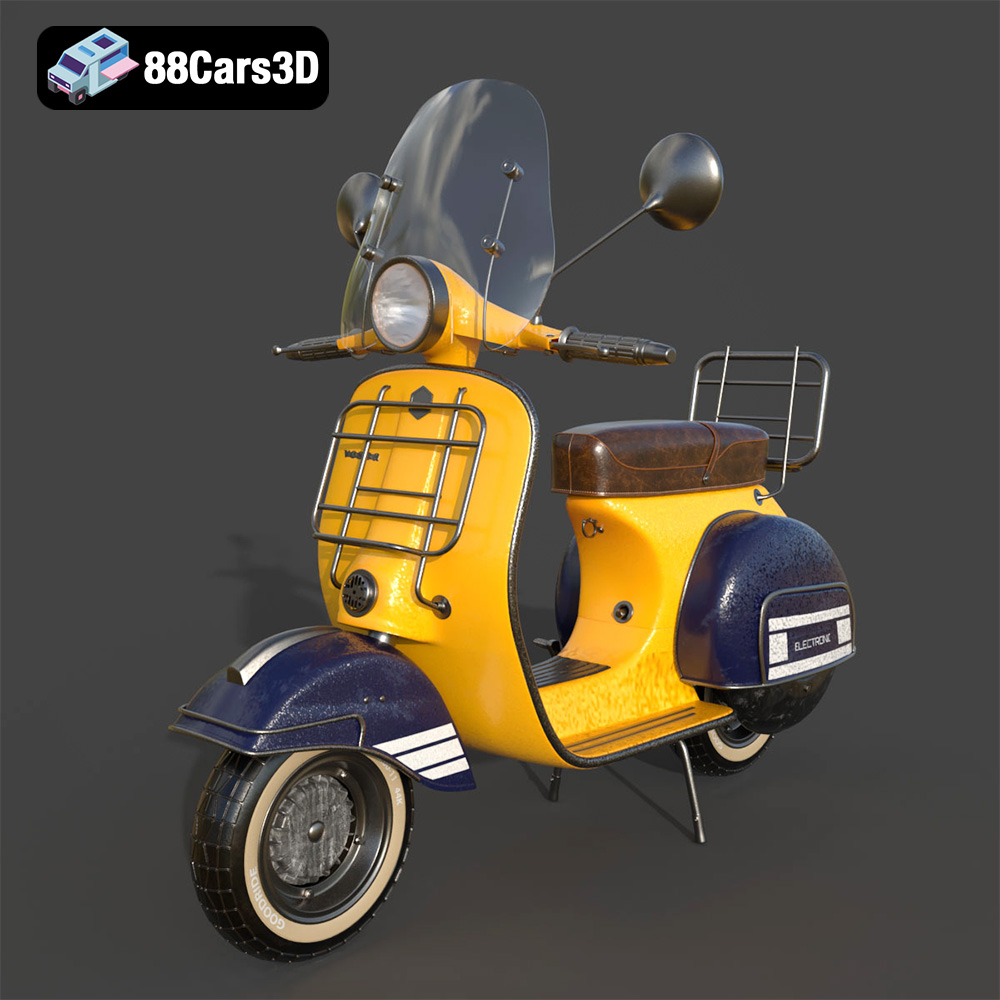
Texture: Yes
Material: Yes
Download the Vespa 5-007 3D Model featuring iconic Italian design and vintage aesthetics. Includes .blend, .fbx, .obj, .glb, .stl, .ply, .unreal, and .max formats for rendering, simulation, and game development.
Price: $20.79
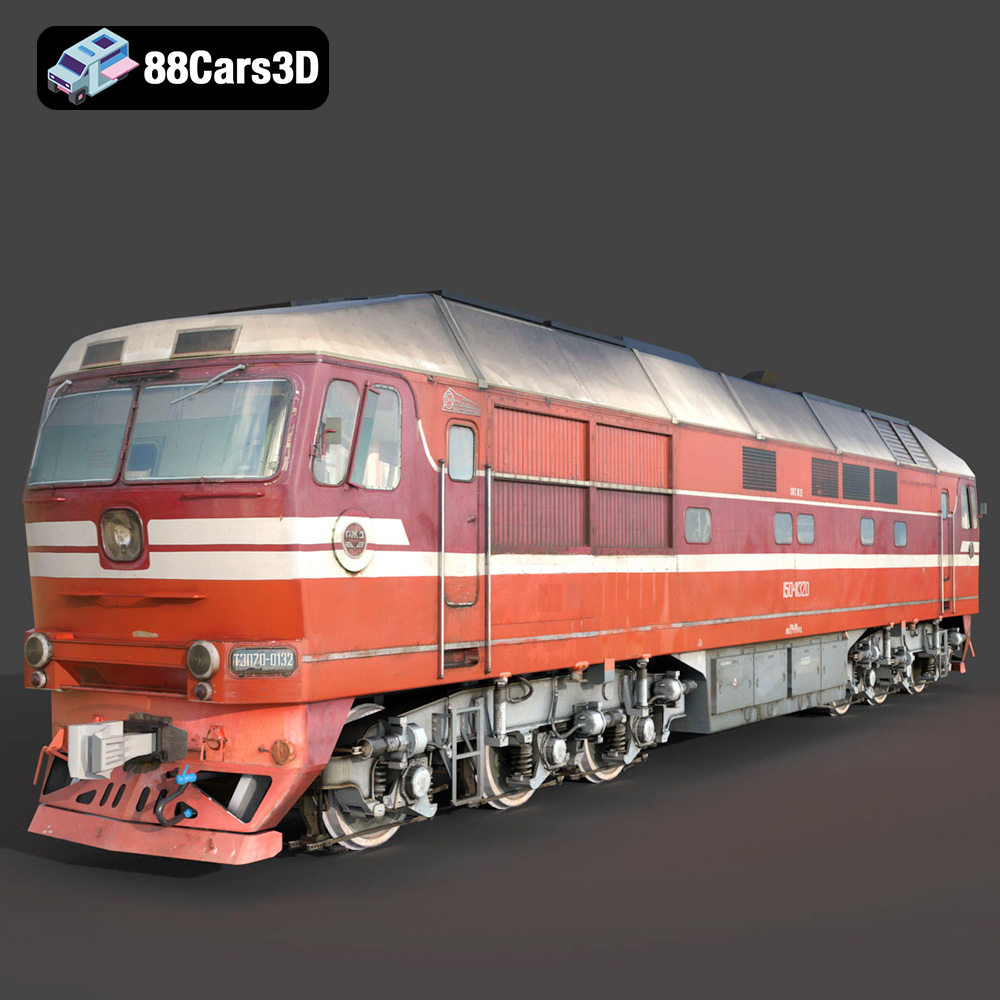
Meta Description:
Texture: Yes
Material: Yes
Download the TEP70 Diesel Locomotive 3D Model featuring detailed exterior structure, cabin interior, and realistic mechanical components. Includes .blend, .fbx, .obj, .glb, .stl, .ply, .unreal, and .max formats for rendering, simulation, AR VR, and game development.
Price: $13.9
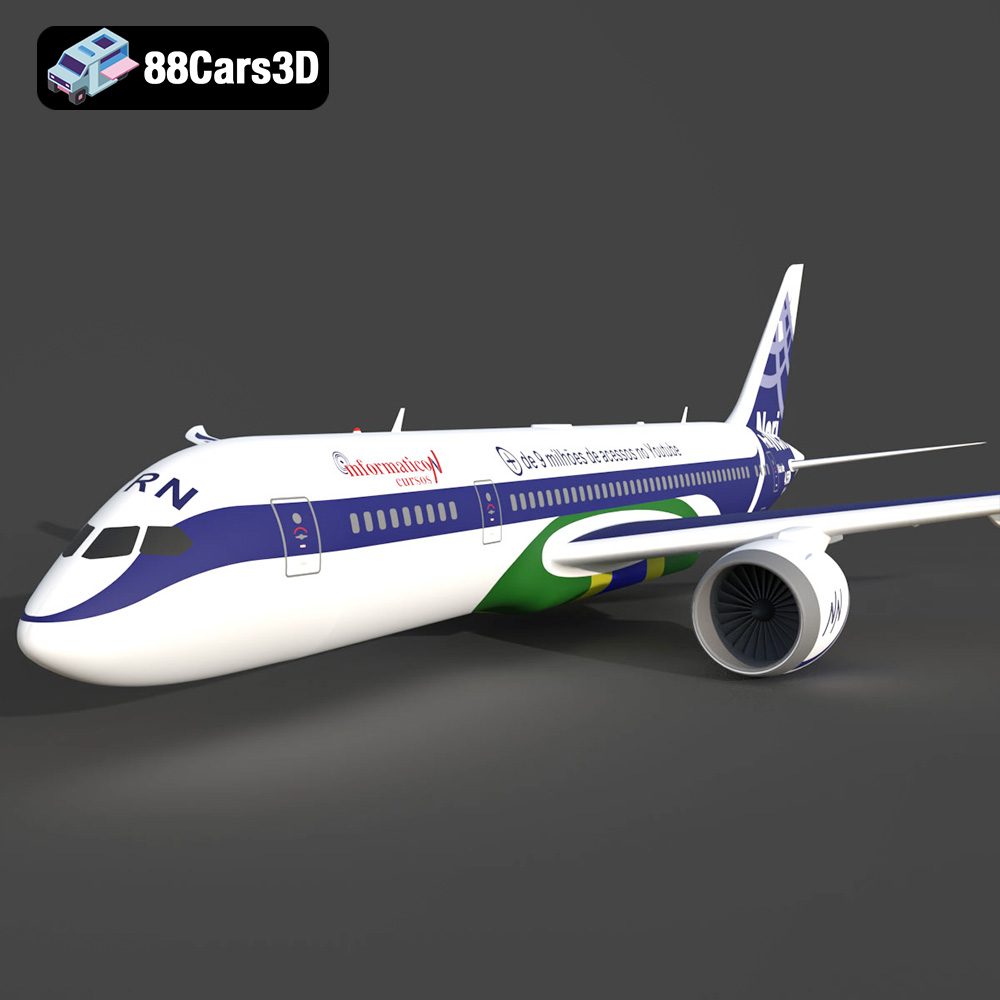
Texture: Yes
Material: Yes
Download the Airplane TRN-007 3D Model featuring clean geometry, realistic detailing, and a fully modeled interior. Includes .blend, .fbx, .obj, .glb, .stl, .ply, .unreal, and .max formats for rendering, simulation, and game development.
Price: $10
Texture: Yes
Material: Yes
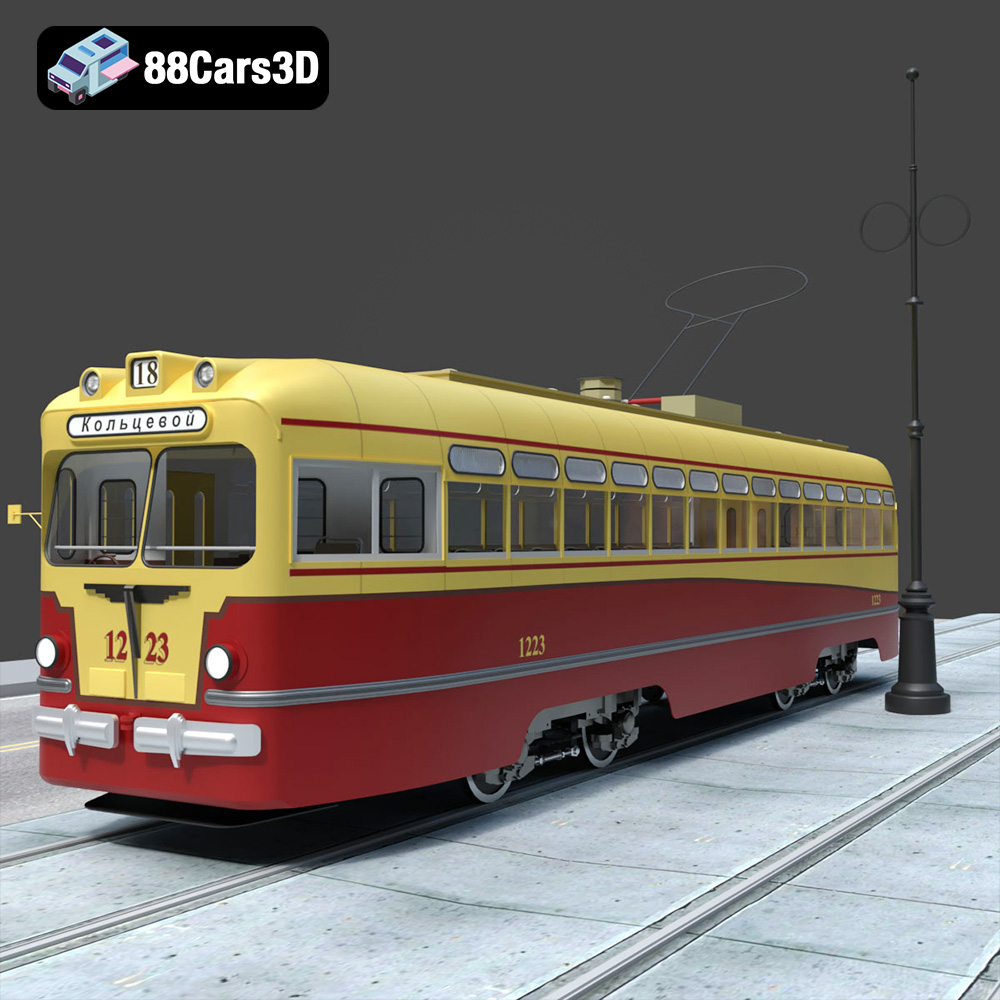
Download the MTB-82 Tram 3D Model featuring clean geometry, realistic detailing, and a fully modeled interior. Includes .blend, .fbx, .obj, .glb, .stl, .ply, .unreal, and .max formats for rendering, simulation, and game development.
Price: $10
Texture: Yes
Material: Yes
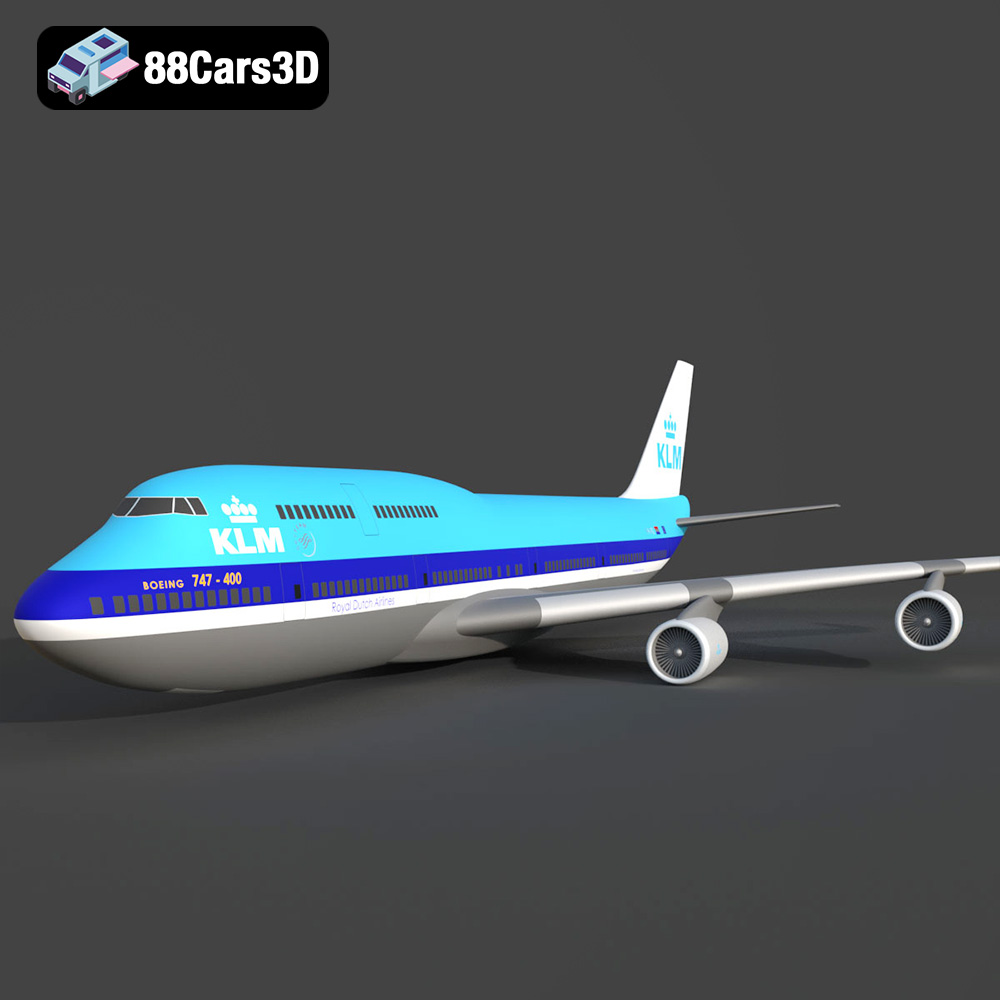
Download the Boeing 747-400 KLM 3D Model featuring a detailed exterior, authentic livery, and realistic components. Includes .blend, .fbx, .obj, .glb, .stl, .ply, .unreal, and .max formats for rendering, simulation, and game development.
Price: $10.79
Texture: Yes
Material: Yes
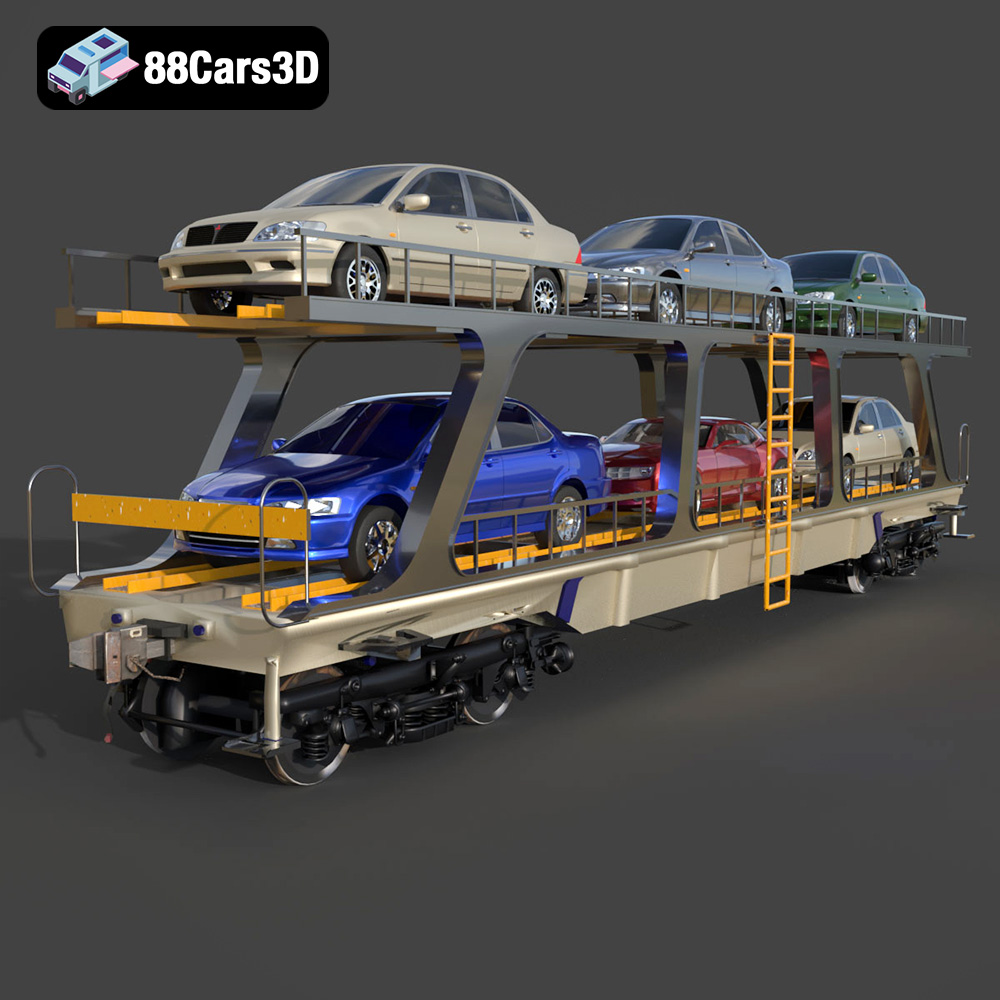
Download the Avtovoz A Wagon 3D Model featuring a robust design for car transport. Includes .blend, .fbx, .obj, .glb, .stl, .ply, .unreal, and .max formats for rendering, simulation, and game development.
Price: $10.79
Texture: Yes
Material: Yes
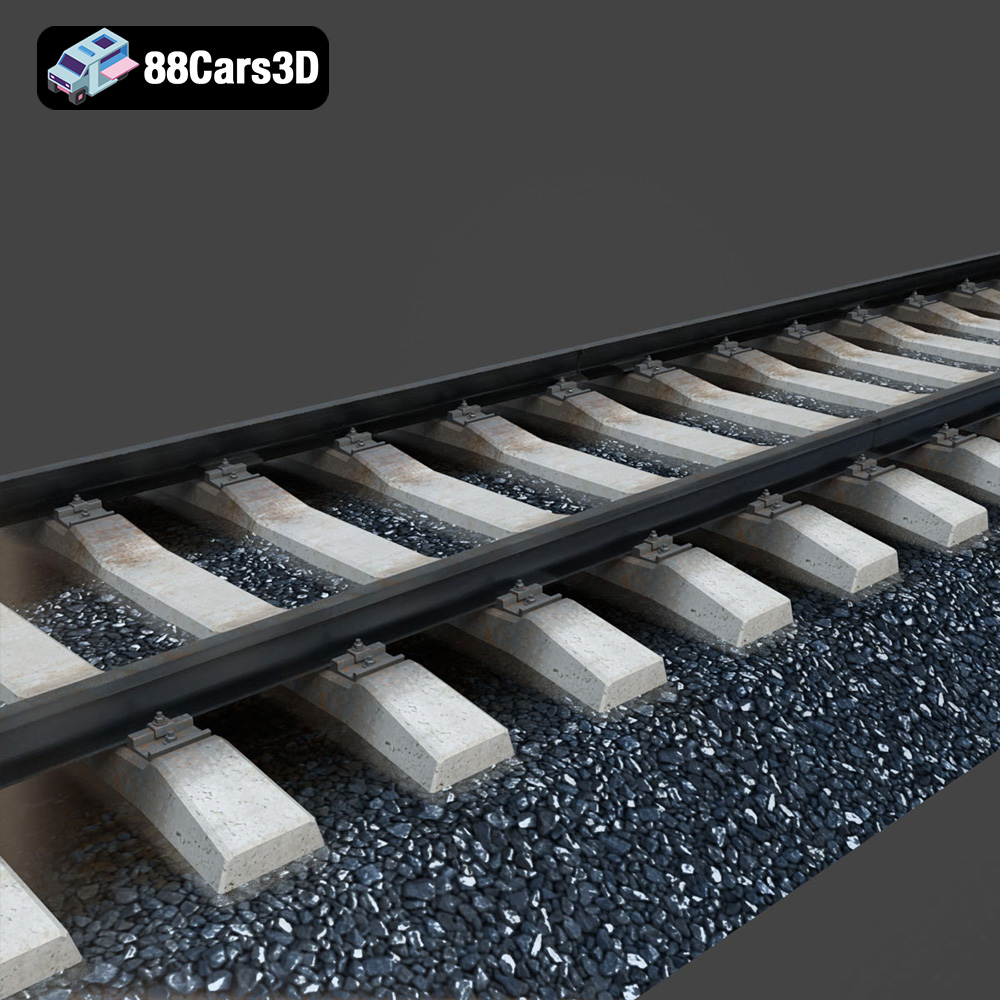
Download the Rail Road 006 3D Model featuring a detailed exterior, accurate proportions, and realistic textures. Includes .blend, .fbx, .obj, .glb, .stl, .ply, .unreal, and .max formats for rendering, simulation, and game development.
Price: $10.79
Texture: Yes
Material: Yes
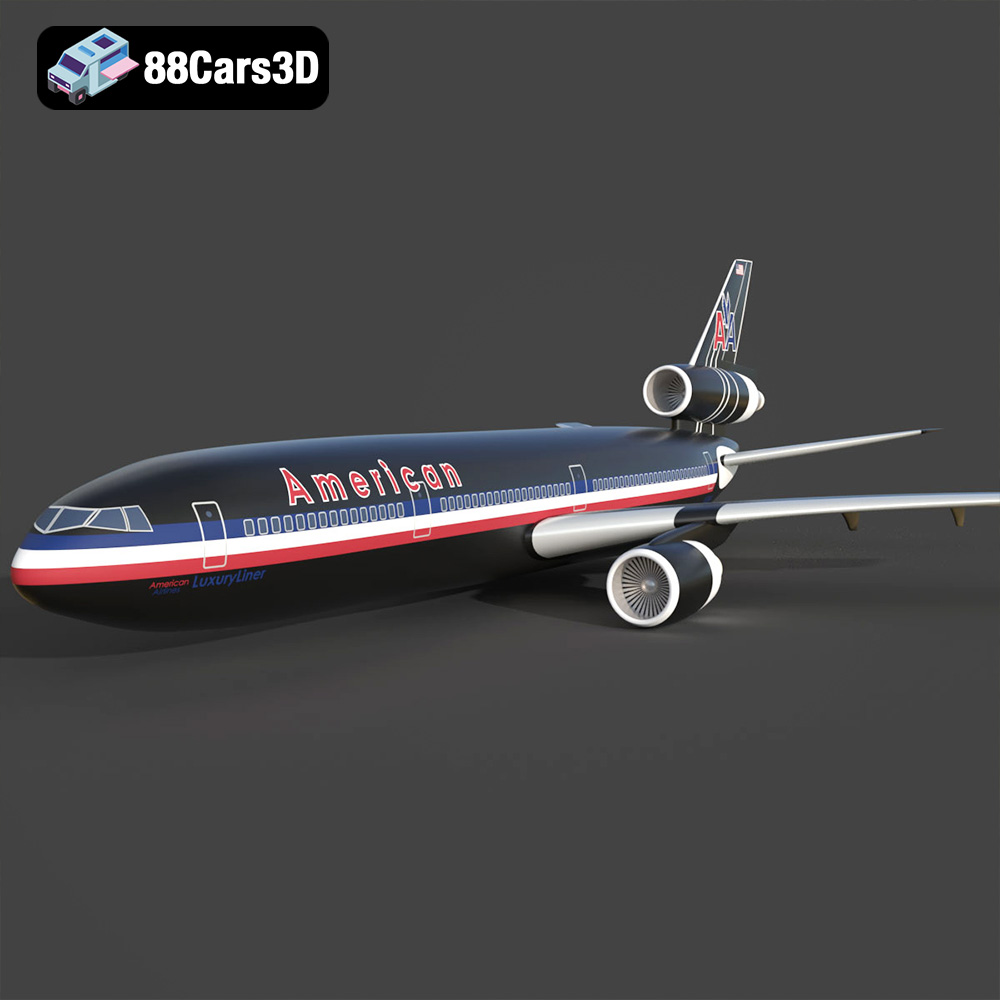
Download the American AA-006 Airplane 3D Model featuring a detailed exterior, cockpit, and landing gear. Includes .blend, .fbx, .obj, .glb, .stl, .ply, .unreal, and .max formats for rendering, simulation, and game development.
Price: $10.79
Texture: Yes
Material: Yes
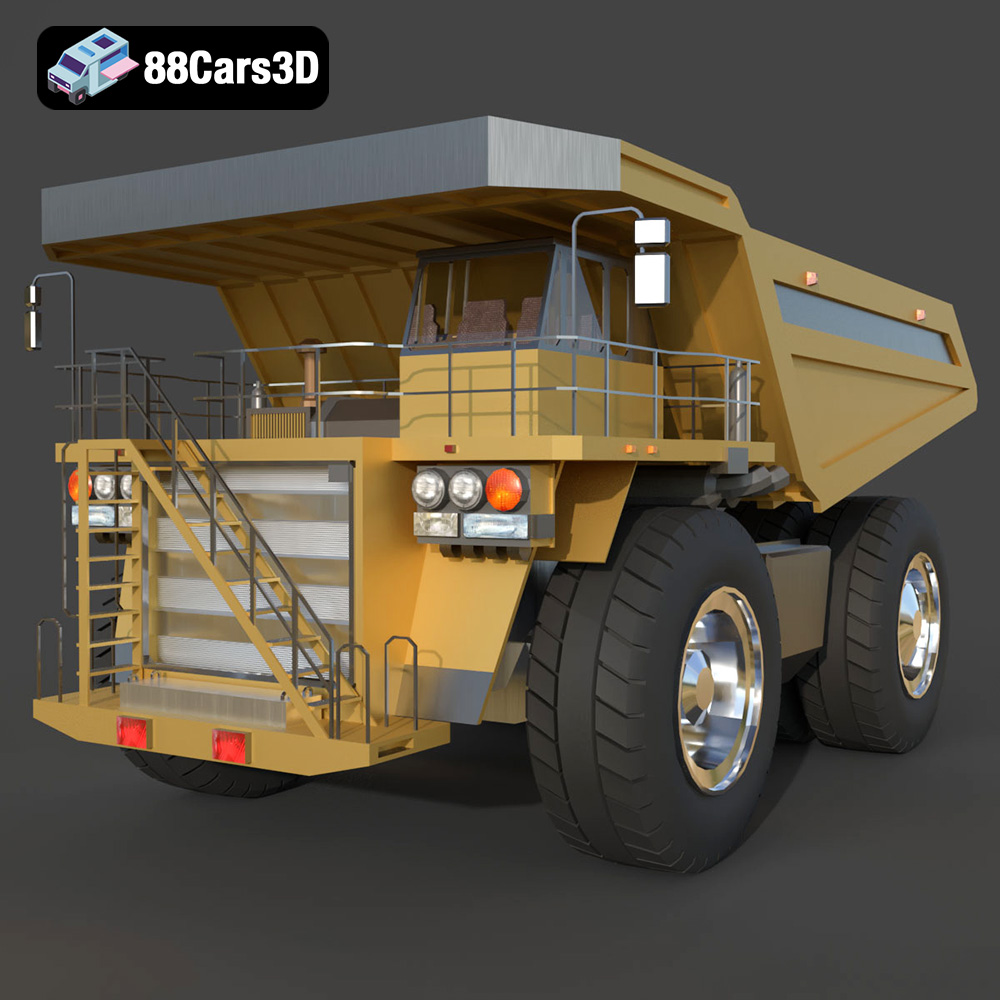
Download the Samosval-003 3D Model featuring a robust dump truck design, detailed exterior and interior, and animatable components. Includes .blend, .fbx, .obj, .glb, .stl, .ply, .unreal, and .max formats for rendering, simulation, and game development.
Price: $10.79

