In the captivating world of 3D automotive visualization, the difference between a good render and an extraordinary one often boils down to the fidelity of its materials. Among the most challenging yet rewarding materials to master are realistic glass and chrome. These elements, seemingly simple, are pivotal in capturing the luxurious sheen and intricate details that make a 3D car model truly come alive. From the subtle distortions of a windshield to the razor-sharp reflections on polished chrome bumpers, these surfaces demand a deep understanding of light interaction, material properties, and rendering techniques.
For 3D artists, game developers, and automotive designers, achieving photorealism in their 3D car models is a constant pursuit. Whether you’re preparing assets for high-end cinematic renders, optimizing them for immersive AR/VR experiences, or ensuring pristine quality for product visualization, the techniques for creating convincing glass and chrome are universally applicable. This comprehensive guide will delve into the technical intricacies, workflows, and best practices across various software to help you sculpt, shade, and render these essential materials to perfection. We’ll explore everything from fundamental PBR principles to advanced rendering tricks, ensuring your 3D automotive creations stand out with unparalleled realism.
Understanding PBR for Realistic Materials
The foundation of creating any realistic material in 3D, especially those as complex as glass and chrome, lies in a solid grasp of Physically Based Rendering (PBR). PBR is a shading and rendering approach that aims to simulate how light behaves in the real world more accurately than older rendering methods. By adhering to real-world physics, PBR materials produce consistent and predictable results under various lighting conditions, making them ideal for achieving photorealism in automotive rendering.
Key PBR Principles: Albedo, Roughness, Metallic, Specular, Normal, IOR
PBR relies on a set of parameters that define a material’s interaction with light. Understanding these is crucial for both glass and metallic surfaces:
- Albedo (Base Color): This map defines the diffuse color of the surface when lit by a neutral white light. For chrome, the albedo will be a dark gray or almost black, as metals primarily reflect light rather than diffusing a color. For clear glass, the albedo is typically white or a very subtle tint, indicating its transparency and lack of inherent color.
- Metallic: This parameter dictates whether a material is metallic or dielectric (non-metallic). For chrome, this value should be set to 1.0 (fully metallic). For glass, it should be 0.0 (non-metallic). This single parameter fundamentally changes how the material interacts with light, particularly its reflectivity and diffuse response.
- Roughness (or Glossiness): This map or value controls the microscopic surface irregularities that scatter light. A low roughness value (high glossiness) results in sharp, clear reflections, characteristic of polished chrome or clean glass. Increasing roughness scatters light more, leading to blurrier reflections, like frosted glass or tarnished metal. For automotive finishes, achieving the right balance is critical; even “perfect” chrome or glass has a minuscule amount of roughness that prevents perfectly sharp, pixel-perfect reflections, contributing to realism.
- Specular: While the Metallic workflow often handles specular reflections implicitly, in some workflows (Specular/Glossiness), a specular map explicitly defines the intensity of reflections. For dielectrics like glass, this is a greyscale value. For metals, the metallic property typically overrides or influences this, leading to tinted reflections.
- Normal/Bump: These maps simulate fine surface details without adding actual geometry. For chrome, a subtle normal map can introduce microscopic scratches or a brushed effect, enhancing realism. For glass, these maps can simulate minor abrasions, dust, or water droplets, which are crucial for breaking up perfect reflections and refractions.
- IOR (Index of Refraction): This parameter is exclusive and critical for transparent materials like glass. It defines how much light bends when passing through the material. For automotive glass, common IOR values range from 1.50 to 1.52. Incorrect IOR values will immediately break the realism of glass.
- Transmission: For glass, this property, often found in PBR shaders like Blender’s Principled BSDF or V-Ray/Corona Materials, controls how much light passes through the surface. For clear glass, it should be set to 1.0.
- Absorption/Attenuation: For glass, this describes how much light is absorbed as it travels through the material. This is crucial for tinted windows or thicker glass elements, where light passing through a greater volume of the material will become darker or take on a specific color.
Material Workflows: Metallic/Roughness vs. Specular/Glossiness
Most modern PBR renderers and game engines support two primary workflows:
- **Metallic/Roughness:** This is arguably the more common and often simpler workflow. It uses a Base Color map (Albedo), a Metallic map (binary, 0 for dielectric, 1 for metallic), and a Roughness map. For chrome, you’d have a very dark Base Color, a white (1.0) Metallic value, and a low Roughness value. For glass, a white Base Color, black (0.0) Metallic value, and a low Roughness value, combined with high Transmission and correct IOR.
- **Specular/Glossiness:** This workflow uses a Diffuse map, a Specular map (color for metals, greyscale for dielectrics), and a Glossiness map (inverse of roughness). This offers more artistic control but can be harder to keep physically accurate if not handled carefully. For chrome, the Specular map would be a bright, almost white color, indicating strong reflections.
Platforms like 88cars3d.com often provide models pre-textured with PBR maps, making it easier to integrate them into your preferred rendering pipeline. However, understanding these underlying principles empowers you to modify, enhance, or create your own materials from scratch with confidence.
Crafting Realistic Automotive Glass
Automotive glass is not simply a transparent surface; it’s a complex interplay of reflections, refractions, subtle tints, and often, microscopic imperfections. Achieving convincing car glass demands careful attention to several shader parameters and the use of realistic textures.
Base Glass Shader Setup: Transmission, IOR, Roughness, Absorption
Let’s break down the essential components for a base glass material:
- Transmission: In PBR shaders like Blender’s Principled BSDF (Blender 4.4 Manual – Principled BSDF), this parameter controls how transparent the material is. For clear automotive glass, set the Transmission to 1.0. This allows light to pass through the object.
- IOR (Index of Refraction): This is the most crucial setting for glass. It determines how much light bends when it enters and exits the material. For standard automotive glass (windshields, side windows), an IOR value between 1.50 and 1.52 is generally accurate. Headlight lenses might use a slightly higher IOR, around 1.55-1.60, due to different plastic compositions. Incorrect IOR values will result in noticeable visual inaccuracies, making the glass look flat or distorted.
- Roughness: Even perfectly clean glass isn’t entirely smooth at a microscopic level. A very subtle amount of roughness (e.g., 0.01-0.05) is often necessary to prevent reflections from looking unnaturally sharp and digital. This helps to soften reflections and refractions slightly, making them appear more organic.
- Color/Absorption: For clear glass, the Base Color should be a very subtle, almost white grey (e.g., RGB 0.98, 0.98, 0.98). For tinted windows or thicker glass elements (like headlight lenses or very thick windscreens), you’ll need to use an absorption color. In renderers like Corona or V-Ray, this is often handled by a volumetric absorption parameter. In Blender’s Principled BSDF, you can adjust the Transmission Color. A light green or blue tint can be added, and the depth of this tint will depend on the thickness of the glass and the absorption coefficient. For example, a slightly tinted window might use a very desaturated blue or green with a small absorption distance.
- Thickness: While not a direct shader parameter, the actual thickness of your 3D glass model is vital. A single-plane mesh will not render realistic refraction. Your glass should always have thickness, even if it’s minimal (e.g., 2-5mm for automotive windows). This allows the renderer to calculate proper light bending as it enters and exits the surfaces.
Adding Imperfections: Smudges, Scratches, Dirt using Textures
Clean, perfect glass rarely exists in the real world. Introducing subtle imperfections is key to pushing realism:
- **Fingerprints and Smudges:** Use greyscale textures (e.g., 2K or 4K resolution) for roughness or normal maps. These textures should have varying levels of grey to represent different intensities of smudges. Connect this texture to the roughness input of your glass shader, or blend it with your base roughness value using a MixRGB node.
- **Scratches:** Fine scratches can be added using a faint normal map or a roughness map. Be subtle; prominent scratches are usually undesirable unless depicting a damaged vehicle. A procedural noise texture with a very small scale, combined with a Color Ramp node to control intensity, can also be effective.
- **Dust and Dirt:** These are best applied through a combination of roughness and albedo maps. A light, dusty texture can increase the roughness in certain areas and add a very subtle, almost invisible, diffuse color. Use grunge maps or ambient occlusion maps (AO) to naturally place dirt in crevices or along edges where it would accumulate.
- **Rain/Water Droplets:** For dynamic or rainy scenes, these can be modeled as separate geometry with a specific water material (high IOR, low roughness) or added using complex procedural shaders or displacement maps.
When creating these textures, ensure they are subtle. The goal is to enhance realism, not to distract. Use instances of these textures across multiple glass elements to maintain consistency and efficiency.
Optimizing Glass for Real-Time (Refraction Plane, LODs)
For game development, AR/VR, or real-time visualization, optimizing glass is crucial:
- **Refraction Plane/Approximation:** Full real-time refraction is computationally expensive. Game engines often use screen-space reflections (SSR) or simplified refraction. Some engines allow for a “refraction plane” where a flattened, blurred version of the background is distorted, approximating refraction without ray tracing.
- **LODs (Level of Detail):** Implement multiple levels of detail for your glass meshes. Far-away cars might use simpler glass shaders without complex absorption or multiple layers, reducing triangle count and material complexity.
- **Texture Resolution and Atlasing:** Use texture atlases where possible to combine multiple small glass-related textures (smudges, scratches) into one, reducing draw calls. Resolutions like 1K or 2K are generally sufficient for real-time glass, with 4K for hero assets.
- Shader Complexity: Keep your real-time glass shader networks as lean as possible. Avoid excessive texture sampling or complex calculations that can bog down performance. Baking complex procedural details into simpler texture maps can be a great optimization strategy.
Forging Flawless Chrome and Metallic Surfaces
Chrome and other highly polished metallic surfaces are visual magnets on any 3D car model. They reflect their environment dramatically, defining the shape and form of the vehicle through exquisite highlights and reflections. Capturing this brilliance and precision requires a detailed approach to PBR material settings and careful attention to surface detail.
Chrome Material Parameters: Metallic, Roughness, Anisotropy
To create a realistic chrome material, focus on these core PBR parameters:
- Metallic: This must be set to 1.0 (fully metallic). This is the single most important parameter distinguishing metals from non-metals in a PBR workflow. A metallic value of 1.0 means the material has no diffuse color; all light is reflected.
- Base Color: For a clean, neutral chrome, the Base Color should be a bright, near-white grey, typically around RGB (0.8, 0.8, 0.8) to (0.95, 0.95, 0.95). Avoid pure white, as even the brightest metals absorb a tiny fraction of light. For colored metals, this color will be tinted accordingly.
- Roughness: Chrome is known for its highly polished, mirror-like finish. Therefore, the roughness value should be very low, typically between 0.0 and 0.05. A value of 0.0 will yield perfectly sharp reflections, which can sometimes look too “digital.” A tiny amount of roughness (e.g., 0.01 or 0.02) can often make reflections appear more natural and subtle.
- Anisotropy: This parameter is vital for brushed metals or chrome elements that exhibit directional reflections, such as some car badges or trims. Anisotropy causes reflections to stretch in a particular direction due to microscopic grooves on the surface.
- Set the Anisotropy value to something between 0.1 and 0.8, depending on the desired effect.
- Use an Anisotropic Rotation map (often a greyscale texture where different grey values correspond to different rotation angles, or a dedicated vector map) to control the direction of the anisotropic reflections. This is critical for making brushed metal effects look convincing, as the brush strokes are usually directional.
Advanced Metallic Texturing: Brushed Metal, Scratches, Fingerprints
Just like glass, perfect chrome rarely exists. Adding nuanced surface details elevates the realism significantly:
- **Brushed Metal Effects:** As mentioned, anisotropy is key. To create a brushed look, combine a specific Anisotropic Rotation texture with a subtle Normal map that has fine, parallel lines. This normal map will give the surface the microscopic grooves needed for the brushed appearance. The roughness map can also be slightly varied along these brush strokes to enhance the effect.
- **Micro-scratches and Swirls:** These can be added via the roughness map or a subtle normal map. A dedicated greyscale “micro-scratch” texture, with very fine details, can be blended into the roughness channel. This breaks up perfect reflections, adding authenticity. A common technique is to use a grunge map with high contrast as a mask to apply varying degrees of roughness and normal detail in specific areas, simulating wear.
- **Fingerprints and Smudges:** Similar to glass, fingerprints can be introduced via a subtle roughness map. These should be very faint and placed strategically where human contact would naturally occur, like door handles or chrome trim around windows.
- **Dust and Oxidation:** Dust can be a very faint greyscale texture plugged into the roughness, slightly increasing it in upward-facing areas. Oxidation or tarnishing on older chrome models might require blending in a darker Base Color and increasing roughness in specific areas using masked textures.
For best results, use high-resolution textures (e.g., 4K or 8K for hero renders) for these details, especially on close-up shots of your 3D car models. Ensure seamless tiling for larger surfaces, or use unique UV layouts where appropriate.
Environmental Influence: HDRI Importance, Reflection Probes
The realism of chrome and other highly reflective surfaces is heavily dependent on the environment:
- HDRI (High Dynamic Range Image): A high-quality HDRI is indispensable for realistic reflections. It provides a detailed, high-contrast environment map that captures real-world lighting and reflections. When rendering automotive models, especially for studio shots, choose HDRIs that mimic studio lighting setups with softboxes and strong light sources. For exterior shots, an HDRI of a parking lot, street, or scenic outdoor location will ground the car in its environment.
- Reflection Probes (for Game Engines & Real-Time): In game engines like Unity or Unreal Engine, reflection probes capture the environment’s reflections and apply them to nearby objects. Place these strategically around your car model, especially for chrome and glass. For interior chrome, smaller reflection probes specific to the cabin environment can provide more accurate local reflections.
- Ambient Occlusion (AO): While AO primarily affects diffuse lighting, a very subtle AO map can enhance the perceived depth around chrome edges and seams, making them feel more grounded and less floaty.
Without a rich and appropriate environment, even perfectly set up chrome materials will look flat and unconvincing. The reflections are the “story” of the chrome, telling the viewer about its surroundings.
Software-Specific Workflows & Tips
While PBR principles remain consistent, their implementation varies across different 3D software and renderers. Here, we’ll look at specific workflows for popular tools.
3ds Max & Corona/V-Ray: Material Editor, VRayMtl/CoronaMtl, Advanced Settings
3ds Max, paired with renderers like Corona Renderer or V-Ray, is a powerhouse for automotive visualization. These renderers offer highly advanced PBR material systems:
-
Corona Renderer Workflow:
- CoronaMtl: This is your primary shader. For chrome, set the Diffuse Level to 0.0 (or a very dark gray in the Diffuse Color) and the IOR to a high value, typically around 999 for a perfect mirror reflection (effectively infinite, which is common for chrome in these renderers). Set Reflection Level to 1.0. For polished chrome, keep Glossiness near 1.0 (or Roughness near 0.0). For brushed metal, introduce a subtle noise or scratch map into the Glossiness slot and use an Anisotropy map for direction.
- Glass: For clear glass, set Diffuse Level to 0.0, Reflection Level to 1.0 (with a subtle Falloff map for realistic Fresnel), and Refraction Level to 1.0. The IOR for glass should be around 1.52. Crucially, enable Thin Walled for single-pane glass, or ensure your geometry has thickness and use an Absorption Color and Distance for tinted glass. For tinted glass, set the Refraction Color to the desired tint and adjust the Absorption Distance for density.
- Volume Absorption: For more physically accurate tinted glass or thicker elements, use a Corona Volume Material plugged into the Medium slot of your CoronaMtl. This allows for realistic light absorption based on the volume of the object.
- Render Settings: In Corona, focus on increasing render passes and setting an appropriate noise limit (e.g., 3-5%) for clean results. The Denoiser (CPU or NVIDIA OptiX) is invaluable for quickly cleaning up noise in glass and reflective surfaces.
-
V-Ray Workflow:
- VRayMtl: Similar to Corona, for chrome, set Diffuse Color to black or a very dark gray. Max out Reflection Color to white. Set IOR to a high value (e.g., 20-30 or higher for pure chrome, as higher values approximate perfectly reflective surfaces). Decrease Reflection Glossiness (or increase Roughness in some versions) to create a highly polished look. Anisotropy can be enabled and controlled with a texture in the Anisotropy Rotation slot for brushed effects.
- Glass: For clear glass, set Diffuse Color to black, Refraction Color to white, and Reflection Color to white. Set IOR to 1.52. For tinted glass, adjust the Fog Color and Fog Multiplier in the Refraction rollout. Ensure Affect Shadows and Affect Alpha are enabled for correct rendering.
- Optimizations: V-Ray offers specific ray depth controls (Max depth for reflections and refractions). Increase these values (e.g., 8-16 for both) to ensure light bounces sufficiently through and off complex glass and chrome surfaces. Use the denoiser built into V-Ray to accelerate cleanup.
When working with complex car models from sources like 88cars3d.com, you may receive models with pre-configured V-Ray or Corona materials, which provides an excellent starting point for further customization.
Blender & Cycles/EEVEE: Principled BSDF, Node Editor, EEVEE vs Cycles Considerations
Blender, with its Cycles and EEVEE renderers, offers a flexible and powerful environment for material creation. The Principled BSDF shader (Blender 4.4 Manual – Principled BSDF) is a unified PBR shader that simplifies the process.
-
Cycles Workflow (Photorealistic):
- Chrome: Create a new material and select Principled BSDF. Set Metallic to 1.0. Set Base Color to a bright grey (e.g., Hex #E0E0E0). Set Roughness to a very low value, typically 0.01-0.03. For brushed chrome, use a Noise Texture or Voronoi Texture node (Blender 4.4 Manual – Noise Texture, Blender 4.4 Manual – Voronoi Texture) connected to a Mapping node (Blender 4.4 Manual – Mapping Node) to control the direction and scale, then plug it into the Anisotropic input, and adjust Anisotropic Rotation. The Node Wrangler add-on (built-in) can quickly set up texture coordinates for you.
- Glass: For clear glass, set Metallic to 0.0. Set Base Color to a very light grey. Set Roughness to 0.01-0.05 for subtle imperfections. Set Transmission to 1.0. For realistic refraction, the IOR should be around 1.52. For tinted glass, change the Transmission Color to your desired tint. Ensure your glass geometry has thickness. If using a single plane for distant glass, you might need to use a dedicated Glass BSDF node for simpler, non-refractive glass. For volumetric absorption in thicker glass, you can mix a Principled Volume shader with your glass shader using a Mix Shader, or utilize the Transmission Color with a sufficiently thick mesh.
- Render Settings: In Cycles, increase Max Bounces under Light Paths (especially Transmission and Glossy) for accurate light interaction through glass and off chrome. Use the Denoising feature (OpenImageDenoise or OptiX) to clean up noise, which is common with complex transparent and reflective materials.
-
EEVEE Workflow (Real-time):
- Chrome: Similar to Cycles, use Principled BSDF with Metallic 1.0, low Roughness, and bright Base Color. Anisotropy works well in EEVEE too. Ensure you have activated Screen Space Reflections and Refractions in the Render Properties for EEVEE.
- Glass: Set up Principled BSDF with Metallic 0.0, Transmission 1.0, and correct IOR. For EEVEE to render reflections and refractions accurately, enable Screen Space Reflections and Refractions in the Render Properties. For transparent objects to cast shadows, enable ‘Screen Space Refraction’ and set the ‘Refraction Depth’ and ‘Blend Mode’ to Alpha Hashed or Alpha Blend in the material settings under ‘Viewport Display’ and ‘Settings’. Ensure your glass has thickness.
- Limitations: EEVEE is a rasterizer, not a ray tracer. Its reflections and refractions are approximations (Screen Space Reflections/Refractions, Reflection Cubemaps). For truly accurate results, especially for complex refractions, Cycles is superior. However, EEVEE is excellent for real-time preview and quick renders.
Blender’s Node Editor provides unparalleled flexibility for creating intricate material networks, allowing for advanced blending of textures and procedural effects to fine-tune the look of your automotive glass and chrome.
Maya & Arnold: aiStandardSurface, Custom Attributes
Maya, coupled with Arnold Renderer, is another industry-standard for high-quality rendering, particularly in film and animation. Arnold’s aiStandardSurface shader is its versatile PBR workhorse.
-
Arnold Workflow:
- aiStandardSurface: This is the go-to shader for almost all materials in Arnold.
- Chrome: Set Base Color Weight to 0 (black). Set Metalness to 1.0. Set Spec Color to white. Set Spec Roughness to a very low value (e.g., 0.01-0.05). For brushed metal, use the Specular Anisotropy and Specular Rotation attributes, often controlled by utility nodes that interpret texture maps or object attributes.
- Glass: Set Base Color Weight to 0 (black). Set Transmission Weight to 1.0 (white). Set Transmission IOR to 1.52. For tinted glass, adjust the Transmission Color. For realistic light absorption through volume, use the Attenuation Color and Attenuation Distance. Make sure your glass geometry has thickness.
- Ray Depth: In Arnold’s render settings, increase the Transmission Depth and Specular Depth (or ‘Glossy’ depth) under the Ray Depth section. Values of 8-12 for each are usually sufficient for automotive glass and chrome to ensure light bounces correctly.
- Importance of Environment: Arnold relies heavily on environment lighting for reflections. Use a high-quality HDRI connected to an aiSkyDomeLight for realistic and dynamic reflections on your chrome and glass.
-
Custom Attributes & Shading Networks:
- Maya’s Hypershade editor allows for complex shading networks. You can blend multiple textures (e.g., a clean roughness map with a grunge map for smudges) using utility nodes like aiMixShader or blendColors.
- Custom attributes can be added to meshes and driven by textures to create intricate localized effects, offering fine control over specific areas of your automotive models.
Rendering Techniques for Automotive Materials
The materials are only half the equation; how you render them is equally critical. Lighting, camera angles, and render settings all play a crucial role in showcasing the realism of your glass and chrome.
Lighting for Reflective Surfaces: Studio HDRI, Area Lights, Three-Point Lighting
Lighting is paramount for reflective materials. Poor lighting can make even the best materials look dull.
- HDRI Lighting: This is the backbone of realistic automotive rendering. Load a high-quality HDRI (e.g., 4K or 8K resolution) into your scene’s environment lighting. For studio renders, choose HDRIs of professional automotive photography studios with large softboxes and bounce cards. For exterior shots, an HDRI of a clear sky, an urban setting, or a forest will provide accurate reflections and ambient light. Rotate your HDRI to find the most appealing reflections and highlights on your car’s surfaces.
- Area Lights/Planes: Supplement HDRIs with strategically placed area lights (also known as plane lights or softboxes). These provide controlled highlights and can emphasize body lines and contours.
- Use large, soft area lights positioned above and to the sides of the car to create pleasing, elongated reflections on the chrome and body paint.
- Smaller, more intense area lights can be used to add specular highlights to specific details like chrome trim or badges.
- Three-Point Lighting System: A classic approach that can be adapted for automotive:
- Key Light: The main light source, providing the primary illumination and shaping.
- Fill Light: A softer light, positioned opposite the key light, to reduce harsh shadows and bring out details in darker areas.
- Back Light (Rim Light): Placed behind the car, this light helps separate the vehicle from the background and emphasizes its silhouette, particularly effective on chrome edges.
- Reflection Cards/Planes: Sometimes, an HDRI might not provide the exact reflection you need for a specific area. In such cases, artists often use simple emission planes (invisible to the camera, but reflective) placed strategically to “paint” reflections onto the car’s surface. This is particularly useful for achieving crisp, stylized reflections on chrome.
Render Settings and Optimization: Sampling, Ray Depth, Denoising
High-quality renders of glass and chrome can be computationally intensive. Optimizing your render settings is essential for efficiency.
- Sampling: This controls the number of rays traced per pixel. Higher samples reduce noise (graininess), especially in reflective and refractive areas. Start with a moderate sample count (e.g., 256-512) and increase as needed. Adaptive sampling can intelligently focus samples on noisy areas, saving render time.
- Ray Depth: As discussed in the software-specific sections, ensure your reflection and refraction ray depths are sufficient. If reflections or refractions appear black or incorrect after a few bounces, increase these values. For complex glass elements, a transmission depth of 8-12 and glossy depth of 8-16 is a good starting point.
- Denoising: Modern renderers (Cycles, V-Ray, Corona, Arnold) include powerful denoisers (e.g., OptiX, OpenImageDenoise, Intel Denoiser). Enable these to dramatically reduce render times by cleaning up noise, especially common in transparent and highly reflective materials. Denoising allows you to use lower sample counts while still achieving clean results.
- Progressive Rendering: Many modern renderers use progressive rendering, where the image gradually refines. This allows you to stop the render once the noise level is acceptable, saving time.
Post-Processing and Compositing for Polish: Color Grading, Bloom, Glare
The final touch often comes in post-processing, where you can enhance the visual impact of your rendered materials.
- Color Grading: Adjust the overall tone, contrast, and color balance to make your chrome pop and your glass look crisp. Use Curves or Levels adjustments to fine-tune highlights and shadows.
- Bloom and Glare: These effects add a subtle glow around bright areas, enhancing the perception of light interacting with reflective surfaces. Bloom can soften harsh highlights on chrome, while glare can simulate lens flare or diffraction effects on intensely lit glass. However, use these sparingly to avoid an over-processed look.
- Vignetting: A subtle darkening of the image corners can draw attention to the center, where your 3D car model resides, making the materials appear more prominent.
- Sharpening: A slight sharpening filter can make textures and reflections appear crisper, but overuse can introduce artifacts.
- Chromatic Aberration: A very subtle chromatic aberration effect can sometimes add a touch of photographic realism, mimicking imperfections in real camera lenses.
Compositing allows you to combine render passes (e.g., separate reflection, refraction, and diffuse passes) for ultimate control in post-production, enabling precise adjustments to specific material properties without re-rendering the entire scene.
Optimization for Game Engines & AR/VR
When transitioning high-quality 3D car models, like those available on 88cars3d.com, into real-time environments such as game engines (Unity, Unreal Engine) or AR/VR applications, optimization is paramount. Realistic glass and chrome can be particularly demanding, requiring careful management of polygon counts, texture memory, and shader complexity.
LODs and Mesh Optimization for Materials
Level of Detail (LOD) is a fundamental optimization technique. For complex automotive models:
- Geometric LODs: Create multiple versions of your car’s geometry, each with a progressively lower polygon count. This is especially important for glass and chrome components, which often have many fine details.
- **LOD0 (High Poly):** Used for close-up shots. Full detail for chrome badges, intricate headlight glass elements.
- **LOD1, LOD2, etc. (Mid to Low Poly):** As the car moves further from the camera, swap to simpler meshes. For glass, this might mean simplifying curved surfaces or merging small elements. For chrome, intricate engravings might be baked into normal maps rather than represented by actual geometry.
- Occlusion Culling: Configure your engine to not render objects that are hidden from the camera’s view. This is crucial for internal components of the car that wouldn’t be visible through the glass.
- Decimation/Retopology: Use tools to reduce polygon count while preserving visual detail, especially for less critical parts or lower LODs. This can be done through manual retopology or automated decimation modifiers.
For example, a high-quality 3D car model for cinematic rendering might have glass panels with hundreds of thousands of polygons to capture every curvature perfectly. For a game, an LOD0 version might be capped at 50,000 polygons, while LOD1 drops to 15,000, and LOD2 is a simple box representing the car, with drastically simplified materials.
Texture Atlasing and Shader Complexity
Efficient texture usage and streamlined shaders are vital for real-time performance.
- Texture Atlasing: Combine multiple smaller textures (e.g., different chrome trim textures, various glass imperfections) into a single, larger texture atlas. This reduces the number of texture calls per frame, which is a significant performance gain. For instance, all chrome elements on a car (door handles, window trim, badges) could share a single 4K texture atlas.
- Texture Resolution: Use appropriate texture resolutions based on the object’s importance and screen size. A 4K albedo, metallic, and roughness map might be suitable for hero chrome elements, while secondary chrome or glass might use 2K or 1K. Lower resolutions can be used for LODs.
- Shader Reduction: Keep your real-time shaders as simple as possible. Avoid complex procedural networks that require many calculations per pixel. Bake complex details into standard PBR maps (Normal, Roughness, Metallic) during your 3D modeling workflow. For glass, this means using simplified refraction approximations rather than full ray-traced solutions.
- Instanced Materials: If multiple parts of your car share the same base material (e.g., all chrome pieces), use instanced materials to save memory and draw calls. Any variations can then be driven by specific texture masks or vertex colors rather than entirely new materials.
Real-time Reflection Techniques: Screen Space Reflections, Cubemaps
Real-time reflections are challenging, and engines employ various techniques to approximate them efficiently for materials like chrome and glass.
- Screen Space Reflections (SSR): Most modern game engines implement SSR. This technique calculates reflections based on what is currently visible on the screen. It’s efficient but has limitations, as it cannot reflect objects outside the screen view or objects obscured by other geometry. For glass, SSR can create convincing real-time refractions, but again, only for what’s visible on screen.
- Cubemaps / Reflection Probes: These are pre-rendered or real-time captures of the environment from a specific point. They provide a static or dynamically updated reflection of the surroundings.
- Static Cubemaps: Ideal for unchanging environments. Bake a cubemap of your garage or studio environment and apply it to your chrome and glass materials. These are very cheap to render.
- Dynamic Cubemaps: Periodically update the cubemap to reflect changes in the environment (e.g., moving objects, changing lighting). These are more expensive but offer greater realism.
- Planar Reflections: For very flat, highly reflective surfaces like a floor, a dedicated planar reflection can be used, which essentially renders the scene again from a mirrored perspective. While effective for specific cases, it’s very expensive and rarely used for complex car surfaces.
- Fake Reflections/Fresnel: For distant or less critical glass elements, simple fresnel reflections (where reflectivity increases at glancing angles) can be faked without any actual reflection calculations, providing a cheap but convincing visual cue.
When delivering 3D car models for real-time applications, always consider these optimization techniques. A model that looks stunning in a ray-traced renderer needs significant adjustment to perform smoothly in a game engine or AR/VR experience.
Conclusion
Mastering realistic glass and chrome materials is an art form that significantly elevates the quality of any 3D car model. It’s a journey that combines a strong understanding of Physically Based Rendering principles with the technical know-how of specific software and renderers. We’ve explored the critical parameters: the high metallic values and low roughness for chrome, the precise IOR and transmission for glass, and the subtle yet impactful addition of imperfections like scratches, smudges, and brushed textures.
Whether you’re rendering in 3ds Max with Corona or V-Ray, harnessing the power of Blender’s Cycles and EEVEE, or leveraging Maya and Arnold, the core concepts remain consistent. The environment plays a starring role; a high-quality HDRI is not just a background but an integral part of how light interacts with these reflective and refractive surfaces. Furthermore, effective lighting setups using area lights and traditional three-point techniques can dramatically enhance the visual appeal, sculpting the car’s form through highlights and shadows.
For those venturing into real-time applications like game development or AR/VR, optimization is key. Implementing LODs, efficiently managing texture atlases, and understanding the limitations and strengths of real-time reflection techniques like Screen Space Reflections and cubemaps are crucial steps. The commitment to these detailed workflows and best practices is what truly distinguishes professional-grade automotive visualization.
By applying these comprehensive techniques, you’ll be well-equipped to create stunning 3D car models that possess the captivating realism of their real-world counterparts. Remember that practice and keen observation of real-world materials are your best teachers. And for artists looking to kickstart their projects, platforms like 88cars3d.com offer a wide array of high-quality, pre-modeled 3D car models, providing a solid foundation for you to apply these advanced material creation principles.
Featured 3D Car Models
Texture: Yes
Material: Yes
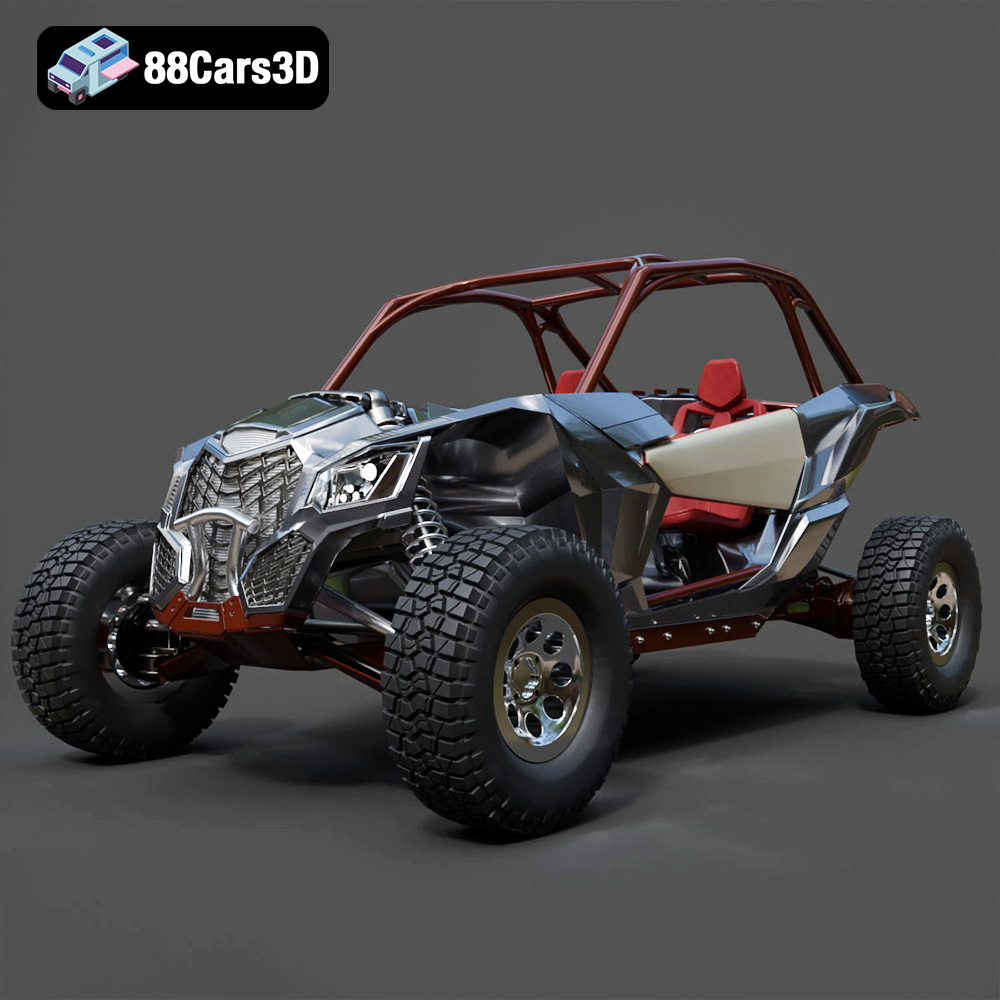
Download the Can-Am Maverick 2019 3D Model featuring an aggressive off-road design, detailed chassis, and rugged tires. Includes .blend, .fbx, .obj, .glb, .stl, .ply, .unreal, and .max formats for rendering, simulation, and game development.
Price: $90.79
View Product
Texture: Yes
Material: Yes
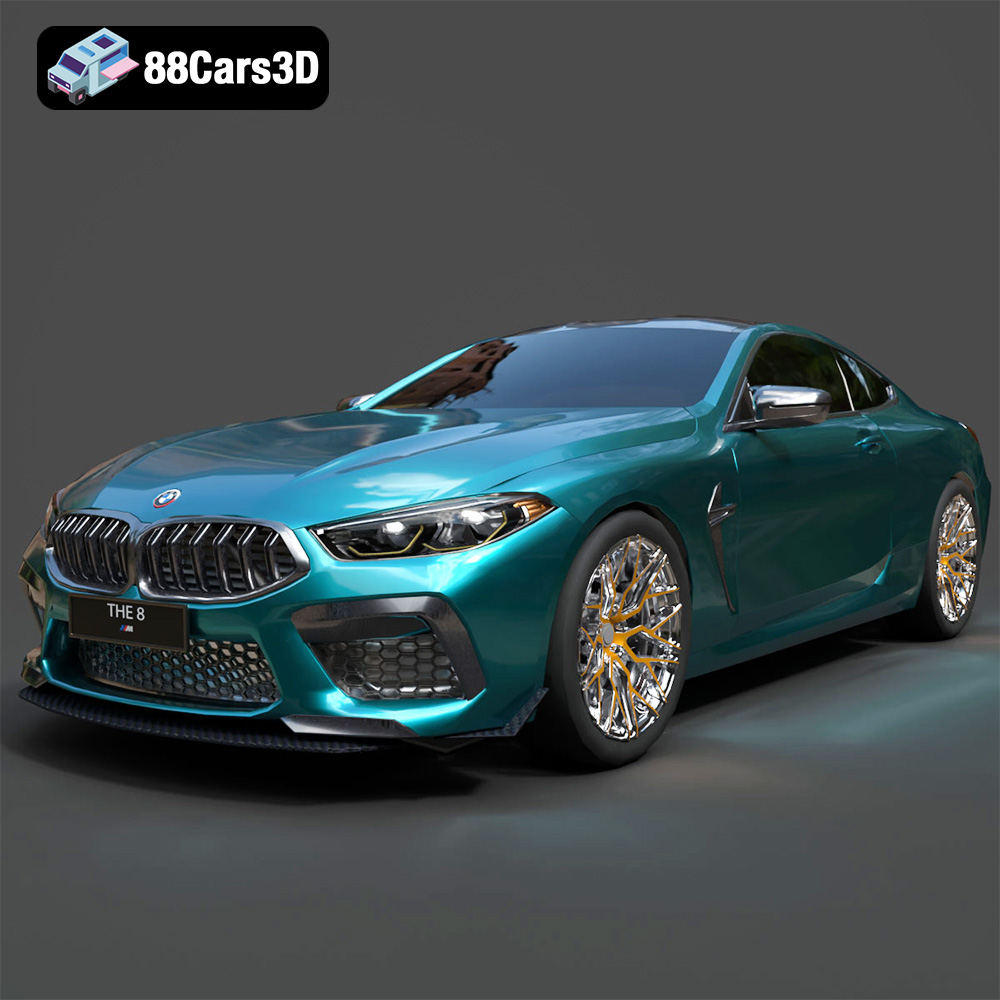
Download the BMW M8 Competition 3D Model featuring aggressive styling, a luxurious interior, and high-performance detailing. Includes .blend, .fbx, .obj, .glb, .stl, .ply, .unreal, and .max formats for rendering, simulation, and game development.
Price: $110.79
View Product
Texture: Yes
Material: Yes
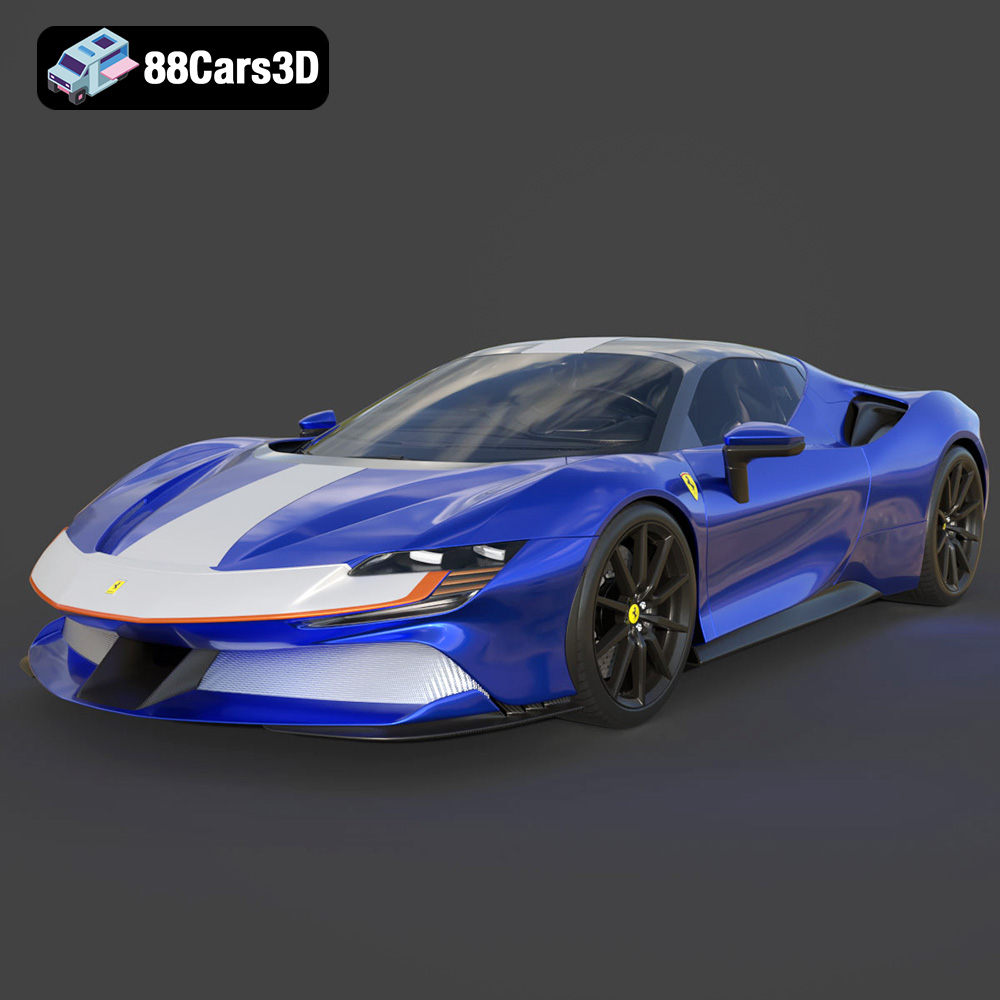
Download the Ferrari SF90 Spider 3D Model featuring a meticulously detailed exterior, intricate interior, and realistic PBR materials. Includes .blend, .fbx, .obj, .glb, .stl, .ply, .unreal, and .max formats for rendering, simulation, and game development.
Price: $110.79
View Product
Texture: Yes
Material: Yes
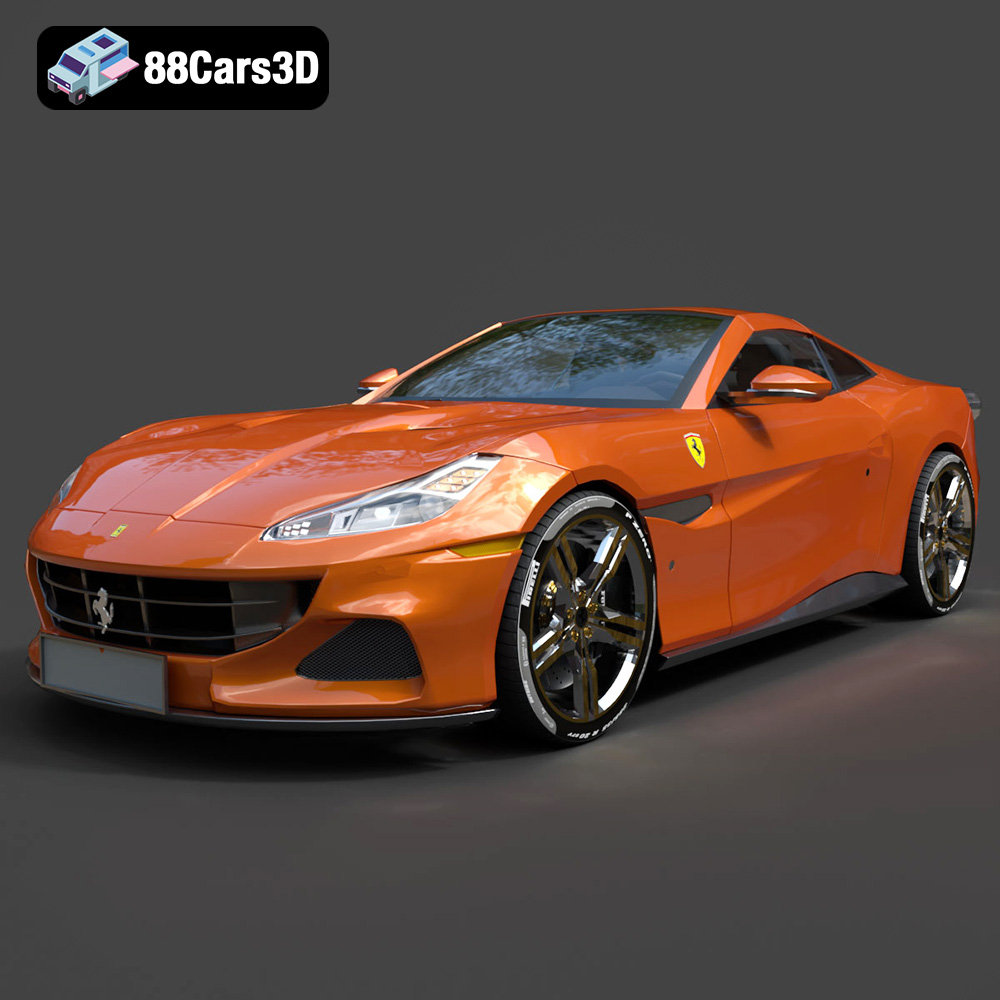
Download the Ferrari Portofino 3D Model featuring accurate body contours, detailed interior, and high-resolution textures. Includes .blend, .fbx, .obj, .glb, .stl, .ply, .unreal, and .max formats for rendering, simulation, and game development.
Price: $110.79
View Product
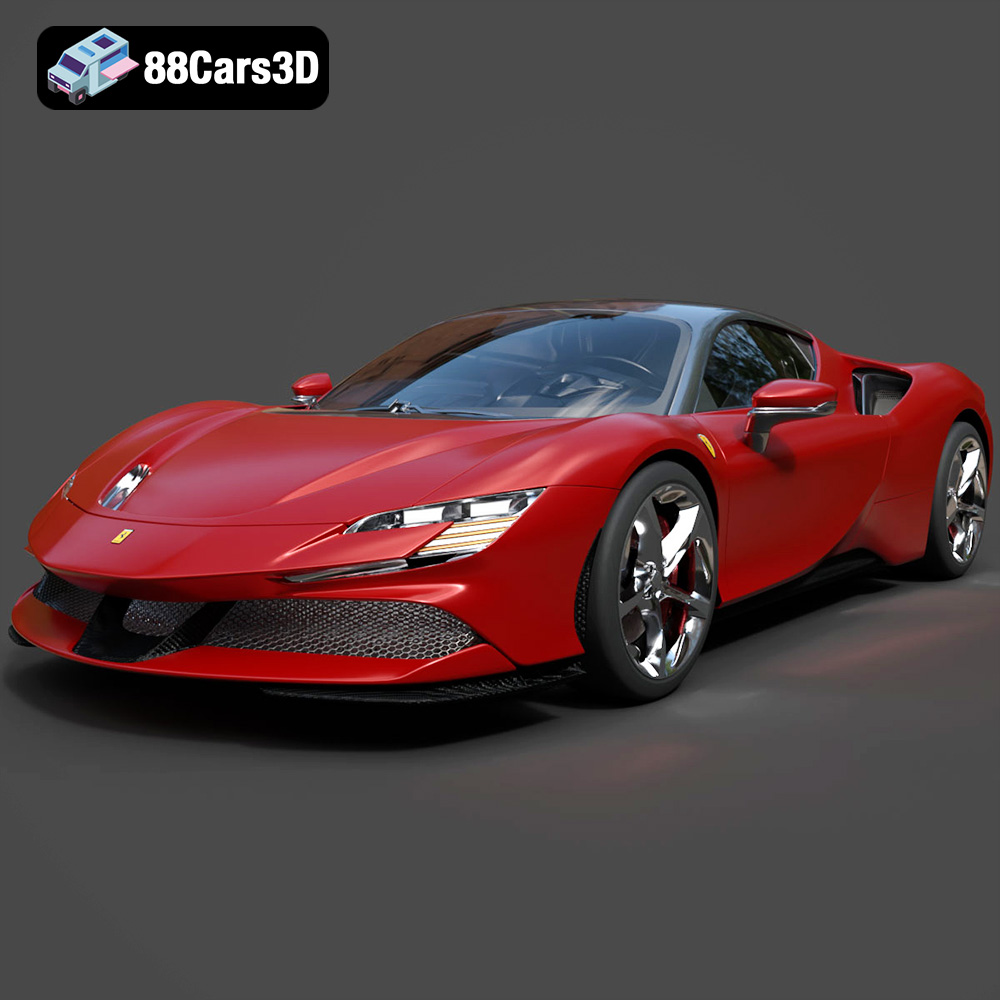
Texture: Yes
Material: Yes
Download the Ferrari SF90 Stradale 3D Model featuring aggressive lines and sophisticated aesthetics. Includes .blend, .fbx, .obj, .glb, .stl, .ply, .unreal, and .max formats for rendering, simulation, and game development.
Price: $110.79
View Product
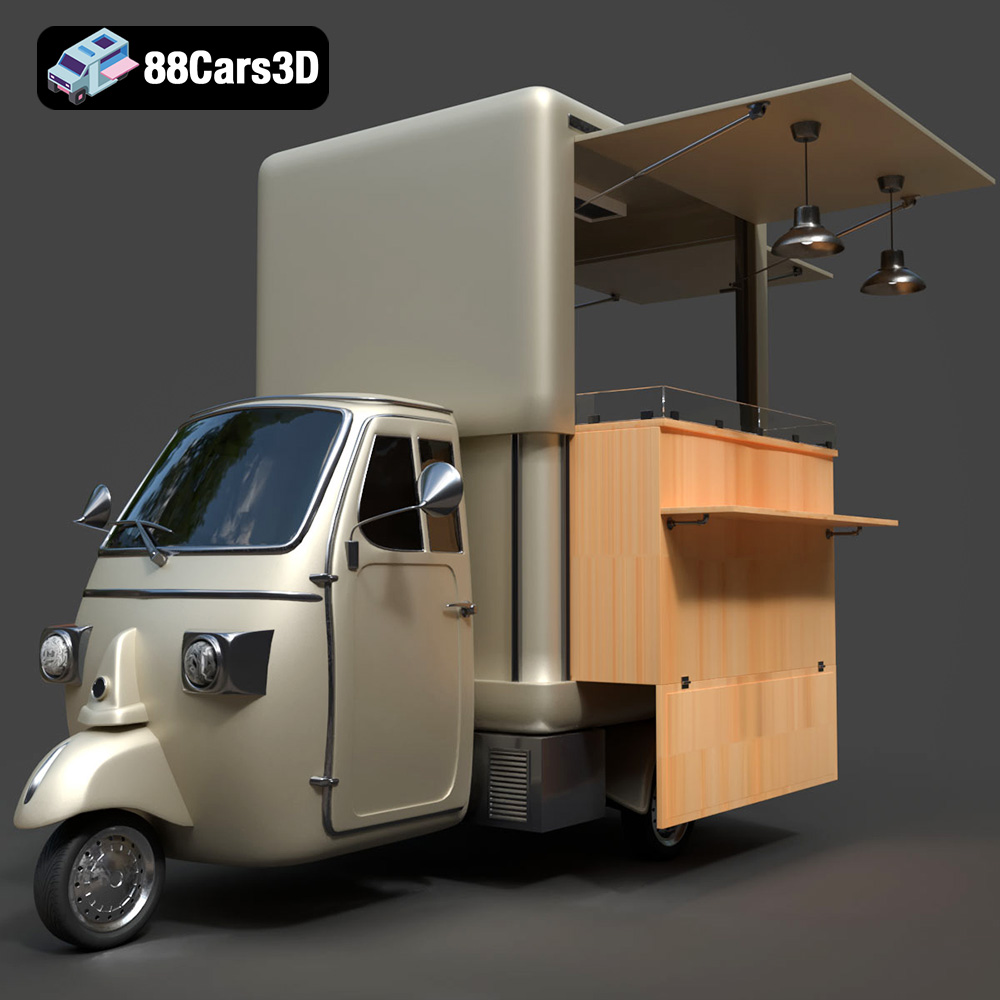
Texture: Yes
Material: Yes
Download the Foodtruck Set 3-006 3D Model featuring a detailed exterior and interior, optimized for various uses. Includes .blend, .fbx, .obj, .glb, .stl, .ply, .unreal, and .max formats for rendering, simulation, and game development.
Price: $23.79
View Product
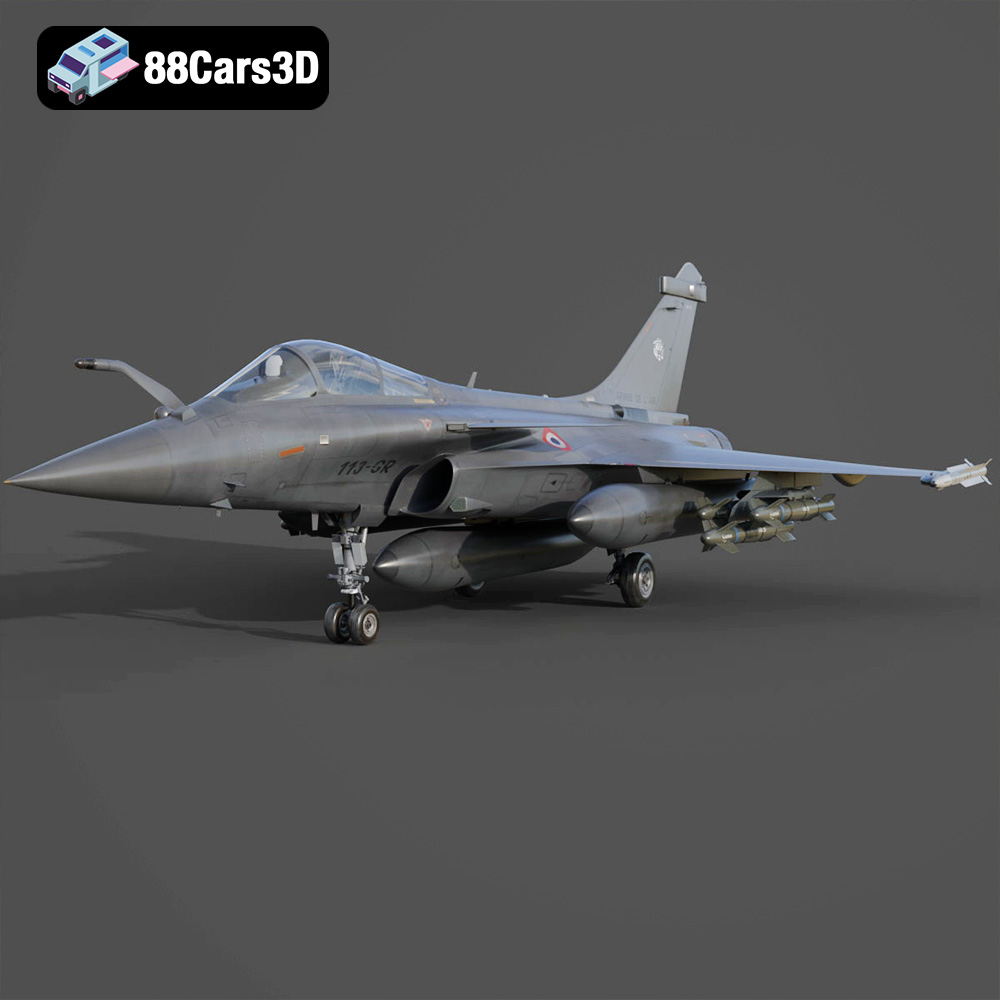
Texture: Yes
Material: Yes
Download the Dassault Rafale Fighter Jet 3D Model featuring a detailed exterior, cockpit, and propulsion system. Includes .blend, .fbx, .obj, .glb, .stl, .ply, .unreal, and .max formats for rendering, simulation, and game development.
Price: $22.79
View Product
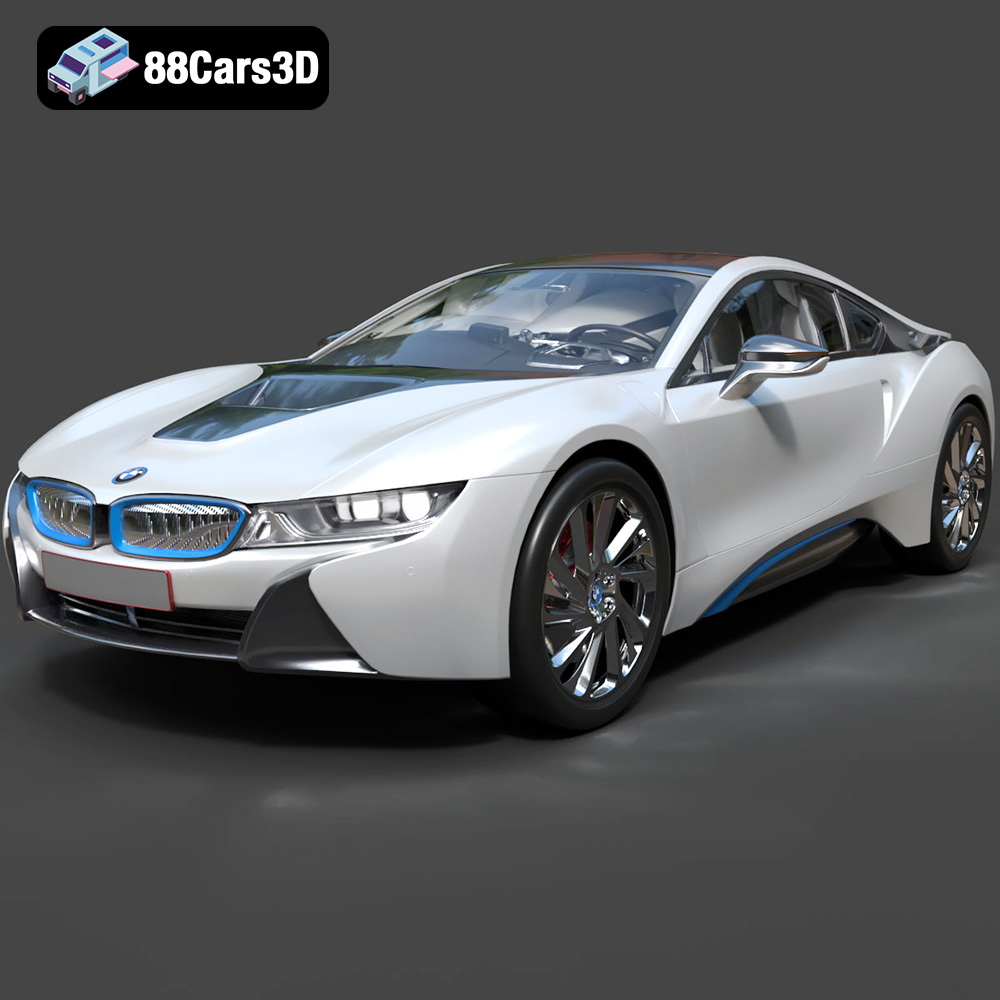
Texture: Yes
Material: Yes
Download the BMW i8 2015 3D Model featuring its futuristic design and detailed interior, capturing the essence of a modern hybrid sports car. Includes .blend, .fbx, .obj, .glb, .stl, .ply, .unreal, and .max formats for rendering, simulation, and game development.
Price: $40.79
View Product
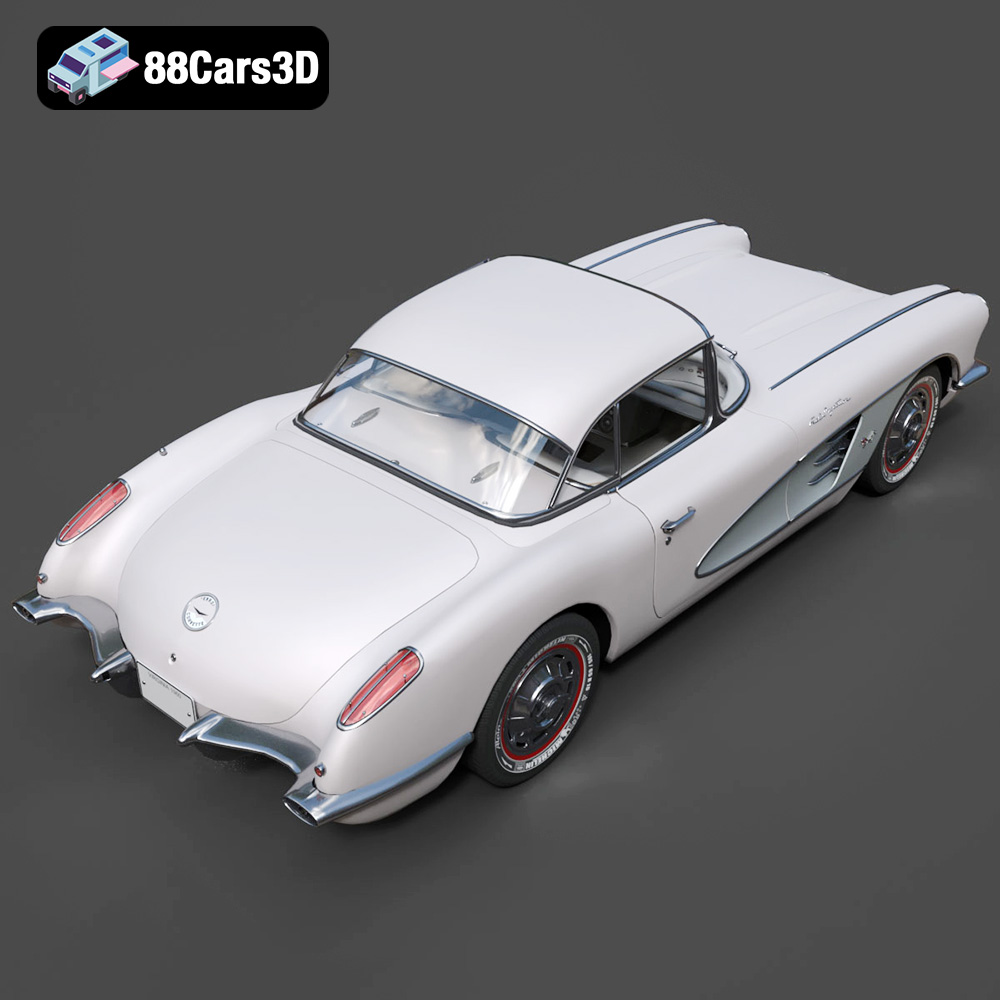
Texture: Yes
Material: Yes
Download the Chevrolet Corvette Coupe 1960 3D Model featuring its iconic vintage design, detailed interior, and classic exterior styling. Includes .blend, .fbx, .obj, .glb, .stl, .ply, .unreal, and .max formats for rendering, simulation, and game development.
Price: $50.79
View Product
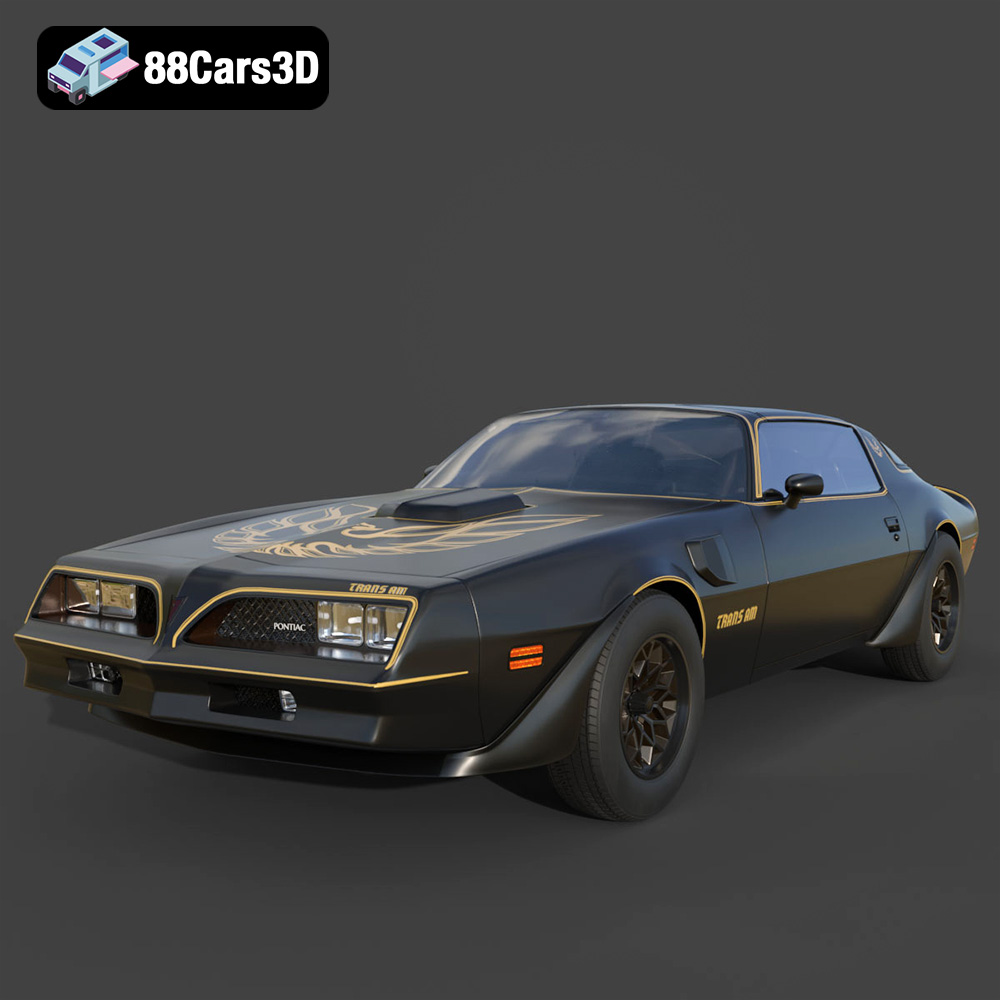
Texture: Yes
Material: Yes
Download the Pontiac Firebird Trans Am 1977 3D Model featuring iconic muscle car design and detailed exterior and interior. Includes .blend, .fbx, .obj, .glb, .stl, .ply, .unreal, and .max formats for rendering, simulation, and game development.
Price: $30.79
View Product


