Get 50% OFF All Premium 3D & STL Models!

In the vast universe of 3D visualization, few subjects demand as much precision and artistry as automotive rendering. A beautifully modeled 3D car model, rich with intricate details and impeccable topology, can fall flat without compelling lighting. Lighting is not merely about illumination; it’s about storytelling, mood, and accentuating every curve and material finish to achieve breathtaking photorealistic renders. For professionals in automotive design, game asset development, or advertising, mastering studio lighting in 3ds Max is an indispensable skill. This comprehensive guide will take you through the nuanced world of setting up studio lighting for your automotive renders, transforming your 3D car models from mere digital assets into captivating visual masterpieces. We’ll delve into the fundamentals, explore advanced techniques with industry-standard renderers like Corona and V-Ray, and touch upon crucial optimization and post-processing steps to ensure your vehicles truly shine.
Whether you’re showcasing the sleek lines of a concept car or preparing game-ready vehicles, the principles outlined here will elevate your work. We’ll cover everything from fundamental light types and their strategic placement to advanced Image-Based Lighting (IBL) with High Dynamic Range Images (HDRIs), sophisticated material interactions, and crucial renderer-specific workflows. By the end of this article, you’ll possess a robust understanding of how to craft compelling lighting scenarios that breathe life into your 3D car models and meet the exacting standards of professional automotive rendering and visualization.
Effective studio lighting for an automotive render is an intricate balance of art and science, requiring a deep understanding of how light interacts with complex surfaces. Before diving into software-specific tools, it’s crucial to grasp the foundational principles. Automotive surfaces, characterized by their highly reflective and often metallic properties, react uniquely to light, demanding a nuanced approach to illumination. The goal is to highlight the vehicle’s form, emphasize its design elements, and achieve a sense of realism that transcends the digital realm.
The journey begins with identifying the various roles lights play in a studio setup. Unlike general product rendering, car renders often require a dynamic interplay of focused highlights and broad ambient illumination to reveal volume and material properties. Understanding the direction, intensity, and color of each light source is paramount. This initial groundwork sets the stage for creating a convincing and visually stunning presentation of any 3D car model, whether sourced from platforms like 88cars3d.com or meticulously crafted from scratch. Attention to these fundamentals ensures that the intricate UV mapping and detailed PBR materials of your vehicle are presented in the best possible light, contributing significantly to a successful automotive rendering project.
In a typical studio setup, lights are assigned specific functions to sculpt the car’s form and highlight its features. The classic three-point lighting setup serves as an excellent starting point, though automotive rendering often expands beyond this to include additional lights:
Beyond these roles, 3ds Max offers various light types. Area Lights (V-Ray Plane Light, Corona Rectangle Light) are indispensable for producing soft, naturalistic illumination and creating controlled, elongated reflections on the car’s body. Spot Lights (V-Ray/Corona Target Light) can be used to highlight specific details like badges, wheels, or interior elements with precise control over falloff. Dome Lights, particularly when coupled with HDRIs, are vital for providing realistic ambient illumination and environment reflections, a cornerstone of convincing automotive renders.
The visual appeal of a car render hinges on how light interacts with its surfaces. Automotive materials typically exhibit complex reflective properties. Understanding these interactions is fundamental to placing lights effectively and correctly setting up your PBR materials.
A successful lighting setup skillfully manipulates these reflections, sculpting the car’s form with highlights and shadows, and ensuring that the high-quality UV mapping and textures are rendered with utmost fidelity. This meticulous approach to lighting is what separates good renders from truly exceptional ones in the competitive world of automotive rendering.
While traditional area and spot lights are crucial for direct illumination and highlights, true photorealism in automotive rendering often hinges on sophisticated Image-Based Lighting (IBL). The cornerstone of IBL is the High Dynamic Range Image (HDRI), which captures a full 360-degree panoramic view of an environment with an extensive range of light intensities. HDRIs are indispensable because they provide not only realistic ambient light but also accurate reflections across the car’s body, seamlessly integrating the 3D car model into a convincing virtual world. Without a good HDRI, even the most detailed 3D car models would lack believable reflections and contextual lighting, appearing disconnected from their environment. When sourcing high-quality models from marketplaces such as 88cars3d.com, ensuring they react appropriately to HDRI lighting is key to achieving professional-grade automotive rendering.
The effectiveness of an HDRI goes beyond simple illumination; it provides a comprehensive lighting solution that includes nuanced color information, subtle shadows, and complex reflection patterns derived directly from real-world photographic data. This approach significantly streamlines the lighting process while delivering unparalleled realism. Integrating HDRIs correctly, along with understanding how to complement them with backplates and shadow catchers, is a critical skill for any professional aiming for top-tier visualization results.
An HDRI acts as a virtual light source and reflection map, encompassing an entire environment. For automotive renders, high-quality studio HDRIs or outdoor HDRIs are essential. Studio HDRIs typically feature softboxes, grid lights, and a neutral background, perfect for clean, controlled shots. Outdoor HDRIs offer dynamic, natural lighting, ideal for contextual renders.
Here’s a general workflow for implementing HDRIs in 3ds Max with common renderers:
The beauty of HDRIs is their ability to cast incredibly realistic light and shadows while simultaneously providing complex and accurate environmental reflections, truly integrating your 3D car model into a scene.
For more specific compositional control or to integrate your car into a pre-existing photographic background, backplates are invaluable. A backplate is a 2D image used as a background for your render. Integrating it with an HDRI and shadow catchers requires careful alignment:
This combined approach of HDRI for primary lighting and reflections, a backplate for the background, and a shadow catcher for ground interaction provides an incredibly powerful workflow for achieving professional automotive rendering composites.
While HDRIs provide excellent overall illumination and reflections, fine-tuning the visual impact of your 3D car model often requires more direct and controlled light sources. This is where advanced applications of area lights and IES (Illuminating Engineering Society) profiles come into play. These tools allow artists to sculpt reflections, emphasize specific contours, and simulate realistic light distribution, adding a layer of sophistication that distinguishes high-end automotive rendering from simpler presentations. Mastering their use is critical for showcasing the intricate details of your vehicle, from its meticulously crafted topology to its flawless PBR materials. Platforms like 88cars3d.com, which offer highly detailed 3D car models, truly shine when these advanced lighting techniques are applied to bring out their intrinsic quality.
The strategic placement and configuration of these lights enable a level of artistic control over glossiness, metallic sheen, and the overall perception of form that cannot be achieved with just ambient lighting. Whether you’re aiming for a pristine studio look or a dynamic, architecturally integrated scene, a deep dive into area lights and IES profiles is essential for professional-grade visualization.
Area lights (e.g., V-Ray Plane Light, Corona Rectangle Light) are the workhorses of studio lighting. Their large surface area produces soft, even light and, more importantly for cars, creates beautiful, elongated reflections that define the vehicle’s surfaces. Here’s how to use them strategically:
The art is in balancing direct illumination with the reflections generated by these lights, ensuring they enhance the car’s form without appearing artificial. These meticulous adjustments are what elevate basic automotive rendering to a professional standard.
IES (Illuminating Engineering Society) light profiles are data files that describe the spatial distribution of light emitted from a real-world light fixture. They are invaluable for replicating specific light patterns, adding a layer of authenticity to studio or environmental renders, especially when integrating a car into an architectural context or simulating precise spot lighting.
Here’s how to incorporate IES lights:
By combining the broad strokes of HDRI lighting with the precise control of area lights and the realistic patterns of IES lights, you can create truly dynamic and believable lighting scenarios for your 3D car models, pushing the boundaries of visualization and professionalism.
Choosing the right renderer is as crucial as selecting the right light sources, as each rendering engine offers unique strengths and workflows that can significantly impact the final quality and efficiency of your automotive rendering projects. 3ds Max boasts a vibrant ecosystem of renderers, with Corona Renderer and V-Ray standing out as industry titans for their photorealistic capabilities. Both are excellent choices for rendering 3D car models, but they approach lighting with slightly different philosophies, influencing how artists interact with their tools. Understanding these distinctions is key to optimizing your workflow, whether you prioritize speed and simplicity or granular control and advanced features. Your choice will shape how you approach PBR material setup, UV mapping considerations, and ultimately, the visual impact of your final visualization.
This section will break down the core lighting workflows for both Corona and V-Ray, highlighting their key features and offering insights into how to best leverage them for stunning car renders. Regardless of your chosen engine, the goal remains the same: to create compelling illumination that accentuates the exquisite detail and topology of your vehicle, making it ready for any professional application, from game asset development to high-end advertising.
Corona Renderer has gained immense popularity for its ease of use, intuitive interface, and ability to produce incredibly realistic results with minimal setup. Its physically based approach means that lights behave naturally, reducing the need for extensive tweaking.
Corona’s strengths lie in its “set it and forget it” nature, where realistic results often emerge from straightforward setups, making it a favorite for artists focused on quick iterations and natural light behavior for their 3D car models.
V-Ray, a long-standing industry standard, is renowned for its comprehensive feature set, unparalleled control, and robust performance, especially in complex production pipelines. It offers a more granular level of control over every aspect of lighting.
V-Ray excels in situations demanding ultimate control and optimization, making it a go-to for large-scale productions and projects where precise manipulation of every light parameter is essential for achieving the highest quality automotive rendering.
Even with the most meticulously crafted lighting setup and high-quality 3D car models from platforms like 88cars3d.com, the journey to a breathtaking render isn’t complete without strategic optimization and a powerful post-processing workflow. Render optimization ensures that your computational resources are used efficiently, striking a balance between render time and visual fidelity. Meanwhile, post-processing is the crucial final stage where you elevate your raw render, refining its mood, enhancing details, and applying cinematic effects that can transform a good image into an unforgettable one. It’s here that the subtleties of your PBR materials, the sharpness of your UV mapping, and the depth of your lighting truly come alive, making the difference between a passable image and a professional-grade visualization.
This section delves into practical techniques for speeding up your render times without sacrificing quality, and then guides you through the essential steps of enhancing your renders using industry-standard tools like 3ds Max’s built-in frame buffer and external applications like Photoshop. Mastering these final touches is what truly polishes your automotive rendering and prepares it for prime-time display.
Efficient rendering is about smart choices. For high-resolution automotive renders, render times can be substantial. Here’s how to optimize:
Using a denoiser allows you to use slightly lower sampling settings, saving render time.
Lowering GI precision for test renders and increasing for finals is a good strategy.
Balancing these settings is an iterative process. Start with lower quality settings for drafts and progressively increase them for final, high-resolution automotive rendering.
Post-processing is where you add the final polish, enhancing the mood, impact, and overall photorealism of your visualization. It’s an essential step, even for the best raw renders.
Load these passes as layers in Photoshop or a similar compositing software.
Post-processing is not about fixing bad renders, but about enhancing great ones. It provides an incredible amount of flexibility to refine your automotive rendering and achieve a polished, professional look that truly captivates the viewer. For anyone aiming to showcase their 3D car models effectively, mastering these post-production techniques is just as vital as the initial lighting setup.
Mastering studio lighting for automotive rendering in 3ds Max is a journey that blends technical proficiency with artistic intuition. We’ve explored how a strategic approach to light types – from key and fill lights to advanced area lights and IES profiles – can sculpt the form of your 3D car models, emphasizing their unique design language and intricate topology. The power of Image-Based Lighting with HDRIs, coupled with the precision of backplates and shadow catchers, enables the creation of environments that are not only visually stunning but also incredibly convincing. We’ve also delved into the distinct yet equally powerful workflows of industry-leading renderers, Corona and V-Ray, showcasing their respective strengths in delivering photorealistic results for your visualization projects.
Ultimately, the goal is to transform digital assets into compelling visual narratives. This requires not only understanding the mechanics of light but also the nuances of material interaction, especially with sophisticated PBR materials and perfectly executed UV mapping. The final touches of render optimization and meticulous post-processing are the icing on the cake, allowing you to refine your images, correct imperfections, and infuse them with the mood and polish that command attention. By embracing these techniques, you’re not just illuminating a vehicle; you’re crafting an experience, ready for any application from high-end marketing to immersive AR/VR experiences or detailed game asset development.
The journey to photorealistic automotive rendering is continuous, demanding practice, experimentation, and a keen eye for detail. The principles discussed here provide a robust framework, but your creativity and willingness to explore will truly unlock the full potential of your renders. To apply these techniques and truly test your lighting skills, start with a high-quality foundation. Explore the vast selection of meticulously crafted 3D car models available on 88cars3d.com, where every detail is designed to shine under the right light. Dive in, experiment with different setups, and watch your 3D car models come to life!
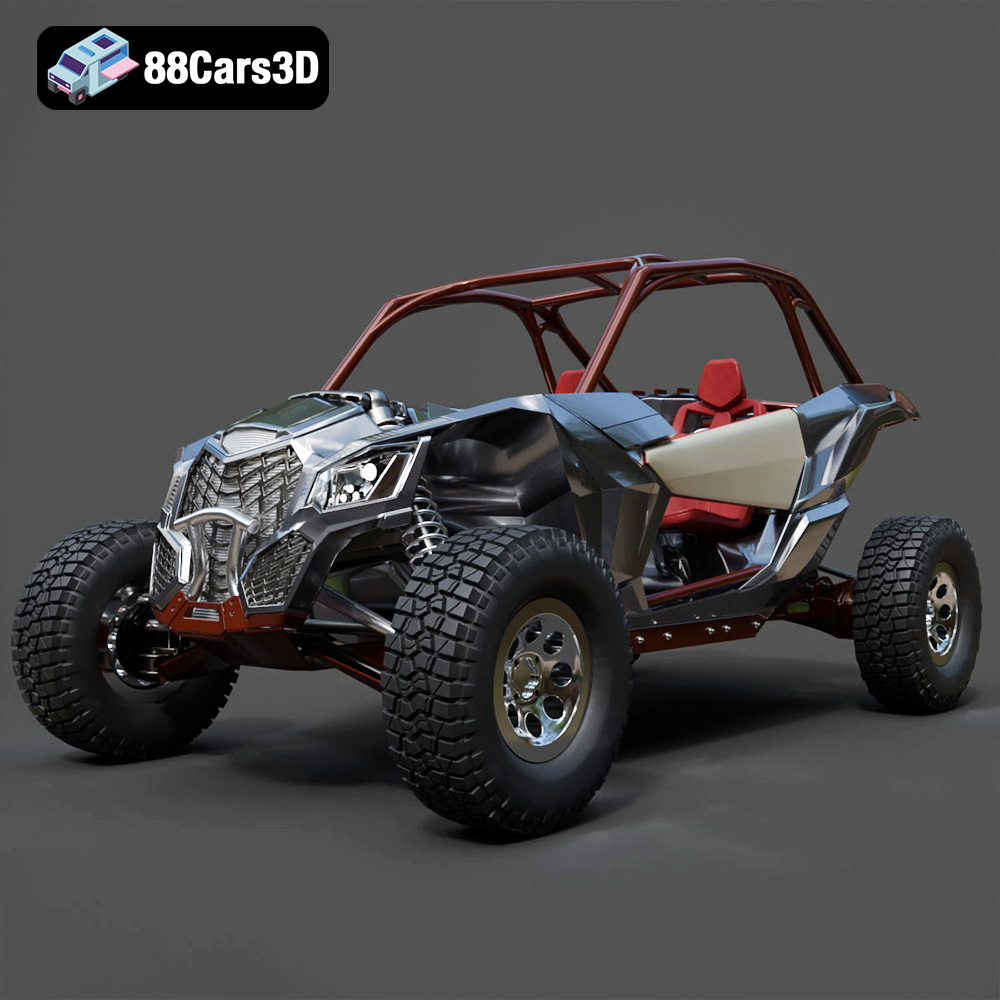
Texture: Yes
Material: Yes
Download the Can-Am Maverick 2019 3D Model featuring an aggressive off-road design, detailed chassis, and rugged tires. Includes .blend, .fbx, .obj, .glb, .stl, .ply, .unreal, and .max formats for rendering, simulation, and game development.
Price: $90.79
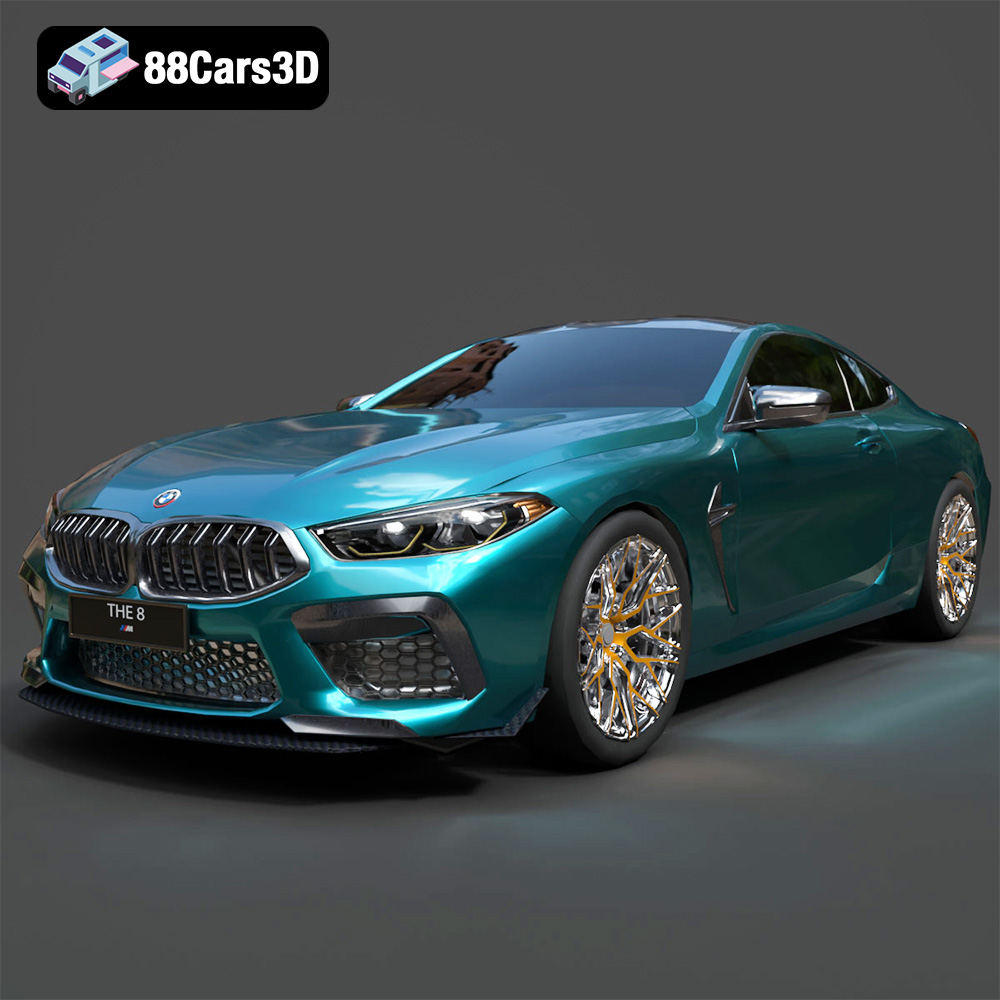
Texture: Yes
Material: Yes
Download the BMW M8 Competition 3D Model featuring aggressive styling, a luxurious interior, and high-performance detailing. Includes .blend, .fbx, .obj, .glb, .stl, .ply, .unreal, and .max formats for rendering, simulation, and game development.
Price: $110.79
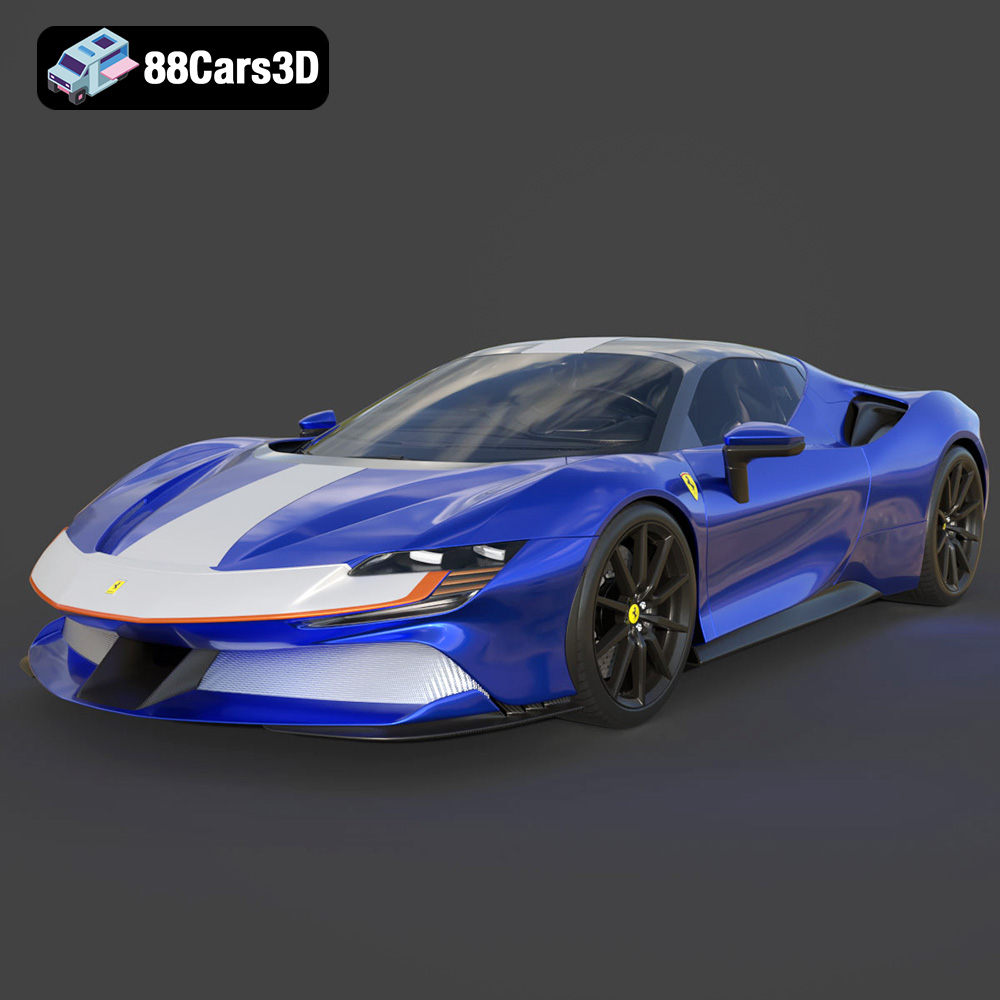
Texture: Yes
Material: Yes
Download the Ferrari SF90 Spider 3D Model featuring a meticulously detailed exterior, intricate interior, and realistic PBR materials. Includes .blend, .fbx, .obj, .glb, .stl, .ply, .unreal, and .max formats for rendering, simulation, and game development.
Price: $110.79
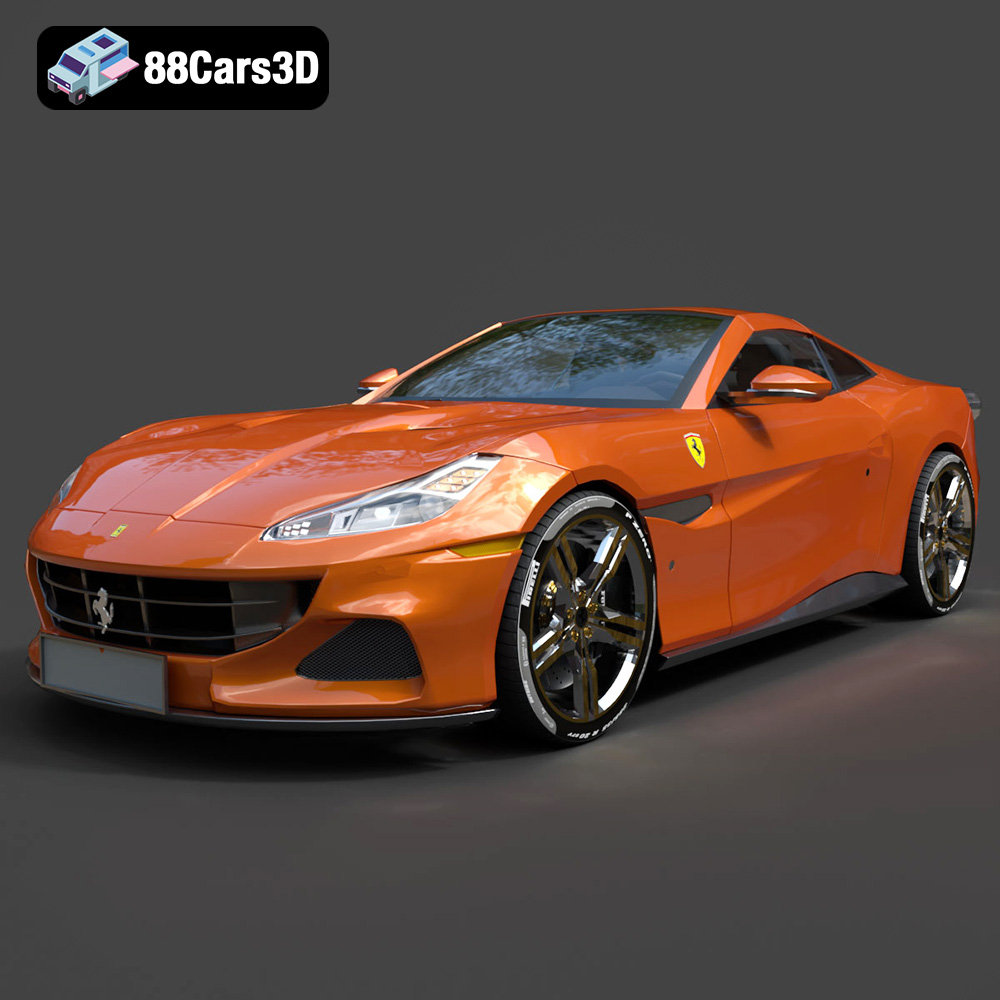
Texture: Yes
Material: Yes
Download the Ferrari Portofino 3D Model featuring accurate body contours, detailed interior, and high-resolution textures. Includes .blend, .fbx, .obj, .glb, .stl, .ply, .unreal, and .max formats for rendering, simulation, and game development.
Price: $110.79
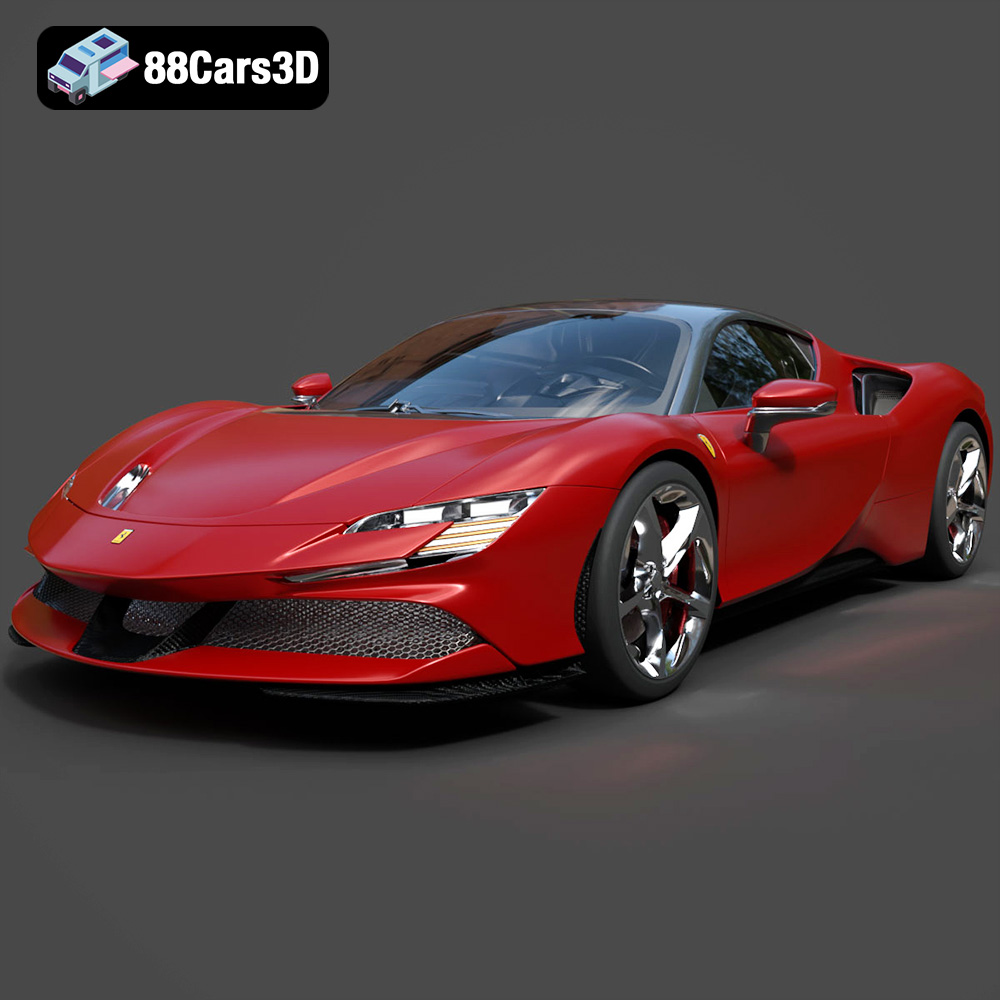
Texture: Yes
Material: Yes
Download the Ferrari SF90 Stradale 3D Model featuring aggressive lines and sophisticated aesthetics. Includes .blend, .fbx, .obj, .glb, .stl, .ply, .unreal, and .max formats for rendering, simulation, and game development.
Price: $110.79
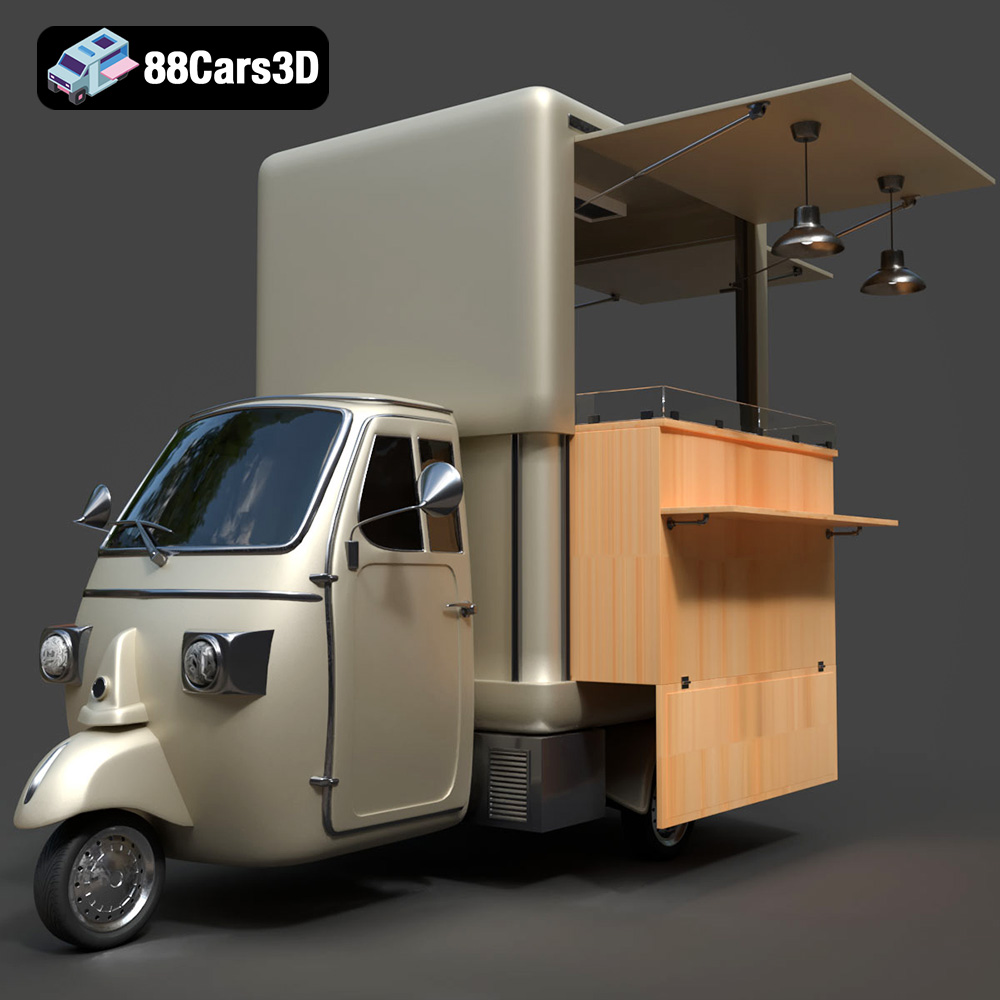
Texture: Yes
Material: Yes
Download the Foodtruck Set 3-006 3D Model featuring a detailed exterior and interior, optimized for various uses. Includes .blend, .fbx, .obj, .glb, .stl, .ply, .unreal, and .max formats for rendering, simulation, and game development.
Price: $23.79
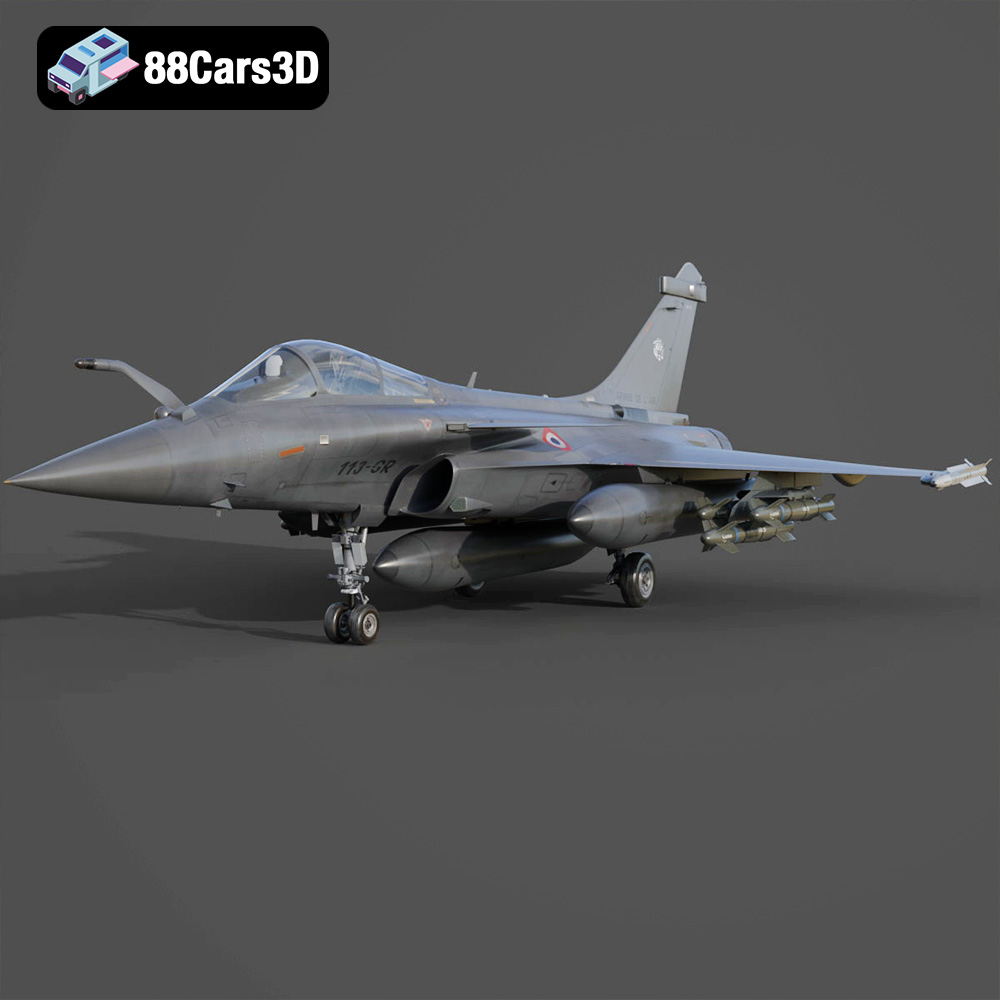
Texture: Yes
Material: Yes
Download the Dassault Rafale Fighter Jet 3D Model featuring a detailed exterior, cockpit, and propulsion system. Includes .blend, .fbx, .obj, .glb, .stl, .ply, .unreal, and .max formats for rendering, simulation, and game development.
Price: $22.79
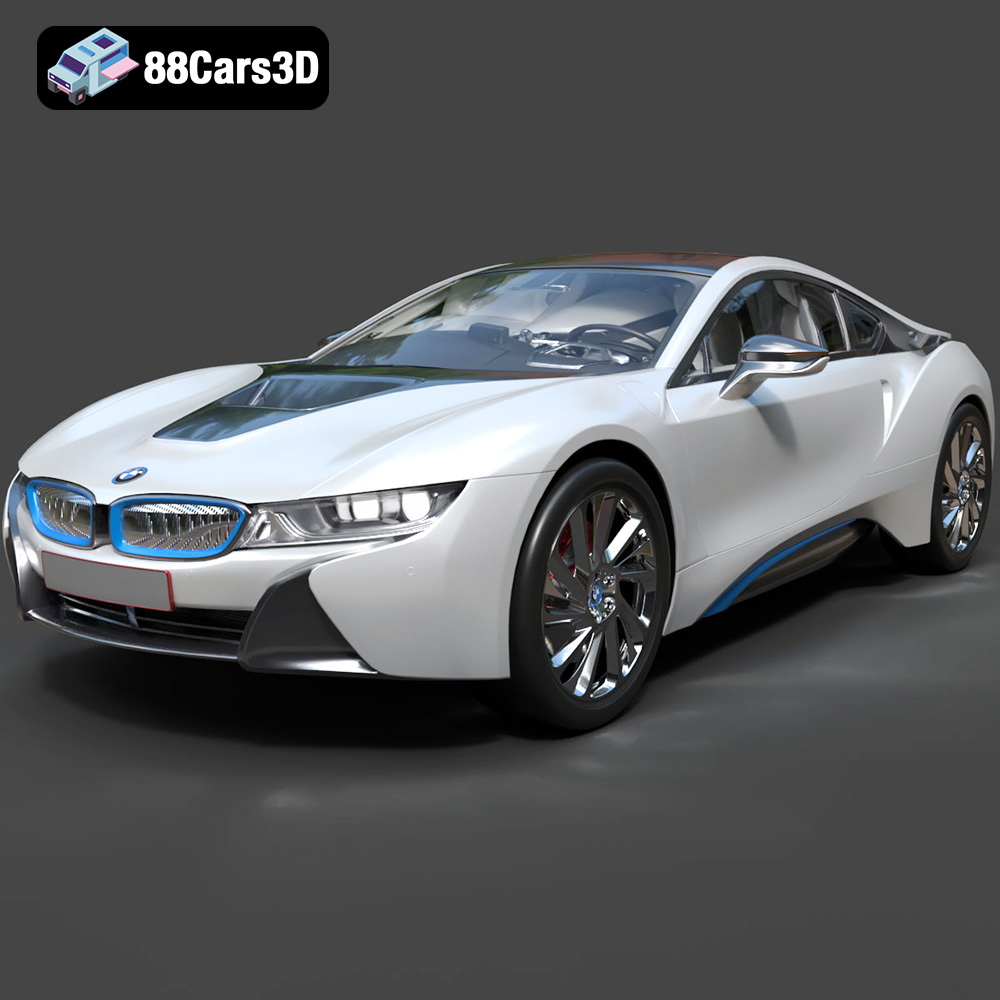
Texture: Yes
Material: Yes
Download the BMW i8 2015 3D Model featuring its futuristic design and detailed interior, capturing the essence of a modern hybrid sports car. Includes .blend, .fbx, .obj, .glb, .stl, .ply, .unreal, and .max formats for rendering, simulation, and game development.
Price: $40.79
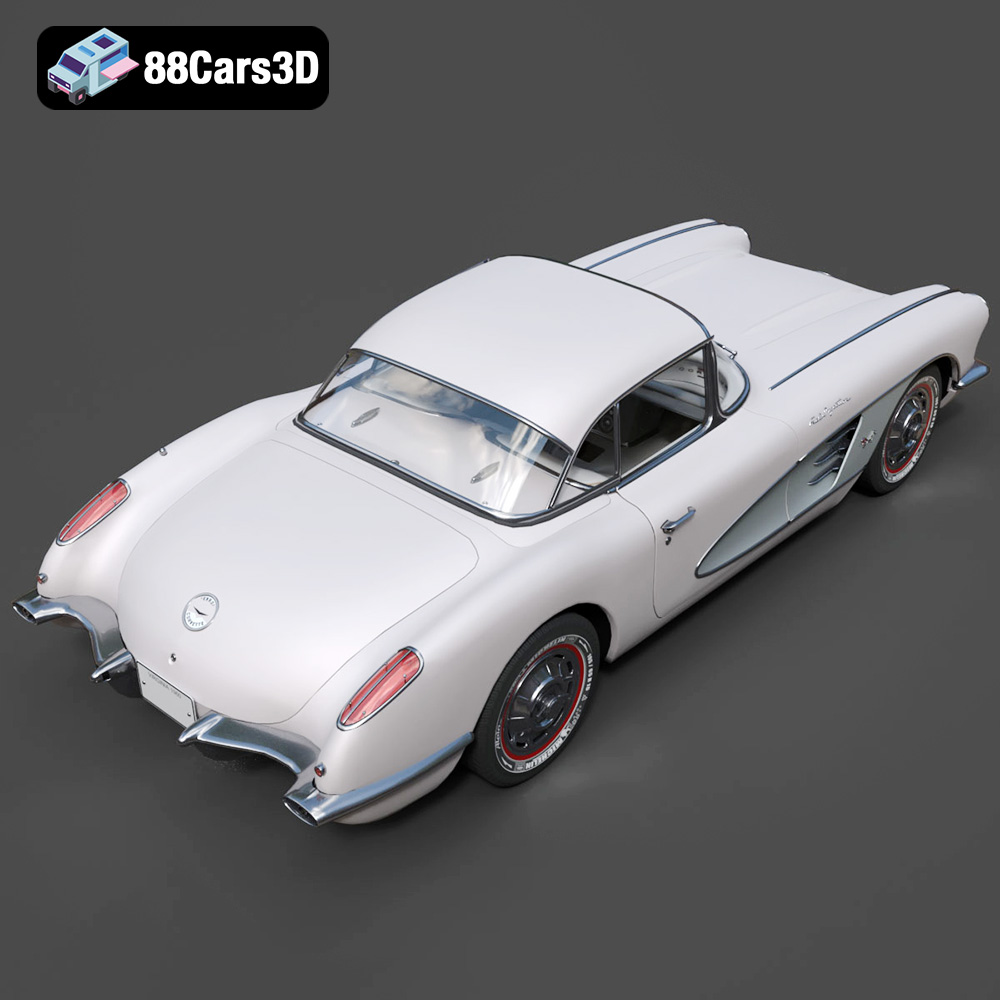
Texture: Yes
Material: Yes
Download the Chevrolet Corvette Coupe 1960 3D Model featuring its iconic vintage design, detailed interior, and classic exterior styling. Includes .blend, .fbx, .obj, .glb, .stl, .ply, .unreal, and .max formats for rendering, simulation, and game development.
Price: $50.79
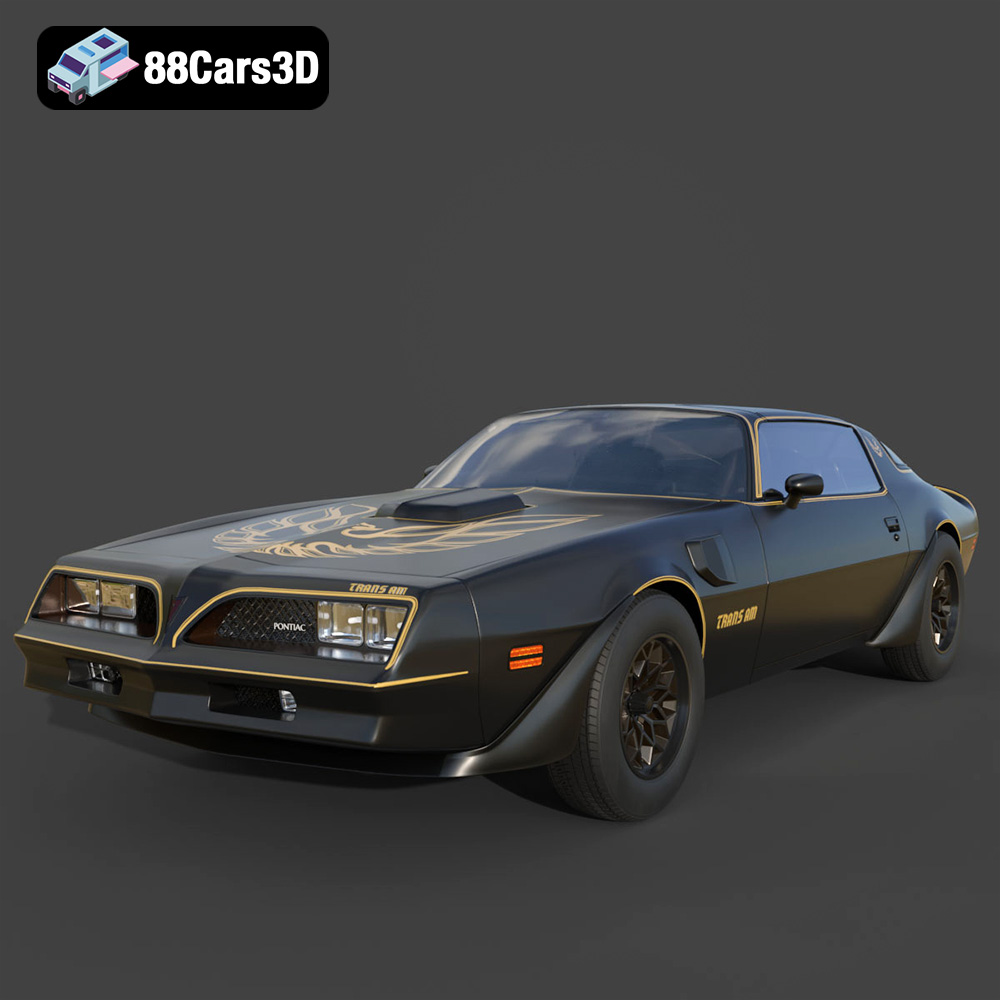
Texture: Yes
Material: Yes
Download the Pontiac Firebird Trans Am 1977 3D Model featuring iconic muscle car design and detailed exterior and interior. Includes .blend, .fbx, .obj, .glb, .stl, .ply, .unreal, and .max formats for rendering, simulation, and game development.
Price: $30.79

