
“`html
STL vs OBJ vs FBX: Decoding File Formats for Your 3D Printable Car Models
The world of 3D printing, especially when diving into intricate automotive models like those found on 88cars3d.com, is a fascinating blend of digital design and physical creation. While the allure of bringing a detailed 3D printable car model to life is strong, the journey from a digital file to a tangible object involves several technical considerations. One of the most fundamental, yet often overlooked, aspects is the choice of file format. You’ve likely encountered files with extensions like .STL, .OBJ, and .FBX. But what do these mean, and which one is truly the best for your 3D printing endeavors? This comprehensive guide will demystify these popular 3D file formats, dissecting their structure, advantages, disadvantages, and ultimately, helping you make the most informed decision for your next print. We’ll explore how each format handles geometry, color, and texture, and how these differences impact your slicing process, print quality, and overall workflow. Whether you’re a seasoned maker or just beginning your 3D printing adventure, understanding these file formats is crucial for achieving successful and high-fidelity prints of your favorite vehicles.
Understanding the Core: What is an STL File?
The Stereolithography (STL) file format reigns supreme in the realm of 3D printing. Developed by 3D Systems in the 1980s for their stereolithography apparatus, it was designed with a singular purpose: to communicate the surface geometry of a 3D object to a 3D printer. Its simplicity and ubiquity have made it the de facto standard, and you’ll find that virtually every slicer and 3D printer firmware supports it. Understanding how STL files work is the first step in mastering your 3D printing workflow.
At its heart, an STL file represents a 3D object as a collection of interconnected triangles. These triangles, or facets, form a mesh that approximates the object’s surface. Each triangle is defined by three vertices (its corners) and a normal vector, which indicates the outward-facing direction of the triangle’s surface. This normal vector is critical for determining the orientation of the surface, ensuring the printer knows which side is “inside” and which is “outside” the object, which is vital for watertightness and proper printing.
The Triangulated Mesh: Simplicity and Its Limitations
The strength of the STL format lies in its simplicity. By representing complex surfaces as a series of flat triangles, it’s easily processed by 3D printers and related software. However, this simplicity comes with inherent limitations. Because it only stores triangular facets, an STL file cannot inherently store information about color, texture, or material properties. It’s purely a geometric representation. This means that if you download a beautifully rendered 3D car model with intricate paint schemes and decals, only its shape will be preserved when exported as an STL. The color and texture information will be lost.
Furthermore, the quality of the STL file is directly tied to the density of its triangulation. A model with a very low triangle count will appear faceted or “blocky” when printed, especially on curved surfaces. Conversely, a model with an extremely high triangle count can result in very large file sizes, which can slow down slicing and processing. For highly detailed car models, finding the right balance between detail and file size is crucial for efficient printing.
STL File Preparation: Ensuring Printability
For an STL file to be successfully printed, it must represent a “watertight” or “manifold” solid. This means there should be no holes, gaps, or self-intersections in the mesh. Imagine it like trying to fill a leaky bucket; the water (filament) would just escape. Common issues include stray triangles, inverted normals, and non-connected vertices. Software like Meshmixer, Blender, or Netfabb are invaluable tools for inspecting and repairing STL files. These programs can automatically detect and often fix many common mesh errors, ensuring your model is a solid, printable object. When you download print-ready STL files from reputable sources like 88cars3d.com, they are typically pre-checked and repaired, saving you significant troubleshooting time.
Exploring OBJ: Beyond Simple Geometry
The Wavefront OBJ (.OBJ) file format emerged as an improvement over STL, offering a more versatile way to represent 3D models. While it also describes the geometric shape of an object, it can do so using polygons with more than three vertices (quadrilaterals, n-gons) in addition to triangles. This can sometimes lead to cleaner geometry and smaller file sizes for curved surfaces compared to a highly triangulated STL, as fewer polygons are needed to represent smooth shapes.
However, the true advantage of OBJ lies in its ability to store additional data beyond pure geometry. It can include information about UV mapping (how textures are applied to the model), vertex colors, and crucially, it can reference external material files (typically .MTL files). This .MTL file contains information about surface properties, including diffuse color, ambient color, specular highlights, and texture map file names. This means an OBJ file can carry color and texture information, which is a significant step up from STL.
OBJ’s Enhanced Data Handling: Color and Textures
For hobbyists and model makers who want to achieve realistic finishes, the OBJ format’s ability to store color and texture data is a major benefit. When you download an OBJ model that includes a corresponding .MTL file and associated texture image files (like .JPG or .PNG), you can often import this into 3D modeling software or even some advanced slicers that support material previews. While most standard 3D printers cannot directly print in color (especially FDM printers), this information is invaluable for:
- Visualization: Seeing the intended colors and textures of the model before printing.
- Post-Processing Planning: Guiding your painting and finishing steps.
- Advanced Printing: Some specialized multi-material or full-color 3D printers can utilize this data.
For automotive models, this means you could potentially have a model file that dictates the exact color scheme and livery of a specific car, making your final printed and painted model even more authentic.
OBJ vs. STL for Printing: The Slicer’s Perspective
When it comes to actual 3D printing, most slicer software primarily uses the geometric data from an OBJ file, often ignoring the color and texture information. The slicer will typically tessellate any non-triangular polygons into triangles internally, similar to how an STL is structured. Therefore, for the purpose of generating G-code for FDM or resin printing, an OBJ file often behaves very similarly to an STL. The key benefit of using an OBJ might be a cleaner base mesh before slicing, potentially leading to slightly better surface quality if the OBJ was created with a more efficient polygon structure.
However, it’s essential to ensure that the OBJ file you are using is “manifold” and watertight, just like an STL. Mesh repair tools can often handle OBJ files, but the process might differ slightly depending on the software. The advantage of OBJ is that if you are working with software that leverages its extended data (e.g., for rendering or UV unwrapping), you have a richer file to work with. But for the direct path to printing, its geometrical representation is the primary concern.
FBX: A Comprehensive Digital Asset Format
The Filmbox (FBX) file format, developed by Autodesk, is a proprietary format designed as a comprehensive interchange solution for 3D animation and modeling software. Unlike STL and OBJ, FBX was built from the ground up to handle a vast array of data types, making it a powerhouse for transferring complex digital assets between different applications. This includes not only geometry (which can be represented by various polygon types) but also:
- Materials and Textures: Supports embedded textures and complex material properties.
- Animations: Stores skeletal animation, blend shapes, and keyframe data.
- Lighting and Cameras: Can include scene setup information.
- Scene Hierarchy: Preserves object relationships, grouping, and transformations.
For a format like an FBX file representing a car, this means it could potentially contain information about separate parts (wheels, doors), rigging for animation (if it were a rigged model), and detailed material definitions. This makes FBX incredibly powerful for game development, visual effects, and professional 3D workflows.
FBX for 3D Printing: Potential and Pitfalls
When it comes to 3D printing, the FBX format presents a unique set of opportunities and challenges. Its ability to store complex scene information, including potentially separated parts or intricate material setups, can be beneficial if you plan to print a model in multiple pieces or apply complex multi-material techniques. Some advanced slicers might even be able to interpret certain aspects of FBX files, such as hierarchical structures or basic material assignments.
However, the very complexity that makes FBX powerful can also be its downfall for direct 3D printing. Many standard slicers are not designed to natively import and interpret the full breadth of an FBX file. They are primarily built to work with the geometric data, much like they do with OBJ. This means that when you import an FBX into a typical slicer, it will likely only extract the mesh geometry, and the additional animation, complex material, or scene hierarchy data might be lost or misinterpreted. This can sometimes lead to issues with geometry that STL or OBJ formats would handle more gracefully.
FBX Conversion and Best Practices for Printing
If you have an FBX file that you intend to 3D print, the most reliable workflow usually involves converting it to a more print-friendly format like STL or OBJ first. This conversion process can be done using 3D modeling software such as Blender, Maya, or 3ds Max. During the conversion, you’ll want to ensure that:
- Geometry is watertight: Just like with STL and OBJ, the exported mesh must be manifold.
- Scale is correct: FBX files can sometimes have different unit systems, so double-check the scale during export.
- Triangulation is optimized: If exporting to STL, ensure the triangulation is appropriate for the desired level of detail without creating excessively large files.
For the average 3D printing enthusiast looking to print static 3D printable car models, FBX is often an unnecessary complication. While it can be a source file in a larger 3D asset pipeline, its direct use in printing is less common and often requires an intermediate conversion step. Stick to STL or well-formed OBJ files for the most straightforward printing experience.
STL vs. OBJ vs. FBX: Direct Comparison for 3D Printing
To summarize, let’s directly compare these formats through the lens of 3D printing, particularly for intricate models like those found on 88cars3d.com. The key differentiators are their data storage capabilities and how well they are supported by the 3D printing ecosystem.
STL: The undisputed champion for simple, geometry-only representation. Its universality means virtually any slicer or printer will understand it. Its main drawback is the lack of color/texture information and the potential for less efficient mesh representation for smooth curves if not properly generated. It’s the go-to for single, solid 3D printable parts.
OBJ: A more versatile format that can store color and texture data alongside geometry. This makes it excellent for visualization and planning post-processing. For pure printing, it often functions similarly to STL, but the possibility of cleaner base geometry and its richer data set makes it a strong contender, especially if you plan on detailed painting. It’s a good intermediate step if you need more than just shape.
FBX: A highly complex format designed for full 3D asset interchange. While it contains geometry, its strength lies in animations, scene hierarchy, and advanced material properties. For direct 3D printing of static models, it’s generally overkill and often requires conversion to STL or OBJ to ensure compatibility with slicers and avoid potential import issues. It’s more relevant if you’re integrating 3D prints into a larger digital asset pipeline or using specialized multi-material printers.
Slicer Compatibility: The Practical Reality
When you load a file into your slicer (like Cura, PrusaSlicer, or Simplify3D), the software’s primary job is to convert the 3D model’s geometry into layer-by-layer instructions (G-code) for your 3D printer. Here’s how compatibility generally shakes out:
- STL: Universally supported. Slicers are optimized to read and process STL files efficiently.
- OBJ: Widely supported, but support can vary. Most modern slicers handle OBJ well, extracting the geometry. Some might offer basic previews of associated material data, but this is less common.
- FBX: Support is less common and often limited. Slicers designed for game development or professional pipelines might have better FBX support, but for mainstream FDM and resin printing, it’s often best to convert FBX to STL or OBJ first.
For most users downloading 3D printable car models, STL will be the most straightforward choice, followed closely by OBJ. FBX should generally be avoided unless you have a specific reason and understand the conversion process.
File Size and Mesh Quality Tradeoffs
The complexity of the file format influences file size and the quality of the mesh representation:
- STL: File size is directly proportional to the number of triangles. A highly detailed model can result in very large STL files, increasing slicing times and potentially consuming more RAM.
- OBJ: Can sometimes offer smaller file sizes than STL for the same level of detail, especially if using non-triangular polygons efficiently. However, if it includes texture data, the overall package (OBJ + MTL + textures) can be larger.
- FBX: Can vary wildly. A simple FBX might be small, but FBX files containing embedded textures or complex data can become very large.
When sourcing models, especially high-detail ones, consider the balance. A very small STL might indicate low detail, while a massive FBX might contain data you don’t need for printing. Reputable marketplaces like 88cars3d.com often provide files optimized for printing, striking a good balance.
Choosing the Right Format for Your Project
The decision between STL, OBJ, and FBX ultimately hinges on your specific needs and workflow. For the vast majority of 3D printing applications, especially when dealing with static models like car replicas, the choice simplifies considerably.
When to Choose STL:
- Simplicity and Compatibility: You need the most universally compatible format for any 3D printer and slicer.
- Geometry Only: You are not concerned with color or texture information during the printing process itself (you’ll handle that during painting).
- Print-Ready Files: You are downloading files specifically designed for 3D printing, where STL is the standard.
- Single Part Printing: You are printing a single, solid object and don’t need complex scene hierarchy.
Platforms like 88cars3d.com excel in providing high-quality, print-ready STL files that have been optimized for ease of use and successful printing, making this the default choice for many enthusiasts.
When OBJ Might Be Preferable
When to Choose OBJ:
- Color/Texture Preview: You want to see or plan for the color and texture of the model before printing, even if the printer itself won’t reproduce it directly.
- Cleaner Base Mesh: The OBJ file represents the model’s geometry more efficiently or cleanly than a comparable STL.
- Intermediate Step: You are importing the model into other 3D software for further modification, UV mapping, or rendering before printing.
- Multi-Part Models (with care): Some OBJ exporters can handle multiple objects within a single file, though slicing them as separate parts usually requires software intervention.
If an OBJ file is offered alongside an STL, and you have the option, consider the OBJ if you value the potential for a cleaner mesh or appreciate the associated material files for reference. However, always ensure the OBJ is watertight and compatible with your slicer.
When to Consider FBX (and usually convert it)
When to Consider FBX:
- Source File from Animation/Game Dev: You obtained the model from a professional 3D asset pipeline where FBX is the standard exchange format.
- Complex Scene Data: The model has intricate rigging, animations, or scene hierarchies that you might want to preserve (though not for direct printing).
- Specialized Printing Workflows: You are using advanced multi-material printers or software that specifically leverage FBX data.
Crucially, for 99% of direct 3D printing scenarios involving FBX, the best practice is to convert the FBX file to STL or OBJ using 3D modeling software first. This ensures compatibility and avoids potential import errors in your slicer.
Conclusion: The Dominance of STL and the Versatility of OBJ
In the dynamic landscape of 3D printing, particularly for enthusiasts passionate about detailed 3D printable car models, understanding file formats is paramount to success. We’ve explored the core differences between STL, OBJ, and FBX, highlighting their strengths and weaknesses in the context of bringing digital designs into the physical world. The STL format remains the steadfast workhorse, celebrated for its universal compatibility and focus on essential surface geometry – a simple, reliable choice for almost any 3D printing task. Its widespread adoption ensures that whether you’re using a desktop FDM printer or a professional resin printer, your STL files from sources like 88cars3d.com will likely load and slice without a hitch.
The OBJ format offers a compelling alternative, providing richer data including color and texture mapping, which is invaluable for visualization and planning intricate paint schemes on your automotive models. While its print compatibility is excellent, often rivaling STL’s, its added data layers make it a more versatile option for workflows that extend beyond simple printing. Finally, the FBX format, while powerful for complex digital asset exchange, is generally not the optimal choice for direct 3D printing of static models and often requires conversion to STL or OBJ. Ultimately, for most users aiming to print beautiful car models, sticking with well-prepared STL files will provide the most seamless experience. If you desire color references or a potentially cleaner mesh, a high-quality OBJ file is an excellent next step. By understanding these file formats, you empower yourself to choose the right digital blueprint for your next physical creation, ensuring higher fidelity prints and a more enjoyable making process.
“`
Featured 3D Car Models
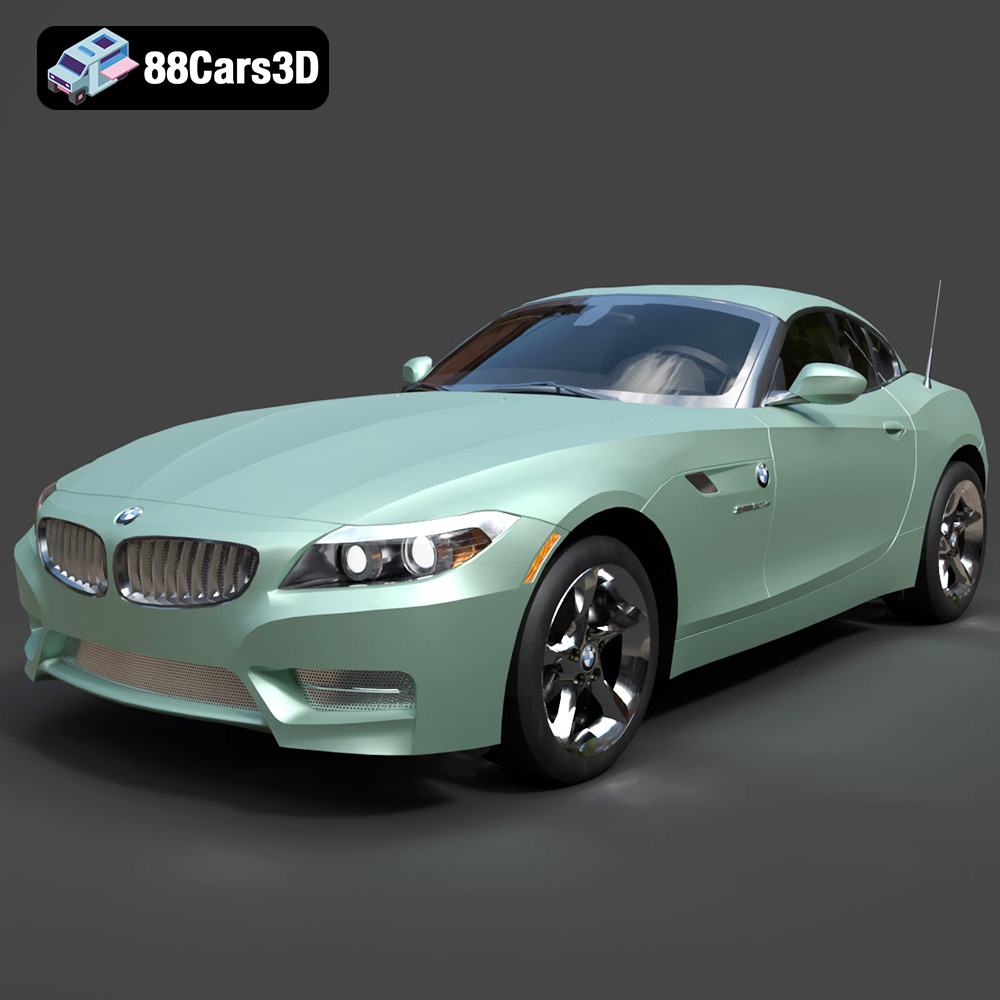
BMW Z4 Roadster E89 2012 3D Model
Texture: Yes
Material: Yes
Download the BMW Z4 Roadster E89 3D Model featuring clean geometry, realistic detailing, and a fully modeled interior. Includes .blend, .fbx, .obj, .glb, .stl, .ply, .unreal, and .max formats for rendering, simulation, and game development.
Price: $13.99

BMW Z4 E85 2005 3D Model
Texture: Yes
Material: Yes
Download the BMW Z4 E85 3D Model featuring clean geometry, realistic detailing, and a fully modeled interior. Includes .blend, .fbx, .obj, .glb, .stl, .ply, .unreal, and .max formats for rendering, simulation, and game development.
Price: $13.99

BMW M3 2024 3D Model
Texture: Yes
Material: Yes
Download the BMW M3 2024 3D Model featuring clean geometry, realistic detailing, and a fully modeled interior. Includes .blend, .fbx, .obj, .glb, .stl, .ply, .unreal, and .max formats for rendering, simulation, and game development.
Price: $13.99
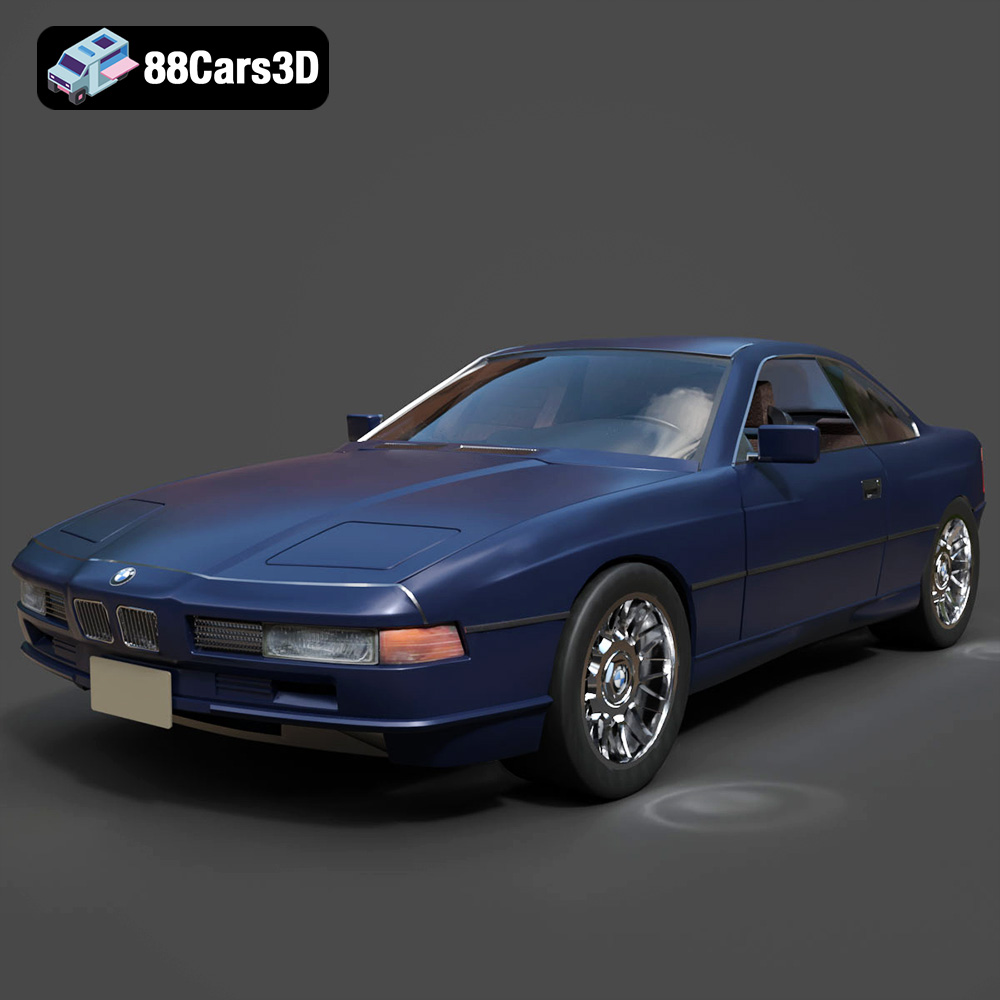
BMW 850i Coupe 1990 3D Model
Texture: Yes
Material: Yes
Download the BMW 850i Coupe 1990 3D Model featuring clean geometry, realistic detailing, and a fully modeled interior. Includes .blend, .fbx, .obj, .glb, .stl, .ply, .unreal, and .max formats for rendering, simulation, and game development.
Price: $13.99
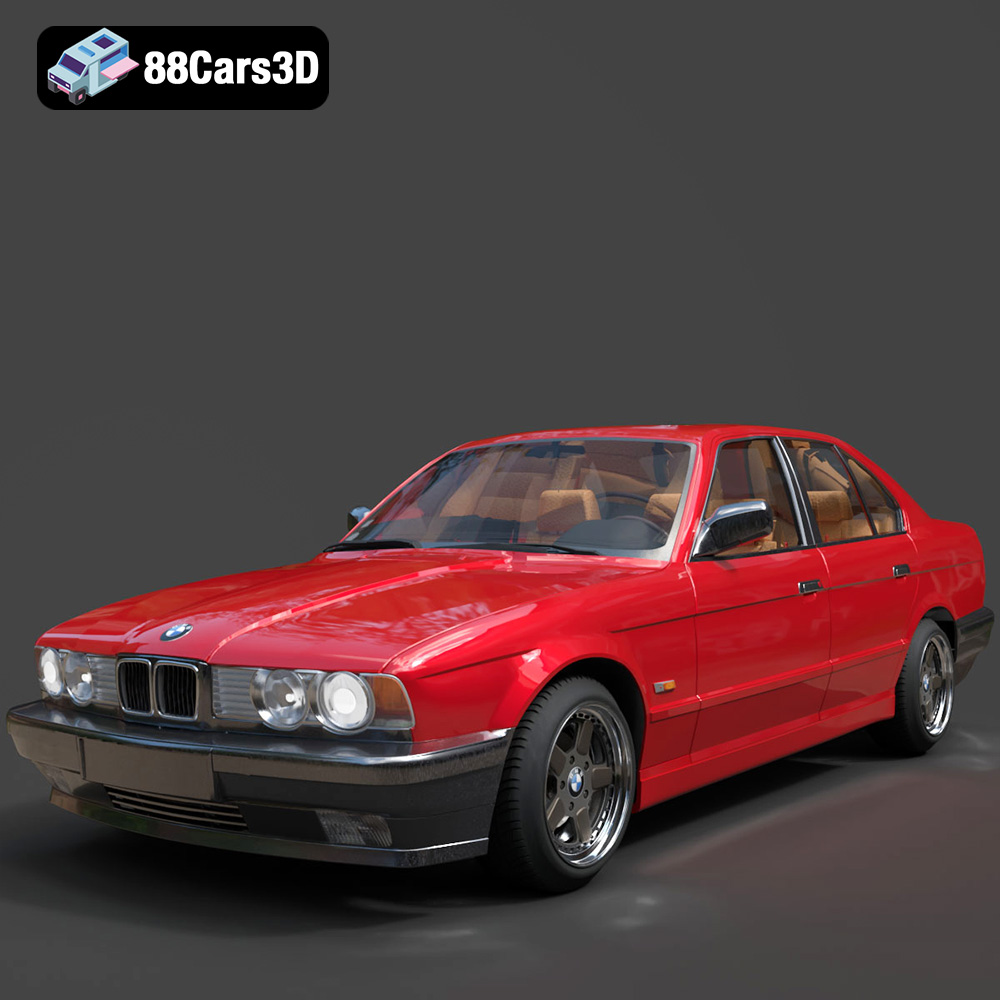
BMW 525i E34 1993 3D Model
Texture: Yes
Material: Yes
Download the BMW 525i E34 1993 3D Model featuring clean geometry, realistic detailing, and a fully modeled interior. Includes .blend, .fbx, .obj, .glb, .stl, .ply, .unreal, and .max formats for rendering, simulation, and game development.
Price: $12.99

BMW 7 Series 2016 3D Model
Texture: Yes
Material: Yes
Download the BMW 7 Series 2016 3D Model featuring luxurious design, detailed interior, and accurate exterior. Includes .blend, .fbx, .obj, .glb, .stl, .ply, .unreal, and .max formats for rendering, simulation, and game development.
Price: $10.79
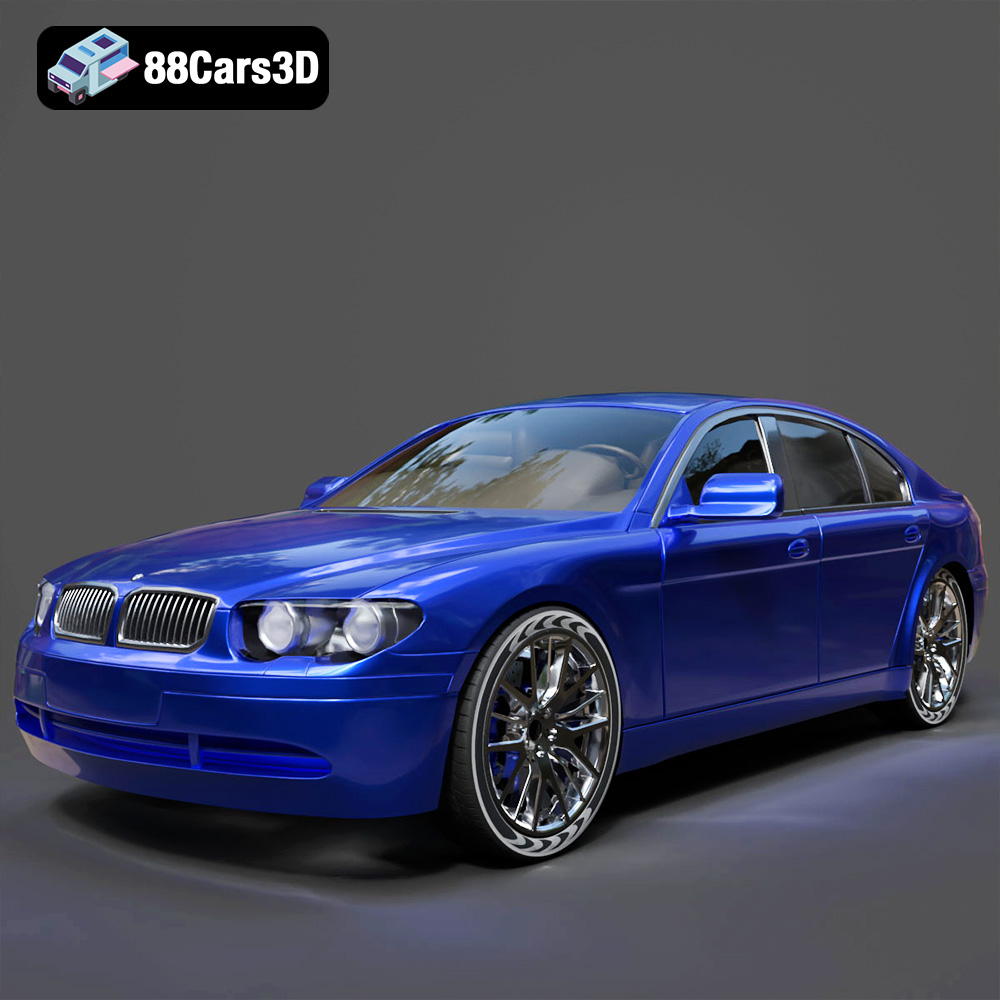
BMW 7 Series 30th Anniversary 3D Model
Texture: Yes
Material: Yes
Download the BMW 7 Series 30th Anniversary 3D Model featuring a meticulously crafted exterior, detailed interior, and realistic wheels. Includes .blend, .fbx, .obj, .glb, .stl, .ply, .unreal, and .max formats for rendering, simulation, and game development.
Price: $35.79

BMW 7-Series F02 3D Model
Texture: Yes
Material: Yes
Download the BMW 7-Series F02 3D Model featuring a detailed exterior and interior, optimized for rendering and animation. Includes .blend, .fbx, .obj, .glb, .stl, .ply, .unreal, and .max formats for rendering, simulation, and game development.
Price: $10.79
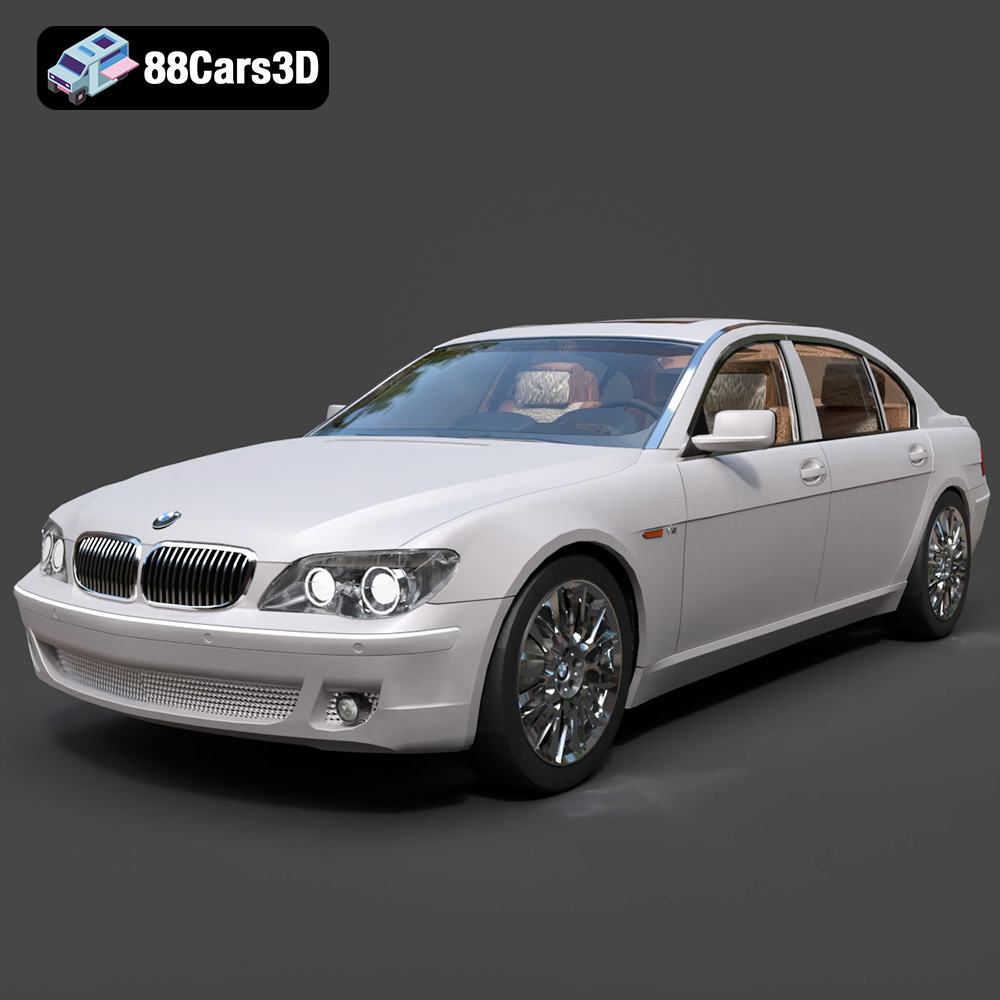
BMW 760Li E66 2005 3D Model
Texture: Yes
Material: Yes
Download the BMW 760Li E66 2005 3D Model featuring a detailed exterior, refined interior, and robust chassis. Includes .blend, .fbx, .obj, .glb, .stl, .ply, .unreal, and .max formats for rendering, simulation, and game development.
Price: $10.79
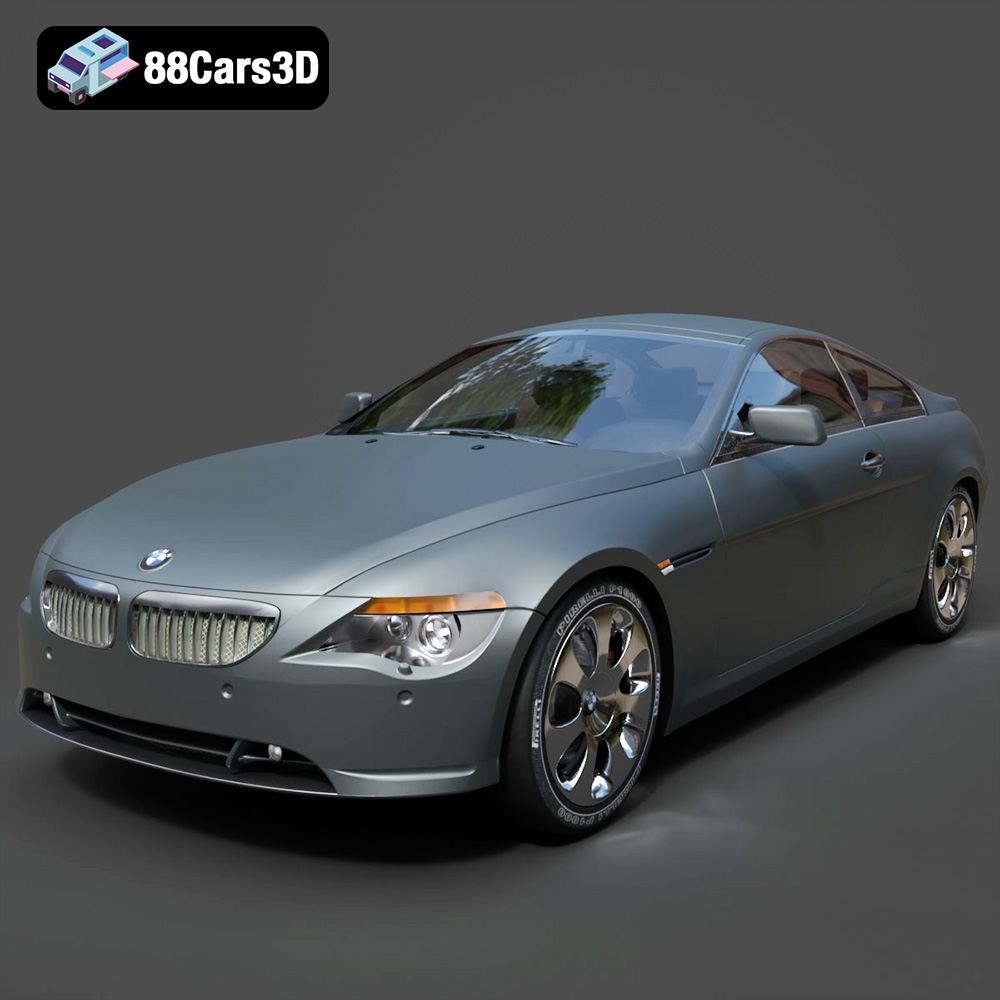
BMW 6 Series 3D Model
Texture: Yes
Material: Yes
Download the BMW 6 Series 3D Model featuring precisely modeled body panels, detailed interior, and authentic wheels. Includes .blend, .fbx, .obj, .glb, .stl, .ply, .unreal, and .max formats for rendering, simulation, and game development.
Price: $10.79
