

Unreal Engine has revolutionized how we visualize and interact with 3D content, especially within the automotive industry. From crafting breathtaking marketing renders to developing immersive interactive experiences and cutting-edge video games, Unreal Engine stands as a powerhouse for real-time rendering. For artists, designers, and developers looking to elevate their automotive projects, understanding its capabilities is not just an advantage—it’s a necessity.
This comprehensive guide is designed to take you from a complete beginner to confidently navigating Unreal Engine for your automotive visualization needs. We’ll explore everything from initial project setup to advanced rendering techniques, material creation, and interactive Blueprint scripting. Whether you’re aiming to build a high-fidelity car configurator, a compelling cinematic sequence, or an optimized in-game vehicle, you’ll find the foundational knowledge here to kickstart your journey. We’ll also highlight how high-quality 3D car models, like those available on 88cars3d.com, can accelerate your workflow and elevate the visual fidelity of your projects. Prepare to unlock the full potential of Unreal Engine for your automotive creations.
Setting Up Your Unreal Engine Project for Automotive Excellence
The foundation of any great project in Unreal Engine begins with proper setup. For automotive visualization and game development, selecting the right project template and configuring key settings are crucial steps that can significantly impact performance, visual quality, and your overall workflow. While a blank project offers maximum flexibility, templates like “Automotive/Archviz” or “Games” provide excellent starting points with pre-configured settings and assets tailored to specific needs.
When you first launch Unreal Engine, you’ll be prompted to create a new project. For automotive visualization, consider starting with the “Automotive” template under the “Film, Television, and Live Events” category, or a “Blank” game project. The Automotive template comes with pre-built lighting environments, basic studio setups, and post-processing volumes optimized for photorealistic rendering, which is ideal for showcasing high-quality 3D car models. However, if your goal is a highly custom interactive experience or a game, a “Blank” project under “Games” might offer more control to build from scratch without extraneous assets. Ensure you select “Blueprint” as your project type unless you’re confident in C++ development, and choose “Maximum Quality” and “With Starter Content” (though for automotive models from 88cars3d.com, you might replace much of this). The key is to establish a robust framework from the outset, understanding how these initial choices impact your final product.
Initial Project Configuration and Performance Considerations
Once your project is created, several initial configurations are vital. Navigate to Edit > Project Settings. Here, under Engine > Rendering, you’ll find critical settings. For high-fidelity renders, ensure “Ray Tracing” is enabled if your hardware supports it, as it vastly improves reflections, shadows, and global illumination. However, for AR/VR applications or games targeting lower-end hardware, you might opt for “Forward Shading” to reduce rendering overhead. Scalability settings (accessible via Settings > Engine Scalability Settings in the main editor toolbar) should be reviewed. While “Cinematic” provides the best visual quality, it’s performance-intensive. For development, setting it to “High” or “Epic” strikes a good balance, but always test on your target platform.
It’s also beneficial to disable any plugins that aren’t essential for your project. Go to Edit > Plugins. For instance, if you’re not planning to use VR, you can disable the “SteamVR” or “OpenXR” plugins to slightly reduce memory footprint and compilation times. Regularly reviewing your project settings and installed plugins keeps your project lean and optimized, which is especially important when dealing with detailed automotive visualization assets and aiming for smooth real-time rendering performance. Always keep an eye on hardware recommendations for your target Unreal Engine version; a powerful CPU, ample RAM (32GB+), and a high-end GPU are paramount for demanding automotive scenes.
Understanding Core Project Settings for Visualization
Beyond rendering, other project settings influence the visual fidelity and functionality of your automotive projects. Under Engine > Input, you can define custom key bindings for interactive elements, which will be essential for creating Blueprint-driven configurators later. For global scene settings, the World Settings panel (Window > World Settings) is crucial. Here, you can configure the default GameMode, which dictates how your project behaves at runtime, and specify the default Post Process Volume settings, impacting the overall look of your scene. These settings include exposure, color grading, ambient occlusion, and bloom, all vital for achieving a professional finish for your car models.
For instance, adjusting the “Exposure Compensation” or “White Balance” in a post-process volume can dramatically change the mood and realism of your scene. When working with PBR materials, accurate lighting and post-processing are paramount to ensure the materials react realistically. Always remember to save your project frequently, especially after making significant changes to project settings or importing new assets. For more detailed information on specific settings, the official Unreal Engine documentation at https://dev.epicgames.com/community/unreal-engine/learning is an invaluable resource.
Importing and Optimizing 3D Car Models from 88cars3d.com
Once your Unreal Engine project is configured, the next critical step is to bring in your high-quality 3D car models. Sourcing assets from reputable marketplaces like 88cars3d.com ensures you start with models featuring clean topology, proper UV mapping, and realistic material setups, which are fundamental for achieving professional results in Unreal Engine. The most common file formats for importing 3D models into Unreal Engine are FBX and USD (Universal Scene Description).
To import a model, simply drag and drop the FBX or USD file into your Content Browser, or use the “Import” button. A crucial import dialog will appear, offering various options. For static meshes like car bodies, ensure “Skeletal Mesh” is unchecked. Pay close attention to the “Import Uniform Scale” setting; car models should typically be imported at a scale of 1.0 to match Unreal’s default unit (centimeters). If your model was exported in meters, you might need to adjust this (e.g., 100 for a 1-meter model to be 100cm). Ensure “Normal Import Method” is set to “Import Normals and Tangents” to preserve custom normal data. For materials, it’s often best to select “Do Not Create Materials” if you plan to create advanced PBR materials within Unreal Engine, or “Create New Materials” if the FBX includes basic material assignments you want to use as a starting point. Clean topology is key; models from 88cars3d.com are designed with this in mind, minimizing issues like overlapping UVs or flipped normals that can cause rendering artifacts.
Leveraging Nanite for High-Fidelity Geometry
One of Unreal Engine 5’s most revolutionary features is Nanite, a virtualized geometry system that allows artists to import and render film-quality source assets with millions or even billions of polygons directly into Unreal Engine. This completely redefines the workflow for high-detail assets like premium 3D car models, eliminating the traditional need for manual LOD generation or extensive polygon reduction. For automotive visualization, where minute details on body panels, intricate interiors, and complex tire treads are paramount, Nanite is a game-changer.
To enable Nanite for a static mesh, simply open the Static Mesh Editor (double-click your imported mesh in the Content Browser), and under the “Details” panel, locate the “Nanite Settings” section. Check the “Enable Nanite” box. You’ll typically want to leave the “Fallback Relative Error” and “Percent Triangles” settings at their defaults initially, as Nanite intelligently manages geometry complexity. Nanite automatically streams and processes only the necessary detail, ensuring incredibly high visual fidelity even for meshes with millions of triangles while maintaining excellent real-time rendering performance. This means you can bring in highly detailed meshes without fear of crippling performance, allowing your automotive visualization projects to achieve unprecedented levels of realism. Note that Nanite requires DirectX 12 and does not currently support skeletal meshes, instanced static meshes, or meshes with WPO (World Position Offset) if a fallback mesh is not provided.
Level of Detail (LOD) Management and Culling
While Nanite handles detail for static meshes, understanding Level of Detail (LOD) management remains crucial for other asset types and for optimizing performance on platforms that don’t fully leverage Nanite (like mobile AR/VR). LODs are simplified versions of a mesh that are swapped in at varying distances from the camera, reducing polygon count and draw calls for objects that are far away. This is a cornerstone of game optimization.
For non-Nanite meshes (or as Nanite fallbacks), Unreal Engine offers powerful tools for LOD generation. In the Static Mesh Editor, under the “LOD Settings” section, you can specify the number of LODs and how they are generated. You can choose “Auto Compute LODs” which uses Unreal’s built-in algorithm, or manually import your own custom LOD meshes. For optimal performance, especially for detailed car interiors or components, carefully define the “Screen Size” for each LOD. A screen size of 1.0 means the mesh takes up the entire screen, while 0.1 means it takes up 10% of the screen. Typical settings might involve 3-5 LODs, with significant polygon reduction (e.g., 50% for LOD1, 25% for LOD2, 10% for LOD3). Additionally, implement culling techniques such as “Frustum Culling” (objects outside the camera’s view are not rendered) and “Occlusion Culling” (objects hidden behind other objects are not rendered) to further enhance real-time rendering performance. Proper LOD and culling strategies are vital for ensuring your automotive assets perform well across various target platforms.
Crafting Realistic PBR Materials and Textures
Once your high-quality 3D car models are imported and optimized, the next step is to make them look stunning through realistic materials. Physically Based Rendering (PBR) is the industry standard for achieving photorealistic results in Unreal Engine. PBR materials simulate how light interacts with surfaces in the real world, relying on several key texture maps: Albedo (or Base Color), Metallic, Roughness, Normal, Ambient Occlusion, and sometimes Opacity or Emissive. Understanding how to create and apply these materials is fundamental for compelling automotive visualization.
In Unreal Engine’s Material Editor, you construct complex materials using a node-based graph system. For a basic car body paint, you’ll typically start with a ‘Material’ node set to “Default Lit” shading model. You’ll connect your Albedo texture to the Base Color input, a Metallic map (often a solid white for metallic paints or black for non-metallic) to the Metallic input, and a Roughness map to the Roughness input. Normal maps add fine surface detail without increasing polygon count, connecting to the Normal input. For highly reflective surfaces like chrome or polished metals, the Metallic value will be close to 1, and Roughness will be very low (close to 0). Conversely, matte plastics or rubbers will have Metallic near 0 and higher Roughness values. High-quality PBR textures are paramount; sourcing them or creating them to match the fidelity of your 88cars3d.com car models will greatly enhance realism. Always use SRGB for Base Color and linear for all other maps to ensure correct color and value interpretation.
Advanced Car Paint Materials with Substrate or Clear Coat
Achieving truly photorealistic car paint often requires more than a standard PBR setup. Modern car paints feature complex multi-layered effects, including metallic flakes and a protective clear coat. Unreal Engine 5 introduced the Substrate material system, which revolutionizes layered materials. With Substrate, you can stack multiple material layers (e.g., a metallic base coat and a clear coat layer) directly within a single material. For a clear coat car paint, you’d typically define a ‘Metal’ layer for the base paint (with metallic flake normal maps and appropriate roughness) and then stack a ‘Clear Coat’ layer on top. This clear coat layer would have its own roughness and Index of Refraction (IOR), typically around 1.5 for automotive clear coats, simulating the subtle reflections and refractions of the protective lacquer. Even without Substrate, a dedicated “Clear Coat” input is available in the “Default Lit” shading model, allowing you to control clear coat intensity, roughness, and normal map. This ensures your high-end game assets or visualization projects benefit from the most realistic material representations possible.
For metallic flakes, you can use a high-frequency noise texture or a dedicated flake normal map combined with a subtle metallic value variation. Glass materials also demand careful attention: use a translucent shading model, set an appropriate IOR (e.g., 1.52 for typical glass), and adjust roughness and absorption for tinted effects. Tire materials often benefit from displacement maps (or parallax occlusion mapping) to add depth to tread patterns, combined with a slightly rough, non-metallic appearance. Mastering these nuances transforms your static car model into a believable, visually rich asset ready for any real-time rendering scenario.
Efficient Texture Workflow and Resolution
While high-resolution textures contribute significantly to realism, they also impact performance. Balancing visual fidelity with optimization is key for efficient Unreal Engine development. When importing textures, Unreal Engine automatically compresses them, but you have control over the compression settings. For Albedo/Base Color maps, use BC1/DXT1 (for no alpha) or BC3/DXT5 (for alpha). For Normal maps, use BC5/3Dc, and for Roughness, Metallic, or AO maps (which are grayscale), use BC4/DXT5 (single channel) or group them into a single RGBA texture to save memory (e.g., R=AO, G=Roughness, B=Metallic). Texture resolutions should be chosen wisely: 4K (4096×4096) or even 8K (8192×8192) for the main body parts of a detailed car model can be justified for high-end visualization, while interior elements or less visible components might suffice with 2K or 1K textures.
Unreal Engine also supports Virtual Textures (Sparse Volume Textures or SVTs), which stream only the visible parts of extremely large textures, reducing VRAM usage. This is particularly useful for vast open-world environments or extremely detailed surfaces. Always ensure your texture resolutions are powers of two (e.g., 1024, 2048, 4096). By implementing a smart texture workflow, you can maintain stunning visual quality without sacrificing crucial performance for your automotive visualization projects, especially when delivering interactive experiences or games where frame rate is paramount.
Illuminating Your Scene with Lumen and Real-Time Lighting
Lighting is arguably the most critical component in achieving photorealism for automotive visualization in Unreal Engine. It dictates how your PBR materials react, defines the mood, and highlights the intricate details of your 3D car models. Unreal Engine 5’s Lumen Global Illumination and Reflections system has revolutionized real-time lighting, providing dynamically calculated indirect lighting and reflections without the need for lightmaps or baked data. This allows for unparalleled freedom in creating interactive scenes with real-time day-night cycles or instantly changeable lighting setups.
To begin with Lumen, ensure it’s enabled in your Project Settings (Engine > Rendering > Global Illumination > Lumen and Reflections > Lumen). Then, in your level, you’ll typically start with a Directional Light (simulating the sun), a Skylight (capturing the ambient sky and environment reflections), and a Post Process Volume. The Post Process Volume is crucial for tweaking Lumen’s settings, such as “Lumen Global Illumination” and “Lumen Reflections.” For automotive scenes, an HDRI (High Dynamic Range Image) environment captured by the Skylight provides realistic global illumination and reflections from a real-world setting, significantly enhancing the believability of your car’s surfaces. Placing your car model within a studio setup, surrounded by softbox lights (using Rect Lights) and bounce cards, can recreate professional product photography lighting. Understanding the interplay between direct and indirect lighting is key; Lumen handles the indirect bounce light, making your scenes feel grounded and naturally lit.
Mastering Lumen Global Illumination and Reflections
While Lumen offers incredible fidelity, mastering its settings and understanding its limitations is essential for optimal real-time rendering performance and visual quality. Within the Post Process Volume, adjust “Lumen Scene Lighting Quality” and “Lumen Reflection Quality” to balance performance and fidelity. Higher values provide more accurate bounces but increase computation. “Final Gather Quality” affects the last bounce of light, refining the overall indirect lighting. For reflections, Lumen provides robust screen-space reflections (SSR) and software ray-traced reflections (SRTR) for off-screen data. Pay attention to the “Max Trace Distance” for reflections, as it determines how far Lumen attempts to trace rays. Common challenges with Lumen include light leaks (which can sometimes be mitigated by ensuring meshes are “Two Sided” or by increasing the “Max Ray Bounces” in the Post Process Volume) and performance dips, especially in complex interior scenes. Profiling tools like `stat unit` and `stat gpu` (type these in the console, accessible by pressing `~`) are invaluable for identifying performance bottlenecks. For a deep dive into Lumen settings and best practices, consult the official Unreal Engine documentation at https://dev.epicgames.com/community/unreal-engine/learning.
For purely static, pre-rendered cinematics or very specific setups where maximum quality is needed without real-time dynamic changes, traditional baked lighting (using Lightmass) can still offer pixel-perfect global illumination, though it requires significant bake times and lacks flexibility. However, for automotive configurators or interactive experiences, Lumen’s dynamism is indispensable.
Professional Lighting Techniques for Automotive Visualization
Applying principles from real-world photography to your Unreal Engine scenes can dramatically elevate your automotive visualization. A classic approach is three-point lighting: a Key Light (main source), a Fill Light (softens shadows), and a Backlight (separates the subject from the background). For studio environments, large Rect Lights with soft falloffs (controlled by their source radius) are excellent for creating flattering reflections on car body panels. You can use multiple Rect Lights, often with slight color variations, to add depth and interest. Consider rim lighting by placing lights strategically behind the car to highlight its silhouette.
For exterior shots, combining a Directional Light with a strong angle for shadows, a Skylight capturing an overcast HDRI for soft ambient light, and perhaps a subtle Spot Light to highlight a specific feature (like a badge or headlight) can produce stunning results. Emissive materials applied to car headlights and taillights, when combined with Volumetric Fog (enabled in the Post Process Volume), can create realistic light cones and enhance the atmospheric effect. Remember to adjust the “Source Radius” of your lights to control the softness of shadows; larger radii create softer, more natural shadows. Experiment with color temperatures and light intensity to evoke different moods and ensure your real-time rendering captures the true beauty of your car models.
Bringing Automotive Experiences to Life with Blueprints and Interactivity
One of Unreal Engine’s most powerful features for non-programmers is Blueprint visual scripting. This node-based interface allows you to create complex gameplay mechanics, interactive elements, and dynamic behaviors without writing a single line of code. For automotive visualization, Blueprint is essential for developing interactive configurators, animated sequences, or even simple drivable vehicles, transforming static models into engaging experiences.
Imagine giving a user the ability to open car doors, change paint colors, switch out wheel designs, or turn on headlights with a click. All this is achievable with Blueprint. You’ll typically start by creating a “Blueprint Class” (e.g., an Actor Blueprint) for your car. Inside the Blueprint Editor, you can define variables (e.g., a “PaintColor” variable of type Linear Color, or an “IsDoorOpen” boolean), events (e.g., a “LeftMouseButtonClick” event), and functions. You’ll use nodes like “Set Material Parameter Value” to change colors on your car’s mesh, “Set Relative Location/Rotation” to animate doors, or “Play Animation” to trigger pre-made animations. Binding these actions to user input, such as mouse clicks, keyboard presses, or UI buttons, forms the core of an interactive experience. Blueprint’s intuitive flow allows for rapid prototyping and iteration, making it an invaluable tool for any Unreal Engine developer working on automotive projects.
Developing an Interactive Car Configurator Prototype
A prime application of Blueprint in automotive visualization is creating an interactive car configurator. This allows potential buyers or designers to customize a vehicle in real-time. The workflow often involves a combination of Blueprint scripting and Unreal Motion Graphics (UMG) for the user interface. You would start by creating UMG Widgets for your configuration options—buttons for different colors, dropdowns for wheel types, toggles for interior features. These widgets then communicate with your car’s Blueprint via “Event Dispatchers” or direct function calls.
For example, to change the car’s paint, your UMG button would trigger a custom event in the car’s Blueprint. This event would then take an input (e.g., the new color value) and use a “Set Vector Parameter Value” node on a Dynamic Material Instance applied to your car’s body mesh. Similarly, to switch wheel designs, you might have an array of Static Mesh assets in your Blueprint, and a button click would cycle through them using a “Set Static Mesh” node. The efficiency of game assets from marketplaces like 88cars3d.com, which often include separate mesh components for customization (e.g., wheels, interior trim), greatly streamlines this process. Configurators can range from simple color swaps to complex modular systems where entire parts of the car can be exchanged, providing an immersive and powerful demonstration of design flexibility.
Basic Vehicle Physics and Simulation
While a deep dive into complex vehicle dynamics is a subject in itself, Unreal Engine provides tools to implement basic physics and even simple drivable cars using Blueprint. The Chaos Vehicles plugin (enabled via Edit > Plugins) is Unreal Engine’s integrated physics system that handles vehicle simulation. To create a simple drivable car, you would typically start with a “Vehicle Pawn” Blueprint. This Blueprint integrates the Chaos Vehicle Component, allowing you to define parameters like engine torque, transmission gearing, wheel setup (suspension, tire friction), and brake force.
You then map input actions (throttle, brake, steering) to these vehicle parameters. For example, pressing ‘W’ would increase the “Throttle Input” on the Chaos Vehicle Component. Attaching your 3D car model‘s static meshes to the corresponding components (body, individual wheels) within the Vehicle Blueprint’s viewport connects the visual representation to the physics simulation. While achieving highly accurate, sim-grade physics requires meticulous tuning and possibly C++ integration, Blueprint allows you to quickly get a car up and running in your scene, providing a tangible, interactive demonstration of your vehicle model’s scale and presence. This feature is invaluable for early-stage game development or interactive demos where basic driveability adds significant immersion.
Advanced Applications and Optimization for Production
Beyond interactive configurators and basic visualizations, Unreal Engine extends its capabilities into cutting-edge production workflows. From cinematic content creation to virtual production and immersive AR/VR experiences, Unreal Engine continues to push the boundaries of real-time rendering. For professionals working with high-fidelity automotive assets, understanding these advanced applications and implementing robust optimization strategies are key to delivering industry-standard results.
Sequencer is Unreal Engine’s powerful multi-track editor for creating cinematic sequences, animations, and complex camera movements. It’s the go-to tool for rendering stunning marketing videos or showcasing design features of your 3D car models. You can animate virtually any property in Unreal, from material parameters (like paint reflectivity over time) to light intensity, camera focal length, and character movements. Niagara, Unreal’s next-generation particle system, allows for the creation of intricate visual effects such as realistic smoke from tires, exhaust fumes, or even dynamic dust kicked up by a moving vehicle. Combining Sequencer with Niagara effects provides unparalleled creative control for automotive storytelling. Furthermore, Unreal Engine has become a cornerstone of virtual production, enabling real-time filmmaking on LED stages, where digital environments react dynamically to camera movements, immersing both actors and the physical vehicle in a photorealistic virtual world.
Optimizing for Performance: From Mobile AR to High-End Visualization
Performance optimization is an ongoing process throughout any Unreal Engine project, especially when dealing with detailed automotive visualization and demanding game assets. Regardless of whether your target is high-end PC visualization, mobile AR, or VR, efficient resource management is paramount. Several tools and strategies can help you profile and optimize your scene:
- Stat Commands: In the console (`~`), commands like `stat unit` (shows frame time, game thread, draw thread, GPU time), `stat gpu` (detailed GPU breakdown), `stat rhi` (render hardware interface stats), and `stat engine` provide crucial performance data.
- Draw Calls: Minimize draw calls by combining meshes where possible (e.g., using a single Static Mesh Actor for multiple identical props) and using instanced static meshes for repeating elements. Nanite helps significantly here for high-poly static meshes.
- Shader Complexity: Visualize shader complexity (`Show > Visualize > Shader Complexity`) to identify overly complex materials. Simplify material graphs and use texture packing to reduce instructions.
- Overdraw: Use `Show > Visualize > Overdraw` to see areas where multiple translucent pixels are rendered on top of each other, a common issue with complex glass or particle effects.
- LODs & Culling: As discussed, proper LOD setup and robust culling (frustum and occlusion) are fundamental for reducing rendered geometry.
- Texture Resolutions: Ensure textures are appropriately sized for their visual importance and distance from the camera. Use texture streaming.
- Lighting: While Lumen is powerful, it’s performance-intensive. Optimize Lumen settings in your Post Process Volume and ensure unnecessary lights are culled. For highly optimized scenarios, consider baked lighting or simpler real-time methods.
- Collision Complexity: Use simplified collision meshes for complex car models rather than per-poly collision.
For mobile AR and VR, specific considerations include enabling “Forward Shading” in Project Settings, reducing draw calls to an absolute minimum, and carefully managing post-processing effects, as these platforms have significantly stricter performance budgets. Always profile on the target hardware for accurate results.
Virtual Production and Immersive Experiences
Unreal Engine’s role in virtual production is rapidly expanding. For automotive applications, this translates into powerful tools for real-time filmmaking, design reviews, and immersive showrooms. Using an LED wall setup, designers can place a physical car or prop in front of a dynamically rendered Unreal Engine environment. This allows for instant background changes, dynamic lighting that reacts to the physical environment, and real-time compositing, drastically reducing post-production time and increasing creative flexibility. The high fidelity of 3D car models from sources like 88cars3d.com is essential here, as the models must hold up to scrutiny on large LED screens.
For AR/VR applications in automotive, Unreal Engine provides robust frameworks. Tools like the OpenXR plugin facilitate multi-platform VR development. Key optimization for AR/VR includes ensuring stable frame rates (typically 90 FPS or higher for comfort), reducing motion sickness through smooth locomotion, and prioritizing visual clarity. Utilizing forward rendering, single-pass stereo rendering, and aggressive LODs and culling are crucial. Imagine an AR app where a car can be placed and customized in your driveway, or a VR experience allowing full exploration of a vehicle’s interior before it’s even manufactured. These immersive experiences are not just marketing tools; they’re becoming integral to the design and sales process, driven by the real-time power of Unreal Engine.
Conclusion
Embarking on your journey with Unreal Engine for automotive visualization is a powerful step towards unlocking a new realm of creative possibilities. From the initial project setup and meticulous import of high-quality 3D car models—like those meticulously crafted and optimized for Unreal Engine available on 88cars3d.com—to the intricate details of crafting realistic PBR materials and harnessing the dynamic power of Lumen lighting, each stage builds a robust foundation for your projects.
We’ve explored how Blueprint visual scripting empowers you to create engaging interactive experiences, from simple configurators to basic vehicle physics. The revolutionary capabilities of Nanite for handling incredibly high-polygon models and the importance of smart LOD management have been highlighted as cornerstones of efficient real-time rendering. Finally, we touched upon advanced applications like Sequencer for cinematic storytelling, Niagara for stunning visual effects, and the cutting-edge world of virtual production and AR/VR optimization.
The path to mastering Unreal Engine is an ongoing learning adventure. The tools and techniques discussed here provide a comprehensive starting point. The real magic happens when you begin experimenting, applying these principles, and pushing the boundaries of what’s possible. For continued learning and in-depth technical references, always consult the official Unreal Engine documentation at https://dev.epicgames.com/community/unreal-engine/learning. Dive in, get hands-on, and transform your vision into stunning, interactive reality with Unreal Engine.
Featured 3D Car Models

BMW Z4 Roadster E89 2012 3D Model
Texture: Yes
Material: Yes
Download the BMW Z4 Roadster E89 3D Model featuring clean geometry, realistic detailing, and a fully modeled interior. Includes .blend, .fbx, .obj, .glb, .stl, .ply, .unreal, and .max formats for rendering, simulation, and game development.
Price: $13.99

BMW Z4 E85 2005 3D Model
Texture: Yes
Material: Yes
Download the BMW Z4 E85 3D Model featuring clean geometry, realistic detailing, and a fully modeled interior. Includes .blend, .fbx, .obj, .glb, .stl, .ply, .unreal, and .max formats for rendering, simulation, and game development.
Price: $13.99

BMW M3 2024 3D Model
Texture: Yes
Material: Yes
Download the BMW M3 2024 3D Model featuring clean geometry, realistic detailing, and a fully modeled interior. Includes .blend, .fbx, .obj, .glb, .stl, .ply, .unreal, and .max formats for rendering, simulation, and game development.
Price: $13.99

BMW 850i Coupe 1990 3D Model
Texture: Yes
Material: Yes
Download the BMW 850i Coupe 1990 3D Model featuring clean geometry, realistic detailing, and a fully modeled interior. Includes .blend, .fbx, .obj, .glb, .stl, .ply, .unreal, and .max formats for rendering, simulation, and game development.
Price: $13.99

BMW 525i E34 1993 3D Model
Texture: Yes
Material: Yes
Download the BMW 525i E34 1993 3D Model featuring clean geometry, realistic detailing, and a fully modeled interior. Includes .blend, .fbx, .obj, .glb, .stl, .ply, .unreal, and .max formats for rendering, simulation, and game development.
Price: $12.99

BMW 7 Series 2016 3D Model
Texture: Yes
Material: Yes
Download the BMW 7 Series 2016 3D Model featuring luxurious design, detailed interior, and accurate exterior. Includes .blend, .fbx, .obj, .glb, .stl, .ply, .unreal, and .max formats for rendering, simulation, and game development.
Price: $10.79

BMW 7 Series 30th Anniversary 3D Model
Texture: Yes
Material: Yes
Download the BMW 7 Series 30th Anniversary 3D Model featuring a meticulously crafted exterior, detailed interior, and realistic wheels. Includes .blend, .fbx, .obj, .glb, .stl, .ply, .unreal, and .max formats for rendering, simulation, and game development.
Price: $35.79

BMW 7-Series F02 3D Model
Texture: Yes
Material: Yes
Download the BMW 7-Series F02 3D Model featuring a detailed exterior and interior, optimized for rendering and animation. Includes .blend, .fbx, .obj, .glb, .stl, .ply, .unreal, and .max formats for rendering, simulation, and game development.
Price: $10.79

BMW 760Li E66 2005 3D Model
Texture: Yes
Material: Yes
Download the BMW 760Li E66 2005 3D Model featuring a detailed exterior, refined interior, and robust chassis. Includes .blend, .fbx, .obj, .glb, .stl, .ply, .unreal, and .max formats for rendering, simulation, and game development.
Price: $10.79
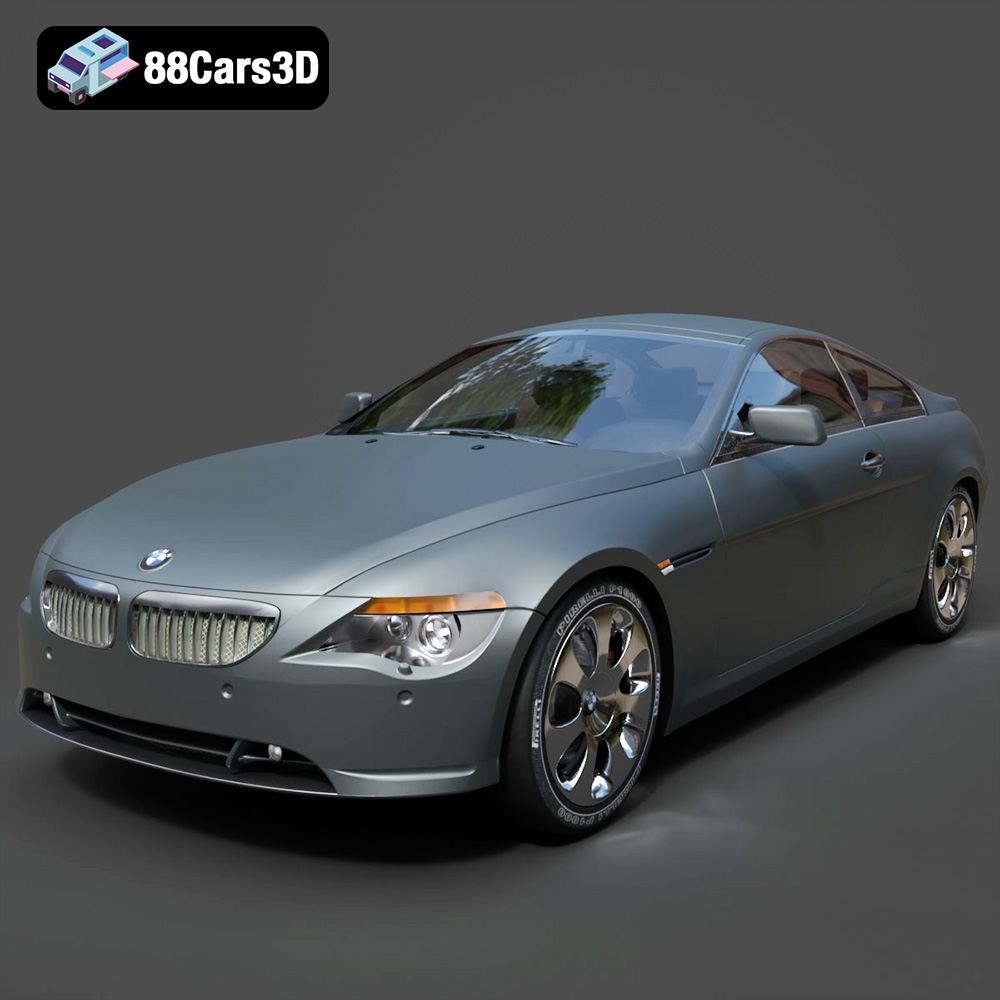
BMW 6 Series 3D Model
Texture: Yes
Material: Yes
Download the BMW 6 Series 3D Model featuring precisely modeled body panels, detailed interior, and authentic wheels. Includes .blend, .fbx, .obj, .glb, .stl, .ply, .unreal, and .max formats for rendering, simulation, and game development.
Price: $10.79
