

“`html
Mastering the Drive: A Deep Dive into Printing the Best Car STL Files
The allure of the automobile is undeniable, a blend of engineering prowess, artistic design, and raw power. For 3D printing enthusiasts, hobbyists, and collectors, this fascination translates into a desire to recreate these iconic machines in miniature. But embarking on a 3D printed car project, especially when starting with an STL file, can feel like navigating a complex race track. From selecting the right model to dialing in your 3D printer settings for a flawless finish, the journey requires a blend of technical understanding and artistic vision. This guide will equip you with the knowledge to conquer the challenges, ensuring your printed car models are not just replicas, but masterpieces. We’ll explore the nuances of STL file preparation, delve into optimized slicing techniques for both FDM and resin printing, master the art of support structures, and uncover the secrets to achieving museum-quality post-processing. Prepare to elevate your hobby and bring your favorite vehicles to life, one layer at a time.
The Foundation: Understanding and Preparing Your Car STL Files
The journey to a stunning 3D printed car begins long before the printer heats up. It starts with the STL file itself – the digital blueprint for your physical creation. Understanding the structure and potential pitfalls of these files is paramount. An STL file represents a 3D object as a collection of triangular facets. For complex objects like cars, this can result in a very dense mesh, which, if not properly constructed, can lead to printing errors. High-quality models, such as those found on specialized marketplaces like 88cars3d.com, are typically designed with clean geometry, ensuring manifold meshes (watertight models) and optimized polygon counts. This significantly reduces the likelihood of encountering errors during slicing or printing. However, even with excellent source files, preparation is key.
Mesh Topology and Integrity
The ‘topology’ refers to how the triangles are connected. A ‘manifold’ or ‘watertight’ mesh means there are no holes or internal faces, which is critical for the slicer to interpret the object correctly. Non-manifold edges, intersecting faces, or stray vertices can cause slicing failures or unpredictable print outcomes. Software like Autodesk Netfabb, Meshmixer, or even Blender’s 3D-Print Toolbox add-on are invaluable for inspecting and repairing these issues. Performing a quick mesh check before slicing is a standard professional practice. Look for warnings about non-manifold geometry, holes, or inverted normals. Simple repairs can often be automated, but complex issues might require manual intervention, such as re-connecting vertices or deleting errant geometry.
Scale and Units
Always verify the intended scale of your STL file. Some models are designed at a specific scale (e.g., 1:24, 1:18) while others might be exported at a default unit size (e.g., millimeters) that doesn’t align with your desired print dimensions. Your slicer software allows you to scale models, but it’s crucial to understand the original scale to avoid unintended size changes. If you’re aiming for a specific collection size or a perfect fit on your display shelf, make sure to set your scaling accurately. For example, if a model is exported at 1mm per unit and you want a 1:18 scale replica of a 4.5-meter car, you’ll need to scale the model to approximately 250mm in length.
Optimizing for Your Printer Type
Consider whether the STL file is optimized for FDM or resin printing. FDM models might have thicker walls and larger features designed to be resolved by a standard 0.4mm nozzle. Resin models, on the other hand, can feature incredibly fine details, thin walls, and delicate components that benefit from the high resolution of resin printers. If you’re using an FDM printer for a highly detailed resin model, you might need to thicken certain features or scale the model up considerably. Conversely, using an FDM-optimized model on a resin printer might result in over-exposed, blobby details.
Slicing Strategies: Translating Digital to Physical
The slicer is your digital bridge between the STL file and your 3D printer. It translates the 3D model into a series of thin, horizontal layers and generates the G-code instructions that the printer follows. Choosing the right slicing parameters is crucial for achieving high-quality prints, especially for intricate automotive models where detail and smooth surfaces are paramount. Popular slicers like Cura, PrusaSlicer, and Simplify3D offer a vast array of settings, and understanding how they impact the final print is key to success.
Layer Height and Detail
The layer height is perhaps the most significant setting affecting print quality and time. For FDM printing, layer heights typically range from 0.05mm to 0.3mm. A lower layer height (e.g., 0.1mm) will result in much finer detail, smoother curves, and less visible layer lines, ideal for car bodies. However, it dramatically increases print time. A higher layer height (e.g., 0.2mm or 0.3mm) prints much faster but will exhibit more prominent layer lines, which might be acceptable for internal components or less visible areas. For resin printers, layer heights are often even smaller, ranging from 0.025mm to 0.1mm, enabling exceptional detail capture. The tradeoff here is also print time; lower layer heights mean more layers and thus longer prints.
Infill Patterns and Density
Infill provides internal support and strength to the printed object. For car models, especially those intended for display, high infill densities are often unnecessary and wasteful of material and time. An infill density of 10-20% is usually sufficient for structural integrity. Consider the infill pattern: ‘Grid’, ‘Cubic’, or ‘Gyroid’ offer good strength in multiple directions. For lighter display models, even lower densities or patterns like ‘Lines’ can work. If you plan to paint or assemble multiple parts, ensuring a solid but not overly dense interior is important for adhesion and preventing warping.
Print Speed and Quality
Print speed directly influences print time and quality. For detailed car models, it’s generally recommended to slow down. Printing the outer walls and top/bottom layers at speeds between 30-50 mm/s for FDM can significantly improve surface finish. Inner walls can sometimes be printed slightly faster. Resin printing speeds are more about the lift speed and exposure time per layer. Slower lift speeds and carefully calibrated exposure times are crucial for preventing print failures and capturing fine details on resin printers. Experimentation is key; start with conservative speeds and gradually increase them if quality remains high.
The Art of Support: Enabling Complex Geometries
Automotive models are replete with complex shapes: overhangs, bridges, and intricate details like spoilers, mirrors, and undercarriages. These features often require support structures to be printed successfully. Generating and removing supports effectively is a skill that separates mediocre prints from exceptional ones. Both FDM and resin printers require supports, but the techniques and challenges differ.
FDM Support Generation
In FDM slicing, you have extensive control over support generation. Key settings include support type (‘Normal’, ‘Tree’), density, overhang angle, and interface layers. ‘Tree’ supports (available in Cura) are often preferred for organic shapes and delicate features as they minimize contact points with the model, making removal cleaner. For car bodies, setting a sensitive overhang angle (e.g., 45-60 degrees) ensures supports are only generated where absolutely necessary. Support interface layers are crucial for creating a smooth surface where the support touches the model, reducing the amount of sanding required later. Ensure the distance between the model and the support (Z-distance) is calibrated correctly – too close and removal is difficult, too far and the overhang might sag.
Resin Support Generation
Resin printing demands a more strategic approach to supports due to the nature of the printing process. Supports in resin printing are critical for preventing layers from detaching from the FEP film during the print’s lift cycles. Models are typically oriented at an angle (e.g., 15-45 degrees) to minimize the surface area of unsupported layers and distribute stress. Supports are usually thinner and more numerous, acting as anchors to the build plate and bridges between layers. Using specialized software like Lychee Slicer or ChiTuBox allows for fine control over support placement, diameter, and tip type (e.g., ‘Conical’ or ‘Medium’). It’s crucial to ensure that the supports have enough contact with the model to hold it securely but are placed in less visible areas. Avoid placing supports directly on windshields or painted surfaces.
Support Removal Techniques
The removal process is as critical as generation. For FDM, use pliers, flush cutters, and hobby knives carefully. Work slowly and deliberately, especially around delicate areas. For resin prints, supports are often removed after washing and curing. Use sharp hobby knives or specialized support removal tools. Be patient; brute force can easily damage the model. Sometimes, partially curing the supports can make them more brittle and easier to snap off cleanly. For both FDM and resin, consider using a solvent like isopropyl alcohol (IPA) to soften some support materials on FDM prints, making them easier to remove, though this requires careful testing.
Material Selection and Printer Calibration: The Building Blocks of Quality
The choice of material and the calibration of your 3D printer are fundamental to achieving high-quality printable car models. Different materials offer unique properties, and a well-calibrated printer ensures consistency and accuracy.
FDM Materials: PLA, PETG, ABS, and Beyond
PLA is the go-to material for many hobbyists due to its ease of printing, low warping, and wide availability of colors. It’s excellent for detailed display models but can be brittle. PETG offers improved strength and temperature resistance over PLA, making it suitable for functional parts or models that might experience some stress, though it can be stringier. ABS provides excellent durability and a smooth finish when printed correctly (often requiring an enclosure to manage warping and fumes), but it’s more challenging to print. For automotive models, consider the desired finish: PLA can be sanded and painted effectively, while some PETG formulations can achieve a glossy finish directly off the printer.
Resin Materials: Standard, Tough, and Flexible
Resin printers offer incredible detail, and the material choice further refines the outcome. Standard Resins are great for general-purpose printing and capturing fine details. Tough Resins mimic the properties of ABS, offering increased durability and impact resistance, which can be beneficial for models with delicate components like mirrors or spoilers. Flexible Resins can be used for tires or other components requiring a rubber-like feel. Always follow the manufacturer’s recommendations for exposure times and post-curing for optimal material properties.
Printer Calibration Essentials
Before printing any detailed car model, ensure your printer is properly calibrated. This includes:
- Bed Leveling: A perfectly level bed is crucial for first-layer adhesion, preventing warping and ensuring the entire print starts on a solid foundation.
- E-step Calibration (FDM): Ensures the extruder pushes the correct amount of filament.
- Temperature Towers: Print calibration objects to find the optimal nozzle and bed temperatures for your chosen filament, balancing adhesion and quality.
- Retraction Settings (FDM): Dialing in retraction distance and speed minimizes stringing, which is critical for clean car bodies.
- Exposure Time Calibration (Resin): Essential for achieving sharp details and preventing print failures. Use calibration models like the “RERF” (Resin Exposure Range Finder) prints.
Consistent calibration is the bedrock of reliable, high-quality prints, especially when working with intricate STL files from sources like 88cars3d.com.
Achieving a Showroom Finish: Post-Processing Techniques
The magic doesn’t stop when the print is finished. Post-processing is where a good print becomes a great model. This stage involves cleaning, assembling, and finishing your 3D printed car, transforming it from a raw print into a display-worthy piece.
Cleaning and Support Removal Revisited
Thorough cleaning is the first step. For FDM prints, this involves removing all support material, often requiring a combination of tools like pliers, cutters, and hobby knives. For resin prints, this means washing the part in IPA or a specialized cleaner to remove uncured resin, followed by appropriate curing (UV light). Carefully remove all residual support nubs. Any remaining marks from supports will be amplified by paint, so meticulous removal is key.
Sanding and Surface Smoothing
Surface imperfections, such as layer lines and support marks, can be addressed through sanding. Start with a coarser grit sandpaper (e.g., 220-400 grit) to remove major imperfections and gradually move to finer grits (e.g., 1000, 2000, even higher) for a smooth finish. For FDM prints, vapor smoothing with acetone (for ABS) or using filler primers can achieve an incredibly smooth surface. For resin prints, wet sanding with very fine grits is often effective. Work in stages, cleaning the model between grits to remove dust.
Filling and Priming
Gaps, small imperfections, or areas where supports were removed might need filling. Use modeling putty, wood filler, or specialized 3D printing fillers. Once filled and sanded smooth, apply a primer. Primer not only reveals any missed imperfections but also provides an even base coat for paint, ensuring better adhesion and a uniform color.
Painting and Detailing
This is where your car model truly comes alive. Use acrylics, enamels, or spray paints suitable for models. Airbrushing can provide the smoothest finish for car bodies. Apply multiple thin coats rather than one thick one. Use masking tape for crisp lines between different colors (e.g., body, trim, windows). Don’t forget details like headlights, taillights, grilles, and interior elements. Small brushes are essential for this.
Assembly and Finishing Touches
Many complex car models are designed to be printed in multiple parts (body, chassis, wheels, interior). Use appropriate adhesives like super glue (cyanoacrylate) or specialized plastic cement for assembly. Ensure parts align correctly before gluing. For a final touch, consider adding clear coats (gloss or matte) to protect the paintwork and achieve the desired sheen.
Troubleshooting Common Printing Pitfalls
Even with the best preparation, 3D printing can present challenges. Understanding common failures and their solutions will save you time and frustration when printing detailed car models.
Warping and Bed Adhesion Issues
Cause: Uneven cooling of the first layers, causing them to lift off the build plate. This is more common with materials like ABS.
Solution: Ensure proper bed leveling and adhesion. Use a brim or raft in your slicer settings. For FDM, consider printing in an enclosure to maintain a stable ambient temperature. Use adhesion aids like glue stick, hairspray, or specialized bed surfaces. For resin, ensure the build plate is clean and lightly scuffed.
Stringing and Oozing (FDM)
Cause: Filament oozing out of the nozzle during travel moves.
Solution: Calibrate retraction settings (distance and speed). Ensure filament is dry (moisture absorption can cause issues). Lower printing temperature slightly. Check for nozzle clogs or wear.
Layer Shifting
Cause: Mechanical issues like loose belts, stepper motor skipping steps due to excessive speed or obstruction.
Solution: Check belt tension on X and Y axes. Ensure smooth movement of the print head and build plate without any binding. Reduce print speed, especially for faster movements.
Failed Supports or Detached Prints (Resin)
Cause: Insufficient supports, incorrect exposure times, dirty FEP film, or issues with build plate adhesion.
Solution: Increase support density or diameter. Optimize exposure times using calibration prints. Ensure the FEP film is clean and undamaged. Lightly sand the build plate for better adhesion. Orient the model to minimize suction forces.
Over-extrusion or Under-extrusion
Cause: Incorrect filament diameter setting in the slicer, faulty extruder calibration (E-steps), or nozzle partially clogged.
Solution: Calibrate E-steps. Verify filament diameter setting. Perform a “cold pull” to clean the nozzle. Ensure consistent filament flow.
By mastering these aspects – from file preparation and slicing to material selection and post-processing – you can confidently tackle even the most intricate printable car models. Resources like 88cars3d.com provide a fantastic starting point with high-quality, print-ready STL files, empowering you to bring your automotive passion to life through the power of 3D printing.
In conclusion, 3D printing collectible car models is a rewarding endeavor that blends technical skill with artistic passion. Understanding the nuances of STL file integrity, mastering your slicer’s capabilities for optimal settings, skillfully generating and removing support structures, and carefully selecting materials are the cornerstones of success. Whether you’re using FDM or resin technology, diligent printer calibration and meticulous post-processing are what elevate a print from a mere object to a cherished replica. By applying the detailed techniques and troubleshooting strategies discussed, you’re well-equipped to produce stunning automotive models that rival traditional methods. Embrace the learning process, experiment with settings, and enjoy the incredible satisfaction of seeing your favorite cars take shape right on your print bed. Happy printing!
“`
Featured 3D Car Models

Wheel-001 Component 3D Model
Texture: Yes
Material: Yes
Download the Wheel-001 Component 3D Model featuring clean geometry, realistic detailing, and a fully modeled interior. Includes .blend, .fbx, .obj, .glb, .stl, .ply, .unreal, and .max formats for rendering, simulation, and game development.
Price: $10.99
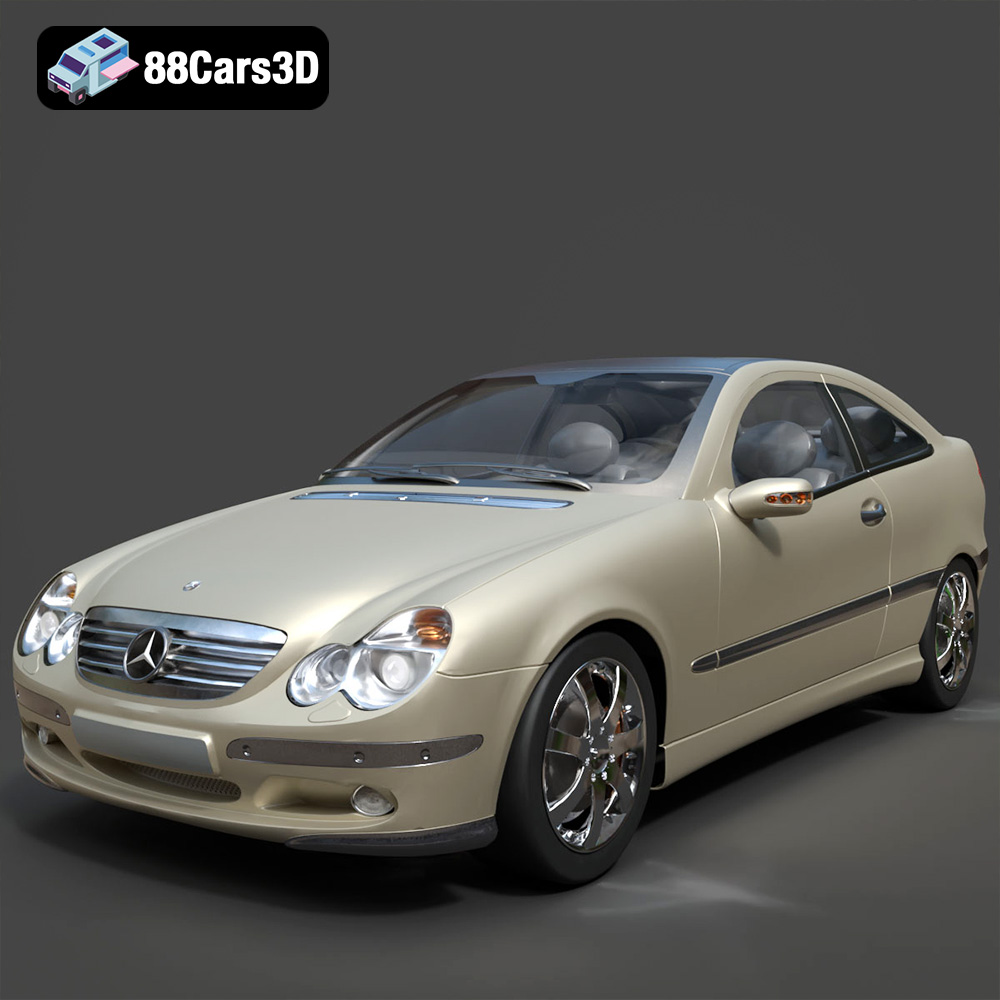
Mercedes Benz C230 3D Model
Texture: Yes
Material: Yes
Download the Mercedes Benz C230 3D Model featuring clean geometry, realistic detailing, and a fully modeled interior. Includes .blend, .fbx, .obj, .glb, .stl, .ply, .unreal, and .max formats for rendering, simulation, and game development.
Price: $14.99
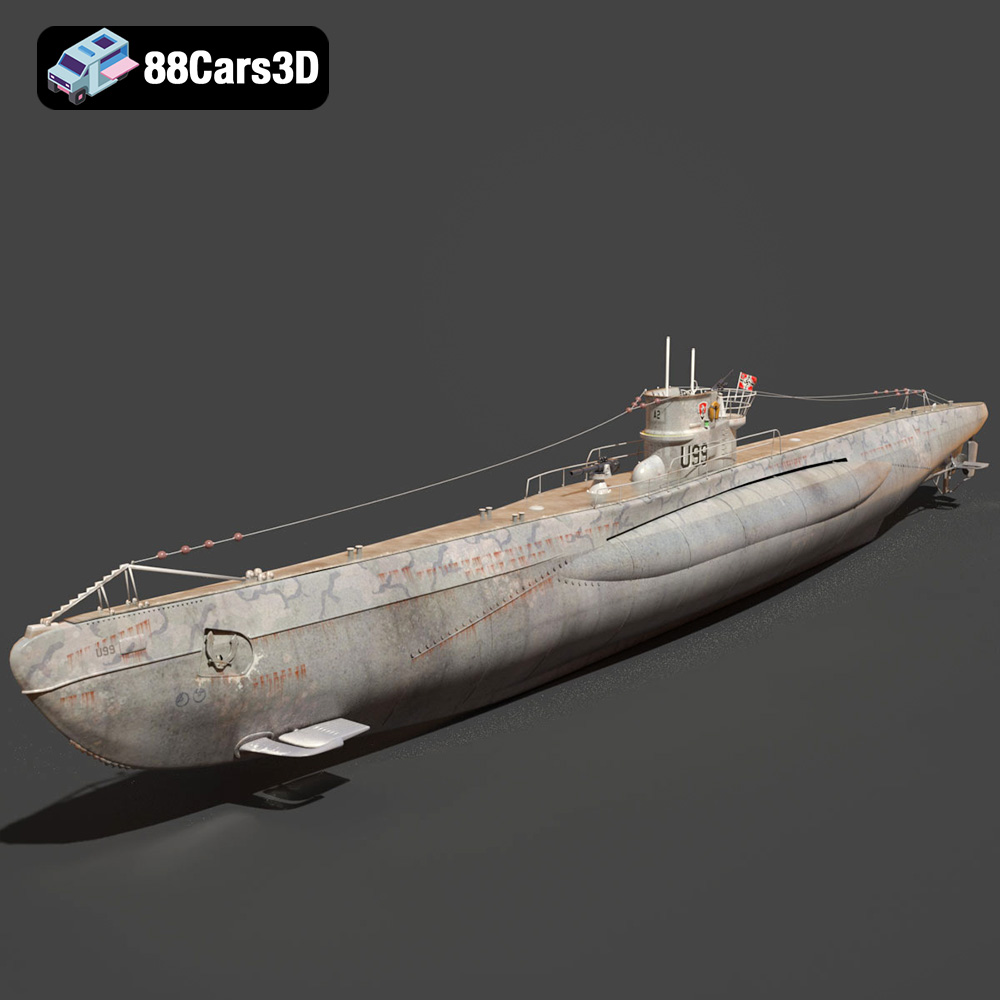
German U-Boat U-99 Submarine 1940 3D Model
Texture: Yes
Material: Yes
Download the German U-Boat U-99 Submarine 3D Model featuring clean geometry, realistic detailing, and a fully modeled interior. Includes .blend, .fbx, .obj, .glb, .stl, .ply, .unreal, and .max formats for rendering, simulation, and game development.
Price: $10
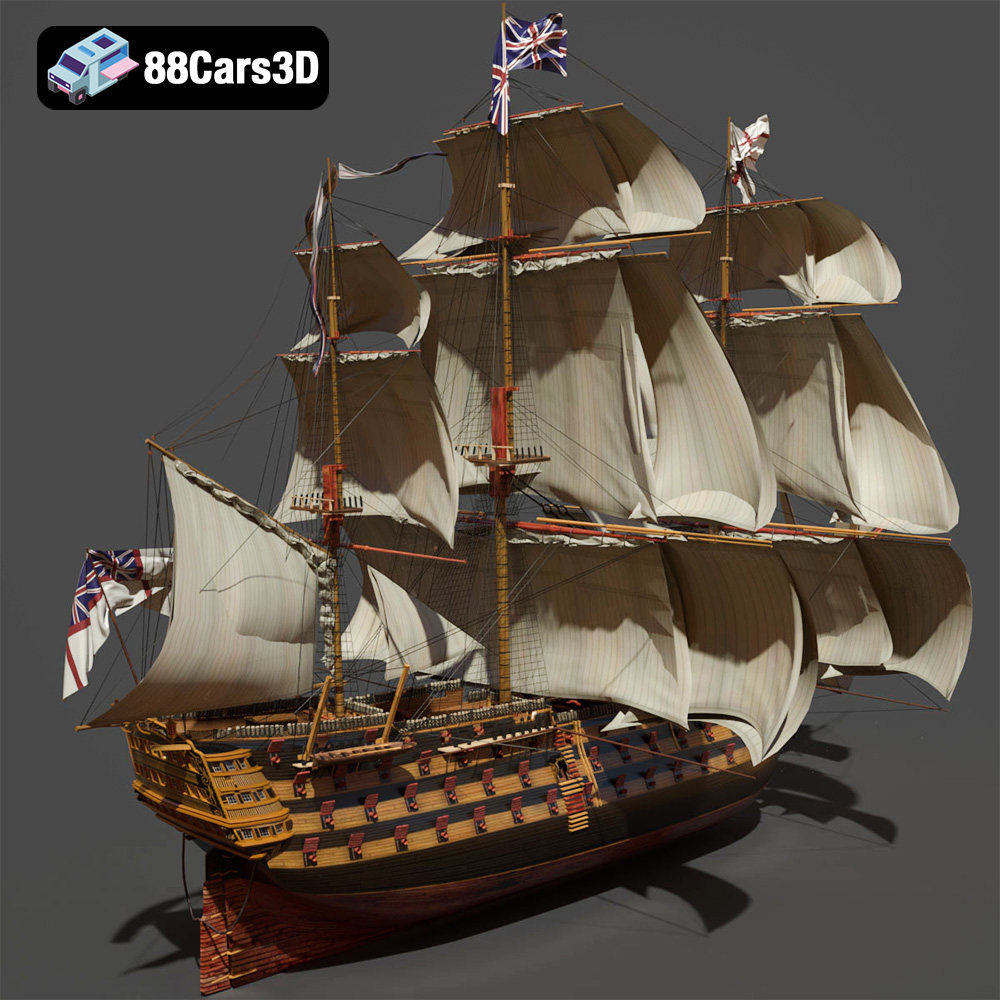
KEMA ELKANLI-001 3D Model
Texture: Yes
Material: Yes
Download the KEMA ELKANLI-001 3D Model featuring clean geometry, realistic detailing, and a fully modeled interior. Includes .blend, .fbx, .obj, .glb, .stl, .ply, .unreal, and .max formats for rendering, simulation, and game development.
Price: $9.99

Soviet aircraft carrier Kiev 3D Model
Texture: Yes
Material: Yes
Download the Carrier 006 3D Model featuring a robust design and detailed components. Includes .blend, .fbx, .obj, .glb, .stl, .ply, .unreal, and .max formats for rendering, simulation, and game development.
Price: $10.79

BMW 3 series Touring 335i (F31) 2013 3D Model
Texture: Yes
Material: Yes
Download the BMW 3 series Touring 335i (F31) 2013 3D Model featuring a highly detailed exterior, realistic interior, and modular design. Includes .blend, .fbx, .obj, .glb, .stl, .ply, .unreal, and .max formats for rendering, simulation, and game development.
Price: $30.79

BMW 3 Series E21 3D Model
Texture: Yes
Material: Yes
Download the BMW 3 Series E21 3D Model featuring authentic exterior design, detailed interior, and accurate proportions. Includes .blend, .fbx, .obj, .glb, .stl, .ply, .unreal, and .max formats for rendering, simulation, and game development.
Price: $20.79

BMW 1 Series 3-Door E81 3D Model
Texture: Yes
Material: Yes
Download the BMW 1 Series 3-Door E81 3D Model featuring a detailed exterior, functional interior elements, and clean geometry. Includes .blend, .fbx, .obj, .glb, .stl, .ply, .unreal, and .max formats for rendering, simulation, and game development.
Price: $14.79

Mercedes-Benz S500 2022 3D Model
Texture: Yes
Material: Yes
Download the Mercedes-Benz S500 2022 3D Model featuring clean geometry, realistic detailing, and a fully modeled interior. Includes .blend, .fbx, .obj, .glb, .stl, .ply, .unreal, and .max formats for rendering, simulation, and game development.
Price: $19.99

Jaguar S-Type Sedan 3D Model
Texture: Yes
Material: Yes
Download the Jaguar S-Type Sedan 3D Model featuring clean geometry, realistic detailing, and a fully modeled interior. Includes .blend, .fbx, .obj, .glb, .stl, .ply, .unreal, and .max formats for rendering, simulation, and game development.
Price: $18.99
