

In the high-octane world of automotive visualization, real-time rendering, and game development, precision, scalability, and dynamic control are paramount. Whether you’re crafting an interactive car configurator, developing a sprawling open-world racing game, or producing stunning cinematic renders, managing a vast array of vehicle data—from performance specifications to visual options—can quickly become a complex endeavor. Hardcoding values directly into Blueprints or C++ classes leads to brittle, unmaintainable projects that stifle iteration and innovation.
Enter Unreal Engine’s powerful concept of data-driven design, specifically through the use of Data Assets. This methodology transforms how you manage and interact with your automotive data, enabling unparalleled flexibility, faster iteration, and significantly cleaner codebases. For projects leveraging high-quality 3D car models, perhaps sourced from marketplaces like 88cars3d.com, implementing a robust data-driven approach is not just an advantage—it’s a necessity for unlocking their full potential. This comprehensive guide will delve deep into Unreal Engine Data Assets, exploring how they can revolutionize your automotive projects, from conceptualization to deployment, ensuring your creations are as dynamic and adaptable as the industry itself.
The Foundation of Scalable Development: Understanding Data-Driven Design
At its core, data-driven design is an architectural approach where the logic of your application is primarily dictated by external data, rather than being hardcoded within the source code itself. This separation of concerns—logic from data—is a cornerstone of robust software engineering and is particularly potent in the context of game development and real-time visualization.
Imagine managing a fleet of twenty different car models, each with unique engine specifications, gear ratios, suspension settings, and a multitude of paint colors, rim types, and interior finishes. If every one of these attributes were directly defined within the Blueprint or C++ class for each car, even a minor change, like adjusting the top speed of a specific model or adding a new paint option across the board, would necessitate recompiling code or painstakingly updating multiple Blueprints. This rapidly becomes a maintenance nightmare, prone to errors and delays.
What is Data-Driven Design?
Data-driven design shifts this paradigm by storing crucial information in easily editable, structured data files. Your game or visualization logic then dynamically reads and interprets this data at runtime. This approach offers several profound benefits:
- Flexibility: Modify game balance, car specifications, or visual parameters without altering a single line of code. This empowers designers and artists to iterate rapidly.
- Maintainability: Centralized data makes debugging and updates significantly easier. All information about a specific car, for instance, resides in one place.
- Scalability: Adding new content, such as a new car model or a fresh set of customization options, becomes a matter of adding new data entries, not rewriting logic.
- Collaboration: Different team members can work on data and code concurrently without stepping on each other’s toes, streamlining development workflows.
Why it Matters for Automotive Projects
In automotive visualization and game development, the sheer volume and complexity of data related to vehicles make data-driven design indispensable. High-fidelity 3D car models, often acquired from platforms like 88cars3d.com, come with intricate details that need to be dynamically configurable. Consider the following scenarios:
- Automotive Configurators: Users expect to customize everything from paint color and wheel designs to interior materials and performance packages. Data Assets can store all these options, making it trivial to swap them at runtime.
- Vehicle Variant Management: A single car model might have multiple trim levels or regional variations. Data Assets can define these unique characteristics without duplicating entire car Blueprints.
- Game Balancing: In a racing game, adjusting the handling, acceleration, or braking power of specific vehicles to ensure competitive balance can be done on the fly through data modifications.
- Real-time Performance Metrics: Storing information like polygon count thresholds for LODs, or specific material instance parameters, can be linked directly to vehicle data, allowing for optimized real-time rendering and AR/VR applications.
By embracing data-driven design, you build projects that are not only robust and efficient but also inherently more adaptable to evolving creative and technical demands.
Unreal Engine’s Data Assets: Your Blueprint for Dynamic Content
Unreal Engine provides several powerful tools for implementing data-driven design, and among the most versatile are Data Assets. While often confused with Data Tables, Data Assets serve a distinct and equally vital role, particularly when dealing with complex, unique data structures that don’t fit neatly into a spreadsheet format.
Core Concepts: Data Assets vs. Data Tables
Both Data Assets and Data Tables are instrumental in data-driven design, but they are designed for different use cases:
- Data Tables: Best suited for homogeneous, tabular data where each row represents a distinct entry and all entries share the same structure. Think of them like a spreadsheet: item properties, enemy stats, localization strings. They are great for quick lookups by a key.
- Data Assets (
UDataAsset): Ideal for unique, complex data structures that represent a single instance of a specific type of data. Each Data Asset is a UObject that can hold its own properties, reference other assets (like textures, meshes, or even other Data Assets), and have custom logic. They are perfect for defining an individual car’s complete specification, a specific character profile, or an entire game configuration set.
For automotive visualization, where each car model (even within the same brand) might have a vast and unique set of attributes, Data Assets excel. You can create a ‘McLaren_720S_DataAsset’ or a ‘Porsche_911_GT3_DataAsset’, each containing comprehensive and distinct information.
Creating Your First Data Asset & Structs
The process of setting up Data Assets involves defining the structure of your data first, typically using Unreal Engine’s Structs (USTRUCT), and then creating instances of your Data Asset class to populate that structure. Let’s walk through an example for a basic car specification:
- Define Your Data Structure (Struct):
In Unreal Engine, create a new Blueprint Struct. Right-click in the Content Browser > Blueprints > Structure. Name it something descriptive, like
FCarDataSpecifications. Inside this struct, you’ll define the individual properties for your car:Make(String)Model(String)Year(Integer)EngineType(Enum, e.g., Petrol, Electric, Hybrid)Horsepower(Float)Torque(Float)TopSpeed(Float)ZeroToSixtyTime(Float)PaintMaterial(Material Instance reference, e.g.,UMaterialInstanceConstant*)WheelMesh(Static Mesh reference, e.g.,UStaticMesh*)InteriorColor(Color)Price(Float)PolygonCount_LOD0(Integer)Description(Text)
These properties can be simple types, other structs, enums, or even references to other Unreal assets, allowing for incredibly rich and interconnected data.
- Create a Custom Data Asset Class:
Now, you need a custom Data Asset class that will hold an instance of your
FCarDataSpecificationsstruct. Right-click in the Content Browser > Blueprints > Data Asset. You’ll be prompted to pick a parent class. Type “DataAsset” and selectDataAsset(orUDataAssetif creating in C++). Name it something likeBP_CarDataAsset.Open this new Blueprint Data Asset. In the “Variables” section, add a new variable. Set its type to your newly created struct,
FCarDataSpecifications. You can name this variableCarSpecs. - Create Data Asset Instances:
Now, for each specific car model you have (e.g., from 88cars3d.com), you’ll create an instance of your
BP_CarDataAsset. Right-click in the Content Browser > Blueprints > Data Asset (again). This time, when prompted for the parent class, select your customBP_CarDataAsset.Name these instances after your specific car models, e.g.,
DA_McLaren_720S,DA_Porsche_911_GT3,DA_Ford_Mustang_GT. When you open these instances, you’ll see theCarSpecsvariable, and you can expand it to fill in all the unique data for that particular car model.
This organized approach ensures that all information pertinent to a specific car is encapsulated within a single, easily discoverable asset, ready to be utilized by your game logic or visualization setup.
Crafting Automotive Data: Practical Implementation with Data Assets
With the foundational understanding of Data Assets, let’s dive into practical ways to structure and populate them specifically for automotive projects. The goal is to create a comprehensive, flexible data architecture that supports everything from basic car information to complex configurator options and dynamic performance characteristics.
Defining Car Specifications with Structs
The power of Data Assets for automotive projects truly shines when coupled with well-designed Structs. Instead of one monolithic struct, consider breaking down car specifications into several nested or referenced structs to maintain clarity and modularity. This mirrors real-world car engineering, where engines, chassis, and interiors are distinct components.
For instance, you might have:
FEngineData: Horsepower, Torque, MaxRPM, FuelConsumption, EngineSound (Sound Wave reference).FChassisData: Weight, Wheelbase, TrackWidth, SuspensionStiffness (Float Array for individual wheels), BrakingForce.FExteriorOptions: AvailablePaintColors (Array of LinearColor or Material Instance references), AvailableWheelMeshes (Array of Static Mesh references, potentially from 88cars3d.com), SpoilerOptions (Array of Static Mesh references).FInteriorOptions: AvailableTrimMaterials (Array of Material Instance references), SeatTypes (Array of Static Mesh references).FPerformanceStatistics: TopSpeed, ZeroToSixtyTime, QuarterMileTime.FAssetMetadata: Source (String, e.g., “88cars3d.com”), OriginalPolygonCount, NaniteEnabled (Boolean), LODCount.
Your main FCarDataSpecifications struct in your BP_CarDataAsset would then reference these sub-structs:
struct FCarDataSpecifications
{
    // Basic Info
    FString Make;
    FString Model;
    int32 Year;
    FText Description;

    // Components
    FEngineData Engine;
    FChassisData Chassis;

    // Visual Options
    FExteriorOptions Exterior;
    FInteriorOptions Interior;

    // Performance
    FPerformanceStatistics Performance;

    // Asset Management
    FAssetMetadata AssetInfo;
};
This granular approach allows you to quickly locate and modify specific attributes without sifting through unrelated data. When sourcing automotive assets from marketplaces such as 88cars3d.com, you can use these Data Assets to store not just the visual aspects but also how those high-quality meshes and textures should behave or be optimized within your Unreal Engine project. For example, the FAssetMetadata could define specific LOD settings or Nanite proxy parameters for each car model.
Structuring for Configurators and Variant Management
Automotive configurators are a prime use case for Data Assets. Here’s how to structure your data for dynamic variant switching:
- Parent Data Asset: Create a base
BP_CarModelDataAssetthat holds common information for a specific car model (e.g., “Porsche 911”). This might contain default engine data, chassis, and common aesthetic options. - Child Data Assets for Trims/Years: Derive child Data Assets (e.g.,
DA_Porsche_911_GT3,DA_Porsche_911_CarreraS) from the parent. These children can override or extend properties, defining the unique aspects of each trim level or model year. - Arrays of Options: For customizable elements like paint, wheels, or interior trims, use arrays within your structs. For example,
TArray<UMaterialInstanceConstant*> AvailablePaintMaterials;. When the user selects an option, your Blueprint logic simply fetches the corresponding asset reference from the array and applies it.
This hierarchical and array-based system provides immense flexibility. Adding a new paint color is as simple as adding an entry to an array within the Data Asset instance, without touching any Blueprint logic.
Importing and Managing External Data
For projects involving hundreds or thousands of vehicle variants, manually populating Data Assets in the Unreal Editor can be tedious. Unreal Engine supports importing data from external sources, which can then be used to populate Data Assets or Data Tables programmatically.
- JSON/CSV Import: You can write custom Editor Utility Widgets (Blueprint) or C++ editor plugins that read data from JSON or CSV files (e.g., a spreadsheet detailing all car models and their specs). These tools can then iterate through the data and automatically create and populate new Data Asset instances. This is invaluable when managing large inventories of 3D car models that have detailed specifications.
- Data Validation: As part of the import process or as a separate editor tool, implement data validation checks. This ensures that essential fields are populated, references are valid, and numerical values fall within acceptable ranges (e.g., horsepower cannot be negative). This proactive approach prevents runtime errors and maintains data integrity.
By leveraging external data sources and automated import processes, you can efficiently manage vast amounts of automotive data, ensuring consistency and accuracy across your entire project.
Bringing Cars to Life: Integrating Data Assets with Blueprints
The true power of Data Assets is unleashed when they are integrated seamlessly with Unreal Engine’s Blueprint visual scripting system. This synergy allows your game logic and interactive elements to dynamically react to the data, bringing your high-fidelity car models to life with minimal hardcoding.
Dynamically Loading Car Data
Loading Data Assets into your Blueprints is straightforward. There are a few common patterns:
- Direct Reference: For an Actor that represents a specific car, you can add a variable of type
BP_CarDataAsset(Object Reference). In the Details panel of that Actor instance, you simply assign the specific Data Asset instance (e.g.,DA_McLaren_720S) you want it to use. This is the simplest method for unique instances. - Array or Map of Data Assets: If you need to switch between multiple car models, store an array of
BP_CarDataAssetreferences (or a Map with a unique ID as the key) in a Game Mode, Game State, or a dedicated Data Manager Blueprint. You can then retrieve the desired Data Asset based on user selection or game logic.
Once you have a reference to a Data Asset in your Blueprint, you can easily access its properties. Drag the Data Asset reference pin off a node, and then drag off that pin to access the internal struct (e.g., CarSpecs) and subsequently all its individual members like Engine.Horsepower or Exterior.AvailablePaintMaterials. This makes it incredibly simple to read any data you’ve defined.
Building an Interactive Car Configurator with Data Assets
This is where Data Assets truly shine for automotive visualization. Let’s outline a simplified process for creating a dynamic paint changer:
- UI Setup (UMG): Create a User Widget with buttons or a dropdown menu for selecting paint colors.
- Car Actor Blueprint: Your
BP_CarActor (which could be a vehicle Blueprint from 88cars3d.com) should have a variable to hold the currently selectedBP_CarDataAsset. It also needs aSkeletalMeshComponentorStaticMeshComponentfor the car body. - Event Handling: When a user clicks a “Change Paint” button in your UI, it calls a custom event or function in your
BP_CarActor. - Apply Paint Material:
        // In BP_Car Actor
        Event: OnPaintColorSelected (Index: Integer)
        -> Get CarDataAsset Reference
        -> Get CarDataAsset.CarSpecs.Exterior.AvailablePaintMaterials (Array)
        -> Get Array Element at Index
        -> Create Dynamic Material Instance (from the selected Material Instance)
        -> Set Material on Car Body Mesh Component (e.g., Set Material by Name "Paint_Slot")
This same pattern can be extended to wheels, interior trims, spoilers, and even entire performance packages, simply by referencing different meshes or applying different parameters based on the Data Asset’s information. The flexibility here is immense; adding a new wheel option just requires updating the array in the Data Asset, not touching the configurator’s core logic.
Driving Vehicle Physics and Gameplay
Data Assets are not just for visuals; they can profoundly impact gameplay and simulation. Unreal Engine’s advanced vehicle physics (see official Unreal Engine documentation for vehicle setup) can be entirely driven by data from your Data Assets.
- Vehicle Movement Component: Unreal Engine’s
ChaosVehicleMovementComponent(or the olderWheeledVehicleMovementComponent) has numerous exposed properties for engine, transmission, suspension, and tire physics. - Feeding Data: In your car’s Blueprint (derived from
WheeledVehiclePawnor similar), onEvent BeginPlay, you can read values directly from your assignedBP_CarDataAssetand apply them to the vehicle movement component:// In your Vehicle Blueprint Event BeginPlay -> Get CarDataAsset Reference -> Get CarDataAsset.CarSpecs.Engine.Horsepower -> Set Engine Max Torque (converted) -> Get CarDataAsset.CarSpecs.Engine.MaxRPM -> Set Engine Max RPM -> Get CarDataAsset.CarSpecs.Chassis.SuspensionStiffness (Array) -> Loop and Set Wheel Suspension Stiffness -> Get CarDataAsset.CarSpecs.Chassis.BrakingForce -> Set Braking Torque
This allows you to define distinct driving characteristics for each car model directly in its Data Asset. Want to make a specific sports car handle more aggressively or an SUV feel heavier? Simply tweak the numbers in its respective Data Asset instance, and the changes are reflected immediately in the simulation without altering any core vehicle Blueprint logic.
Advanced Techniques and Performance Optimization
Beyond the basics, Data Assets offer more sophisticated capabilities and contribute significantly to project optimization, especially for demanding real-time rendering and AR/VR applications involving complex 3D car models.
Data Asset Inheritance and Blueprints
Just like standard Blueprint classes, Data Assets can leverage inheritance. This is particularly useful for establishing a hierarchy of vehicle types or common base attributes:
- Base Car Data Asset: Create a generic
BP_BaseCarDataAssetthat contains attributes common to ALL cars (e.g., default wheel types, basic engine definitions, a default description structure). - Specific Manufacturer Data Assets: Create child Data Assets like
BP_SportsCarDataAssetorBP_SUVDataAsset. These can inherit from the base and add properties specific to their category (e.g., a “TurboBoost” parameter for sports cars, or “OffRoadCapability” for SUVs). - Individual Car Data Assets: Finally, your actual car instances (e.g.,
DA_McLaren_720S) would inherit from the most appropriate specialized Data Asset (e.g.,BP_SportsCarDataAsset). This allows them to inherit common properties while defining their unique values.
Inheritance promotes reusability, reduces redundancy, and ensures consistency across large datasets. If you have a property that needs to be present for all sports cars, you define it once in BP_SportsCarDataAsset.
Data Validation and Debugging Strategies
With large amounts of data, ensuring its integrity becomes crucial. Data validation prevents runtime errors and unexpected behavior:
- Editor Utility Widgets: Create Blueprint-based Editor Utility Widgets that can scan all Data Assets of a certain type in your project. These widgets can perform checks like:
- Are all required fields populated? (e.g., a car must have a
MakeandModel). - Are referenced assets (like materials or meshes) valid and not null?
- Do numerical values fall within expected ranges (e.g., horsepower > 0)?
The widget can then report errors or even attempt to fix common issues.
- Are all required fields populated? (e.g., a car must have a
- Native C++ Validation: For C++ Data Asset classes, override the
PostLoad()orPreSave()functions to include validation logic. This provides a robust check whenever the asset is loaded or saved. - Logging and Debugging Blueprints: When accessing Data Asset properties in Blueprints, use “Print String” nodes during development to verify that the correct data is being retrieved. For more complex issues, set breakpoints in your Blueprint graph and step through the execution.
Proactive data validation saves countless hours of debugging downstream and ensures a more stable application.
Optimizing for Real-time and AR/VR
Data Assets play a vital role in optimizing automotive projects for real-time rendering, especially when targeting performance-sensitive platforms like AR/VR or high-fidelity cinematic sequences. High-quality 3D car models, such as those found on 88cars3d.com, often come with significant polygon counts and detailed textures, making optimization critical.
- LOD Management: Your
FAssetMetadatastruct within a Data Asset can store an array of LOD screen size thresholds and specific mesh assets for each LOD level. Your car Blueprint can then use this data to dynamically switch between optimized mesh variants. For Nanite-enabled meshes, the Data Asset could store the fallback mesh specifically. - Material Instancing Parameters: Instead of creating entirely new materials, Data Assets can store arrays of PBR material instance parameters (e.g., base color tints, metallic values, roughness adjustments). When applying a custom paint job, for example, your Blueprint creates a dynamic material instance from a base material and then uses the Data Asset’s parameters to set its properties, drastically reducing draw calls and memory usage compared to having many unique material assets.
- Platform-Specific Overrides: For AR/VR experiences, you might need lower-resolution textures or simplified materials. A Data Asset could have an additional struct like
FVR_OptimizationSettings, allowing you to define specific overrides for meshes, textures, or even to enable/disable specific features (like advanced lighting or physics simulations) for performance reasons. Your game logic can then check the current platform and apply the relevant data.
By leveraging Data Assets for optimization, you empower designers to manage performance profiles directly within the content, making it easier to scale high-quality automotive assets across different target platforms without extensive code changes.
Best Practices and the Future of Automotive Visualization
Adopting Data Assets into your Unreal Engine workflow is a significant step towards creating more robust, flexible, and scalable automotive projects. However, like any powerful tool, its effectiveness is amplified by adhering to best practices and understanding its potential for future applications.
Naming Conventions and Project Organization
Consistency is key, especially in team environments or projects with many assets. Establish clear naming conventions for your Data Assets and their associated structs:
- Structs: Prefix with ‘F’ (e.g.,
FCarDataSpecifications,FEngineData). - Data Asset Blueprints: Prefix with ‘BP_’ (e.g.,
BP_CarDataAsset,BP_SportsCarDataAsset). - Data Asset Instances: Prefix with ‘DA_’ followed by the specific item it represents (e.g.,
DA_McLaren_720S,DA_RedPaintOption).
Organize your Data Assets logically in your Content Browser. Create dedicated folders such as /Game/Data/Vehicles/, /Game/Data/Options/, and /Game/Data/GlobalSettings/. This makes it easy for any team member to find and understand the data structure.
Version Control and Collaborative Workflows
Data Assets are UObjects and are therefore fully compatible with version control systems like Git or Perforce. Treat them with the same care as you would any other asset or code file:
- Commit Regularly: Commit changes to Data Assets frequently, along with descriptive messages.
- Review Changes: For critical data, utilize code review processes to ensure accuracy before committing.
- Merge Conflicts: While Unreal’s merge tools handle many asset conflicts, complex Data Asset merges might require manual intervention. Clear organization and smaller, focused commits can help minimize these occurrences.
When multiple team members are working on data, a clear pipeline for data entry and validation (perhaps using the Editor Utility Widgets discussed earlier) ensures that changes are integrated smoothly and consistently.
Leveraging Data Assets for Virtual Production and Cinematic Storytelling
Data Assets extend their utility beyond interactive experiences into the realm of virtual production and cinematic rendering. When producing high-fidelity cinematics with tools like Sequencer, Data Assets can dynamically drive variations and scenarios:
- Cinematic Variant Switches: A Sequencer track could trigger an event that reads a specific “Cinematic Configuration” Data Asset. This Data Asset could define unique material overrides for specific shots, activate particle effects (Niagara) tied to vehicle damage, or even swap out entire car models or environments based on a narrative beat.
- Dynamic Set Dressing: For virtual production stages with LED walls, Data Assets can store environment presets, allowing directors to instantly switch between different backdrops, weather conditions, or time-of-day settings that complement the virtual car being filmed.
- Procedural Animation Parameters: Data Assets could store parameters for procedural animations, such as the exact timing and intensity of a vehicle’s suspension compression during a jump, allowing for quick adjustments without baking new animation data.
By making every aspect of your automotive content data-driven, you enable an unprecedented level of creative control and iteration speed, whether for real-time interactivity or pre-rendered cinematic masterpieces.
Conclusion
Data-driven design with Unreal Engine’s Data Assets is a transformative methodology for anyone serious about creating scalable, maintainable, and dynamic automotive projects. From managing vast libraries of 3D car models—whether they’re highly optimized assets from 88cars3d.com or custom creations—to powering intricate configurators and realistic vehicle physics, Data Assets provide the backbone for robust content management.
By separating your data from your logic, you gain unmatched flexibility to iterate rapidly, balance gameplay, and adapt to evolving creative demands without being bogged down by hardcoded values. This approach fosters cleaner Blueprints, streamlines collaboration, and significantly reduces the effort required for updates and expansions, ultimately leading to higher quality and more performant applications, especially in the demanding fields of real-time rendering and AR/VR visualization.
Embrace Data Assets today and unlock a new level of control over your automotive experiences in Unreal Engine. Start by defining your core data structures, creating your first Data Asset, and witnessing firsthand how this powerful technique can revolutionize your development workflow. The future of automotive visualization is data-driven, and with Unreal Engine, you have all the tools to lead the way.
Featured 3D Car Models

Porsche Cayenne 3D Model
Meta Description:
Texture: Yes
Material: Yes
Download the Porsche Cayenne 3D Model featuring realistic exterior styling and detailed interior design. Includes .blend, .fbx, .obj, .glb, .stl, .ply, .unreal, and .max formats for rendering, simulation, AR VR, and game development.
Price: $19.9

Yamaha FZ8 2011 3D Model
Texture: Yes
Material: Yes
Download the Yamaha FZ8 2011 3D Model featuring clean geometry, realistic detailing, and a fully modeled interior. Includes .blend, .fbx, .obj, .glb, .stl, .ply, .unreal, and .max formats for rendering, simulation, and game development.
Price: $19.99

Yamaha Stryker 2012 3D Model
Texture: Yes
Material: Yes
Download the Yamaha Stryker 2012 3D Model featuring clean geometry, realistic detailing, and a fully modeled interior. Includes .blend, .fbx, .obj, .glb, .stl, .ply, .unreal, and .max formats for rendering, simulation, and game development.
Price: $19.99
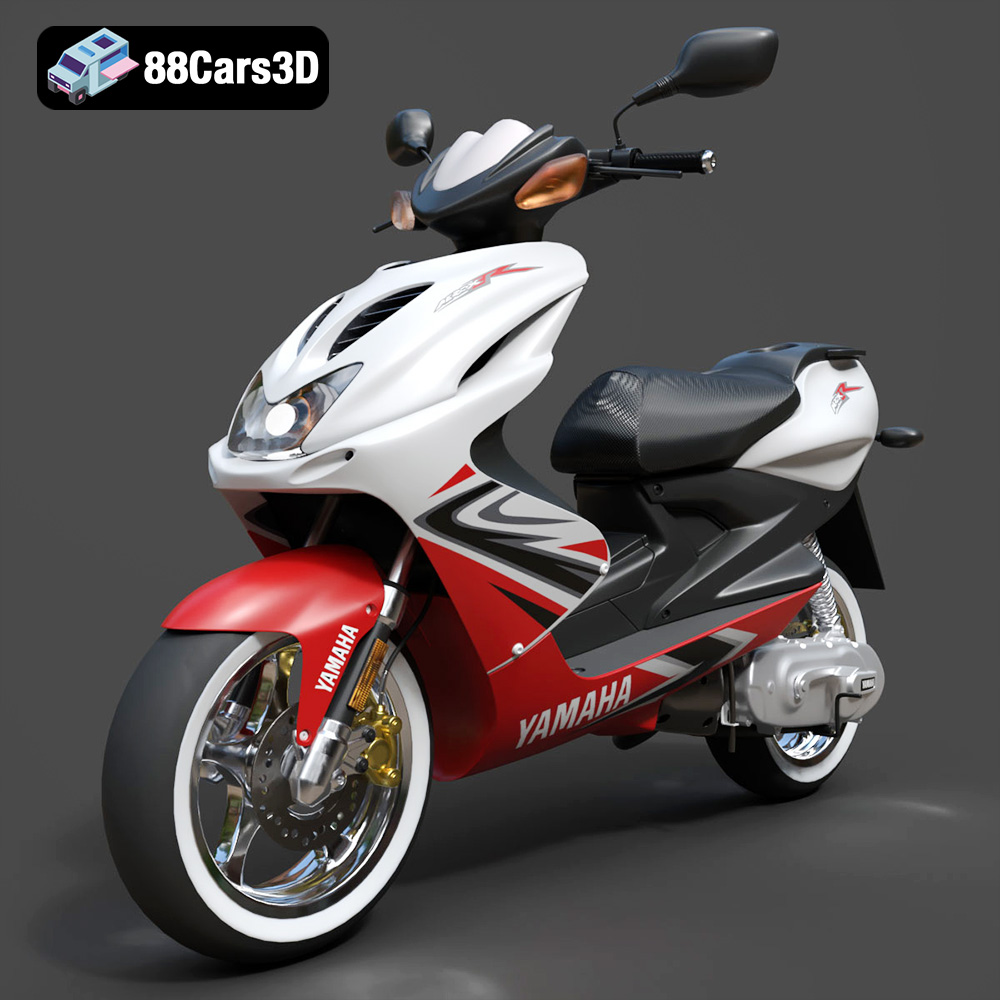
Yamaha Aerox R-002 2024 3D Model
Texture: Yes
Material: Yes
Download the Yamaha Aerox R-002 2024 3D Model featuring clean geometry, realistic detailing, and a fully modeled interior. Includes .blend, .fbx, .obj, .glb, .stl, .ply, .unreal, and .max formats for rendering, simulation, and game development.
Price: $19.99
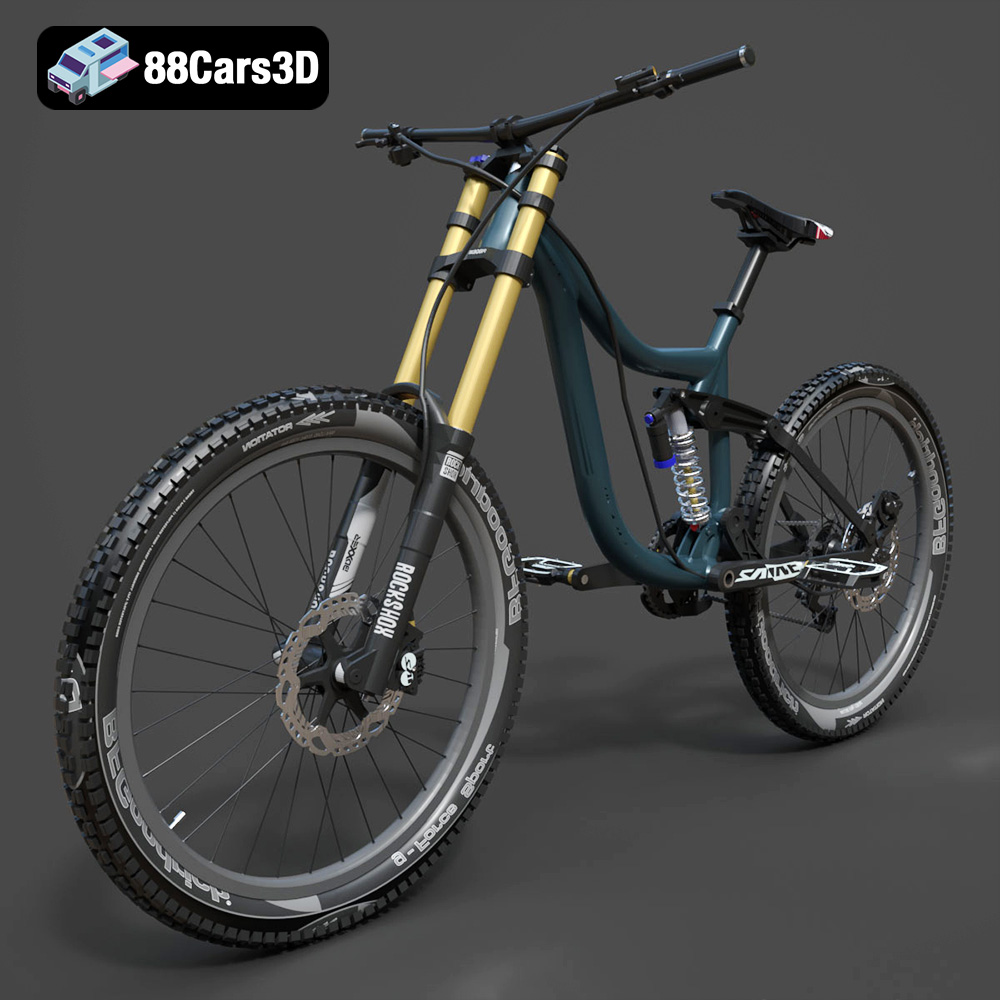
Mototsikly Downhill Bike-002 3D Model
Texture: Yes
Material: Yes
Download the Mototsikly Downhill Bike-002 3D Model featuring clean geometry, realistic detailing, and precise mechanical components. Includes .blend, .fbx, .obj, .glb, .stl, .ply, .unreal, and .max formats for rendering, simulation, and game development.
Price: $19.99

Mercedes-Benz Vito Passenger Van 3D Model
Texture: Yes
Material: Yes
Download the Mercedes-Benz Vito Passenger Van 3D Model featuring clean geometry, realistic detailing, and a fully modeled interior. Includes .blend, .fbx, .obj, .glb, .stl, .ply, .unreal, and .max formats for rendering, simulation, and game development.
Price: $19.99

Mercedes-Benz Viano 2010 3D Model
Texture: Yes
Material: Yes
Download the Mercedes-Benz Viano 2010 3D Model featuring clean geometry, realistic detailing, and a fully modeled interior. Includes .blend, .fbx, .obj, .glb, .stl, .ply, .unreal, and .max formats for rendering, simulation, and game development.
Price: $19.99

Emt Avtobus 007 3D Model
Texture: Yes
Material: Yes
Download the Emt Avtobus 007 3D Model featuring clean geometry, realistic detailing, and a fully modeled interior. Includes .blend, .fbx, .obj, .glb, .stl, .ply, .unreal, and .max formats for rendering, simulation, and game development.
Price: $19.99
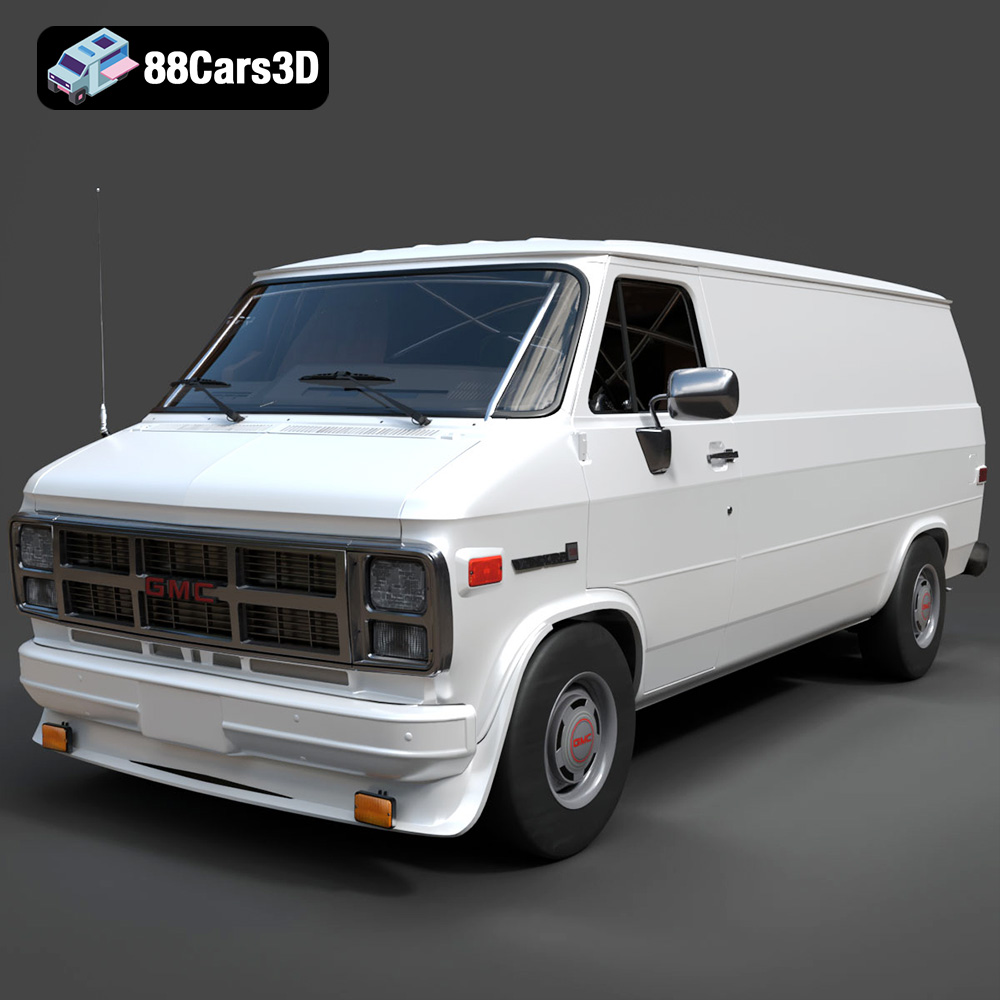
GMC Vandura G-1500 1983 3D Model
Texture: Yes
Material: Yes
Download the GMC Vandura G-1500 1983 3D Model featuring clean geometry, realistic detailing, and a fully modeled interior. Includes .blend, .fbx, .obj, .glb, .stl, .ply, .unreal, and .max formats for rendering, simulation, and game development.
Price: $19.99

Ford E-450 Ambulance 3D Model
Texture: Yes
Material: Yes
Download the Ford E-450 Ambulance 3D Model featuring clean geometry, realistic detailing, and a fully modeled interior. Includes .blend, .fbx, .obj, .glb, .stl, .ply, .unreal, and .max formats for rendering, simulation, and game development.
Price: $19.99
