
In the dynamic world of automotive visualization, merely rendering stunning 3D car models is no longer enough. Today’s audiences demand interactive, engaging experiences that allow them to explore, customize, and truly connect with vehicles. This is where a meticulously crafted User Interface (UI) and an intuitive User Experience (UX) become paramount. For Unreal Engine developers and 3D artists, the Unreal Motion Graphics (UMG) Widget System is the powerful toolkit that bridges the gap between breathtaking visuals and seamless interaction. It empowers creators to design everything from sophisticated car configurators to interactive showrooms and immersive AR/VR experiences, all within the robust Unreal Engine ecosystem.
This comprehensive guide delves deep into leveraging UMG for cutting-edge automotive visualization projects. We’ll explore the core principles of UMG, walk through practical UI/UX design considerations, demonstrate how to build interactive elements using Blueprint visual scripting, and discuss advanced techniques for optimizing performance and enhancing user engagement. Whether you’re building a new game, an architectural walkthrough with a vehicle, or a next-gen automotive marketing tool, mastering UMG is essential for delivering truly captivating real-time experiences.
Mastering UMG: The Cornerstone of Dynamic Unreal Engine Interfaces
Unreal Motion Graphics (UMG) is Unreal Engine’s declarative UI system, providing a robust framework for building intuitive and visually rich user interfaces. Unlike older, code-driven UI systems, UMG relies heavily on a drag-and-drop visual editor and Blueprint scripting, making it incredibly accessible for artists and designers while still offering deep customization for programmers. At its heart, UMG is about Widgets – individual UI elements like buttons, sliders, text blocks, and images – which are then assembled into hierarchical Widget Blueprints. This system is indispensable for automotive visualization because it allows for the rapid iteration and creation of complex interfaces needed for interactive car configurators, informational overlays, and immersive simulation controls. Without a powerful UI framework like UMG, bringing these interactive automotive experiences to life in a real-time environment would be significantly more challenging and time-consuming. From displaying vehicle specifications to triggering material changes on a high-fidelity 3D car model, UMG provides the essential interactive layer.
Widget Blueprints: Design, Hierarchy, and Event-Driven Logic
A Widget Blueprint is the central asset for UMG design. It combines the visual layout of UI elements with their underlying Blueprint logic. Within a Widget Blueprint, you’ll find the Designer tab, where you can arrange widgets visually, and the Graph tab, where you define their behavior using event-driven Blueprint scripting. The hierarchy of widgets is crucial: a Canvas Panel, for example, might contain several Vertical Boxes, each holding a series of buttons. This nested structure allows for complex layouts and easy management. Event-driven logic means that when a user interacts with a widget (e.g., clicking a button), a specific Blueprint event is triggered, allowing you to execute custom code, such as changing the paint color of a car model or navigating to a different menu.
Essential UMG Widgets for Automotive Configurators
For automotive configurators, a core set of UMG widgets forms the backbone of the interactive experience. The Button widget is fundamental for selections (e.g., “Choose Wheel Type”). Text Block and Rich Text Block widgets display vehicle specifications, pricing, or descriptive information. Image widgets are perfect for displaying thumbnails of different car models, paint options, or interior trims. Slider widgets can control parameters like camera zoom or environmental lighting intensity. Combo Box (String) or custom scrolling lists are ideal for selecting from a wide range of options, such as engine types or accessory packages. Additionally, Scroll Box and Wrap Box panels help manage numerous options neatly, ensuring a clean and organized UI, especially when working with extensive libraries of 3D car models and their customizable features.
Principles of Effective UI/UX Design for Real-Time Automotive Applications
Designing effective UI/UX for real-time automotive applications in Unreal Engine goes beyond merely placing buttons on a screen; it requires a deep understanding of user psychology and interaction patterns. The goal is to create an intuitive experience where users can effortlessly customize a vehicle, explore its features, and access information without friction. Key principles include clarity, ensuring that every UI element’s purpose is immediately understandable; consistency, maintaining a uniform visual language and interaction model across the entire application; and feedback, providing immediate visual or auditory cues when a user interacts with an element. For automotive configurators, this means logical grouping of options (e.g., Exterior, Interior, Performance), clear labeling, and intuitive navigation. Consider the target audience – whether it’s a casual browser in a showroom, a prospective buyer, or an automotive designer – and tailor the complexity and aesthetic accordingly. High-quality 3D car models deserve a UI that complements their visual fidelity, enhancing the overall professional presentation.
Crafting User Flows and Wireframes for Car Configurator Experiences
Before diving into UMG, it’s crucial to map out the user journey. Start by defining the primary goals: What can the user do? What information do they need? How do they navigate through options? A user flow diagram helps visualize the paths a user can take, from selecting a car model to finalizing their configuration. Following this, wireframing creates low-fidelity representations of each UI screen, focusing on layout, hierarchy, and functional elements rather than aesthetics. Tools like Figma, Adobe XD, or even pen and paper are excellent for this. For a car configurator, wireframes would detail screens for model selection, exterior options (paint, wheels), interior options (materials, trims), performance upgrades, and a final summary. This iterative process helps identify potential UX bottlenecks early, saving significant development time when implementing in UMG.
Ensuring Responsiveness and Accessibility Across Devices
Modern automotive visualization applications must cater to a diverse range of devices, from high-resolution desktop monitors and large touchscreens in showrooms to mobile AR/VR devices. UMG offers powerful tools for responsive design, primarily through its use of layout panels (Canvas Panel, Vertical Box, Horizontal Box, Grid Panel, Wrap Box) that allow UI elements to adapt to different screen sizes and aspect ratios. Utilizing Anchors and Alignment settings on widgets within a Canvas Panel is essential for ensuring UI elements scale and position correctly. For accessibility, consider implementing keyboard and gamepad navigation support, clear contrast ratios for text and backgrounds, and scalable font sizes. Providing visual feedback for selections and hover states is also crucial, especially in touch-based or VR environments where mouse pointers may not be present. The goal is a seamless experience, regardless of the user’s interaction method or display.
Building Interactive Experiences with UMG and Blueprint Visual Scripting
The true power of UMG comes alive when combined with Unreal Engine’s Blueprint visual scripting system. This synergy allows developers to create complex interactive logic without writing a single line of C++ code. For automotive visualization, this means enabling users to dynamically change a car’s paint color, swap out wheel designs, modify interior trims, or even open and close doors with simple button clicks. The workflow typically involves an event dispatcher or a custom event in the UMG Widget Blueprint that, when triggered, communicates with the 3D car model placed in the level. This communication often involves referencing the specific Actor (our 3D car) and calling functions on it, such as “Set Material Parameter” or “Set Static Mesh.” Leveraging Blueprint allows for rapid prototyping and iteration of interactive features, ensuring the user experience is fluid and intuitive. It’s a testament to Unreal Engine’s design that such sophisticated interactions can be achieved visually, making advanced features accessible to a broader range of content creators and designers.
Connecting UMG Widgets to 3D Car Model Properties (e.g., paint, wheels)
One of the most common tasks in an automotive configurator is allowing users to change visual attributes of a 3D car model. This is typically achieved by manipulating Material Instances and Static Mesh components via Blueprint. For paint color, you would create a Dynamic Material Instance (DMI) from your car’s base PBR material. Buttons in your UMG UI can then call a Blueprint function that sets a ‘Vector Parameter’ (for color) or ‘Scalar Parameter’ (for metallic, roughness values) on this DMI. For wheel changes, UMG buttons would trigger a function on the car’s Blueprint Actor that swaps out the Static Mesh components representing the wheels. This requires your 3D car models to be modular, with separate meshes for customizable parts, a standard practice for high-quality game assets found on platforms like 88cars3d.com. This direct connection between UI and 3D assets is fundamental to real-time configurators.
Communicating Between UI and Game Logic: Events and Data Structures
Effective UI interaction necessitates robust communication between your UMG widgets and the rest of your Unreal Engine project. While direct references can work for simple scenarios, more scalable solutions involve Event Dispatchers and Blueprint Interfaces. An Event Dispatcher within a UMG Widget Blueprint can be “bound” to by other Blueprints (e.g., your Car Actor, Player Controller, or Game Mode), allowing the UI to notify the game logic of user actions without needing a direct reference to every potential listener. Blueprint Interfaces provide a clean contract for communication, allowing any Actor implementing the interface to receive messages from the UI. For managing complex configuration data (selected paint color, wheel type, interior fabric, accessories), using Data Tables or custom Structs is highly recommended. This separates data from logic, making it easier to add new options and maintain the project, ensuring scalability as your automotive configurator grows.
Advanced UMG Techniques for High-Fidelity Automotive Interfaces
While basic UMG functionality is powerful, leveraging advanced techniques can significantly elevate the user experience in automotive visualization. High-fidelity automotive interfaces demand more than static buttons; they require sophisticated visual feedback, smooth transitions, and internationalization capabilities. Custom Widgets, for instance, allow you to combine multiple basic widgets into a reusable component with its own unique Blueprint logic, perfect for complex, often-repeated elements like a detailed vehicle statistics display or an interactive 3D thumbnail viewer. UMG animations can breathe life into your menus, providing slick transitions when revealing options, highlighting selections, or displaying loading indicators. Furthermore, given the global nature of the automotive industry, implementing localization ensures your configurator is accessible to diverse audiences, adapting text and potentially imagery based on the user’s language. These advanced features are crucial for creating truly polished and professional real-time automotive experiences that stand out in a competitive market, complementing the visual realism of high-quality 3D car models.
Elevating User Experience with UMG Animations and Custom Widgets
UMG provides a built-in animation system, accessible within the Widget Blueprint’s Designer tab. You can animate properties like opacity, position, scale, and rotation of any widget over time, using keyframes and various interpolation methods. This is invaluable for creating fluid menu reveals, button hover effects, or dynamic feedback when a user makes a selection (e.g., a selected color swatch subtly growing). For instance, a customizable car configurator could feature a smooth fade-in for options panels or a bouncing effect for newly selected items. Custom Widgets, on the other hand, are invaluable for modularity. Imagine creating a “Car Option Card” custom widget that encapsulates an image, text, and a selection state. You can then populate your UI with dozens of these cards, each instanced from a single custom widget blueprint, significantly streamlining development and ensuring consistency while allowing for unique data per instance.
Optimizing UMG Performance for Smooth Real-Time Interaction
Performance optimization for UMG is critical, especially in real-time applications like automotive configurators where a smooth 60 FPS is often expected alongside detailed 3D car models and complex environments leveraging Lumen and Nanite. Excessive widget complexity, too many bindings, or frequent UI updates can lead to performance bottlenecks. Strategies include:
- Minimize Bindings: Avoid binding to functions that perform heavy calculations every frame. Instead, update UI elements only when data changes.
- Visibility Culling: Use visibility states (Hidden, Collapsed) judiciously. Collapsed widgets are not rendered or ticked, saving more performance than just Hidden.
- Widget Complexity: Avoid overly complex widget hierarchies. Simplify when possible.
- Slate Re-caching: Understand how Slate (UMG’s underlying framework) re-caches geometry. Changes to specific widget properties might trigger a full re-draw of parent widgets.
- Texture Optimization: Ensure UI textures (icons, backgrounds) are appropriately sized and compressed.
- Profiling: Use Unreal Engine’s built-in profilers (e.g., the UI Visualizer, Stat Slate) to identify performance bottlenecks in your UMG. Check Unreal Engine’s official documentation for detailed profiling guidelines at https://dev.epicgames.com/community/unreal-engine/learning.
These practices ensure your interactive automotive experiences run flawlessly.
Streamlining UMG Integration into Unreal Engine Projects
Proper integration of UMG into your Unreal Engine project is crucial for maintainability, scalability, and performance. A well-organized project structure simplifies development, especially when working with extensive UI systems common in automotive configurators or complex interactive demos. It’s not enough to simply create widgets; you need a strategy for managing them, determining when and how they appear, and ensuring they respond correctly to user input. This involves establishing clear guidelines for naming conventions, folder structures, and communication protocols between your UI and the underlying game logic. Effectively managing your UI’s lifecycle, from creation to removal, prevents memory leaks and ensures clean transitions between different interactive states. Furthermore, robust input handling is essential, whether you’re dealing with mouse clicks, gamepad navigation, or touch inputs for mobile or showroom kiosk applications. Mastering these integration best practices ensures your UMG-driven automotive visualization projects remain robust and easy to expand.
Best Practices for UMG Project Structure and Scalability
A tidy project is a happy project. When working with UMG, establish a clear folder structure early on. A common approach is to have a dedicated ‘UI’ folder, with subfolders for ‘Widget Blueprints,’ ‘Styles,’ ‘Textures,’ and ‘Animations.’ Group related widgets (e.g., all widgets for the ‘Exterior Options’ menu) within their own subfolders. Use consistent naming conventions, for example, ‘WBP_CarConfiguratorMain,’ ‘WBP_OptionButton,’ ‘T_PaintSwatch_Red,’ to make assets easily identifiable. For scalability, avoid creating monolithic Widget Blueprints. Instead, break down complex UIs into smaller, reusable custom widgets. For example, a car configurator’s main menu might compose multiple child widgets for specific option categories (paint, wheels, interior). This modularity allows for easier debugging, quicker iterations, and better performance, as only relevant UI components need to be loaded and processed at any given time. When sourcing automotive assets from marketplaces such as 88cars3d.com, it’s wise to plan your UI structure around their modular design for seamless integration.
Managing UI Input, Focus, and Debugging Workflows
Input handling in UMG is primarily managed through the Player Controller. To enable UI interaction, you must set the Input Mode (e.g., “Set Input Mode UI Only” or “Set Input Mode Game and UI”) when your UI is visible. This ensures mouse clicks and keyboard inputs are directed to the UI rather than the 3D world. For gamepad or keyboard navigation, implement logic to manage focus. The “Set Keyboard Focus” node allows you to programmatically assign focus to a specific widget, and custom navigation logic can be built using Blueprint. Debugging UMG issues can involve using the UMG Debugger (accessed via Tools > Debug > Widget Reflector) to inspect the widget hierarchy, properties, and events in real-time. Additionally, utilizing ‘Print String’ nodes in Blueprint to trace execution flow and variable values is invaluable for troubleshooting UMG logic and ensuring your interactive automotive visualization performs as intended.
Real-World Applications: Automotive Configurators and Beyond with UMG
The applications of UMG in automotive visualization extend far beyond simple menus. It is the backbone for creating sophisticated automotive configurators, interactive showrooms, virtual training environments, and even control interfaces for virtual production scenes. Imagine a user walking into a virtual showroom, seamlessly interacting with a high-fidelity 3D car model from 88cars3d.com through a touch-enabled UI that allows them to change paint colors, swap wheels, open doors, and even view engine specifications in an augmented reality overlay. UMG makes these experiences not only possible but also efficient to develop. Its flexibility allows for designing highly branded interfaces that reflect an automotive manufacturer’s aesthetic, providing a consistent and immersive user experience. From enabling nuanced material changes to displaying real-time data or triggering complex animations and simulations, UMG empowers developers to build the next generation of interactive automotive marketing, sales, and design tools within Unreal Engine.
Developing a Comprehensive Car Configurator UI with 88cars3d.com Assets
A comprehensive car configurator built with UMG and high-quality assets from 88cars3d.com can be a powerful sales and marketing tool. The UI would typically feature distinct sections:
- Model Selection: A gallery of car models (e.g., sedan, SUV, sports car), each represented by an image thumbnail and basic specs. Selecting a model loads the corresponding 3D asset.
- Exterior Customization: Sub-menus for paint color swatches (linking to material parameter changes), wheel options (swapping static meshes), brake calipers, and body kits.
- Interior Customization: Options for seat materials, dashboard trims, ambient lighting colors, and perhaps even accessory placements.
- Performance/Engine: Displaying engine types, horsepower, torque, and transmission options, potentially with an animated engine bay view.
- Summary & Price: A real-time update of selected options and total cost, with options to save, share, or request a quote.
Each option would be an interactive UMG widget, leveraging Blueprint to communicate with the 3D car model, dynamically updating its appearance and the displayed information. This iterative process, facilitated by UMG’s visual nature, allows for rapid development and refinement of the user journey.
UMG in AR/VR and Virtual Production for Automotive Showcases
UMG is highly adaptable for AR/VR and virtual production workflows, offering unique advantages for automotive visualization. In AR/VR, UMG can be rendered in 3D space as a “World Space” UI, allowing users to interact with menus and information panels directly within their immersive environment. This is perfect for virtual showrooms where users can walk around a 3D car model and interact with floating UI elements to change its features. Specialized UMG techniques for AR/VR include optimizing widget draw calls, designing for readability in 3D space, and implementing gaze or hand-tracking interactions. For virtual production, UMG can create dynamic control panels for LED wall content, allowing real-time adjustments to backgrounds, vehicle properties, or camera settings on set. This integrates seamlessly into cinematic workflows powered by Sequencer, enabling filmmakers to control aspects of the 3D car model and its environment through intuitive UMG interfaces, enhancing the collaborative potential of virtual production environments.
Conclusion: Driving Innovation with UMG and Interactive Automotive Experiences
The journey through Unreal Engine’s UMG Widget System reveals its immense potential for transforming automotive visualization from static renders into dynamic, interactive experiences. From the foundational understanding of Widget Blueprints and their event-driven logic to the intricate dance of connecting UI elements with high-fidelity 3D car models, UMG empowers developers and artists to craft truly engaging applications. We’ve explored the critical role of UI/UX design principles, the power of Blueprint for interactivity, advanced techniques like animations and custom widgets, and crucial optimization strategies for real-time performance. Finally, we touched upon real-world applications, emphasizing how UMG drives innovation in car configurators, AR/VR showrooms, and virtual production setups.
As the demand for real-time, immersive content continues to grow, mastering UMG will be an indispensable skill for anyone working in automotive visualization. It’s the key to unlocking new levels of user engagement, enabling prospective buyers to truly visualize their dream car, and providing designers with powerful tools for iterative development. Embrace UMG, combine it with the stunning assets available from platforms like 88cars3d.com, and start building the future of interactive automotive experiences today. The road ahead is filled with endless possibilities.
Featured 3D Car Models

Porsche Cayenne 3D Model
Meta Description:
Texture: Yes
Material: Yes
Download the Porsche Cayenne 3D Model featuring realistic exterior styling and detailed interior design. Includes .blend, .fbx, .obj, .glb, .stl, .ply, .unreal, and .max formats for rendering, simulation, AR VR, and game development.
Price: $19.9
Yamaha FZ8 2011 3D Model
Texture: Yes
Material: Yes
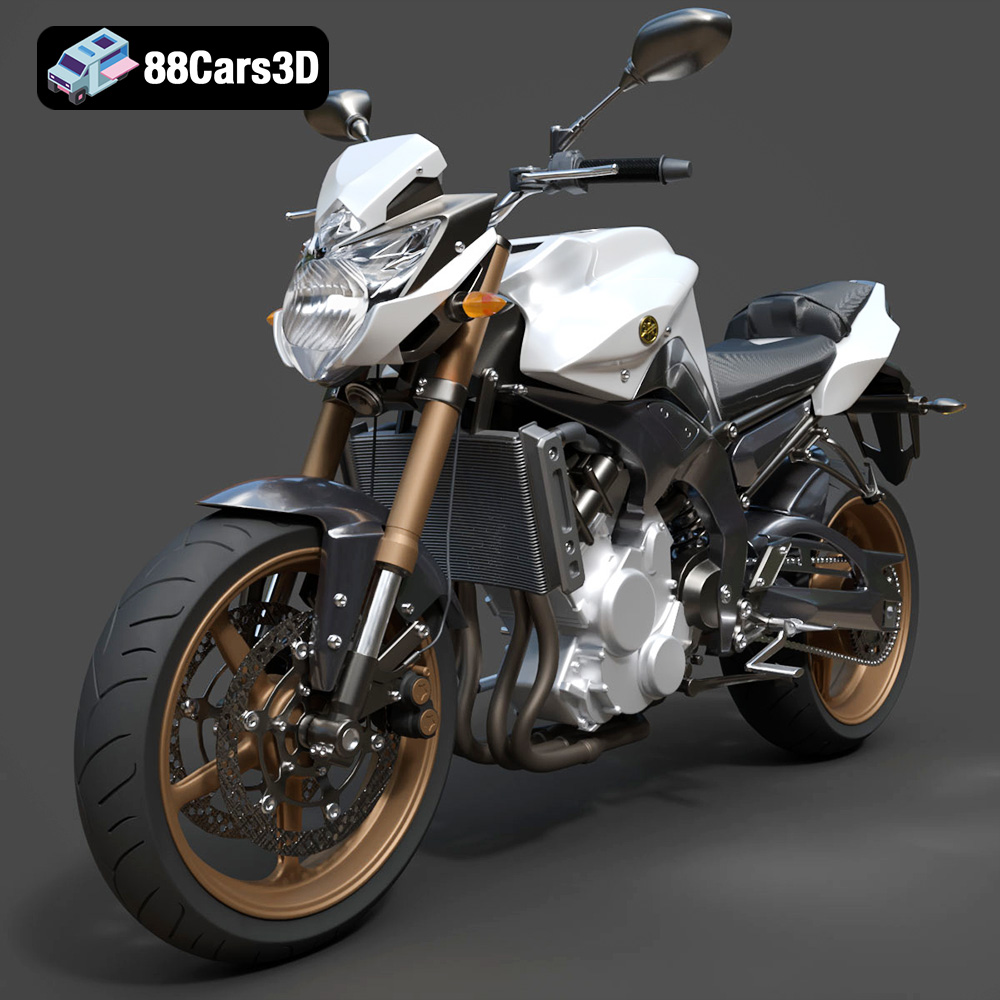
Download the Yamaha FZ8 2011 3D Model featuring clean geometry, realistic detailing, and a fully modeled interior. Includes .blend, .fbx, .obj, .glb, .stl, .ply, .unreal, and .max formats for rendering, simulation, and game development.
Price: $19.99
Yamaha Stryker 2012 3D Model
Texture: Yes
Material: Yes
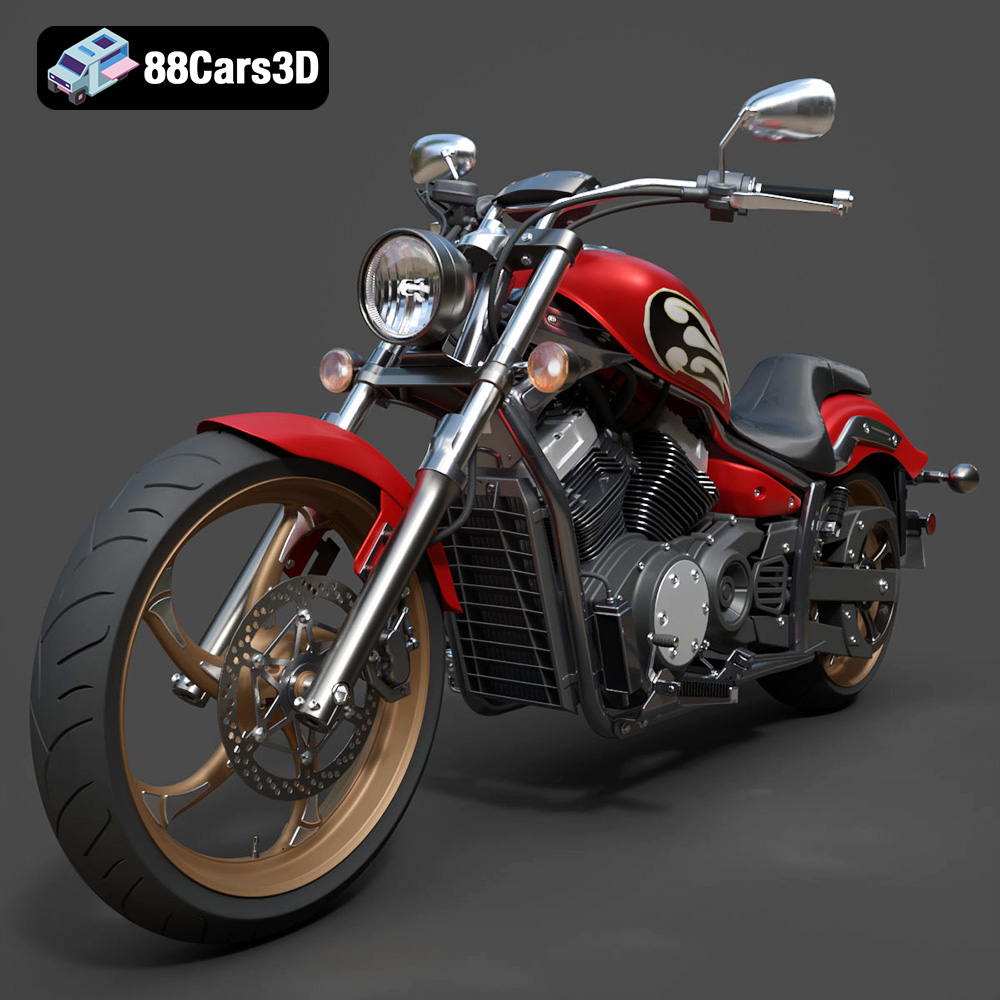
Download the Yamaha Stryker 2012 3D Model featuring clean geometry, realistic detailing, and a fully modeled interior. Includes .blend, .fbx, .obj, .glb, .stl, .ply, .unreal, and .max formats for rendering, simulation, and game development.
Price: $19.99
Yamaha Aerox R-002 2024 3D Model
Texture: Yes
Material: Yes
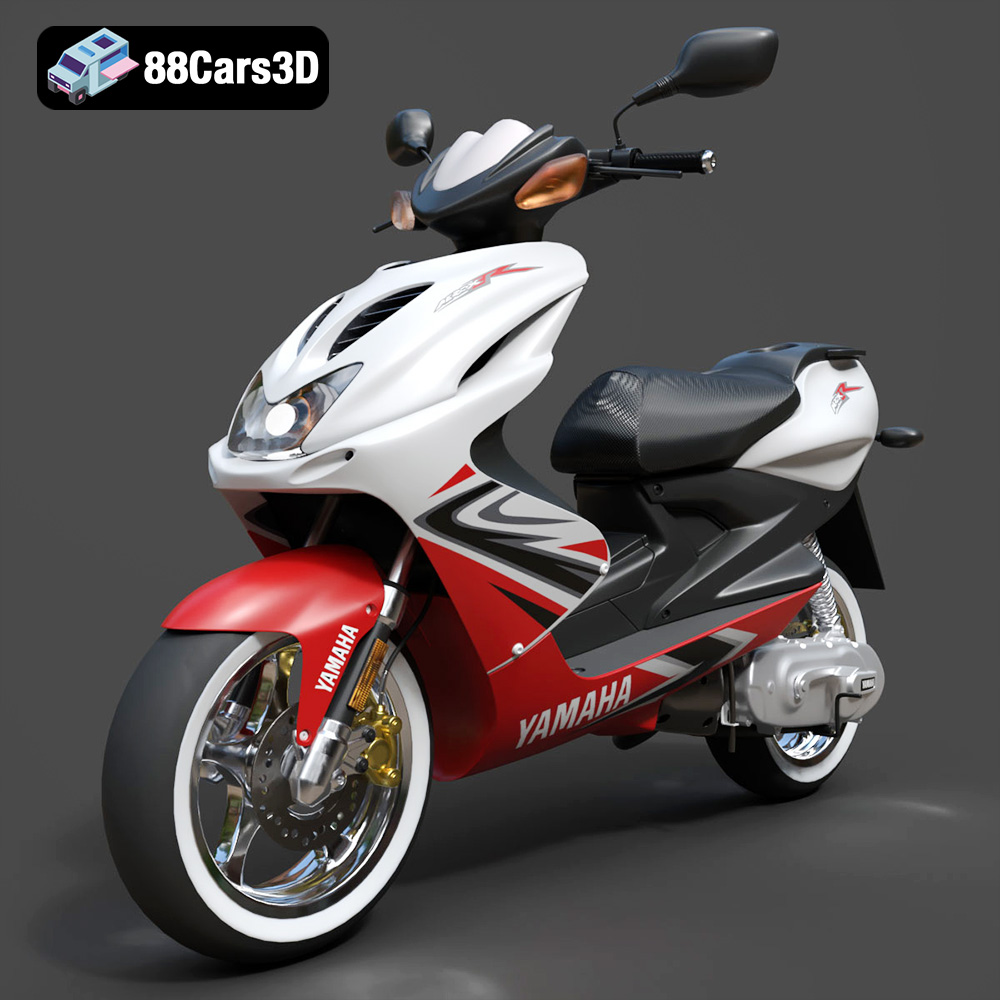
Download the Yamaha Aerox R-002 2024 3D Model featuring clean geometry, realistic detailing, and a fully modeled interior. Includes .blend, .fbx, .obj, .glb, .stl, .ply, .unreal, and .max formats for rendering, simulation, and game development.
Price: $19.99
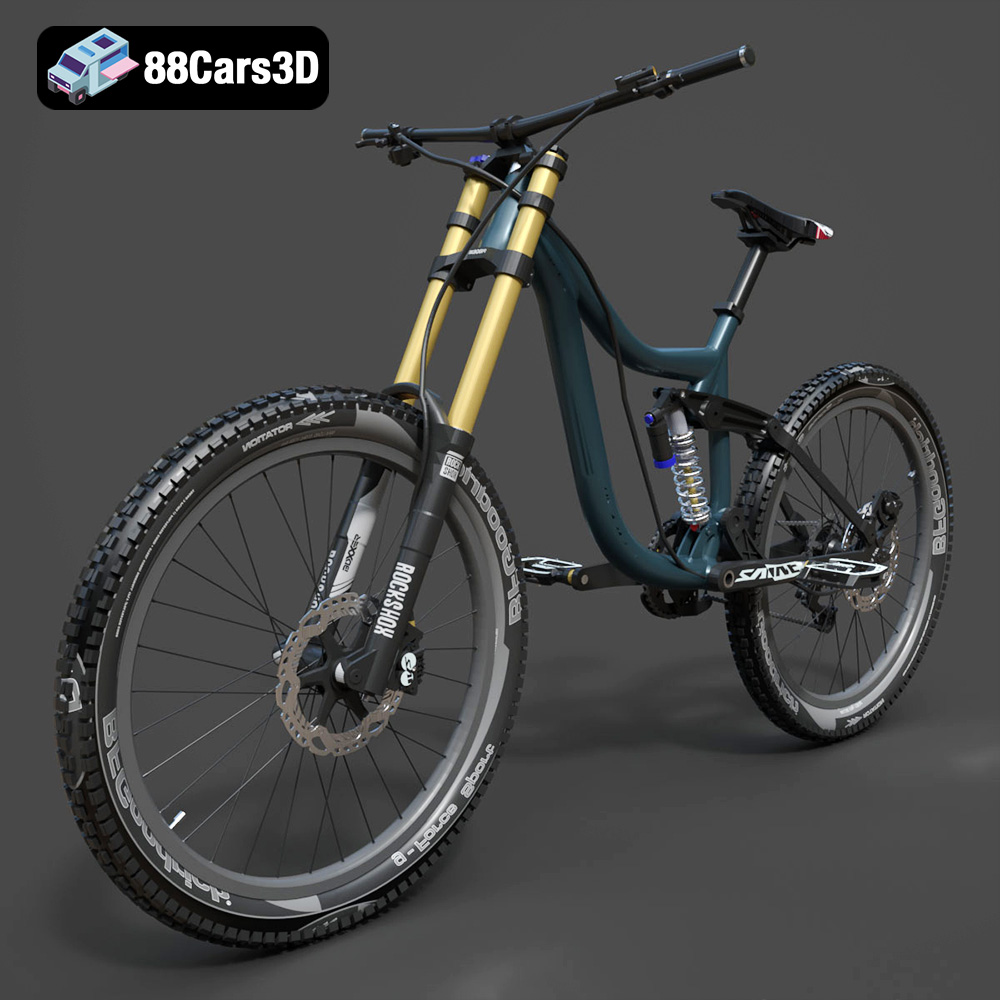
Mototsikly Downhill Bike-002 3D Model
Texture: Yes
Material: Yes
Download the Mototsikly Downhill Bike-002 3D Model featuring clean geometry, realistic detailing, and precise mechanical components. Includes .blend, .fbx, .obj, .glb, .stl, .ply, .unreal, and .max formats for rendering, simulation, and game development.
Price: $19.99
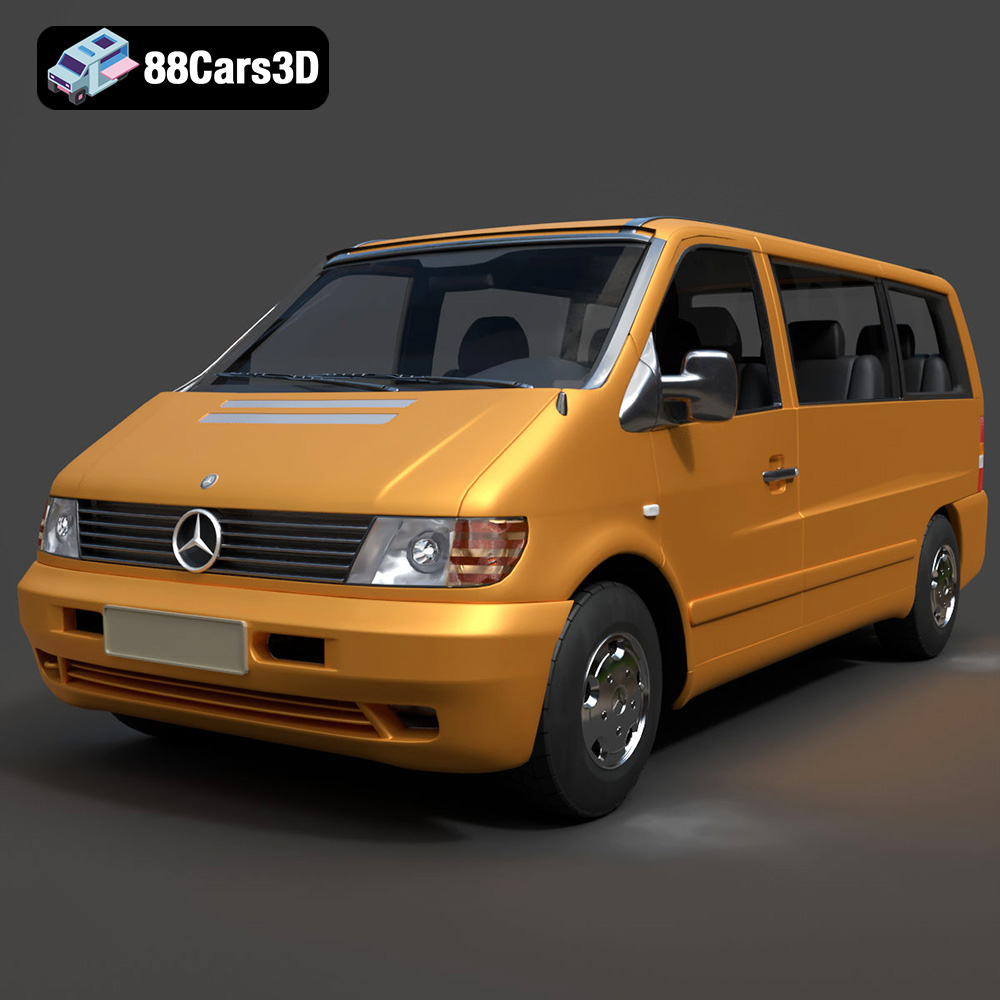
Mercedes-Benz Vito Passenger Van 3D Model
Texture: Yes
Material: Yes
Download the Mercedes-Benz Vito Passenger Van 3D Model featuring clean geometry, realistic detailing, and a fully modeled interior. Includes .blend, .fbx, .obj, .glb, .stl, .ply, .unreal, and .max formats for rendering, simulation, and game development.
Price: $19.99
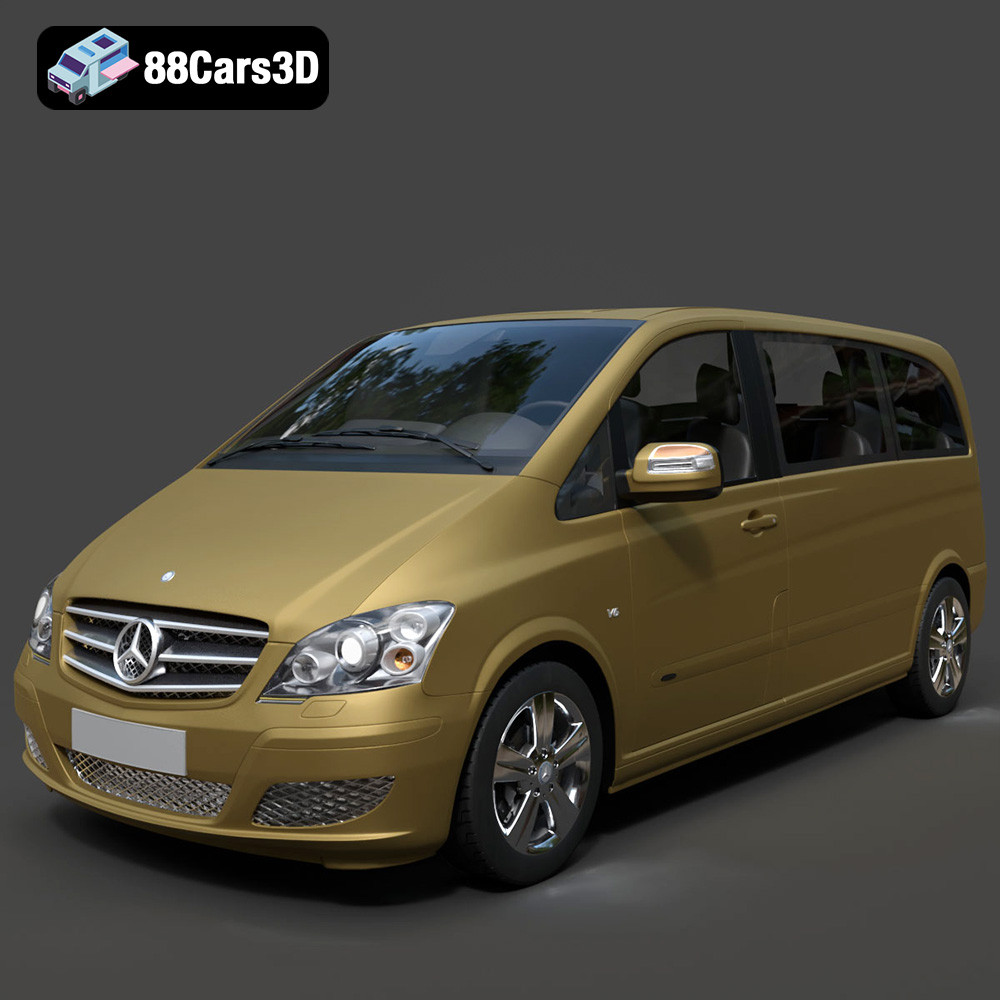
Mercedes-Benz Viano 2010 3D Model
Texture: Yes
Material: Yes
Download the Mercedes-Benz Viano 2010 3D Model featuring clean geometry, realistic detailing, and a fully modeled interior. Includes .blend, .fbx, .obj, .glb, .stl, .ply, .unreal, and .max formats for rendering, simulation, and game development.
Price: $19.99

Emt Avtobus 007 3D Model
Texture: Yes
Material: Yes
Download the Emt Avtobus 007 3D Model featuring clean geometry, realistic detailing, and a fully modeled interior. Includes .blend, .fbx, .obj, .glb, .stl, .ply, .unreal, and .max formats for rendering, simulation, and game development.
Price: $19.99
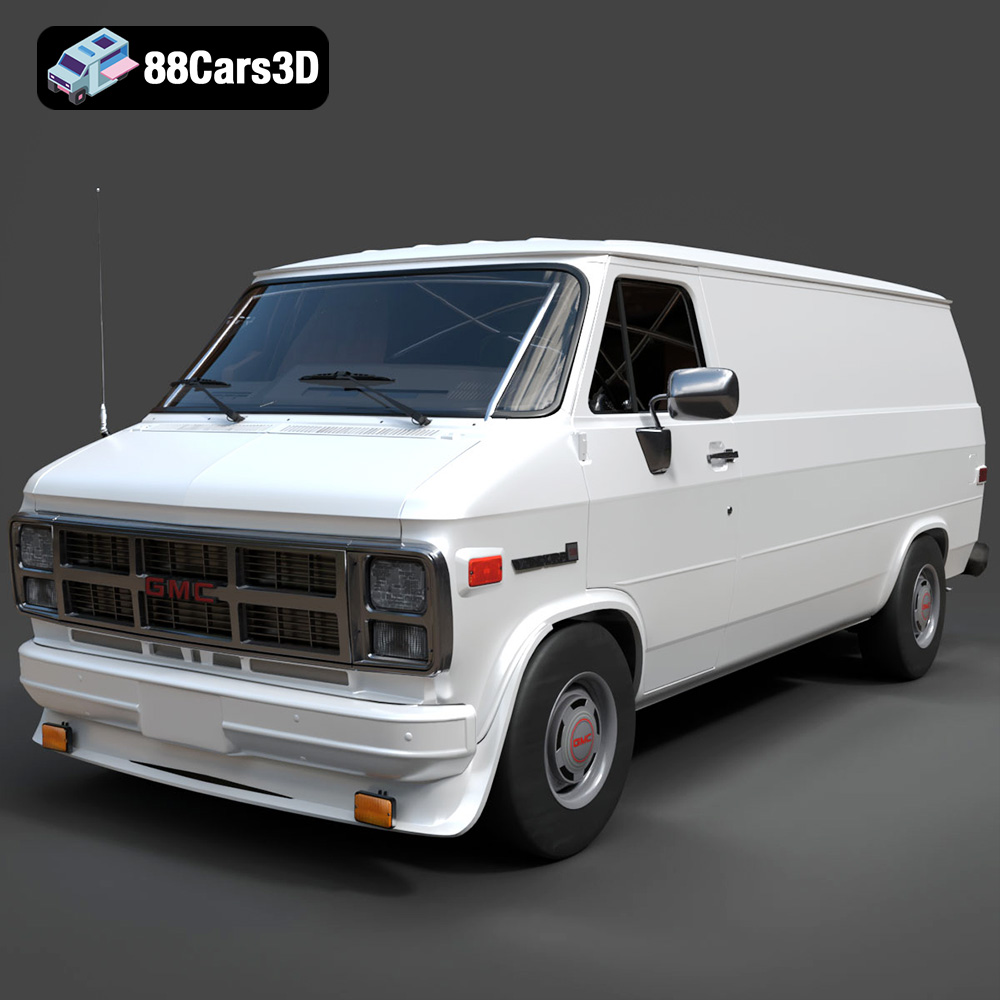
GMC Vandura G-1500 1983 3D Model
Texture: Yes
Material: Yes
Download the GMC Vandura G-1500 1983 3D Model featuring clean geometry, realistic detailing, and a fully modeled interior. Includes .blend, .fbx, .obj, .glb, .stl, .ply, .unreal, and .max formats for rendering, simulation, and game development.
Price: $19.99
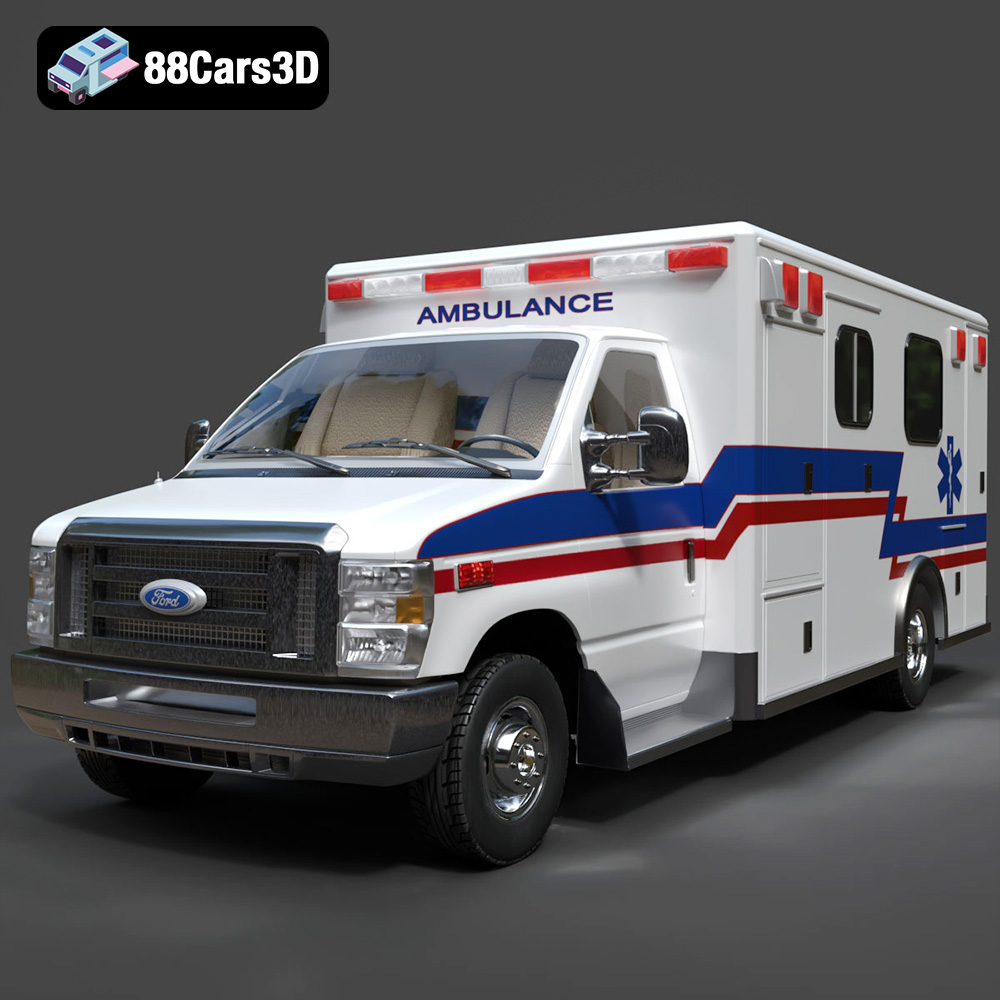
Ford E-450 Ambulance 3D Model
Texture: Yes
Material: Yes
Download the Ford E-450 Ambulance 3D Model featuring clean geometry, realistic detailing, and a fully modeled interior. Includes .blend, .fbx, .obj, .glb, .stl, .ply, .unreal, and .max formats for rendering, simulation, and game development.
Price: $19.99
