Get 50% OFF All Premium 3D & STL Models!

There’s a unique satisfaction in transforming a digital blueprint into a tangible object, a feeling perfectly encapsulated when you 3D print an automotive masterpiece. For car enthusiasts, hobbyists, and model makers alike, 3D printing car models offers an unparalleled opportunity to bring iconic vehicles to life right on your workbench. Imagine holding a perfectly scaled replica of a vehicle that embodies an era, a symbol of freedom and adventure. Today, we’re diving deep into the exciting world of 3D printing, focusing on how to bring the legendary Volkswagen Bus 3D Model from 88cars3d.com from your screen to your display shelf. This comprehensive guide will walk you through every step, ensuring your journey from STL file to finished model is as smooth as a leisurely drive down a coastal highway.
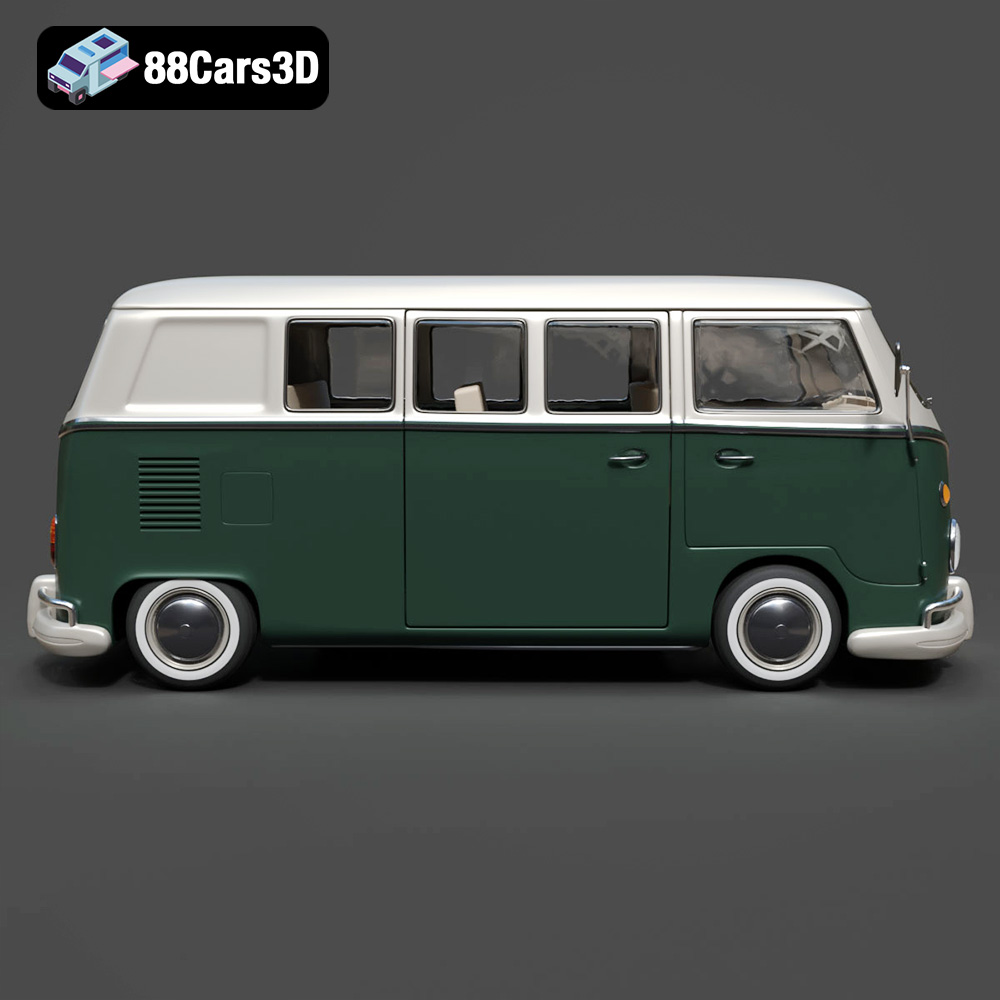
The Volkswagen Bus is more than just a vehicle; it’s a cultural icon. Its distinctive rounded body, panoramic windows, and association with a bygone era make it a favorite for collectors and enthusiasts. Printing this model isn’t just about recreating a shape; it’s about capturing a piece of history. Whether you’re aiming for a desk ornament, a detailed scale model for a diorama, or a collectible piece, the process demands attention to detail, the right print settings, and a touch of passion. Let’s get started on meticulously crafting your very own miniature Volkswagen Bus.
Before any filament melts or resin cures, the foundation of a successful 3D print lies in the digital file itself. The Volkswagen Bus 3D Model from 88cars3d.com is provided in several versatile formats, each with its own strengths, but it’s crucial to understand which ones are best suited for 3D printing and how to prepare them. The most common and widely accepted format for 3D printing is the STL file, but others like OBJ, 3MF, and PLY also play significant roles, especially when dealing with complex or multi-color models.
The .stl (STereoLithography) format is the undisputed standard in 3D printing. It represents a 3D model as a series of connected triangles (a mesh) that define the object’s surface geometry. For the Volkswagen Bus 3D Model, the .stl file will be your primary starting point. Its simplicity is its strength; it’s widely supported by all slicing software and virtually every 3D printer. However, STL files do not inherently carry information about color, texture, or materials, focusing solely on the shape. When working with an STL, it’s paramount that the mesh is “watertight” – meaning there are no holes or gaps in the surface definition. A non-watertight mesh can cause serious issues during slicing, leading to errors, missing layers, or incomplete prints. Reputable sources like 88cars3d.com ensure their STL files, such as the Volkswagen Bus, are manifold and ready for printing, but it’s always good practice to check them in your slicer or a dedicated mesh repair tool.
While STL is king for geometry, other formats offer enhanced capabilities:
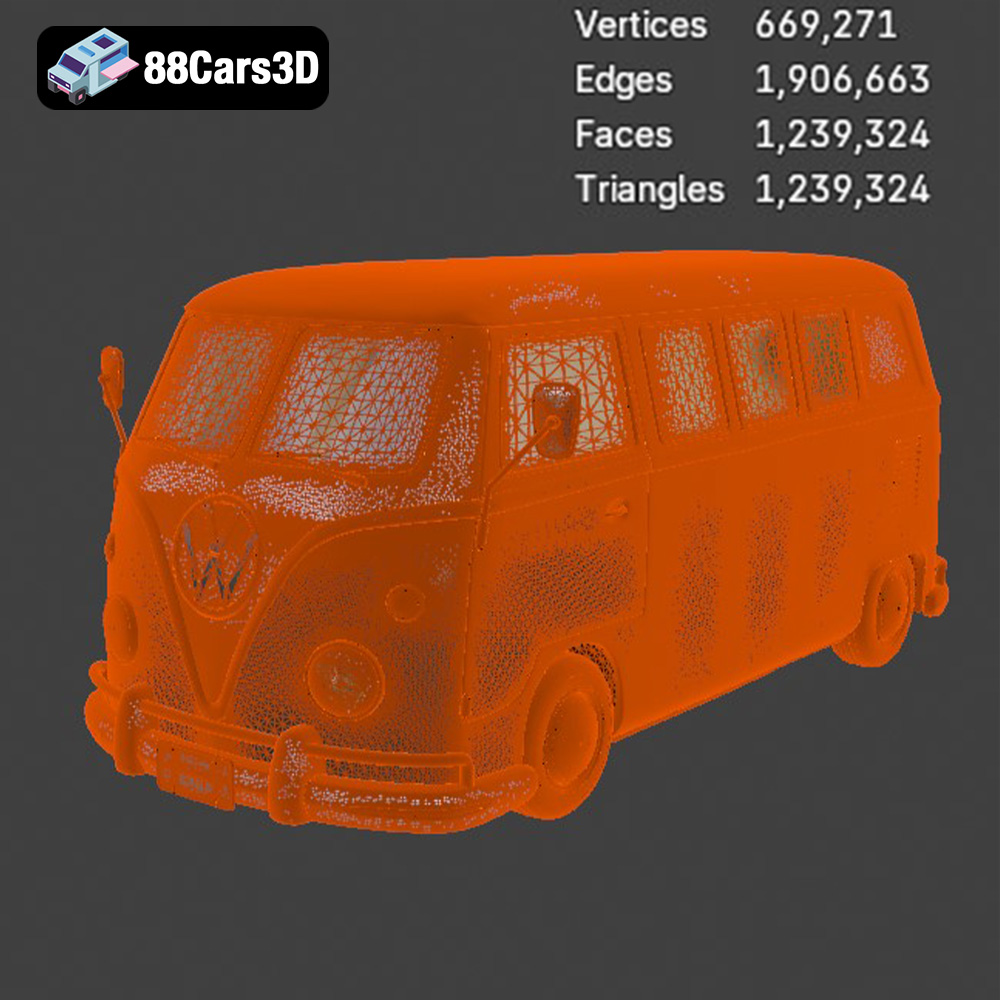
Regardless of the initial format, preparing your Volkswagen Bus 3D Model for printing involves several key steps. First, ensure the model is “manifold,” meaning it has no holes or inverted faces, which can confuse slicers. Tools within your chosen slicing software (like Cura or PrusaSlicer) or dedicated mesh editors (like Meshmixer) can identify and repair these issues. Next, consider the mesh quality; too many polygons can make the file unnecessarily large and slow down slicing, while too few can result in a blocky, low-detail print. The Volkswagen Bus 3D Model from 88cars3d.com is designed with optimized geometry, ensuring a balance between detail and file efficiency, which is a significant advantage for a smooth printing experience. If you’re converting between formats, always double-check the integrity of the mesh to avoid any nasty surprises during printing.
Once you have your Volkswagen Bus 3D Model’s STL file, the next crucial step is preparing it for your 3D printer. This is where slicing software comes into play. Slicers like Cura and PrusaSlicer act as the bridge between your digital model and your physical printer, converting the 3D model into layer-by-layer instructions (G-code) that your printer can understand. This process is often called “slicing” because it literally slices your model into hundreds or thousands of thin horizontal layers.
For your Volkswagen Bus 3D Model, either slicer will work exceptionally well. The key is to familiarize yourself with your chosen software’s interface and settings.
Begin by opening your slicer and importing the Volkswagen Bus STL file. You’ll see the model appear on a virtual build plate. The product description for the Volkswagen Bus 3D Model recommends scales of 1:32, 1:24, 1:18, or 1:12. This is a critical decision. A larger scale (e.g., 1:12) will allow for more intricate details, easier post-processing, and a more impressive display piece, but will require more filament and longer print times. Smaller scales (e.g., 1:32) are great for tabletop gaming or creating miniature dioramas but demand finer print settings and potentially a resin printer for optimal detail retention. Use the scaling tools in your slicer to adjust the model to your desired size, ensuring it fits within your printer’s build volume.
The recommended print orientation for the Volkswagen Bus is to print the body upright for best surface detail. This means the bottom of the chassis rests on the build plate. Printing upright minimizes visible layer lines on the vertical surfaces (like the sides and front V-panel), which are crucial for the aesthetic appeal of a car model. The wheels should be printed separately. This allows you to optimize their orientation for strength and detail (e.g., flat on the build plate for minimal supports) and simplifies post-processing and painting.
Before slicing, it’s good practice to run a mesh analysis within your slicer. Most slicers have built-in tools to detect and often automatically repair common mesh issues like non-manifold edges, inverted normals, or small holes. Ensuring a clean mesh prevents unexpected errors during printing, saving you time and material. The Volkswagen Bus 3D Model from 88cars3d.com is meticulously prepared, but a quick check never hurts.
The material you choose profoundly impacts the quality, durability, and final appearance of your 3D printed Volkswagen Bus. Each material has distinct properties, making certain choices more suitable depending on your printer type and desired outcome.
For FDM (Fused Deposition Modeling) printers, which are the most common hobbyist machines, three filaments stand out:
PLA is the go-to material for beginners and a fantastic choice for detailed models like the Volkswagen Bus. It’s easy to print, has minimal warping, and produces good surface finishes. PLA is derived from renewable resources, making it relatively eco-friendly. It holds fine details well, which is essential for capturing the iconic features of the Bus, such as the V-shaped front panel, circular headlights, and subtle body lines. However, PLA is somewhat brittle and can deform under high temperatures (like prolonged exposure to direct sunlight in a car). For a display piece that won’t endure extreme conditions, PLA is an excellent, cost-effective option.
PETG offers a good balance between the ease of printing of PLA and the strength and durability of ABS. It’s more flexible and impact-resistant than PLA, with better heat resistance. While slightly more challenging to print than PLA (it can be prone to stringing), PETG is a strong contender for the Volkswagen Bus if you need a model that’s a bit more robust or will be handled frequently. It also takes paint and adhesives well, which is a bonus for post-processing.
ABS is known for its mechanical strength, durability, and higher heat resistance. It’s the material used in LEGO bricks. However, ABS is more challenging to print, requiring a heated print bed and often an enclosed print chamber to prevent warping and cracking due to temperature fluctuations. It also emits fumes during printing, necessitating good ventilation. The major advantage of ABS for models like the Volkswagen Bus is its ability to be smoothed with acetone vapor, which can eliminate layer lines and create a glass-smooth finish, ideal for automotive surfaces. If you’re experienced with ABS printing and have the right setup, it can yield stunning results, especially if you’re aiming for a factory-smooth look.
For achieving the absolute highest level of detail, especially for smaller scales (like 1:32 or even smaller) or for incredibly intricate parts of the Volkswagen Bus 3D Model, SLA (Stereolithography) or DLP (Digital Light Processing) resin printers are unmatched. These printers use a liquid resin that is cured by UV light, allowing for much finer layer heights (often down to 0.025-0.05 mm) and sharper features than FDM. This precision is particularly beneficial for capturing the intricate grill details, the slim chrome bumpers, mirrors, and window frames of the Volkswagen Bus. The product description specifically recommends resin printing for smaller scales due to the finer details. While resin printing involves a different workflow (messier, requiring careful handling of chemicals, and post-curing), the results in terms of surface finish and crispness are often superior for highly detailed scale models.
Achieving a high-quality 3D print of the Volkswagen Bus 3D Model hinges on carefully configured print settings. These parameters dictate everything from the model’s strength and surface finish to the overall print time. The product description provides excellent recommendations, and we’ll expand on them to help you get the best results.
The recommended layer height for the Volkswagen Bus is 0.12–0.20 mm. Layer height refers to the thickness of each individual layer your printer lays down. A smaller layer height (e.g., 0.12 mm) will produce a finer, smoother surface finish with less visible layer lines, enhancing the aesthetic appeal of the vehicle’s body. This is crucial for capturing the smooth, rounded contours of the Bus. However, smaller layer heights increase print time significantly. A larger layer height (e.g., 0.20 mm) will print faster but result in more prominent layer lines. For a balance of speed and quality, 0.15 mm is often a good starting point for FDM printing an automotive model. If using a resin printer for smaller scales, you can go even finer, down to 0.04-0.05 mm, for exquisite detail.
The suggested wall thickness is 1.5–2.5 mm. Wall thickness (or shell thickness) determines the number of perimeters or outer layers printed. Thicker walls contribute to the model’s structural integrity, making it more robust and less prone to breakage, especially for thin features like mirrors or bumpers. A good wall thickness also helps mask infill patterns and provides a solid base for sanding and post-processing. For scale models, aiming for at least 3-4 perimeters is often ideal, which typically falls within this recommended range depending on your nozzle size.
An infill percentage of 15–30% is recommended. Infill refers to the internal structure within your print. A higher infill percentage increases the model’s strength and weight but also uses more material and extends print time. For a decorative model like the Volkswagen Bus, a 15-20% infill is generally sufficient to provide adequate internal support without excessive material consumption. A honeycomb or grid infill pattern often provides good strength-to-weight ratio. For parts that might experience more stress (e.g., if you plan to play with the model or subject it to light handling), increasing infill to 25-30% could be beneficial.
While not explicitly stated in the product details, print speed is a critical setting. For detailed automotive 3D printing, a slower print speed is almost always preferred. Printing the outer walls (perimeters) at a reduced speed (e.g., 30-45 mm/s) significantly improves surface finish by allowing the plastic to cool and bond more effectively, reducing artifacts like ringing or ghosting. Infill can be printed faster (e.g., 50-80 mm/s) to save time, as its quality doesn’t directly affect the model’s exterior appearance.
The Volkswagen Bus 3D Model, with its iconic curves and distinct features, will definitely require support structures. The product description notes: “Supports: Required for mirrors, bumpers, and window overhangs.” This is crucial. Any part of your model that extends significantly outwards or upwards without direct material beneath it will need support to prevent it from printing in mid-air (which results in spaghetti-like failures). Slicers offer various support options:
Ensure supports are generated for all necessary overhangs, particularly beneath the rear bumper, side mirrors, and any subtle curves or interior details that might be suspended. Configure support density and interface settings to ensure they are strong enough to support the model but also easy to remove. A support Z-distance of one or two layer heights will create a small gap, making removal easier.
For models with a relatively small footprint or intricate base, good build plate adhesion is vital to prevent warping or detachment during printing. Options include:
For the Volkswagen Bus, a well-tuned brim is likely the best choice for FDM printing.
Support structures are the unsung heroes of 3D printing complex models like the Volkswagen Bus. They enable the creation of overhangs, bridges, and intricate details that would otherwise collapse under gravity during the printing process. However, poorly placed or designed supports can damage your model during removal. The key is strategic placement and careful removal.
The Volkswagen Bus 3D Model has several features that demand thoughtful support:
Always preview your sliced model in the slicer to visualize where supports are generated. Manually add or block supports in specific areas if your slicer’s automatic generation isn’t optimal. Aim to place supports only where absolutely necessary, and ensure they connect to areas that are either less visible or easier to sand.
Removing supports is a delicate process that can make or break the final appearance of your Volkswagen Bus. Patience and the right tools are essential:
The goal is to remove supports with minimal damage, preserving the smooth lines and details of your Volkswagen Bus.
3D printing produces a functional shape, but post-processing transforms it into a showroom-ready model. This stage is where the true artistry comes alive, bringing your Volkswagen Bus 3D Model from a raw print to a stunning collectible. The product description mentions, “Post-processing: sanding, primer, two-tone paint finish, optional decals and chrome accents.” This is an excellent roadmap.
After support removal, your Volkswagen Bus will likely have some blemishes:
Begin by using hobby files or sandpaper (around 220-320 grit) to carefully remove all major bumps and irregularities. For layer lines, wet sanding can be very effective. Start with a medium grit (e.g., 400-600 grit) and work your way up to very fine grits (1000-2000 grit and beyond) for a smooth finish. This iterative sanding process is crucial for achieving a perfectly smooth surface for painting, especially on the iconic curves of the Volkswagen Bus. Rinse the model thoroughly after each sanding stage to remove dust.
Priming is a non-negotiable step. A good automotive-grade filler primer (spray can is easiest for models) serves several purposes:
Apply several thin coats of primer, sanding lightly with fine grit sandpaper (e.g., 600-800 grit) between coats until the surface is perfectly smooth. Once primed, it’s time for the exciting part: painting!
The Volkswagen Bus is famous for its two-tone paint finish. This will require masking. Decide on your desired color scheme (e.g., cream bottom and red top). Paint the base color first, allow it to cure fully, then carefully mask off the areas that will remain that color. Then, apply the second color. Use thin, even coats of model paint (acrylics or enamels work well, applied with an airbrush for the best finish, or by brush for smaller details). For the chrome accents (bumpers, hubcaps, logos), use a specialized chrome paint or a silver metallic paint, applied carefully with a fine brush.
The product description suggests printing wheels separately, which is a common and recommended practice for automotive models. This allows for easier painting of the wheels and tires. Once all parts are painted and cured, carefully assemble them using appropriate model adhesive (e.g., super glue for plastic, or a specialized model glue). Ensure the wheels rotate freely if that’s your intention, or glue them in a fixed position for a static display. For the Volkswagen Bus, you might also consider printing and adding clear windows made from thin acetate or specialized transparent resin if your printer can handle it, adding another layer of realism.
To really make your Volkswagen Bus shine:
With these steps, your 3D printed Volkswagen Bus 3D Model will be transformed from a digital file into a museum-quality miniature.
Even with carefully prepared files and optimized settings, 3D printing can present its challenges. Knowing how to troubleshoot common issues will save you frustration and filament when printing your Volkswagen Bus 3D Model.
This occurs when the edges of your print lift and curl away from the print bed. For the Volkswagen Bus, this might affect the bottom chassis. Warping is often caused by uneven cooling, especially with materials like ABS, but can also occur with PLA if adhesion is poor. To fix:
This appears as a noticeable offset in layers, where one section of your model shifts horizontally. This often indicates a mechanical issue:
Fine strands of plastic appearing between different parts of your model (like between the mirrors and the main body of the Bus) indicate stringing. This happens when the nozzle travels without printing, and molten plastic oozes out. To fix:
Small imperfections or bumps on the surface. These can be caused by the printer briefly pausing during printing, or by poor retraction:
If the exterior of your Volkswagen Bus isn’t smooth despite fine layer heights:
Especially for detailed overhangs and small features like the mirrors, adequate cooling is essential.
Troubleshooting is often an iterative process. Make small adjustments one at a time and test the results. With patience, you’ll master your printer and achieve exceptional results on models like the Volkswagen Bus.
The journey from a digital file to a fully realized 3D printed model of the Volkswagen Bus is a rewarding one, merging the precision of modern additive manufacturing with the timeless appeal of classic automotive design. We’ve explored every critical stage, from selecting the right file format and preparing it in your slicing software, to choosing the perfect material, dialing in your print settings, managing supports, and finally, bringing your model to life with meticulous post-processing. Each step, though requiring attention and patience, contributes to the ultimate satisfaction of holding a high-quality, tangible replica in your hands.
The Volkswagen Bus 3D Model from 88cars3d.com offers an exceptional canvas for both novice and experienced 3D printing enthusiasts. Its distinctive features and intricate details provide a fantastic opportunity to hone your skills in automotive 3D printing, whether you opt for the robust reliability of FDM or the unparalleled detail of resin printing. The ability to customize scale, material, and ultimately, the finish, means your Volkswagen Bus will be a truly unique creation, a testament to your dedication and craftsmanship.
As you embark on printing this iconic vehicle, remember that practice and experimentation are your best allies. Don’t be afraid to try different settings, explore new techniques, and enjoy the creative process. The world of 3D printing car models is vast and exciting, offering endless possibilities for prototyping, display, and personal enjoyment. So, fire up your printer, prepare your filament, and get ready to add a legendary piece of automotive history to your collection with the Volkswagen Bus 3D Model from 88cars3d.com. Happy printing!
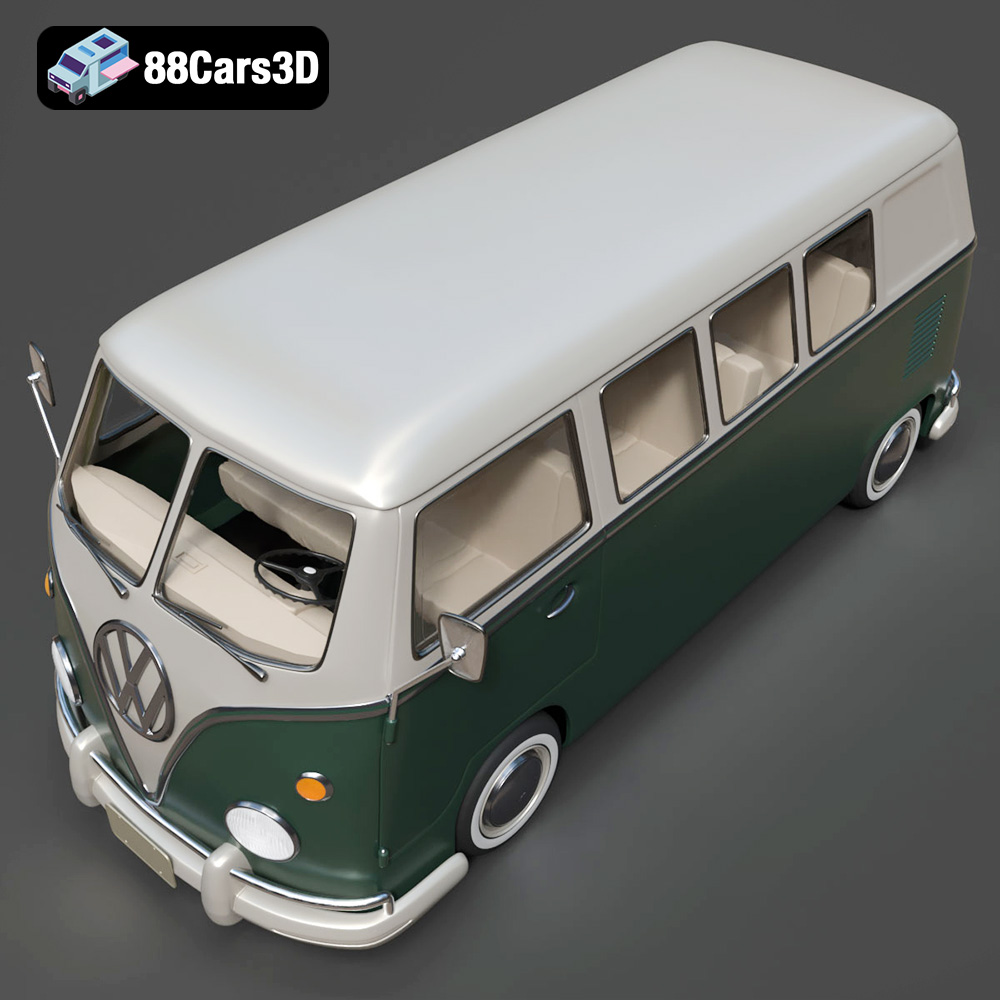
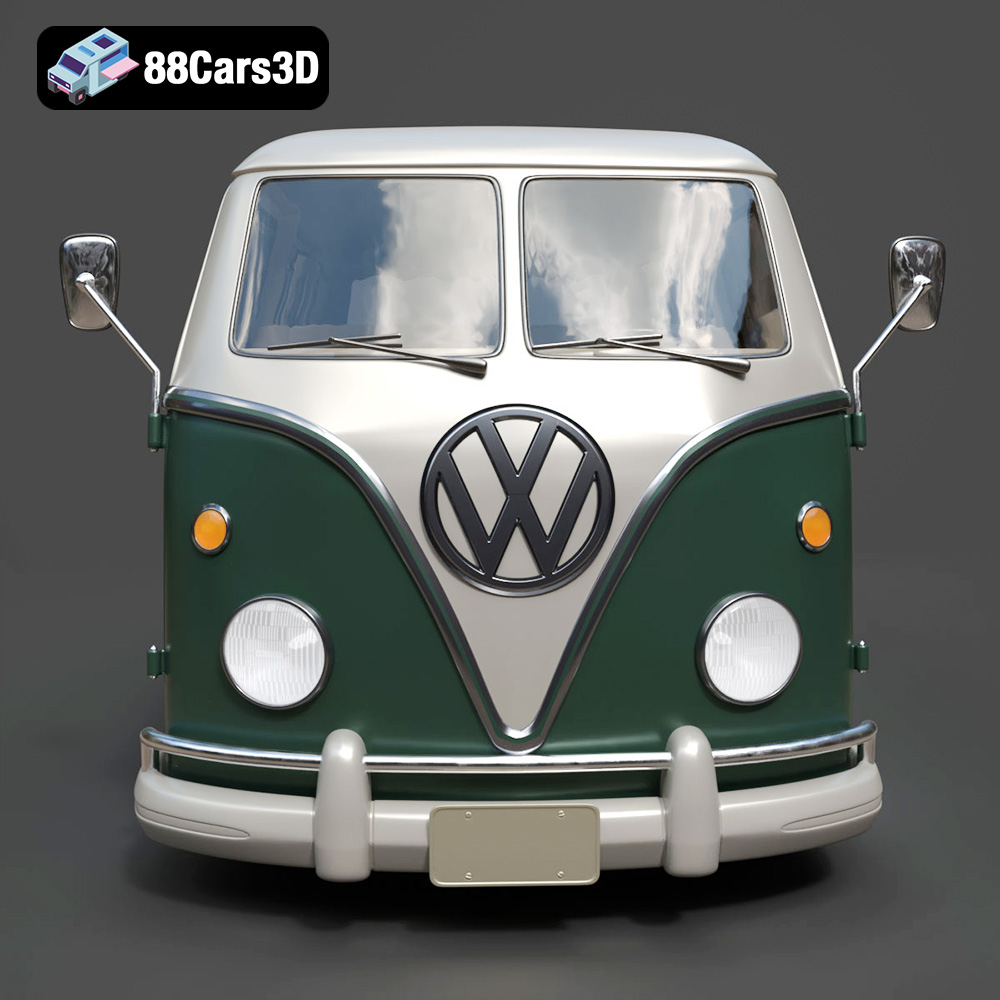
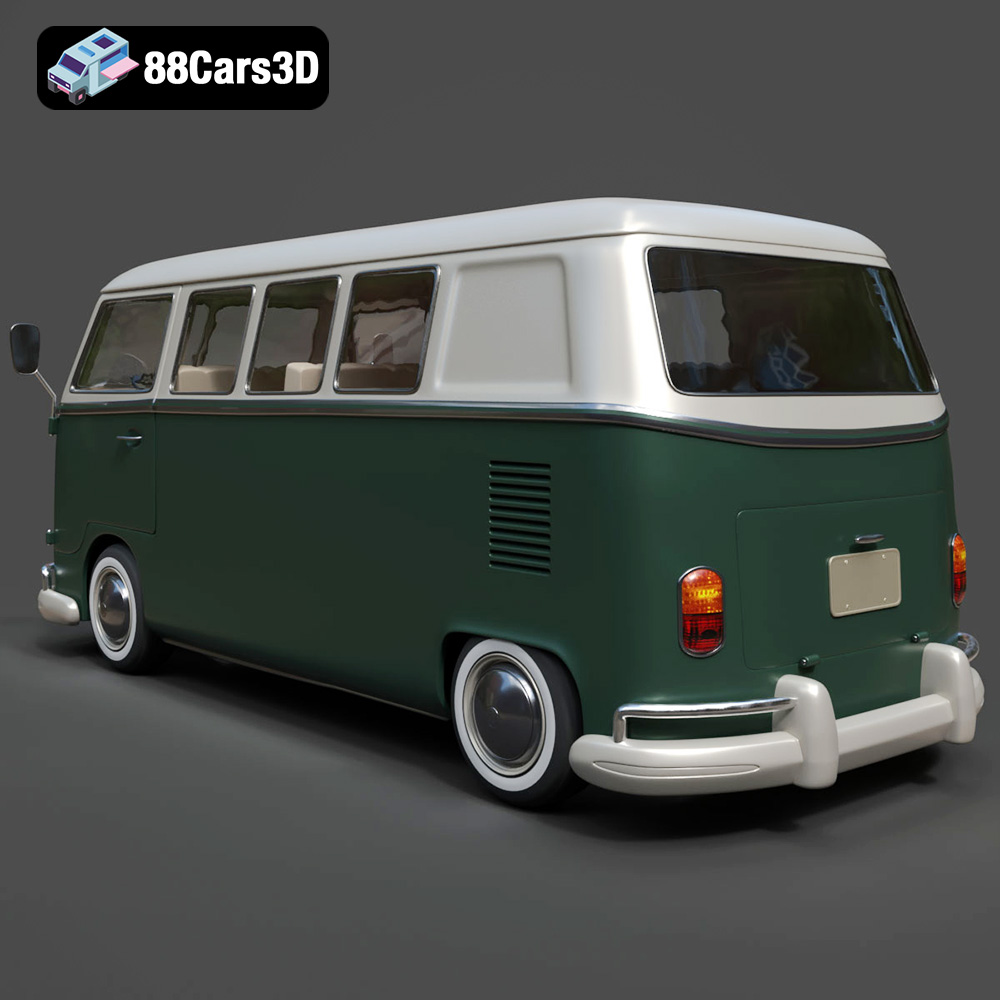
The Volkswagen Bus 3D Model is a high-detail digital recreation of the iconic rear-engine van that became a cultural symbol of freedom, travel, and 1960s counterculture. Known for its rounded body shape, split or panoramic windshield variants, and practical interior space, the Volkswagen Bus remains one of the most recognizable classic vehicles in automotive history. This 3D model accurately represents the signature front V-shaped panel, circular headlights, large windows, sliding side door configuration, rear engine layout, chrome bumpers, and vintage wheel styling. Designed with clean topology and real-world scale accuracy, it is ideal for 3D Printing, rendering, animation, simulation, game development, and AR/VR experiences. Convert to .stl format for collectible scale van models and display miniatures.
$9.99
.arvr
.automotive
.blend
.campervan
.car3dmodel
.classicvan
.fbx
.gameasset
.glb
.max
.obj
.ply
.rendering
.retrovehicle
.simulation
.stl
.unreal
.vintagecar
.volkswagen
.vwbus