Get 50% OFF All Premium 3D & STL Models!

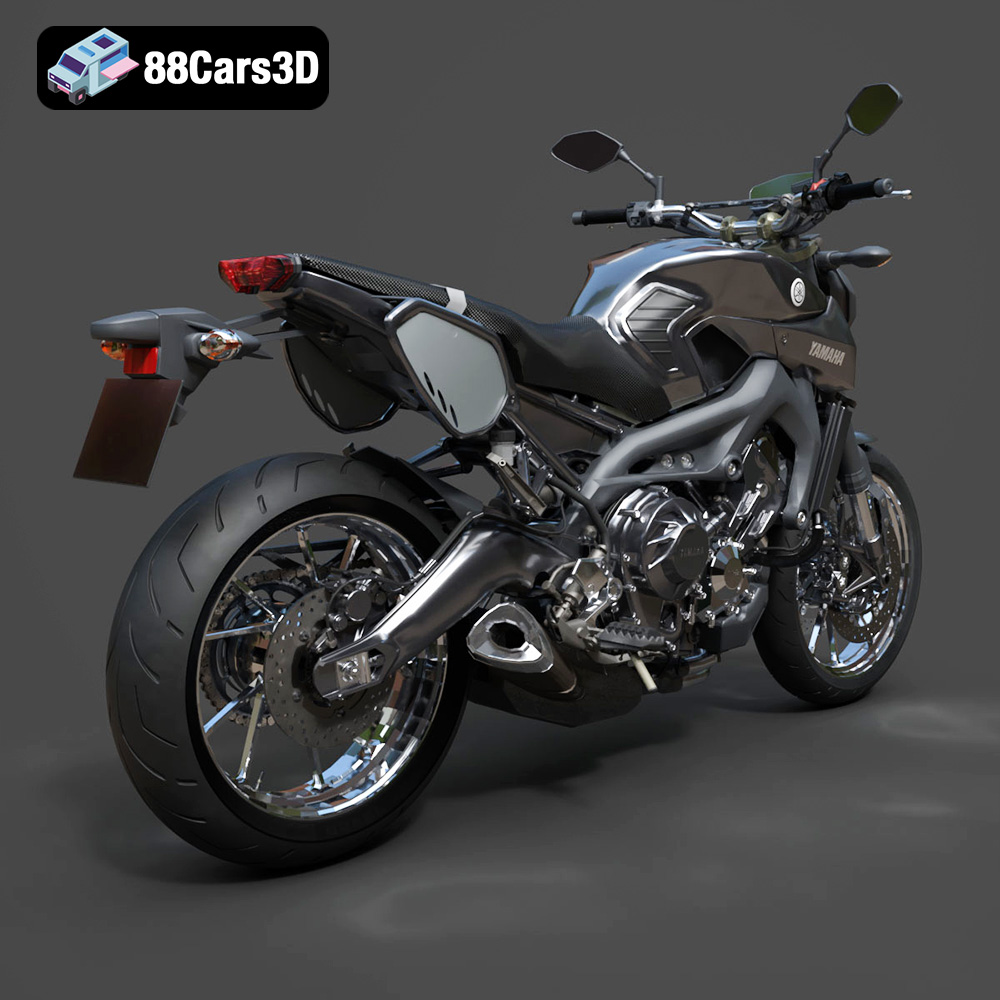
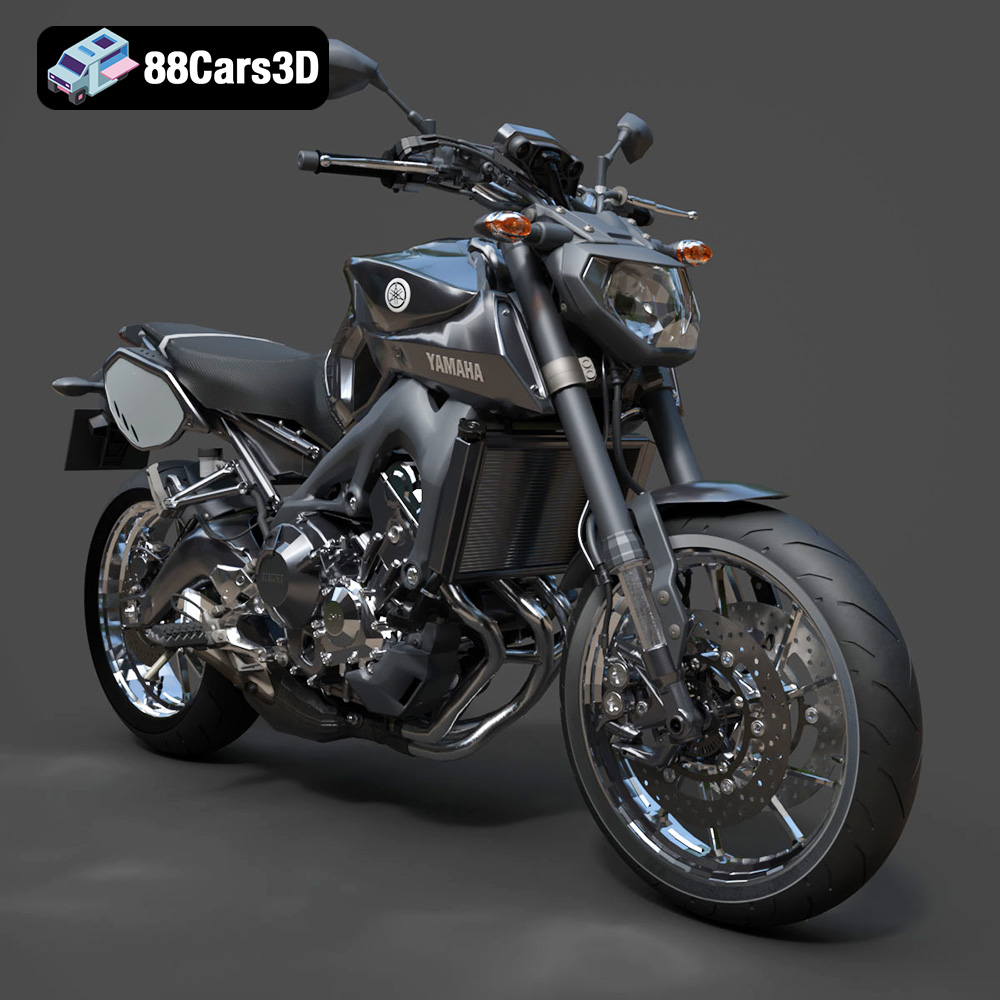
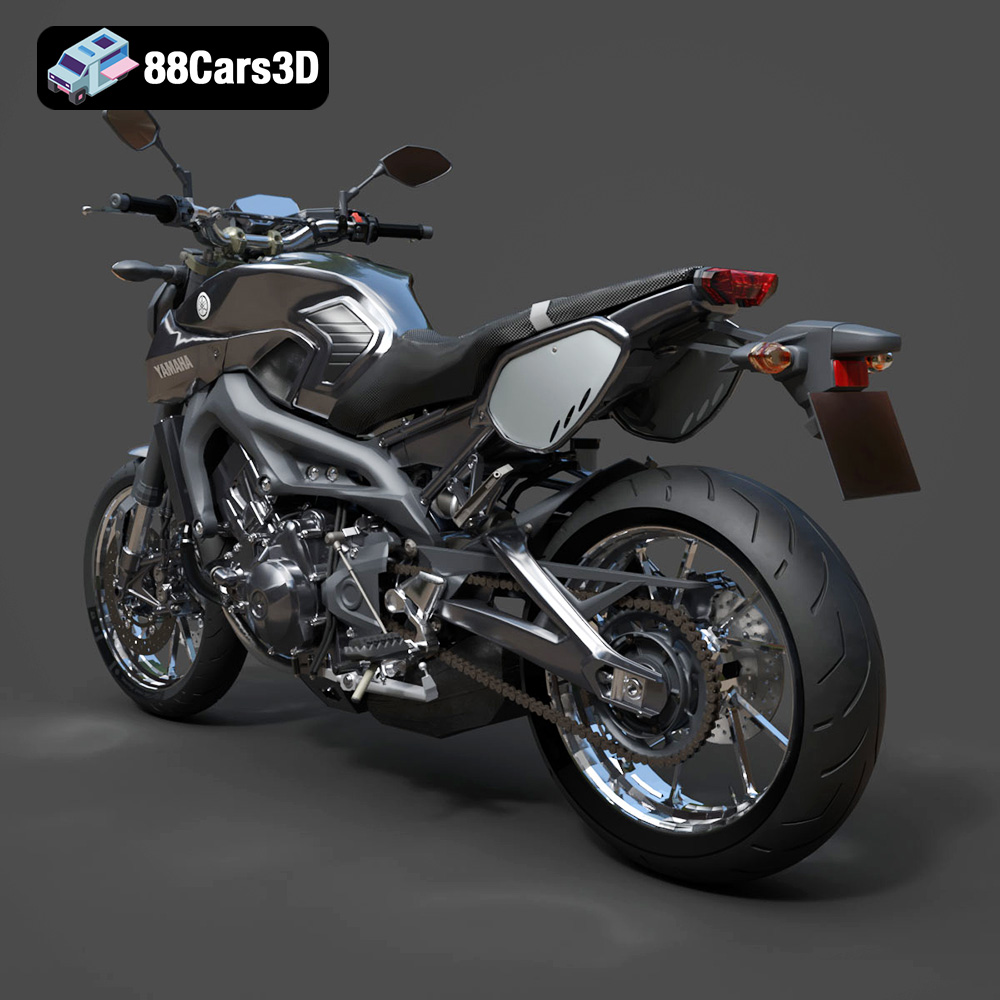
The Yamaha MT-09 Tracer 2015 is a fantastic motorcycle, blending sporty performance with touring comfort. Now, thanks to advancements in 3D printing, you can bring a miniature version of this iconic bike to life. This blog post will guide you through the process of 3D printing the Yamaha MT-09 Tracer 2015 3D model, covering everything from file preparation to post-processing, ensuring you achieve a stunning replica. Whether you’re a seasoned 3D printing enthusiast or a beginner, this guide will provide the technical insights needed to successfully 3D print this model from 88cars3d.com.
Before you even think about hitting the print button, proper preparation is key. This involves inspecting the model, choosing the right scale, and setting up your slicing software.
* Mesh Analysis: The STL file you download from 88cars3d.com is likely optimized, but it’s always wise to inspect it using software like MeshLab or Netfabb. Look for non-manifold edges, holes, or flipped normals. These issues can lead to printing errors.
* Repair Tools: Most slicing software includes basic repair tools. Use these to automatically fix minor issues. For more complex problems, dedicated mesh editing software offers greater control.
* Watertight Model: Ensure the model is completely watertight. This means there are no gaps in the mesh that would allow “air” to escape. A non-watertight model will cause slicing errors and a failed print.
* Scale and Detail: The recommended scales for the Yamaha MT-09 Tracer 2015 3D model are 1:18, 1:12, 1:10, and 1:8. Smaller scales (1:18) will require finer details, so resin printing is preferable. Larger scales (1:8) are easier to print with FDM printers but will consume more material.
* Printer Build Volume: Ensure the chosen scale fits within your printer’s build volume. Consider printing the model in separate parts if necessary.
* Slicing Software Scaling: Most slicing software allows you to scale the model uniformly. Simply input the desired scale factor to resize the entire model.
* Software Compatibility: Popular slicing software like Cura, PrusaSlicer, Simplify3D, and Chitubox are all compatible with the STL files available from 88cars3d.com.
* Print Orientation: Proper orientation is crucial for successful printing. For the MT-09 Tracer, print the frame angled to preserve detail on the fairing and fuel tank. Print the wheels separately for easier support removal. Experiment with different orientations to minimize support material and improve surface finish.
* Optimizing for Strength: Consider the forces acting on the model during printing. Orient the parts to minimize stress on weak areas, such as the handlebars or windscreen supports.
Choosing the right file format is a crucial step in the 3D printing process. While many formats exist, some are better suited for additive manufacturing than others. Understanding the nuances of each format will significantly improve your printing success.
The STL (Stereolithography) file format is the de facto standard for 3D printing. It represents the surface geometry of a 3D object as a collection of triangles. This simplicity makes it universally compatible with slicing software and 3D printers. However, the STL format only stores information about the mesh, lacking color, texture, or material properties.
* Slicing Software Compatibility: Virtually all slicing software supports STL files. Simply import the STL, adjust your print settings, and generate the G-code.
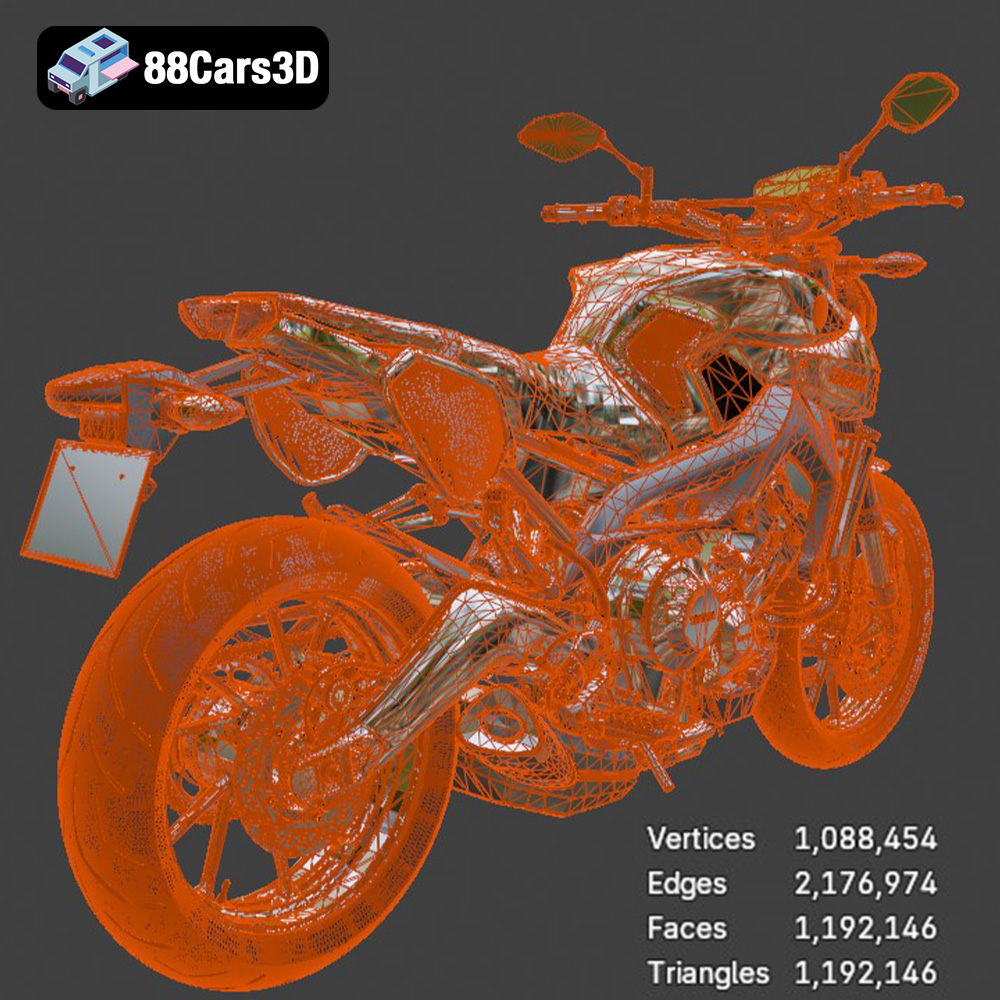
* Mesh Quality: The resolution of the STL file directly impacts the quality of the final print. A higher resolution (more triangles) results in a smoother surface but increases file size and processing time. Lower resolution STLs can exhibit faceting, especially on curved surfaces.
* Limitations: STL files don’t support color or texture information. For multi-color prints, you’ll need to print separate parts and assemble them. The format also lacks information about internal structures or material properties, requiring you to define these parameters within the slicing software.
* Best Uses: STL is the preferred format for most 3D printing applications, especially for single-color prints where geometric accuracy is paramount. It is the ideal format to use with the Yamaha MT-09 Tracer 2015 3D model from 88cars3d.com to get the best print results.
The OBJ (Object) file format is another widely used format for 3D models. Unlike STL, OBJ supports color, texture, and material information. This makes it suitable for more complex models with detailed surface properties.
* Color and Texture: OBJ files can store vertex colors and texture coordinates, allowing for multi-colored or textured 3D prints. However, this requires a printer capable of handling multiple filaments or specialized materials.
* Complexity: OBJ files can be more complex than STL files, potentially leading to longer import and processing times in slicing software.
* Use Cases: While OBJ is great for visually rich models, it’s less common for purely functional parts where color and texture are irrelevant.
PLY (Polygon File Format) is designed for storing 3D data acquired from 3D scanners. It can represent models with high precision and supports vertex colors, normals, and texture coordinates.
* High-Detail Capture: PLY is excellent for capturing fine details, making it suitable for reproducing intricate geometries with high accuracy.
* Limited Support: Not all slicing software fully supports PLY files. You might need to convert PLY files to STL before printing.
BLEND files are native to Blender, a free and open-source 3D creation suite. They store the entire Blender scene, including the model, materials, lighting, and animations.
* Full Editability: BLEND files allow for extensive customization of the 3D model before exporting it for printing.
* Blender Required: You need Blender to open and edit BLEND files. This format is ideal if you want to modify the Yamaha MT-09 Tracer 2015 3D model before printing.
* Exporting for Print: To 3D print a BLEND file, you need to export it to a 3D printable format like STL.
FBX (Filmbox) is a proprietary file format developed by Autodesk. It’s commonly used for exchanging 3D data between different software applications, particularly in game development and animation. FBX supports a wide range of data, including geometry, textures, materials, animation rigs, and skeletal data.
* Rich Data Support: FBX can store complex scene information, including animations and materials.
* Interoperability: It is used to maintain scene data and relationships when moving files between different 3D applications.
* Use in Printing: While FBX isn’t a direct printing format, it can be used to import models into slicing software that supports material assignment for multi-material printing (if your printer has that capability).
GLB is a binary file format that represents 3D models in the glTF (GL Transmission Format) standard. GLTF is designed for efficient transmission and loading of 3D scenes, making it ideal for web-based applications and augmented reality (AR). GLB files contain all the necessary information (geometry, textures, and animations) within a single file, making them easy to share and deploy.
* AR/VR Applications: GLB is well-suited for previewing 3D models in AR environments before printing.
* Efficient Loading: Its binary format ensures fast loading times in web browsers and mobile devices.
* Limited Print Utility: GLB files are not directly used for 3D printing but can be helpful for visualizing the model before you commit to printing it.
MAX files are native to Autodesk 3ds Max, a professional 3D modeling, animation, rendering, and visualization software. A MAX file contains all the elements of a 3D scene created in 3ds Max, including geometry, materials, textures, lighting, cameras, animation, and rendering settings. It serves as the project file, encapsulating all the work done within the 3ds Max environment.
* Comprehensive Scene Data: MAX files store a wide array of information, making them ideal for complex and detailed 3D scenes.
* Advanced Editing: They allow users to make intricate modifications and refinements to the model using 3ds Max’s powerful toolset.
* Use in Printing: Like BLEND files, MAX files need to be exported to a 3D printable format like STL before being used for printing.
The material you choose significantly impacts the strength, appearance, and functionality of your 3D printed MT-09 Tracer.
* Pros: PLA is a biodegradable thermoplastic, easy to print, and offers good detail. It’s ideal for beginners due to its low printing temperature and minimal warping.
* Cons: PLA is not very heat-resistant and can become brittle over time. It’s not suitable for parts that will be exposed to high temperatures or stress.
* Settings: Bed temperature: 60°C, Nozzle temperature: 200-220°C, Print speed: 40-60 mm/s
* Pros: PETG is stronger and more heat-resistant than PLA. It offers good flexibility and impact resistance, making it suitable for functional parts.
* Cons: PETG can be more difficult to print than PLA, requiring higher temperatures and careful bed adhesion.
* Settings: Bed temperature: 70-80°C, Nozzle temperature: 230-250°C, Print speed: 40-50 mm/s
* Pros: Resin printing offers exceptional detail and smooth surfaces, perfect for small-scale models and intricate designs. It’s ideal for printing the Yamaha MT-09 Tracer at smaller scales.
* Cons: Resin prints can be brittle, and the process requires post-curing and careful handling of resin, which can be toxic.
* Settings: Exposure time: Varies based on resin type and printer, Layer height: 0.025-0.05 mm. Follow the resin manufacturer’s recommendations.
For larger scales (1:8, 1:10), PETG is a good choice due to its strength and durability. For smaller scales (1:12, 1:18), resin printing will capture the fine details more effectively.
The correct printer settings are essential for achieving a high-quality 3D printed model.
* FDM Printing: A layer height of 0.1-0.2 mm provides a good balance between print speed and detail. For finer details, reduce the layer height to 0.08 mm.
* Resin Printing: A layer height of 0.025-0.05 mm is recommended for resin printing to capture the intricate details of the MT-09 Tracer.
* Infill Density: An infill density of 15-25% is sufficient for most parts of the MT-09 Tracer. Increase the infill density to 30-40% for parts that require more strength, such as the frame.
* Infill Pattern: Gyroid or cubic infill patterns offer a good balance of strength and print time.
* Support Placement: Supports are required for overhanging features such as the mirrors, windscreen, exhaust, and rear swingarm.
* Support Settings: Use tree supports for FDM printing, as they are easier to remove and leave fewer marks. For resin printing, use light supports to minimize damage to the model during removal.
* Support Density: Adjust the support density to balance support strength with ease of removal.
* Print Speed: A print speed of 40-60 mm/s is suitable for most FDM printers. Reduce the speed for intricate details or overhangs.
* Temperature: Follow the material manufacturer’s recommended temperature settings. Adjust the temperature slightly to improve bed adhesion or reduce stringing.
Post-processing is where you transform a raw 3D print into a polished, professional-looking model.
* Careful Removal: Use pliers or cutters to carefully remove support structures. Take your time to avoid damaging the model.
* Sanding: Start with coarse sandpaper (220 grit) to remove support marks and layer lines. Gradually move to finer grits (400, 600, 800, 1000 grit) to achieve a smooth surface. Wet sanding can help reduce dust and improve the finish.
* Priming: Apply a thin layer of primer to the model to create a smooth surface for painting. Sand the primer with fine-grit sandpaper (1000 grit) after it dries.
* Painting: Use acrylic or enamel paints for the best results. Apply multiple thin layers of paint, allowing each layer to dry completely before applying the next.
* Clear Coat: Apply a clear coat to protect the paint and add a glossy or matte finish.
* Assembly: Use super glue or epoxy to assemble the different parts of the MT-09 Tracer. Ensure the parts are aligned correctly before the glue sets.
* Detailing: Add details such as racing decals, license plates, or custom paint schemes to personalize your model.
* Polishing: For resin prints, polishing compounds can further enhance the surface finish.
Even with careful preparation, you may encounter some common 3D printing issues. Here are some solutions:
* Problem: The corners of the model lift off the build plate.
* Solution: Ensure the bed is properly leveled. Use a brim or raft to improve bed adhesion. Increase the bed temperature slightly.
* Problem: Thin strands of plastic are left between parts of the model.
* Solution: Reduce the nozzle temperature. Increase retraction settings. Ensure the filament is dry.
* Problem: Layers are misaligned, resulting in a stepped appearance.
* Solution: Check the belt tension. Ensure the printer is stable and not vibrating excessively. Reduce the print speed.
* **Problem:** The model lacks the fine details visible in the original file.
* **Solution:** Reduce layer height. Use a smaller nozzle. Switch to a resin printer for finer details.
By following these tips and techniques, you can successfully 3D print the Yamaha MT-09 Tracer 2015 3D model and create a stunning replica. With a bit of patience and attention to detail, you’ll be rewarded with a beautiful miniature motorcycle that you can proudly display. Remember to visit 88cars3d.com for more high-quality 3D models optimized for printing and other applications.
The Yamaha MT-09 Tracer 2015 3D Model is a high-detail digital recreation of the versatile sport-touring motorcycle known for its aggressive styling, lightweight chassis, and dynamic three-cylinder performance. Designed for both urban riding and long-distance touring, the 2015 MT-09 Tracer combines sporty DNA with comfort-oriented ergonomics. Perfect for urban environments, mountain road scenes, touring simulations, cinematic projects, and motorcycle games. Includes .blend, .fbx, .obj, .glb, .stl, .ply, .unreal, and .max formats for rendering, simulation, AR/VR, game development, and 3D printing.
$9.99