Get 50% OFF All Premium 3D & STL Models!

The IZ-49 Classic Motorcycle is a fantastic subject for 3D printing, allowing you to create a tangible piece of history. This guide will walk you through the entire process, from initial model preparation to final post-processing, ensuring a successful and satisfying 3D printing experience. Whether you’re a seasoned hobbyist or new to additive manufacturing, this detailed breakdown will provide the knowledge and insights needed to bring this iconic motorcycle to life. The high-quality models available at 88cars3d.com make this project even more rewarding.
Before you hit the print button, careful preparation is key. This stage involves inspecting the model, choosing the right scale, and making necessary adjustments in your slicing software.
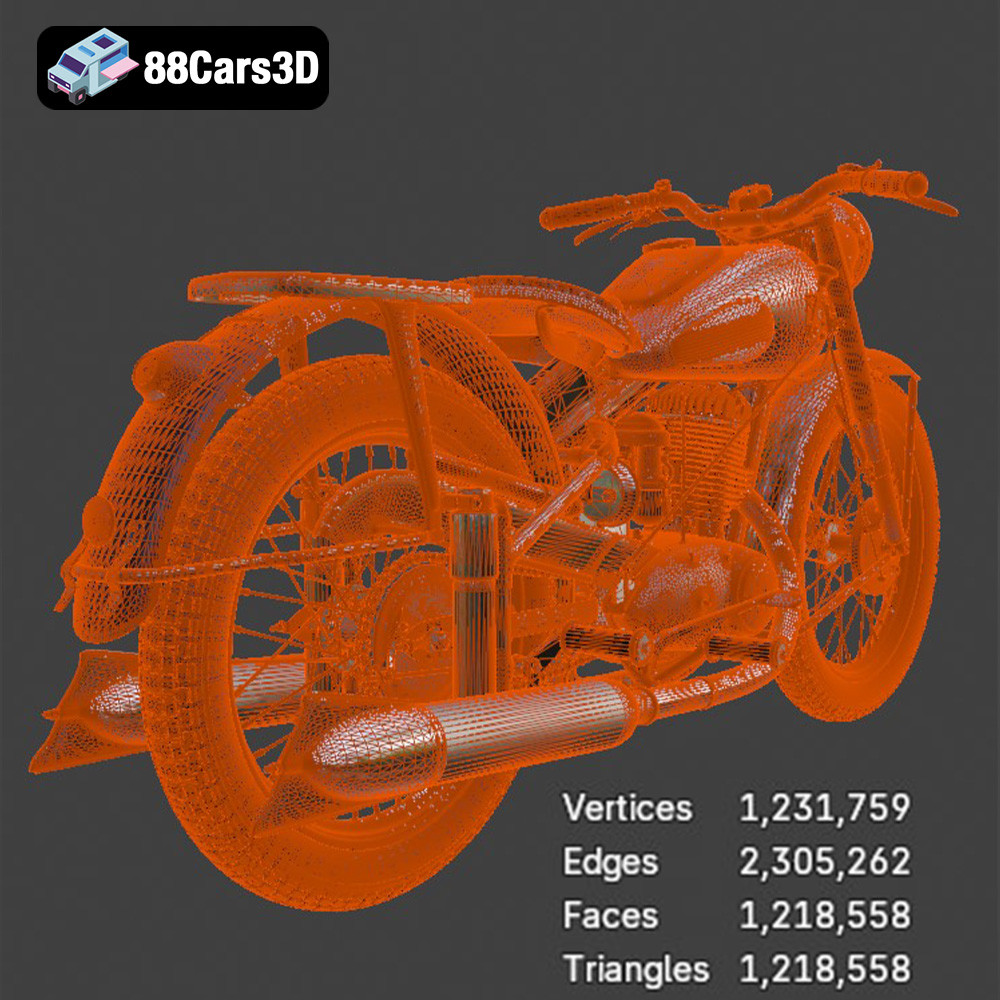
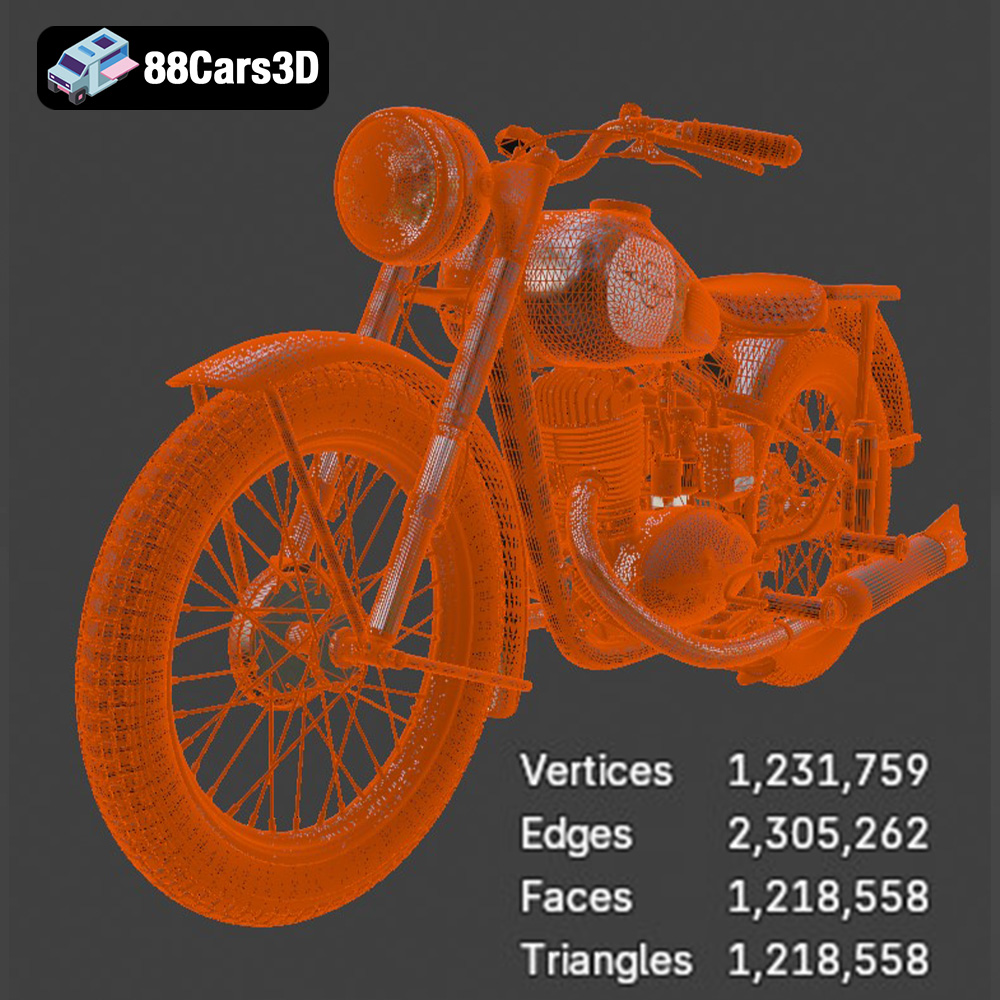
The STL files you download from 88cars3d.com are generally high-quality, but it’s always a good practice to inspect them for any potential issues. Use software like Meshmixer, Netfabb, or even the repair tools within your slicing software to check for non-manifold edges, holes, or flipped normals. These issues can lead to printing errors or weak points in the final model. A thorough inspection and repair process ensures a clean and printable model.
The product description suggests scales of 1:18, 1:12, 1:10, and 1:8. Choose a scale that suits your printer’s build volume and desired level of detail. Remember that smaller scales will be more challenging to print, particularly with FDM printers.
Orientation is critical for successful 3D printing. For the IZ-49, orient the frame at an angle (approximately 45 degrees) to minimize the need for supports on the main body and improve surface finish. Print the wheels separately, ideally with the flat side down for better bed adhesion. Experiment with different orientations within your slicing software to determine the most efficient support structure.
A quality slicing software is essential for translating the 3D model into instructions for your printer. Popular options include Cura, Simplify3D, PrusaSlicer, and Chitubox (for resin printing). Each slicer offers different features and algorithms for support generation, infill patterns, and print parameter optimization. Take the time to learn the ins and outs of your chosen slicer to fine-tune your print settings.
Choosing the right file format is crucial for seamless 3D printing. While numerous formats exist, some are more suitable for additive manufacturing than others. Understanding the nuances of each format will help you optimize your workflow and achieve the best possible results.
The .stl (stereolithography) file format is the workhorse of 3D printing. It represents the surface geometry of a 3D object as a collection of triangles. It’s a simple, widely supported format, making it compatible with virtually all 3D printers and slicing software. However, .stl files only store mesh data (the shape), lacking information about color, texture, or materials.
For 3D printing the IZ-49 Classic Motorcycle, the .stl format will be your primary choice. Slicing software readily imports .stl files, allowing you to set print parameters like layer height, infill density, and support structures. The quality of the .stl file directly impacts the quality of the final print. A poorly generated .stl with coarse triangulation can result in a faceted surface on the printed model. Always aim for a high-resolution .stl export from your 3D modeling software, balancing file size with surface smoothness. 88cars3d.com provides .stl files optimized for printing.
The .obj (object) file format is another common format that, unlike .stl, can store color and texture information alongside the geometry. This makes it suitable for 3D printing in full color (if your printer supports it) or for rendering applications where visual fidelity is paramount. While .obj is more versatile than .stl, it can result in larger file sizes.
The .ply (polygon) file format is known for its ability to store high-detail mesh data with precision. It is particularly well-suited for capturing complex shapes and intricate details, making it useful for applications like reverse engineering and 3D scanning. However, .ply files can be large and may not be supported by all slicing software.
.blend files are native to Blender, a popular open-source 3D modeling software. While not directly used for 3D printing, having the .blend file allows you to make modifications to the IZ-49 model before exporting it to a printable format like .stl. This is useful for customization or for preparing specific parts for printing.
.fbx is a proprietary file format developed by Autodesk. It’s primarily used for exchanging 3D data between different software applications, particularly in the gaming and animation industries. .fbx files can store geometry, materials, textures, and animation data. While not directly used for 3D printing in most cases, it’s helpful for importing the IZ-49 model into a slicing software with its material properties intact, which can inform your printing settings.
.glb is a binary file format that represents 3D models in a compact and efficient manner. It’s commonly used for displaying 3D models in augmented reality (AR) applications and web browsers. While not directly used for 3D printing, .glb files allow you to preview the IZ-49 model in AR before committing to a print, helping you visualize the final product.
.max files are project files created by 3ds Max, another popular 3D modeling software. Similar to .blend files, .max files allow you to edit and customize the IZ-49 model before exporting it to a printable format like .stl.
The choice of material and printer settings significantly impacts the final outcome. Consider the desired finish, strength, and level of detail when making these decisions.
* **PLA:** PLA is a popular choice for beginners due to its ease of use and biodegradability. It’s suitable for creating visually appealing models, but it’s not as strong or heat-resistant as other materials.
* **PETG:** PETG offers a good balance of strength, flexibility, and heat resistance. It’s a great option for parts that require some durability.
* **ABS:** ABS is known for its high strength and heat resistance, making it suitable for functional parts. However, it’s more challenging to print than PLA or PETG due to its tendency to warp.
* **Resin:** Resin printers excel at producing highly detailed models with smooth surfaces. If you’re aiming for maximum detail, especially at smaller scales, resin printing is the way to go.
For the IZ-49 motorcycle model, PETG is a good compromise between ease of printing and durability, especially for parts like the frame and wheels. If you desire high detail and a smooth finish, resin is the better option.
* **Layer Height:** The product description suggests layer heights of 0.08-0.16 mm. Lower layer heights result in smoother surfaces but increase print time.
* **Infill:** A 15-25% infill density is sufficient for most parts. Increase the infill for parts that require more strength, such as the frame.
* **Wall Thickness:** Aim for a wall thickness of 1.5-2.5 mm to ensure adequate strength and prevent warping.
* **Supports:** As indicated, supports are necessary for overhanging features like the exhaust pipe, handlebars, and fender edges. Use a support pattern that is easy to remove without damaging the model.
* **Print Speed:** Lower print speeds generally result in better print quality, especially for intricate details.
Estimating print time and material cost requires using your slicing software. After setting your desired print parameters, the slicer will provide an estimate of the print time and the amount of filament or resin required. These estimates are approximate and can vary depending on your printer, material, and print settings.
Support structures are crucial for printing overhanging features, but they can also be a source of frustration if not properly configured.
Careful placement of supports is essential to minimize their impact on the model’s surface finish. Focus support placement on areas that are not easily visible, such as the underside of the fenders or the inside of the frame. Avoid placing supports on delicate areas that are prone to damage during removal.
Experiment with different support types, such as tree supports or linear supports, to find the best balance between support strength and ease of removal. Adjust the support density to provide adequate support without consuming excessive material. A lower support density will make removal easier, but it may not provide enough support for some overhanging features.
Adding interface layers between the supports and the model can improve the surface finish and make support removal easier. Interface layers create a smoother transition between the supports and the model, reducing the likelihood of damage during removal.
Post-processing is the final stage in the 3D printing process. It involves removing supports, sanding, painting, and assembling the printed parts.
Carefully remove the supports using pliers, cutters, or a sharp knife. Take your time and avoid applying excessive force, which can damage the model. For resin prints, soaking the model in warm water can soften the supports and make them easier to remove.
Sanding is essential for achieving a smooth surface finish. Start with coarse sandpaper to remove any imperfections and gradually move to finer grits. Use wet sanding to minimize dust and improve the surface finish. Apply a primer to fill in any remaining imperfections and provide a smooth base for painting.
Choose paints that are compatible with your chosen material. Acrylic paints are a good option for PLA and PETG, while enamel paints are more durable and provide a glossy finish. Apply multiple thin coats of paint for the best results. Consider using weathering techniques to add realism to the model, such as dry brushing or washes.
Even with careful preparation, 3D printing can sometimes present challenges. Here are some common issues and their solutions.
Warping occurs when the printed part detaches from the build plate due to uneven cooling. To prevent warping, ensure that your build plate is properly leveled and heated. Use a brim or raft to improve bed adhesion.
Stringing occurs when molten filament oozes from the nozzle during travel moves. To prevent stringing, adjust your retraction settings and reduce your printing temperature.
Layer adhesion issues occur when the layers of the printed part do not properly bond together. To improve layer adhesion, increase your printing temperature and reduce your printing speed.
Infill problems can occur if the infill pattern is too sparse or if the infill material is not properly bonding to the walls of the printed part. To resolve infill problems, increase your infill density and adjust your printing temperature.
By carefully following these steps and troubleshooting any issues that arise, you can successfully 3D print the IZ-49 Classic Motorcycle and create a stunning replica of this iconic vehicle. Remember to check out 88cars3d.com for more high-quality 3D models.
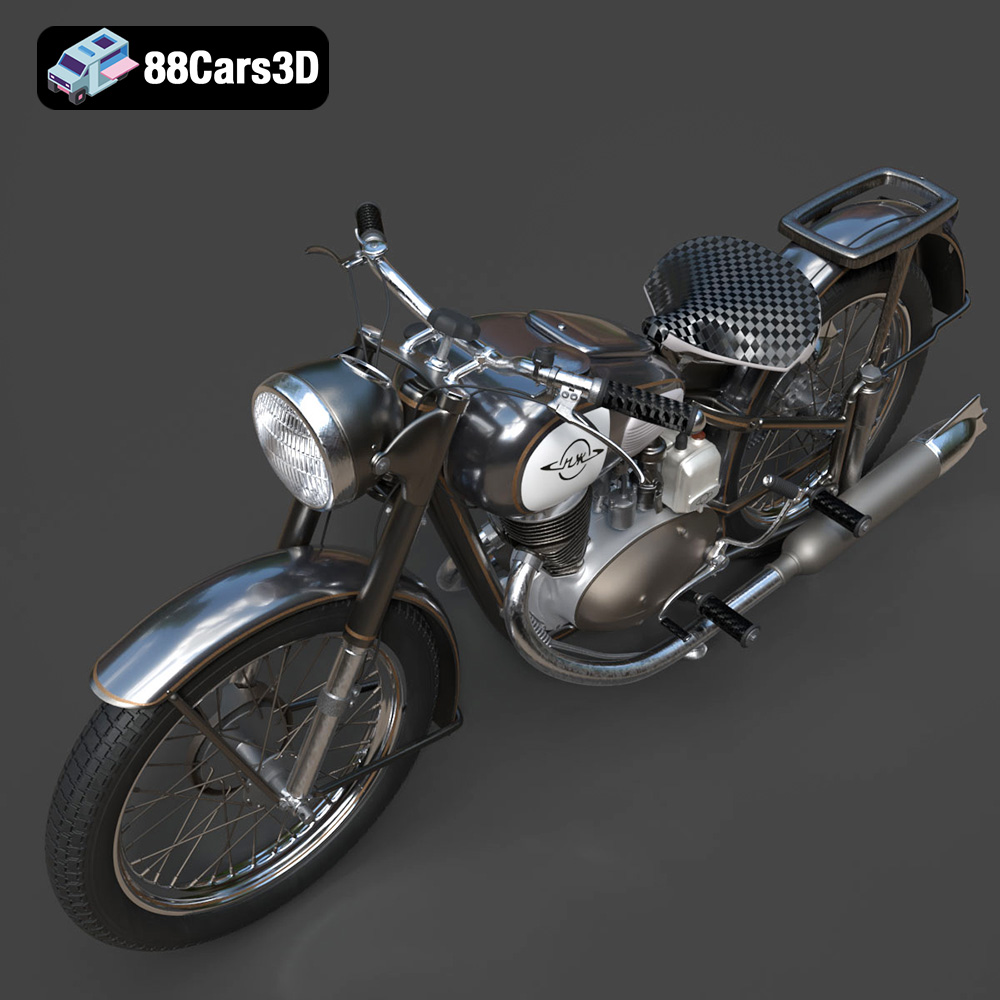
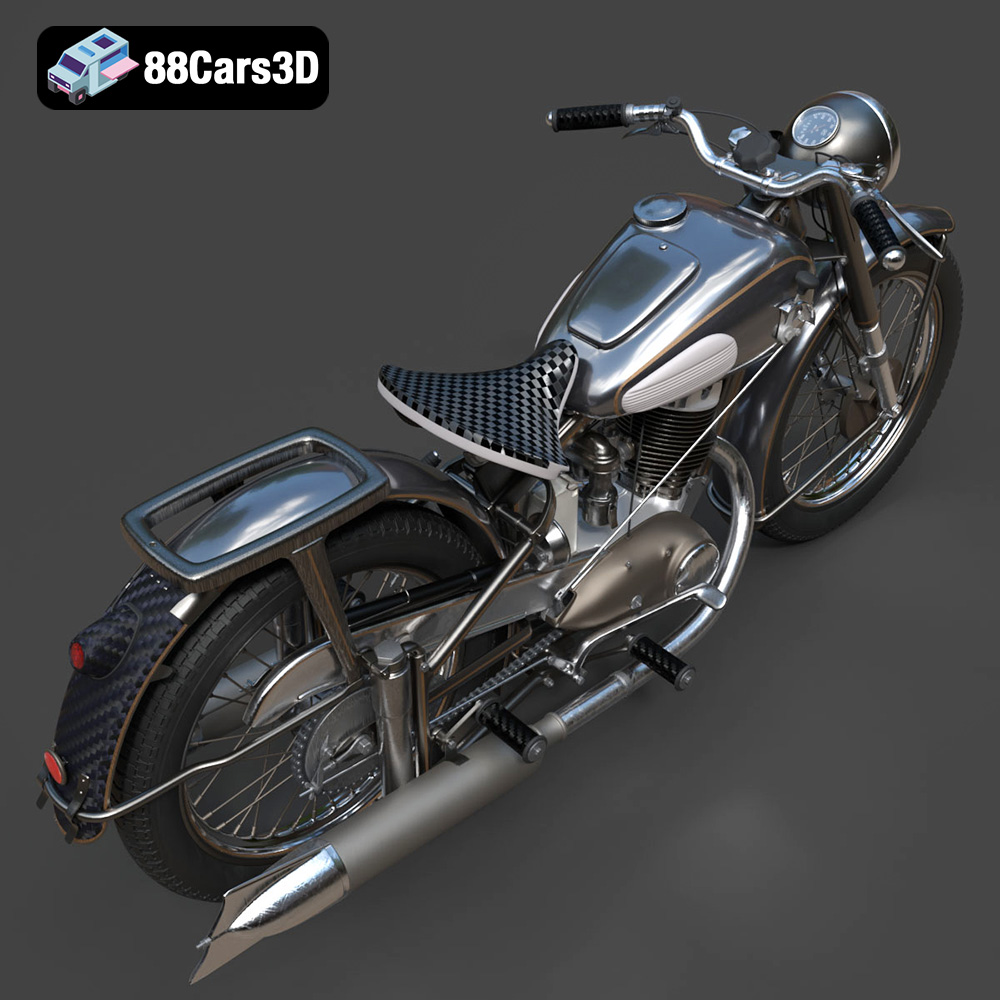
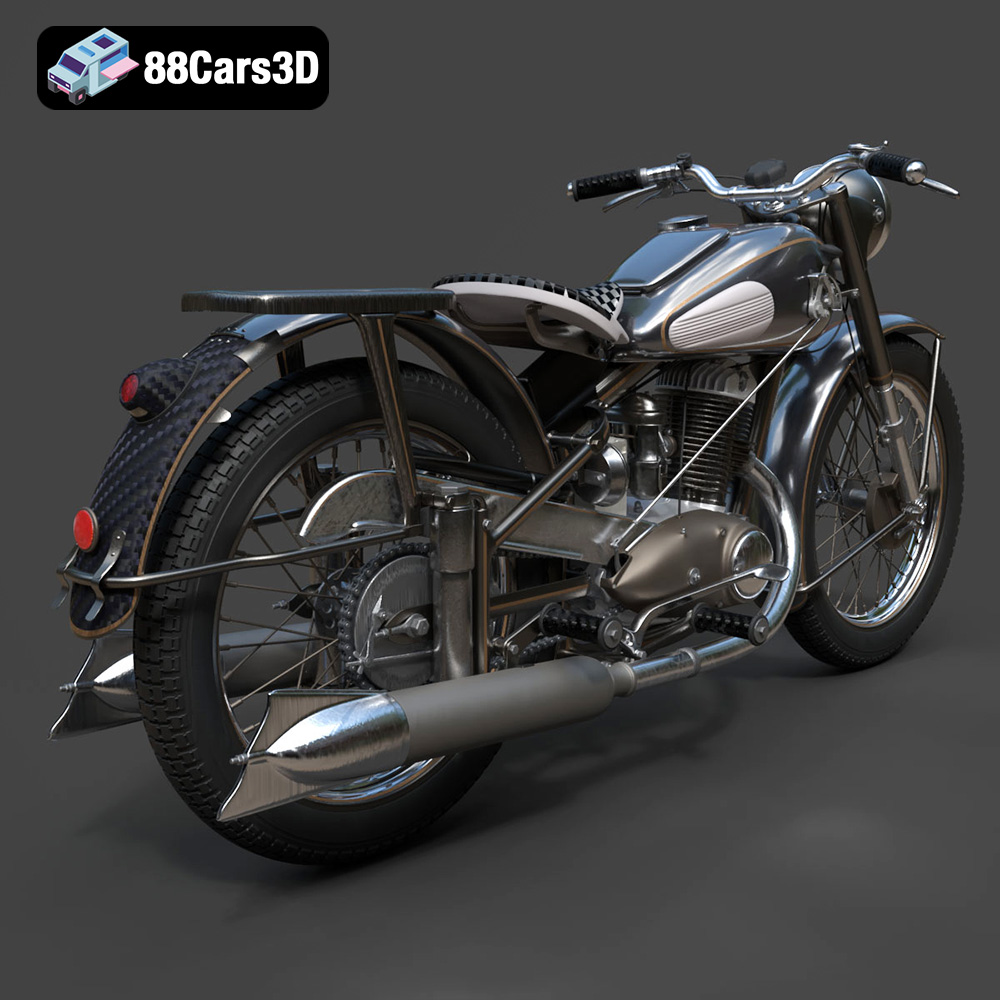
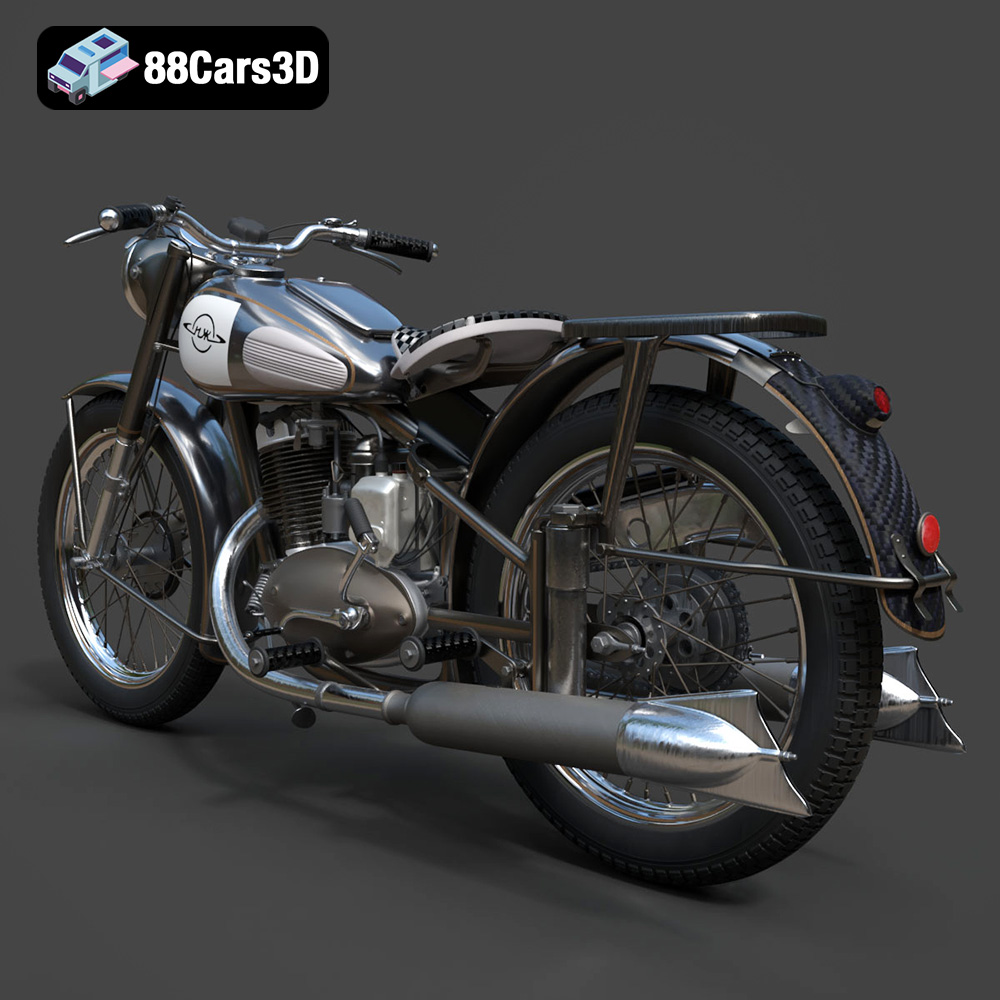
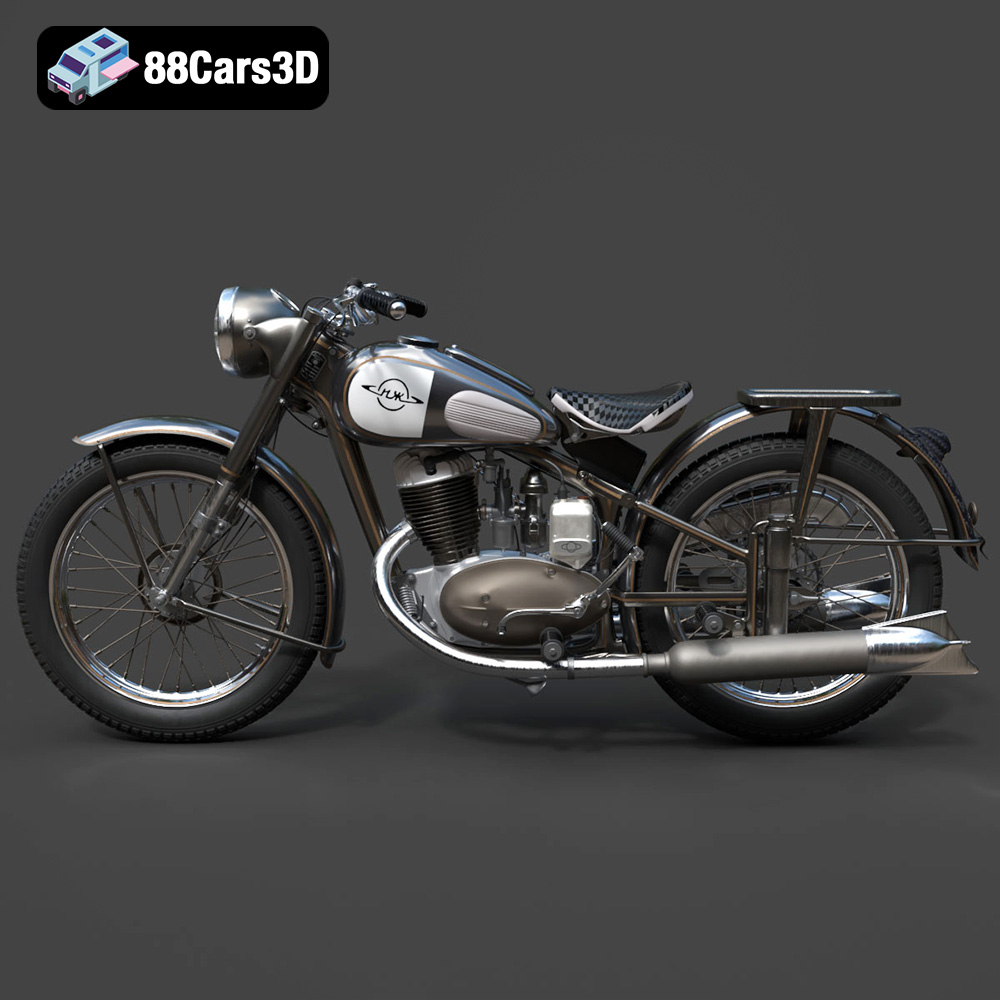
The IZ-49 Classic Motorcycle 3D Model is a high-detail digital recreation of the iconic mid-20th century Soviet motorcycle known for its simplicity, durability, and post-war engineering heritage. Originally produced between 1951 and 1958, the IZ-49 became a symbol of reliable transportation across Eastern Europe.
$9.99
.arvr
.blend
.classicmotorcycle
.fbx
.gameasset
.glb
.historicalvehicle
.iz49
.max
.motorcycle3dmodel
.obj
.ply
.rendering
.retrovehicle
.simulation
.sovietbike
.stl
.unreal
.vintagemotorcycle