Get 50% OFF All Premium 3D & STL Models!

“`html
Creating expansive open worlds in Unreal Engine presents significant challenges. From performance bottlenecks caused by excessive draw calls to the sheer complexity of managing vast landscapes, developers need robust solutions to bring their visions to life. Unreal Engine’s World Partition system offers a powerful and efficient way to manage large open worlds, enabling seamless streaming, optimized rendering, and collaborative workflows. For automotive visualization projects, where realistic environments are crucial, mastering World Partition is essential. In this article, we’ll explore the intricacies of World Partition, covering everything from project setup to advanced optimization techniques, with a focus on how it can be leveraged for stunning automotive showcases.
You’ll learn how to set up a World Partition project, import and optimize 3D assets, configure streaming settings, and utilize HLODs for enhanced performance. We’ll also delve into the role of Blueprint scripting for interactive elements and explore common challenges and solutions for building expansive and performant automotive worlds.
World Partition is Unreal Engine’s solution for dividing a large world into manageable cells. Instead of loading the entire level into memory, only the visible cells are loaded, significantly reducing memory footprint and improving performance. This is particularly beneficial for automotive visualization, where high-resolution models and detailed environments can quickly consume resources. The core idea is to stream in only the content the player (or camera) needs, as they need it. This is critical for smooth real-time performance when dealing with high-fidelity 3D car models navigating expansive virtual landscapes.
World Partition uses a grid-based system to divide the world. Each cell in the grid represents a specific area of the level. These cells can be hierarchically organized, allowing for finer control over streaming distance and detail. Choosing the right cell size is crucial. Smaller cells provide more granular control but can increase overhead. Larger cells reduce overhead but may load more content than necessary. When setting up your world partition grid, consider the size and complexity of your assets. For example, if you have large city blocks containing multiple highly detailed 3D buildings, each block might be best represented by a single cell to balance granularity and overhead. The official Unreal Engine documentation at https://dev.epicgames.com/community/unreal-engine/learning provides comprehensive details on grid configuration and best practices.
The Streaming Source determines which cells are loaded. Typically, this is the player camera or a specific actor. The Streaming Distance defines how far away from the Streaming Source cells are loaded. Careful consideration of these settings is essential for optimizing performance. A larger streaming distance provides a more seamless experience but increases the load on the system. A smaller streaming distance reduces the load but may result in noticeable pop-in. For automotive visualization, you might prioritize a larger streaming distance to maintain visual fidelity as the camera (representing the car) moves quickly through the environment. Experimentation and profiling are key to finding the optimal balance. When working with Unreal Engine features like level streaming, consider how they interact with world partition to further optimize loading and rendering.
Creating a new World Partition project involves a few key steps. First, you need to enable World Partition in your project settings. Then, you’ll create a new level and configure the World Partition settings. This includes defining the grid size, cell size, and streaming distances. The initial setup is crucial for laying a solid foundation for your open-world environment. Getting these settings right from the beginning can save significant time and effort later in the development process. Consider starting with a smaller test area to fine-tune your settings before scaling up to the full open world. The initial project setup often dictates the subsequent optimization efforts required.
To enable World Partition, go to Edit > Project Settings, then navigate to the Engine – World Partition section. Check the Enable World Partition box. You may need to restart the editor after enabling this setting. This step essentially unlocks the World Partition tools and functionalities within Unreal Engine. Without this enabled, you won’t be able to leverage the benefits of streaming and cell-based management. Make sure to save your project settings after making this change.
Create a new level (File > New Level) and choose the Empty Open World template. This template is specifically designed for World Partition. Once the level is created, you can configure the World Partition settings in the World Settings panel (Window > World Settings). Here, you can adjust the grid size, cell size, and streaming distances. Start with a reasonable cell size, such as 5000uu (Unreal Units), and adjust as needed based on the scale of your assets. Don’t be afraid to experiment with different grid and cell sizes to determine the best configuration for your specific project. It’s a good idea to document these settings for future reference and team collaboration. Pay close attention to the Default HLOD Layer setting, as this will significantly impact the automatic generation of Hierarchical LODs (HLODs) later on.
Importing high-quality 3D car models and environmental assets is a critical step in creating a compelling automotive visualization experience. Platforms like 88cars3d.com offer optimized models for Unreal Engine, but further optimization may be necessary to ensure smooth performance in a large open world. This includes reducing polygon counts, optimizing textures, and creating Level of Detail (LOD) models. Efficient asset management and optimization are paramount for maintaining a high level of visual fidelity without sacrificing performance. When importing assets, pay close attention to the origin point and ensure it’s properly aligned with the world coordinate system.
High polygon counts can significantly impact performance, especially in real-time rendering. Tools like Simplygon or the built-in LOD system in Unreal Engine can be used to reduce polygon counts. Create multiple LOD levels for each asset, with decreasing polygon counts for each level. Unreal Engine will automatically switch to lower-resolution LODs as the asset moves further away from the camera. For 3D car models, prioritize maintaining detail in areas that are frequently viewed, such as the exterior and interior. Reduce polygons in less visible areas, such as the undercarriage. Aim for a significant reduction in polygon count between each LOD level (e.g., 50-75%).
High-resolution textures can also impact performance. Optimize textures by reducing their resolution and using compression techniques. Use mipmaps to ensure textures look good at different distances. When setting up materials, use PBR (Physically Based Rendering) materials for realistic lighting and reflections. The Unreal Engine Material Editor allows you to create complex materials with a variety of parameters. For automotive visualization, accurate material representation is crucial for conveying realism. Experiment with different roughness and metallic values to achieve the desired look. Also, consider using texture streaming pools to manage texture memory efficiently. When sourcing automotive assets from marketplaces such as 88cars3d.com, verify that the textures are properly optimized and that PBR materials are correctly set up.
Realistic lighting is essential for creating immersive automotive visualization experiences. Unreal Engine offers several lighting options, including Lumen, the new global illumination and reflections system. Lumen provides dynamic global illumination and reflections, eliminating the need for baked lighting. However, traditional lighting methods, such as static and stationary lights, can also be used to achieve excellent results. The choice of lighting method depends on the specific requirements of the project, the desired level of realism, and the target hardware. Often, a combination of techniques is used to achieve the best balance between visual quality and performance.
Lumen offers a significant advantage for open-world environments by providing dynamic global illumination and reflections. This means that lighting can change in real-time, allowing for dynamic time-of-day effects and realistic reflections on car surfaces. To enable Lumen, go to Project Settings > Rendering and set the Default Global Illumination Method and Default Reflections Method to Lumen. Experiment with different Lumen settings to optimize performance and visual quality. Adjust the Final Gather Quality and Ray Lighting Mode to find the optimal balance. Keep in mind that Lumen can be computationally expensive, so it’s important to profile your scene and identify any performance bottlenecks.
While Lumen offers dynamic lighting, static and stationary lights can still be used to create specific lighting effects. Static lights are baked into lightmaps, providing excellent performance but lacking dynamic capabilities. Stationary lights are partially dynamic, allowing for changes in color and intensity but still relying on baked lighting for shadows. Use static lights for areas that don’t require dynamic lighting, such as distant mountains or background elements. Use stationary lights for objects that need to cast dynamic shadows, such as streetlights. When using baked lighting, pay attention to the lightmap resolution to avoid artifacts. Overlapping UVs can also cause issues with light baking, so ensure that your UVs are properly unwrapped.
Blueprint visual scripting allows you to add interactivity to your automotive visualization project without writing code. You can use Blueprints to create interactive car configurators, control vehicle movement, and trigger environmental events. Blueprint is a powerful tool for creating dynamic and engaging experiences. Mastering Blueprint scripting is essential for creating compelling and interactive automotive visualizations. Understanding the basics of variables, functions, and event graphs is crucial for building complex interactions.
Use Blueprint to create an interactive car configurator that allows users to customize the car’s color, wheels, and other features. Create variables to store the different configuration options. Use widgets to create a user interface that allows users to select their desired options. Use Blueprint logic to update the car’s appearance based on the selected options. For example, you can use the Set Material node to change the car’s color based on the user’s selection. You can also use the Spawn Actor from Class node to swap out different wheel models. Consider using data tables to store the configuration options and their corresponding assets. This makes it easier to manage and update the configurator.
Use Blueprint to control the car’s movement and simulate realistic vehicle dynamics. Unreal Engine provides a built-in vehicle movement component that you can use to control the car’s acceleration, braking, and steering. Use Blueprint logic to apply forces to the vehicle based on user input. You can also use Blueprint to simulate more advanced vehicle dynamics, such as suspension and tire friction. Consider using the Chaos physics engine for more realistic simulations. You can also add sound effects and visual effects to enhance the driving experience. For example, you can add tire screeching sounds when the car is braking or particle effects when the car is drifting.
Optimizing performance is crucial for achieving smooth real-time rendering in a large open world. Several techniques can be used to improve performance, including HLODs (Hierarchical Level of Detail), occlusion culling, and distance field ambient occlusion. Profiling your scene is essential for identifying performance bottlenecks and prioritizing optimization efforts. Remember, a well-optimized scene will provide a better user experience and allow you to showcase your automotive assets in their best light.
HLODs are a powerful technique for reducing draw calls and improving performance. HLODs combine multiple smaller objects into a single larger object with a lower polygon count. Unreal Engine automatically generates HLODs based on proximity and size. Configure HLOD settings in the World Partition settings panel. Adjust the Desired HLOD Level and Transition Screen Size to optimize performance and visual quality. Experiment with different HLOD settings to find the optimal balance for your scene. Consider using custom HLODs for specific areas of the world, such as entire city blocks. This allows you to have more control over the HLOD generation process.
Occlusion culling prevents objects that are hidden from the camera from being rendered. Unreal Engine provides built-in occlusion culling that automatically hides occluded objects. Distance Field Ambient Occlusion (DFAO) is a technique for simulating ambient occlusion using distance fields. DFAO provides a more accurate and detailed ambient occlusion effect than traditional methods. Enable DFAO in the project settings and adjust the settings to optimize performance and visual quality. Combine occlusion culling and DFAO to achieve significant performance gains. Experiment with different DFAO settings to find the optimal balance between visual quality and performance. Ensure that your static meshes have properly generated distance fields for DFAO to work effectively.
Mastering World Partition is essential for building large, performant, and visually stunning open worlds in Unreal Engine, especially for automotive visualization projects. By understanding the fundamentals of cell-based streaming, optimizing 3D assets, leveraging Lumen for dynamic lighting, and utilizing Blueprint scripting for interactivity, you can create immersive experiences that showcase your automotive designs in breathtaking detail. Techniques like HLODs, occlusion culling, and DFAO further enhance performance, ensuring a smooth and engaging user experience.
Take the time to experiment with different settings, profile your scene, and iterate on your optimization techniques. Resources like 88cars3d.com can provide high-quality assets to populate your world. Start small, focus on key areas, and gradually expand your open world as you gain experience. By following these guidelines, you can unlock the full potential of Unreal Engine and create truly remarkable automotive visualizations.
“`
Texture: Yes
Material: Yes
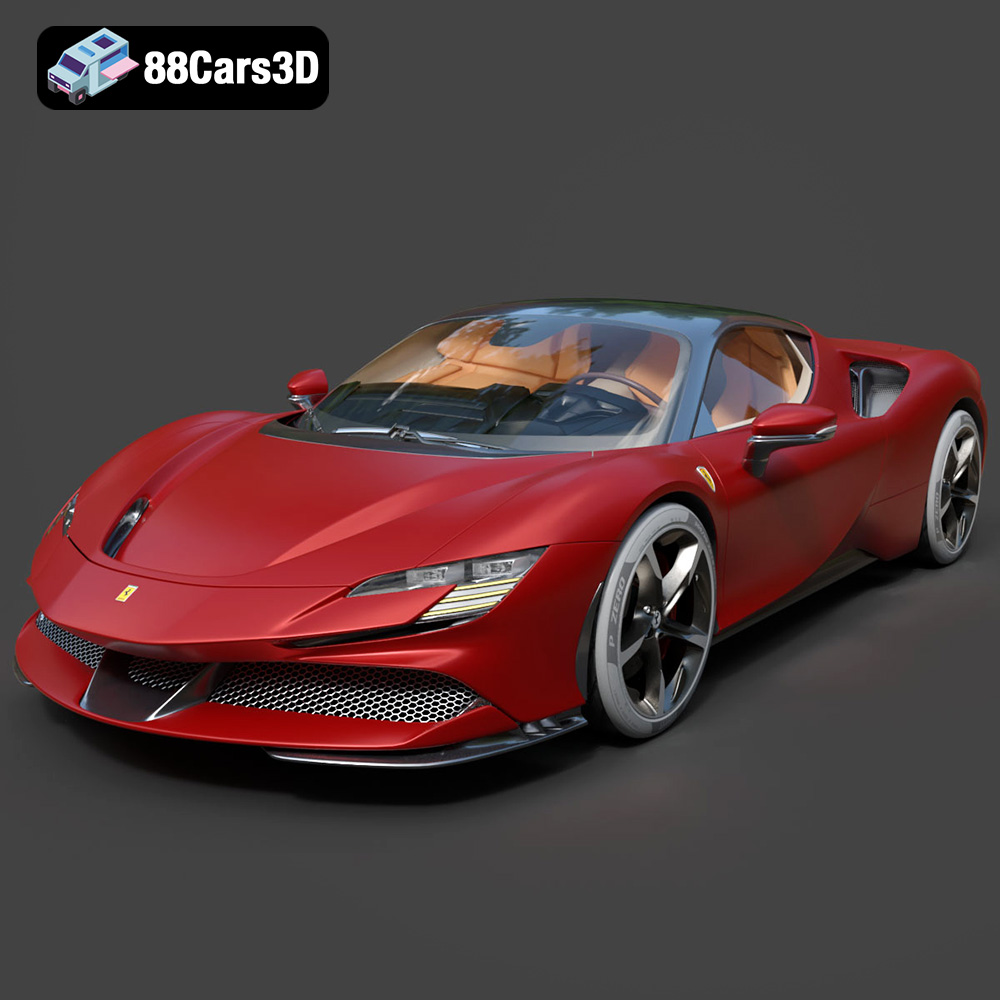
Download the Ferrari SF90 Stradale 3D Model featuring clean geometry, realistic detailing, and a fully modeled interior. Includes .blend, .fbx, .obj, .glb, .stl, .ply, .unreal, and .max formats for rendering, simulation, and game development.
Price: $19.99

Texture: Yes
Material: Yes
Download the Harley Davidson F 1946 3D Model featuring clean geometry, realistic detailing, and a fully modeled interior. Includes .blend, .fbx, .obj, .glb, .stl, .ply, .unreal, and .max formats for rendering, simulation, and game development.
Price: $19.99

Texture: Yes
Material: Yes
Download the Land Rover Defender Works V8 3D Model featuring clean geometry, realistic detailing, and a fully modeled interior. Includes .blend, .fbx, .obj, .glb, .stl, .ply, .unreal, and .max formats for rendering, simulation, and game development.
Price: $19.99

Texture: Yes
Material: Yes
Download the Dodge RAM 2019 3D Model featuring clean geometry, realistic detailing, and a fully modeled interior. Includes .blend, .fbx, .obj, .glb, .stl, .ply, .unreal, and .max formats for rendering, simulation, and game development.
Price: $19.99

Texture: Yes | Material: Yes Download the ultra-high-detail Ford F-150 Raptor 2021 3D Model (8.73M Triangles). Features uncompromised widebody styling, fully modeled Fox Live Valve suspension, 37-inch tires, and interior. Perfect for premium VFX, cinematic rendering, and ArchViz. Includes .blend, .fbx, .obj, .glb, .stl, and .max formats.
Price: $29.99

Texture: Yes | Material: Yes Download the ultra-high-detail BMW 3 Series Limousine (2022) 3D Model (4.16M Triangles). Features the modernized G20 LCI exterior, the all-new BMW Curved Display interior, and ultra-dense topology. Perfect for ArchViz, VFX, and cinematic rendering. Includes .blend, .fbx, .obj, .glb, .stl, and .max formats.
Price: $19.99

Texture: Yes | Material: Yes Download the ultra-high-detail BMW i7 (2023) 3D Model (4.14M Triangles). Features the illuminated kidney grille, split crystal headlights, fully modeled Theatre Screen interior, and monolithic luxury styling. Perfect for ArchViz, VFX, and cinematic rendering. Includes .blend, .fbx, .obj, .glb, .stl, and .max formats.
Price: $19.99

Texture: Yes | Material: Yes Download the highly detailed CAT Manual Loader & Warehouse Carts Kit 3D Model (2.4M Triangles). Features a macro-detailed hydraulic pallet jack, heavy-duty forks, and transport carts. Perfect for industrial ArchViz, factory rendering, and logistics simulations. Includes .blend, .fbx, .obj, .glb, .stl, and .max formats.
Price: $19.99

Texture: Yes | Material: Yes
Download the highly optimized Mazda CX-5 2014 3D Model (294k Triangles). Features the dynamic Kodo design language, signature grille, and a clean interior. Perfectly balanced for ArchViz, background traffic, and game development. Includes .blend, .fbx, .obj, .glb, .stl, and .max formats.
Price: $19.99

Texture: Yes | Material: Yes Download the ultra-high-detail Bentley Flying Spur Mulliner 2022 3D Model (2.94M Triangles). Features the bespoke Double Diamond grille, a fully modeled diamond-quilted interior, and exquisite luxury styling. Perfect for high-end ArchViz, VFX, and cinematic rendering. Includes .blend, .fbx, .obj, .glb, .stl, and .max formats.
Price: $19.90

