Get 50% OFF All Premium 3D & STL Models!

“`html
Creating realistic and engaging environments is paramount for immersive automotive visualization. Unreal Engine offers a powerful suite of landscape tools that empower developers to craft stunning terrains, ranging from rolling hills to rugged mountains. This comprehensive guide delves into the intricacies of Unreal Engine’s landscape system, providing you with the knowledge and techniques to build compelling virtual environments that showcase your 3D car models effectively. We’ll cover everything from initial project setup to advanced sculpting techniques, performance optimization, and even integrating your terrain with other Unreal Engine features. Platforms like 88cars3d.com often require meticulously crafted environments to showcase the vehicles in their best light, so mastering landscape creation is a valuable skill for any 3D artist or developer.
Before diving into terrain sculpting, it’s crucial to set up your Unreal Engine project correctly. This involves selecting the appropriate project template, configuring initial settings, and understanding the landscape system’s core components. A well-prepared project will streamline your workflow and prevent potential headaches down the line. You can find much of this information on the official Unreal Engine documentation at https://dev.epicgames.com/community/unreal-engine/learning.
For automotive visualization, the “Automotive, Product Design, & Manufacturing” template is a good starting point, as it provides pre-configured settings optimized for realistic rendering. However, the “Games” template is also suitable if you are aiming for interactive experiences with vehicle dynamics. Alternatively, you can start with a blank project and configure settings manually. When selecting a template, consider the project’s ultimate goals – a cinematic showcase versus an interactive driving simulator. Ensure the template uses a compatible rendering pipeline, such as forward rendering for specific VR applications or deferred rendering for advanced lighting effects.
Navigate to “Edit > Project Settings” to configure project-wide parameters. In the “Engine” section, adjust the “Scalability” settings to match your target hardware. For high-end visualizations, set the “View Distance” and “Anti-Aliasing” to “Epic.” Under the “Rendering” section, enable features like “Global Illumination” and “Reflections” for realistic lighting. Additionally, customize the “Post Processing” settings for color grading, bloom, and other visual effects. These settings significantly impact the visual fidelity and performance of your landscape. Also, configure the Lightmass settings if you’re using static lighting to ensure that your shadows and lighting are baked correctly.
Seamlessly integrating your 3D car model is critical for a cohesive visualization. This step involves importing the model, setting up its materials, and positioning it within the landscape. Understanding the nuances of importing and material setup will dramatically improve the overall visual quality of your scene. Many platforms, such as 88cars3d.com, offer models in various formats like FBX and USD, tailored for use with Unreal Engine.
Unreal Engine supports various 3D model formats, including FBX, USD, and glTF. FBX is the most common format and offers excellent compatibility. Import your model by dragging the FBX file into the Content Browser. During import, ensure that “Import Materials” and “Create Physics Asset” are checked. Adjust the scale and rotation settings as needed to match the Unreal Engine coordinate system. If your model has complex hierarchies, consider using Datasmith for a streamlined import process. Datasmith preserves metadata and simplifies the re-importing of updated models. When sourcing automotive assets from marketplaces such as 88cars3d.com, pay attention to the model’s included LODs and textures, as these significantly impact performance.
Physically Based Rendering (PBR) is essential for realistic material representation. Unreal Engine’s Material Editor provides a node-based interface for creating PBR materials. Typically, you’ll need textures for Albedo (Base Color), Normal, Roughness, Metallic, and Ambient Occlusion. Connect these textures to the corresponding material inputs. Adjust the roughness and metallic values to achieve the desired surface properties. Utilize the “Two Sided” material option for thin surfaces like car windows. Experiment with material instances to create variations of the base material without duplicating the entire material graph. Use the Masked material type carefully, as it can be expensive. Also, consider using the Clear Coat shading model for paint materials to get realistic reflections.
The Landscape Editor is where you breathe life into your terrain. Unreal Engine provides a comprehensive suite of sculpting tools to shape the landscape according to your artistic vision. These tools allow for precise control over the terrain’s form, enabling you to create realistic and visually appealing environments. The key is to start with broad strokes and then refine the details.
The Landscape Editor offers various sculpting tools, including “Sculpt,” “Smooth,” “Flatten,” and “Ramp.” Start with the “Sculpt” tool to create the overall shape of your terrain. Use a large brush size and low strength for broad strokes. Then, switch to the “Smooth” tool to soften harsh edges and create natural transitions. The “Flatten” tool is useful for creating plateaus or roads. The “Ramp” tool allows you to create smooth inclines and slopes. Experiment with different brush sizes, strengths, and falloff settings to achieve the desired effect. Remember to use reference images of real-world landscapes to guide your sculpting process.
To create a more realistic and natural-looking landscape, use the “Erosion” and “Noise” tools. The “Erosion” tool simulates the effects of water and wind erosion, creating realistic valleys and ridges. The “Noise” tool adds subtle variations to the terrain surface, breaking up flat areas and creating a more organic look. Adjust the parameters of these tools to control the intensity and scale of the effects. Be careful not to overdo it, as excessive erosion or noise can make the landscape look artificial. Layer these effects subtly to create a nuanced and believable terrain.
Once you’ve sculpted your landscape, the next step is to apply materials and textures. Unreal Engine’s landscape material system allows you to blend multiple materials based on height, slope, or other criteria. This enables you to create diverse and realistic terrain surfaces. Material layering is key to a believable environment.
Landscape materials in Unreal Engine are created using the Material Editor. The key is to use the Landscape Layer Blend node, which allows you to blend multiple materials based on layer masks. Create individual material functions for each terrain type (e.g., grass, dirt, rock). These material functions should include textures for Albedo, Normal, Roughness, and Ambient Occlusion. Connect these material functions to the Landscape Layer Blend node. Use the Landscape Layer Sample node to access the layer masks and blend the materials accordingly. Experiment with different blending modes and weights to achieve the desired effect. Using height-based blending, for example, you can automatically apply snow to mountain peaks.
In the Landscape Editor, switch to the “Paint” mode to paint the landscape layers. Create new layers for each terrain type. Use the “Paint” tool to paint the layers onto the landscape. Adjust the brush size and strength to control the precision of the painting. Use the “Smooth” tool to blend the layers together. You can also use the “Fill” tool to quickly fill large areas with a specific layer. Consider using World Machine or other external terrain generation tools to create heightmaps and splat maps, which can be imported into Unreal Engine to automate the layer painting process. Properly authored splat maps can drastically reduce the amount of manual painting required.
Lighting and post-processing are crucial for creating visually stunning automotive visualizations. Unreal Engine offers a range of lighting options, including static lighting, dynamic lighting, and Lumen global illumination. Experimenting with different lighting setups is essential to find what works best for your scene.
Lumen is Unreal Engine’s next-generation global illumination and reflections system. It provides real-time lighting and reflections without the need for precomputed lightmaps. To enable Lumen, navigate to “Project Settings > Rendering” and set “Global Illumination Method” to “Lumen.” Adjust the Lumen settings to control the quality and performance of the lighting. Use the “Sky Light” and “Directional Light” to create the base lighting for your scene. Experiment with different light intensities and colors to achieve the desired mood. Use the “Post Process Volume” to fine-tune the lighting and reflections. Lumen is particularly effective for outdoor scenes with dynamic lighting, making it ideal for automotive visualizations. Consider using high-resolution HDRIs for environment lighting to further enhance realism.
Unreal Engine’s post-processing effects can significantly enhance the visual quality of your scene. Use the “Post Process Volume” to adjust settings like color grading, bloom, and depth of field. Experiment with different color grading settings to achieve the desired look and feel. Use bloom to add a soft glow to bright areas. Use depth of field to create a cinematic effect and focus attention on specific areas. Be careful not to overdo it, as excessive post-processing can make the scene look artificial. Layer the effects subtly to create a polished and professional look. Consider using LUTs (Lookup Tables) for color grading to achieve a consistent look across your entire project. Also, experiment with motion blur and lens flares to add realism and visual interest.
Optimizing your landscape for real-time performance is crucial, especially for interactive applications. Large landscapes can be performance-intensive, so it’s important to use various optimization techniques to maintain a smooth frame rate. Level of detail (LOD) management is critical for maintaining performance.
Unreal Engine’s landscape system automatically generates LODs for your terrain. However, you can manually adjust the LOD settings to optimize performance. In the Landscape Editor, select the “LOD” tab to adjust the LOD settings. Increase the “LOD Distance Factor” to reduce the number of triangles rendered at a distance. Adjust the “Section Size” to control the size of the landscape sections. Smaller section sizes result in more detailed LODs but can also increase draw calls. Experiment with different LOD settings to find the optimal balance between visual quality and performance. Utilizing HLOD (Hierarchical Level of Detail) can further improve performance by grouping landscape sections into larger clusters that can be culled more efficiently.
Nanite is Unreal Engine’s virtualized geometry system that allows you to import high-poly models without sacrificing performance. While Nanite is not directly applicable to the base landscape actor, you can use it for static meshes placed on the landscape, such as rocks, trees, and buildings. Enable Nanite on these meshes by right-clicking on the mesh in the Content Browser and selecting “Enable Nanite.” Nanite automatically handles LODs and culling, allowing you to use extremely detailed models without impacting performance. However, using Nanite on a landscape material directly isn’t possible; it’s designed for static meshes. Consider breaking up parts of the landscape into static meshes where detail is paramount and then use Nanite to render those detailed elements efficiently.
Mastering terrain creation and sculpting in Unreal Engine is a valuable skill for any developer or artist working in automotive visualization. By understanding the landscape tools, material system, lighting options, and optimization techniques, you can create stunning and realistic environments that showcase your 3D car models effectively. From project setup to advanced sculpting, we’ve covered the essential steps to build compelling virtual landscapes. Remember to utilize resources such as the Unreal Engine documentation and consider exploring high-quality assets from marketplaces like 88cars3d.com to further enhance your projects. Now, go forth and create immersive automotive experiences that captivate and inspire!
“`
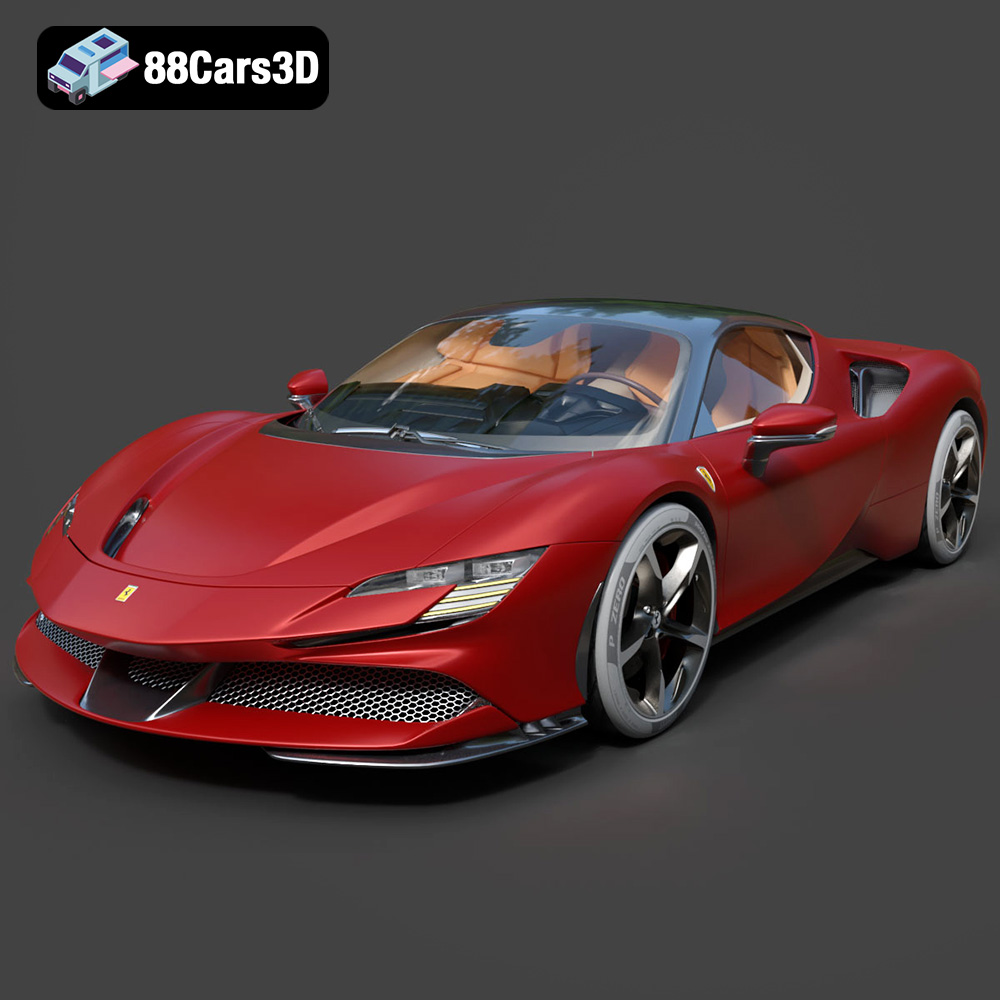
Texture: Yes
Material: Yes
Download the Ferrari SF90 Stradale 3D Model featuring clean geometry, realistic detailing, and a fully modeled interior. Includes .blend, .fbx, .obj, .glb, .stl, .ply, .unreal, and .max formats for rendering, simulation, and game development.
Price: $19.99

Texture: Yes
Material: Yes
Download the Harley Davidson F 1946 3D Model featuring clean geometry, realistic detailing, and a fully modeled interior. Includes .blend, .fbx, .obj, .glb, .stl, .ply, .unreal, and .max formats for rendering, simulation, and game development.
Price: $19.99

Texture: Yes
Material: Yes
Download the Land Rover Defender Works V8 3D Model featuring clean geometry, realistic detailing, and a fully modeled interior. Includes .blend, .fbx, .obj, .glb, .stl, .ply, .unreal, and .max formats for rendering, simulation, and game development.
Price: $19.99

Texture: Yes
Material: Yes
Download the Dodge RAM 2019 3D Model featuring clean geometry, realistic detailing, and a fully modeled interior. Includes .blend, .fbx, .obj, .glb, .stl, .ply, .unreal, and .max formats for rendering, simulation, and game development.
Price: $19.99

Texture: Yes | Material: Yes Download the ultra-high-detail Ford F-150 Raptor 2021 3D Model (8.73M Triangles). Features uncompromised widebody styling, fully modeled Fox Live Valve suspension, 37-inch tires, and interior. Perfect for premium VFX, cinematic rendering, and ArchViz. Includes .blend, .fbx, .obj, .glb, .stl, and .max formats.
Price: $29.99

Texture: Yes | Material: Yes Download the ultra-high-detail BMW 3 Series Limousine (2022) 3D Model (4.16M Triangles). Features the modernized G20 LCI exterior, the all-new BMW Curved Display interior, and ultra-dense topology. Perfect for ArchViz, VFX, and cinematic rendering. Includes .blend, .fbx, .obj, .glb, .stl, and .max formats.
Price: $19.99

Texture: Yes | Material: Yes Download the ultra-high-detail BMW i7 (2023) 3D Model (4.14M Triangles). Features the illuminated kidney grille, split crystal headlights, fully modeled Theatre Screen interior, and monolithic luxury styling. Perfect for ArchViz, VFX, and cinematic rendering. Includes .blend, .fbx, .obj, .glb, .stl, and .max formats.
Price: $19.99

Texture: Yes | Material: Yes Download the highly detailed CAT Manual Loader & Warehouse Carts Kit 3D Model (2.4M Triangles). Features a macro-detailed hydraulic pallet jack, heavy-duty forks, and transport carts. Perfect for industrial ArchViz, factory rendering, and logistics simulations. Includes .blend, .fbx, .obj, .glb, .stl, and .max formats.
Price: $19.99

Texture: Yes | Material: Yes
Download the highly optimized Mazda CX-5 2014 3D Model (294k Triangles). Features the dynamic Kodo design language, signature grille, and a clean interior. Perfectly balanced for ArchViz, background traffic, and game development. Includes .blend, .fbx, .obj, .glb, .stl, and .max formats.
Price: $19.99

Texture: Yes | Material: Yes Download the ultra-high-detail Bentley Flying Spur Mulliner 2022 3D Model (2.94M Triangles). Features the bespoke Double Diamond grille, a fully modeled diamond-quilted interior, and exquisite luxury styling. Perfect for high-end ArchViz, VFX, and cinematic rendering. Includes .blend, .fbx, .obj, .glb, .stl, and .max formats.
Price: $19.90

