Get 50% OFF All Premium 3D & STL Models!

“`html
3D printing has revolutionized manufacturing and hobbyist projects, allowing for the creation of intricate and customized objects. At the heart of this process lies slicing – the crucial step where a 3D model, typically in STL format, is translated into a set of instructions that a 3D printer can understand. Proper slicing is paramount for achieving high-quality prints, ensuring dimensional accuracy, structural integrity, and aesthetic appeal. Whether you’re printing detailed car models from platforms like 88cars3d.com, functional prototypes, or artistic sculptures, understanding the nuances of slicing is essential. This comprehensive guide will delve into the intricacies of slicing STL files, covering everything from file preparation to advanced slicing parameters and troubleshooting common issues. Get ready to unlock the full potential of your 3D printer and create stunning prints consistently.
The STL (stereolithography) file format is the de facto standard for 3D printing. It represents the surface geometry of a 3D model as a collection of triangles. The density and arrangement of these triangles directly impact the smoothness and accuracy of the final print. Before diving into slicing, it’s crucial to understand the structure of STL files and how potential issues in the mesh can affect print quality. Common problems include non-manifold geometry, flipped normals, and excessive triangles.
Before slicing, always inspect your STL file for errors. Software like MeshLab, Netfabb Basic (Autodesk), and the free online tool, MakePrintable, can identify and automatically repair common mesh issues. Non-manifold geometry (where edges are shared by more than two triangles) is a critical error that can prevent slicing. Flipped normals (where triangles face the wrong way) can lead to unexpected voids or incorrect surface rendering. Netfabb, in particular, is renowned for its robust automatic repair capabilities, often fixing even complex mesh problems with a single click. When downloading models from marketplaces such as 88cars3d.com, you can generally expect well-prepared files, but it’s still a good practice to check. Ensure the model is watertight and has no internal faces before proceeding.
The number of triangles in an STL file determines its resolution or level of detail. A higher triangle count results in a smoother surface but also increases file size and processing time. A lower triangle count can lead to faceting, where the individual triangles become visible on curved surfaces. Striking a balance between detail and performance is essential. For printing car models with intricate details, a higher resolution is usually preferred. However, for larger, less detailed objects, a lower resolution can suffice. Consider remeshing tools in software like Blender to optimize the triangle count based on the desired level of detail and the capabilities of your 3D printer.
Slicing software is the bridge between your 3D model and your printer. Numerous slicers are available, each with its strengths and weaknesses. Popular options include Cura, PrusaSlicer, Simplify3D, and ideaMaker. Cura and PrusaSlicer are free and open-source, making them excellent choices for beginners. Simplify3D is a paid option known for its advanced customization features. ideaMaker is often preferred for its user-friendly interface and integrated printer profiles. The best choice depends on your experience level, the complexity of your prints, and the specific features of your 3D printer.
Cura is a widely used and powerful slicing software known for its intuitive interface and extensive features. It offers a wide range of customizable settings, from basic parameters like layer height and infill density to advanced options like support structures and print speed profiles. Cura also boasts a vast community of users and developers, resulting in a wealth of online resources and plugins. For beginners, Cura’s recommended settings provide a good starting point, while experienced users can fine-tune every aspect of the printing process. Using Cura’s experimental features, such as tree supports, can drastically improve the quality of complex prints.
PrusaSlicer, developed by Prusa Research, is another excellent free and open-source slicer. It’s known for its precision and control over print parameters. PrusaSlicer offers a range of advanced features, including variable layer height, which allows you to optimize print time and quality by using thinner layers for detailed areas and thicker layers for less critical sections. Its support generation algorithms are also highly regarded. PrusaSlicer’s ability to import configuration bundles is a significant advantage for users with multiple printers or different printing profiles. It also excels at handling complex geometries and producing high-quality prints with minimal artifacts.
The slicing parameters you choose directly impact the quality, strength, and print time of your 3D prints. Understanding these parameters and how they interact is crucial for achieving optimal results. Key parameters include layer height, infill density, print speed, temperature, and support structures. Experimentation and careful calibration are often required to find the sweet spot for each material and printer combination.
Layer height is the thickness of each layer of plastic deposited by the 3D printer. Lower layer heights (e.g., 0.1mm) result in smoother surfaces and finer details, but they also increase print time. Higher layer heights (e.g., 0.3mm) are faster but produce less detailed prints with more visible layer lines. A good starting point is 0.2mm, and you can adjust from there based on the specific requirements of your print. For car models from 88cars3d.com, consider using a layer height of 0.1mm or lower for intricate details like panel lines and trim. Generally, you shouldn’t exceed 80% of your nozzle diameter for layer height (e.g., 0.4mm nozzle -> max 0.32mm layer height).
Infill refers to the internal structure of your 3D print. Infill density is the percentage of the interior volume that is filled with material. Higher infill densities result in stronger prints but also increase material usage and print time. Infill patterns, such as rectilinear, honeycomb, and gyroid, also affect the strength and weight of the print. For functional parts that require high strength, a higher infill density (e.g., 50-75%) and a robust infill pattern like rectilinear or gyroid are recommended. For purely aesthetic models, a lower infill density (e.g., 15-25%) and a lightweight pattern like honeycomb can suffice. Gyroid infill offers excellent strength-to-weight ratio and is less prone to warping. Try adaptive infill, available in some slicers, for optimizing infill density based on the part’s stress distribution.
Support structures are temporary structures that provide support for overhanging features during the printing process. Without supports, overhangs can sag or collapse due to gravity. Generating and removing supports is a crucial aspect of slicing, and the right support settings can significantly improve print quality. Different types of support structures, such as linear supports, tree supports, and raft supports, are suitable for different geometries and printing materials.
Slicing software offers various options for generating support structures, including automatic and manual placement. Automatic support generation is convenient, but it may not always produce the most efficient or effective supports. Manual placement allows you to precisely control where supports are placed, minimizing material usage and improving surface finish. Experiment with different support patterns and densities to find the optimal balance between support strength and ease of removal. Consider using support blockers in your slicer to prevent supports from being generated in areas where they are not needed.
Removing support structures can be challenging, especially for complex geometries. Carefully break away supports using pliers or a sharp knife. For delicate parts, consider using dissolvable support materials like PVA (polyvinyl alcohol), which can be dissolved in water. After removing supports, some post-processing may be necessary to smooth out any remaining blemishes. Sanding, filing, and painting can improve the final appearance of your 3D prints. For ABS prints, a vapor smoothing technique using acetone can significantly reduce layer lines and enhance surface finish.
The choice of printing material and the corresponding printer settings are inextricably linked. Different materials require different printing temperatures, speeds, and bed adhesion strategies. Understanding the properties of various materials, such as PLA, ABS, PETG, and TPU, is essential for successful 3D printing. Calibrating your printer and fine-tuning the settings for each material can significantly improve print quality and reliability.
FDM (Fused Deposition Modeling) printing uses filaments of thermoplastic materials like PLA, ABS, and PETG. Resin printing, on the other hand, uses liquid resins that are cured by UV light. Each technology has its advantages and disadvantages. FDM printing is generally more affordable and easier to use, while resin printing offers higher resolution and finer details. When choosing a material, consider its strength, flexibility, temperature resistance, and ease of printing. PLA is a good starting point for beginners due to its ease of use and low printing temperature. ABS is stronger and more heat-resistant but requires a heated bed and good ventilation. PETG offers a good balance of strength, flexibility, and ease of printing. For printing car models, resin printing is often preferred for its ability to capture intricate details, but FDM printing can also produce excellent results with careful calibration and proper settings.
Each material requires specific printer settings to achieve optimal results. PLA typically prints well at temperatures between 190-220°C, while ABS requires higher temperatures between 230-260°C. Bed adhesion is crucial for preventing warping, especially with ABS. Using a heated bed and applying a bed adhesive like hairspray or glue stick can improve adhesion. Print speed also affects print quality. Slower speeds generally produce better results, especially for intricate details. Experiment with different settings and monitor your prints closely to identify any issues and make adjustments accordingly. Regularly calibrate your printer’s extruder and bed level to ensure consistent results. Run temperature towers and retraction tests to dial in optimal settings for each new spool of filament.
Even with careful preparation and optimized settings, 3D printing can sometimes present challenges. Common issues include warping, stringing, elephant’s foot, and layer adhesion problems. Understanding the causes of these issues and how to troubleshoot them is essential for successful 3D printing.
Warping occurs when the corners of a 3D print lift off the build plate during printing. This is often caused by uneven cooling and inadequate bed adhesion. To prevent warping, ensure that your bed is properly leveled and heated to the recommended temperature for the printing material. Applying a bed adhesive like hairspray or glue stick can also improve adhesion. Enclosing your printer can help to maintain a consistent temperature and reduce warping, especially when printing ABS. Consider adding a brim or raft to increase the surface area of the first layer and improve adhesion. Check your first layer settings in your slicer. Too high, and it won’t adhere; too low, and it can cause elephant’s foot.
Stringing occurs when the printer extrudes filament during travel moves, leaving thin strands of plastic between parts. Blobs are excess material deposited at the start or end of a layer. Both can be minimized by adjusting retraction settings in your slicer. Retraction pulls the filament back into the nozzle during travel moves, preventing it from oozing out. Layer adhesion problems occur when the layers of a 3D print do not properly bond together. This can be caused by insufficient printing temperature, inadequate cooling, or incorrect layer height. Increasing the printing temperature, reducing cooling fan speed, and ensuring proper bed adhesion can improve layer adhesion. Check the tightness of your belts and the calibration of your extruder to ensure consistent material flow.
Mastering the art of slicing STL models is fundamental for achieving high-quality 3D prints. By understanding the intricacies of STL files, choosing the right slicing software, optimizing slicing parameters, and troubleshooting common issues, you can unlock the full potential of your 3D printer. Whether you’re a hobbyist printing intricate car models from 88cars3d.com or a professional prototyping functional parts, the knowledge and techniques outlined in this guide will empower you to create stunning and reliable 3D prints. Remember to experiment, iterate, and continuously refine your slicing process to achieve the best possible results. Explore online communities, share your experiences, and continue learning to stay at the forefront of 3D printing technology. Now, go forth and slice!
“`
Texture: Yes
Material: Yes
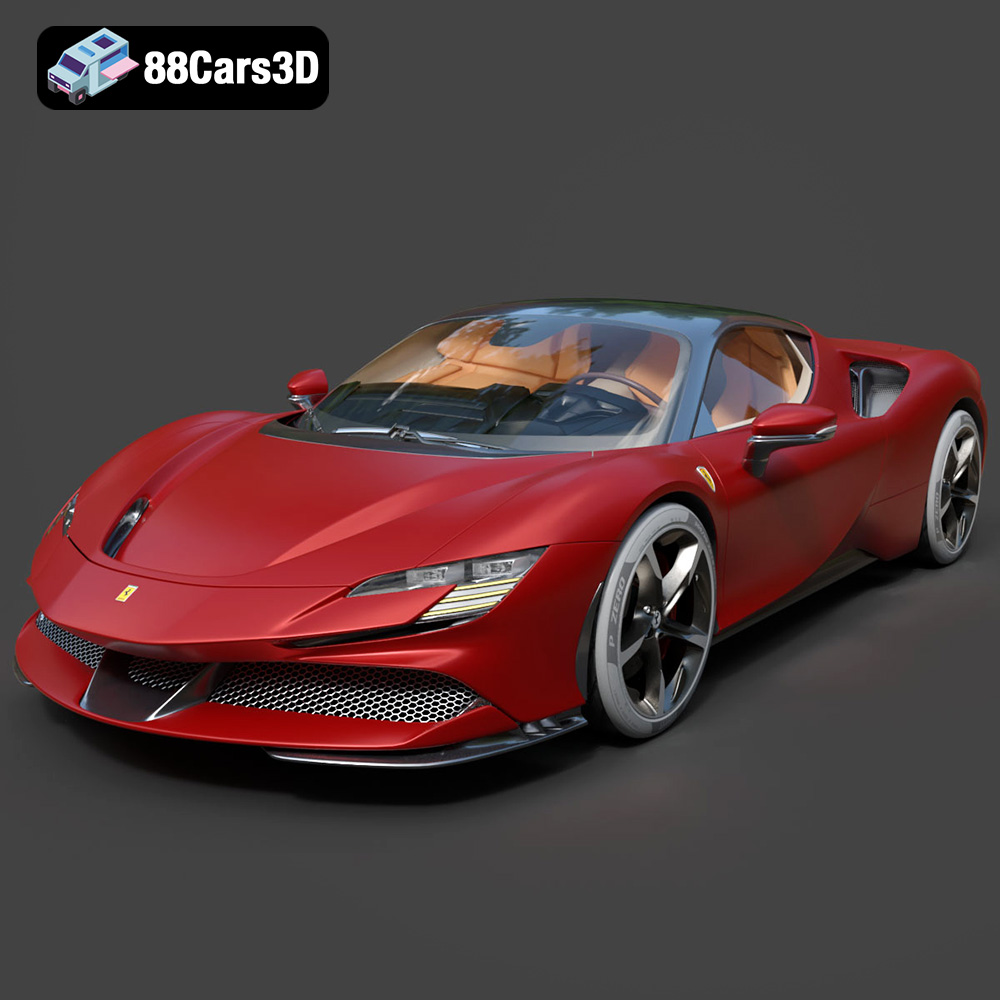
Download the Ferrari SF90 Stradale 3D Model featuring clean geometry, realistic detailing, and a fully modeled interior. Includes .blend, .fbx, .obj, .glb, .stl, .ply, .unreal, and .max formats for rendering, simulation, and game development.
Price: $19.99

Texture: Yes
Material: Yes
Download the Harley Davidson F 1946 3D Model featuring clean geometry, realistic detailing, and a fully modeled interior. Includes .blend, .fbx, .obj, .glb, .stl, .ply, .unreal, and .max formats for rendering, simulation, and game development.
Price: $19.99

Texture: Yes
Material: Yes
Download the Land Rover Defender Works V8 3D Model featuring clean geometry, realistic detailing, and a fully modeled interior. Includes .blend, .fbx, .obj, .glb, .stl, .ply, .unreal, and .max formats for rendering, simulation, and game development.
Price: $19.99

Texture: Yes
Material: Yes
Download the Dodge RAM 2019 3D Model featuring clean geometry, realistic detailing, and a fully modeled interior. Includes .blend, .fbx, .obj, .glb, .stl, .ply, .unreal, and .max formats for rendering, simulation, and game development.
Price: $19.99

Texture: Yes | Material: Yes Download the ultra-high-detail Ford F-150 Raptor 2021 3D Model (8.73M Triangles). Features uncompromised widebody styling, fully modeled Fox Live Valve suspension, 37-inch tires, and interior. Perfect for premium VFX, cinematic rendering, and ArchViz. Includes .blend, .fbx, .obj, .glb, .stl, and .max formats.
Price: $29.99

Texture: Yes | Material: Yes Download the ultra-high-detail BMW 3 Series Limousine (2022) 3D Model (4.16M Triangles). Features the modernized G20 LCI exterior, the all-new BMW Curved Display interior, and ultra-dense topology. Perfect for ArchViz, VFX, and cinematic rendering. Includes .blend, .fbx, .obj, .glb, .stl, and .max formats.
Price: $19.99

Texture: Yes | Material: Yes Download the ultra-high-detail BMW i7 (2023) 3D Model (4.14M Triangles). Features the illuminated kidney grille, split crystal headlights, fully modeled Theatre Screen interior, and monolithic luxury styling. Perfect for ArchViz, VFX, and cinematic rendering. Includes .blend, .fbx, .obj, .glb, .stl, and .max formats.
Price: $19.99

Texture: Yes | Material: Yes Download the highly detailed CAT Manual Loader & Warehouse Carts Kit 3D Model (2.4M Triangles). Features a macro-detailed hydraulic pallet jack, heavy-duty forks, and transport carts. Perfect for industrial ArchViz, factory rendering, and logistics simulations. Includes .blend, .fbx, .obj, .glb, .stl, and .max formats.
Price: $19.99

Texture: Yes | Material: Yes
Download the highly optimized Mazda CX-5 2014 3D Model (294k Triangles). Features the dynamic Kodo design language, signature grille, and a clean interior. Perfectly balanced for ArchViz, background traffic, and game development. Includes .blend, .fbx, .obj, .glb, .stl, and .max formats.
Price: $19.99

Texture: Yes | Material: Yes Download the ultra-high-detail Bentley Flying Spur Mulliner 2022 3D Model (2.94M Triangles). Features the bespoke Double Diamond grille, a fully modeled diamond-quilted interior, and exquisite luxury styling. Perfect for high-end ArchViz, VFX, and cinematic rendering. Includes .blend, .fbx, .obj, .glb, .stl, and .max formats.
Price: $19.90

