Get 50% OFF All Premium 3D & STL Models!

“`html
3D printing has revolutionized the way we prototype, create, and even collect. For automotive enthusiasts, the ability to 3D print detailed car models is a dream come true. Platforms like 88cars3d.com offer a fantastic selection of high-quality STL files, but even with the best models, beginners often stumble into common pitfalls. This comprehensive guide highlights the top 10 mistakes beginners make when 3D printing STL files, particularly when it comes to automotive models, and provides actionable solutions to ensure your prints are showroom-worthy.
From improper file preparation to neglecting crucial 3D printer settings, we’ll cover everything you need to know to avoid these common errors. Whether you’re using an FDM or resin printer, understanding these nuances will significantly improve your 3D printing experience. Get ready to level up your 3D printing game and bring those stunning 88cars3d.com car models to life!
The first step to a successful 3D print is ensuring the STL file itself is in good condition. STL files, while widely used, can often contain errors that lead to print failures. These errors can include non-manifold geometry, inverted normals, and gaps in the mesh.
Before slicing any STL file, especially those downloaded from online marketplaces, use a mesh repair tool like MeshMixer, Netfabb, or even the built-in repair functions in slicer software like Cura or PrusaSlicer. These tools analyze the mesh for common errors and automatically fix them. Pay close attention to warnings about “non-manifold edges” or “inverted normals.”
A non-manifold mesh is essentially a mesh that cannot exist in the real world – think of a surface that has only one side or edges that connect in impossible ways. Inverted normals mean that the software thinks the inside of the object is the outside, leading to slicing errors and potential print failures. Skipping this step can result in incomplete prints, weak points, or even complete print failures. When downloading models from marketplaces such as 88cars3d.com, even well-curated selections may benefit from a quick check and repair to ensure a smooth printing process.
The orientation of your model on the print bed significantly impacts print quality, support requirements, and overall strength. Choosing the wrong orientation can lead to unsightly support marks, weak points, and even warping.
For car models, consider orienting the model to minimize the need for supports on visible surfaces. For example, tilting the car body slightly backward can reduce the number of supports needed on the hood. However, this might increase support usage on the rear of the vehicle. It’s a balancing act. Aim to orient the model so that the most detailed features are printed facing upwards, as this typically results in better resolution.
Think about overhangs and areas that require support. If a part has a large flat surface, orienting it flat on the bed might seem logical, but this can lead to significant warping and poor bed adhesion. Instead, try angling it to reduce the surface area in contact with the bed, potentially requiring more supports but resulting in a cleaner, more accurate print. When printing components of car models from STL files found on platforms such as 88cars3d.com, consider how individual parts will be assembled after printing and optimize orientation accordingly.
Support structures are critical for printing overhangs and intricate details, especially in complex models like cars. Insufficient or poorly designed supports can lead to drooping, sagging, and ultimately, a failed print.
FDM and resin printers require different types of support. For FDM printing, consider using tree supports for complex geometries. These supports are more efficient in material usage and leave fewer marks on the print surface. For resin printing, lighter, needle-like supports are often preferred to minimize the risk of damage during removal. Experiment with different support patterns and densities to find what works best for your printer and material.
Increase support density in areas with critical overhangs. For example, the underside of a car’s spoiler or the arches of the wheel wells will likely require denser support structures. Use the slicer’s manual support placement tools to add supports strategically in areas where they are most needed. Pay attention to the support angle; a higher angle (closer to vertical) generally provides better support but can be harder to remove. A lower angle is easier to remove but may not provide adequate support for steep overhangs.
Slicer software translates your STL file into instructions that your 3D printer can understand. Incorrect slicer settings are a major cause of print failures. Key settings to consider include layer height, print speed, temperature, and infill density.
Lower layer heights result in higher resolution and smoother surfaces, but they also increase print time significantly. A good starting point for FDM printing is 0.1mm to 0.2mm layer height. For resin printing, layer heights can be as low as 0.025mm for incredibly detailed prints. Print speed also plays a crucial role. Printing too fast can lead to poor layer adhesion and warping. A speed of 40-60 mm/s is generally a safe bet for FDM printing, while resin printing speeds are dictated by the resin’s exposure time.
Set the correct temperature for your chosen filament. PLA typically prints between 200-220°C, while ABS requires higher temperatures (230-250°C) and a heated bed. Infill density affects the strength and weight of your print. For car models, a moderate infill density of 15-25% is usually sufficient for most parts. However, for load-bearing components, increase the infill to 50% or higher. Experiment with different infill patterns, such as gyroid or honeycomb, for optimal strength-to-weight ratio.
Poor bed adhesion is a common issue that can cause prints to detach from the build plate mid-print. This is especially critical for larger models like car bodies.
Ensure your print bed is properly leveled. An unlevel bed will cause the nozzle to be too close or too far from the bed in different areas, resulting in poor adhesion. Use a bed leveling tool or the printer’s auto-leveling feature to calibrate the bed accurately. For FDM printing, a consistent gap of 0.1mm between the nozzle and the bed is ideal.
Use adhesion aids such as a glue stick, hairspray, or painter’s tape to improve bed adhesion. A heated bed is essential for materials like ABS, which are prone to warping. Set the bed temperature to the recommended value for your filament (e.g., 60-70°C for PLA, 100-110°C for ABS). For resin printing, ensure the build plate is clean and free of any residue. Lightly sanding the build plate can also improve adhesion.
Different 3D printing materials have different properties, such as strength, flexibility, and temperature resistance. Choosing the wrong material can lead to a fragile or unusable part.
PLA is a good general-purpose filament that is easy to print and widely available. It’s suitable for decorative car models and prototyping. PETG offers better strength and temperature resistance than PLA, making it a good choice for functional parts. ABS is a strong and durable material that is ideal for parts that need to withstand high temperatures or stress. However, ABS is more challenging to print and requires a heated bed and enclosure to prevent warping.
For resin printing, there are numerous resin types available, each with different properties. Standard resin is suitable for general-purpose printing, while tough resin is designed for parts that need to withstand impact. Flexible resin is ideal for parts that need to bend or flex, such as tires or gaskets. Consider the intended use of the part when selecting a material.
A poorly calibrated 3D printer will produce inaccurate and unreliable prints. Regular calibration is essential for maintaining print quality.
Calibrate your extruder to ensure it is extruding the correct amount of filament. This involves measuring how much filament is actually extruded when the printer is instructed to extrude a specific length (e.g., 100mm). Adjust the E-steps value in your printer’s firmware until the extruded length matches the instructed length.
Perform a temperature tower test to determine the optimal printing temperature for your chosen filament. This involves printing a tower with different temperature settings for each section. Evaluate the print quality at each temperature and choose the setting that produces the best results (e.g., minimal stringing, good layer adhesion).
3D printing is rarely a one-step process. Post-processing is crucial for achieving a professional finish.
Carefully remove support structures after printing. Use tools such as pliers, knives, and sandpaper to remove supports cleanly. For resin prints, soaking the model in warm water can soften the supports and make them easier to remove.
Sand the print surface to remove layer lines and smooth out imperfections. Start with a coarse grit sandpaper (e.g., 220 grit) and gradually move to finer grits (e.g., 400, 600, 800 grit) for a smooth finish. Apply primer to the surface to fill in any remaining imperfections. After the primer has dried, sand it lightly with fine-grit sandpaper before painting.
The first layer is the foundation of your print. If it’s not right, nothing else will be. Getting that first layer perfect can often be the key to a successful print.
Ensure that your nozzle is the correct distance from the bed. Too close, and you’ll get squished plastic. Too far, and your filament won’t adhere properly. Adjust your Z-offset carefully until you achieve a smooth, slightly flattened first layer.
Often slowing down the print speed of the first layer, and slightly increasing the temperature, can help with bed adhesion. A good starting point is to reduce the speed by 50% and increase the temperature by 5-10 degrees Celsius.
3D printing has a learning curve. Don’t expect to become an expert overnight. Be patient, experiment, and learn from your mistakes.
Begin with simple prints and gradually move to more complex models. Don’t try to print a fully detailed car model from 88cars3d.com as your first project. Start with smaller, simpler parts to get a feel for the process. Try printing a small calibration cube to test your printer settings.
Keep a record of your printer settings, materials, and results. This will help you identify patterns and troubleshoot issues. Don’t be afraid to experiment with different settings and techniques. Each 3D printer and filament behaves differently, so what works for one person may not work for you. Join online communities and forums to learn from other 3D printing enthusiasts. There are many resources available to help you learn and improve your skills.
Avoiding these top 10 mistakes is crucial for anyone starting their 3D printing journey, especially when printing intricate car models from STL files. By focusing on proper file preparation, optimizing print settings, understanding material properties, and mastering post-processing techniques, you’ll significantly improve your print quality and reduce the likelihood of failures. Remember to be patient, persistent, and always willing to learn. The world of 3D printing is vast and constantly evolving, so embrace the challenges and enjoy the process of creating!
Take the time to calibrate your printer, experiment with different materials, and refine your techniques. Start with simpler models and gradually work your way up to more complex projects. With practice and patience, you’ll be creating stunning 3D-printed car models in no time. Now, armed with this knowledge, head over to 88cars3d.com, choose your dream car model, and start printing!
“`
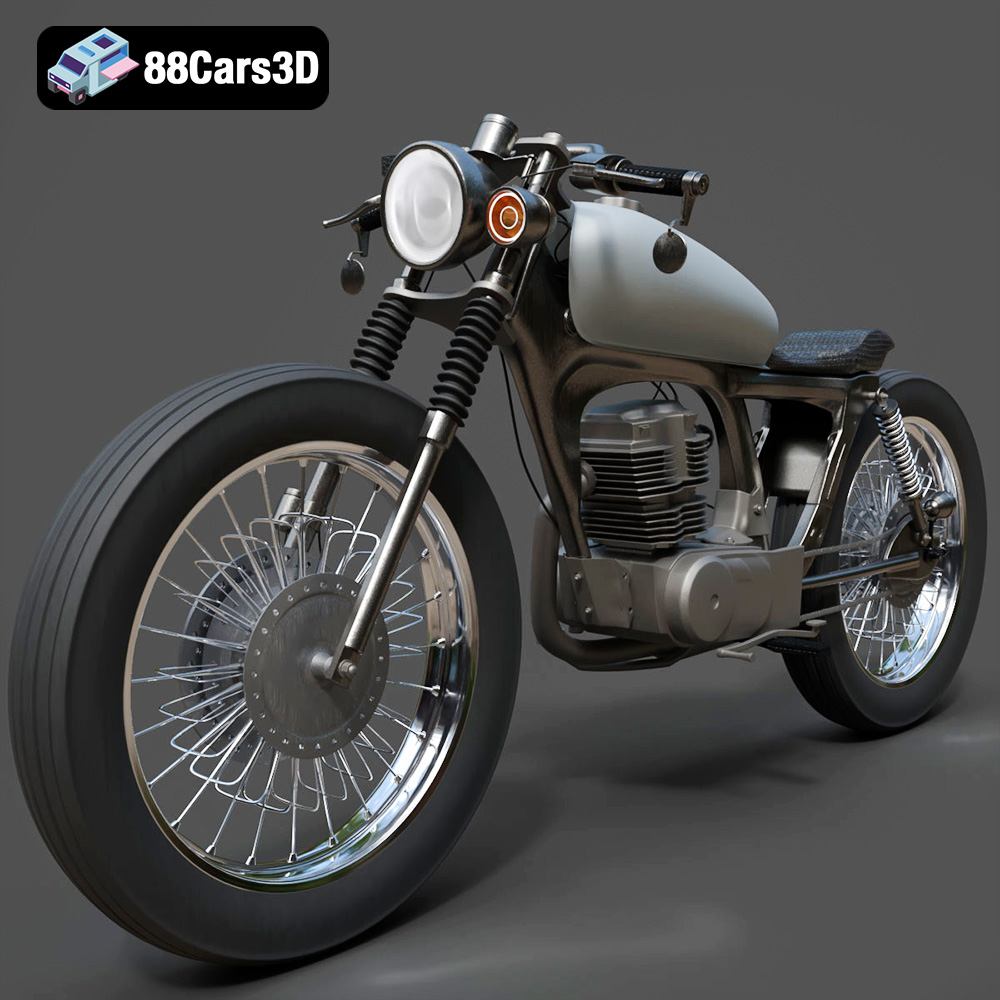
Texture: Yes
Material: Yes
Download the Honda CG125 Motorcycle 3D Model featuring clean geometry, realistic detailing, and a fully modeled interior. Includes .blend, .fbx, .obj, .glb, .stl, .ply, .unreal, and .max formats for rendering, simulation, and game development.
Price: $19.99
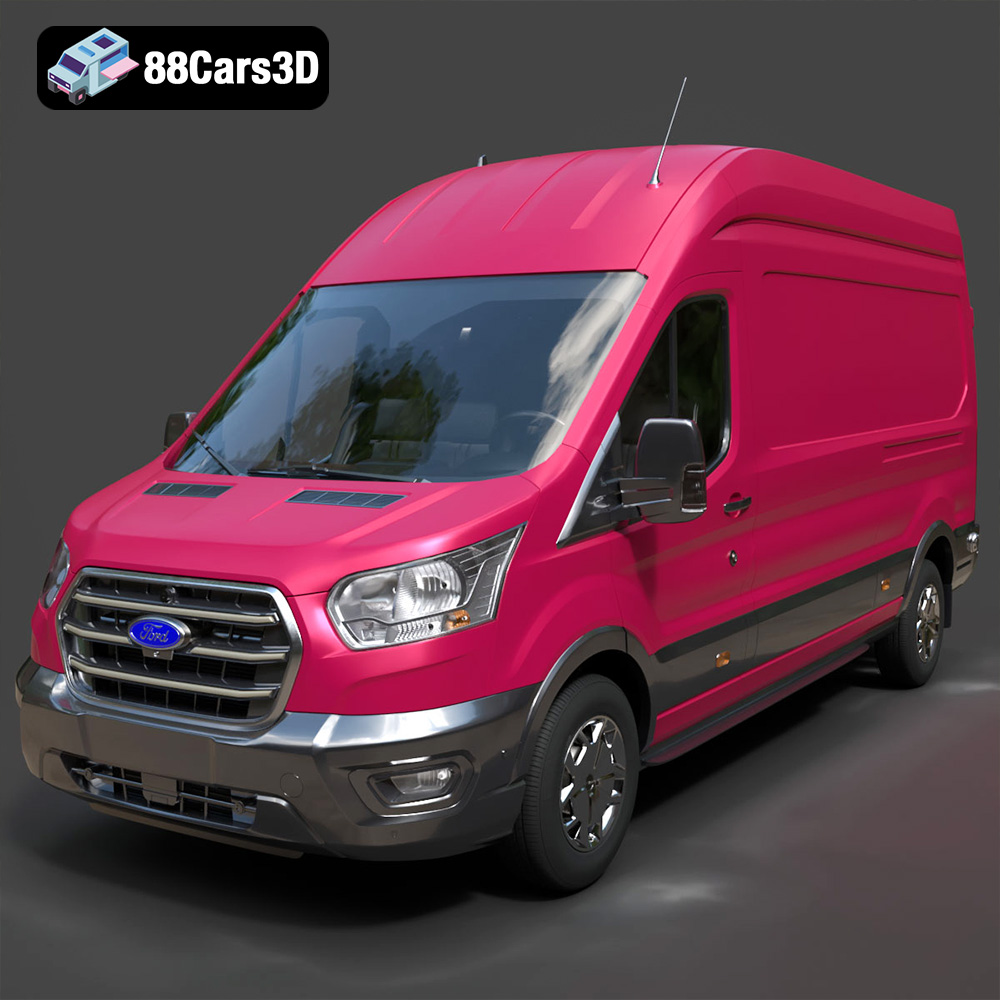
Texture: Yes
Material: Yes
Download the Ford Transit Van L3H3 Trend 2021 3D Model featuring clean geometry, realistic detailing, and a fully modeled interior. Includes .blend, .fbx, .obj, .glb, .stl, .ply, .unreal, and .max formats for rendering, simulation, and game development.
Price: $19.99
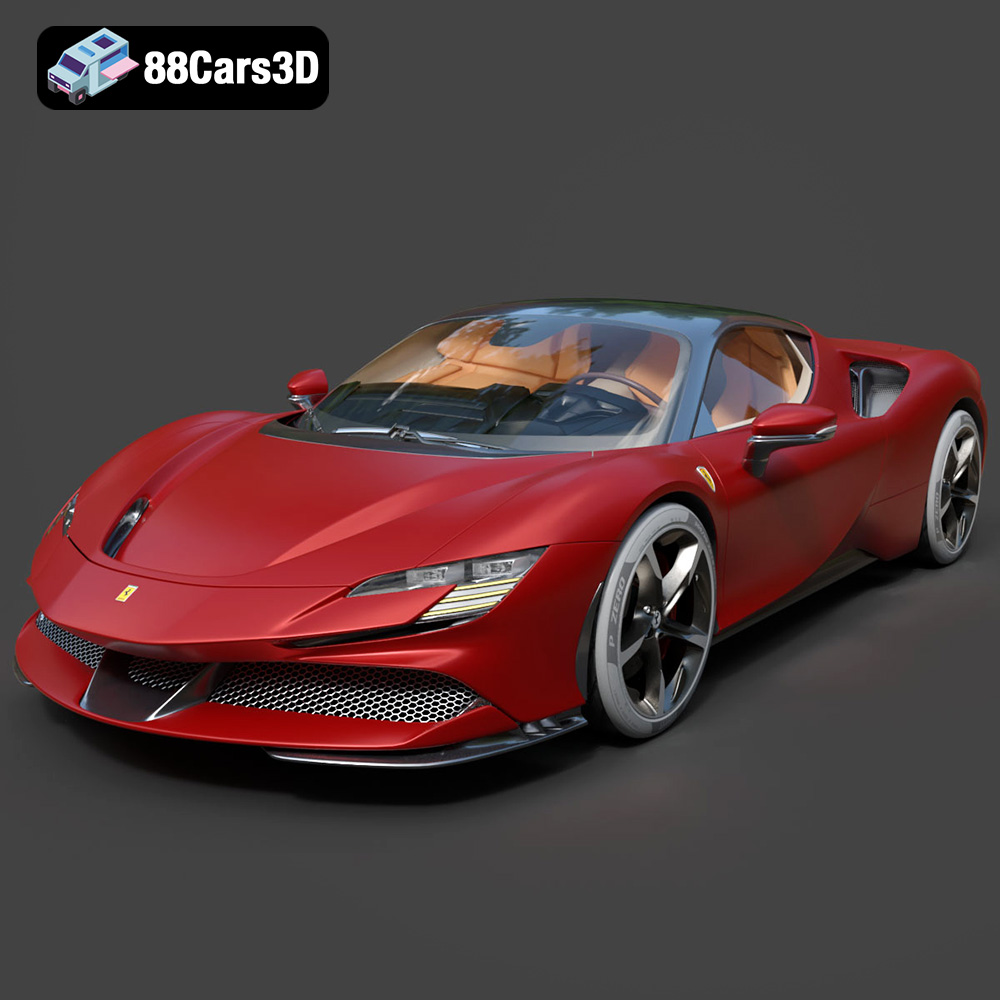
Texture: Yes
Material: Yes
Download the Ferrari SF90 Stradale 3D Model featuring clean geometry, realistic detailing, and a fully modeled interior. Includes .blend, .fbx, .obj, .glb, .stl, .ply, .unreal, and .max formats for rendering, simulation, and game development.
Price: $19.99

Texture: Yes
Material: Yes
Download the Harley Davidson F 1946 3D Model featuring clean geometry, realistic detailing, and a fully modeled interior. Includes .blend, .fbx, .obj, .glb, .stl, .ply, .unreal, and .max formats for rendering, simulation, and game development.
Price: $19.99

Texture: Yes
Material: Yes
Download the Land Rover Defender Works V8 3D Model featuring clean geometry, realistic detailing, and a fully modeled interior. Includes .blend, .fbx, .obj, .glb, .stl, .ply, .unreal, and .max formats for rendering, simulation, and game development.
Price: $19.99

Texture: Yes
Material: Yes
Download the Dodge RAM 2019 3D Model featuring clean geometry, realistic detailing, and a fully modeled interior. Includes .blend, .fbx, .obj, .glb, .stl, .ply, .unreal, and .max formats for rendering, simulation, and game development.
Price: $19.99

Texture: Yes | Material: Yes Download the ultra-high-detail Ford F-150 Raptor 2021 3D Model (8.73M Triangles). Features uncompromised widebody styling, fully modeled Fox Live Valve suspension, 37-inch tires, and interior. Perfect for premium VFX, cinematic rendering, and ArchViz. Includes .blend, .fbx, .obj, .glb, .stl, and .max formats.
Price: $29.99

Texture: Yes | Material: Yes Download the ultra-high-detail BMW 3 Series Limousine (2022) 3D Model (4.16M Triangles). Features the modernized G20 LCI exterior, the all-new BMW Curved Display interior, and ultra-dense topology. Perfect for ArchViz, VFX, and cinematic rendering. Includes .blend, .fbx, .obj, .glb, .stl, and .max formats.
Price: $19.99

Texture: Yes | Material: Yes Download the ultra-high-detail BMW i7 (2023) 3D Model (4.14M Triangles). Features the illuminated kidney grille, split crystal headlights, fully modeled Theatre Screen interior, and monolithic luxury styling. Perfect for ArchViz, VFX, and cinematic rendering. Includes .blend, .fbx, .obj, .glb, .stl, and .max formats.
Price: $19.99

Texture: Yes | Material: Yes Download the highly detailed CAT Manual Loader & Warehouse Carts Kit 3D Model (2.4M Triangles). Features a macro-detailed hydraulic pallet jack, heavy-duty forks, and transport carts. Perfect for industrial ArchViz, factory rendering, and logistics simulations. Includes .blend, .fbx, .obj, .glb, .stl, and .max formats.
Price: $19.99

