Get 50% OFF All Premium 3D & STL Models!

“`html
3D printing, especially when it comes to intricate models like the printable car models available on platforms like 88cars3d.com, can seem daunting at first. Successfully translating a digital STL file into a physical object requires understanding various parameters and processes. Many beginners encounter similar pitfalls that lead to failed prints, wasted filament, and frustration. This guide highlights the top 10 mistakes beginners make when 3D printing STL files, particularly focusing on automotive models, and provides actionable solutions to avoid them.
From improper file preparation to inadequate printer settings, we’ll cover the crucial steps necessary for achieving high-quality prints. We’ll delve into topics like mesh repair, slicing techniques, support structures, material selection, and printer calibration, providing you with the knowledge and skills to overcome common challenges. By the end of this article, you’ll be equipped to confidently tackle your next 3D printing project and produce stunning results with STL files sourced from 88cars3d.com and beyond.
One of the most frequent causes of printing failures is working with flawed STL files. STL files describe the surface geometry of an object using a mesh of triangles. If this mesh has errors like holes, overlapping faces, or non-manifold geometry (edges connected to more than two faces), the slicer software will struggle to interpret the model correctly, leading to unexpected behavior or even complete printing failure. Automotive models, with their complex curves and intricate details, are particularly susceptible to these issues.
Before slicing any STL file, especially when downloading models from marketplaces such as 88cars3d.com, it’s crucial to run it through a mesh repair tool. Several free and paid options are available, including Netfabb Basic (free), Meshmixer (free), and Simplify3D. These tools can automatically detect and fix common errors, such as:
In Meshmixer, you can import the STL file and use the “Edit” -> “Make Solid” function. This tool analyzes the mesh and attempts to create a closed, manifold surface. Netfabb Basic offers similar automated repair functionalities. After repair, always visually inspect the model to ensure no artifacts or distortions were introduced.
Manifold geometry is a fundamental requirement for 3D printing. A manifold mesh represents a closed volume, meaning it has a clear inside and outside. Non-manifold geometry breaks this rule, often resulting in slicer errors. Imagine trying to fill a leaky bucket – the slicer faces a similar challenge when processing non-manifold meshes. By understanding this concept and proactively repairing your STL files, you can significantly reduce the risk of printing failures.
The orientation of your model on the print bed dramatically affects print quality, support requirements, and overall success. Choosing the wrong orientation can lead to weak points, excessive support material, and unsightly surface finishes. For automotive models, this is particularly important, as features like overhangs, curved surfaces, and intricate details are common.
Ideally, you should orient your model to minimize the need for support structures. Support structures are temporary scaffolding that supports overhanging features during printing. While necessary for certain geometries, they can leave marks on the surface and increase printing time and material consumption. Consider rotating your model to position the largest flat surface on the print bed, reducing the number of overhanging features requiring support. For instance, printing a car body upside down might reduce the need for internal supports.
Orientation also affects the strength of the printed part. FDM printing creates layers that are inherently weaker along the Z-axis (layer lines). Orient your model so that critical stress points are aligned with the X or Y-axis, taking advantage of the stronger layer adhesion in those directions. For example, the axles of a car model should ideally be printed horizontally for maximum strength.
Layer height is a crucial parameter that determines the resolution and print time of your model. It defines the thickness of each layer deposited by the 3D printer. Choosing the right layer height involves balancing detail, strength, and printing speed. Beginners often stick to default settings without understanding the implications.
Lower layer heights (e.g., 0.1mm) result in finer details and smoother surfaces but increase printing time significantly. Higher layer heights (e.g., 0.3mm) print faster but sacrifice detail and surface finish. For highly detailed automotive models, a layer height between 0.1mm and 0.2mm is generally recommended. For larger, less detailed parts, you can increase the layer height to speed up the printing process. Experimenting with different layer heights is crucial for finding the optimal balance for your specific model and printer.
The optimal layer height also depends on the material you are using. Some materials, like flexible filaments, may require lower layer heights for better adhesion. Conversely, stiffer materials like PLA can often handle higher layer heights without compromising print quality. Refer to the material manufacturer’s recommendations for suggested layer height ranges.
Support structures are essential for printing overhanging features, but they can also be a source of problems if not properly optimized. Incorrect support settings can lead to excessive material usage, difficult removal, and surface damage.
Adjust the support density to minimize material usage while still providing adequate support. A higher density is needed for critical overhangs, while a lower density can be used for less demanding areas. Consider using “tree” supports, which branch out from the build plate and provide more targeted support with less material. In your slicing software, manually adjust support placement to avoid areas that are critical for aesthetics, like the car’s body panels.
The interface layer is a thin layer between the support structure and the model. It helps to improve adhesion and prevent the support from fusing too tightly to the part. Experiment with different interface layer densities and thicknesses to find the optimal balance between support adhesion and ease of removal. A lower interface density usually leads to easier removal but may compromise support effectiveness.
Infill refers to the internal structure of your 3D printed part. It determines the strength, weight, and printing time of the object. Beginners often use a uniform infill percentage without considering the specific requirements of the model.
A higher infill percentage results in a stronger and heavier part but also increases printing time and material consumption. For decorative car models that don’t require significant structural integrity, a low infill percentage (e.g., 10-20%) is often sufficient. For functional parts or models that will be subjected to stress, a higher infill percentage (e.g., 50-75%) may be necessary.
Different infill patterns offer varying levels of strength and flexibility. Common infill patterns include:
Experiment with different infill patterns to find the best option for your specific needs. For automotive models, honeycomb or gyroid infill can provide a good balance of strength and weight.
Poor bed adhesion is a common cause of failed prints, especially for larger or more complex models. If the first layer doesn’t stick properly to the build plate, the entire print can detach and become a tangled mess.
Ensure your print bed is properly leveled and calibrated. An uneven bed can cause inconsistent layer adhesion. Most 3D printers have manual or automatic bed leveling features. Follow the manufacturer’s instructions for your specific printer model. A well-leveled bed is the foundation for successful printing.
Use adhesion aids like rafts, brims, or skirts to improve bed adhesion. A raft is a thick layer of plastic printed underneath the model, providing a large, stable base. A brim is a single-layer outline that extends outwards from the base of the model, increasing the contact area with the bed. A skirt is a line of plastic printed around the model but not connected to it, used primarily to prime the nozzle and ensure smooth extrusion. For larger automotive models, a raft or brim is often recommended to prevent warping and ensure proper adhesion.
The printing temperature is crucial for proper filament extrusion and layer adhesion. Using the wrong temperature can lead to warping, stringing, and weak prints. Different materials require different temperature settings.
Refer to the filament manufacturer’s recommendations for the optimal nozzle and bed temperatures. PLA typically prints well at nozzle temperatures between 190°C and 220°C and bed temperatures between 60°C and 70°C. ABS requires higher temperatures, typically between 220°C and 250°C for the nozzle and 80°C to 110°C for the bed. Experiment with small temperature adjustments to fine-tune your settings and optimize print quality. A temperature tower test can help determine the ideal temperature range for your specific filament.
Too low a nozzle temperature can cause under-extrusion, resulting in weak layer adhesion and gaps in the print. Too high a temperature can cause over-extrusion, leading to stringing and warping. The bed temperature is equally important for preventing warping, especially for materials like ABS that are prone to shrinkage. Ensure your printer’s cooling fan is functioning correctly, as excessive heat can negatively impact print quality.
The type and condition of your filament significantly impact print quality. Using the wrong filament or storing it improperly can lead to printing problems.
Choose the right material for your project. PLA is a beginner-friendly material that is easy to print and biodegradable. PETG is more durable and heat-resistant than PLA. ABS is a strong and durable material often used for functional parts, but it requires higher printing temperatures and is more prone to warping. Resin printing offers high detail but requires more complex post-processing.
Store your filament in a dry, airtight container to prevent moisture absorption. Moisture can cause the filament to become brittle and lead to printing issues like bubbling and inconsistent extrusion. Use desiccant packs to absorb moisture inside the container. Consider using a filament dryer to remove moisture from filament that has already been exposed to humidity.
A well-calibrated and maintained printer is essential for consistent and reliable printing. Neglecting these aspects can lead to numerous problems.
Regularly calibrate your printer according to the manufacturer’s instructions. This includes bed leveling, extruder calibration (E-steps), and PID tuning. Extruder calibration ensures that the correct amount of filament is extruded. PID tuning optimizes the temperature control of the nozzle and bed, preventing temperature fluctuations.
Perform routine maintenance tasks such as cleaning the nozzle, lubricating moving parts, and tightening belts and screws. A clogged nozzle can cause under-extrusion and printing failures. Loose belts can affect print accuracy. Keeping your printer clean and well-maintained will prolong its lifespan and improve print quality.
The slicing process is a critical step in preparing your STL file for 3D printing. Rushing through this process and ignoring the preview can lead to unexpected results and wasted filament.
Take the time to carefully configure the slicing settings according to your model’s requirements and the material you are using. Adjust parameters like layer height, infill density, support structures, and printing speeds. Experiment with different settings to find the optimal configuration for your specific project. There are many online resources and communities where you can find suggested slicer profiles for various materials and printers.
Always preview the sliced model before starting the print. The preview shows you how the printer will deposit each layer of material. Look for potential problems such as unsupported overhangs, thin walls, and areas where the infill is insufficient. Use the preview to verify that the support structures are properly placed and that the printing path is optimized. Catching errors in the preview can save you time, material, and frustration.
By avoiding these common mistakes and following the tips outlined above, you can significantly improve your 3D printing success rate and create stunning automotive models from STL files available on platforms like 88cars3d.com. Remember to experiment, learn from your mistakes, and continuously refine your printing techniques.
3D printing intricate models like the printable car models from 88cars3d.com demands careful attention to detail and a solid understanding of the printing process. By avoiding the top 10 mistakes discussed in this guide – from flawed STL files and incorrect print orientation to inadequate support structures and improper printer calibration – you can significantly improve your chances of achieving high-quality prints. Remember to always prioritize file integrity, optimize your slicing settings, choose the right materials, and maintain your printer properly.
Taking the time to understand and implement these best practices will not only save you time and filament but also unlock the full potential of your 3D printer and enable you to create truly impressive models. So, go ahead, download your favorite STL file from 88cars3d.com, apply these techniques, and enjoy the rewarding experience of bringing your digital designs to life.
“`

Texture: Yes
Material: Yes
Download the Hyundai Santa Fe 2021 3D Model featuring clean geometry, realistic detailing, and a fully modeled interior. Includes .blend, .fbx, .obj, .glb, .stl, .ply, .unreal, and .max formats for rendering, simulation, and game development.
Price: $19.99
Texture: Yes
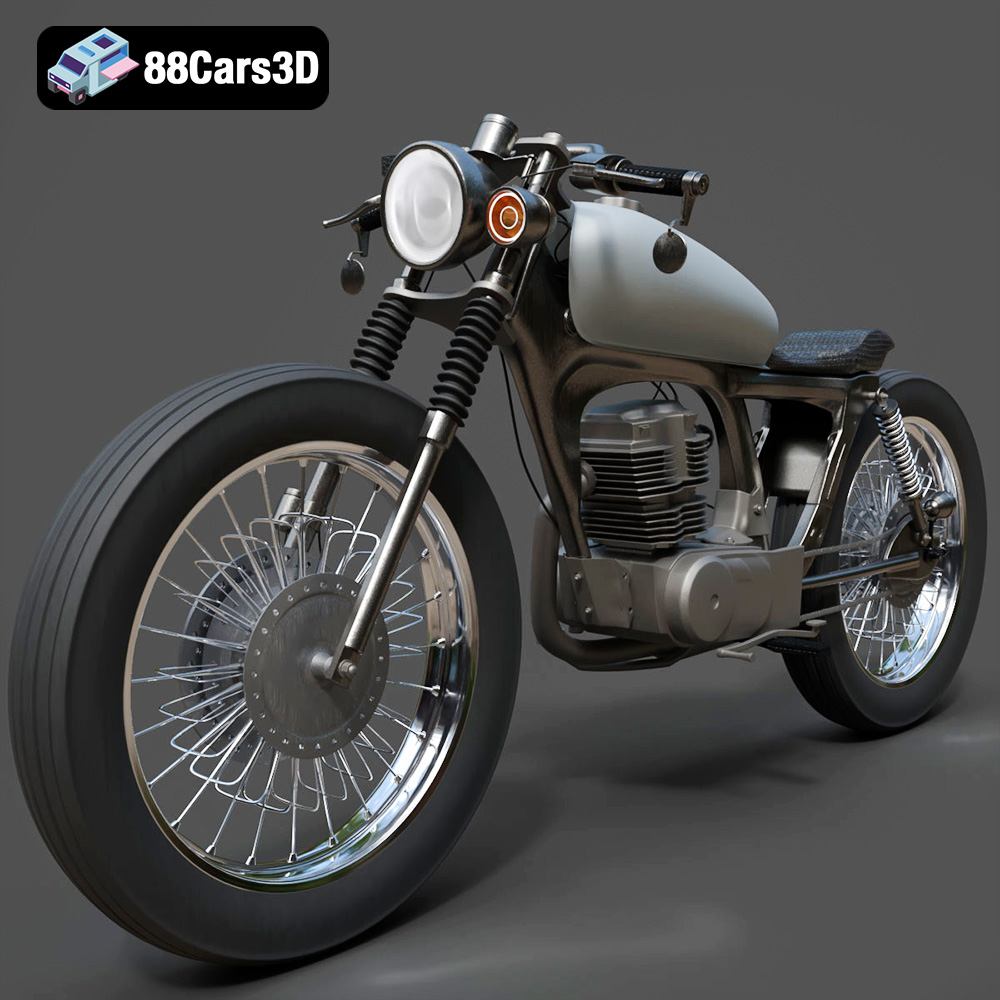
Material: Yes
Download the Honda CG125 Motorcycle 3D Model featuring clean geometry, realistic detailing, and a fully modeled interior. Includes .blend, .fbx, .obj, .glb, .stl, .ply, .unreal, and .max formats for rendering, simulation, and game development.
Price: $19.99
Texture: Yes
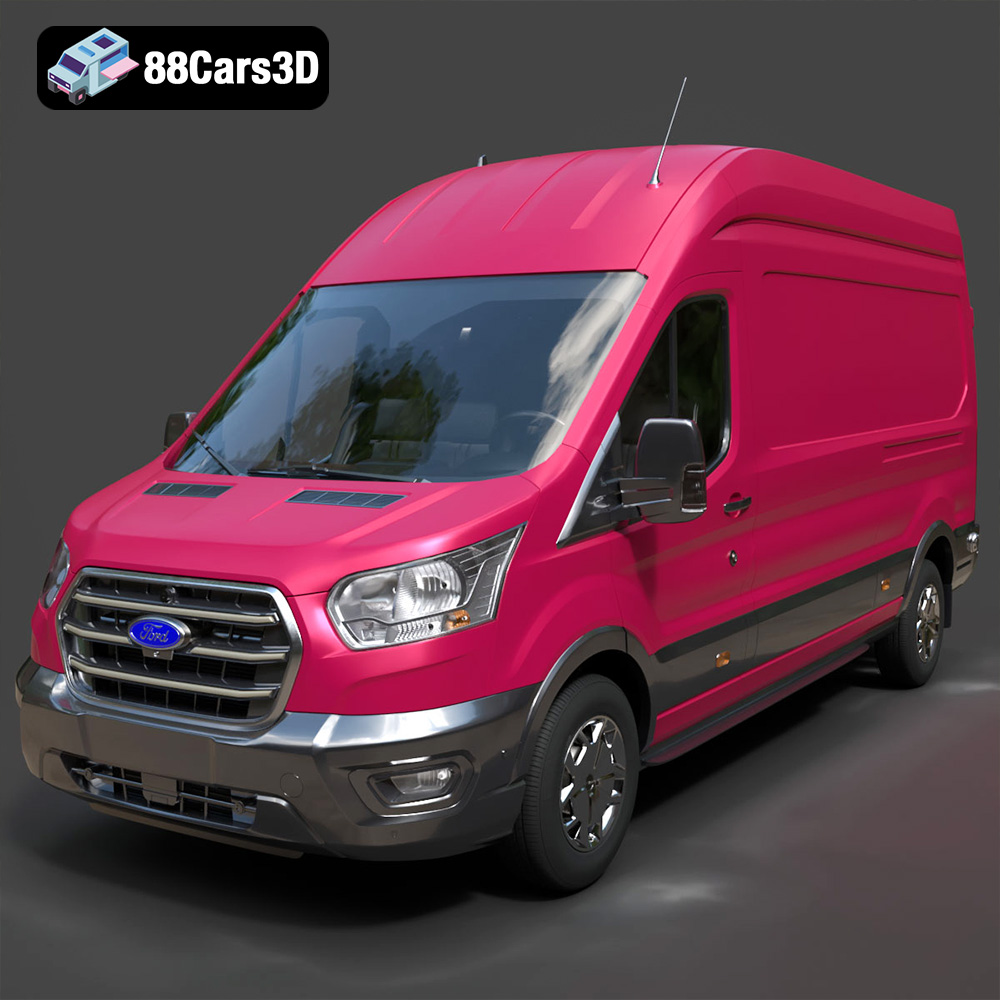
Material: Yes
Download the Ford Transit Van L3H3 Trend 2021 3D Model featuring clean geometry, realistic detailing, and a fully modeled interior. Includes .blend, .fbx, .obj, .glb, .stl, .ply, .unreal, and .max formats for rendering, simulation, and game development.
Price: $19.99
Texture: Yes
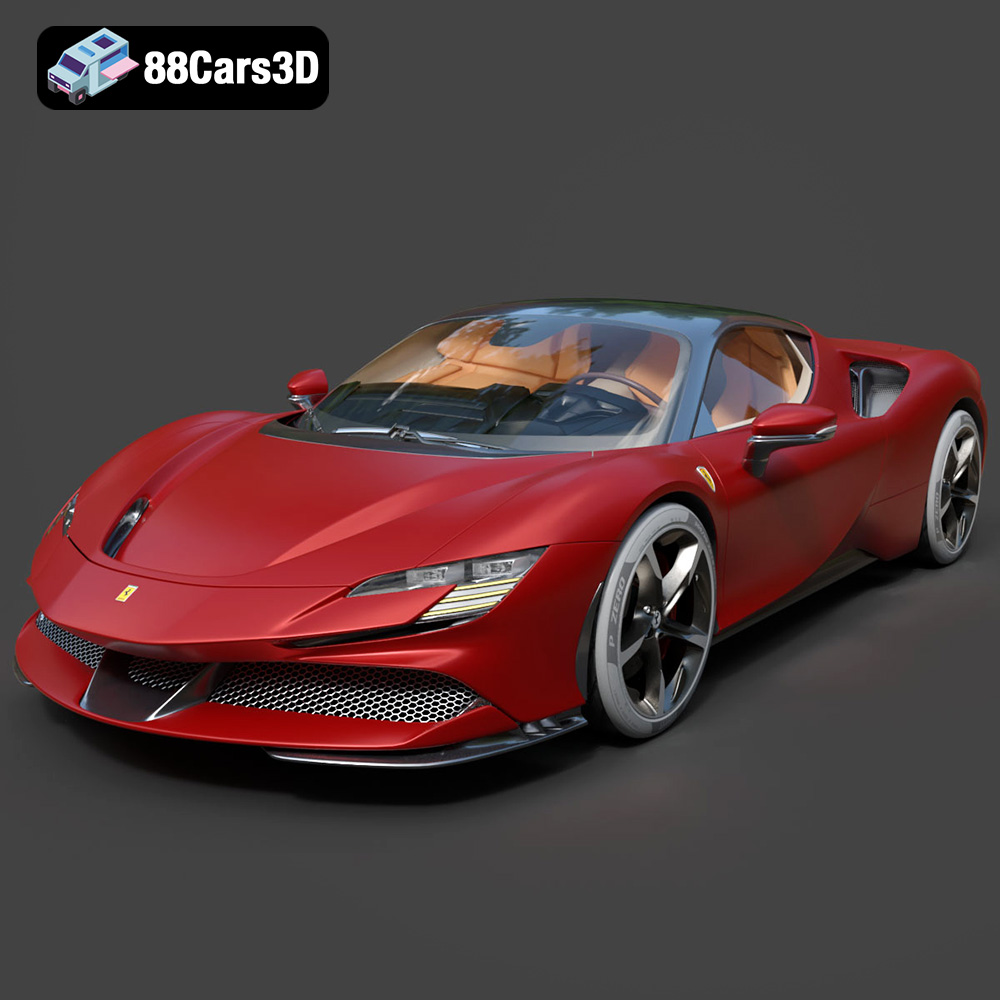
Material: Yes
Download the Ferrari SF90 Stradale 3D Model featuring clean geometry, realistic detailing, and a fully modeled interior. Includes .blend, .fbx, .obj, .glb, .stl, .ply, .unreal, and .max formats for rendering, simulation, and game development.
Price: $19.99

Texture: Yes
Material: Yes
Download the Harley Davidson F 1946 3D Model featuring clean geometry, realistic detailing, and a fully modeled interior. Includes .blend, .fbx, .obj, .glb, .stl, .ply, .unreal, and .max formats for rendering, simulation, and game development.
Price: $19.99

Texture: Yes
Material: Yes
Download the Land Rover Defender Works V8 3D Model featuring clean geometry, realistic detailing, and a fully modeled interior. Includes .blend, .fbx, .obj, .glb, .stl, .ply, .unreal, and .max formats for rendering, simulation, and game development.
Price: $19.99

Texture: Yes
Material: Yes
Download the Dodge RAM 2019 3D Model featuring clean geometry, realistic detailing, and a fully modeled interior. Includes .blend, .fbx, .obj, .glb, .stl, .ply, .unreal, and .max formats for rendering, simulation, and game development.
Price: $19.99

Texture: Yes | Material: Yes Download the ultra-high-detail Ford F-150 Raptor 2021 3D Model (8.73M Triangles). Features uncompromised widebody styling, fully modeled Fox Live Valve suspension, 37-inch tires, and interior. Perfect for premium VFX, cinematic rendering, and ArchViz. Includes .blend, .fbx, .obj, .glb, .stl, and .max formats.
Price: $29.99

Texture: Yes | Material: Yes Download the ultra-high-detail BMW 3 Series Limousine (2022) 3D Model (4.16M Triangles). Features the modernized G20 LCI exterior, the all-new BMW Curved Display interior, and ultra-dense topology. Perfect for ArchViz, VFX, and cinematic rendering. Includes .blend, .fbx, .obj, .glb, .stl, and .max formats.
Price: $19.99

Texture: Yes | Material: Yes Download the ultra-high-detail BMW i7 (2023) 3D Model (4.14M Triangles). Features the illuminated kidney grille, split crystal headlights, fully modeled Theatre Screen interior, and monolithic luxury styling. Perfect for ArchViz, VFX, and cinematic rendering. Includes .blend, .fbx, .obj, .glb, .stl, and .max formats.
Price: $19.99

