Get 50% OFF All Premium 3D & STL Models!

“`html
3D printing has revolutionized model making, prototyping, and even the automotive industry. Whether you’re a seasoned hobbyist or just starting, the key to a successful print lies in properly preparing your 3D model. This guide will walk you through the essential steps of preparing your STL files, optimizing them for printing, and ensuring a smooth and successful outcome. We’ll cover everything from understanding STL file structure to advanced slicing techniques, focusing on best practices applicable to platforms like 88cars3d.com, where high-quality, printable car models are readily available.
This guide will cover the following key areas:
The STL (stereolithography) file format is the workhorse of 3D printing. It represents a 3D object’s surface as a collection of triangles. Understanding its structure and limitations is crucial for successful printing. However, keep in mind that not all STL files are created equal. When downloading models from marketplaces such as 88cars3d.com, you can expect a higher level of quality and optimization, but it’s still important to understand the underlying principles.
At its core, an STL file is a list of triangles, where each triangle is defined by its three vertices (coordinates in 3D space) and a normal vector indicating the triangle’s orientation. The more triangles, the smoother the surface appears, but also the larger the file size. Finding the right balance between detail and file size is key. STL files do not contain information about color, texture, or material. All of that is defined in the slicing stage based on your 3D printer settings.
STL files can suffer from several issues that can lead to print failures. These include:
These issues can often be difficult to spot visually, but can cause significant problems during slicing and printing. Fortunately, there are tools and techniques to identify and repair these issues, which we’ll cover in the next section.
Before you even think about slicing, it’s vital to ensure your STL file is “watertight” and free of errors. Software like Meshmixer, Netfabb, and Blender offer powerful tools for mesh repair and optimization. Let’s explore how to use these tools to prepare your models.
Meshmixer is a free and powerful tool for mesh editing and repair. To repair an STL file in Meshmixer:
Netfabb is a more advanced, professional-grade tool that offers comprehensive mesh analysis and repair capabilities. It’s particularly useful for complex models or when Meshmixer’s automatic repair isn’t sufficient. Netfabb offers more control over the repair process, allowing you to target specific issues. For example, you can manually close holes, stitch edges, and remove self-intersections. Netfabb also provides detailed reports on mesh quality, including surface area, volume, and number of shells.
Best Practice: Always run your STL file through a mesh repair tool before slicing, even if it appears visually perfect. This can save you time and filament by preventing print failures.
Slicing is the process of converting your 3D model into a series of layers that the printer can understand. The slicing software (e.g., Cura, PrusaSlicer) generates the G-code, which contains instructions for the printer’s movements, temperature, and material extrusion. Choosing the right slicing parameters is crucial for achieving optimal print quality.
For FDM (Fused Deposition Modeling) printing, consider these key settings:
Resin printing (SLA/DLP) uses liquid resin cured by UV light. Key slicing parameters include:
Expert Tip: Experiment with different slicing parameters to find the optimal settings for your printer and material. Start with the recommended settings for your material and adjust gradually based on your results.
Support structures are temporary structures that hold up overhanging parts of your model during printing. They are crucial for complex geometries but need to be removed after printing. Generating and removing supports effectively is a key skill in 3D printing.
There are several types of support structures, including:
Most slicing software can automatically generate support structures. In Cura, for example, you can adjust the following settings:
PrusaSlicer offers similar settings with additional control over support infill and interface layers.
Removing supports can be challenging, especially for delicate models. Here are some tips:
Important Note: When removing supports, be patient and careful to avoid damaging the model. It’s often better to leave a small amount of support material behind than to risk breaking the model.
Choosing the right material and calibrating your printer are essential for consistent and high-quality prints. The ideal material depends on your application and the desired properties of the final product.
Here’s a brief overview of common 3D printing materials:
Proper printer calibration is crucial for consistent results. Here are some key steps:
Pro Tip: Regularly maintain your printer by cleaning the nozzle, lubricating moving parts, and checking for loose connections. A well-maintained printer will produce better prints and last longer.
Post-processing is the finishing touch that transforms a raw 3D print into a polished and professional-looking product. This can involve a range of techniques, from sanding and painting to assembly and coating.
Sanding is used to remove layer lines and smooth the surface of the print. Start with coarse sandpaper (e.g., 220 grit) and gradually move to finer grits (e.g., 400, 600, 800) for a smooth finish. For resin prints, wet sanding is often recommended to prevent dust from clogging the sandpaper.
Painting can add color and protect the surface of the print. Use a primer to prepare the surface and ensure good adhesion. Apply multiple thin coats of paint for a smooth and even finish. Consider using clear coats to protect the paint and add a glossy or matte finish.
Specific steps might include:
Many 3D models consist of multiple parts that need to be assembled. Use glue or fasteners to connect the parts. Add details like decals, stickers, or weathering effects to enhance the realism of the model. High-quality models available on platforms like 88cars3d.com often come pre-separated for easy assembly and customization.
Even with careful preparation, 3D printing can sometimes present challenges. Knowing how to troubleshoot common issues can save you time and frustration.
Warping occurs when the corners of the print lift off the build plate. This is often caused by poor bed adhesion or temperature fluctuations. To improve bed adhesion, try:
Stringing occurs when the printer extrudes filament while moving between parts, leaving thin strands of plastic. Oozing is similar but occurs when the nozzle leaks filament while idle. To reduce stringing and oozing, try:
Layer separation occurs when the layers of the print don’t adhere properly. This can be caused by:
Final Note: 3D printing is a learning process. Don’t be discouraged by failures. Analyze the issues, adjust your settings, and keep experimenting. With practice, you’ll become a skilled 3D printer.
Preparing 3D models for printing is a multi-faceted process that requires attention to detail and a good understanding of both the software and hardware involved. By understanding the STL file format, mastering mesh repair techniques, optimizing slicing parameters, and learning to generate and remove support structures effectively, you can significantly improve the quality and reliability of your 3D prints. Remember to select the right material for your application, calibrate your printer regularly, and invest time in post-processing for a professional finish.
The skills and knowledge gained from this guide will enable you to confidently tackle complex 3D printing projects and bring your creative ideas to life. Don’t be afraid to experiment, learn from your mistakes, and continuously refine your techniques. Happy printing!
“`

Texture: Yes
Material: Yes
Download the JCB Excavator-001 3D Model featuring clean geometry, realistic detailing, and a fully modeled interior. Includes .blend, .fbx, .obj, .glb, .stl, .ply, .unreal, and .max formats for rendering, simulation, and game development.
Price: $19.99

Texture: Yes
Material: Yes
Download the Hyundai Santa Fe 2021 3D Model featuring clean geometry, realistic detailing, and a fully modeled interior. Includes .blend, .fbx, .obj, .glb, .stl, .ply, .unreal, and .max formats for rendering, simulation, and game development.
Price: $19.99
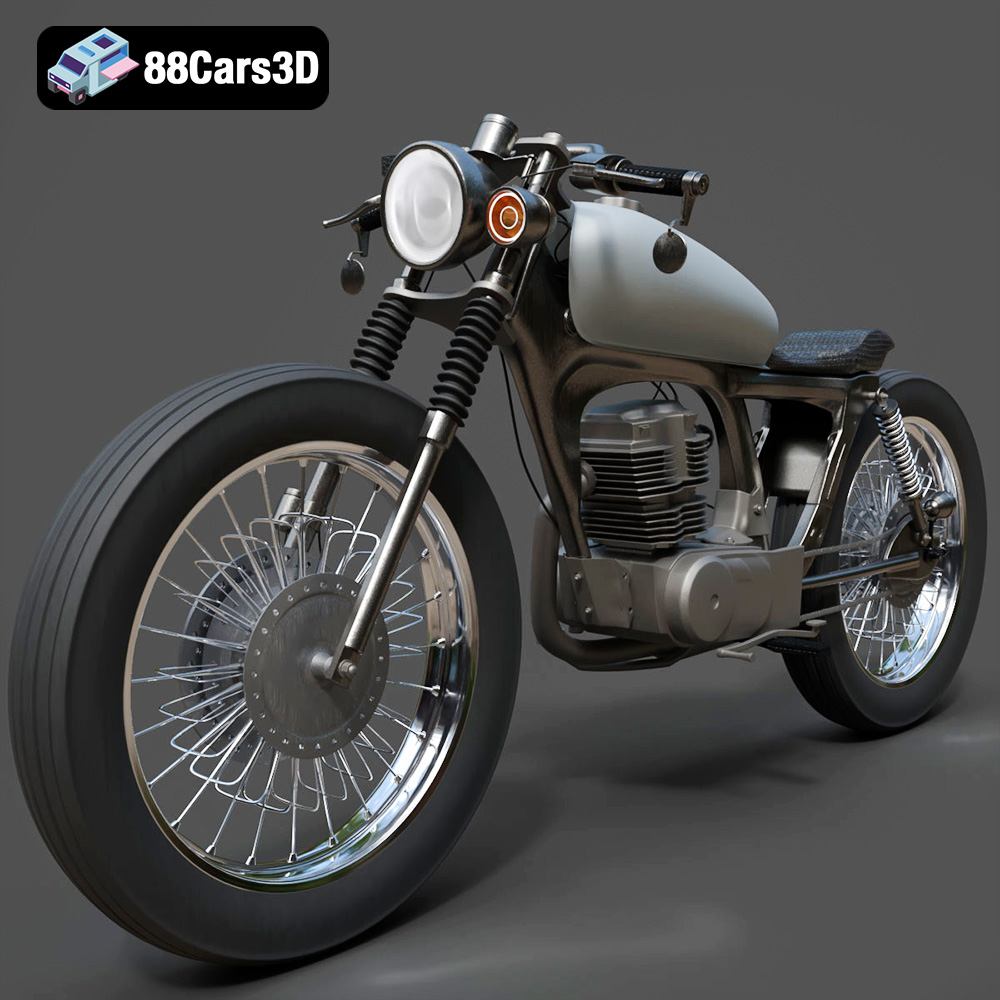
Texture: Yes
Material: Yes
Download the Honda CG125 Motorcycle 3D Model featuring clean geometry, realistic detailing, and a fully modeled interior. Includes .blend, .fbx, .obj, .glb, .stl, .ply, .unreal, and .max formats for rendering, simulation, and game development.
Price: $19.99
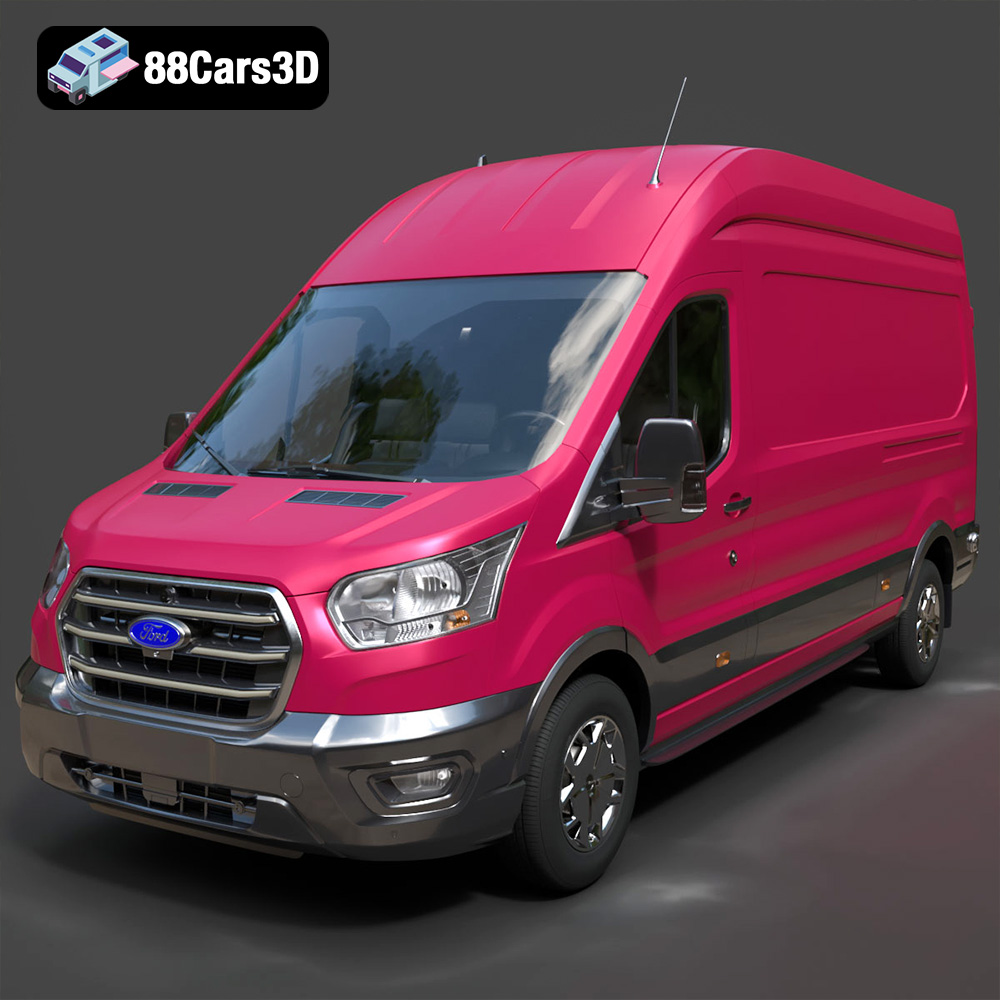
Texture: Yes
Material: Yes
Download the Ford Transit Van L3H3 Trend 2021 3D Model featuring clean geometry, realistic detailing, and a fully modeled interior. Includes .blend, .fbx, .obj, .glb, .stl, .ply, .unreal, and .max formats for rendering, simulation, and game development.
Price: $19.99

Texture: Yes
Material: Yes
Download the Ferrari SF90 Stradale 3D Model featuring clean geometry, realistic detailing, and a fully modeled interior. Includes .blend, .fbx, .obj, .glb, .stl, .ply, .unreal, and .max formats for rendering, simulation, and game development.
Price: $19.99

Texture: Yes
Material: Yes
Download the Harley Davidson F 1946 3D Model featuring clean geometry, realistic detailing, and a fully modeled interior. Includes .blend, .fbx, .obj, .glb, .stl, .ply, .unreal, and .max formats for rendering, simulation, and game development.
Price: $19.99

Texture: Yes
Material: Yes
Download the Land Rover Defender Works V8 3D Model featuring clean geometry, realistic detailing, and a fully modeled interior. Includes .blend, .fbx, .obj, .glb, .stl, .ply, .unreal, and .max formats for rendering, simulation, and game development.
Price: $19.99

Texture: Yes
Material: Yes
Download the Dodge RAM 2019 3D Model featuring clean geometry, realistic detailing, and a fully modeled interior. Includes .blend, .fbx, .obj, .glb, .stl, .ply, .unreal, and .max formats for rendering, simulation, and game development.
Price: $19.99

Texture: Yes | Material: Yes Download the ultra-high-detail Ford F-150 Raptor 2021 3D Model (8.73M Triangles). Features uncompromised widebody styling, fully modeled Fox Live Valve suspension, 37-inch tires, and interior. Perfect for premium VFX, cinematic rendering, and ArchViz. Includes .blend, .fbx, .obj, .glb, .stl, and .max formats.
Price: $29.99

Texture: Yes | Material: Yes Download the ultra-high-detail BMW 3 Series Limousine (2022) 3D Model (4.16M Triangles). Features the modernized G20 LCI exterior, the all-new BMW Curved Display interior, and ultra-dense topology. Perfect for ArchViz, VFX, and cinematic rendering. Includes .blend, .fbx, .obj, .glb, .stl, and .max formats.
Price: $19.99

