Get 50% OFF All Premium 3D & STL Models!

“`html
For 3D printing enthusiasts, especially those diving into printable car models, mastering STL file editing is crucial. STL files, the backbone of 3D printing, often require adjustments, repairs, or modifications before they’re ready for prime time on your 3D printer. Whether you’re downloading models from marketplaces such as 88cars3d.com or creating your own, understanding the software landscape for STL editing is essential. This guide explores the best free and paid software options, covering their capabilities, workflows, and practical applications for optimizing your 3D printing experience.
We’ll delve into everything from basic mesh repair to advanced sculpting, ensuring you have the knowledge to choose the right tool for the job. Learn how to fix common STL errors, modify existing designs, and prepare your models for printing with precision. Let’s unlock the power of STL editing and elevate your 3D printing projects.
STL (Stereolithography) files are the most common file format used in 3D printing. They represent the surface geometry of a 3D object as a collection of triangles. While simple and widely supported, STL files can sometimes contain errors or require modifications for optimal printing. Before diving into software, let’s understand the format’s nuances.
Mesh topology refers to the structure and connectivity of the triangles within the STL file. A well-formed mesh is essential for successful 3D printing. Issues like non-manifold edges (edges connected to more than two faces), holes, and self-intersections can cause slicing errors and print failures. Think of it like building with LEGOs; if the bricks don’t connect properly, the structure will be unstable.
For example, a car model with a small hole in the roof might not seem like a big deal visually, but the slicer will struggle to generate proper toolpaths for that area, leading to defects or incomplete sections in the printed model. Software like Netfabb and Meshmixer excel at automatically detecting and repairing these issues.
There are several compelling reasons to edit STL files. You might want to:
Consider a scenario where you’ve downloaded a fantastic printable car model from 88cars3d.com, but you want to add a personalized license plate. Editing the STL file allows you to seamlessly integrate this feature, making the model truly unique.
Fortunately, a range of powerful free software options are available for editing STL files. These tools cater to various skill levels and offer a surprising array of features.
Meshmixer, from Autodesk, is a free and incredibly versatile tool for STL editing. It excels at mesh repair, sculpting, and adding support structures. It’s a great choice for beginners and experienced users alike.
Key Features:
Workflow Example: Imagine you have an STL file with a small hole. In Meshmixer, you can use the “Make Solid” tool to automatically fill the hole and create a watertight mesh. You can then use the sculpting tools to refine the area and ensure a smooth surface. For a car model, this could be used to smooth out imperfections around the wheel wells or repair a crack in the bumper.
MeshLab is another excellent free option, particularly strong for mesh analysis and cleaning. While its interface might seem a bit less intuitive than Meshmixer, it offers powerful tools for identifying and fixing complex mesh issues.
Key Features:
Technical Tip: MeshLab’s “Remove Duplicate Faces” and “Remove Zero Area Faces” filters are invaluable for cleaning up messy STL files. These filters can significantly reduce file size and improve slicing performance. When dealing with a particularly complex model with numerous overlapping triangles, MeshLab can be your best friend.
While free software offers impressive capabilities, paid software often provides more advanced features, streamlined workflows, and dedicated support. For professional users or those requiring specific functionalities, these options are worth considering.
Autodesk Netfabb is a leading software solution for additive manufacturing, offering comprehensive tools for STL editing, repair, optimization, and build preparation. It’s widely used in industrial settings.
Key Features:
Example Workflow: With Netfabb, you can import an STL file of a car chassis and automatically generate optimized support structures for FDM printing. The software analyzes the model’s geometry and creates supports that minimize material usage while ensuring structural integrity during printing. You can then simulate the printing process to identify potential issues and adjust the supports accordingly.
ZBrush is a powerful digital sculpting tool that allows for incredibly detailed modifications to STL files. While not strictly an STL editor, its ability to import and sculpt on meshes makes it invaluable for adding intricate details and organic shapes.
Key Features:
Practical Application: If you want to add realistic wear and tear to a printable car model, ZBrush is the perfect tool. You can sculpt dents, scratches, and imperfections to create a weathered look. The software’s dynamic tessellation ensures that you can add detail without being limited by the original mesh resolution. For example, you could add realistic tire tread patterns or subtle body panel damage.
Once you’ve edited your STL file, the next crucial step is slicing. Slicing software converts the 3D model into a series of layers that the 3D printer can understand. Optimizing slicing parameters is essential for achieving high-quality prints.
Layer height determines the vertical resolution of your print. Smaller layer heights result in smoother surfaces and finer details but increase print time. Larger layer heights print faster but sacrifice detail. A common starting point for FDM printing is 0.2mm layer height, but you can adjust this based on the model’s complexity and desired quality. For resin printing, layer heights are typically much smaller, ranging from 0.025mm to 0.05mm for incredibly detailed prints.
For example, when printing a highly detailed car model with intricate body lines, a layer height of 0.1mm or even 0.05mm might be necessary to capture those details accurately. However, for larger, less detailed parts like a simple car stand, a layer height of 0.2mm or 0.3mm would be perfectly acceptable and significantly reduce print time.
Infill density determines the amount of material used inside the model. Higher infill densities increase strength and weight but also increase print time and material consumption. Infill patterns affect the model’s strength and flexibility. Common infill patterns include rectilinear, grid, honeycomb, and gyroid. A typical infill density for most applications is 20-25%, but this can be adjusted based on the part’s intended use. Functional parts requiring high strength may benefit from 50-100% infill.
Consider printing a car wheel. A 100% infill is unnecessary and wasteful. A 25% infill with a gyroid pattern provides a good balance of strength and weight. However, if the wheel is designed to support a significant load, increasing the infill density to 50% or higher might be necessary.
Support structures are temporary structures that support overhanging features during printing. They’re crucial for preventing print failures but must be removed after printing. Understanding how to generate and remove supports effectively is a key skill for any 3D printing enthusiast.
There are several types of support structures, including:
When printing a car model with significant overhangs, such as the side mirrors or rear spoiler, tree supports are often the best choice. They provide adequate support while minimizing material usage and reducing the risk of damaging the model during removal. For models with small footprints, a raft or brim can significantly improve bed adhesion and prevent warping, especially when printing with materials like ABS.
Removing support structures can be challenging, especially for complex models. Here are some tips:
Pro Tip: Designing your model with support removal in mind can save you a lot of time and effort. For example, orienting the model so that overhangs face upwards can minimize the need for support structures in the first place. Also, use the “support blockers” feature in your slicing software to prevent supports from generating in areas that are difficult to access.
The choice of material and proper printer calibration are crucial for successful 3D printing. Each material has unique properties and requires specific printer settings.
The most common 3D printing materials include:
For printing printable car models, PLA is a great starting point due to its ease of use and wide availability. However, if the model is intended for outdoor use or will be exposed to high temperatures, PETG or ABS would be more suitable choices. Resin is ideal for printing incredibly detailed car models with smooth surfaces, but keep in mind that resin prints are generally more fragile and may require more careful handling.
Proper printer calibration is essential for achieving accurate and consistent prints. This includes:
Before printing any complex car models, it’s always a good idea to print a calibration cube to verify that your printer is properly calibrated. This simple test print can reveal issues with bed leveling, temperature, and flow rate, allowing you to make adjustments before wasting time and material on a larger print.
Even with proper file preparation and printer settings, 3D printing can sometimes be challenging. Here are some common issues and how to troubleshoot them:
Warping occurs when the corners of the print lift off the bed. This is often caused by poor bed adhesion or temperature fluctuations. To prevent warping:
Stringing occurs when the printer extrudes material while moving between parts, leaving thin strands of plastic. Blobs are small, excess deposits of material on the print surface. To prevent stringing and blobs:
Layer shifting occurs when the print suddenly shifts horizontally, resulting in misaligned layers. This can be caused by loose belts, stepper motor issues, or a collision with the print.
Mastering STL file editing is an essential skill for any 3D printing enthusiast. By understanding the intricacies of STL files, exploring the available software options, and optimizing your slicing parameters, you can significantly improve the quality and success rate of your 3D printing projects. Whether you’re printing printable car models from platforms like 88cars3d.com or creating your own designs, the knowledge gained from this guide will empower you to tackle any 3D printing challenge.
Start by experimenting with free software like Meshmixer and MeshLab to familiarize yourself with the basics of STL editing. As your skills grow, consider exploring paid software options like Netfabb and ZBrush for more advanced capabilities. Remember to always prioritize proper printer calibration, material selection, and support structure generation for optimal results. With practice and dedication, you’ll be creating stunning 3D printed models in no time!
“`
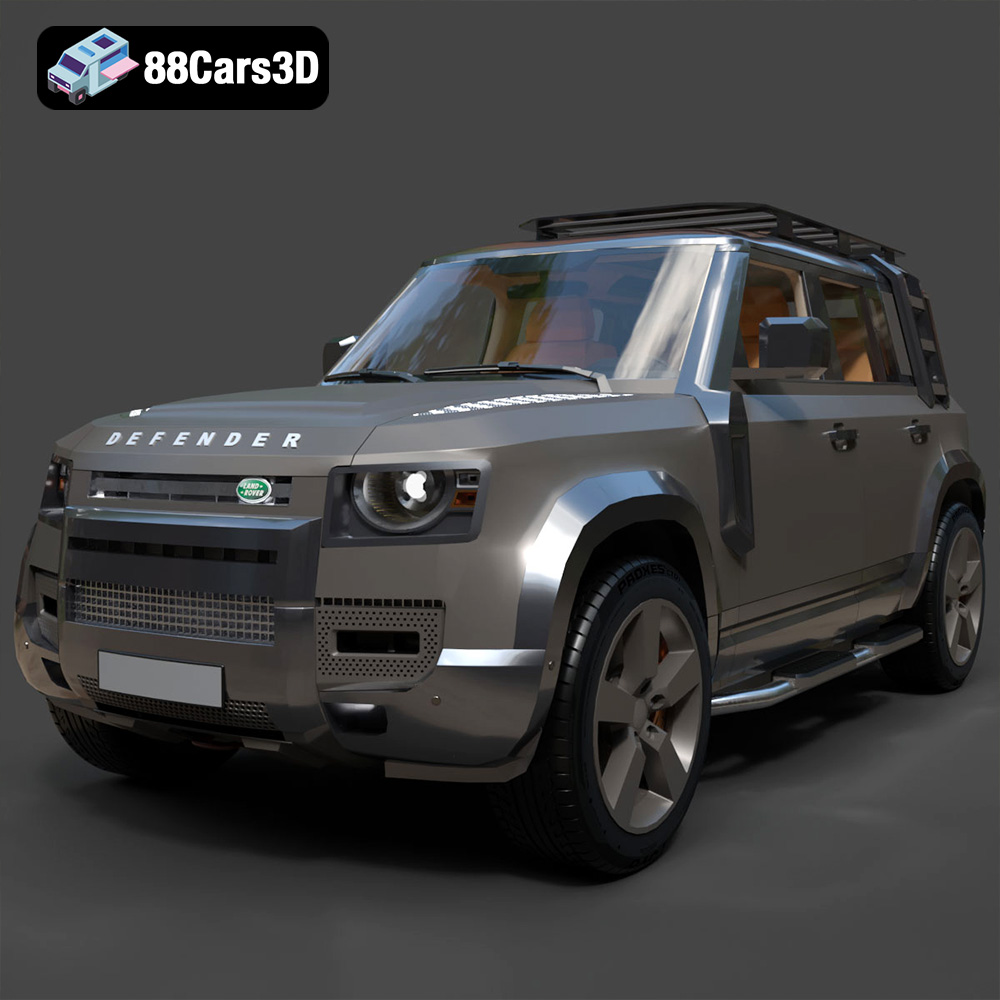
Texture: Yes
Material: Yes
Download the Land Rover Defender EXPLORER PACK-001 3D Model featuring clean geometry, realistic detailing, and a fully modeled interior. Includes .blend, .fbx, .obj, .glb, .stl, .ply, .unreal, and .max formats for rendering, simulation, and game development.
Price: $19.99
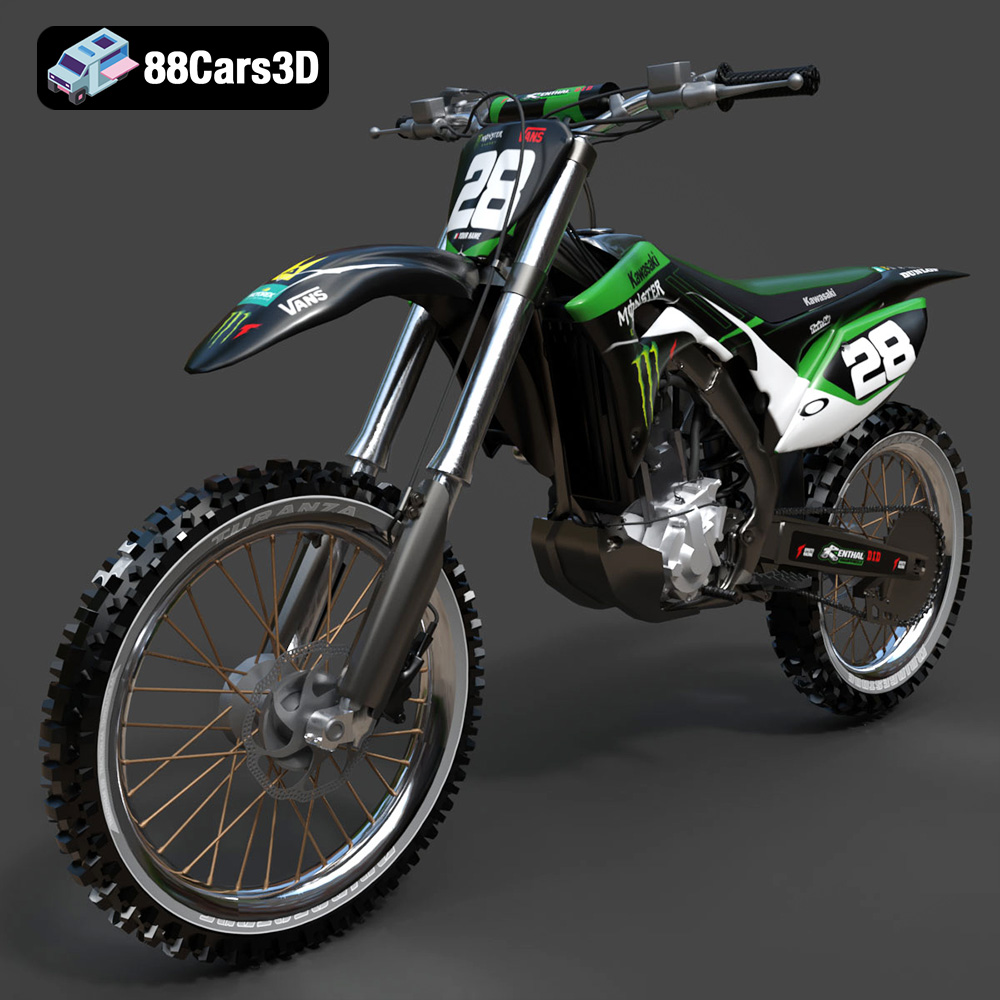
Texture: Yes
Material: Yes
Download the Kawasaki Motorcycle-001 3D Model featuring clean geometry, realistic detailing, and a fully modeled interior. Includes .blend, .fbx, .obj, .glb, .stl, .ply, .unreal, and .max formats for rendering, simulation, and game development.
Price: $19.99
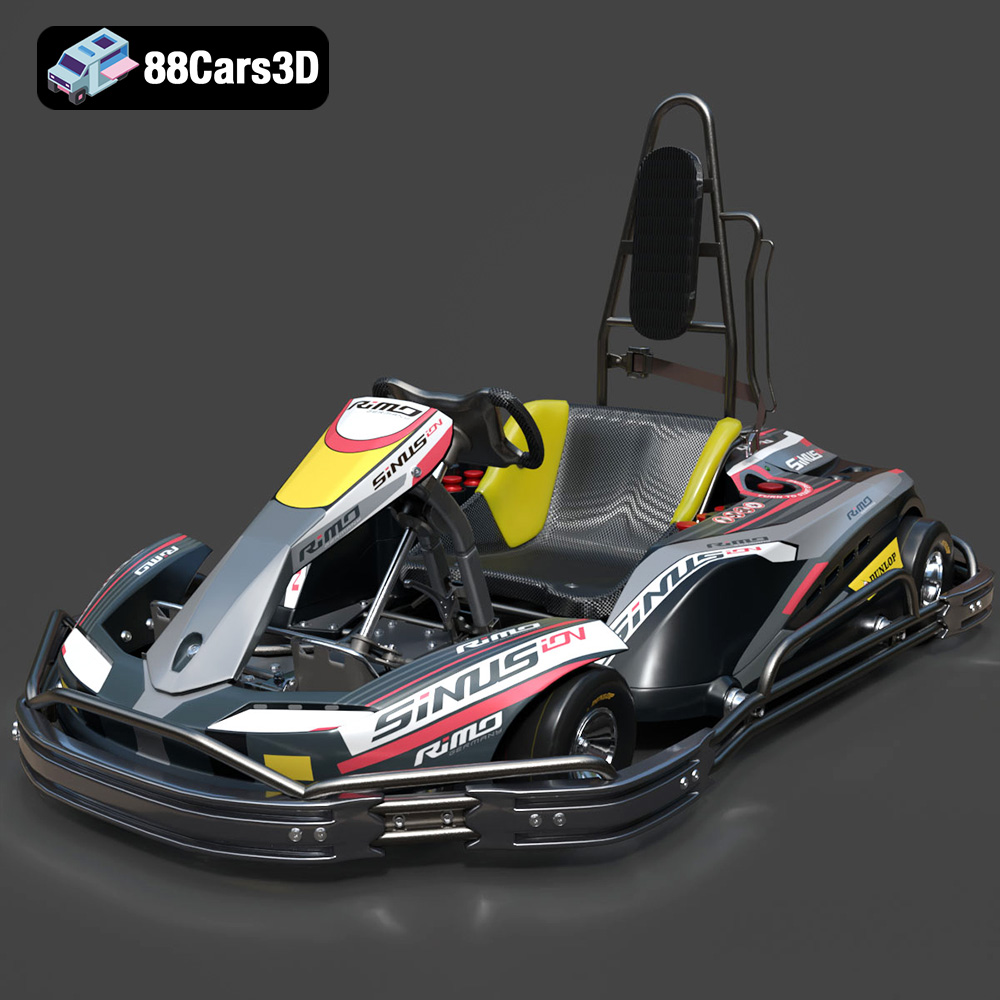
Texture: Yes
Material: Yes
Download the RiMO SiNUS iON-001 Kart 3D Model featuring clean geometry, realistic detailing, and a fully modeled interior. Includes .blend, .fbx, .obj, .glb, .stl, .ply, .unreal, and .max formats for rendering, simulation, and game development.
Price: $19.99

Texture: Yes
Material: Yes
Download the JCB Excavator-001 3D Model featuring clean geometry, realistic detailing, and a fully modeled interior. Includes .blend, .fbx, .obj, .glb, .stl, .ply, .unreal, and .max formats for rendering, simulation, and game development.
Price: $19.99
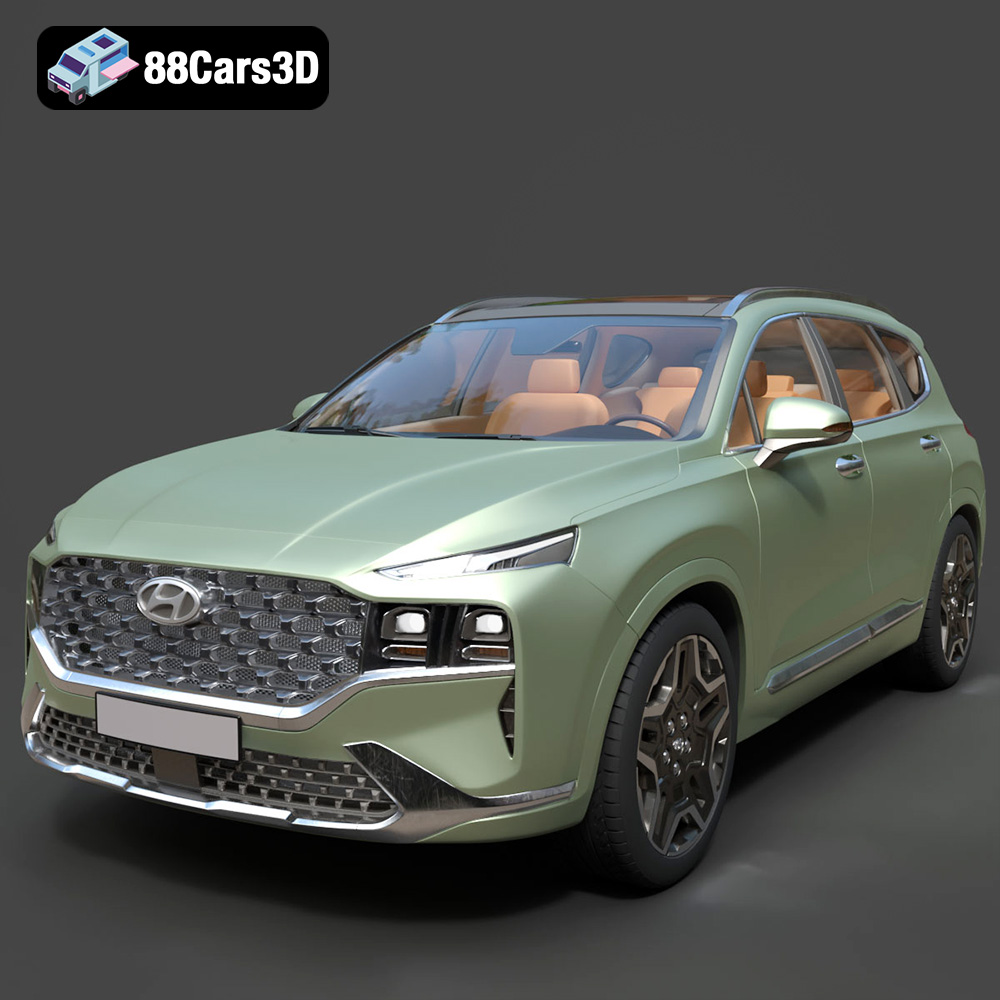
Texture: Yes
Material: Yes
Download the Hyundai Santa Fe 2021 3D Model featuring clean geometry, realistic detailing, and a fully modeled interior. Includes .blend, .fbx, .obj, .glb, .stl, .ply, .unreal, and .max formats for rendering, simulation, and game development.
Price: $19.99
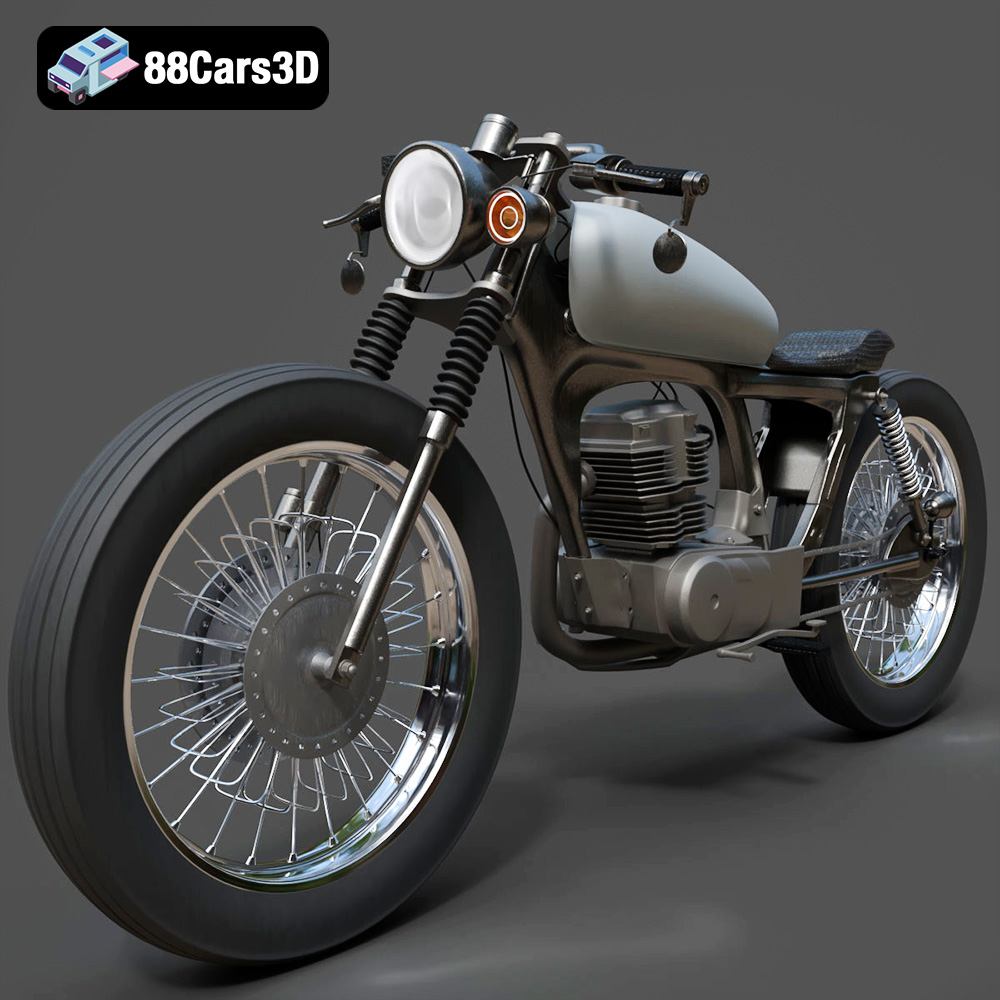
Texture: Yes
Material: Yes
Download the Honda CG125 Motorcycle 3D Model featuring clean geometry, realistic detailing, and a fully modeled interior. Includes .blend, .fbx, .obj, .glb, .stl, .ply, .unreal, and .max formats for rendering, simulation, and game development.
Price: $19.99
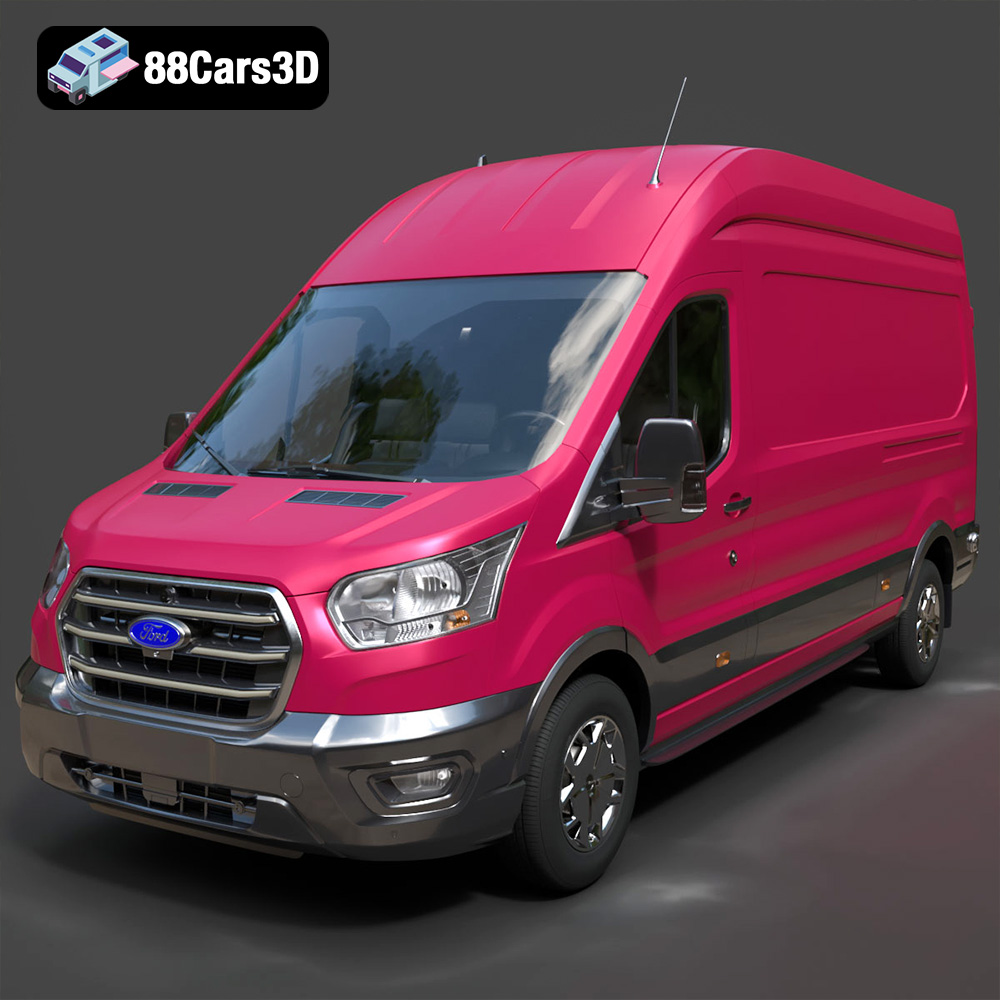
Texture: Yes
Material: Yes
Download the Ford Transit Van L3H3 Trend 2021 3D Model featuring clean geometry, realistic detailing, and a fully modeled interior. Includes .blend, .fbx, .obj, .glb, .stl, .ply, .unreal, and .max formats for rendering, simulation, and game development.
Price: $19.99
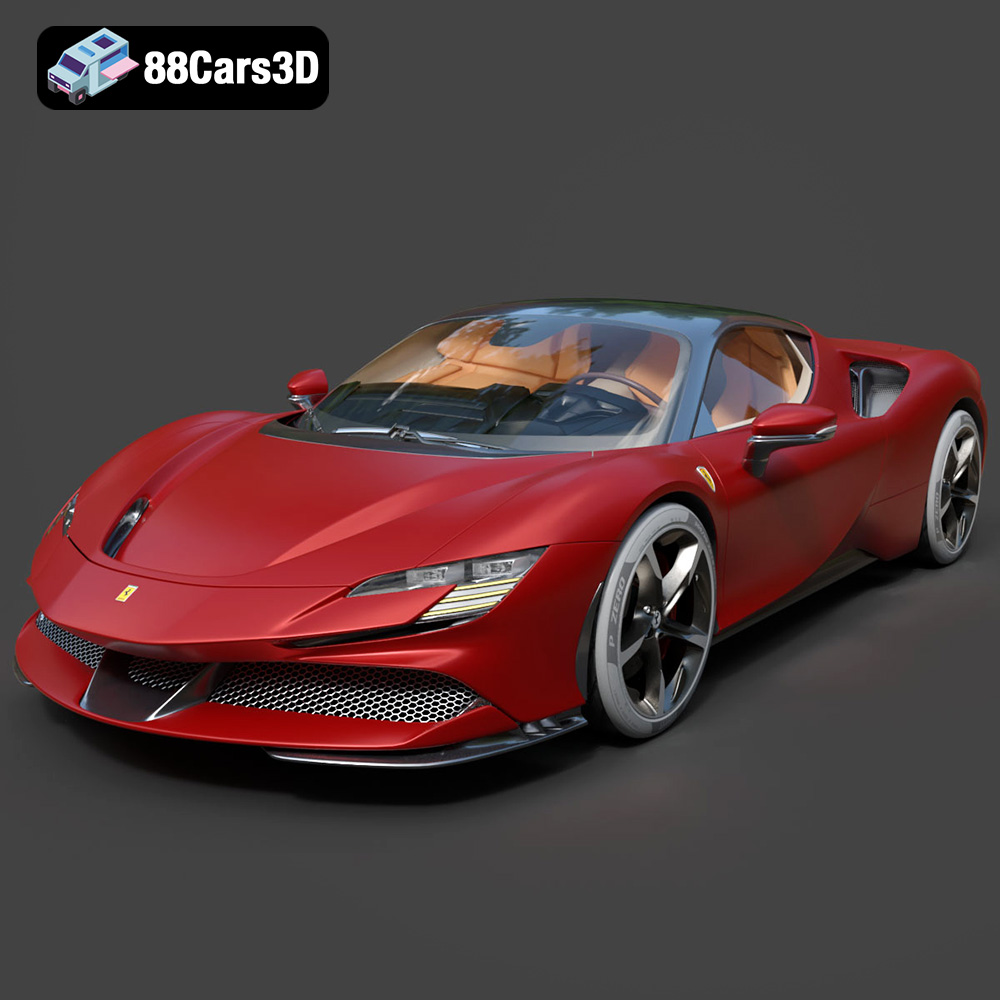
Texture: Yes
Material: Yes
Download the Ferrari SF90 Stradale 3D Model featuring clean geometry, realistic detailing, and a fully modeled interior. Includes .blend, .fbx, .obj, .glb, .stl, .ply, .unreal, and .max formats for rendering, simulation, and game development.
Price: $19.99

Texture: Yes
Material: Yes
Download the Harley Davidson F 1946 3D Model featuring clean geometry, realistic detailing, and a fully modeled interior. Includes .blend, .fbx, .obj, .glb, .stl, .ply, .unreal, and .max formats for rendering, simulation, and game development.
Price: $19.99

Texture: Yes
Material: Yes
Download the Land Rover Defender Works V8 3D Model featuring clean geometry, realistic detailing, and a fully modeled interior. Includes .blend, .fbx, .obj, .glb, .stl, .ply, .unreal, and .max formats for rendering, simulation, and game development.
Price: $19.99

