Get 50% OFF All Premium 3D & STL Models!

“`html
The allure of 3D printing lies in the ability to transform digital designs into tangible objects. For automotive enthusiasts, this means bringing dream cars to life as meticulously detailed models. However, achieving a smooth, professional-looking finish on 3D printed car models from STL files requires careful planning, precise execution, and a solid understanding of the 3D printing process. This comprehensive guide will walk you through every step, from preparing your STL file to post-processing techniques, ensuring your printed car models boast surfaces worthy of a showroom.
In this article, you’ll learn about:
The foundation of any successful 3D print lies in the quality of the STL file. STL (Stereolithography) is a file format that represents the surface geometry of a 3D object using a collection of triangles. The density and distribution of these triangles directly impact the smoothness of the printed surface. A higher density of triangles (more triangles per unit area) results in a finer, smoother surface, but also a larger file size and potentially longer processing times. Platforms like 88cars3d.com offer print-ready STL files that have been optimized for 3D printing, but understanding the underlying principles is still crucial.
Each triangle in an STL file is defined by three vertices, each with x, y, and z coordinates, and a normal vector indicating the direction the triangle faces. When creating or modifying STL files, it’s crucial to ensure that the triangles are consistently oriented (all normals pointing outwards or inwards) to create a “manifold” mesh. Non-manifold meshes can lead to errors during slicing and printing. Furthermore, consider the triangle resolution. Areas with complex curves or intricate details need a higher triangle density than flat, simple surfaces. Software like Blender, Meshmixer, and Netfabb can be used to adjust the mesh density and repair any errors in the STL file.
Before slicing, always inspect and repair your STL file. Mesh repair software, like Netfabb or the repair tools integrated into some slicers (e.g., PrusaSlicer), can automatically detect and fix common issues such as holes, flipped normals, and intersecting triangles. Ensuring a manifold mesh is critical for a successful print. Non-manifold geometry can confuse the slicer and lead to missing sections, unexpected voids, or other print defects. A common technique is to use the “Make Manifold” or “Close Holes” function in mesh editing software. Aim for a clean, watertight mesh before proceeding to slicing.
Slicing is the process of converting the 3D model into a series of 2D layers that the 3D printer can understand. The slicing parameters you choose have a profound impact on the final surface quality. This is true for both FDM (Fused Deposition Modeling) and resin printing, although the specific parameters differ.
Layer height is arguably the most crucial parameter for achieving smooth surfaces. A lower layer height results in finer steps between layers, leading to a smoother overall finish. Common layer heights for FDM printing range from 0.05mm to 0.3mm. For highly detailed car models where surface finish is paramount, aim for a layer height between 0.05mm and 0.15mm. However, decreasing the layer height also significantly increases the print time. Print speed also plays a role. Faster print speeds can lead to vibrations and inconsistencies in layer deposition, resulting in a rougher surface. A slower print speed allows for more precise extrusion and better layer adhesion. Consider reducing the print speed for the outer walls (perimeters) to enhance surface smoothness.
While infill primarily affects the internal strength and weight of the print, it can indirectly influence the surface quality, especially on thin-walled models. A higher infill density provides more support for the outer layers, preventing them from sagging or warping during printing. Common infill patterns include rectilinear, grid, and gyroid. For models where surface smoothness is critical, consider using a gyroid infill pattern, as it provides uniform support in all directions. Wall thickness is another important factor. Increasing the number of perimeters (outer walls) creates a thicker, more rigid shell that is less prone to warping and deformation. A wall thickness of at least 1.2mm (typically 3 perimeters with a 0.4mm nozzle) is recommended for most car models.
Support structures are essential for printing overhangs and complex geometries. However, the interface between the support and the model can often leave blemishes or imperfections on the surface. Careful support generation and removal techniques are vital for achieving a smooth finish.
There are various types of support structures, including linear, tree, and hybrid supports. Tree supports are often preferred for complex models with organic shapes, as they minimize the contact area with the model. The density of the support structure also affects the surface finish. A higher support density provides more support but also increases the contact area and the potential for blemishes. Experiment with different support densities to find the optimal balance between support and surface quality. In Cura, you can adjust the “Support Density” and “Support Overhang Angle.” In PrusaSlicer, the “Support Material Interface” settings are crucial for minimizing scarring.
The support interface is the layer or layers that directly contact the model. Adjusting the support interface settings can significantly improve the ease of support removal and minimize surface damage. Increasing the “Support Interface Thickness” and decreasing the “Support Interface Density” creates a weaker connection between the support and the model, making it easier to remove. When removing supports, use specialized tools such as tweezers, flush cutters, or a deburring tool. Heat can also be used to soften the support material and make it easier to remove. A heat gun or even a hair dryer can be used to gently heat the supports before removal. Be careful not to overheat the model, as this can cause it to warp or deform.
The material you choose for your 3D printed car model will significantly impact the achievable surface finish. Different materials have varying properties in terms of layer adhesion, shrinkage, and post-processing capabilities. Understanding these properties is crucial for selecting the right material for your project.
PLA (Polylactic Acid) is a popular choice for beginners due to its ease of printing and relatively low printing temperature. It provides good surface detail but can be brittle and prone to warping, especially with larger models. PETG (Polyethylene Terephthalate Glycol) offers a good balance between strength, flexibility, and ease of printing. It has better layer adhesion than PLA and is less prone to warping. ABS (Acrylonitrile Butadiene Styrene) is known for its strength, durability, and high-temperature resistance. However, it is more challenging to print than PLA or PETG due to its high shrinkage rate and tendency to warp. For achieving smooth surfaces, PETG is often preferred for FDM printing due to its good layer adhesion and relatively low shrinkage.
Resin printing offers significantly higher resolution and smoother surfaces compared to FDM printing. However, the choice of resin also plays a role. Standard resins are suitable for general-purpose printing, while tough resins offer increased strength and impact resistance. Flexible resins can be used for parts that require flexibility. After printing, resin models require post-curing under UV light to fully harden and achieve their final properties. Proper post-curing is essential for achieving a smooth, durable finish. Over-curing can lead to brittleness, while under-curing can result in a tacky surface. Follow the manufacturer’s recommendations for curing time and intensity.
Even with optimized printing parameters, some level of post-processing is often required to achieve a truly smooth surface on 3D printed car models. Sanding, filling, and painting are common techniques used to remove layer lines, fill gaps, and create a professional-looking finish.
Sanding is the process of removing material from the surface to eliminate layer lines and imperfections. Start with a coarse grit sandpaper (e.g., 220 grit) and gradually work your way up to finer grits (e.g., 400, 600, 800, 1000, 1200 grit). Wet sanding (using water with the sandpaper) helps to prevent clogging and creates a smoother finish. Be careful not to sand too aggressively, as this can remove too much material and distort the shape of the model. After sanding, thoroughly clean the model with soap and water to remove any sanding dust. This is crucial for proper paint adhesion.
Filling is used to fill any remaining gaps, scratches, or imperfections on the surface. Automotive body filler or specialized 3D printing filler can be used for this purpose. Apply the filler in thin layers and allow it to dry completely before sanding it smooth. Once the filling is complete, apply a primer to the model. Primer provides a uniform surface for the paint to adhere to and helps to hide any remaining imperfections. Choose a primer that is compatible with the material of your model and the type of paint you will be using. Several thin coats of primer are better than one thick coat to prevent runs and drips.
Achieving a smooth surface on 3D printed car models can sometimes be challenging. Here are some common surface defects and how to troubleshoot them:
Layer lines are the visible lines created by each layer of the 3D print. They are more pronounced with larger layer heights. To minimize layer lines, reduce the layer height, increase the print resolution, and use post-processing techniques such as sanding and filling. “Stepping” refers to the stair-stepping effect that occurs on curved surfaces due to the layering process. This is especially noticeable on shallow angles. Lowering the layer height significantly reduces stepping. Experiment with adaptive layer heights, where the slicer automatically adjusts the layer height based on the geometry of the model.
Warping occurs when the printed part lifts off the print bed during printing. This is more common with materials like ABS, which have a high shrinkage rate. To prevent warping, ensure that the print bed is properly leveled and heated, use a bed adhesion agent such as glue stick or hairspray, and enclose the printer to maintain a consistent temperature. A raft or brim can also improve bed adhesion. If bed adhesion is poor, clean the print bed thoroughly with isopropyl alcohol.
Stringing occurs when the printer extrudes filament while moving between different parts of the model, leaving thin strands of plastic. Blobs are small, unwanted deposits of plastic on the surface of the print. To prevent stringing and blobs, optimize the retraction settings in your slicer, reduce the printing temperature, and ensure that the filament is dry. Increase retraction distance and retraction speed. Also, enable “Combing Mode” to keep the nozzle within the printed area as much as possible. For resin printing, ensure proper cleaning of the model after printing to remove any uncured resin, and optimize the exposure time.
Consistent and accurate 3D printing relies heavily on a properly calibrated and maintained printer. Regular maintenance and calibration procedures are essential for achieving smooth surfaces and high-quality prints.
Extruder calibration ensures that the printer is extruding the correct amount of filament. An under-extruded print will have gaps between layers, while an over-extruded print will have a rough, uneven surface. To calibrate the extruder, measure the actual amount of filament extruded versus the amount requested by the slicer. Adjust the “E-steps” (steps per millimeter) value in the printer’s firmware accordingly. Fine-tuning the flow rate in your slicer can also help to compensate for minor variations in filament diameter or extrusion consistency. A properly calibrated extruder is crucial for consistent layer adhesion and smooth surfaces.
A properly leveled print bed is essential for good bed adhesion and consistent layer thickness. An unlevel bed can lead to warping, poor adhesion, and uneven surfaces. Use a bed leveling tool or follow the printer manufacturer’s instructions to level the bed. The Z-offset is the distance between the nozzle and the print bed at the start of the print. Adjusting the Z-offset ensures that the first layer is properly squished onto the bed, providing a strong foundation for the rest of the print. If the first layer is too thin, increase the Z-offset. If it’s too thick, decrease the Z-offset. Consistent and accurate first layer adhesion is critical for preventing warping and ensuring a smooth surface finish. When downloading models from marketplaces such as 88cars3d.com, ensure your printer is well-calibrated to take full advantage of the model’s quality.
By mastering these techniques, you can transform your 3D printed STL car models into stunning replicas with smooth, professional-quality surfaces. Remember to experiment with different settings and materials to find what works best for your printer and your specific project. Happy printing!
“`

Texture: Yes
Material: Yes
Download the Volvo C40 Recharge 3D Model featuring clean geometry, realistic detailing, and a fully modeled interior. Includes .blend, .fbx, .obj, .glb, .stl, .ply, .unreal, and .max formats for rendering, simulation, and game development.
Price: $19.99

Texture: Yes
Material: Yes
Download the Volkswagen Tiguan 2021 3D Model featuring clean geometry, realistic detailing, and a fully modeled interior. Includes .blend, .fbx, .obj, .glb, .stl, .ply, .unreal, and .max formats for rendering, simulation, and game development.
Price: $19.99

Texture: Yes
Material: Yes
Download the Volkswagen ID6 CROZZ 2022 3D Model featuring clean geometry, realistic detailing, and a fully modeled interior. Includes .blend, .fbx, .obj, .glb, .stl, .ply, .unreal, and .max formats for rendering, simulation, and game development.
Price: $19.99

Texture: Yes
Material: Yes
Download the Volkswagen ID4 2021 3D Model featuring clean geometry, realistic detailing, and a fully modeled interior. Includes .blend, .fbx, .obj, .glb, .stl, .ply, .unreal, and .max formats for rendering, simulation, and game development.
Price: $19.99
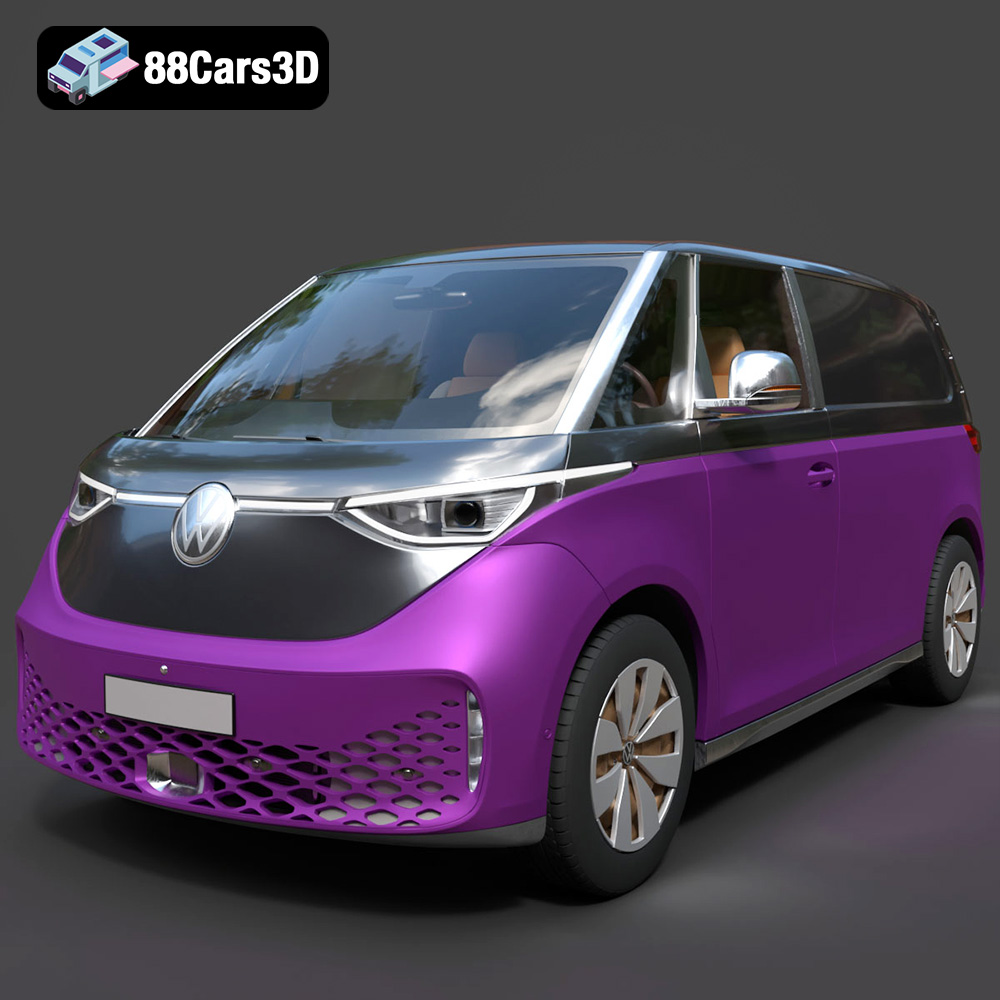
Texture: Yes
Material: Yes
Download the Volkswagen ID. Buzz Cargo 2023 3D Model featuring clean geometry, realistic detailing, and a fully modeled interior. Includes .blend, .fbx, .obj, .glb, .stl, .ply, .unreal, and .max formats for rendering, simulation, and game development.
Price: $19.99
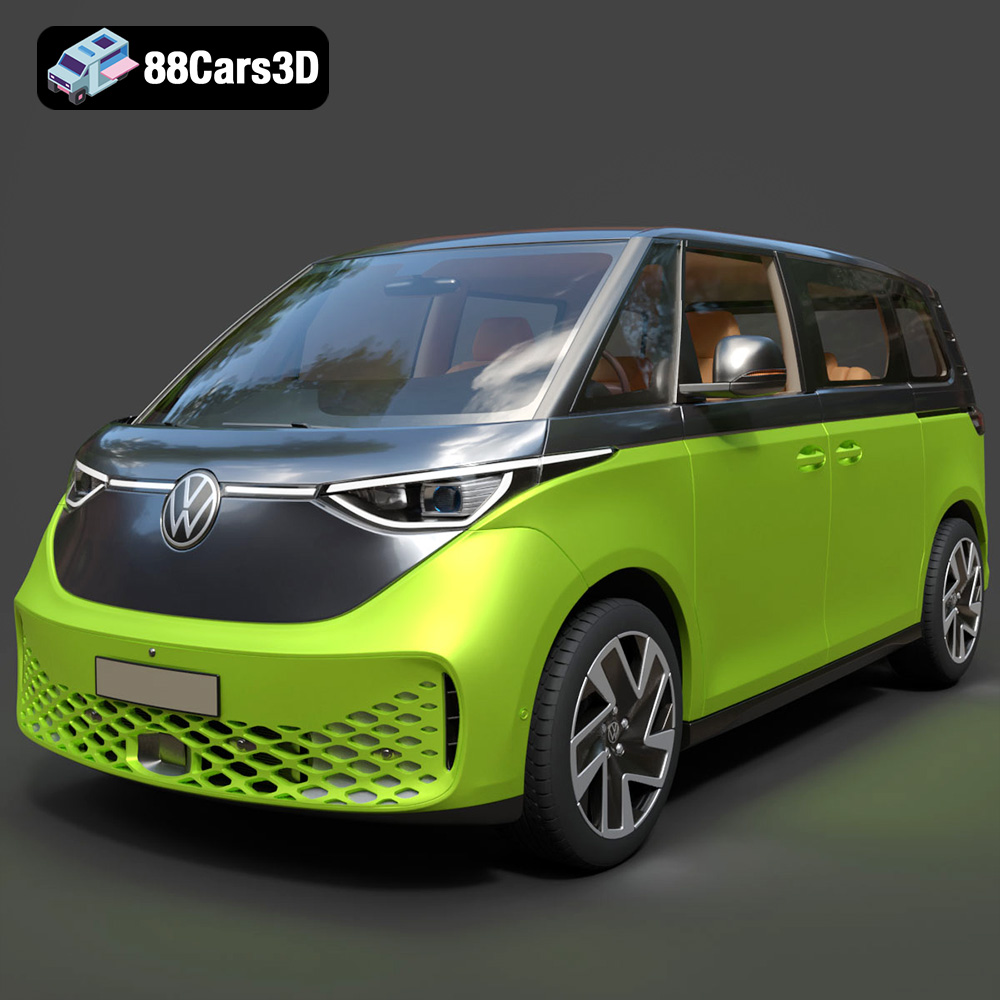
Texture: Yes
Material: Yes
Download the Volkswagen ID. Buzz 2023 3D Model featuring clean geometry, realistic detailing, and a fully modeled interior. Includes .blend, .fbx, .obj, .glb, .stl, .ply, .unreal, and .max formats for rendering, simulation, and game development.
Price: $19.99
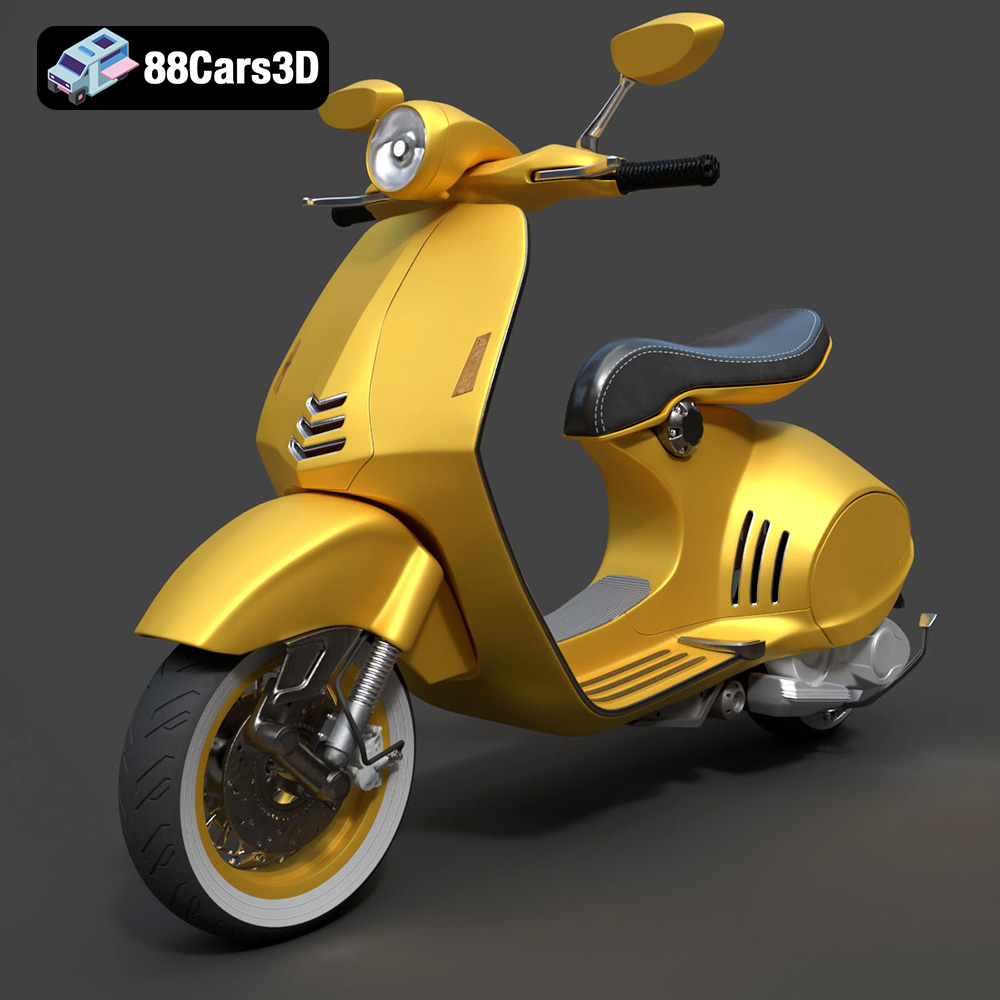
Texture: Yes
Material: Yes
Download the Vespa 946 3D Model featuring clean geometry, realistic detailing, and a fully modeled interior. Includes .blend, .fbx, .obj, .glb, .stl, .ply, .unreal, and .max formats for rendering, simulation, and game development.
Price: $19.99

Texture: Yes
Material: Yes
Download the Toyota Yaris Cross 3D Model featuring clean geometry, realistic detailing, and a fully modeled interior. Includes .blend, .fbx, .obj, .glb, .stl, .ply, .unreal, and .max formats for rendering, simulation, and game development.
Price: $19.99

Texture: Yes
Material: Yes
Download the Volkswagen Amarok 2019 3D Model featuring clean geometry, realistic detailing, and a fully modeled interior. Includes .blend, .fbx, .obj, .glb, .stl, .ply, .unreal, and .max formats for rendering, simulation, and game development.
Price: $19.99

Texture: Yes
Material: Yes
Download the Tesla Model S Plaid 2023 3D Model featuring clean geometry, realistic detailing, and a fully modeled interior. Includes .blend, .fbx, .obj, .glb, .stl, .ply, .unreal, and .max formats for rendering, simulation, and game development.
Price: $19.99

