Get 50% OFF All Premium 3D & STL Models!

“`html
The world of 3D printing relies heavily on a single file format: STL. But what exactly is an STL file, and how does it encode the complex geometries that allow us to bring digital designs into the real world? For enthusiasts downloading printable car models from platforms like 88cars3d.com, understanding the inner workings of STL files can significantly improve print quality and success rates. This comprehensive guide will delve into the structure of STL files, exploring the underlying mesh of triangles, precision considerations, and how these factors impact your 3D printing experience. Whether you’re a seasoned maker or just starting out, this deep dive will equip you with the knowledge to optimize your prints and troubleshoot common issues.
STL, short for Stereolithography, is a file format that represents a 3D object’s surface as a collection of triangles. It’s a simple yet powerful format, widely supported by 3D printing software and hardware. Unlike CAD files that store parametric information (e.g., equations defining curves and surfaces), STL files only contain surface geometry. This means that all curves are approximated by a series of flat triangles, a process known as tessellation. The more triangles used, the smoother and more accurate the representation of the original object.
STL files come in two main flavors: ASCII and Binary. ASCII STL files are human-readable text files where each triangle’s coordinates and normal vector are explicitly listed. While easy to inspect and edit manually, ASCII files are significantly larger than their binary counterparts. Binary STL files store the same information in a compressed, binary format, resulting in smaller file sizes and faster processing. For example, a complex car model represented in ASCII might be several hundred megabytes, while the same model in binary format could be under 50 MB. Most modern slicing software handles both formats seamlessly, but binary is generally preferred for its efficiency.
In addition to vertex coordinates (x, y, z values defining the corners of each triangle), STL files also include a normal vector for each triangle. The normal vector is a unit vector (length of 1) that points perpendicularly away from the surface of the triangle. This information is crucial for 3D printers to determine the “outside” of the object. Without correct normal vectors, the printer might try to fill the inside of the object instead of building its surface. Many mesh repair tools focus on correcting inverted or misaligned normal vectors to ensure proper printability.
The cornerstone of STL files is the use of triangles to approximate complex shapes. While triangles are simple geometric primitives, their quantity and arrangement dictate the resolution and accuracy of the 3D model. A higher triangle count results in a finer mesh, capturing more detail and reducing the faceted appearance of curved surfaces. However, increasing the triangle count also increases file size and processing time. Finding the right balance between detail and performance is crucial for efficient 3D printing.
Chordal deviation, also known as tessellation error, is a measure of how much the triangular approximation deviates from the original curved surface. A smaller chordal deviation indicates a more accurate representation. Slicing software often allows you to control the chordal deviation by adjusting the “deviation” or “surface tolerance” setting. Reducing this value increases the triangle count and improves accuracy, but at the cost of larger file sizes. For printable car models with intricate curves, like those found on 88cars3d.com, paying attention to chordal deviation is essential for achieving smooth surfaces.
The size of the triangles in an STL file directly impacts the resolution of fine details. If a small feature, such as a thin line or a sharp corner, is smaller than the triangles used to represent it, that feature will be lost. This is why it’s important to generate STL files with sufficient resolution to capture all the necessary details of the model. For example, if you’re printing a model of a car with detailed panel lines, you’ll need to ensure that the triangle size is small enough to represent those lines accurately. A good rule of thumb is to use smaller triangles in areas with fine details and larger triangles in areas with flat or gently curved surfaces.
Once you have an STL file, the next step is slicing. Slicing software takes the STL file and converts it into a set of instructions that the 3D printer can understand. These instructions typically involve G-code, a numerical control language that specifies the movement of the printer’s nozzle or laser. The slicing process involves dividing the 3D model into thin horizontal layers, determining the path the printer should take to deposit material for each layer, and generating the necessary G-code commands.
Layer height is a critical parameter in slicing. It determines the thickness of each layer of material deposited by the printer. Lower layer heights result in smoother surfaces and finer details, but also increase printing time. Higher layer heights print faster but produce more visible layer lines. A common layer height for FDM printing is 0.2mm, but you can go as low as 0.1mm for more detailed prints or as high as 0.3mm for faster prototyping. For resin printing, layer heights are typically much smaller, often in the range of 0.025mm to 0.05mm.
Infill refers to the internal structure of the 3D printed object. It’s not solid throughout; instead, it contains a pattern of support material. Infill density, expressed as a percentage, determines how much of the interior is filled with material. Higher infill densities result in stronger prints, but also use more material and take longer to print. Common infill patterns include rectilinear, honeycomb, and gyroid. The choice of infill pattern depends on the desired strength and weight of the print. For example, if you’re printing a structural component, you might use a high infill density and a strong pattern like honeycomb. For purely aesthetic models, you can often get away with a low infill density and a faster-printing pattern like rectilinear. For example, a decorative car model from 88cars3d.com could use a lower infill than a functional prototype.
Support structures are temporary structures that are printed alongside the model to support overhanging features and prevent them from collapsing during printing. They are essential for printing complex geometries with steep overhangs. The type and placement of support structures can significantly impact the print quality and the ease of post-processing.
There are two main types of support structures: tree supports and linear supports. Linear supports are simple vertical structures that are placed directly beneath overhanging features. They are easy to generate and remove, but they can leave noticeable marks on the surface of the print. Tree supports, on the other hand, are branching structures that resemble trees. They provide more targeted support and are less likely to leave marks on the surface. However, they can be more difficult to remove and require more careful placement. Slicing software like Cura and PrusaSlicer offer advanced support generation options that allow you to customize the type, density, and placement of support structures.
Removing support structures can be a delicate process. The goal is to remove the supports without damaging the model itself. The best technique depends on the type of support, the material, and the geometry of the model. Common techniques include using pliers, cutters, or a heat gun. For soluble support materials, such as PVA, you can simply dissolve the supports in water. When removing supports, it’s important to work slowly and carefully to avoid breaking off pieces of the model. Post-processing techniques, such as sanding and filing, can be used to smooth out any remaining marks.
Even with the best preparation, 3D printing can sometimes go wrong. Common issues include warping, adhesion problems, stringing, and layer shifting. Understanding the causes of these issues and how to troubleshoot them is crucial for achieving successful prints.
Warping occurs when the corners of the print lift off the print bed. This is often caused by uneven cooling, which creates stress in the material. To prevent warping, ensure that the print bed is properly leveled and heated. Use a bed adhesive, such as hairspray or glue stick, to improve adhesion. Enclosing the printer can also help to maintain a consistent temperature and prevent warping. For materials like ABS, an enclosure is almost essential.
Stringing occurs when thin strands of filament are left behind as the nozzle moves between different parts of the print. This is often caused by excessive retraction distance or temperature. Reduce the retraction distance and temperature to minimize stringing. Blobs, on the other hand, are small clumps of material that are deposited on the surface of the print. This can be caused by over-extrusion or inconsistent filament diameter. Calibrate the extruder and use high-quality filament to prevent blobs. Retraction settings are key here, and experimenting with different retraction speeds can also make a big difference.
Not all STL files are created equal. Some STL files may contain errors, such as non-manifold edges, inverted normals, or holes in the mesh. These errors can cause problems during slicing and printing. Fortunately, there are many tools available for repairing and optimizing STL files.
MeshMixer and Netfabb are two popular software packages for repairing and optimizing STL files. These tools can automatically detect and fix common errors, such as non-manifold edges and inverted normals. They can also be used to simplify the mesh, reduce the triangle count, and optimize the file for 3D printing. MeshMixer is free to use, while Netfabb is a commercial product with more advanced features. Simply importing an STL and running the automatic repair functions can often resolve many potential printing issues.
A manifold mesh is a mesh that represents a closed surface. In other words, every edge in the mesh must be shared by exactly two triangles. Non-manifold edges can cause problems during slicing and printing. Mesh repair tools can automatically identify and fix non-manifold edges, ensuring that the mesh is watertight and printable. Ensuring manifold geometry is crucial for successful 3D printing, particularly for complex models.
Understanding the intricacies of STL files is crucial for achieving successful 3D prints, especially when working with intricate designs like printable car models available on platforms such as 88cars3d.com. By grasping the fundamental structure of the file format, the role of triangles, and the importance of proper slicing and support structures, you can optimize your printing process and troubleshoot common issues. Remember to choose the right STL settings, repair any errors in the mesh, and carefully consider the slicing parameters to achieve the best possible results. Continue to experiment with different materials, settings, and techniques to refine your skills and unlock the full potential of 3D printing.
Here are some actionable next steps:
“`

Texture: Yes
Material: Yes
Download the Volvo C40 Recharge 3D Model featuring clean geometry, realistic detailing, and a fully modeled interior. Includes .blend, .fbx, .obj, .glb, .stl, .ply, .unreal, and .max formats for rendering, simulation, and game development.
Price: $19.99

Texture: Yes
Material: Yes
Download the Volkswagen Tiguan 2021 3D Model featuring clean geometry, realistic detailing, and a fully modeled interior. Includes .blend, .fbx, .obj, .glb, .stl, .ply, .unreal, and .max formats for rendering, simulation, and game development.
Price: $19.99

Texture: Yes
Material: Yes
Download the Volkswagen ID6 CROZZ 2022 3D Model featuring clean geometry, realistic detailing, and a fully modeled interior. Includes .blend, .fbx, .obj, .glb, .stl, .ply, .unreal, and .max formats for rendering, simulation, and game development.
Price: $19.99

Texture: Yes
Material: Yes
Download the Volkswagen ID4 2021 3D Model featuring clean geometry, realistic detailing, and a fully modeled interior. Includes .blend, .fbx, .obj, .glb, .stl, .ply, .unreal, and .max formats for rendering, simulation, and game development.
Price: $19.99

Texture: Yes
Material: Yes
Download the Volkswagen ID. Buzz Cargo 2023 3D Model featuring clean geometry, realistic detailing, and a fully modeled interior. Includes .blend, .fbx, .obj, .glb, .stl, .ply, .unreal, and .max formats for rendering, simulation, and game development.
Price: $19.99

Texture: Yes
Material: Yes
Download the Volkswagen ID. Buzz 2023 3D Model featuring clean geometry, realistic detailing, and a fully modeled interior. Includes .blend, .fbx, .obj, .glb, .stl, .ply, .unreal, and .max formats for rendering, simulation, and game development.
Price: $19.99
Texture: Yes
Material: Yes
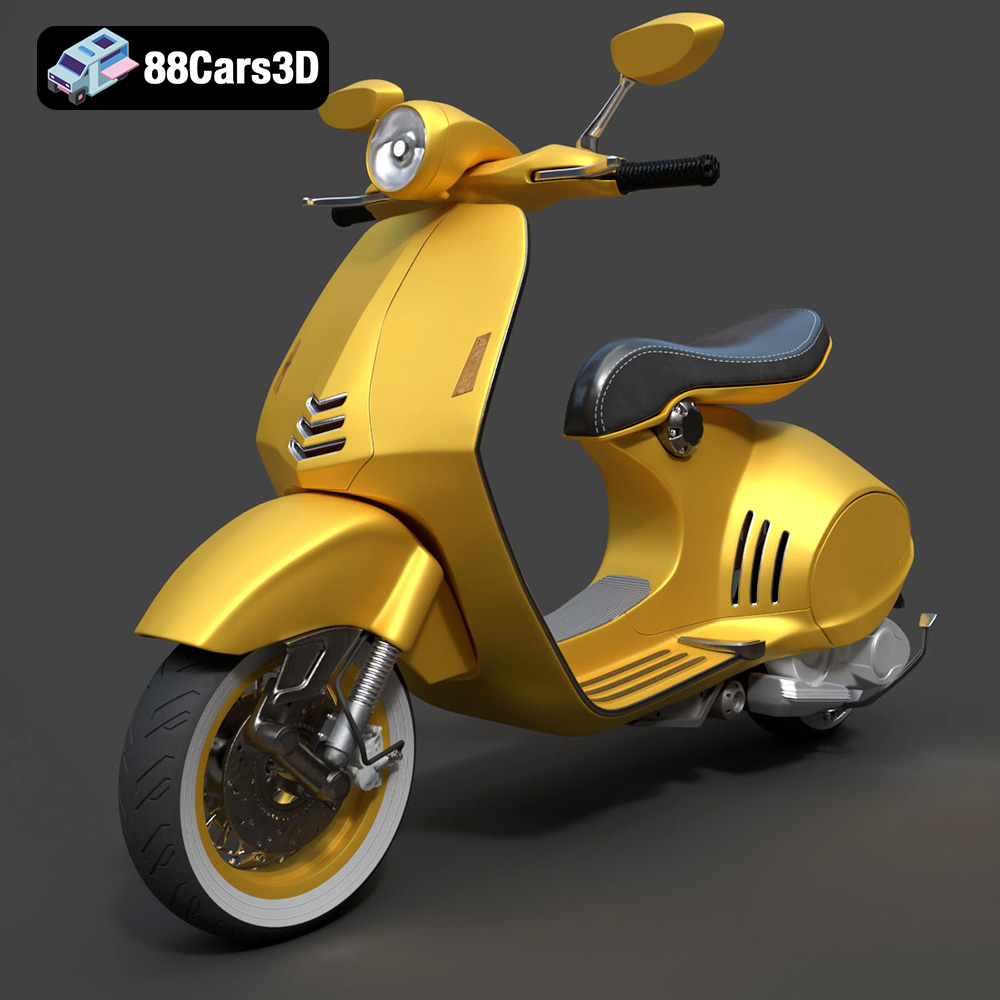
Download the Vespa 946 3D Model featuring clean geometry, realistic detailing, and a fully modeled interior. Includes .blend, .fbx, .obj, .glb, .stl, .ply, .unreal, and .max formats for rendering, simulation, and game development.
Price: $19.99

Texture: Yes
Material: Yes
Download the Toyota Yaris Cross 3D Model featuring clean geometry, realistic detailing, and a fully modeled interior. Includes .blend, .fbx, .obj, .glb, .stl, .ply, .unreal, and .max formats for rendering, simulation, and game development.
Price: $19.99

Texture: Yes
Material: Yes
Download the Volkswagen Amarok 2019 3D Model featuring clean geometry, realistic detailing, and a fully modeled interior. Includes .blend, .fbx, .obj, .glb, .stl, .ply, .unreal, and .max formats for rendering, simulation, and game development.
Price: $19.99

Texture: Yes
Material: Yes
Download the Tesla Model S Plaid 2023 3D Model featuring clean geometry, realistic detailing, and a fully modeled interior. Includes .blend, .fbx, .obj, .glb, .stl, .ply, .unreal, and .max formats for rendering, simulation, and game development.
Price: $19.99

