Get 50% OFF All Premium 3D & STL Models!

“`html
3D printing has revolutionized various industries, from prototyping and manufacturing to hobbyist model making. A crucial step in the 3D printing process is converting your 3D models into the STL (Stereolithography) file format, the industry standard for additive manufacturing. This guide will walk you through the intricacies of converting polygon-based 3D models to STL, ensuring optimal print quality and minimizing potential issues. Whether you’re a beginner or an experienced 3D printing enthusiast looking to refine your workflow for printable car models, understanding this conversion process is essential. Platforms like 88cars3d.com offer print-ready STL files, but knowing how to handle and optimize your own models gives you complete control over your 3D printing projects.
In this comprehensive guide, we’ll cover everything from the basics of STL files and polygon meshes to advanced techniques for mesh repair and optimization. We’ll delve into the specific software and settings that can make or break your print, focusing on achieving high-quality results. We’ll explore workflows applicable to various models, including those found on 88cars3d.com, ensuring you’re well-equipped to bring your digital designs to life.
The STL file format is the lingua franca of 3D printing. It represents the surface geometry of a 3D object as a collection of triangles. Unlike other 3D file formats that can store color, textures, or animation data, STL files only contain information about the surface mesh. This simplicity makes them universally compatible with 3D printers and slicing software. However, this also means that the quality of the STL file directly impacts the quality of the final print.
A polygon mesh is a collection of vertices, edges, and faces that define the shape of a 3D object. In the context of STL files, these faces are exclusively triangles. The more triangles used to represent a curved surface, the smoother the resulting print will be. However, increasing the triangle count also increases file size and processing time. Finding the right balance between detail and file size is crucial for efficient 3D printing.
STL files come in two main flavors: ASCII and binary. ASCII STL files are human-readable and store the triangle data as text. While easy to inspect, they are significantly larger than binary STL files. Binary STL files store the same information in a compressed binary format, resulting in smaller file sizes and faster processing. The binary format is generally preferred for its efficiency. The core data includes the normal vector (direction the triangle is facing) and the coordinates of the three vertices that make up each triangle. Proper normal orientation is critical; flipped normals can lead to printing errors.
Before converting your polygon 3D model to STL, it’s essential to ensure it’s clean, watertight, and optimized for 3D printing. This preparation stage can save you a lot of headaches later on. Issues like non-manifold geometry, holes, and self-intersections can cause slicing errors and lead to failed prints. Software like Meshmixer, Netfabb, and Blender offer powerful tools for addressing these problems.
Non-manifold geometry refers to edges or vertices that are shared by more than two faces, or edges that are not part of any face. These types of errors can confuse slicing software and prevent the model from being properly printed. Meshmixer’s “Inspect” tool is excellent for identifying non-manifold edges and vertices. Once identified, you can use Meshmixer’s “Make Solid” tool or Blender’s sculpting tools to repair these areas.
A watertight model is one that has no holes or gaps in its surface. Think of it like filling a container with water – if there are any leaks, the model is not watertight. To check for watertightness, you can use Netfabb’s analysis tools or Meshmixer’s “Make Solid” function. Repairing holes often involves bridging gaps with new faces and ensuring all edges are properly connected. For complex models, this process can be time-consuming, but it’s a critical step for successful 3D printing.
Several software packages can convert polygon 3D models to STL. The choice depends on your existing workflow, budget, and the complexity of your models. Popular options include Blender (free and open-source), Meshmixer (free from Autodesk), Autodesk Fusion 360 (paid with a free hobbyist license), and SolidWorks (paid professional software). Each software offers different levels of control over the conversion process.
Blender, a powerful and free 3D creation suite, provides extensive control over the STL export process. Key settings to consider include the export scale (ensure it matches your desired print dimensions), the “Selection Only” option (to export only selected objects), and the “Apply Modifiers” option (to bake in any modifiers like Subdivision Surface). A crucial setting is the “Triangle Edges” and “Poly Edges” options in the Overrides section which control the triangulation of your mesh upon export. Higher numbers generally result in a more accurate STL representation of your model’s curves, but increase file size. A good starting point is “1.000”.
Meshmixer is a user-friendly tool specifically designed for working with meshes. Its “Export” function allows you to quickly save your model as an STL file. Meshmixer automatically triangulates the mesh during export. However, there are no advanced controls over the triangulation density, so ensure your mesh is adequately detailed before exporting. Meshmixer excels at mesh repair and optimization, making it an excellent choice for preparing models for 3D printing.
Once you have your STL file, the next step is slicing it using software like Cura, PrusaSlicer, or Simplify3D. Slicing software converts the 3D model into a series of layers that the 3D printer can understand. The slicing parameters you choose will significantly impact the print quality, strength, and printing time. This is especially important when printing detailed car models from platforms like 88cars3d.com.
Layer height determines the thickness of each layer of the print. Lower layer heights result in smoother surfaces and finer details, but they also increase printing time. Common layer heights for FDM printing range from 0.1mm to 0.3mm. For detailed models, such as those from 88cars3d.com, consider using a layer height of 0.1mm or 0.15mm. For larger, less detailed parts, you can use a layer height of 0.2mm or 0.3mm to speed up the printing process. For resin printing, layer heights are typically much smaller, ranging from 0.025mm to 0.05mm.
Infill density refers to the amount of material used to fill the interior of the 3D print. A higher infill density results in a stronger part, but it also consumes more material and increases printing time. For most applications, an infill density of 15% to 25% is sufficient. For parts that require high strength, such as functional components, you may need to increase the infill density to 50% or higher. Experiment with different infill patterns, such as grid, honeycomb, or gyroid, to find the best balance between strength and material usage. Gyroid infill offers excellent strength-to-weight ratio.
Support structures are necessary for printing parts with overhangs or bridges. These structures provide a temporary base for the overhanging material, preventing it from collapsing during printing. The design and placement of support structures are crucial for achieving a successful print and minimizing post-processing effort. There are two main types of support structures: tree supports and linear supports.
Tree supports are branching structures that provide support from the build plate to the overhanging features. They are generally easier to remove and leave fewer marks on the printed part compared to linear supports. Linear supports are straight columns that directly support the overhanging features. They are stronger than tree supports but can be more difficult to remove. The choice between tree and linear supports depends on the geometry of the model and the desired surface finish. Cura allows switching between “Normal” (linear) and “Tree” supports.
Proper support placement is critical for minimizing material usage and ensuring easy removal. Avoid placing supports on critical surfaces or areas where a smooth finish is required. Use the slicing software’s manual support placement tools to strategically add supports only where they are needed. Reduce the support density and interface layer thickness to make removal easier. The support interface is the area directly touching the model; decreasing its density or thickness allows for easier separation. Consider support blockers to avoid supports in areas where they are not needed.
Even with careful preparation and optimized settings, 3D printing can sometimes present challenges. Understanding common printing issues and how to troubleshoot them is essential for achieving consistent results. Layer adhesion problems, warping, and stringing are among the most common issues encountered in FDM printing.
Layer adhesion problems occur when the layers of the 3D print fail to bond properly. This can result in weak parts that are prone to cracking or delamination. Common causes of layer adhesion problems include low printing temperature, insufficient cooling, and incorrect bed leveling. Increase the printing temperature by 5-10 degrees Celsius, ensure adequate cooling fan speed, and double-check the bed leveling. Also, ensure proper first layer adhesion to the build plate; a brim or raft can improve adhesion.
Warping occurs when the corners or edges of the 3D print lift off the build plate. This is often caused by uneven cooling and thermal contraction. To prevent warping, ensure the build plate is properly heated, use a brim or raft to increase bed adhesion, and avoid drafts in the printing environment. Enclosing the printer can also help to maintain a consistent temperature and reduce warping. For materials like ABS, an enclosure is almost essential.
Post-processing is the final stage of the 3D printing process and involves refining the printed part to achieve the desired surface finish and functionality. Common post-processing techniques include support removal, sanding, filling, priming, and painting. For models, especially printable car models, from platforms like 88cars3d.com, meticulous post-processing can elevate the final product.
Sanding is used to remove layer lines and imperfections from the surface of the 3D print. Start with coarse-grit sandpaper (e.g., 120 grit) to remove larger imperfections, and gradually move to finer-grit sandpaper (e.g., 400 grit, 600 grit, 800 grit) to achieve a smooth finish. Wet sanding can help to reduce dust and improve the surface finish. For hard-to-reach areas, use small sanding sticks or rotary tools with sanding attachments. Proper sanding is essential for achieving a professional-looking finish.
Painting is used to add color and detail to the 3D printed part. Before painting, it’s important to prime the surface to create a smooth and even base. Apply thin coats of primer using a spray can or airbrush. Once the primer is dry, you can apply the desired colors using acrylic paints, enamels, or lacquers. Use masking tape to create clean lines and sharp details. A clear coat can be applied to protect the paint and add a glossy or matte finish. Remember to allow each coat of paint to dry completely before applying the next.
Converting polygon 3D models to STL for 3D printing is a multi-faceted process that requires careful attention to detail. By understanding the intricacies of STL files, polygon meshes, slicing parameters, support structures, and post-processing techniques, you can significantly improve the quality and success rate of your 3D prints. Remember to always prepare your models thoroughly, choose the right software and settings, and troubleshoot any issues that may arise. When downloading models from marketplaces such as 88cars3d.com, you’re already one step ahead with print-ready files, but these techniques will still allow you to customize and optimize your prints further.
Take the time to experiment with different settings and techniques to find what works best for your specific printer and materials. Don’t be afraid to iterate and learn from your mistakes. With practice and patience, you’ll be able to create stunning 3D printed objects that showcase your creativity and technical skills. Begin by exploring models on platforms like 88cars3d.com and applying these techniques to refine your own 3D printing workflow. Start with a simple model, master the basics, and gradually move on to more complex projects. Happy printing!
“`

Texture: Yes
Material: Yes
Download the Volvo Trucks Benz GT-001 3D Model featuring clean geometry, realistic detailing, and a fully modeled interior. Includes .blend, .fbx, .obj, .glb, .stl, .ply, .unreal, and .max formats for rendering, simulation, and game development.
Price: $29.99

Texture: Yes
Material: Yes
Download the Volvo C40 Recharge 3D Model featuring clean geometry, realistic detailing, and a fully modeled interior. Includes .blend, .fbx, .obj, .glb, .stl, .ply, .unreal, and .max formats for rendering, simulation, and game development.
Price: $19.99

Texture: Yes
Material: Yes
Download the Volkswagen Tiguan 2021 3D Model featuring clean geometry, realistic detailing, and a fully modeled interior. Includes .blend, .fbx, .obj, .glb, .stl, .ply, .unreal, and .max formats for rendering, simulation, and game development.
Price: $19.99

Texture: Yes
Material: Yes
Download the Volkswagen ID6 CROZZ 2022 3D Model featuring clean geometry, realistic detailing, and a fully modeled interior. Includes .blend, .fbx, .obj, .glb, .stl, .ply, .unreal, and .max formats for rendering, simulation, and game development.
Price: $19.99

Texture: Yes
Material: Yes
Download the Volkswagen ID4 2021 3D Model featuring clean geometry, realistic detailing, and a fully modeled interior. Includes .blend, .fbx, .obj, .glb, .stl, .ply, .unreal, and .max formats for rendering, simulation, and game development.
Price: $19.99
Texture: Yes
Material: Yes
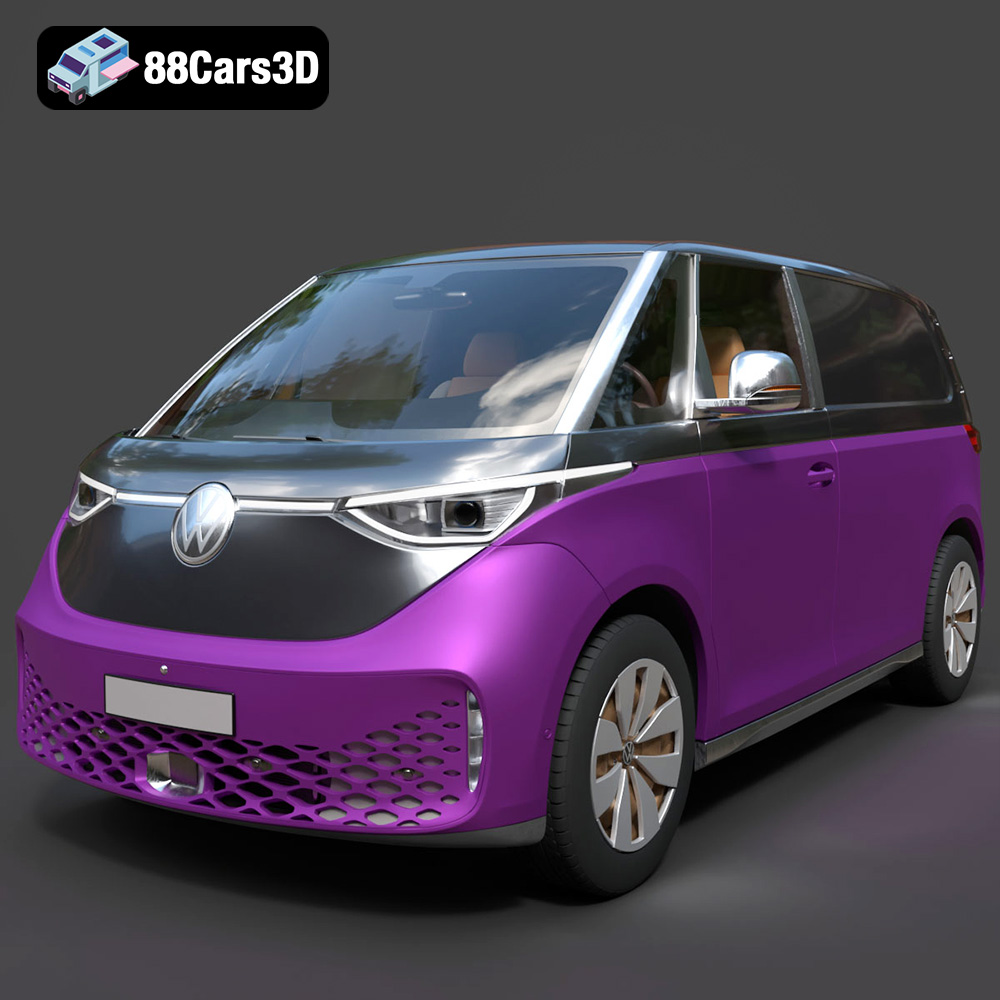
Download the Volkswagen ID. Buzz Cargo 2023 3D Model featuring clean geometry, realistic detailing, and a fully modeled interior. Includes .blend, .fbx, .obj, .glb, .stl, .ply, .unreal, and .max formats for rendering, simulation, and game development.
Price: $19.99
Texture: Yes
Material: Yes
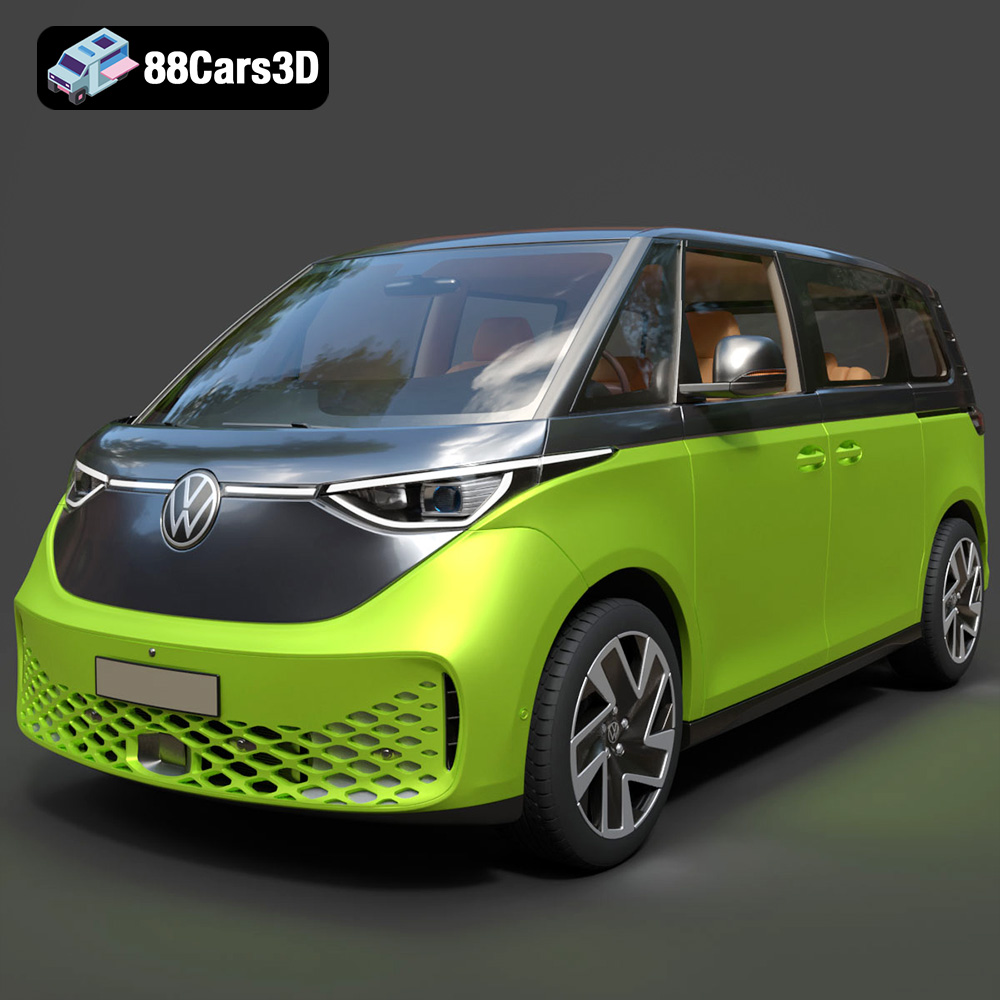
Download the Volkswagen ID. Buzz 2023 3D Model featuring clean geometry, realistic detailing, and a fully modeled interior. Includes .blend, .fbx, .obj, .glb, .stl, .ply, .unreal, and .max formats for rendering, simulation, and game development.
Price: $19.99
Texture: Yes
Material: Yes
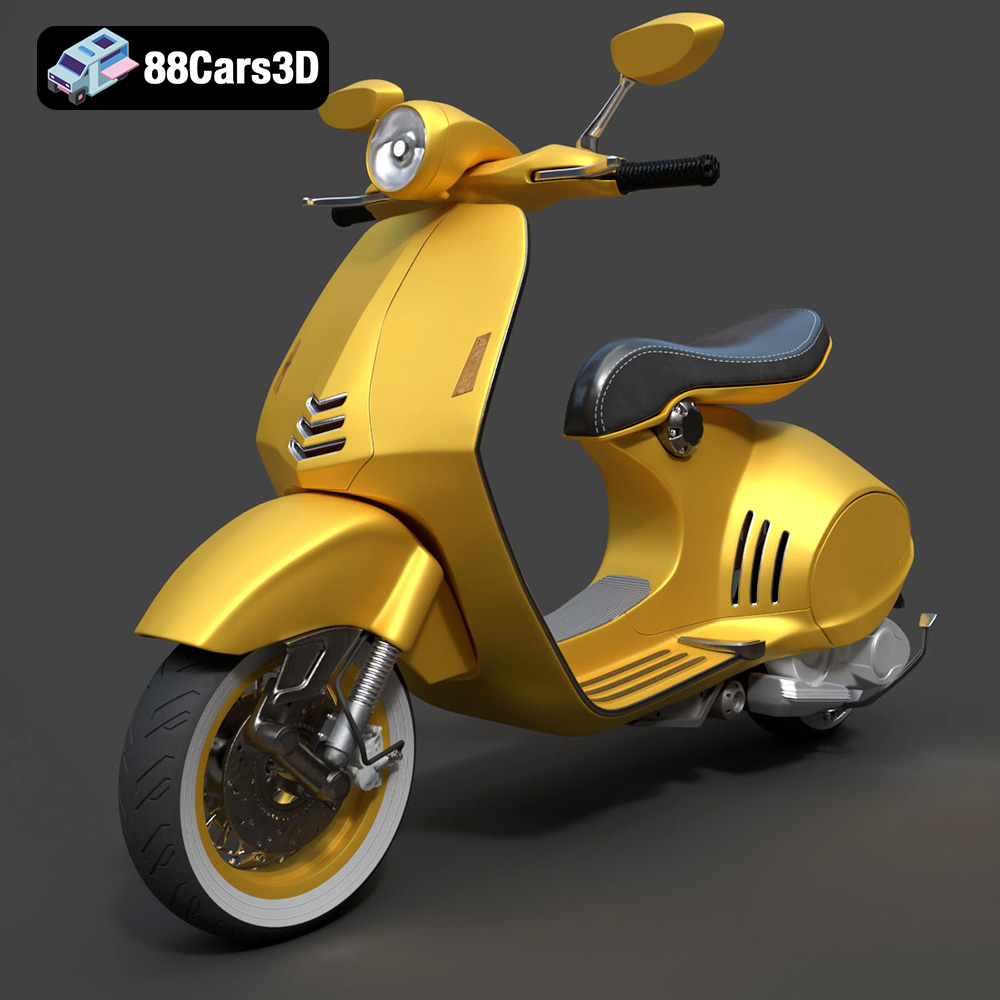
Download the Vespa 946 3D Model featuring clean geometry, realistic detailing, and a fully modeled interior. Includes .blend, .fbx, .obj, .glb, .stl, .ply, .unreal, and .max formats for rendering, simulation, and game development.
Price: $19.99

Texture: Yes
Material: Yes
Download the Toyota Yaris Cross 3D Model featuring clean geometry, realistic detailing, and a fully modeled interior. Includes .blend, .fbx, .obj, .glb, .stl, .ply, .unreal, and .max formats for rendering, simulation, and game development.
Price: $19.99

Texture: Yes
Material: Yes
Download the Volkswagen Amarok 2019 3D Model featuring clean geometry, realistic detailing, and a fully modeled interior. Includes .blend, .fbx, .obj, .glb, .stl, .ply, .unreal, and .max formats for rendering, simulation, and game development.
Price: $19.99

