Get 50% OFF All Premium 3D & STL Models!

“`html
The world of 3D printing has opened up incredible possibilities for hobbyists, engineers, and designers alike. For automotive enthusiasts, the ability to 3D print stunning car models is particularly exciting. Whether you’re creating a detailed replica or prototyping a new design, the journey begins with an STL file. But what happens when that STL file needs tweaking, repairing, or complete modification? That’s where STL editing software comes in. This comprehensive guide will explore the best free and paid software options for editing STL files, focusing on optimizing them for 3D printing, particularly for detailed models like those found on platforms like 88cars3d.com. We’ll delve into the technical details, explore workflows, and arm you with the knowledge to master STL editing for perfect prints.
Before diving into the software options, it’s crucial to understand the structure and limitations of STL (Stereolithography) files. An STL file represents a 3D object as a collection of connected triangles, forming a mesh. This mesh approximates the surface geometry of the object. The denser the mesh (more triangles), the higher the resolution and detail, but also the larger the file size.
The STL format primarily stores the surface geometry using a Facet Normal Vector (the direction the triangle faces) and three vertices (points) that define each triangle. It’s a relatively simple format, which is why it’s so widely adopted. However, this simplicity also means it lacks information about color, texture, or material properties. When working with STL files, you might encounter issues like non-manifold geometry (where the mesh isn’t watertight), reversed normals (where triangles face the wrong way), or gaps in the mesh. These issues need to be addressed before printing to ensure a successful outcome. Fortunately, the software discussed below allows you to fix these problems.
Issues like non-manifold geometry are particularly problematic for 3D printing. Imagine trying to fill a bucket with holes – the printer will struggle to create solid layers if the STL file contains gaps or disconnected surfaces. Reversed normals can also cause slicing errors, where the slicer software interprets the model’s inside as its outside. Overlapping triangles, self-intersecting surfaces, and excessive triangle counts can also lead to print failures or significantly increase print time. When downloading models from marketplaces such as 88cars3d.com, you can generally expect clean, optimized STL files, but it’s always wise to check and potentially repair them.
Several excellent free software options can handle most STL editing tasks. These tools are perfect for hobbyists, beginners, and even professionals on a budget. They offer a wide range of features, from basic mesh repair to advanced sculpting and modeling capabilities.
MeshMixer, by Autodesk, is a versatile and powerful tool for manipulating STL files. It excels at mesh repair, support structure generation, and even basic sculpting. Its “Make Solid” tool is particularly useful for fixing non-manifold geometry, while its “Inspector” tool helps identify and automatically repair common errors. MeshMixer also allows you to add custom support structures, which are crucial for complex 3D prints, especially those with overhangs. For example, when printing a car model with intricate details like side mirrors or spoilers, MeshMixer can create precisely placed supports to prevent sagging or deformation. You can also use the plane cut tool to split a model into multiple parts for easier printing and assembly.
Blender is a free and open-source 3D creation suite that’s capable of much more than just STL editing. However, its powerful sculpting and modeling tools make it a formidable option for modifying and repairing STL files. While Blender has a steeper learning curve than MeshMixer, it offers unparalleled flexibility and control. In Blender, you can use the “Sculpt Mode” to smooth out imperfections, add details, or even completely reshape the model. The “Remesh” modifier can be used to reduce the polygon count of overly dense meshes, making them easier to handle. The “Solidify” modifier is invaluable for adding wall thickness to thin or hollow models, a crucial step for ensuring structural integrity during 3D printing. Use the 3D Print Toolbox addon to check for manifold geometry and other printability issues.
For professionals and serious hobbyists, paid STL editing software offers advanced features, improved performance, and dedicated support. These tools often provide more sophisticated mesh repair algorithms, advanced sculpting capabilities, and seamless integration with other CAD software.
Autodesk Netfabb is a leading software solution for additive manufacturing, providing a comprehensive suite of tools for STL repair, optimization, and build preparation. Netfabb excels at automatically fixing even the most complex mesh errors, making it ideal for preparing files for demanding prints. Its advanced repair algorithms can identify and fix non-manifold geometry, reversed normals, and other issues with unparalleled accuracy. Netfabb also offers powerful tools for optimizing part orientation, generating support structures, and simulating the printing process to identify potential problems before they occur. If you’re aiming for perfect print quality and minimizing waste, Netfabb is an invaluable tool. Platforms like 88cars3d.com that curate high-quality models often leverage tools like Netfabb to ensure the files meet stringent quality standards.
While primarily a sculpting tool, ZBrush’s robust mesh manipulation capabilities make it a viable option for advanced STL editing. ZBrush allows you to sculpt incredibly detailed models with millions of polygons, pushing the boundaries of what’s possible with 3D printing. Its “Dynamesh” feature allows you to dynamically remesh your model, ensuring a consistent polygon density even as you add or remove details. The “ZRemesher” tool can automatically reduce the polygon count while preserving the overall shape and detail, making your model more manageable for 3D printing. ZBrush is particularly well-suited for creating organic shapes and intricate details, making it ideal for customizing car models with unique features. For example, you could use ZBrush to sculpt custom spoilers, modify body panels, or even add intricate interior details.
Once your STL file is edited and repaired, the next crucial step is slicing. Slicing software converts the 3D model into a set of instructions for the 3D printer, defining layer height, print speed, infill density, and other critical parameters. The right slicing settings can make the difference between a successful print and a pile of failed plastic.
Layer height is a fundamental slicing parameter that affects both print quality and print time. A smaller layer height (e.g., 0.1mm) results in smoother surfaces and finer details, but it also significantly increases print time. A larger layer height (e.g., 0.3mm) reduces print time but sacrifices surface quality. For detailed car models, a layer height of 0.1mm to 0.2mm is generally recommended for the visible exterior surfaces. You can also use variable layer height settings, which allow you to use a smaller layer height for critical areas and a larger layer height for less visible regions. This technique can significantly reduce print time without compromising overall quality. Consider the scale of the model; a smaller model will benefit more from finer layer heights. With FDM printing, you might need to experiment to find the layer height that best balances detail and print time for your specific printer and filament.
Infill is the internal structure of a 3D printed object, providing support and strength. The infill pattern and density affect the weight, strength, and print time of the model. For car models, a moderate infill density (15-25%) is usually sufficient for most parts. However, for parts that will be subjected to stress or load, such as axles or suspension components, a higher infill density (50-75%) may be necessary. Common infill patterns include rectilinear, grid, honeycomb, and gyroid. Gyroid infill offers excellent strength-to-weight ratio and is often preferred for functional parts. When printing large car bodies, consider using a low infill density (5-10%) with a stronger perimeter count to save material and reduce print time. Remember that the infill pattern will be visible on any cut surfaces, so choose a pattern that’s aesthetically pleasing if the interior will be exposed.
The choice of material and printer type significantly impacts the final quality and properties of your 3D printed car model. FDM (Fused Deposition Modeling) and resin printing are the two most common 3D printing technologies, each with its own advantages and disadvantages.
FDM printing uses a thermoplastic filament, such as PLA, PETG, or ABS, which is melted and extruded through a nozzle to create the 3D object layer by layer. FDM printers are generally more affordable and easier to use than resin printers, making them a popular choice for hobbyists and beginners. PLA is a biodegradable and easy-to-print material, making it suitable for non-functional car models. PETG offers improved strength and heat resistance compared to PLA, making it a better choice for parts that will be exposed to higher temperatures. ABS is a durable and impact-resistant material, but it requires a heated bed and enclosed chamber to prevent warping. When printing car models with FDM, pay close attention to bed adhesion to prevent warping or detachment during printing. Using a brim or raft can significantly improve bed adhesion, especially for large or complex parts. Proper cooling is also essential to prevent overhangs from sagging.
Resin printing uses a liquid resin that is cured by UV light to create the 3D object layer by layer. Resin printers are capable of producing incredibly detailed prints with smooth surfaces, making them ideal for creating highly detailed car models. SLA (Stereolithography) and DLP (Digital Light Processing) are the two main types of resin printing. SLA printers use a laser to cure the resin, while DLP printers use a projector to cure an entire layer at once. Resin printers generally require more post-processing than FDM printers, including washing the parts in isopropyl alcohol and curing them under UV light. However, the superior detail and surface finish often make it worth the extra effort. When printing car models with resin, it’s crucial to use appropriate support structures to prevent sagging or deformation. Hollow out the model to reduce material usage and printing time. Ensure adequate drainage holes for the resin to escape. The layer height should be set appropriately, depending on the model’s need for detail; lower layer heights are key.
Post-processing is the final step in the 3D printing process, involving cleaning, sanding, painting, and assembling the printed parts. Proper post-processing can significantly enhance the appearance and durability of your 3D printed car model.
Support structures are often necessary to print complex car models, but they need to be carefully removed after printing. For FDM prints, use pliers, cutters, or a deburring tool to remove the supports. For resin prints, carefully snap off the supports, taking care not to damage the model. After removing the supports, sand the surface to remove any remaining support marks or imperfections. Start with a coarse grit sandpaper (e.g., 220 grit) and gradually move to finer grits (e.g., 400, 600, 800 grit) to achieve a smooth surface. Wet sanding can help reduce dust and improve the surface finish. For difficult-to-reach areas, use small sanding sticks or sponges. Chemical smoothing, using acetone vapor for ABS prints or a similar solvent for other materials, can further smooth the surface, but requires caution and proper ventilation. Alternatively, consider using a filler primer, which fills in small imperfections and provides a smooth base for painting.
Painting is a crucial step in bringing your 3D printed car model to life. Start by priming the model with a high-quality primer to improve paint adhesion. Apply several thin coats of paint, allowing each coat to dry completely before applying the next. Use masking tape to create sharp lines and prevent overspray. Consider using an airbrush for a professional-looking finish. After painting, apply a clear coat to protect the paint and add a glossy or matte finish. For multi-part car models, use super glue or epoxy to assemble the parts. Ensure proper alignment and secure bonding. Consider adding details like decals, windows, and interior components to further enhance the realism of your model. When painting, using light coats are important to avoid obscuring details.
Editing STL files is a critical skill for anyone serious about 3D printing car models. Whether you choose free or paid software, mastering the techniques discussed in this guide will empower you to create stunning, high-quality prints. From understanding STL file structure and repairing mesh errors to optimizing slicing parameters and post-processing techniques, each step contributes to the final outcome. Remember to experiment with different settings and materials to find what works best for your printer and desired results. With patience and practice, you’ll be able to bring your automotive dreams to life, one 3D printed layer at a time. Sites such as 88cars3d.com can provide the initial model you need to start your journey. Start exploring, experimenting, and creating today!
“`

Texture: Yes
Material: Yes
Download the Volvo Trucks Benz GT-001 3D Model featuring clean geometry, realistic detailing, and a fully modeled interior. Includes .blend, .fbx, .obj, .glb, .stl, .ply, .unreal, and .max formats for rendering, simulation, and game development.
Price: $29.99
Texture: Yes
Material: Yes
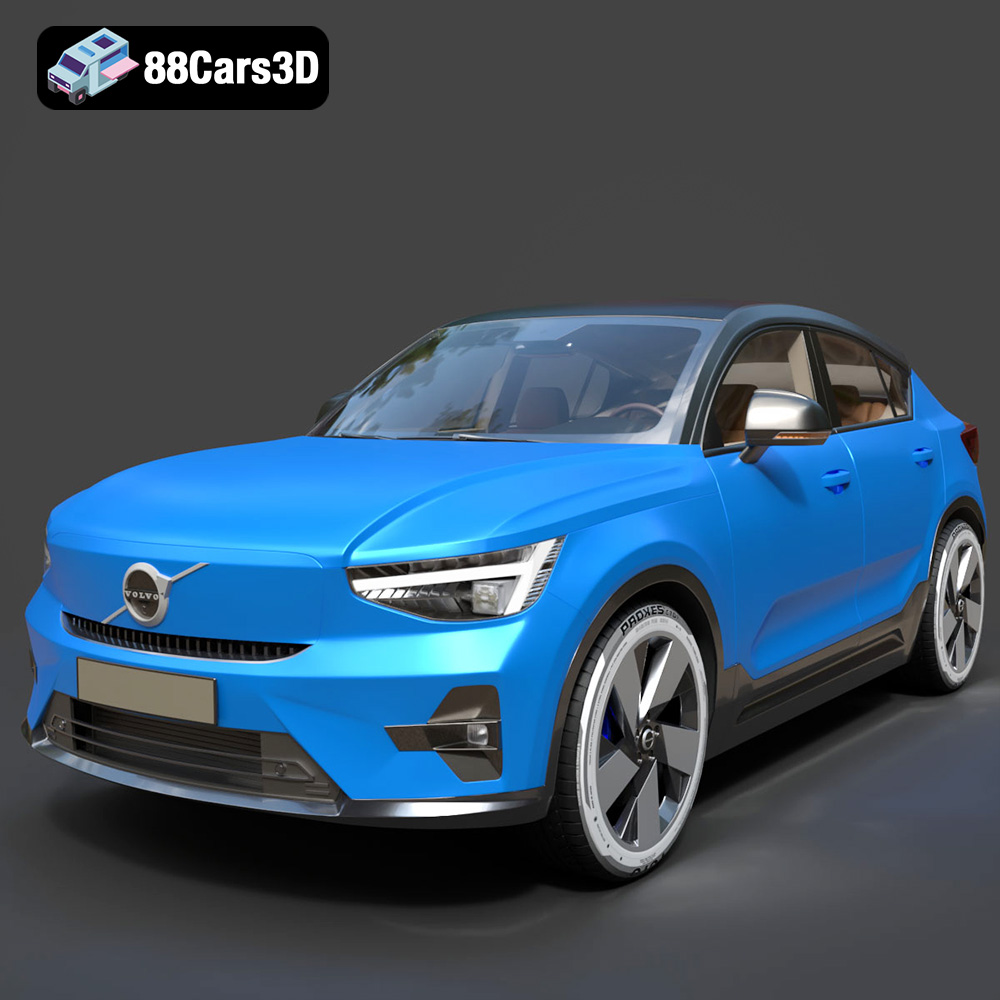
Download the Volvo C40 Recharge 3D Model featuring clean geometry, realistic detailing, and a fully modeled interior. Includes .blend, .fbx, .obj, .glb, .stl, .ply, .unreal, and .max formats for rendering, simulation, and game development.
Price: $19.99
Texture: Yes
Material: Yes
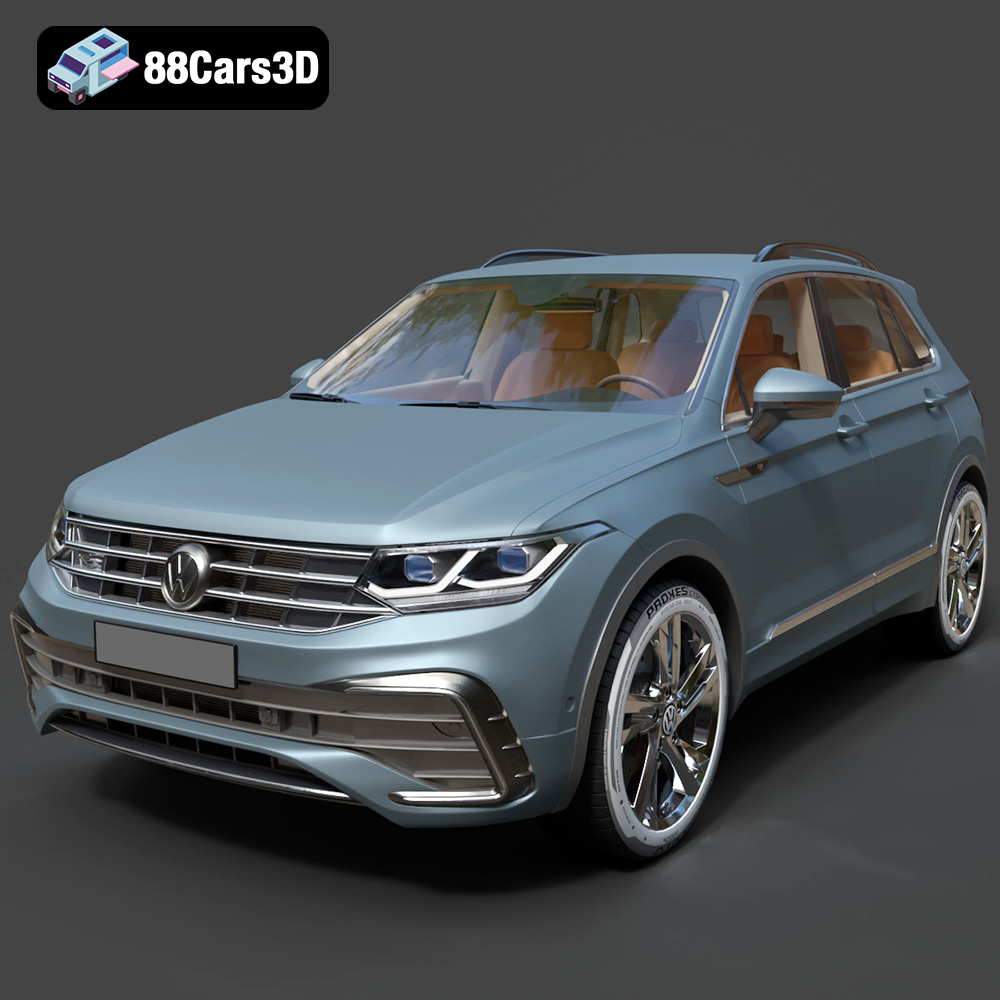
Download the Volkswagen Tiguan 2021 3D Model featuring clean geometry, realistic detailing, and a fully modeled interior. Includes .blend, .fbx, .obj, .glb, .stl, .ply, .unreal, and .max formats for rendering, simulation, and game development.
Price: $19.99
Texture: Yes
Material: Yes
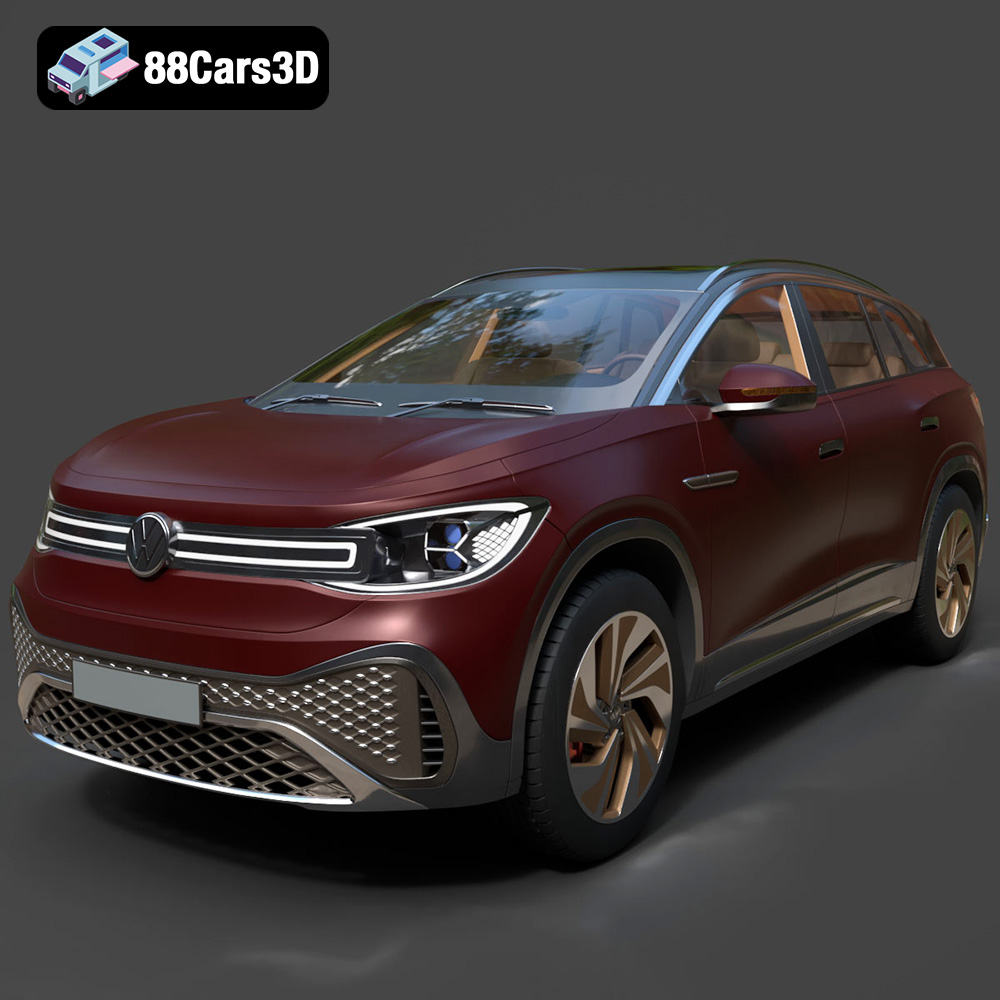
Download the Volkswagen ID6 CROZZ 2022 3D Model featuring clean geometry, realistic detailing, and a fully modeled interior. Includes .blend, .fbx, .obj, .glb, .stl, .ply, .unreal, and .max formats for rendering, simulation, and game development.
Price: $19.99

Texture: Yes
Material: Yes
Download the Volkswagen ID4 2021 3D Model featuring clean geometry, realistic detailing, and a fully modeled interior. Includes .blend, .fbx, .obj, .glb, .stl, .ply, .unreal, and .max formats for rendering, simulation, and game development.
Price: $19.99
Texture: Yes
Material: Yes
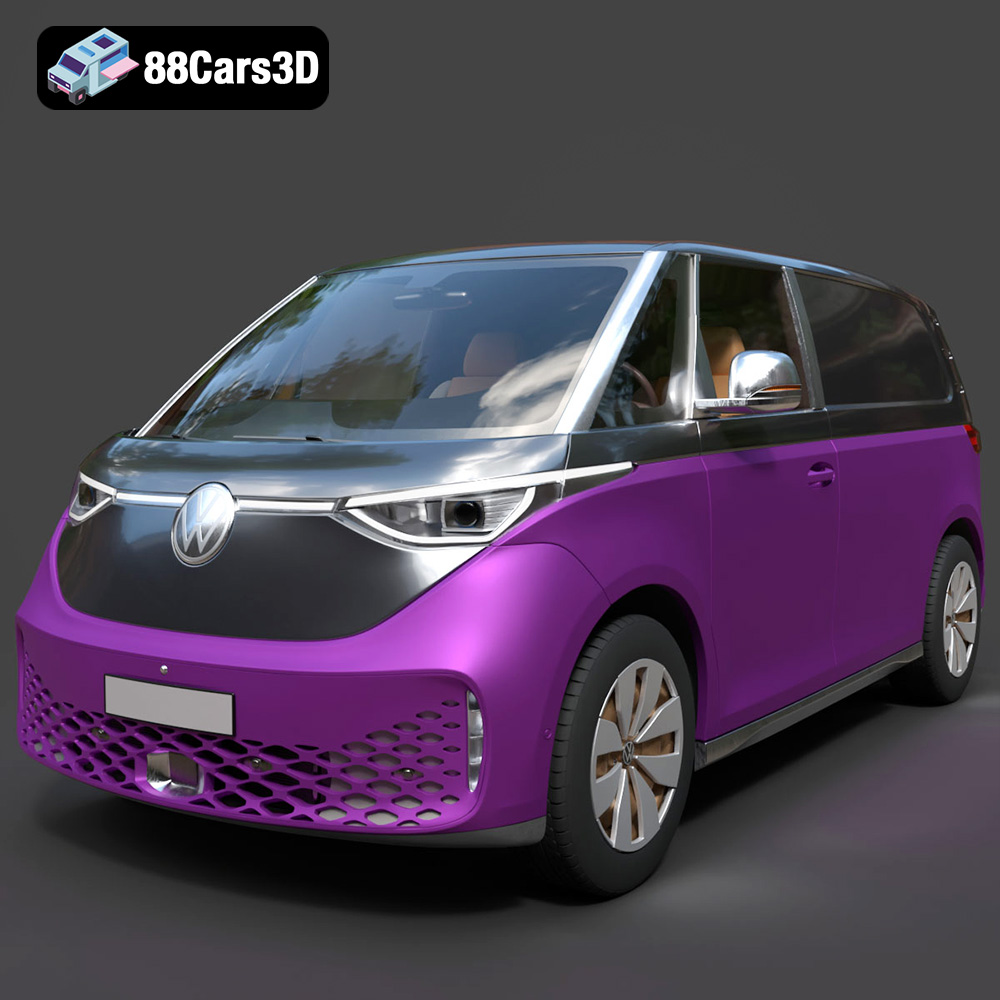
Download the Volkswagen ID. Buzz Cargo 2023 3D Model featuring clean geometry, realistic detailing, and a fully modeled interior. Includes .blend, .fbx, .obj, .glb, .stl, .ply, .unreal, and .max formats for rendering, simulation, and game development.
Price: $19.99
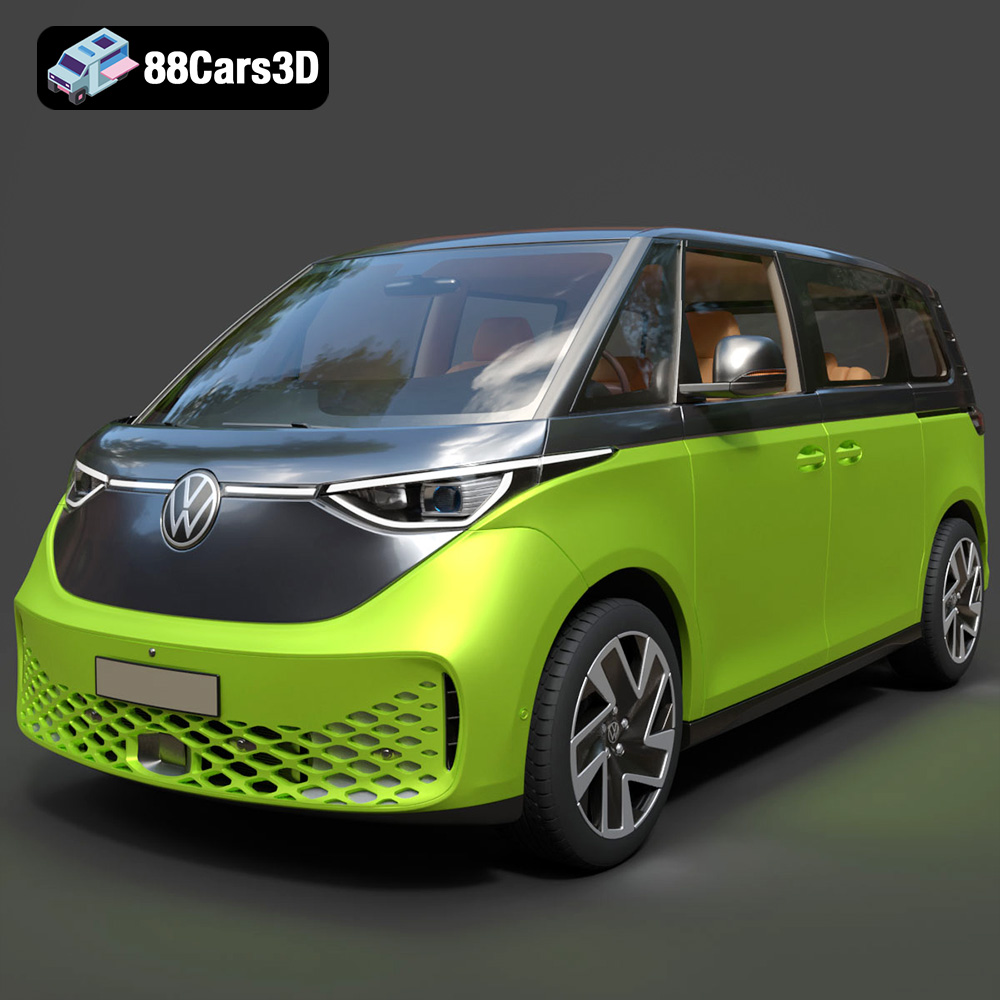
Texture: Yes
Material: Yes
Download the Volkswagen ID. Buzz 2023 3D Model featuring clean geometry, realistic detailing, and a fully modeled interior. Includes .blend, .fbx, .obj, .glb, .stl, .ply, .unreal, and .max formats for rendering, simulation, and game development.
Price: $19.99
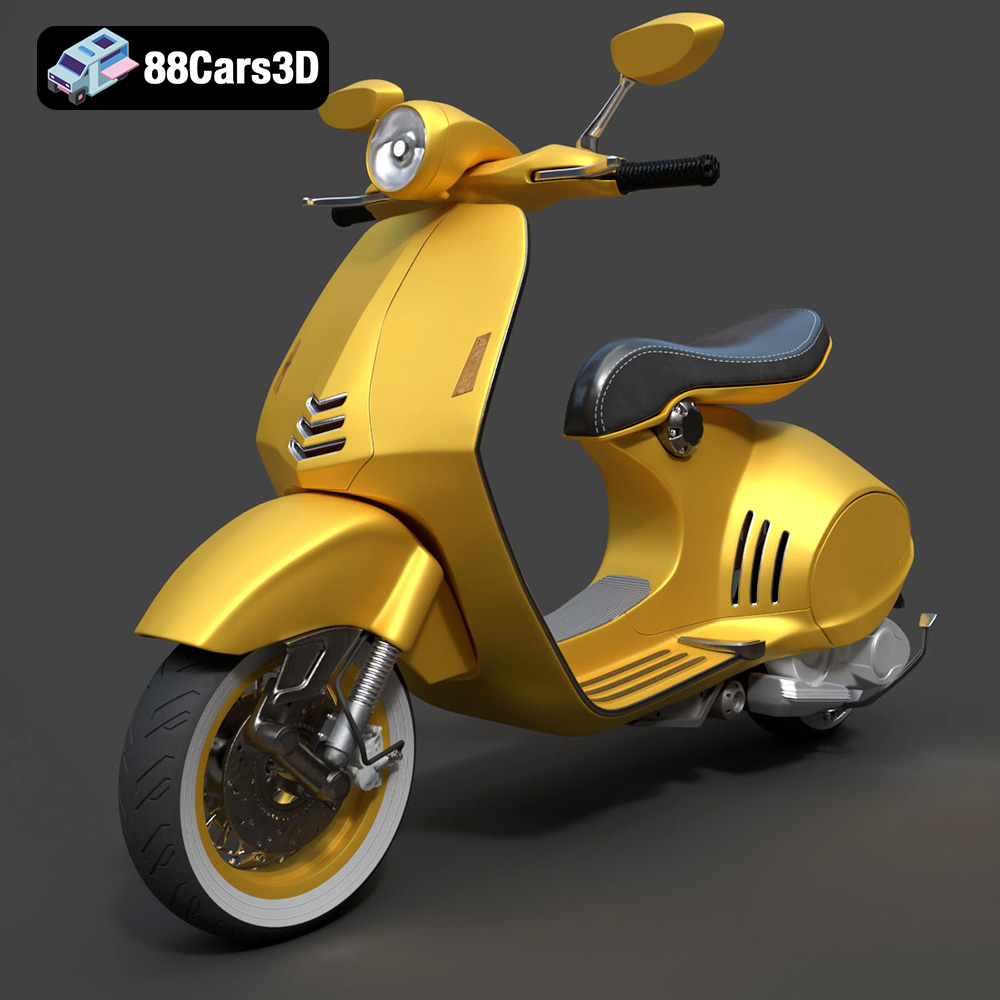
Texture: Yes
Material: Yes
Download the Vespa 946 3D Model featuring clean geometry, realistic detailing, and a fully modeled interior. Includes .blend, .fbx, .obj, .glb, .stl, .ply, .unreal, and .max formats for rendering, simulation, and game development.
Price: $19.99

Texture: Yes
Material: Yes
Download the Toyota Yaris Cross 3D Model featuring clean geometry, realistic detailing, and a fully modeled interior. Includes .blend, .fbx, .obj, .glb, .stl, .ply, .unreal, and .max formats for rendering, simulation, and game development.
Price: $19.99

Texture: Yes
Material: Yes
Download the Volkswagen Amarok 2019 3D Model featuring clean geometry, realistic detailing, and a fully modeled interior. Includes .blend, .fbx, .obj, .glb, .stl, .ply, .unreal, and .max formats for rendering, simulation, and game development.
Price: $19.99

