Get 50% OFF All Premium 3D & STL Models!

“`html
3D printing has revolutionized the way we create and prototype, bringing manufacturing capabilities to the desktop. But for beginners, the journey from downloading an STL file to holding a finished product can be fraught with challenges. Many stumble on the same common pitfalls, leading to frustration and wasted filament. Whether you’re printing detailed car models from platforms like 88cars3d.com or experimenting with other designs, understanding these mistakes and how to avoid them is crucial for a successful 3D printing experience. This guide will walk you through the top 10 errors beginners make when working with STL files, providing practical solutions and actionable tips to improve your print quality and efficiency.
The foundation of a successful print lies in the quality of the STL file. Many beginners assume that all STL files are created equal, which is far from the truth. Issues within the file can lead to printing errors, weak spots, and ultimately, a failed print. Always examine your STL file before sending it to the slicer.
Non-manifold geometry refers to situations where the mesh doesn’t represent a physically possible object. This can include edges shared by more than two faces, or faces that don’t connect properly, creating holes or overlaps. Programs like MeshMixer and Netfabb can identify and automatically repair these issues. In MeshMixer, use the “Inspector” tool (Analysis -> Inspector) to highlight problem areas. Click “Auto Repair All” to fix them. Netfabb offers more advanced repair tools, allowing for precise control over the fixing process.
Even seemingly flawless STL files can contain hidden errors. Ensure the mesh is closed (watertight) and doesn’t contain flipped normals (where the faces point inwards instead of outwards). Flipped normals cause the slicer to misinterpret the geometry. You can identify flipped normals in Blender by enabling “Face Orientation” under the “Viewport Overlays” menu. Blue faces indicate correctly oriented normals, while red faces indicate flipped normals. Use the “Flip Normals” function (Mesh -> Normals -> Flip) to correct any errors.
Slicing software transforms your STL file into a series of instructions (G-code) that the 3D printer can understand. Simply accepting the default settings without understanding their implications is a recipe for disaster. Mastering slicing parameters is key to achieving optimal print quality. Different materials and models require unique slicing profiles.
Layer height dictates the vertical resolution of your print. Smaller layer heights (e.g., 0.1mm) produce smoother surfaces and finer details, but significantly increase print time. Larger layer heights (e.g., 0.3mm) are faster but result in more visible layer lines. A good starting point for most FDM printers is 0.2mm. For highly detailed models from 88cars3d.com, consider dropping to 0.1mm or even 0.05mm, balancing detail with printing time. Experiment with different layer heights to find the sweet spot for your specific model and printer.
Infill refers to the internal structure of your print. Higher infill densities (e.g., 50% or more) provide greater strength and rigidity but consume more filament and increase print time. Lower infill densities (e.g., 10-20%) are suitable for purely aesthetic models. Common infill patterns include grid, honeycomb, and gyroid. Gyroid infill is known for its strength-to-weight ratio. For functional parts, consider using 25-50% infill with a gyroid or honeycomb pattern. For decorative car models, 15-25% infill with a rectilinear pattern might suffice.
Overhanging features require support structures to prevent them from collapsing during printing. Ignoring the need for supports or using poorly configured supports is a common cause of failed prints. Careful consideration of support placement, type, and density is essential, especially for complex car models from 88cars3d.com with intricate details.
Most slicing software offers automatic support generation, but it’s rarely perfect. Automatic supports can be overly dense, difficult to remove, or placed in undesirable locations. Manual support placement allows you to strategically add supports only where they are needed, minimizing material waste and improving surface finish. In Cura, disable “Generate Support” and use the “Custom Support” plugin to add supports precisely where needed.
Different support types are suitable for different situations. Tree supports are ideal for organic shapes and complex overhangs, as they use minimal material and are relatively easy to remove. Linear supports are stronger but can leave more noticeable marks on the printed surface. Support density affects the strength and stability of the supports. Higher density supports are less likely to collapse but are harder to remove. Experiment with different support types and densities to find the optimal balance for your model. For delicate overhangs on car models, try tree supports with a density of 15-20%.
A print that doesn’t stick to the build plate is a guaranteed failure. Poor bed adhesion is a common problem, especially with certain materials like ABS. Ensuring a clean, level, and properly heated build plate is crucial.
A perfectly level bed is essential for consistent bed adhesion. Most printers have manual bed leveling knobs. Use a piece of paper or a feeler gauge to adjust the distance between the nozzle and the bed at multiple points. The paper should slide with slight friction. Some printers feature auto-bed leveling, which uses a probe to automatically compensate for bed imperfections. Even with auto-bed leveling, it’s still good practice to manually level the bed periodically.
If you’re still struggling with bed adhesion, try using adhesion aids like glue sticks, painter’s tape, or specialized bed adhesion solutions. Applying a thin layer of glue stick to the build plate creates a sticky surface that helps the first layer adhere. Painter’s tape provides a textured surface that improves adhesion, particularly for ABS. Bed adhesion solutions, such as BuildTak or Magigoo, are designed to create a strong bond between the print and the build plate.
Selecting the appropriate material is paramount to the success of your 3D printing project. PLA, PETG, ABS, and resin all have different properties and are suited for different applications. Mismatching the material to the requirements of the print can lead to weak, brittle, or warped parts.
PLA is a biodegradable thermoplastic that is easy to print and suitable for decorative models and prototypes. PETG is stronger and more flexible than PLA, making it a good choice for functional parts. ABS is a strong, heat-resistant plastic, but it requires higher printing temperatures and is prone to warping. For car models from 88cars3d.com intended for display, PLA or PETG are excellent choices. If the model will be subjected to heat or stress, ABS or a more specialized material might be necessary.
Resin printing offers incredible detail and smooth surfaces, making it ideal for miniatures and intricate parts. However, resin is more brittle than FDM filaments and requires proper handling and post-processing. Different resin types offer varying properties, such as toughness, flexibility, and heat resistance. Standard resins are suitable for general-purpose printing. Tough resins are more resistant to impact. Flexible resins can bend without breaking. Choose a resin that matches the specific requirements of your project.
The orientation in which you print your model can significantly impact print quality, strength, and support requirements. Simply placing the model on the bed without considering its geometry can lead to suboptimal results.
Orient your model to minimize the amount of overhangs that require support. This reduces material waste, improves surface finish, and simplifies post-processing. For example, if you’re printing a car body, consider printing it with the roof facing down to minimize the need for supports on the curved surfaces. However, this might require more supports for the roof itself, so weigh the trade-offs.
The strength of a 3D printed part is anisotropic, meaning it varies depending on the direction of the applied force. Orient your model so that the strongest axis aligns with the direction of the greatest stress. For example, if you’re printing a structural component that will be subjected to bending forces, orient it so that the layers run perpendicular to the direction of the bend.
While it’s tempting to crank up the print speed to save time, printing too fast can compromise print quality and lead to various issues, such as poor layer adhesion, stringing, and warping. Finding the right balance between speed and quality is key.
The optimal print speed depends on your printer, material, and model complexity. Start with the recommended speed settings for your material and then fine-tune them based on your results. Generally, slower speeds produce better quality, especially for intricate details and overhangs. For PLA, a good starting point is 50-60 mm/s. For PETG, try 40-50 mm/s. For ABS, 30-40 mm/s is recommended. Remember to adjust the speed for different features, such as infill, perimeters, and small details.
Travel speed is the speed at which the nozzle moves between printing locations. Excessive travel speeds can cause vibrations and artifacts on the printed surface. Retraction settings control how much filament is pulled back into the nozzle during travel moves. Insufficient retraction can lead to stringing (thin strands of filament between parts). Experiment with different travel speeds and retraction settings to minimize these issues.
Filament is hygroscopic, meaning it absorbs moisture from the air. Moist filament can lead to various printing problems, such as bubbling, stringing, and poor layer adhesion. Proper filament storage is essential for maintaining print quality.
Store your filament in airtight containers with desiccant packs to absorb moisture. Silica gel desiccant is a common and effective option. You can also purchase specialized filament dry boxes that actively dehumidify the air inside the container. These are especially useful in humid environments.
If you suspect your filament has absorbed moisture, dry it before printing. You can use a dedicated filament dryer or a conventional oven set to a low temperature (around 40-50°C). Be careful not to overheat the filament, as this can damage it. Refer to the manufacturer’s recommendations for drying temperatures and times.
Like any mechanical device, 3D printers require regular maintenance to ensure optimal performance. Neglecting maintenance can lead to various issues, such as clogged nozzles, bed adhesion problems, and inaccurate prints.
Regularly clean and lubricate the printer’s moving parts, such as the lead screws, linear rails, and bearings. Use a dry lubricant, such as PTFE spray, to avoid attracting dust and debris. Clean the build plate with isopropyl alcohol before each print to remove any grease or residue.
Nozzles are prone to wear and tear, especially when printing abrasive materials like carbon fiber-filled filaments. Replace the nozzle periodically to ensure consistent filament flow and print quality. Other wear items, such as belts and bearings, should also be inspected and replaced as needed.
Every 3D printer is different, and even the same printer can produce different results under varying conditions. Failing to calibrate your printer and test your settings can lead to inconsistent and unpredictable outcomes.
Calibrate your printer’s temperature and flow rate to ensure accurate filament extrusion. Print temperature towers to determine the optimal printing temperature for your material. The tower will show different quality at different temperatures, allowing you to select the best one. Adjust the flow rate to fine-tune the amount of filament extruded. Over-extrusion leads to blobs and poor surface finish, while under-extrusion results in gaps and weak parts.
Print calibration cubes and test models to assess your printer’s accuracy and identify any issues. Calibration cubes are simple models that allow you to measure the dimensions of the printed part and compare them to the intended dimensions. Test models, such as overhang tests and bridging tests, help you evaluate your printer’s ability to handle challenging features.
By understanding and avoiding these common mistakes, beginners can significantly improve their 3D printing success rate and unlock the full potential of this exciting technology. Remember that patience, experimentation, and continuous learning are key to mastering the art of 3D printing. Whether you’re creating intricate car models from 88cars3d.com or developing functional prototypes, these tips will help you achieve high-quality, reliable results.
Navigating the world of 3D printing can seem daunting at first, especially when faced with complex STL files and a myriad of settings. However, by understanding and proactively addressing the top 10 mistakes outlined above, beginners can dramatically improve their print quality and minimize frustrating failures. Remember to thoroughly prepare your STL files, carefully choose your slicing parameters, and pay close attention to bed adhesion and material selection. Regularly maintain your printer, calibrate your settings, and don’t be afraid to experiment. Embrace the learning process, and you’ll be well on your way to creating stunning 3D prints, whether it’s detailed car models or innovative prototypes. Take the time to learn the intricacies of your printer, your materials, and your slicing software, and you’ll find that 3D printing becomes an incredibly rewarding and powerful tool. Happy printing!
“`

Texture: Yes
Material: Yes
Download the Volvo Trucks Benz GT-001 3D Model featuring clean geometry, realistic detailing, and a fully modeled interior. Includes .blend, .fbx, .obj, .glb, .stl, .ply, .unreal, and .max formats for rendering, simulation, and game development.
Price: $29.99

Texture: Yes
Material: Yes
Download the Volvo C40 Recharge 3D Model featuring clean geometry, realistic detailing, and a fully modeled interior. Includes .blend, .fbx, .obj, .glb, .stl, .ply, .unreal, and .max formats for rendering, simulation, and game development.
Price: $19.99

Texture: Yes
Material: Yes
Download the Volkswagen Tiguan 2021 3D Model featuring clean geometry, realistic detailing, and a fully modeled interior. Includes .blend, .fbx, .obj, .glb, .stl, .ply, .unreal, and .max formats for rendering, simulation, and game development.
Price: $19.99

Texture: Yes
Material: Yes
Download the Volkswagen ID6 CROZZ 2022 3D Model featuring clean geometry, realistic detailing, and a fully modeled interior. Includes .blend, .fbx, .obj, .glb, .stl, .ply, .unreal, and .max formats for rendering, simulation, and game development.
Price: $19.99

Texture: Yes
Material: Yes
Download the Volkswagen ID4 2021 3D Model featuring clean geometry, realistic detailing, and a fully modeled interior. Includes .blend, .fbx, .obj, .glb, .stl, .ply, .unreal, and .max formats for rendering, simulation, and game development.
Price: $19.99
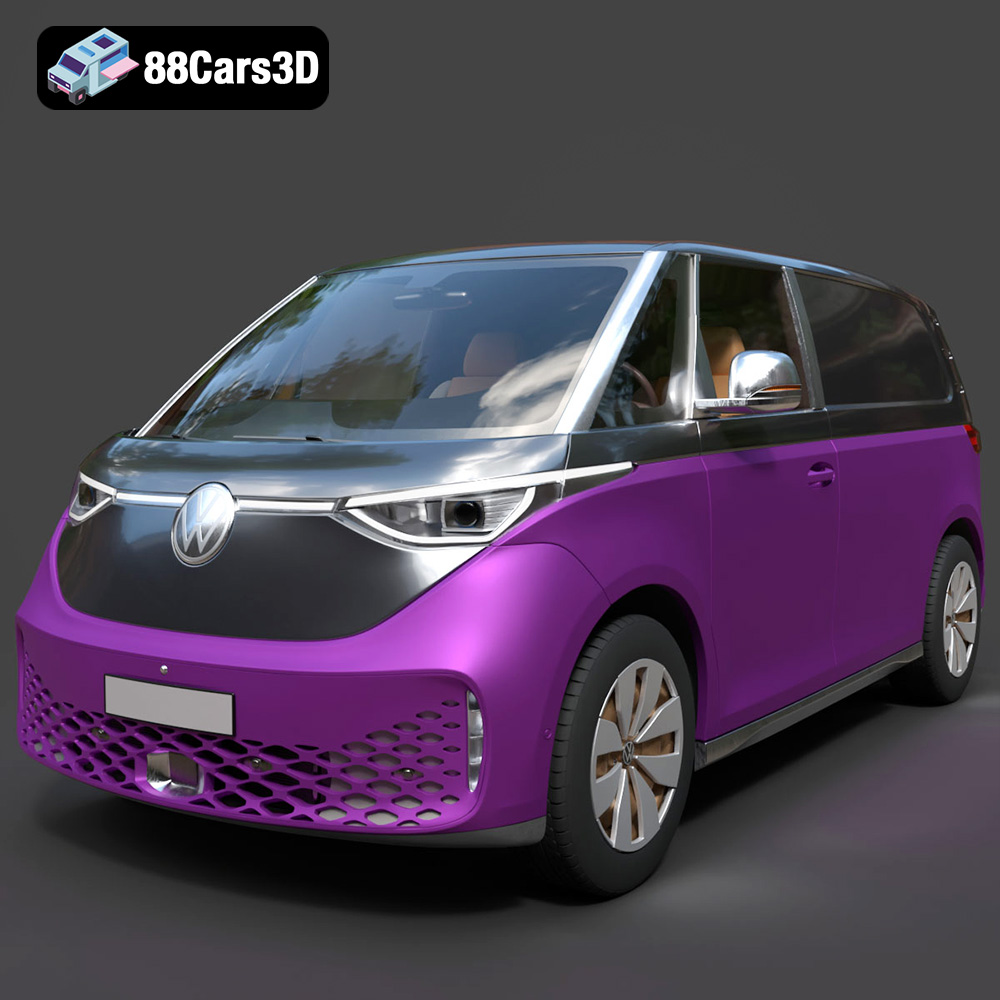
Texture: Yes
Material: Yes
Download the Volkswagen ID. Buzz Cargo 2023 3D Model featuring clean geometry, realistic detailing, and a fully modeled interior. Includes .blend, .fbx, .obj, .glb, .stl, .ply, .unreal, and .max formats for rendering, simulation, and game development.
Price: $19.99
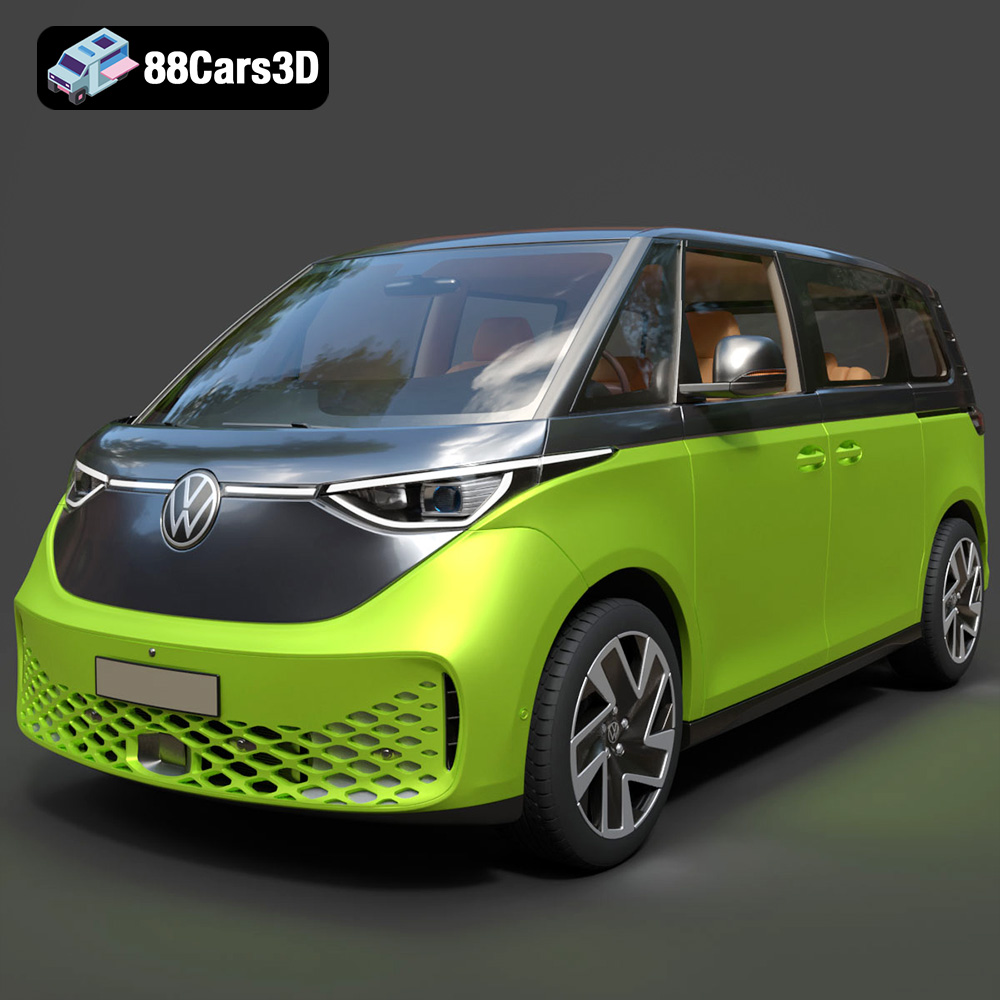
Texture: Yes
Material: Yes
Download the Volkswagen ID. Buzz 2023 3D Model featuring clean geometry, realistic detailing, and a fully modeled interior. Includes .blend, .fbx, .obj, .glb, .stl, .ply, .unreal, and .max formats for rendering, simulation, and game development.
Price: $19.99
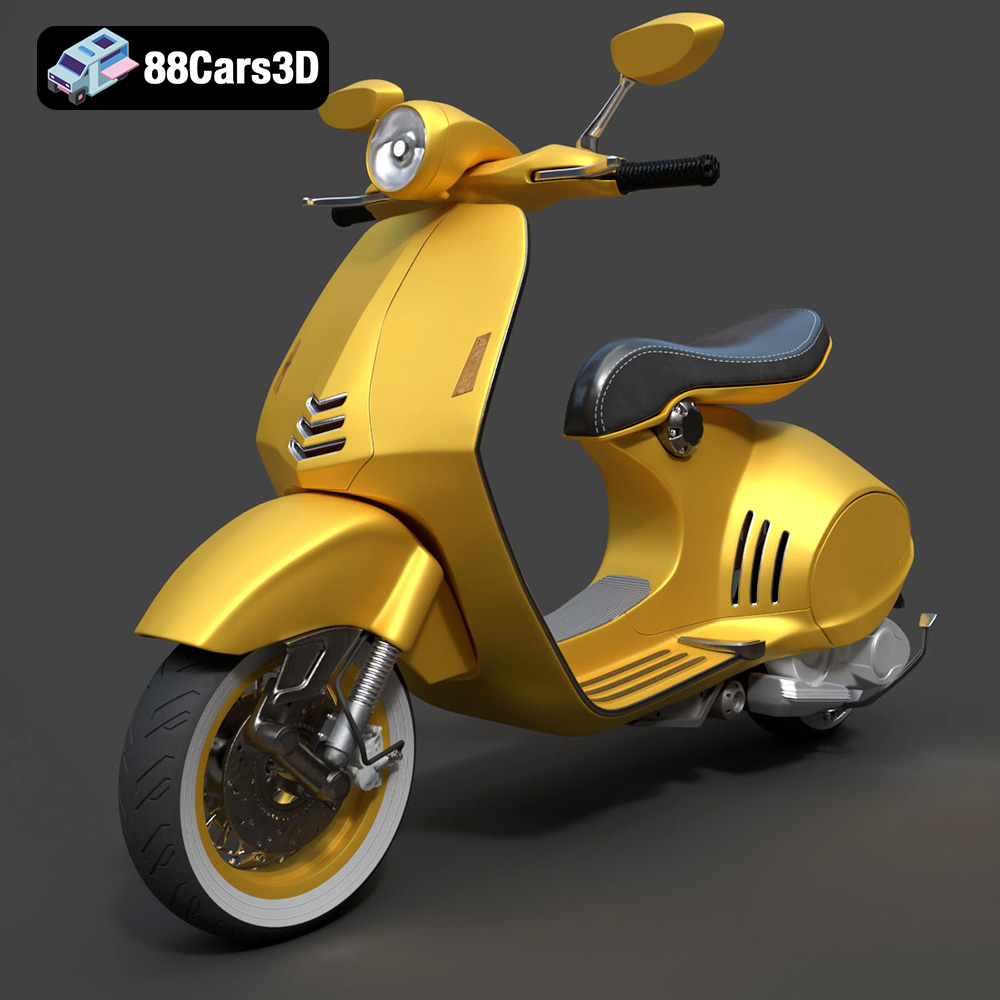
Texture: Yes
Material: Yes
Download the Vespa 946 3D Model featuring clean geometry, realistic detailing, and a fully modeled interior. Includes .blend, .fbx, .obj, .glb, .stl, .ply, .unreal, and .max formats for rendering, simulation, and game development.
Price: $19.99

Texture: Yes
Material: Yes
Download the Toyota Yaris Cross 3D Model featuring clean geometry, realistic detailing, and a fully modeled interior. Includes .blend, .fbx, .obj, .glb, .stl, .ply, .unreal, and .max formats for rendering, simulation, and game development.
Price: $19.99

Texture: Yes
Material: Yes
Download the Volkswagen Amarok 2019 3D Model featuring clean geometry, realistic detailing, and a fully modeled interior. Includes .blend, .fbx, .obj, .glb, .stl, .ply, .unreal, and .max formats for rendering, simulation, and game development.
Price: $19.99

