Get 50% OFF All Premium 3D & STL Models!

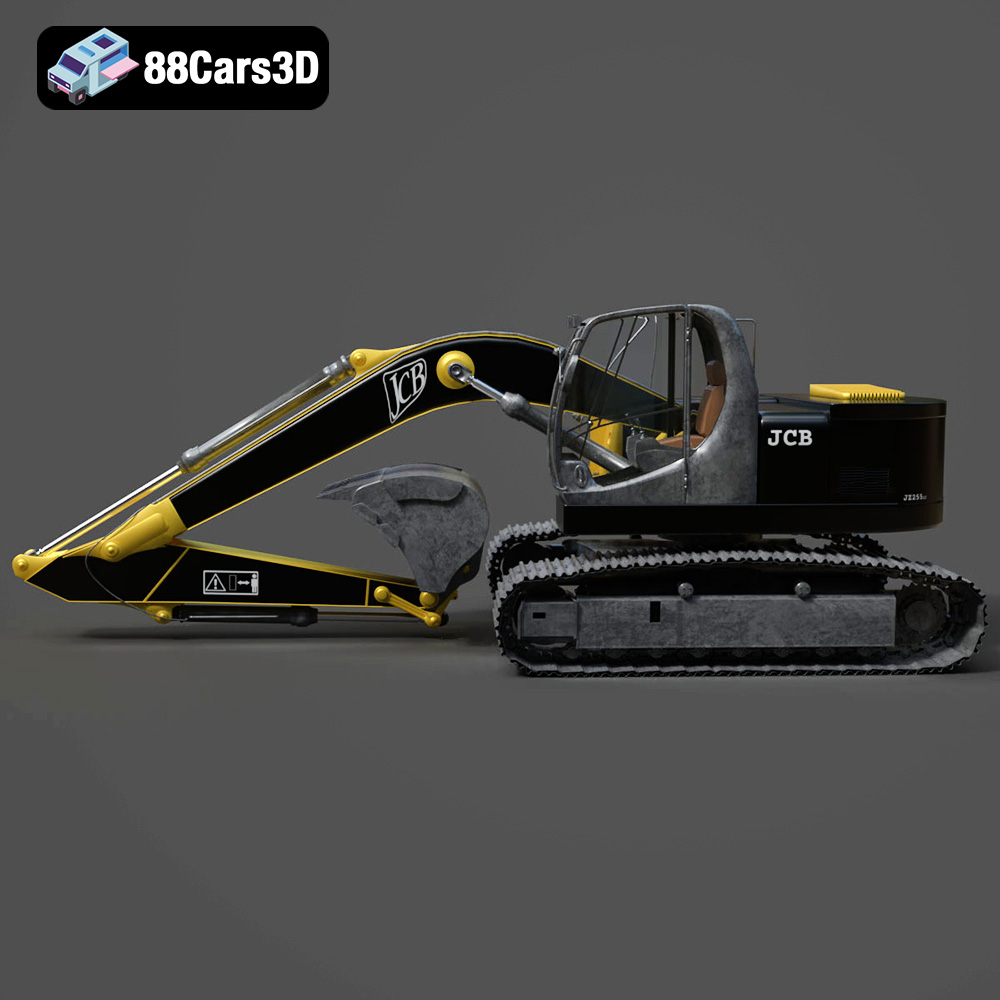
The JCB Excavator-001, a powerful symbol of construction and engineering, can now be brought to life in your own home thanks to the marvels of 3D printing. This isn’t just about creating a static model; it’s about experiencing the intricate design and functionality of this iconic machine firsthand. At 88cars3d.com, we understand the passion for detail, and that’s why the JCB Excavator-001 3D model is crafted to deliver exceptional realism when brought to life through additive manufacturing. This guide will walk you through the entire process, from selecting the right materials and preparing the STL files to post-processing techniques that will transform your print into a stunning replica. Whether you’re a seasoned 3D printing enthusiast or a newcomer to the world of additive manufacturing, this comprehensive guide will provide you with the knowledge and techniques necessary to successfully 3D print the JCB Excavator-001.
Choosing the right file format is a crucial first step in ensuring a successful 3D print. While the JCB Excavator-001 is provided in multiple formats to cater to different applications, the .stl file format is the industry standard for 3D printing and should be your primary choice. Let’s delve into the specifics of each format and why STL excels in this context:
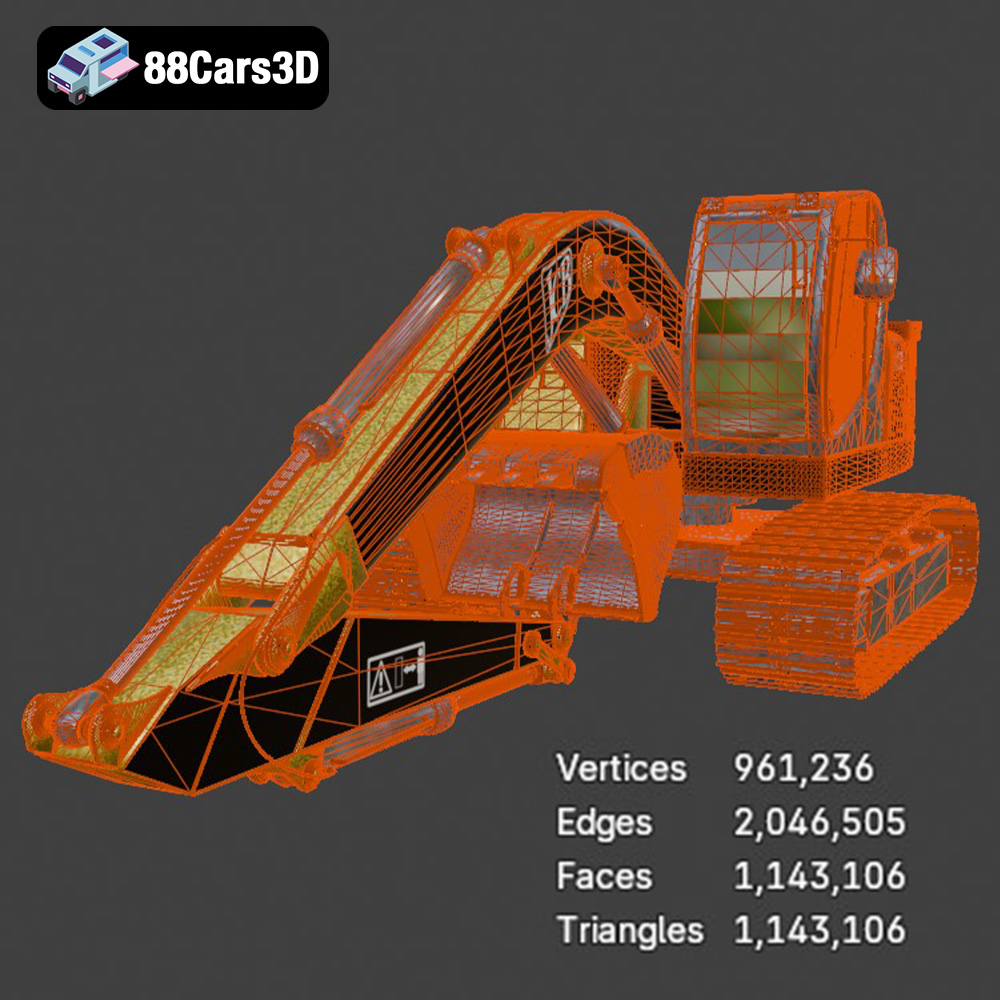
The STL (Stereolithography) format is the workhorse of 3D printing. It represents a 3D model’s surface geometry as a collection of triangles. This simplicity makes it highly compatible with virtually all 3D printing slicing software. When you download the JCB Excavator-001 model from 88cars3d.com, you’ll receive an STL file that is ready for slicing. Ensure that the STL file has a sufficient number of triangles to accurately represent the curves and details of the excavator. Low-resolution STL files can result in a faceted, blocky appearance, while excessively high-resolution files can be unnecessarily large and slow down the slicing process.
OBJ files are more versatile than STL files in that they can store color and texture information. While some 3D printers can handle multi-material printing or color blending, the JCB Excavator-001 model is best suited for single-color printing and painting in post-processing. Therefore, you likely won’t need the texture capabilities of the OBJ format. While some slicing software can import OBJ files, they are typically converted to STL internally for the slicing process.
PLY files, like OBJ files, can store color and texture information but are often used for representing data captured from 3D scanners. While PLY can provide a more precise mesh representation, it’s not typically necessary for 3D printing the JCB Excavator-001. The STL format provides sufficient accuracy for most desktop 3D printers.
The .blend file is the native format for Blender, a powerful open-source 3D modeling software. If you want to customize the JCB Excavator-001 model before 3D printing, you can use the .blend file to modify the design, add details, or separate parts for easier printing. After making your changes, you’ll need to export the model as an STL file for 3D printing. Ensure that when exporting, you maintain a reasonable polygon count to optimize print quality and slicing efficiency.
FBX files are commonly used for exchanging 3D models between different software applications, particularly in game development. While FBX files can store material information, most 3D printers don’t utilize this data. If you’re using a slicing software that supports FBX import, you can try using it, but it’s generally recommended to stick with the STL format for optimal compatibility.
GLB files are designed for efficient delivery of 3D models over the web and for Augmented Reality (AR) applications. They are typically smaller in size and optimized for real-time rendering. While you can use a GLB viewer to preview the JCB Excavator-001 model, it’s not suitable for 3D printing directly.
.max files are the native format for 3ds Max, a professional 3D modeling and animation software. Similar to Blender, you can use 3ds Max to modify the JCB Excavator-001 model. However, you’ll need to export the modified model as an STL file for 3D printing.
In summary, for 3D printing the JCB Excavator-001, the STL file format is the most reliable and widely supported option. Ensure that the STL file has a sufficient level of detail to capture the intricate features of the excavator, and always verify the model for any errors or inconsistencies before slicing.
Before you hit that print button, meticulous preparation is key to achieving a high-quality, accurate 3D printed JCB Excavator-001. This stage involves model inspection, repair, orientation, and slicing – each playing a vital role in the final outcome.
Even professionally designed models can sometimes have minor imperfections that can hinder 3D printing. Use a mesh editing software like MeshMixer or Netfabb to inspect the STL file for issues such as:
* **Non-manifold geometry:** These are areas where the mesh isn’t properly closed, which can confuse the slicer.
* **Inverted normals:** These cause surfaces to appear inside-out, leading to printing errors.
* **Holes or gaps:** Small holes can disrupt the printing process and weaken the final model.
Most mesh editing software offers automated repair tools that can fix these common issues. Load the JCB Excavator-001 STL file into your chosen software and run the repair function.
The orientation of the model on the print bed significantly impacts print quality, support requirements, and overall success. Consider these factors:
* **Minimize support:** Orient the model to reduce the amount of support material needed. Supports add to print time and material consumption, and their removal can leave blemishes on the surface. Try to position the model so that self-supporting features are facing upwards.
* **Part strength:** Orient the model so that the strongest axis aligns with the direction of stress in the final application. For the JCB Excavator-001, consider how the printed parts will be assembled and where the load will be applied.
* **Surface finish:** The bottom layer, which is in contact with the print bed, often has a different texture than the other layers. Orient the model to place less critical surfaces on the bottom.
Once you’ve determined the optimal orientation, you’ll need to generate support structures. Most slicing software offers automatic support generation, but you may need to manually adjust the placement and density of supports for complex areas of the JCB Excavator-001. Pay close attention to areas with overhangs, such as the excavator arm and cab. Consider using a finer support interface layer to improve surface finish and ease of support removal.
Slicing software converts the 3D model into a series of layers that the printer will deposit. Choosing the right slicing parameters is essential for a successful print.
* **Layer height:** This determines the resolution of the print. Lower layer heights (e.g., 0.1mm) result in smoother surfaces but increase print time. Higher layer heights (e.g., 0.2mm) print faster but can lead to a more stepped appearance. For the JCB Excavator-001, a layer height of 0.15mm to 0.2mm is a good compromise between print quality and speed.
* **Infill density:** This controls the internal structure of the print. Higher infill densities (e.g., 20%) make the model stronger but increase material usage. Lower infill densities (e.g., 10%) print faster and use less material but can compromise strength. For purely aesthetic models, a lower infill density is sufficient. However, if you plan to articulate the excavator arm or use the model for functional purposes, a higher infill density may be necessary.
* **Print speed:** Slower print speeds generally result in better print quality, especially for intricate details. Experiment with different print speeds to find the optimal balance between speed and quality for your printer and material.
* **Temperature:** Set the nozzle and bed temperatures according to the material manufacturer’s recommendations.
* **Retraction:** Adjust retraction settings to minimize stringing and oozing between different parts of the model.
The choice of material plays a crucial role in the final appearance, durability, and functionality of your 3D printed JCB Excavator-001. Each material has its own unique properties, advantages, and disadvantages. Here are some recommendations:
PLA is the most popular and widely used 3D printing filament. It’s biodegradable, easy to print, and available in a wide range of colors. PLA is a good choice for purely aesthetic models of the JCB Excavator-001 that won’t be subjected to high temperatures or significant stress.
* **Pros:** Easy to print, low warping, wide color selection, biodegradable.
* **Cons:** Low heat resistance, brittle, not suitable for functional parts.
* **Recommended settings:** Nozzle temperature: 200-220°C, Bed temperature: 60°C, Print speed: 40-60mm/s.
PETG is a more durable and heat-resistant alternative to PLA. It offers a good balance of strength, flexibility, and ease of printing. PETG is a good choice if you want to create a more robust model of the JCB Excavator-001 that can withstand some wear and tear.
* **Pros:** Stronger than PLA, heat resistant, good layer adhesion, less brittle.
* **Cons:** Can be stringy, requires good bed adhesion.
* **Recommended settings:** Nozzle temperature: 230-250°C, Bed temperature: 70-80°C, Print speed: 40-50mm/s.
ABS is a strong and heat-resistant plastic commonly used in injection molding. It’s a good choice for functional parts that need to withstand high temperatures or significant stress. However, ABS is more difficult to print than PLA or PETG and requires a heated enclosure to prevent warping.
* **Pros:** High strength, heat resistant, durable.
* **Cons:** Warping, fumes, requires heated bed and enclosure.
* **Recommended settings:** Nozzle temperature: 230-250°C, Bed temperature: 90-110°C, Print speed: 40-60mm/s, Enclosure recommended.
Resin printing, using technologies like SLA or DLP, offers the highest level of detail and surface finish. If you’re looking for a highly accurate and detailed replica of the JCB Excavator-001, resin printing is the way to go. However, resin prints tend to be more brittle than filament prints and require post-curing.
* **Pros:** Extremely high detail, smooth surface finish, accurate.
* **Cons:** Brittle, requires post-curing, messy.
* **Recommended settings:** Follow resin manufacturer’s recommendations for layer height, exposure time, and lift speed.
Once the printing is complete, the real magic begins! Post-processing is the stage where you refine and enhance your 3D printed JCB Excavator-001, transforming it from a raw print into a polished masterpiece.
Carefully remove the support structures from the printed model using pliers, cutters, or a sharp knife. Take your time and avoid damaging the model’s surface. Once the supports are removed, use sandpaper to smooth out any rough edges or support marks. Start with a coarser grit sandpaper (e.g., 220 grit) and gradually move to finer grits (e.g., 400, 600, 800 grit) to achieve a smooth finish. Wet sanding can help to reduce dust and improve the smoothness of the surface.
Priming is an essential step before painting. It helps to create a uniform surface for the paint to adhere to and fills in any minor imperfections. Apply a thin, even coat of primer using a spray can or airbrush. Let the primer dry completely before sanding it lightly with fine-grit sandpaper. Once the primer is smooth, you can begin painting the JCB Excavator-001. Use acrylic paints or model paints in the desired colors. Apply multiple thin coats of paint rather than one thick coat to avoid drips and runs. Let each coat dry completely before applying the next. Consider using masking tape to create clean lines and separate different colored areas.
The JCB Excavator-001 model may consist of multiple parts that need to be assembled. Use glue, screws, or other fasteners to connect the parts together. Pay close attention to the alignment of the parts and ensure that they are securely attached. You can further enhance the realism of the model by adding details such as decals, weathering effects, or miniature accessories.
Even with careful preparation, 3D printing can sometimes present challenges. Here are some common issues and their solutions:
* **Warping:** This occurs when the corners of the print lift off the print bed. To prevent warping, ensure that the bed is properly leveled and heated. Use a brim or raft to increase bed adhesion.
* **Stringing:** This is caused by excess filament oozing from the nozzle during travel moves. To reduce stringing, adjust the retraction settings in your slicing software.
* **Layer adhesion:** This occurs when the layers of the print don’t adhere properly to each other. To improve layer adhesion, increase the nozzle temperature, reduce the print speed, or increase the layer height.
* **Elephant’s foot:** This is caused by the bottom layers of the print being squished too much. To prevent elephant’s foot, adjust the Z-offset or reduce the bed temperature.
* **Support removal:** Difficult support removal can be mitigated by optimizing support placement and using a finer support interface layer.
Before embarking on your 3D printing journey, it’s helpful to estimate the print time and material costs. Slicing software typically provides estimates of print time, material usage, and cost based on the chosen settings. Keep in mind that these are just estimates, and the actual values may vary depending on your printer, material, and environmental conditions. As a general guideline, a detailed model like the JCB Excavator-001, printed at a layer height of 0.15mm and an infill density of 15%, could take anywhere from 10 to 30 hours to print, depending on the size and complexity of the model. The material cost will depend on the type of filament used and its price per kilogram. You can use online calculators or spreadsheets to estimate the material cost based on the estimated material usage provided by your slicing software.
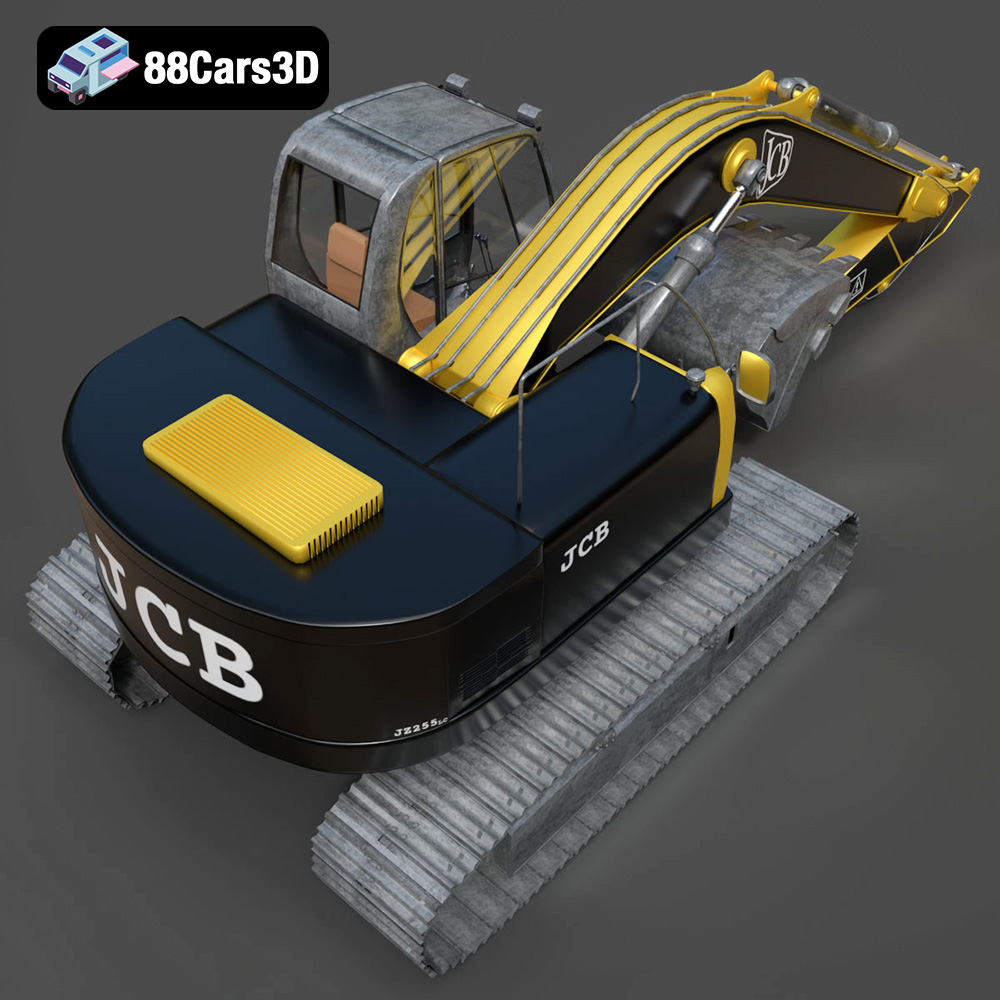
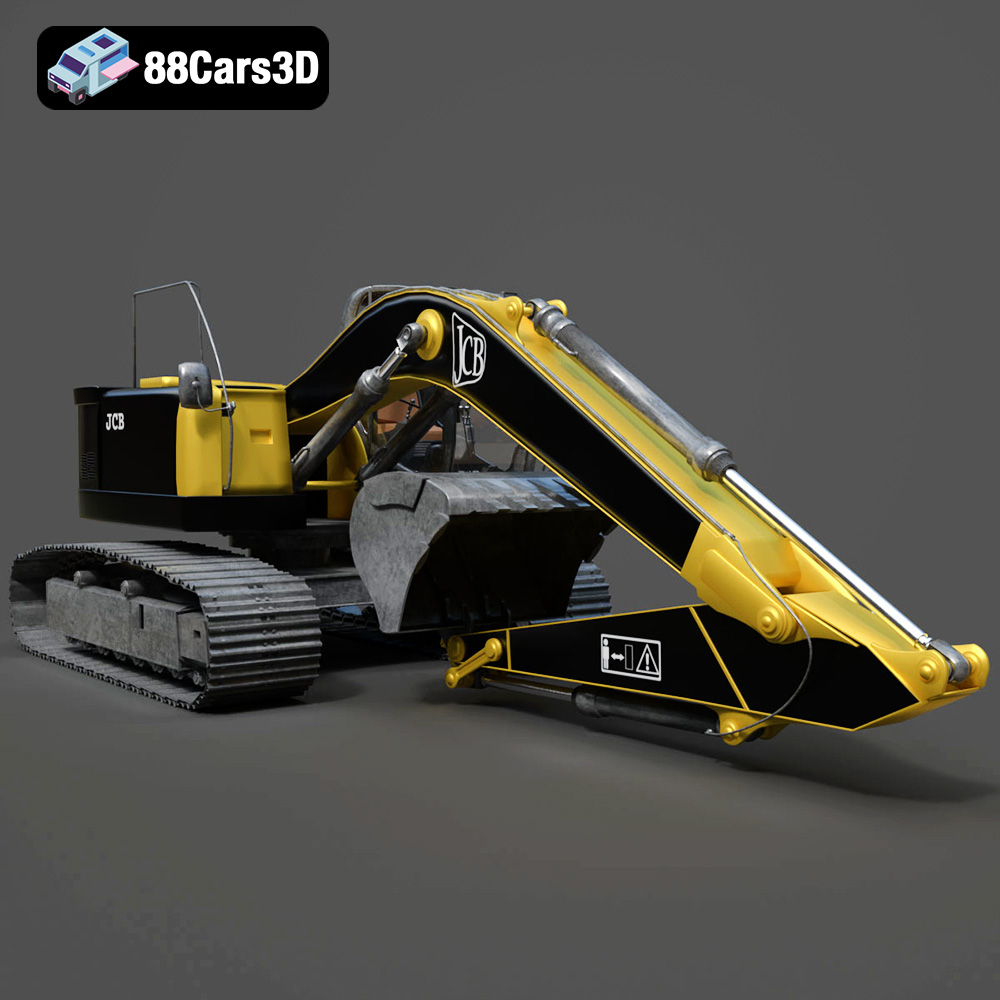
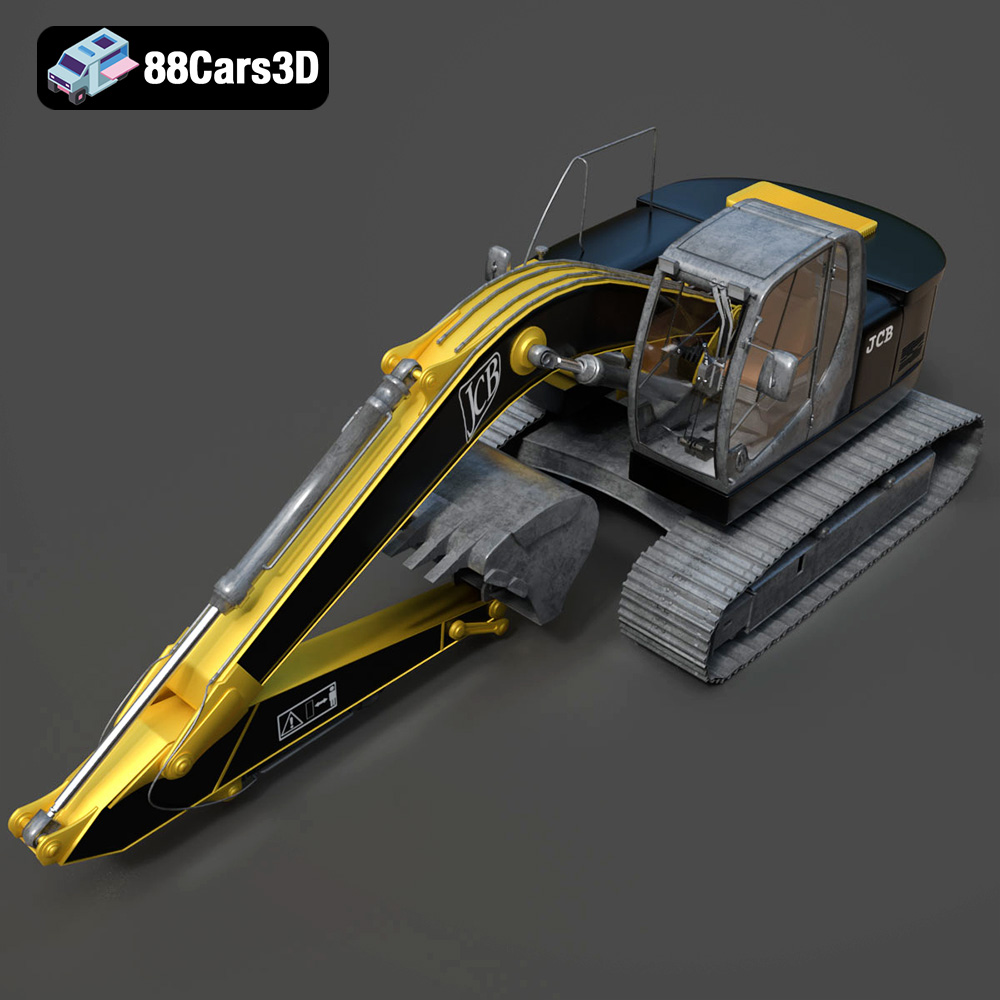
Immerse yourself in the intricate detailing of the JCB Excavator-001 3D model. This meticulously crafted model delivers unparalleled realism, capturing every aspect of the iconic construction equipment with precision.
Perfect for game development, architectural visualization, high-resolution rendering, augmented reality (AR), virtual reality (VR), and simulation projects, this 3D model elevates the quality and authenticity of your creations.
$19.99
.arvr
.blend
.car3dmodel
.constructionequipment
.excavator
.excavator001
.fbx
.gameasset
.glb
.jcb
.max
.obj
.ply
.rendering
.simulation
.stl
.unreal