Get 50% OFF All Premium 3D & STL Models!

“`html
The world of 3D printing offers incredible possibilities, from creating intricate prototypes to bringing your own designs to life. But before you hit “print,” you need to understand the language your 3D printer speaks – the file format. While numerous formats exist, STL, OBJ, and FBX are the most common contenders. Choosing the right one can significantly impact print quality, file size, and overall workflow. In this comprehensive guide, we’ll dive deep into these three file formats, exploring their strengths, weaknesses, and ideal use cases, especially when working with printable car models.
Whether you’re a seasoned 3D printing enthusiast or just starting your journey, understanding the nuances of STL, OBJ, and FBX is crucial for successful prints. This article will equip you with the knowledge to make informed decisions, optimize your files, and achieve the best possible results, particularly when downloading models from marketplaces such as 88cars3d.com. We’ll cover everything from basic definitions to advanced techniques for file preparation and optimization.
STL (Stereolithography) is the oldest and arguably the most widely used file format for 3D printing. Its simplicity is both its strength and its weakness. STL files represent a 3D model as a collection of connected triangles, forming a mesh that approximates the object’s surface. This simplicity makes it universally compatible with virtually all 3D printers and slicing software.
STL files store only the surface geometry of an object, using a tessellated representation. Each triangle is defined by its three vertices (coordinates) and a normal vector indicating the triangle’s outward direction. There are two main variations: ASCII STL and Binary STL. Binary STL is generally preferred because it results in smaller file sizes and faster processing. The file format lacks any color or texture information; it’s purely geometric.
The primary advantage of STL is its near-universal compatibility. Almost every 3D printer and slicing software supports it. However, its simplicity also means it lacks color, texture, and material information. Complex models with intricate curves require a large number of triangles to represent them accurately, leading to large file sizes and potential performance issues during slicing. A low triangle count results in a faceted appearance on curved surfaces. When dealing with detailed printable car models, this can be a significant drawback.
Key Considerations for STL Files:
OBJ (or .OBJ) is another popular file format for 3D models, offering more versatility than STL. Unlike STL, OBJ files can store color and texture information, making them suitable for models with visual complexity. OBJ files store the geometry as vertices, edges, and faces (which can be polygons with more than three sides, unlike STL). This makes OBJ more flexible in representing complex shapes.
OBJ files can store color information either directly within the file or through a separate Material Template Library (MTL) file. The MTL file defines the material properties, including color, texture maps, and reflectivity. This allows for more realistic representations of 3D models. OBJ also supports more complex geometry than just triangles. While it can represent non-triangulated polygons, these are often converted to triangles during the slicing process for 3D printing.
For 3D printing printable car models, OBJ can be particularly useful if the model includes color variations or textured surfaces. While you might not be printing in color directly (unless you have a multi-material printer), the color information can be helpful for post-processing, such as painting. Furthermore, the more efficient representation of curved surfaces in OBJ (before triangulation) can lead to smaller initial file sizes compared to STL, especially for complex automotive designs.
Key Considerations for OBJ Files:
FBX (Filmbox) is a proprietary file format developed by Autodesk, primarily used for animation and game development. While less common for direct 3D printing than STL or OBJ, FBX offers advanced features like animation, skeletal rigging, and scene information, making it useful in specific workflows that involve more than just static 3D printing. FBX is designed for interchange between different software packages.
FBX supports a wide range of data, including geometry, materials, textures, animation, skeletal rigging, and camera information. It’s a binary file format, which generally results in smaller file sizes compared to ASCII formats. While FBX files can contain triangulated meshes suitable for 3D printing, they are often used in a broader context for managing and transferring complex 3D scenes.
While FBX isn’t the primary choice for 3D printing, it can be useful in situations where you’re working with animated models that you want to extract a specific frame from for printing. For example, if you have a car model with animated suspension, you could use FBX to pose the model in a specific configuration before exporting it as an STL or OBJ file for 3D printing. In this case, FBX serves as an intermediary format for manipulating the model before preparing it for printing.
Key Considerations for FBX Files:
Regardless of the file format you choose, proper preparation is essential for successful 3D printing. This involves several steps, including mesh repair, orientation optimization, and slicing. Platforms like 88cars3d.com offer print-ready STL files, but understanding these preparation steps is still crucial for customizing and optimizing your prints.
Before slicing, it’s crucial to ensure that your 3D model is a “manifold” mesh. This means that the mesh is closed, has no holes, and has consistent surface normals. Non-manifold meshes can cause errors during slicing and lead to print failures. Software like MeshMixer, Netfabb, and Blender offer tools for repairing and optimizing meshes. Common issues include:
For STL files, optimizing the triangle count can improve slicing performance without sacrificing too much detail. OBJ files might need to be triangulated before slicing if they contain non-triangular polygons.
The orientation of your 3D model on the build plate can significantly impact print quality and the need for support structures. Orienting the model to minimize overhangs reduces the amount of support material required. Support structures provide a foundation for overhanging features, preventing them from collapsing during printing. Slicing software like Cura and PrusaSlicer offer automatic support generation tools, but manual adjustments are often necessary for optimal results.
Tips for Orientation and Support:
The slicing process converts the 3D model into a series of instructions (G-code) that the 3D printer can understand. Slicing software allows you to control various parameters that affect print quality, speed, and material usage. These parameters include layer height, infill density, print speed, and temperature.
Layer height is the thickness of each layer of material deposited during printing. A smaller layer height results in a smoother surface finish but increases print time. A larger layer height reduces print time but can lead to a more stepped appearance. A common layer height for FDM printing is 0.2mm, but you can adjust it based on the desired level of detail. For example, a layer height of 0.1mm will produce a smoother surface but take twice as long to print compared to a 0.2mm layer height.
Infill density determines the amount of material used to fill the interior of the 3D model. A higher infill density increases the strength of the part but also increases print time and material usage. Common infill patterns include grid, honeycomb, and gyroid. Gyroid infill offers a good balance of strength and material efficiency. For decorative car models, a lower infill density (e.g., 10-15%) is often sufficient. For functional parts, a higher infill density (e.g., 50-100%) may be necessary.
Example Settings for PLA on an FDM Printer:
Two primary 3D printing technologies dominate the market: Fused Deposition Modeling (FDM) and Resin printing (Stereolithography – SLA, Digital Light Processing – DLP, and Masked Stereolithography – MSLA). Each offers distinct advantages and disadvantages for printing car models.
FDM printing involves extruding a thermoplastic filament through a heated nozzle and depositing it layer by layer onto the build plate. FDM printers are relatively affordable and can print with a wide range of materials, including PLA, ABS, PETG, and TPU. FDM is well-suited for printing larger car models or functional parts that require strength and durability. However, FDM prints typically have visible layer lines, which may require post-processing to achieve a smooth surface finish.
Resin printing uses a liquid resin that is cured by UV light. Resin printers offer much higher resolution and can produce incredibly detailed prints with smooth surfaces. This makes resin printing ideal for printing small, intricate car models or parts that require exceptional surface finish. However, resin printers are generally more expensive than FDM printers, and the materials (resins) can be more costly. Resin prints also tend to be more brittle than FDM prints and may require post-curing to achieve optimal strength.
Considerations for Choosing Between FDM and Resin:
Once your 3D printed car model is complete, post-processing can enhance its appearance and functionality. Common post-processing techniques include support removal, sanding, priming, and painting.
Support structures are often necessary to print overhanging features, but they need to be removed after printing. Carefully remove support structures using pliers, cutters, or a sharp knife. Be cautious not to damage the model during removal. After removing supports, sanding can smooth out any rough edges or imperfections. Start with coarse-grit sandpaper and gradually move to finer grits to achieve a smooth surface.
Priming prepares the surface of the 3D printed model for painting. Primer fills in any remaining imperfections and provides a consistent surface for the paint to adhere to. Apply several thin coats of primer, allowing each coat to dry completely before applying the next. After priming, you can paint the model using acrylic paints, spray paints, or airbrushing techniques. Apply multiple thin coats of paint for best results. Consider using clear coat for added protection and shine.
Tips for Post-Processing:
Choosing the right file format for 3D printing is crucial for achieving optimal results. STL remains the most universally compatible format, while OBJ offers the advantage of storing color and texture information. FBX, while less common for direct 3D printing, can be useful in specific workflows involving animation or complex scene management. Understanding the strengths and weaknesses of each format allows you to make informed decisions based on your specific needs and the complexity of the model you’re printing. Remember to prepare your files properly by repairing meshes, optimizing orientation, and selecting appropriate slicing parameters. By mastering these techniques, you can unlock the full potential of 3D printing and bring your creative visions to life, whether you’re printing intricate car models or functional prototypes. Explore resources like 88cars3d.com to find a wealth of print-ready STL files and expand your 3D printing horizons.
Ultimately, the best file format is the one that suits your specific workflow and requirements. Experiment with different formats and settings to discover what works best for you. Happy printing!
“`

Texture: Yes
Material: Yes
Download the Volvo Trucks Benz GT-001 3D Model featuring clean geometry, realistic detailing, and a fully modeled interior. Includes .blend, .fbx, .obj, .glb, .stl, .ply, .unreal, and .max formats for rendering, simulation, and game development.
Price: $29.99
Texture: Yes
Material: Yes
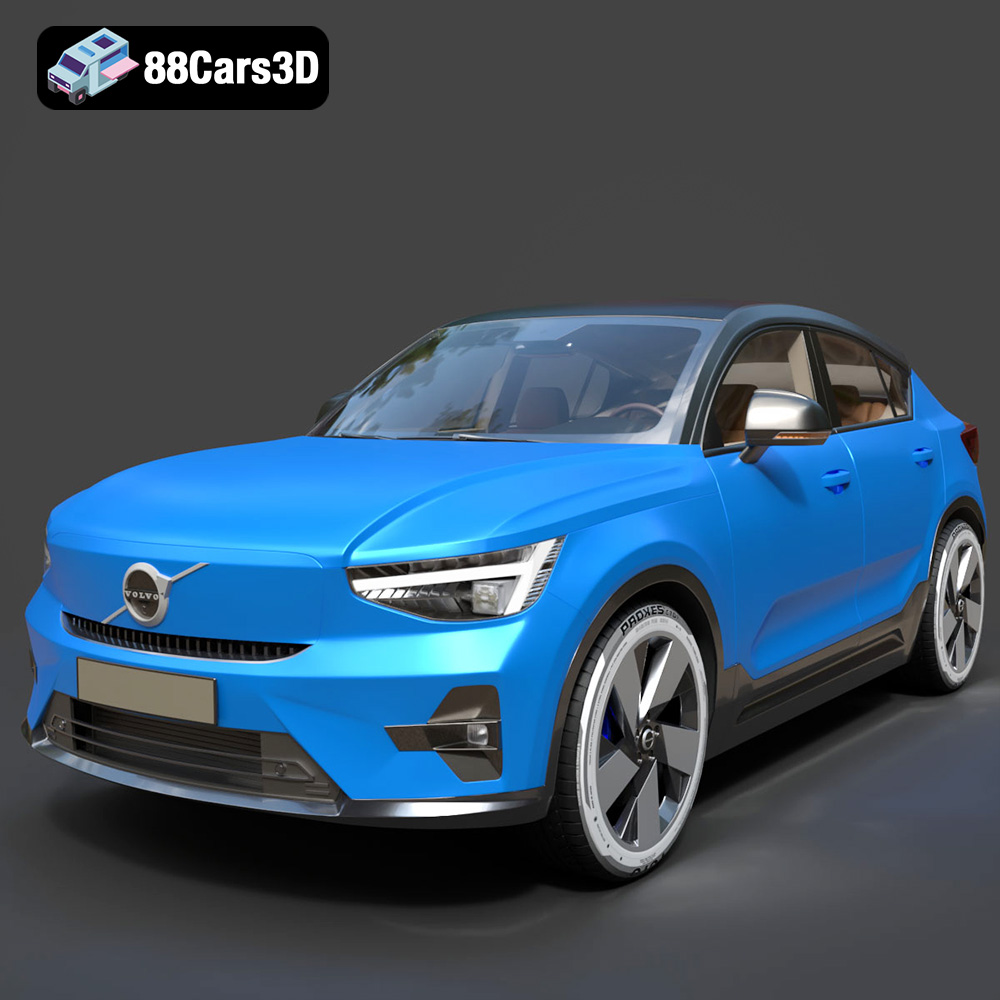
Download the Volvo C40 Recharge 3D Model featuring clean geometry, realistic detailing, and a fully modeled interior. Includes .blend, .fbx, .obj, .glb, .stl, .ply, .unreal, and .max formats for rendering, simulation, and game development.
Price: $19.99
Texture: Yes
Material: Yes
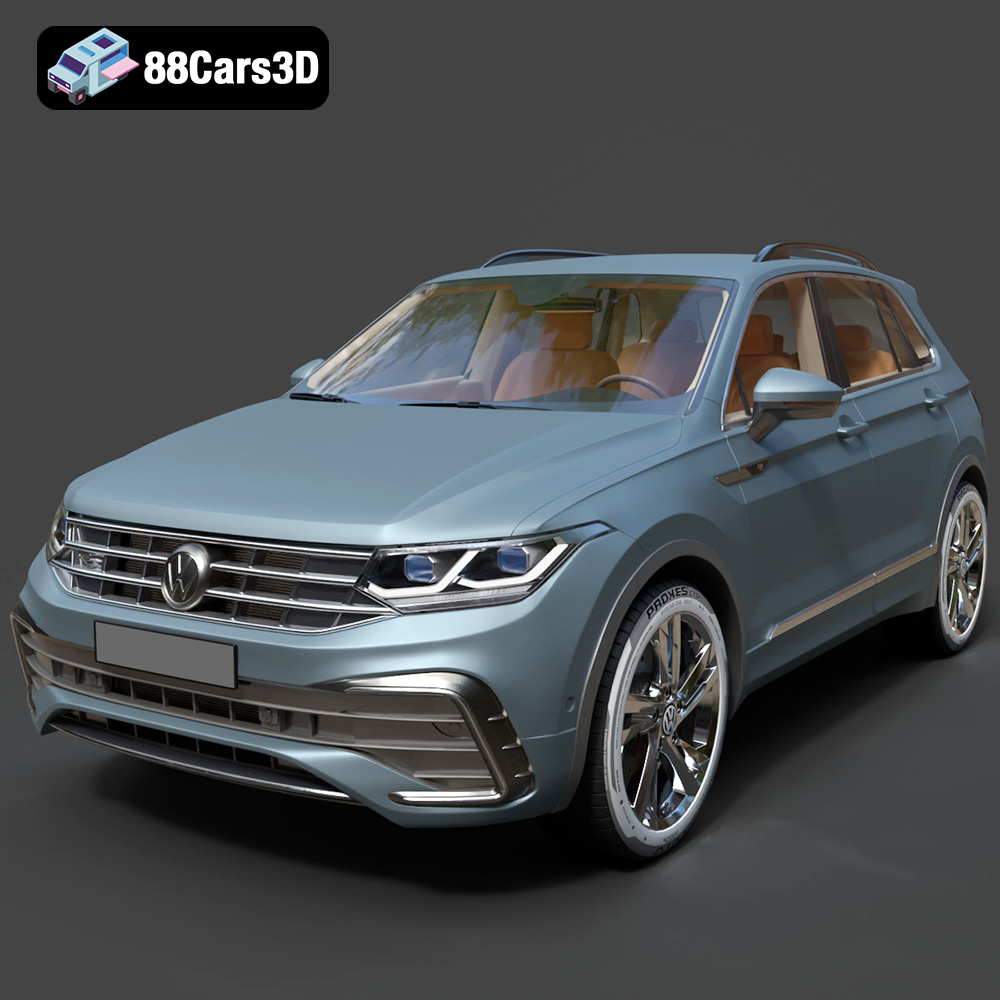
Download the Volkswagen Tiguan 2021 3D Model featuring clean geometry, realistic detailing, and a fully modeled interior. Includes .blend, .fbx, .obj, .glb, .stl, .ply, .unreal, and .max formats for rendering, simulation, and game development.
Price: $19.99
Texture: Yes
Material: Yes
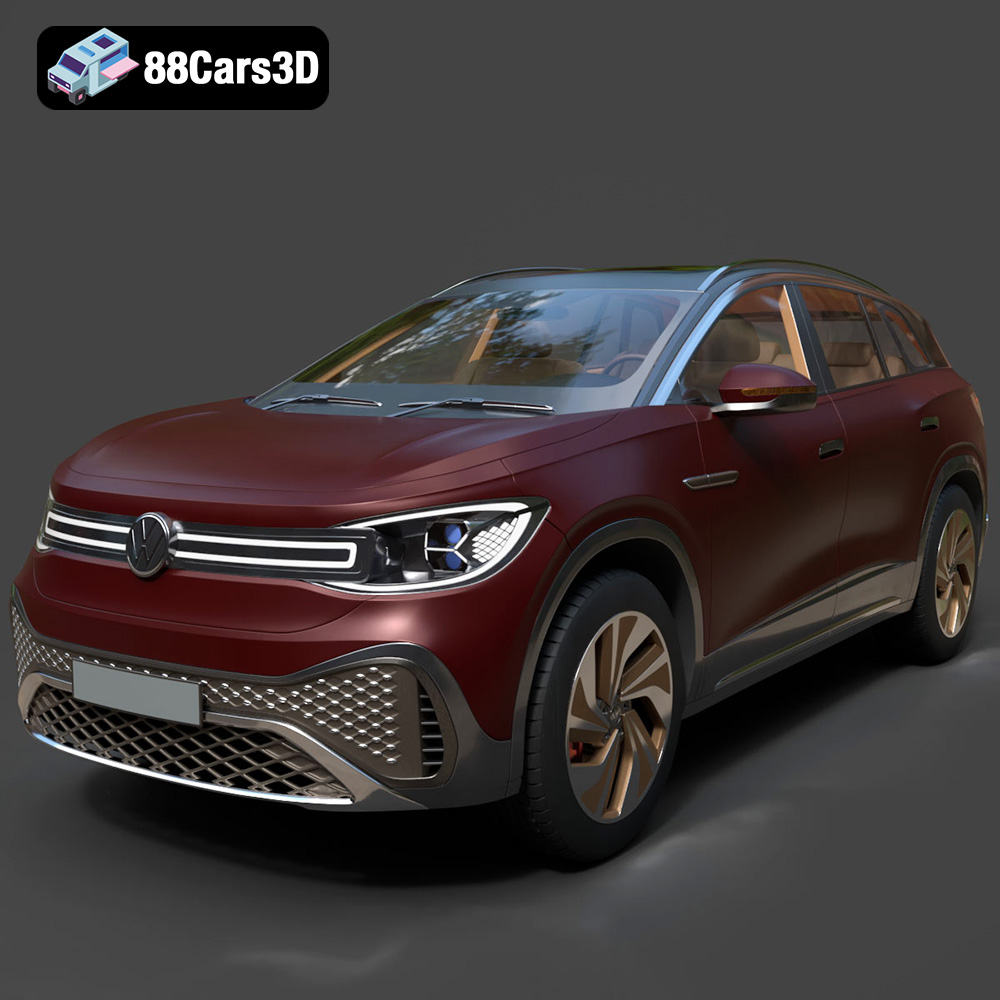
Download the Volkswagen ID6 CROZZ 2022 3D Model featuring clean geometry, realistic detailing, and a fully modeled interior. Includes .blend, .fbx, .obj, .glb, .stl, .ply, .unreal, and .max formats for rendering, simulation, and game development.
Price: $19.99
Texture: Yes
Material: Yes
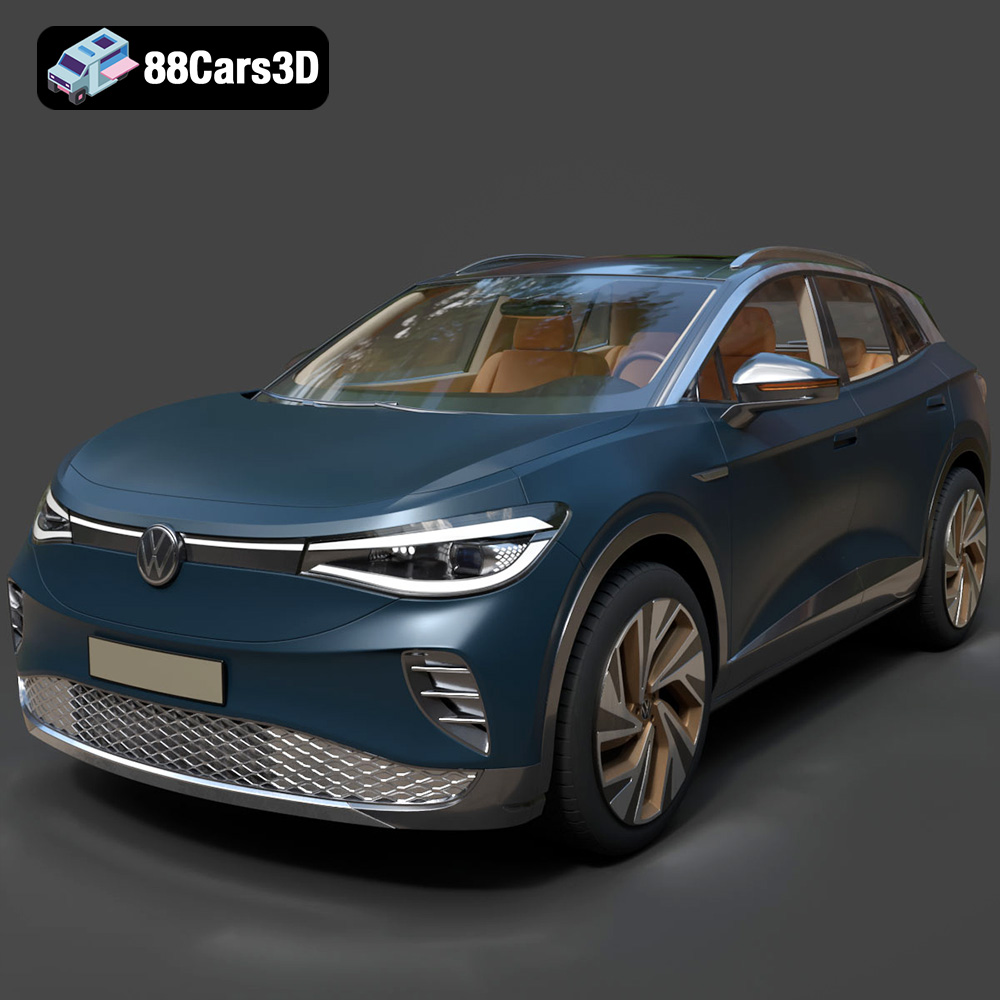
Download the Volkswagen ID4 2021 3D Model featuring clean geometry, realistic detailing, and a fully modeled interior. Includes .blend, .fbx, .obj, .glb, .stl, .ply, .unreal, and .max formats for rendering, simulation, and game development.
Price: $19.99
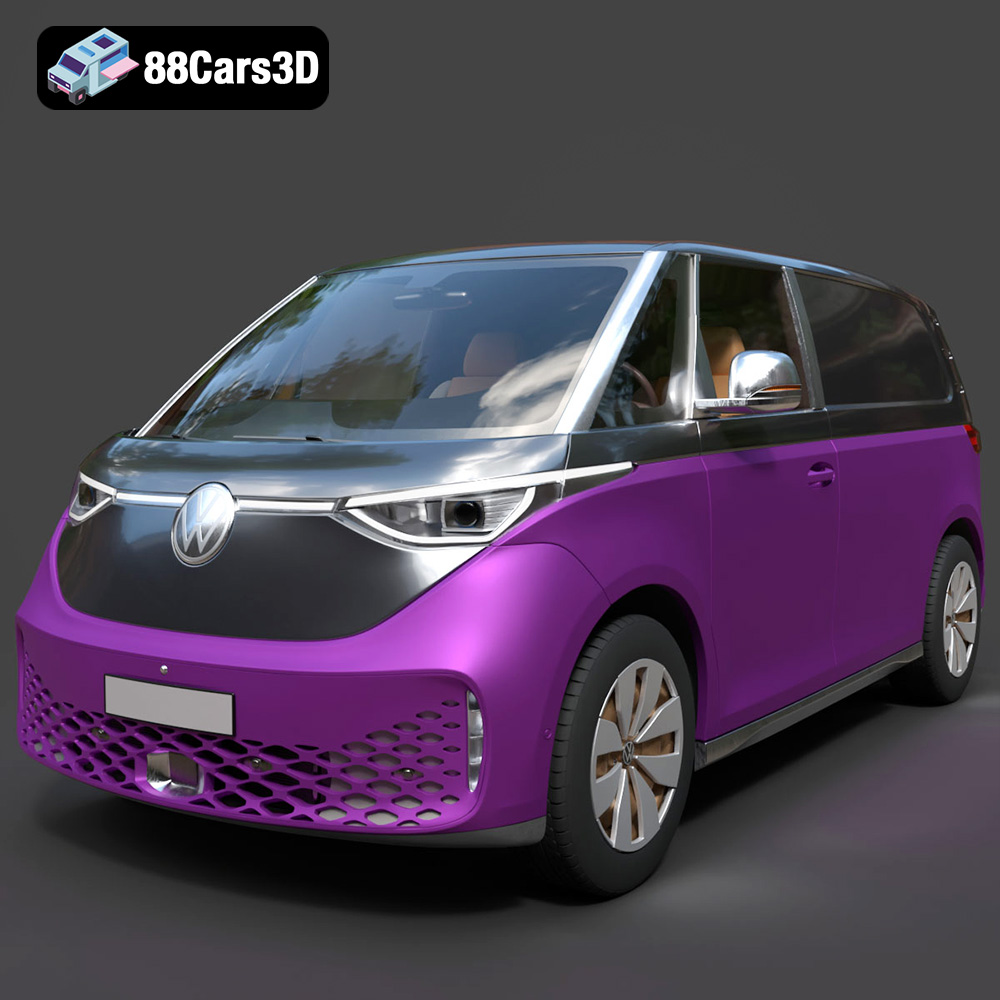
Texture: Yes
Material: Yes
Download the Volkswagen ID. Buzz Cargo 2023 3D Model featuring clean geometry, realistic detailing, and a fully modeled interior. Includes .blend, .fbx, .obj, .glb, .stl, .ply, .unreal, and .max formats for rendering, simulation, and game development.
Price: $19.99
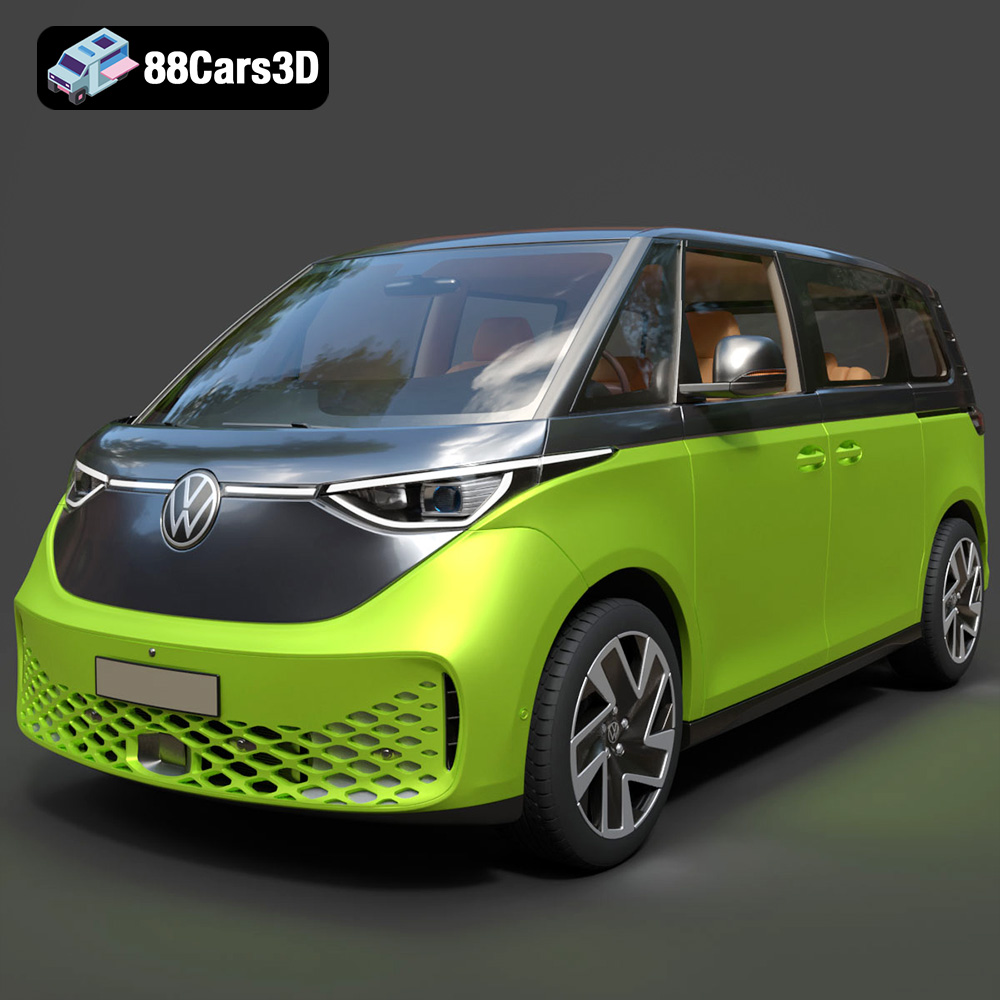
Texture: Yes
Material: Yes
Download the Volkswagen ID. Buzz 2023 3D Model featuring clean geometry, realistic detailing, and a fully modeled interior. Includes .blend, .fbx, .obj, .glb, .stl, .ply, .unreal, and .max formats for rendering, simulation, and game development.
Price: $19.99
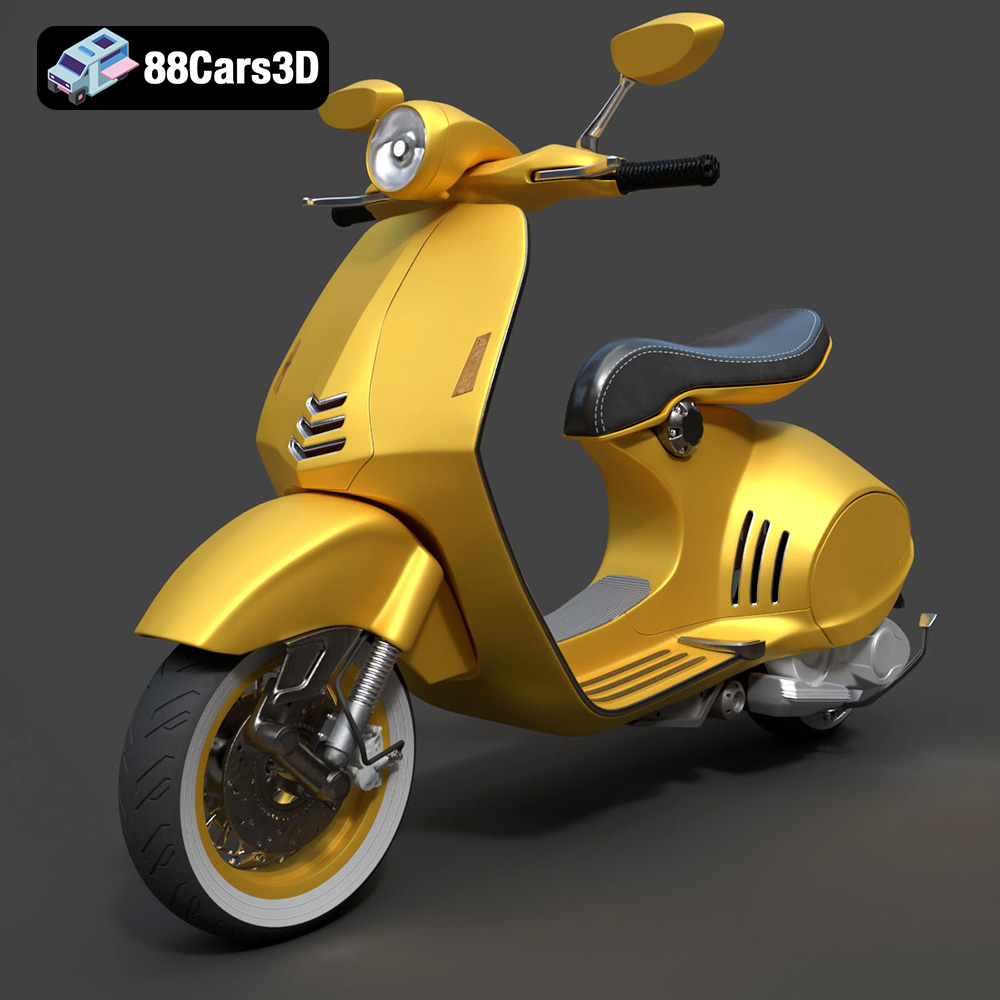
Texture: Yes
Material: Yes
Download the Vespa 946 3D Model featuring clean geometry, realistic detailing, and a fully modeled interior. Includes .blend, .fbx, .obj, .glb, .stl, .ply, .unreal, and .max formats for rendering, simulation, and game development.
Price: $19.99

Texture: Yes
Material: Yes
Download the Toyota Yaris Cross 3D Model featuring clean geometry, realistic detailing, and a fully modeled interior. Includes .blend, .fbx, .obj, .glb, .stl, .ply, .unreal, and .max formats for rendering, simulation, and game development.
Price: $19.99

Texture: Yes
Material: Yes
Download the Volkswagen Amarok 2019 3D Model featuring clean geometry, realistic detailing, and a fully modeled interior. Includes .blend, .fbx, .obj, .glb, .stl, .ply, .unreal, and .max formats for rendering, simulation, and game development.
Price: $19.99

