Get 50% OFF All Premium 3D & STL Models!

“`html
For 3D printing enthusiasts, particularly those passionate about recreating stunning car models, the pursuit of smooth, flawless surfaces is a constant endeavor. The beauty of a meticulously designed STL file can be easily overshadowed by visible layer lines, imperfections, and a generally rough texture. This guide will delve into the technical intricacies of achieving smooth surfaces on your 3D printed car models, covering everything from STL file preparation to post-processing techniques. Whether you’re using an FDM or resin printer, mastering these techniques will elevate your models to a professional level, capturing the sleek lines and intricate details of your favorite automobiles. We’ll explore slicing parameters, material choices, support strategies, and post-processing workflows to transform your 3D prints into showroom-worthy replicas. Platforms like 88cars3d.com offer print-ready STL files that are a great starting point, but understanding how to optimize your printing process is key to achieving the best possible results.
The foundation of a smooth 3D print lies in the quality of the STL file itself. An STL file represents a 3D object as a collection of triangles, and the density and distribution of these triangles directly impact the final surface finish. Before even loading the file into your slicer, it’s crucial to inspect and, if necessary, repair any potential issues that could lead to surface imperfections.
The term “mesh topology” refers to the structure and connectivity of the triangles in the STL file. Ideal topology consists of evenly distributed, well-formed triangles that accurately represent the intended geometry. Issues like non-manifold edges (edges shared by more than two triangles), flipped normals (triangles facing the wrong direction), and self-intersections can cause significant problems during printing. These errors often manifest as gaps, holes, or distorted surfaces in the final print. Software like Netfabb, Meshmixer, and even Blender can be used to analyze and repair these issues before proceeding to slicing. When downloading models from marketplaces such as 88cars3d.com, you can expect higher-quality meshes, but it’s still a good practice to perform a quick check.
Mesh repair is the process of identifying and correcting topological errors in the STL file. Netfabb is a professional-grade software specifically designed for this purpose, offering powerful tools to automatically detect and fix a wide range of mesh issues. Meshmixer provides a more user-friendly interface and is often sufficient for simpler repairs. In Meshmixer, the “Make Solid” tool is particularly useful for converting a hollow or problematic mesh into a solid, printable object. Blender offers more manual control over mesh editing, allowing you to precisely adjust vertices, edges, and faces. For example, you can use the “Merge by Distance” tool to eliminate duplicate vertices that might be causing surface artifacts. Always save the repaired STL file after making any modifications.
Slicing is the process of converting the STL file into a series of instructions that the 3D printer can understand. The slicing software divides the 3D model into thin horizontal layers, generating a G-code file that controls the printer’s movements and material extrusion. The slicing parameters you choose have a profound impact on the surface finish of your printed car model. Fine-tuning these settings is crucial for minimizing layer lines and achieving a smooth, aesthetically pleasing result.
Layer height is arguably the most influential slicing parameter when it comes to surface smoothness. A smaller layer height results in finer steps between layers, reducing the visibility of layer lines. For FDM printing, a layer height between 0.1mm and 0.15mm is generally recommended for achieving a good balance between print quality and print time. However, for highly detailed models, you may want to experiment with even smaller layer heights, such as 0.08mm or 0.05mm. Keep in mind that reducing the layer height will significantly increase the print time. For resin printing, the layer height is typically much smaller, often in the range of 0.025mm to 0.05mm. This allows for incredibly smooth surfaces and fine details. Experiment with different layer heights to find the sweet spot for your specific printer and resin. A good starting point is usually the manufacturer’s recommended setting for the resin you’re using.
Print speed and temperature are interconnected parameters that affect the flow and adhesion of the filament. Printing too fast can lead to under-extrusion, which results in gaps between layers and a rough surface finish. Conversely, printing too slowly can cause over-extrusion, leading to blobs and excessive stringing. The optimal print speed depends on the material being used and the printer’s capabilities. As a general guideline, a print speed of 40-60mm/s is a good starting point for PLA, while ABS may require slightly slower speeds. Temperature also plays a crucial role. Too low a temperature can cause poor layer adhesion, while too high a temperature can lead to warping and stringing. Consult the filament manufacturer’s recommendations for the optimal temperature range. In Cura or PrusaSlicer, experiment with the “Temperature” settings under the “Material” tab. For example, PLA typically prints well around 200-220°C, while ABS requires higher temperatures, around 230-250°C. Small adjustments in temperature can have a significant impact on the surface finish.
Support structures are temporary scaffolding that provides support for overhanging features during printing. While essential for printing complex geometries, supports can often leave marks or blemishes on the surface of the model. Therefore, careful planning and execution of support structures are crucial for minimizing their impact on the final surface finish.
The placement and orientation of support structures should be carefully considered to minimize their contact with visible surfaces. Whenever possible, orient the model in such a way that the most critical surfaces are self-supporting or require minimal support. In Cura or PrusaSlicer, you can use the manual support placement tools to add supports only where they are absolutely necessary. Avoid placing supports on curved surfaces or areas where a smooth finish is paramount. For FDM printing, experiment with different support patterns, such as lines or zig-zags, and adjust the support density to find a balance between stability and ease of removal. For resin printing, use the “light” support option in your slicer to minimize the contact area and the potential for damage during removal. Angling the model in the slicer can also significantly reduce the need for supports and improve surface quality.
Support density refers to the amount of material used to create the supports. A higher support density provides more stability but can also increase the difficulty of removal and the likelihood of leaving marks. A lower support density is easier to remove but may not provide sufficient support for overhanging features. The optimal support density depends on the complexity of the model and the material being used. Experiment with different densities to find the right balance. The support interface is the layer that connects the supports to the model. A dense interface provides a strong bond but can be difficult to remove cleanly. A sparse interface is easier to remove but may not provide adequate support. In Cura, the “Support Interface Density” setting controls the density of the interface layer. A value of 0.8 or 0.9 is generally recommended for achieving a good balance. For resin printing, adjust the “tip diameter” of the supports to minimize their footprint on the model.
The choice of material significantly impacts the surface finish and overall quality of your 3D printed car model. Different materials have varying properties that affect their ability to reproduce fine details, resist warping, and achieve a smooth surface. Understanding these properties is crucial for selecting the right material for your specific project.
PLA (Polylactic Acid) is a popular choice for beginners due to its ease of use and biodegradability. It prints at relatively low temperatures and is less prone to warping than other materials. However, PLA can be brittle and is not ideal for parts that will be subjected to high temperatures or stress. PETG (Polyethylene Terephthalate Glycol) offers a good balance of strength, flexibility, and ease of printing. It is more resistant to heat and chemicals than PLA and is a good choice for functional parts. ABS (Acrylonitrile Butadiene Styrene) is a strong and durable material that is commonly used in automotive applications. However, it requires higher printing temperatures and is more prone to warping than PLA and PETG. For achieving smooth surfaces with ABS, an enclosed printer is highly recommended to maintain a consistent temperature and prevent warping. When choosing between these materials, consider the intended use of the car model and the desired level of detail and durability. For purely aesthetic models, PLA or PETG are often sufficient. If strength and heat resistance are critical, ABS may be the better choice.
Resin printing offers superior detail and surface finish compared to FDM printing. Standard resins are generally affordable and easy to use but can be brittle and prone to cracking. Tough resins are formulated to be more durable and impact-resistant, making them suitable for functional parts. High-detail resins are designed to capture the finest details and produce exceptionally smooth surfaces. These resins often have a higher price point but are well worth the investment for printing intricate car models. When selecting a resin, consider the specific requirements of your project and the desired level of detail and durability. For example, if you plan to paint and display your car model, a high-detail resin is an excellent choice. Always follow the manufacturer’s recommendations for exposure times and other printing parameters to achieve the best possible results.
Post-processing is the final stage in the 3D printing workflow, involving a series of steps to refine the surface finish, remove imperfections, and assemble the printed parts. Even with optimized printing parameters, some level of post-processing is often necessary to achieve a truly flawless surface. This may involve sanding, filling, priming, and painting.
Sanding is a crucial step in smoothing out layer lines and removing minor imperfections. Start with a coarse grit sandpaper (e.g., 220 grit) to remove larger bumps and ridges. Gradually move to finer grits (e.g., 400, 600, 800, 1000 grit) to refine the surface. Wet sanding is often recommended, as it helps to prevent the sandpaper from clogging and produces a smoother finish. For larger gaps or imperfections, use a filler, such as epoxy putty or automotive body filler. Apply the filler in thin layers, allowing it to dry completely before sanding. Be careful not to sand too aggressively, as this can remove too much material and distort the shape of the model. For complex curves and hard-to-reach areas, consider using specialized sanding tools, such as flexible sanding sticks or rotary tools with sanding attachments.
Priming is an essential step for creating a smooth and uniform surface for painting. A good primer will fill in any remaining imperfections and provide a better adhesion surface for the paint. Apply the primer in thin, even coats, allowing each coat to dry completely before applying the next. Sand the primer lightly with fine-grit sandpaper (e.g., 600 grit) to remove any imperfections. Choose a paint that is compatible with the material being used and that provides the desired color and finish. Apply the paint in thin, even coats, using an airbrush or spray paint. Allow each coat to dry completely before applying the next. Multiple thin coats are better than one thick coat, as they are less likely to run or sag. After the paint has dried completely, consider applying a clear coat to protect the paint and enhance the gloss or matte finish.
The accuracy and reliability of your 3D printer directly impact the quality of your printed car models. Regular calibration and maintenance are essential for ensuring consistent results and preventing common printing problems. This includes bed leveling, nozzle cleaning, and regular lubrication of moving parts.
A properly leveled bed is crucial for ensuring that the first layer of the print adheres properly to the build plate. An uneven bed can lead to warping, poor adhesion, and ultimately, a failed print. Most 3D printers have a manual or automatic bed leveling system. Follow the manufacturer’s instructions to properly level the bed before each print. In addition to bed leveling, proper bed adhesion is also essential. Clean the build plate thoroughly with isopropyl alcohol before each print. For PLA, a heated bed temperature of 60°C is generally recommended. For ABS, a higher bed temperature of 100-110°C is necessary. You can also use adhesion aids, such as painter’s tape, glue stick, or specialized bed adhesion products, to improve the adhesion of the first layer. Experiment with different techniques to find what works best for your printer and material.
A clogged or dirty nozzle can cause under-extrusion, poor layer adhesion, and a rough surface finish. Regularly clean the nozzle to remove any accumulated debris. You can use a nozzle cleaning needle, a wire brush, or a cold pull technique to clean the nozzle. For a cold pull, heat the nozzle to the printing temperature of the material being used, then manually push filament into the nozzle and quickly pull it out. This can often remove any stubborn clogs. Also, ensure the extruder motor is properly calibrated to feed the correct amount of filament. Regularly inspect the nozzle for wear and tear and replace it as needed. A worn nozzle can significantly impact the print quality, especially when printing fine details. Following these simple maintenance steps will ensure that your printer is operating at its best and producing high-quality prints.
Even with careful planning and preparation, you may encounter printing issues that affect the surface finish of your 3D printed car models. Understanding the common causes of these issues and how to troubleshoot them is essential for achieving consistent and high-quality results.
Warping is the phenomenon where the corners of the print lift off the build plate during printing. This is often caused by uneven cooling and thermal contraction of the material. Curling is a similar issue, but it typically affects smaller features of the print. Elephant’s foot is a condition where the first few layers of the print are wider than the rest of the model. This is usually caused by excessive bed adhesion or too much pressure from the nozzle. To prevent warping, use a heated bed, enclose the printer to maintain a consistent temperature, and use bed adhesion aids. To prevent curling, reduce the print speed and increase the layer height. To prevent elephant’s foot, reduce the bed temperature and increase the Z offset. Experiment with different settings to find the right balance for your specific printer and material.
Stringing is the formation of thin strands of filament between different parts of the print. This is usually caused by excessive oozing of the filament from the nozzle during travel moves. Blobs and zits are small bumps or imperfections on the surface of the print. These can be caused by inconsistent extrusion or retraction settings. To prevent stringing, increase the retraction distance and speed, decrease the printing temperature, and enable travel avoidance. To prevent blobs and zits, optimize the coasting settings, reduce the extrusion multiplier, and ensure that the filament is dry. Also, try printing a temperature tower to find the optimal printing temperature for your filament. These small adjustments can make a big difference in the surface finish of your 3D printed car models.
Achieving perfectly smooth surfaces on 3D printed car models requires a combination of careful planning, meticulous execution, and a thorough understanding of the underlying technology. From preparing your STL files to fine-tuning your slicing parameters and mastering post-processing techniques, each step in the process contributes to the final result. By paying attention to detail, experimenting with different settings, and learning from your mistakes, you can consistently produce stunning car models with flawless finishes. Remember to start with high-quality STL files, like those available on platforms like 88cars3d.com, and then meticulously optimize your printing process using the techniques outlined in this guide. The journey to perfect 3D prints is ongoing, but with dedication and perseverance, you can achieve remarkable results and bring your automotive visions to life.
“`

Texture: Yes
Material: Yes
Download the Volvo Trucks Benz GT-001 3D Model featuring clean geometry, realistic detailing, and a fully modeled interior. Includes .blend, .fbx, .obj, .glb, .stl, .ply, .unreal, and .max formats for rendering, simulation, and game development.
Price: $29.99

Texture: Yes
Material: Yes
Download the Volvo C40 Recharge 3D Model featuring clean geometry, realistic detailing, and a fully modeled interior. Includes .blend, .fbx, .obj, .glb, .stl, .ply, .unreal, and .max formats for rendering, simulation, and game development.
Price: $19.99

Texture: Yes
Material: Yes
Download the Volkswagen Tiguan 2021 3D Model featuring clean geometry, realistic detailing, and a fully modeled interior. Includes .blend, .fbx, .obj, .glb, .stl, .ply, .unreal, and .max formats for rendering, simulation, and game development.
Price: $19.99

Texture: Yes
Material: Yes
Download the Volkswagen ID6 CROZZ 2022 3D Model featuring clean geometry, realistic detailing, and a fully modeled interior. Includes .blend, .fbx, .obj, .glb, .stl, .ply, .unreal, and .max formats for rendering, simulation, and game development.
Price: $19.99

Texture: Yes
Material: Yes
Download the Volkswagen ID4 2021 3D Model featuring clean geometry, realistic detailing, and a fully modeled interior. Includes .blend, .fbx, .obj, .glb, .stl, .ply, .unreal, and .max formats for rendering, simulation, and game development.
Price: $19.99
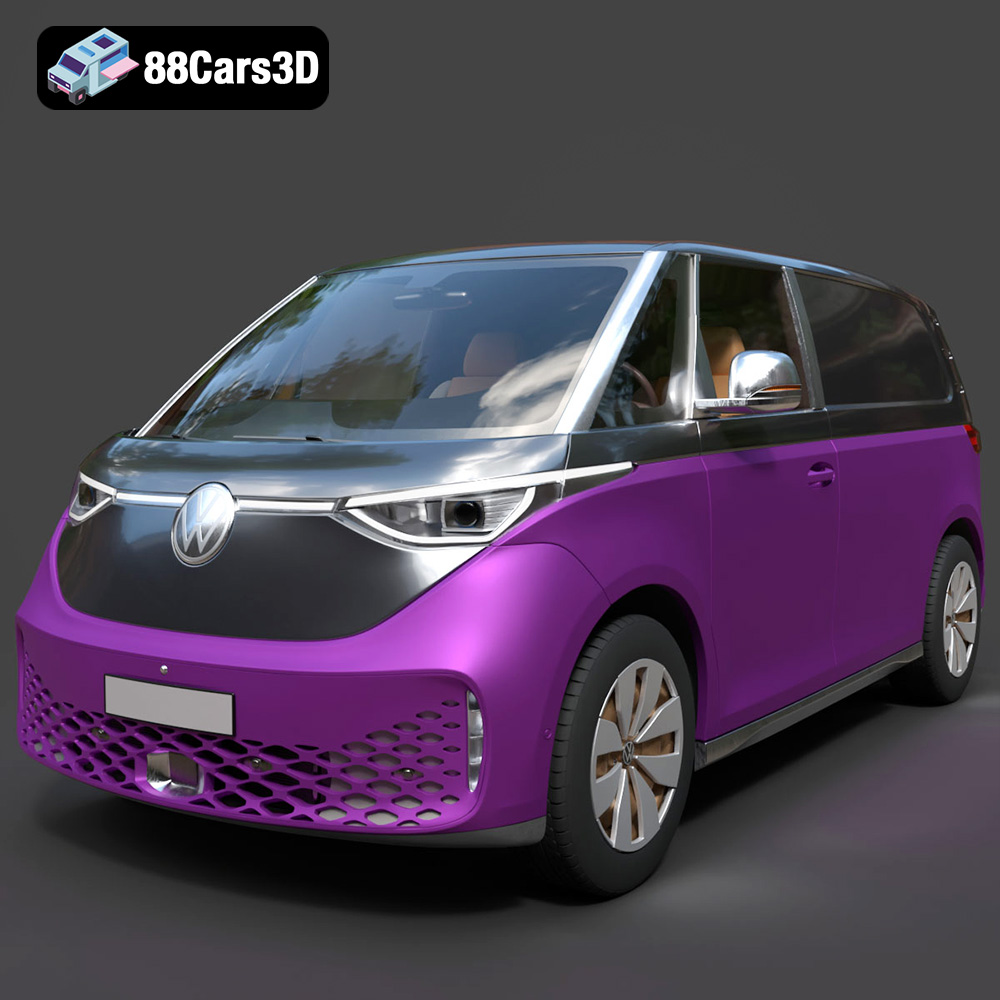
Texture: Yes
Material: Yes
Download the Volkswagen ID. Buzz Cargo 2023 3D Model featuring clean geometry, realistic detailing, and a fully modeled interior. Includes .blend, .fbx, .obj, .glb, .stl, .ply, .unreal, and .max formats for rendering, simulation, and game development.
Price: $19.99
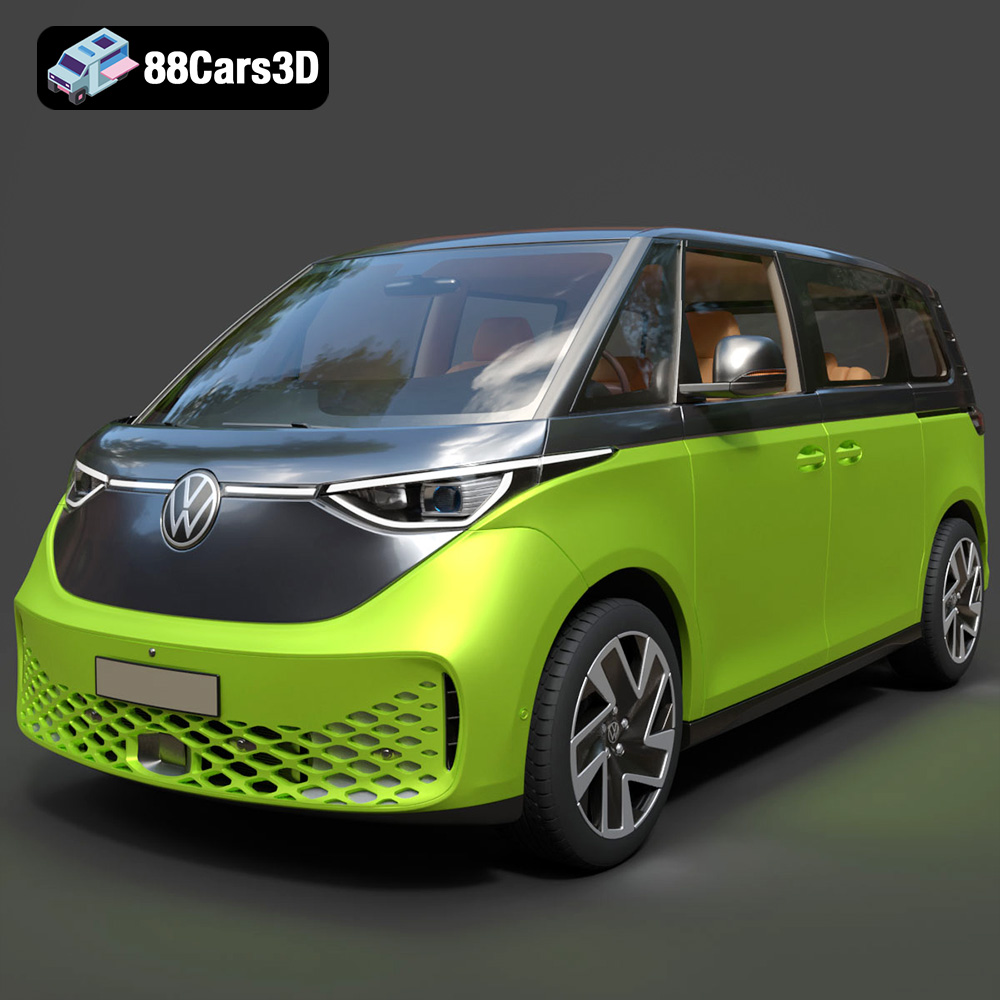
Texture: Yes
Material: Yes
Download the Volkswagen ID. Buzz 2023 3D Model featuring clean geometry, realistic detailing, and a fully modeled interior. Includes .blend, .fbx, .obj, .glb, .stl, .ply, .unreal, and .max formats for rendering, simulation, and game development.
Price: $19.99
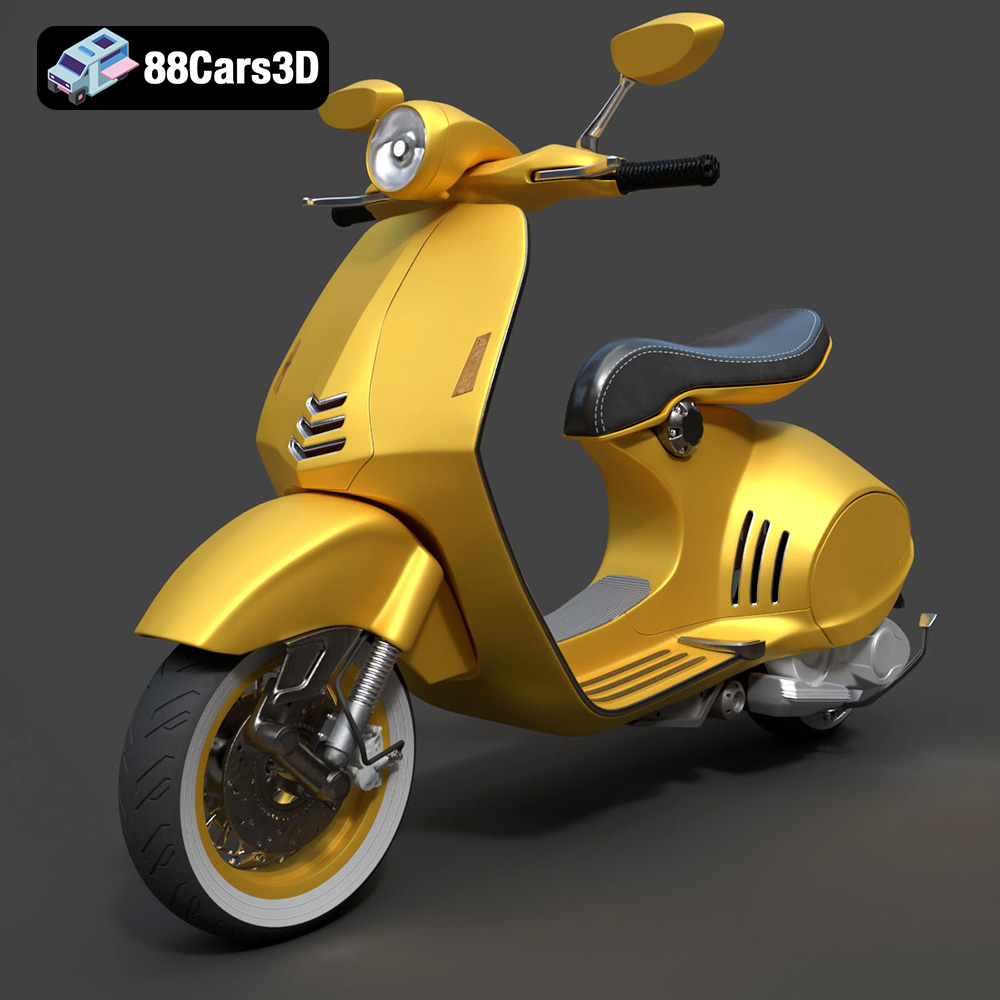
Texture: Yes
Material: Yes
Download the Vespa 946 3D Model featuring clean geometry, realistic detailing, and a fully modeled interior. Includes .blend, .fbx, .obj, .glb, .stl, .ply, .unreal, and .max formats for rendering, simulation, and game development.
Price: $19.99

Texture: Yes
Material: Yes
Download the Toyota Yaris Cross 3D Model featuring clean geometry, realistic detailing, and a fully modeled interior. Includes .blend, .fbx, .obj, .glb, .stl, .ply, .unreal, and .max formats for rendering, simulation, and game development.
Price: $19.99

Texture: Yes
Material: Yes
Download the Volkswagen Amarok 2019 3D Model featuring clean geometry, realistic detailing, and a fully modeled interior. Includes .blend, .fbx, .obj, .glb, .stl, .ply, .unreal, and .max formats for rendering, simulation, and game development.
Price: $19.99

