Get 50% OFF All Premium 3D & STL Models!

“`html
3D printing has revolutionized the way we create, allowing enthusiasts and professionals alike to bring digital designs into the physical world. For automotive enthusiasts, platforms like 88cars3d.com offer a treasure trove of 3D printable car models in STL format. However, sometimes these files, or files from other sources, can be imperfect, containing errors that prevent successful printing. These errors manifest as broken meshes, non-manifold geometry, or other topological issues. Understanding how to identify and repair these issues is crucial for achieving high-quality 3D prints. This guide will provide a comprehensive overview of repairing broken STL meshes using two powerful software tools: Meshmixer and Netfabb.
In this guide, you will learn how to diagnose common STL file errors, master the use of Meshmixer and Netfabb for mesh repair, and optimize your files for successful 3D printing. We will explore techniques for filling holes, correcting flipped normals, removing self-intersections, and ensuring manifold geometry. By the end of this article, you’ll possess the knowledge and skills necessary to repair even the most challenging STL files, enabling you to produce flawless 3D printed car models.
The STL (Stereolithography) file format is the de facto standard for 3D printing. It represents a 3D object as a collection of triangles, where each triangle is defined by three vertices and a normal vector. While seemingly simple, this format can be prone to errors that can disrupt the printing process. Identifying the type of error is the first step in repairing it.
At its core, an STL file describes the surface geometry of a 3D model using a mesh of interconnected triangles. Each triangle is defined by the coordinates of its three vertices (x, y, z) and a normal vector indicating the triangle’s outward facing direction. The overall quality of the STL file depends heavily on how these triangles are connected and arranged. A well-formed STL file will have a closed, watertight surface, meaning that there are no gaps, holes, or overlapping triangles.
Meshmixer, developed by Autodesk, is a free and powerful tool designed for working with 3D meshes. Its user-friendly interface and robust set of features make it an excellent choice for repairing broken STL files. Meshmixer offers a range of tools specifically designed for identifying and correcting common STL errors.
To begin, import your broken STL file into Meshmixer by selecting “Import” from the file menu. Once the model is loaded, you can use the “Analysis” tool to identify any potential errors. Select “Analysis” -> “Inspector” to trigger the automatic error detection. Meshmixer will highlight problematic areas with different colored markers, such as red for holes and yellow for non-manifold edges. Hovering over these markers will provide additional information about the specific error.
Meshmixer offers both automatic and manual repair options. For a quick fix, you can use the “Auto Repair All” function found under “Edit” -> “Make Solid”. This tool automatically attempts to fix common errors like holes, non-manifold edges, and flipped normals. However, for more complex issues, manual repair tools may be necessary. The “Sculpt” toolset allows you to manually smooth out imperfections and close small gaps. The “Edit” -> “Erase and Fill” tool is useful for removing unwanted geometry and filling holes. For flipped normals, use “Edit” -> “Flip Normals” to correct the surface orientation. When filling holes, experiment with different fill types (e.g., minimal fill, smooth fill) to achieve the best results for your model.
Netfabb, now also an Autodesk product, is a more advanced and comprehensive software suite for additive manufacturing. While it comes with a cost, its robust features and precise control make it a valuable tool for professional users who demand the highest level of accuracy and reliability. Netfabb offers sophisticated tools for analyzing, repairing, and optimizing STL files for 3D printing.
After importing your STL file into Netfabb, navigate to the “Analysis” tab. Click on the “Analyze” button to initiate a thorough inspection of the mesh. Netfabb provides a detailed report highlighting various errors, including holes, flipped triangles, self-intersections, and shell errors. The software uses a color-coded system to visually represent the different types of errors, making it easy to pinpoint problematic areas. The “Measurement” tools in Netfabb are also highly useful for determining the size and extent of any errors, which can guide your repair strategy.
Netfabb’s real power lies in its sophisticated repair scripts. From the “Repair” tab, select “Run Repair Script.” Here, you can choose from a range of pre-defined scripts tailored to specific error types, or customize your own script for more targeted repairs. Netfabb can automatically close holes, remove self-intersections, stitch open edges, and optimize the mesh for printing. The “Automatic Repair” function provides a quick and easy way to fix most common errors. For more intricate problems, the manual repair tools allow for precise editing of the mesh. The “Triangle” and “Edge” selection tools allow you to directly modify the mesh geometry, while the “Remesh” tool can be used to create a more uniform and optimized triangle distribution. Netfabb also offers advanced features like support generation and build platform arrangement, making it a complete solution for 3D printing workflow.
Once you’ve repaired your STL file, it’s essential to optimize it for your specific 3D printer and material. This involves adjusting various settings and parameters in your slicing software to ensure a successful and high-quality print. This step is crucial, especially when dealing with complex models of cars where details matter.
Support structures are essential for printing overhanging features and preventing model collapse. There are several types of support structures, including:
The placement of supports is crucial. Focus on supporting overhangs greater than 45 degrees and areas prone to warping. Consider using support blockers to prevent supports from generating in areas where they are not needed. For intricate car models, tree supports are often a good choice, as they minimize the risk of damaging delicate features during removal.
The choice of material and proper printer calibration are vital for achieving the desired results when 3D printing car models. Different materials offer different properties, and a well-calibrated printer ensures accurate and consistent prints.
Proper printer calibration is essential for accurate and consistent prints. Here are some key calibration steps:
Regular printer maintenance, such as cleaning the nozzle and lubricating moving parts, is also crucial for preventing printing problems and ensuring optimal performance.
Once your car model is printed, post-processing techniques can enhance its appearance and functionality. These techniques include sanding, painting, and assembly.
Sanding is used to remove layer lines and smooth the surface of the print. Start with coarse sandpaper (e.g., 220 grit) and gradually move to finer grits (e.g., 400, 600, 800 grit) to achieve a smooth finish. Wet sanding can help to reduce dust and improve the finish. For resin prints, sanding can be particularly effective in removing support marks and blemishes.
Painting can add color and realism to your car model. Start with a primer to improve adhesion and create a uniform base. Use acrylic paints or model paints for detailing. Apply multiple thin coats of paint rather than one thick coat to prevent runs and drips. Consider using masking tape to create clean lines and patterns. After painting, apply a clear coat to protect the paint and add a glossy or matte finish.
Many car models consist of multiple parts that need to be assembled. Use super glue or epoxy to join the parts together. Pay attention to alignment and fit. Consider adding additional details, such as decals, lights, or moving parts, to enhance the realism of your model. High-quality models available from sources like 88cars3d.com often include detailed assembly instructions.
Repairing broken STL meshes is a crucial skill for anyone involved in 3D printing. By understanding the structure of STL files and the common errors that can occur, you can effectively use tools like Meshmixer and Netfabb to repair and optimize your models for printing. Remember to carefully analyze your STL files, choose the appropriate repair tools, and optimize your slicing parameters for your specific printer and material. With practice and patience, you can overcome even the most challenging mesh problems and create stunning 3D printed car models. Practice with simpler, test models first to hone your skills before tackling more complex designs. By mastering these techniques, you will be well-equipped to bring your automotive visions to life through the power of 3D printing. This also increases the range of printable models as you will be able to repair otherwise unusable files. Happy printing!
“`

Texture: Yes
Material: Yes
Download the Volvo Trucks Benz GT-001 3D Model featuring clean geometry, realistic detailing, and a fully modeled interior. Includes .blend, .fbx, .obj, .glb, .stl, .ply, .unreal, and .max formats for rendering, simulation, and game development.
Price: $29.99

Texture: Yes
Material: Yes
Download the Volvo C40 Recharge 3D Model featuring clean geometry, realistic detailing, and a fully modeled interior. Includes .blend, .fbx, .obj, .glb, .stl, .ply, .unreal, and .max formats for rendering, simulation, and game development.
Price: $19.99

Texture: Yes
Material: Yes
Download the Volkswagen Tiguan 2021 3D Model featuring clean geometry, realistic detailing, and a fully modeled interior. Includes .blend, .fbx, .obj, .glb, .stl, .ply, .unreal, and .max formats for rendering, simulation, and game development.
Price: $19.99

Texture: Yes
Material: Yes
Download the Volkswagen ID6 CROZZ 2022 3D Model featuring clean geometry, realistic detailing, and a fully modeled interior. Includes .blend, .fbx, .obj, .glb, .stl, .ply, .unreal, and .max formats for rendering, simulation, and game development.
Price: $19.99

Texture: Yes
Material: Yes
Download the Volkswagen ID4 2021 3D Model featuring clean geometry, realistic detailing, and a fully modeled interior. Includes .blend, .fbx, .obj, .glb, .stl, .ply, .unreal, and .max formats for rendering, simulation, and game development.
Price: $19.99
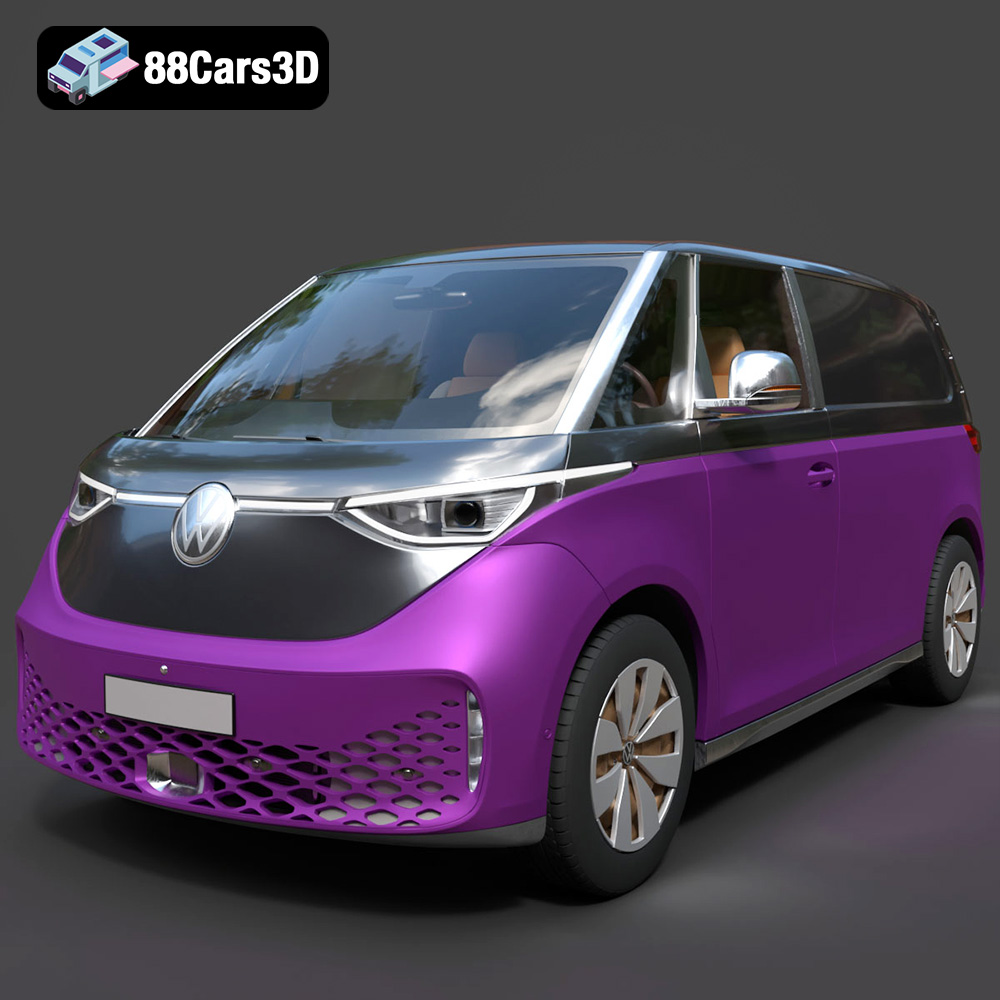
Texture: Yes
Material: Yes
Download the Volkswagen ID. Buzz Cargo 2023 3D Model featuring clean geometry, realistic detailing, and a fully modeled interior. Includes .blend, .fbx, .obj, .glb, .stl, .ply, .unreal, and .max formats for rendering, simulation, and game development.
Price: $19.99

Texture: Yes
Material: Yes
Download the Volkswagen ID. Buzz 2023 3D Model featuring clean geometry, realistic detailing, and a fully modeled interior. Includes .blend, .fbx, .obj, .glb, .stl, .ply, .unreal, and .max formats for rendering, simulation, and game development.
Price: $19.99
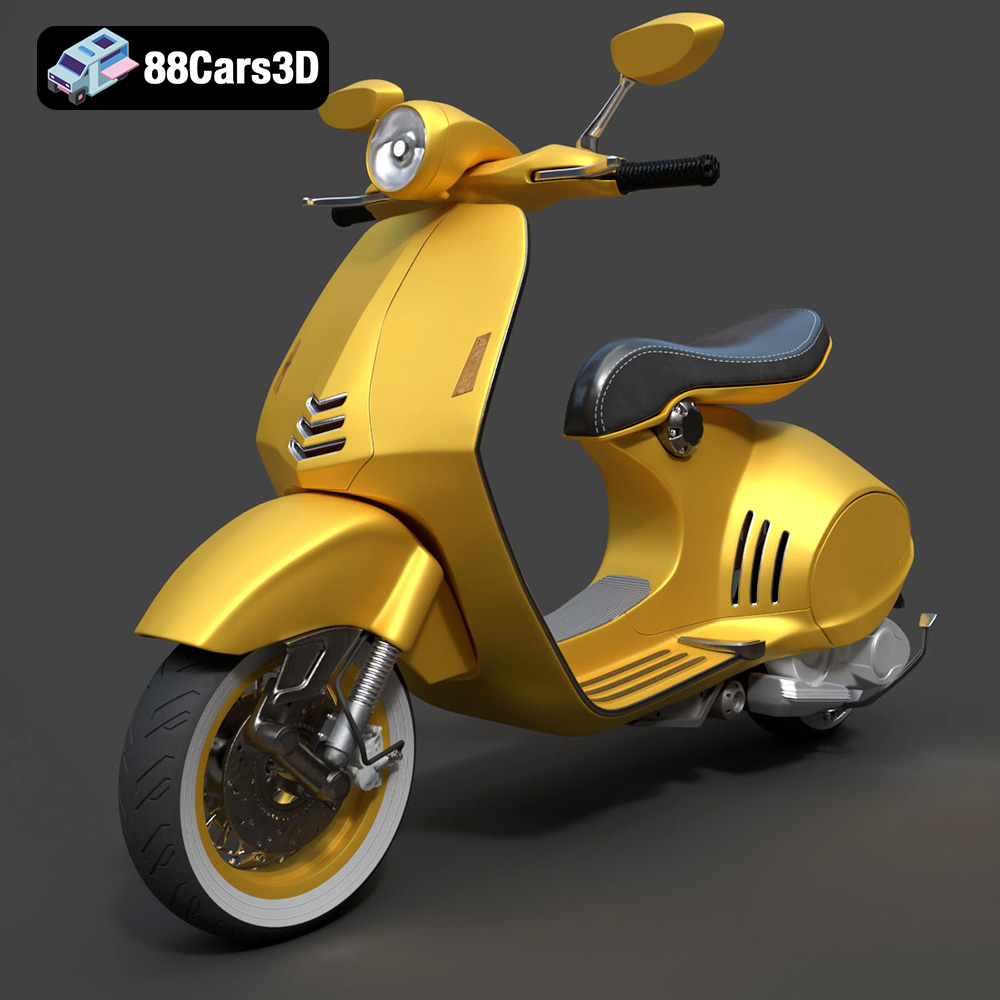
Texture: Yes
Material: Yes
Download the Vespa 946 3D Model featuring clean geometry, realistic detailing, and a fully modeled interior. Includes .blend, .fbx, .obj, .glb, .stl, .ply, .unreal, and .max formats for rendering, simulation, and game development.
Price: $19.99

Texture: Yes
Material: Yes
Download the Toyota Yaris Cross 3D Model featuring clean geometry, realistic detailing, and a fully modeled interior. Includes .blend, .fbx, .obj, .glb, .stl, .ply, .unreal, and .max formats for rendering, simulation, and game development.
Price: $19.99

Texture: Yes
Material: Yes
Download the Volkswagen Amarok 2019 3D Model featuring clean geometry, realistic detailing, and a fully modeled interior. Includes .blend, .fbx, .obj, .glb, .stl, .ply, .unreal, and .max formats for rendering, simulation, and game development.
Price: $19.99

