Get 50% OFF All Premium 3D & STL Models!

“`html
3D printing offers incredible potential for creating detailed car models, but tackling a large, complex design can be daunting. Many enthusiasts find that their printers simply can’t handle printing a complete car model in one go, either due to size limitations or the complexity of support structures required. This is where splitting the model into smaller, more manageable parts becomes essential. This guide provides a comprehensive walkthrough of splitting large 3D car models into printable components, covering everything from file preparation to slicing and post-processing. Whether you’re a seasoned 3D printing veteran or just starting your journey into automotive model creation, this article will equip you with the knowledge and techniques to successfully print even the most ambitious designs. Platforms like 88cars3d.com offer print-ready STL files that often benefit from being split for optimized printing, depending on your printer size.
Before diving into the splitting process, it’s crucial to understand the structure of STL files and the underlying mesh topology. STL (Stereolithography) is the most common file format for 3D printing. It represents the surface geometry of a 3D object as a collection of triangles. The quality of the STL file – specifically, the density and uniformity of the triangles – directly impacts the print quality. A poorly designed mesh can lead to errors during slicing and printing.
An STL file contains a list of triangles, each defined by three vertices and a normal vector. The normal vector indicates the direction the triangle is facing, which is essential for determining the inside and outside of the object. Problems arise when the normals are inconsistent or the mesh contains gaps, self-intersections, or non-manifold edges (edges shared by more than two faces). These issues can cause slicing software to misinterpret the geometry and produce flawed print instructions.
Before splitting any model, it’s crucial to ensure the STL file is “watertight” and free of errors. Use mesh repair tools like Netfabb Basic (free for personal use), Meshmixer, or the repair functionalities built into slicer software like Cura or PrusaSlicer. These tools can automatically detect and fix common mesh problems, such as:
For example, in Meshmixer, you can use the “Edit” -> “Make Solid” function, which remeshes the model to create a watertight and printable version. Adjust the “Solid Type” and “Solid Accuracy” parameters to optimize the remeshing process. A higher accuracy will result in a more detailed mesh but may also increase processing time.
Several software options can be used to split 3D models, each with its own strengths and weaknesses. The best choice depends on your experience level and the complexity of the model. Some popular choices include:
Meshmixer is a free and versatile tool ideal for splitting models, adding custom supports, and performing other mesh editing tasks. Its intuitive interface and sculpting tools make it a great choice for beginners. To split a model in Meshmixer, use the “Edit” -> “Separate Shells” function if the model consists of multiple disconnected parts. For dividing a single part, use the “Edit” -> “Plane Cut” tool. You can position and orient the cutting plane precisely, and Meshmixer will create separate objects along the cut.
Blender is a powerful, open-source 3D modeling software that offers advanced splitting capabilities. While it has a steeper learning curve than Meshmixer, it provides greater control over the splitting process. You can use boolean operations (e.g., “Boolean Modifier” with “Difference” or “Intersect” operations) to cut the model using custom-designed cutting objects. This allows for complex and precise splits along specific contours or shapes.
3D Builder is a simple and free tool included with Windows 10 and 11. It offers basic splitting functionality that is easy to use for straightforward cuts. Simply import the model and use the “Split” tool to define a cutting plane. While not as feature-rich as Meshmixer or Blender, it’s a convenient option for quick and simple splitting tasks.
The specific splitting technique you choose will depend on the geometry of the car model and the desired outcome. Here are some common methods:
Plane cutting involves dividing the model along a flat plane. This is suitable for splitting the car body into sections along its length or height. In Meshmixer, use the “Edit” -> “Plane Cut” tool. Adjust the plane’s position and orientation to define the cut. Choose whether to fill the resulting gaps with a flat surface (useful for creating a solid base for printing). For example, you might split the chassis from the body by aligning the plane along the point where they connect. This method is straightforward but might require additional work to create interlocking features.
Boolean operations use another 3D object (the “cutter”) to modify the original model. For instance, you could create a custom-shaped cutter in Blender and use the “Boolean Modifier” with the “Difference” operation to subtract the cutter from the car model, effectively splitting it along the cutter’s shape. The “Intersect” operation can be used to keep only the overlapping parts of the model and the cutter. This technique is ideal for creating complex splits along curved surfaces or intricate details. You can create interlocking keys using boolean operations to ensure proper alignment during assembly. For example, design small pegs on one part that fit into corresponding holes on another part.
Contour splitting involves dividing the model along a predefined curve or path. This is particularly useful for separating components like fenders, doors, or hoods that follow complex contours. In Blender, you can create a curve that follows the desired contour and then use the “Knife Project” tool to cut the model along that curve. This technique requires more precision and control but allows for highly accurate and aesthetically pleasing splits.
Once the model is split, the next crucial step is to optimize the orientation of each part for 3D printing. Proper orientation can significantly impact print quality, support structure requirements, and material usage.
The goal is to orient each part in a way that minimizes the amount of support material needed. Overhanging features require support structures to prevent them from collapsing during printing. Consider these strategies:
Ensure that each part has sufficient contact area with the build plate to prevent warping or detachment during printing. If a part has a small contact area, consider adding a brim or raft in the slicer software. A brim is a single-layer outline that extends outward from the base of the part, increasing the contact area. A raft is a multi-layer base that provides a larger and more stable foundation for the print.
Adjust the slicing parameters based on the material you’re using and the desired level of detail. Common parameters include:
These optimized parameters will significantly improve the final quality of your 3D printed car model. For more complex models, you might even consider adjusting these parameters for individual parts to further optimize their printing.
After printing, removing support structures and post-processing the parts are essential steps to achieve a polished and professional finish. The approach depends on the material and the type of support structures used.
Sanding is a crucial step for removing layer lines and achieving a smooth surface finish. Start with a coarse grit sandpaper (e.g., 220 grit) to remove large imperfections and then gradually move to finer grits (e.g., 400, 600, 800 grit) to polish the surface. Wet sanding (using sandpaper with water) can help to reduce friction and prevent the sandpaper from clogging. For hard-to-reach areas, use small sanding sponges or files.
Once the parts are smooth, you can apply paint and other finishes to enhance their appearance. Use a primer to prepare the surface for painting. Apply several thin coats of paint, allowing each coat to dry completely before applying the next. For a glossy finish, use a clear coat. Consider using automotive-grade paints and clear coats for a durable and professional look. Techniques like masking can be used to create intricate paint schemes. High-quality STL files for 3D printing printable car models are available from places such as 88cars3d.com.
The choice of material significantly affects the durability, appearance, and functionality of your 3D printed car model. Here’s a breakdown of popular materials:
PLA is a biodegradable thermoplastic that is easy to print and produces excellent surface quality. It’s a good choice for non-functional parts like body panels and decorative elements. PLA is relatively brittle and has low heat resistance, so it’s not suitable for parts that will be exposed to high temperatures or stress. Typical settings include a nozzle temperature of 200-220°C and a bed temperature of 60°C. PLA is a great option when you are just starting to split and print STL files. It’s forgiving and widely available.
PETG offers a good balance of strength, flexibility, and heat resistance. It’s more durable than PLA and can withstand higher temperatures. PETG is a good choice for parts that need to be slightly flexible or impact-resistant. Typical settings include a nozzle temperature of 230-250°C and a bed temperature of 70-80°C. It often requires more precise temperature control than PLA to avoid stringing.
ABS is a strong and heat-resistant thermoplastic commonly used in automotive applications. It’s a good choice for structural parts like the chassis and suspension components. ABS is more difficult to print than PLA and PETG, as it’s prone to warping and requires a heated enclosure. Typical settings include a nozzle temperature of 230-260°C and a bed temperature of 90-110°C. Vapor smoothing with acetone can be used to reduce layer lines on ABS parts.
Resin printing offers incredibly high detail and smooth surfaces, making it ideal for small, intricate parts like emblems, lights, and interior details. Resin parts are generally more brittle than FDM-printed parts and require careful handling. Various resin types are available, including standard resins, tough resins, and flexible resins. Settings vary widely depending on the resin type and printer. It is best to follow the resin manufacturer’s specific instructions.
Once all the parts are printed, post-processed, and painted, the final step is to assemble them and add any finishing touches to complete the car model.
Choose an adhesive that is compatible with the materials you used for printing. Cyanoacrylate (super glue) is a good general-purpose adhesive for bonding PLA, PETG, and ABS. Epoxy is a stronger adhesive that is suitable for bonding parts that will be subjected to stress. For resin parts, use a resin-compatible adhesive. Apply the adhesive sparingly to avoid creating a mess. Use clamps or tape to hold the parts together while the adhesive cures.
Carefully align the parts before bonding them together. Check the fit and make any necessary adjustments before applying adhesive. If the parts don’t fit perfectly, you may need to sand or file them down slightly. Interlocking features, such as pegs and holes created during the splitting process, can greatly simplify the alignment process.
Add any final details, such as decals, chrome accents, or lights, to complete the car model. Use masking tape to protect painted surfaces while applying decals. Apply a clear coat to protect the paint and decals. Congratulations, you have successfully split, printed, and assembled a complex 3D car model!
By following these steps and understanding the underlying principles, you can successfully split large 3D car models into manageable parts, optimize their printing, and achieve stunning results. Experiment with different techniques and materials to find what works best for you and your 3D printer.
Splitting large 3D models for printing is a valuable skill for any 3D printing enthusiast, particularly when creating detailed car models. This comprehensive guide has covered everything from understanding STL file structure and choosing the right software to optimizing part orientation, removing support structures, selecting materials, and assembling the final product. By mastering these techniques, you can overcome printer size limitations, reduce material usage, improve print quality, and ultimately bring your most ambitious automotive designs to life. Remember to prioritize proper mesh repair, strategic splitting, and careful post-processing for optimal results. Now it’s time to put your knowledge into practice. Start with a simple car model, experiment with different splitting techniques, and refine your workflow. With patience and persistence, you’ll be creating stunning 3D printed car models in no time. Be sure to check out 88cars3d.com for a wide selection of high-quality, printable car models to get you started. Good luck, and happy printing!
“`

Texture: Yes
Material: Yes
Download the Volvo Trucks Benz GT-001 3D Model featuring clean geometry, realistic detailing, and a fully modeled interior. Includes .blend, .fbx, .obj, .glb, .stl, .ply, .unreal, and .max formats for rendering, simulation, and game development.
Price: $29.99
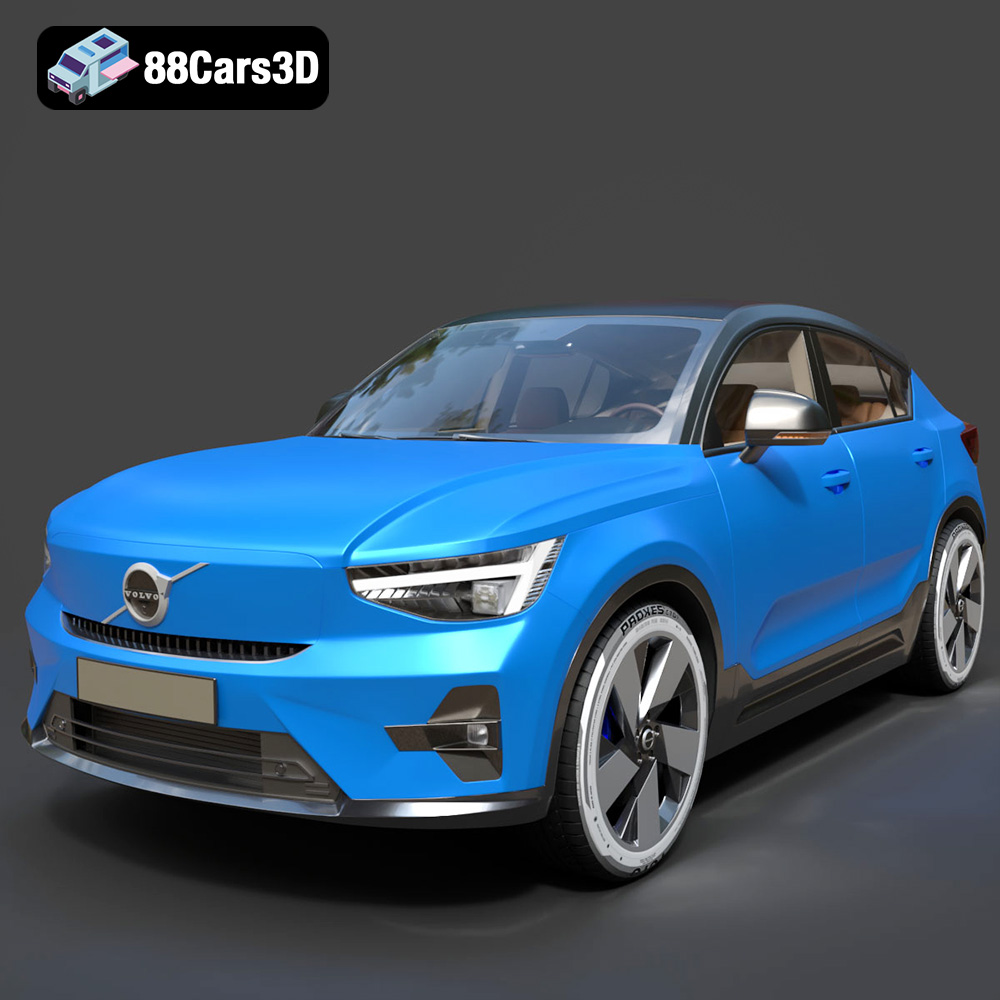
Texture: Yes
Material: Yes
Download the Volvo C40 Recharge 3D Model featuring clean geometry, realistic detailing, and a fully modeled interior. Includes .blend, .fbx, .obj, .glb, .stl, .ply, .unreal, and .max formats for rendering, simulation, and game development.
Price: $19.99
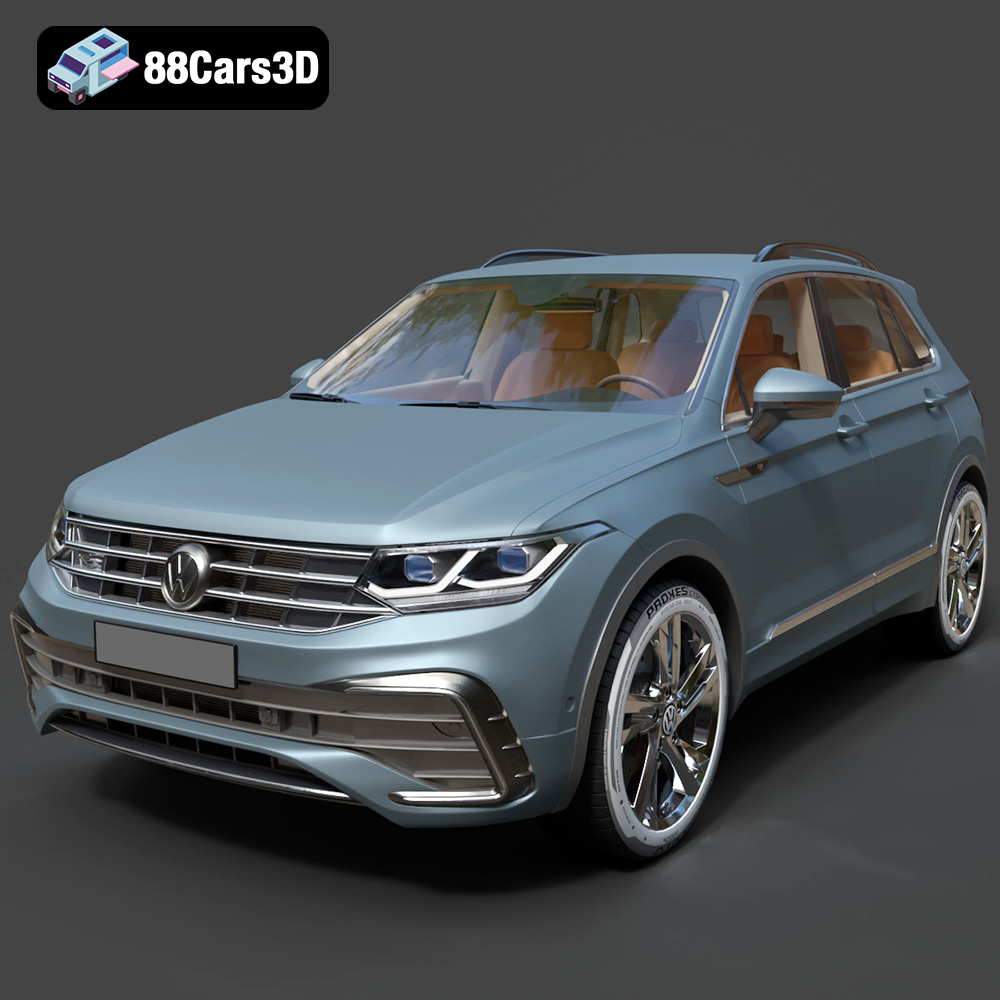
Texture: Yes
Material: Yes
Download the Volkswagen Tiguan 2021 3D Model featuring clean geometry, realistic detailing, and a fully modeled interior. Includes .blend, .fbx, .obj, .glb, .stl, .ply, .unreal, and .max formats for rendering, simulation, and game development.
Price: $19.99
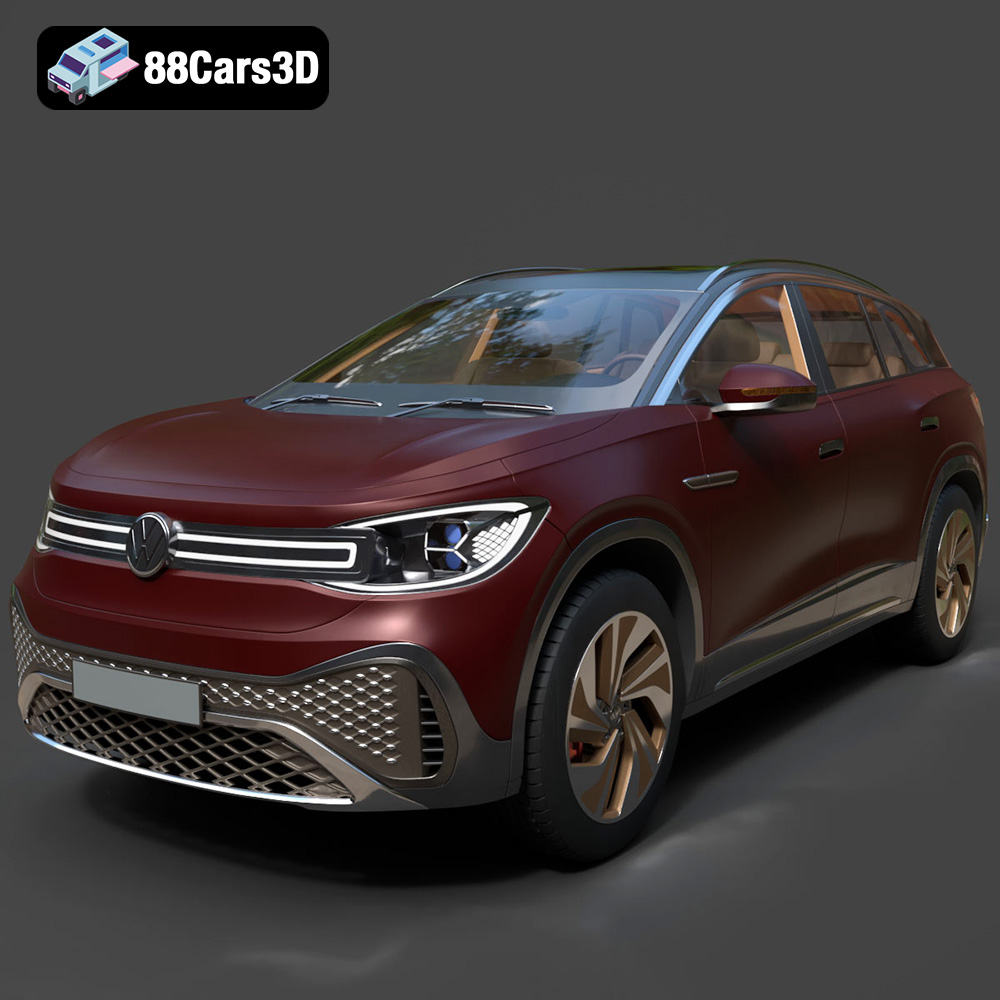
Texture: Yes
Material: Yes
Download the Volkswagen ID6 CROZZ 2022 3D Model featuring clean geometry, realistic detailing, and a fully modeled interior. Includes .blend, .fbx, .obj, .glb, .stl, .ply, .unreal, and .max formats for rendering, simulation, and game development.
Price: $19.99
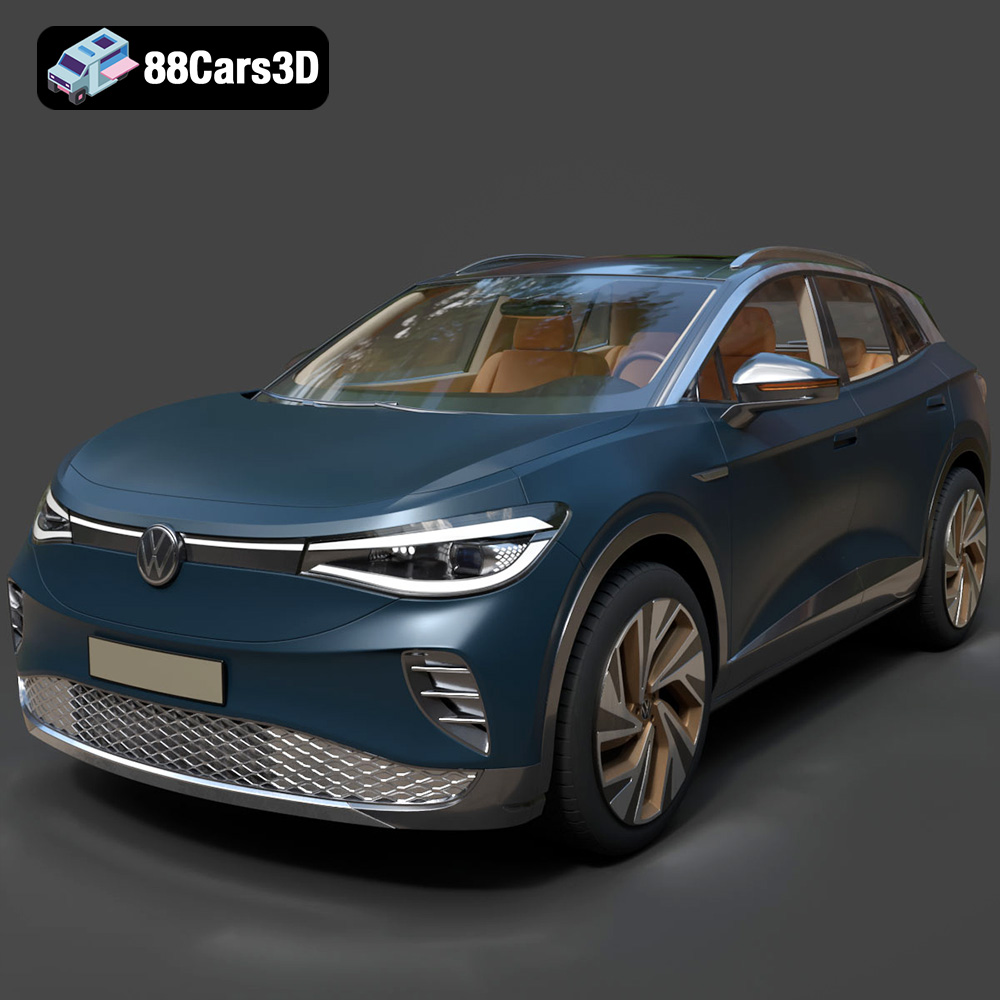
Texture: Yes
Material: Yes
Download the Volkswagen ID4 2021 3D Model featuring clean geometry, realistic detailing, and a fully modeled interior. Includes .blend, .fbx, .obj, .glb, .stl, .ply, .unreal, and .max formats for rendering, simulation, and game development.
Price: $19.99
Texture: Yes
Material: Yes
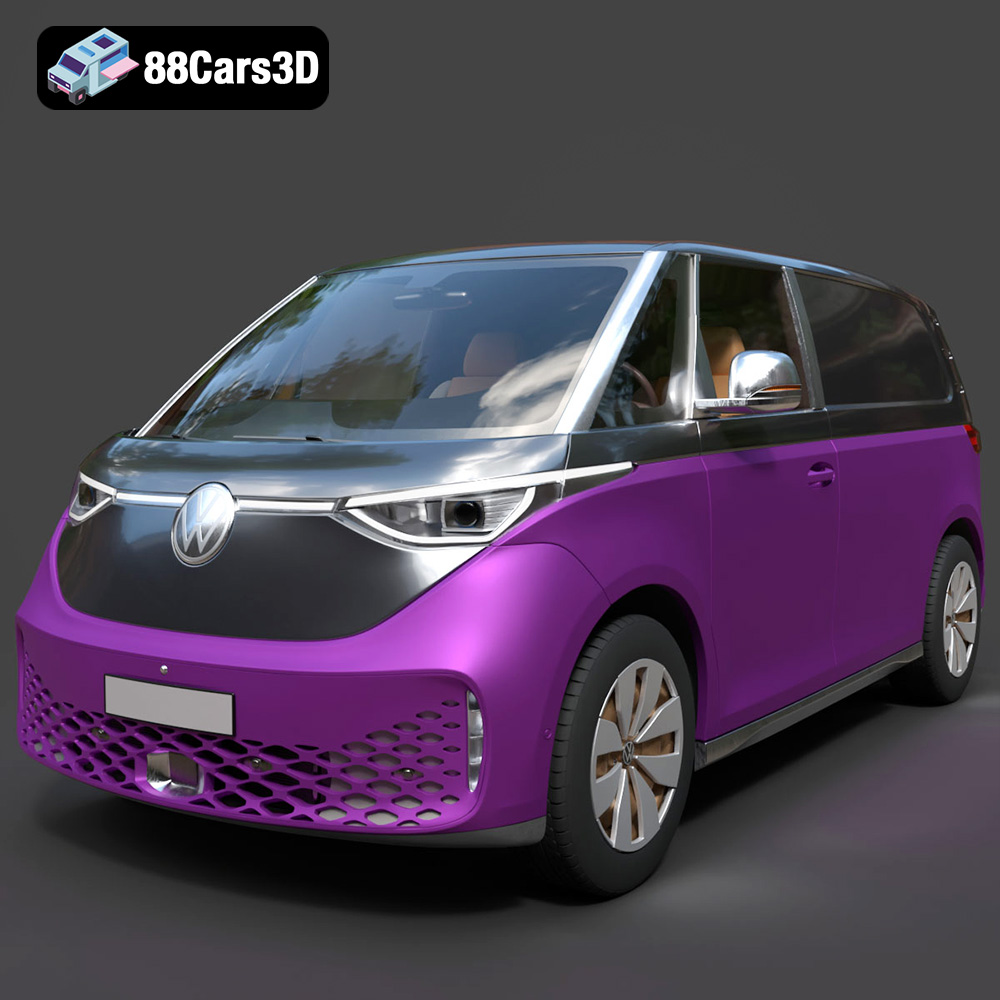
Download the Volkswagen ID. Buzz Cargo 2023 3D Model featuring clean geometry, realistic detailing, and a fully modeled interior. Includes .blend, .fbx, .obj, .glb, .stl, .ply, .unreal, and .max formats for rendering, simulation, and game development.
Price: $19.99
Texture: Yes
Material: Yes
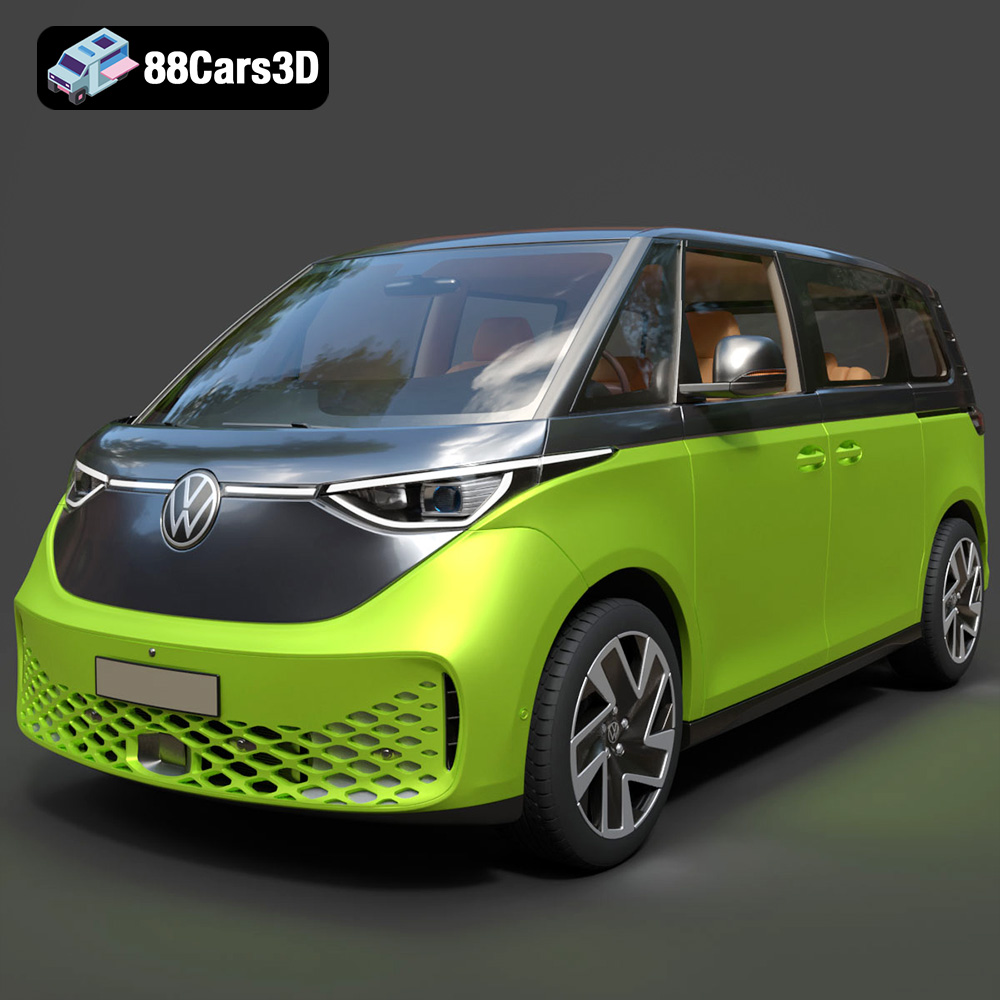
Download the Volkswagen ID. Buzz 2023 3D Model featuring clean geometry, realistic detailing, and a fully modeled interior. Includes .blend, .fbx, .obj, .glb, .stl, .ply, .unreal, and .max formats for rendering, simulation, and game development.
Price: $19.99
Texture: Yes
Material: Yes
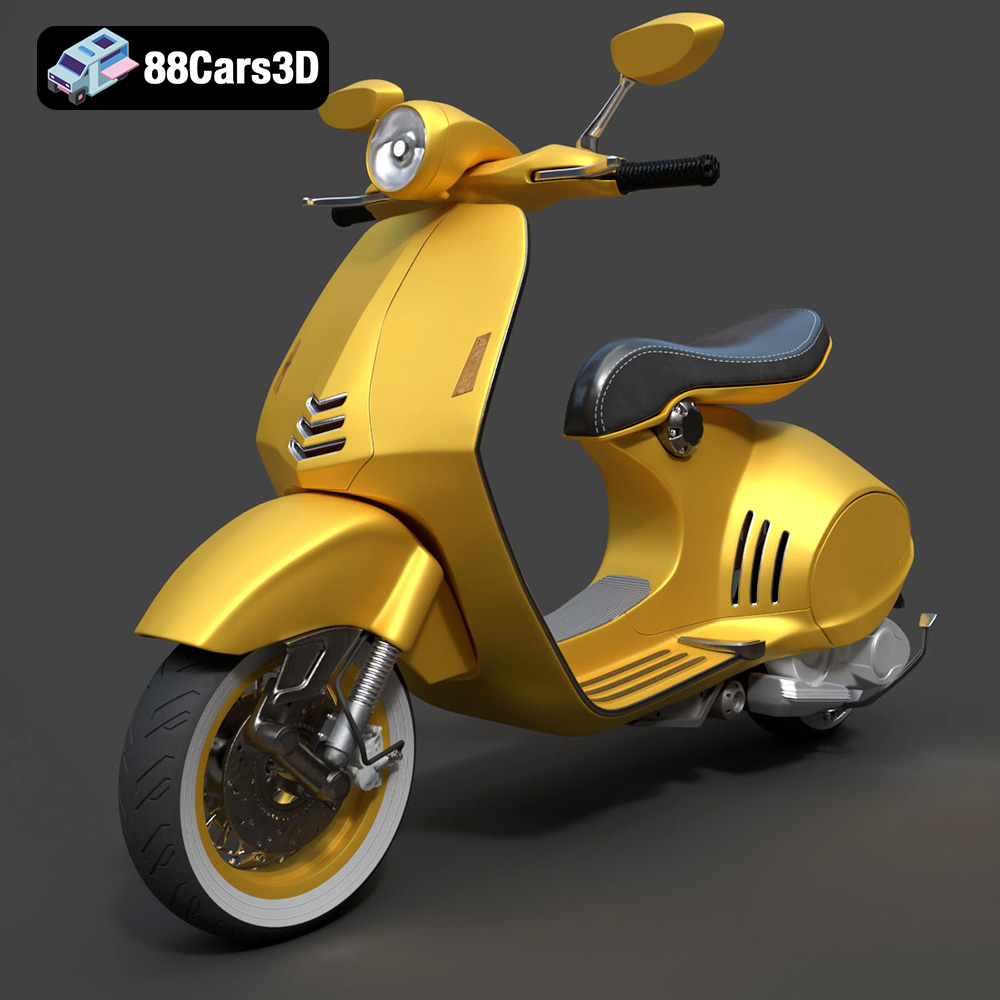
Download the Vespa 946 3D Model featuring clean geometry, realistic detailing, and a fully modeled interior. Includes .blend, .fbx, .obj, .glb, .stl, .ply, .unreal, and .max formats for rendering, simulation, and game development.
Price: $19.99

Texture: Yes
Material: Yes
Download the Toyota Yaris Cross 3D Model featuring clean geometry, realistic detailing, and a fully modeled interior. Includes .blend, .fbx, .obj, .glb, .stl, .ply, .unreal, and .max formats for rendering, simulation, and game development.
Price: $19.99

Texture: Yes
Material: Yes
Download the Volkswagen Amarok 2019 3D Model featuring clean geometry, realistic detailing, and a fully modeled interior. Includes .blend, .fbx, .obj, .glb, .stl, .ply, .unreal, and .max formats for rendering, simulation, and game development.
Price: $19.99

